'%3e%3crect%20id='矩形_7888'%20data-name='矩形%207888'%20class='cls-1'%20width='20'%20height='20'%20rx='4'%20transform='translate(6260%20-4478)'/%3e%3cpath%20id='联合_155'%20data-name='联合%20155'%20class='cls-2'%20d='M6.074,12.147a6.207,6.207,0,0,1-.621-.031A6.087,6.087,0,0,1,.031,6.694a6.177,6.177,0,0,1,0-1.241A6.086,6.086,0,0,1,5.453.031,6.177,6.177,0,0,1,6.074,0H9.152V2.029H6.074a4.053,4.053,0,0,0-3.916,3.03H9.152V7.088H2.158a4.053,4.053,0,0,0,3.916,3.03H9.152v2.029Z'%20transform='translate(6264.693%20-4473.9)'/%3e%3c/g%3e%3c/svg%3e)
Key Takeaways
- The Access Shortcut: Using RowSpeak allows you to perform complex subtractions across multiple sheets using simple voice or text commands.
- The "-" Logic: Unlike the
SUMfunction, Excel doesn't have a dedicatedSUBTRACTfunction; it relies on the minus sign operator. - Batch Efficiency: Manual subtraction is fine for two cells, but AI is the superior choice for calculating differences across thousands of rows.
- Zero Formula Stress: You don't need to remember syntax or handle "Value Errors" when using natural language automation.
The Problem with "Minus" in Excel
While "How to do subtraction in Excel" seems straightforward, many users get stuck because Excel lacks a "SUBTRACT" function. You can't just type =SUBTRACT(A1, B1). This often leads to confusion when trying to subtract ranges, multiple columns, or negative numbers.
Whether you are calculating profit margins or tracking inventory depletion, finding the most efficient way to get your "Net" result is essential for data accuracy.
Method 1: The Traditional Manual Way
For quick calculations, the manual method is the standard approach. Here is how to do it step-by-step:
- Select the cell: Click the cell where you want the result to appear.
- Start the formula: Type the equal sign (
=). - Enter the numbers or cells: * Static: Type
=100-50.- Cell Reference: Click the first cell (minuend), type
-, and click the second cell (subtrahend). Example:=A2-B2.
- Cell Reference: Click the first cell (minuend), type
- Press Enter: The result will appear instantly.
- Subtraction across a range: To subtract multiple cells from one, use
=A2-SUM(B2:B10). - Fill Down: Drag the fill handle (the small green square) down to apply the subtraction to the entire column.
The Bottleneck: While simple, this method is prone to "broken" formulas if you move cells, and it requires manual updates if your data structure changes. Forcing subtraction across different sheets often leads to the dreaded #REF! error.
Method 2: The RowSpeak One-Click Solution
If you want to subtract values across large datasets without writing a single formula, RowSpeak is the answer. It turns your intent into action using natural language.

Why it’s better:
- No "Minus" required: You don't need to worry about syntax or nested
SUMfunctions. - Cross-Sheet Intelligence: RowSpeak can subtract values from different tabs without you having to click back and forth.
- Smart Handling: It automatically ignores text or empty cells that would usually cause errors in a manual formula.
How to do it:
- Upload your Excel file to the RowSpeak dashboard.

- Type your command:
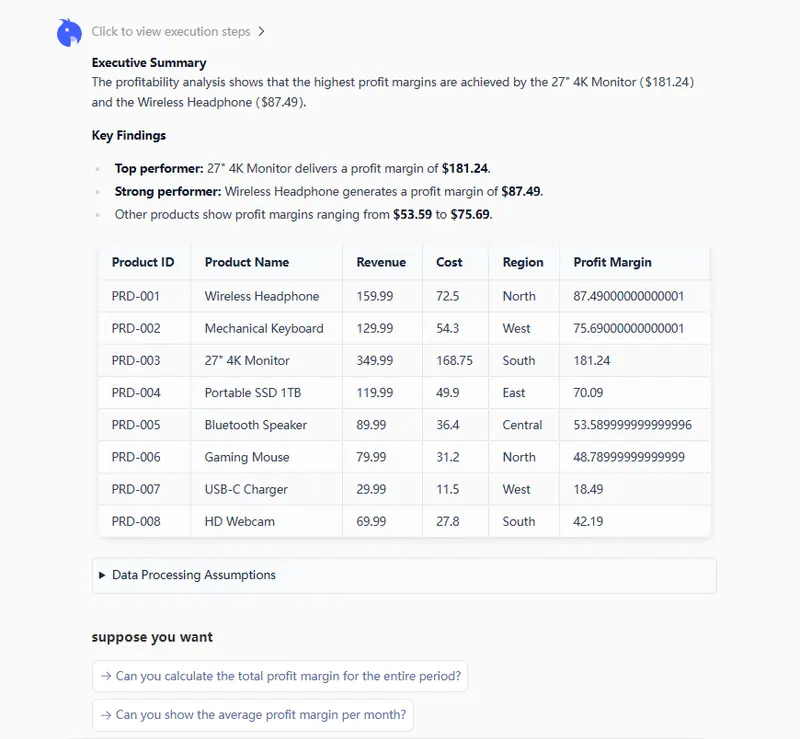
Subtract the 'Cost' column from the 'Revenue' column and name the new column 'Profit Margin'.

- Refine and Export: Preview the calculation and download your updated spreadsheet.
Comparison: Manual vs. AI Automation
| Feature | Manual Formula (=A-B) |
RowSpeak (AI) |
|---|---|---|
| Complexity | Easy for 2 cells, hard for ranges | Zero effort for any scale |
| Speed | Slow (requires dragging/copying) | Instant (one command) |
| Error Handling | Manual (fixes #VALUE! errors) |
Automatic (cleans data first) |
| Multi-Sheet | Complex linking required | Simple verbal instruction |
FAQ: Common Questions About Subtraction
1. Is there a SUBTRACT function in Excel?
No. Excel uses the minus sign (-) as its primary subtraction operator. To subtract a group of numbers from a total, the most common formula is =A1-SUM(B1:B10).
2. How do I subtract a whole column from another?
Manually, you write the formula in the first row (=A2-B2) and drag it down. With AI, you simply say: "Give me the difference between Column A and Column B."
3. Why is my subtraction formula showing a date?
This usually happens if the cell is formatted as a "Date." To fix it, right-click the cell, select Format Cells, and change the category to General or Number.
One-Wave Conclusion: Stop Calculating, Start Analyzing
If you are tired of debugging formulas and manually dragging cell references, it’s time to change how you work. Subtraction should be a result, not a chore. Whether you're cleaning messy data or calculating complex balances, RowSpeak handles the math so you can focus on the meaning.