'%3e%3crect%20id='矩形_7888'%20data-name='矩形%207888'%20class='cls-1'%20width='20'%20height='20'%20rx='4'%20transform='translate(6260%20-4478)'/%3e%3cpath%20id='联合_155'%20data-name='联合%20155'%20class='cls-2'%20d='M6.074,12.147a6.207,6.207,0,0,1-.621-.031A6.087,6.087,0,0,1,.031,6.694a6.177,6.177,0,0,1,0-1.241A6.086,6.086,0,0,1,5.453.031,6.177,6.177,0,0,1,6.074,0H9.152V2.029H6.074a4.053,4.053,0,0,0-3.916,3.03H9.152V7.088H2.158a4.053,4.053,0,0,0,3.916,3.03H9.152v2.029Z'%20transform='translate(6264.693%20-4473.9)'/%3e%3c/g%3e%3c/svg%3e)
Key Takeaways
- Instant Recovery: RowSpeak lets you unhide any column—or all hidden columns at once—using a single plain-English command, no menu-diving required.
- Data Integrity First: Manual unhiding can be tricky when multiple columns are hidden in sequence; AI automation surfaces every hidden column without missing one.
- Batch Efficiency: Unhiding dozens of scattered columns manually is error-prone and slow; RowSpeak handles the entire sheet in seconds.
- Zero Learning Curve: You don't need to remember keyboard shortcuts or navigate nested menus to get your data back.
Why Are Your Columns Missing?
"How to unhide columns in Excel" is one of the most searched Excel questions—and for good reason. Hidden columns are easy to create accidentally (a stray right-click, a colleague's cleanup, or an imported template) and surprisingly frustrating to find and restore.
Whether you've inherited a spreadsheet with mystery gaps in the column headers, or you deliberately hid columns earlier and now need them back, the steps below will get you sorted in under a minute.
Method 1: The Traditional Manual Way
Option A — Right-Click Method
- Spot the hidden column gap: Look for a jump in the column header letters (e.g., columns skip from A to C, meaning B is hidden).
- Select the surrounding columns: Click the header of the column to the left of the gap (e.g., A), then hold
Shiftand click the header to the right (e.g., C). - Right-click the selection → Click "Unhide".
Option B — Ribbon Method
- Select the columns on either side of the hidden gap.
- Go to Home → Format → Hide & Unhide → Unhide Columns.
Option C — Unhide All Columns at Once
- Press
Ctrl + Ato select the entire worksheet. - Go to Home → Format → Hide & Unhide → Unhide Columns.
Option D — Keyboard Shortcut
- Select the surrounding columns.
- Press
Alt + H + O + U + Lin sequence.
The Bottleneck: These steps require you to first notice a column is hidden—not always obvious in large spreadsheets. Non-adjacent hidden columns mean repeating the whole process multiple times.
Method 2: The RowSpeak One-Command Solution

Why It's Better
- No menus to navigate: Skip the right-click dance entirely.
- Finds every hidden column: Scans the whole file automatically.
- Works on complex files: Multi-sheet workbooks, protected views, imported templates—all handled.
How to Do It
Step 1 — Upload your file to the RowSpeak dashboard.

Step 2 — Type your command:
Unhide all hidden columns in this sheet.
Or more specific:
Show the hidden columns between column B and column F.

Step 3 — Preview the result — RowSpeak shows exactly which columns were restored before you commit.
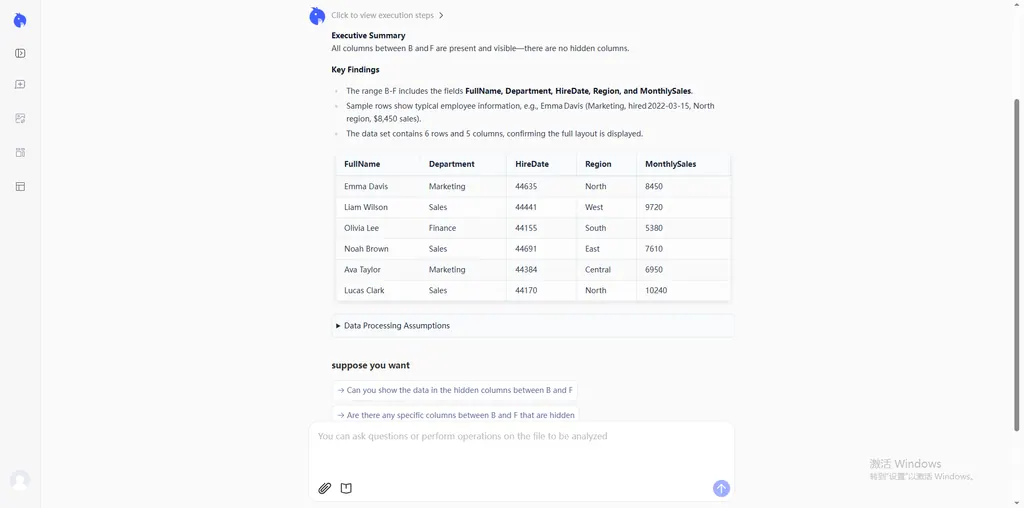
Step 4 — Refine and Export — Iterate on your results until the layout is perfect. Once you're ready, export and download your file for immediate analysis.
Comparison: Manual vs. AI Automation
| Feature | Manual Method | RowSpeak (AI) |
|---|---|---|
| Effort | Multiple clicks per hidden column | One sentence for the entire file |
| Finding Hidden Columns | Must spot gaps visually | Automatically detects all hidden columns |
| Batch Processing | Repeat steps for each hidden group | Instant, whole-sheet restoration |
| Error Risk | Easy to miss non-adjacent columns | Comprehensive scan, nothing missed |
| Skill Required | Needs menu knowledge | Plain English only |
FAQ: Common Questions About Unhiding Columns in Excel
1. Why can't I see the "Unhide" option when I right-click?
You haven't selected columns on both sides of the gap. If column A is hidden, use the Name Box—type A1, press Enter, then use the Ribbon method.
2. How do I unhide column A specifically?
Click the Name Box, type A1, press Enter, then go to Home → Format → Hide & Unhide → Unhide Columns.
3. How do I unhide multiple columns at once?
Ctrl + A → Home → Format → Hide & Unhide → Unhide Columns. Or with RowSpeak: "Unhide all columns in this workbook."
4. Why do my columns keep getting hidden?
Often caused by an active filter (check the Data tab) or column width set to 0. Fix width by right-clicking → Column Width → set to 8.43.
5. Will unhiding columns affect my formulas? No. It's purely a display change—all cell values and formula references remain intact.
6. Can I unhide columns in a protected sheet? Not without the password. Go to Review → Unprotect Sheet first. RowSpeak will flag this and guide you through.
Stop Hunting, Start Commanding
Efficiency isn't about knowing every Excel menu by heart—it's about getting to your data as fast as possible. The next time your columns go missing, skip the right-click maze. Just tell RowSpeak what you need.
🚀 Ready to Unhide Columns in Seconds?
Stop clicking through menus. Let RowSpeak find and restore every hidden column for you—instantly.