
Image to Excel and Image to Table Converter
Image to Excel Converter for Tables, Screenshots, and Scans
Best for
Image tables
Screenshots, scanned documents, invoices, receipts, and phone photos with visible tables.
Output
XLSX workbook
Rows and columns you can sort, filter, add formulas to, and chart.
After export
Analyze in chat
Ask questions, summarize data, or create charts from the converted table.
Before and after
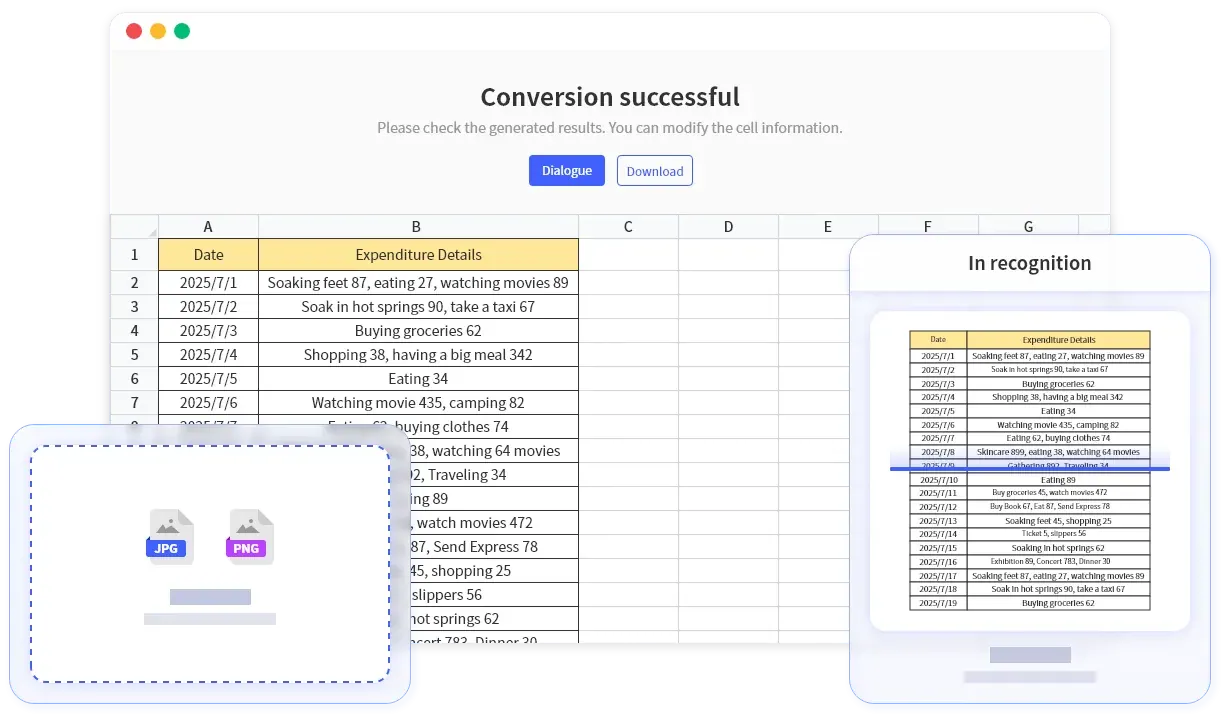
Table image becomes Editable spreadsheet
See how a table image becomes an editable spreadsheet. Upload, review the extracted data, then download or continue analyzing.
Input
Screenshots, scans, and photos
Output
Editable XLSX workbook
Then
Clean, chart, analyze, download
- Row and column structure is preserved for spreadsheet editing.
- Numbers stay in separate cells, ready for formulas and sorting.
- You can review and correct the result before downloading.
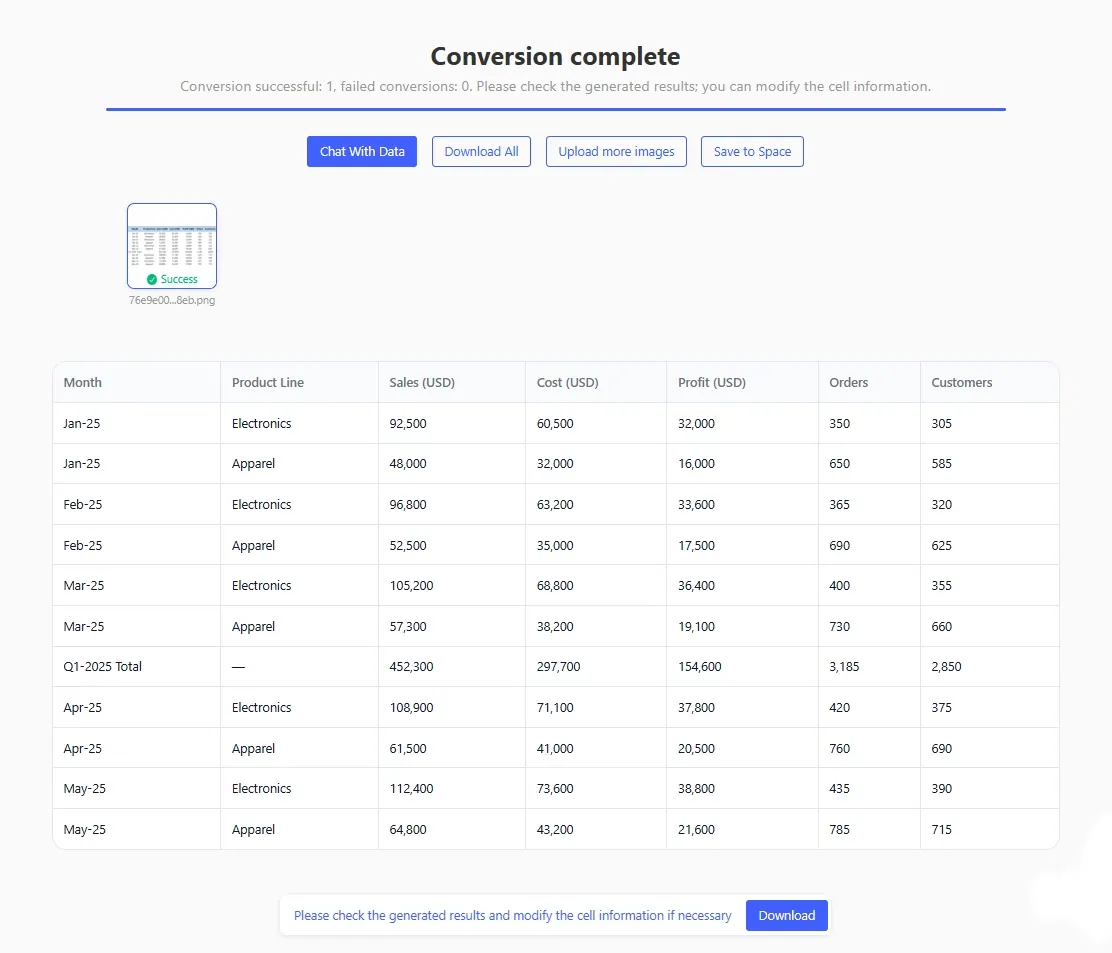
| Month | Product Line | Sales | Cost | Profit |
|---|---|---|---|---|
| Jan-25 | Electronics | 92,500 | 60,500 | 32,000 |
| Jan-25 | Apparel | 48,000 | 32,000 | 16,000 |
| Feb-25 | Electronics | 96,800 | 63,200 | 33,600 |
| Feb-25 | Apparel | 52,500 | 35,000 | 17,500 |
| Q1 total | All lines | 289,800 | 190,700 | 99,100 |
How the image-to-table conversion works
From image pixels to reviewable spreadsheet cells
Headers
01Column headers become spreadsheet fields
The converter separates labels such as Month, Product Line, Sales, Cost, and Profit into spreadsheet columns instead of flattening them into plain OCR text.
Numbers
02Numbers stay calculation-ready
Values land in their own cells so you can sort, total, chart, or apply formulas immediately after export.
Structure
03Rows and groupings are preserved
Repeated categories across months stay aligned, and summary rows like totals remain in the right position.
Review
04Check the result before downloading
Preview the extracted image table, fix any questionable cells, then export when you're satisfied with the Excel output.
Image to Excel Product Features
Built for screenshot, scan, and photo-based table extraction
Table-aware OCR
Detects table boundaries, headers, numbers, and repeated row structure from screenshots, scans, and mobile photos.
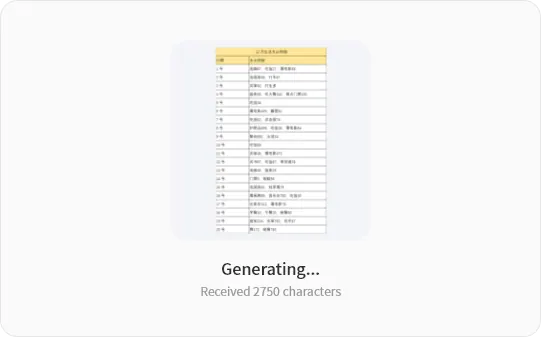
Review before download
Preview the extracted grid, inspect questionable cells, and make quick corrections before exporting the final spreadsheet.

Analyze the converted table
Ask follow-up questions, summarize totals, identify trends, or create charts after the image has become structured data.

Excel-ready export
Download an editable XLSX file or keep the result in RowSpeak for additional cleanup, charting, and reporting work.
How It Works
Simple Steps to Get Started
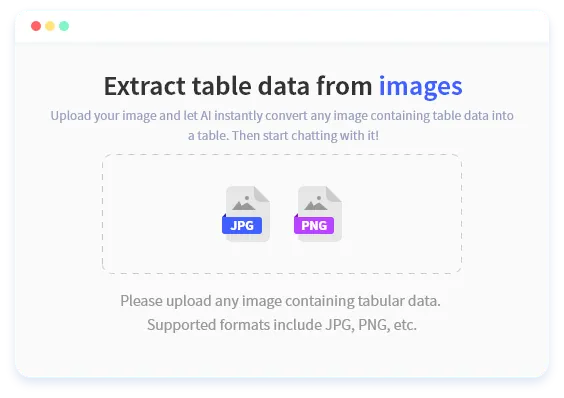
1. Upload the image
Use PNG, JPG, or JPEG files that contain table data, such as a dashboard screenshot, paper form, invoice, or report photo.
2. RowSpeak rebuilds the table
The conversion engine identifies rows, columns, headers, numbers, and cell text, then turns the image into an editable grid.
3. Review, analyze, and download
Check the extracted result, ask analysis questions, generate charts, or download the converted table as an Excel workbook.
Not sure which tool to use?
Choose the right converter for your file type
Screenshot or photo of a table
Image to Excel
Best when you can see the table but can't copy the data from the source.
PDF report with tables
PDF to Excel
Handles multi-page documents and embedded tables inside PDF files.
Try itExisting spreadsheet file
Spreadsheet analysis
If your data is already in XLSX or CSV, skip conversion and analyze it directly.
Try itImage with mixed content
Crop the table area first
Uploading just the table portion gives cleaner, more accurate results.
Image to table vs. OCR vs. manual entry
Choose the right workflow when a table is trapped in a screenshot, scan, or photo
| What you need | Manual retyping | Basic OCR | RowSpeak |
|---|---|---|---|
| Get rows and columns into a spreadsheet | Slow, error-prone retyping | Often outputs plain text | Structured table with headers and cells |
| Numbers ready for formulas | You format each cell yourself | Text that looks like numbers | Separate numeric cells you can calculate with |
| Keep totals in the right place | Easy to misplace rows | No awareness of summary rows | Totals and subtotals stay where they belong |
| Do something with the data after | Start over in Excel | Copy-paste into another tool | Analyze, chart, or export directly in RowSpeak |
Why Choose Us
Reasons to Choose RowSpeak
Less manual data entry
Move table data from an image into a spreadsheet without retyping every row and column by hand.
More than OCR
After conversion, continue working with the table using RowSpeak chat, cleanup, charting, and reporting tools.
Works with business tables
Useful for sales summaries, invoice lines, price lists, inventory counts, research tables, and recurring report screenshots.
Secure and private
Files are transmitted over encrypted connections and remain under your RowSpeak account permissions.
When your table is stuck in an image
Turn screenshots, scans, and photos into spreadsheet data you can sort, calculate, and report on.
Dashboard screenshots
Convert tables from web dashboards and BI tools that don't offer data export.
Invoices and receipts
Extract line items, quantities, prices, and totals for reconciliation or expense tracking.
Scanned documents
Digitize printed tables, paper forms, and field collection sheets into editable spreadsheets.
Inventory and price lists
Turn supplier catalogs, shelf counts, and logistics tables into sortable data.
Financial reports
Pull tables from report screenshots for pipeline reviews, budget tracking, or forecasting.
Research data
Extract tables from academic papers, survey results, or industry reports for analysis.
Supported formats
What you can upload and what you get back
.png .jpg .jpeg
Input formats
PNG, JPG, and JPEG images containing table data. For PDF files, use the PDF to Excel converter instead.
Up to 300 MB
File size limits
Free accounts support files up to 5 MB. Paid plans handle larger files depending on your tier.
XLSX + AI analysis
Output options
Download as XLSX, or keep the table in RowSpeak to clean, chart, summarize, or ask questions about the data.
Free
20 / month
Good for trying it out or occasional use.
Essential
150 / month
For regular individual conversion work.
Professional
Unlimited
For daily spreadsheet and document workflows.
Premium
Unlimited
For teams and high-volume processing.
Related workflows
Choose the guide that matches the image table you need to convert.
Screenshot to Excel
Turn dashboard screenshots, SaaS report captures, or shared screen images into an editable workbook for KPI review and reporting with review steps before export.
Read workflowReceipt image to spreadsheet
Turn receipt photos, expense snapshots, and small purchase tables into a spreadsheet ready for expense review or reimbursement with review steps before export.
Read workflowScan table into Excel
Turn printed forms, paper tables, and field collection sheets into an Excel table that can be sorted, filtered, and checked with review steps before export.
Read workflowOCR invoice table extraction
Turn invoice images with line items, quantities, tax, and totals into a reviewable invoice workbook for reconciliation with review steps before export.
Read workflowImage table converter comparison
Turn screenshots, scanned forms, invoice photos, and table images into a decision rule for choosing manual entry, OCR, AI extraction, or Excel import with review steps before export.
Read workflowCommon Questions About Image to Excel
Can I convert an image to an Excel table?
Yes. Upload a PNG, JPG, or JPEG file that contains a visible table. RowSpeak extracts the row and column structure, lets you review the result, and exports an editable XLSX workbook.
What is the difference between image to Excel and image to table?
Image to table means extracting structured rows and columns from an image. Image to Excel adds the spreadsheet output step, so the extracted table becomes an editable Excel file.
What kinds of images work best?
Clear screenshots and scans with visible row and column boundaries work best. Blurry photos, tilted pages, handwriting, and low contrast images may require manual review.
Can I edit the data after conversion?
Yes. You can review the extracted table, ask RowSpeak to clean or analyze it, and download the result as an editable Excel file.
What if the conversion has errors?
You can preview the extracted table before downloading. If any cells look wrong, you can correct them in the review step or ask RowSpeak to help clean the data.
What image formats do you support?
RowSpeak supports PNG, JPG, and JPEG image uploads for Image to Excel. For PDF files, use the PDF to Excel workflow.
Ready to Convert Images to Excel?
Upload a table image, review the extracted grid, then export or analyze it in RowSpeak.
Convert Image to Excel