Key Takeaways
- Invoice OCR should extract both header fields and line-item tables, not just a block of text.
- The essential validation step is reconciliation: line subtotal plus tax, freight, discount, and other charges should match the invoice total.
- RowSpeak's image to Excel converter is useful for invoice images with visible line-item tables. For PDF invoices, use PDF to Excel.
- AP teams should mark low-confidence, missing, or mismatched rows for review instead of forcing automatic approval.
Why Invoice OCR Fails When It Only Extracts Text
Invoices are not simple documents. They mix header information, vendor details, payment terms, line items, tax, discounts, shipping, and totals. A basic OCR tool may read the words, but accounts payable needs structure.
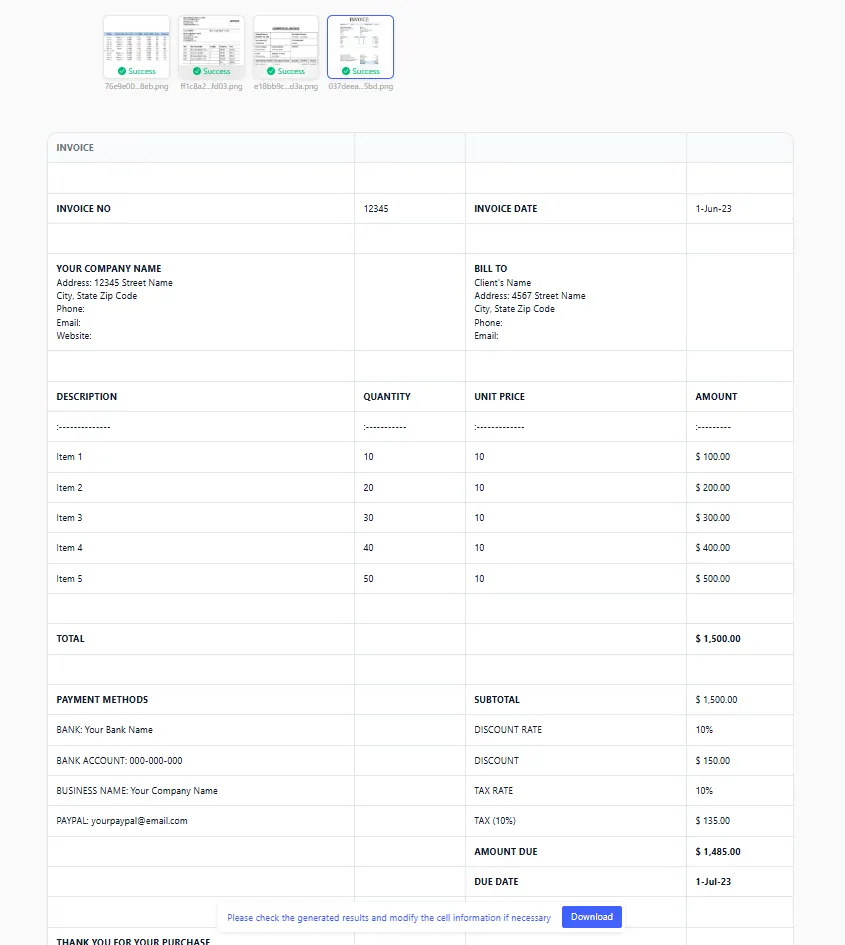
For a useful Excel output, an invoice image should become two related tables:
Invoice Header
| Field | Example |
|---|---|
| Vendor | Northwind Supplies |
| Invoice number | INV-10482 |
| Invoice date | 2026-05-31 |
| Due date | 2026-06-30 |
| Currency | USD |
| Invoice total | 4,280.50 |
Invoice Line Items
| Field | Example |
|---|---|
| SKU | CBL-20 |
| Description | USB-C Cable 2m |
| Quantity | 50 |
| Unit price | 12.50 |
| Line amount | 625.00 |
| Tax code | Standard |
That structure is what lets you reconcile invoices, match purchase orders, and analyze vendor spend later.
Step-by-Step: Extract an Invoice Table into Excel
Step 1: Capture the Invoice Clearly
For an image invoice, make sure:
- The full invoice is visible.
- The line-item table is not cut off.
- Vendor name, invoice number, dates, and totals are readable.
- The photo is not angled.
- Shadows do not cover totals or tax lines.
If the invoice includes sensitive bank details, follow your company's data policy before uploading.
Step 2: Upload to RowSpeak
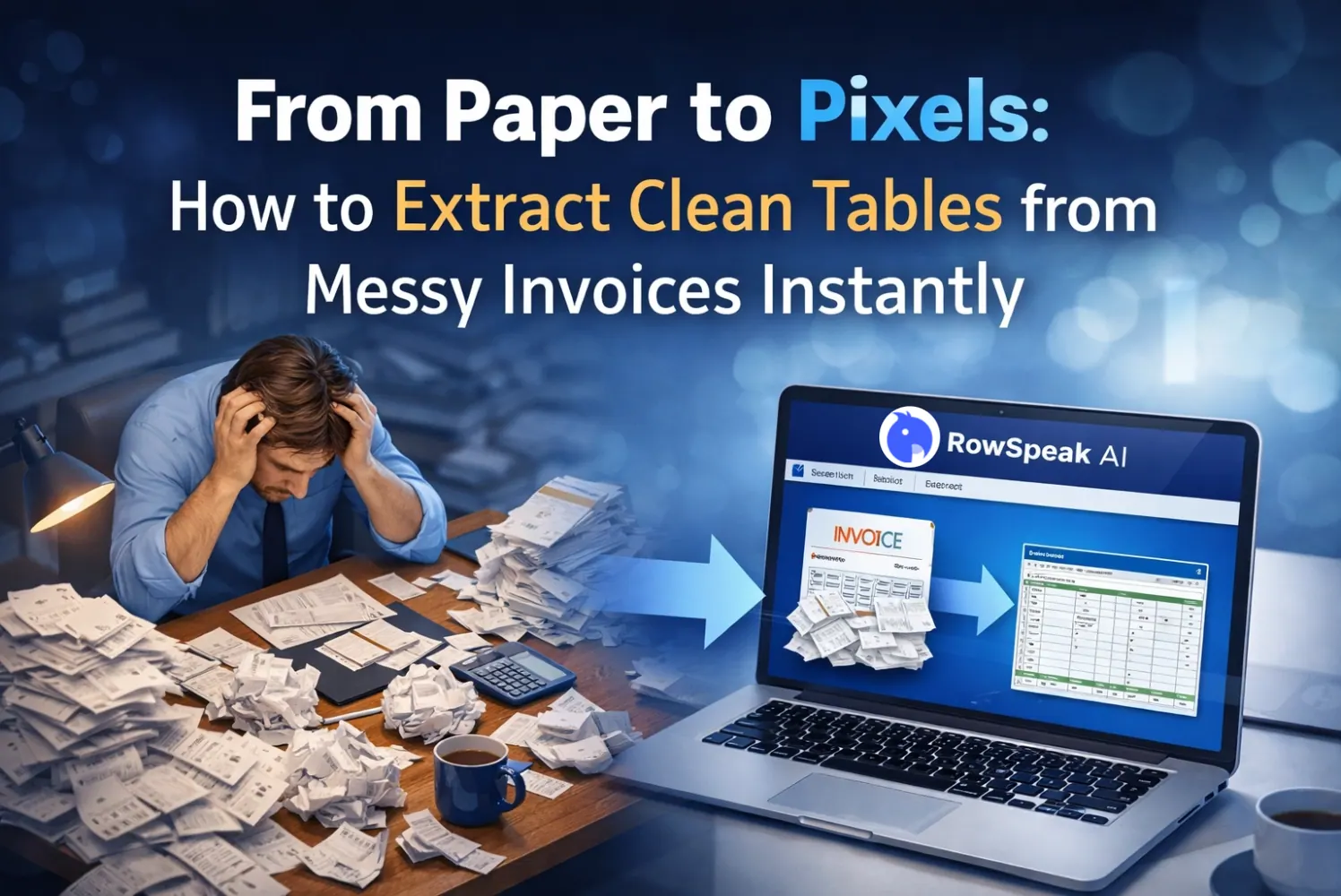
Open the image-to-table converter and upload the invoice image. RowSpeak will detect the visible table and create a preview spreadsheet.
Step 3: Ask for an AP-Friendly Schema
After extraction, standardize the output. A clean schema is easier to audit than a spreadsheet that simply mirrors the invoice layout.
Use a prompt like:
Create an invoice workbook with two tables: Invoice_Header and Invoice_Line_Items. Extract vendor, invoice_number, invoice_date, due_date, currency, subtotal, tax, shipping, discount, and total into the header table. Extract SKU, description, quantity, unit_price, line_amount, and tax_code into the line item table.
If the invoice has no SKU column:
If SKU is not visible, leave SKU blank and mark the row review_status as Needs Review.
Step 4: Reconcile the Invoice Total
This is the most important trust step.
Use this formula logic:
Line subtotal - discount + tax + shipping + other charges = invoice total
Ask RowSpeak:
Add a reconciliation_check column. Compare the sum of line_amount plus tax and shipping minus discount against the invoice total. If the difference is not zero, mark the invoice as Needs Review.
Step 5: Flag Common AP Exceptions
AI extraction becomes more useful when it also helps identify review work.
Flag rows where:
- Quantity is blank.
- Unit price is blank.
- Line amount does not equal quantity times unit price.
- Tax code is missing.
- Vendor name differs from the approved vendor list.
- Invoice number already exists in your tracker.
- Currency is not your expected currency.
You can ask:
Create an exceptions table that lists invoice rows where quantity, unit_price, line_amount, vendor, invoice_number, or tax_code is missing or inconsistent.
What to Do with the Extracted Invoice Workbook
After export, the workbook can support:
- Accounts payable review.
- Purchase order matching.
- Vendor spend analysis.
- Accrual preparation.
- Duplicate invoice detection.
- Tax and freight reconciliation.
For downstream tracking after extraction, see the guide on building an automated invoice tracker in Excel.

Review Checklist for Invoice OCR
Before approving or importing the output into accounting software, verify:
| Check | Why it matters |
|---|---|
| Vendor name | Prevents posting to the wrong supplier. |
| Invoice number | Prevents duplicates. |
| Invoice and due dates | Controls payment timing and aging. |
| Currency | Prevents exchange-rate mistakes. |
| Quantity and unit price | Supports PO matching. |
| Tax and freight | Explains total differences. |
| Invoice total | Confirms the workbook reconciles to the source. |
For business-critical invoices, attach the original image to the exported workbook or keep a source link in your AP system.
FAQ
Can OCR extract invoice line items into Excel?
Yes, when the invoice image is readable and the line-item table is visible. The output still needs review before posting or payment.
What is the difference between invoice OCR and receipt OCR?
Receipts are usually expense records. Invoices often need vendor, payment terms, line items, taxes, freight, and reconciliation against purchase orders.
Can I process PDF invoices the same way?
If the source is a PDF, use RowSpeak's PDF to Excel workflow. It is better suited for multi-page PDF invoices.
Should AI automatically approve invoices?
No. AI can extract and flag issues, but payment approval should follow your finance controls and human review policy.
Final Recommendation
Good invoice OCR is a finance control workflow, not only a data-entry shortcut. Extract the table, standardize fields, reconcile totals, flag exceptions, and keep the source image available.
That approach gives AP teams speed without losing trust.
Try RowSpeak's invoice image extraction workflow and turn invoice images into reviewable Excel line items.