
AI graph maker for spreadsheet data
AI Graph Maker for Spreadsheet Data
Upload Excel, CSV, PDF, screenshots, or image-based tables. Ask in plain English. RowSpeak creates bar graphs, line graphs, pie charts, scatter plots, heatmaps, and report-ready visuals you can review, refine, and export.
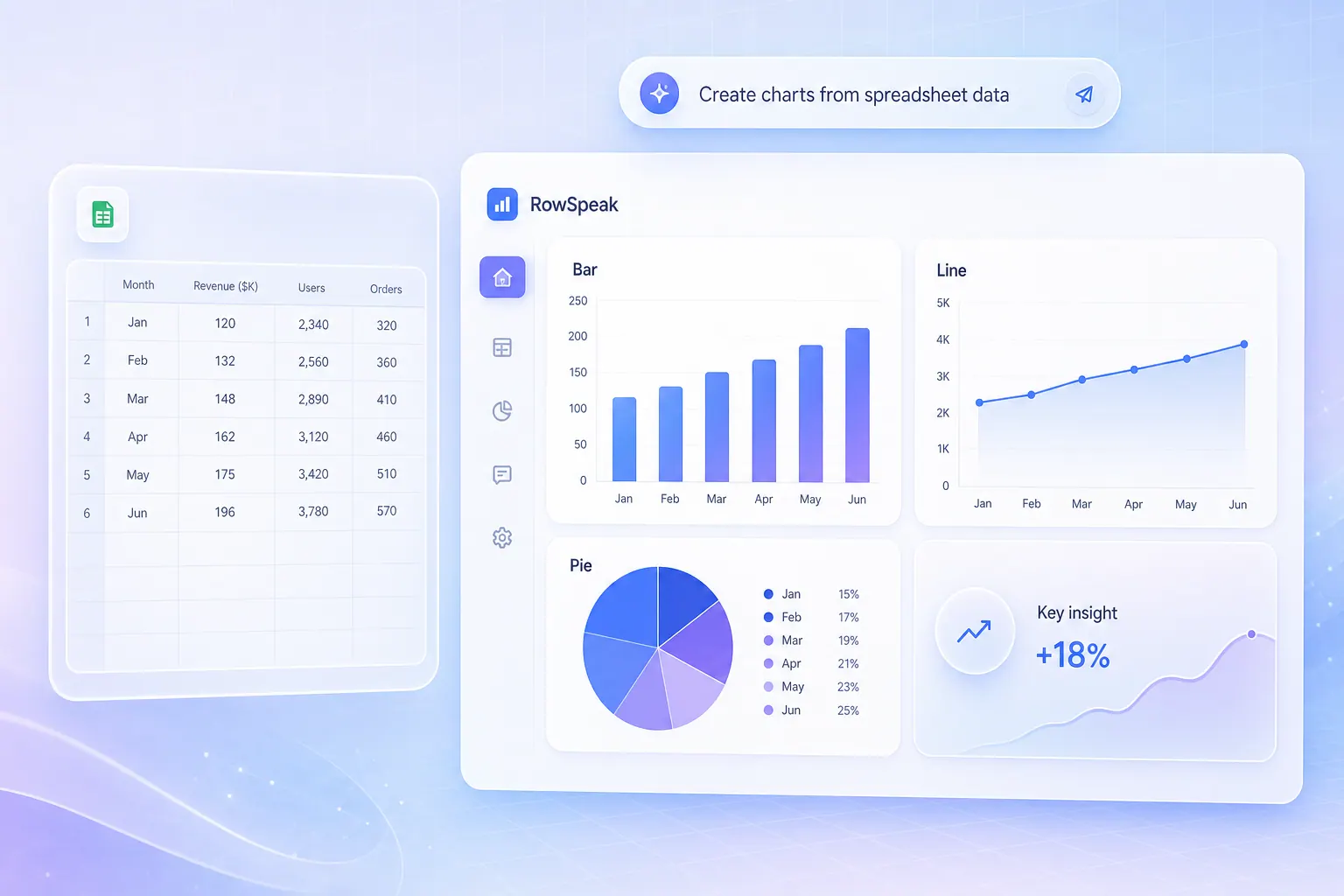
Excel and CSV
PDF and screenshots
Plain-English prompts
Charts with explanations
Sample workflow
Try it with sample data
A good graph maker should do more than draw bars. It should understand the file, pick the right fields, and help you check whether the visual supports the decision.
Regional revenue sample
CSV or Excel| Region | Revenue | Margin |
|---|---|---|
| North | $124K | 28% |
| South | $96K | 24% |
| East | $151K | 31% |
| West | $82K | 19% |
Prompt RowSpeak
- Uses the columns in the uploaded file
- Creates a graph and a readable takeaway
- Lets you ask for labels, colors, filters, or a different chart type
Graph output
The graph is paired with a business-readable explanation so the team can review the result instead of guessing what it means.

Make the graph type your data needs
Use RowSpeak for common business visuals without setting up formulas, ranges, or chart menus by hand.
Bar graph maker
Compare revenue, cost, volume, ratings, or category performance across teams, regions, products, or channels.
Line graph maker
Show sales, traffic, expenses, inventory, or other metrics across weeks, months, quarters, and fiscal periods.
Pie chart maker
Explain part-to-whole splits such as budget by category, revenue by channel, or customer segments.
Scatter plot maker
Explore relationships such as discount rate vs refund rate, spend vs revenue, or lead time vs satisfaction.
Heatmap and histogram
Find patterns, clusters, distributions, and outliers when a simple bar chart does not show enough.
Dashboard-ready charts
Turn recurring spreadsheet questions into visuals that can support reports, KPI reviews, and dashboards.
How RowSpeak creates graphs from data
Start from the real file, not a blank chart canvas. RowSpeak reads the data first, then helps you build a graph that matches the business question.
Upload the file
Start with Excel, CSV, PDF, screenshots, or image-based tables from the workflow your team already uses.
Ask for the graph
Describe the business question in plain English, including the metric, grouping, time period, and chart type if you know it.
Review the result
Check the fields, labels, units, filters, and takeaway before using the graph in a report or dashboard.
Refine with follow-up prompts
Ask RowSpeak to change chart type, highlight outliers, add labels, compare segments, or explain what changed.
Prompt examples for graph creation
These prompts map directly to common spreadsheet reporting tasks.
Graph maker for Excel, CSV, PDF, and screenshots
Start from the file your team already has. RowSpeak can help turn spreadsheet exports, PDF tables, screenshots, and image-based tables into graphs that are easier to review.
Excel and CSV
Create graphs from spreadsheet exports without manually selecting ranges or rebuilding chart settings.
PDF tables
Use RowSpeak when the data starts in a report, statement, or PDF table that still needs analysis.
Screenshots
Turn screenshot tables into usable rows first, then ask for the graph that supports the business question.
Image-based tables
Work with photographed, scanned, or image-based tables when the source file is not a clean spreadsheet.
Graph maker vs chart maker vs data visualization tools
Searchers use these phrases differently. RowSpeak should match the graph-maker task while still explaining where chart makers and data visualization tools fit.
Graph maker
Best for users who want to create a graph from data now, especially from Excel, CSV, or exported business files.
Chart maker
Often used as a synonym for graph maker, but it can also include pie charts, presentation charts, and lighter design tools.
Data visualization tools
A broader software category for dashboards, BI, analytics, developer plotting, and enterprise reporting workflows.
Built for business graph workflows
RowSpeak fits teams that need graph creation as part of analysis, reporting, and repeated spreadsheet work.
Finance and FP&A
Turn budget, forecast, variance, and monthly close files into graphs for review meetings.
Sales and RevOps
Graph pipeline, revenue, win rate, quota attainment, and regional performance from exports.
Marketing and growth
Visualize campaign spend, conversion, channel mix, cohort behavior, and retention signals.
Operations and inventory
Create graphs for stock levels, fulfillment delays, cost drivers, service quality, and exceptions.
Why use RowSpeak instead of Excel, ChatGPT, or BI tools
The best tool depends on whether you need a one-off graph, a coded visualization, or a repeatable reporting workflow.
AI graph maker FAQ
Answers for people comparing graph maker, chart maker, and data visualization tools.
What is an AI graph maker?
An AI graph maker is a tool that uses natural-language instructions to create graphs from data. RowSpeak focuses on spreadsheet and business files, so users can upload a file and ask for a graph instead of building it manually.
Can RowSpeak create graphs from Excel or CSV?
Yes. RowSpeak is designed for file-based workflows including Excel and CSV, and it can also work with PDF files, screenshots, and image-based tables when the data needs to be reconstructed first.
Is graph maker the same as chart maker?
People often use the terms together. In this page, graph maker covers bar graphs, line graphs, pie charts, scatter plots, heatmaps, and other visuals created from data.
Can I use RowSpeak as a free graph maker?
RowSpeak can be tried from the web app. Check the current plan limits in the product before relying on it for a large batch of recurring reports.
Can RowSpeak explain the graph after creating it?
Yes. The workflow is not only to draw a visual, but also to help explain trends, outliers, and business takeaways so the result is easier to review.
What is the difference between Graph AI and an AI graph generator?
Graph AI can mean AI systems that use graph data structures or knowledge graphs. RowSpeak is focused on the other common meaning: using AI to generate graphs and charts from spreadsheet data.
When should I use a BI tool instead?
Use a BI platform when you need governed data models, live warehouse connections, and enterprise dashboards. Use RowSpeak when the work starts from files and the team needs fast, reviewable charts and explanations.
Turn the next spreadsheet into a graph your team can use
Upload a real file, ask for the graph you need, then refine the visual until it supports the report, meeting, or dashboard in front of you.