
AI for Excel analysis, dashboards, and reports
AI for Excel that turns spreadsheets into dashboards and reports
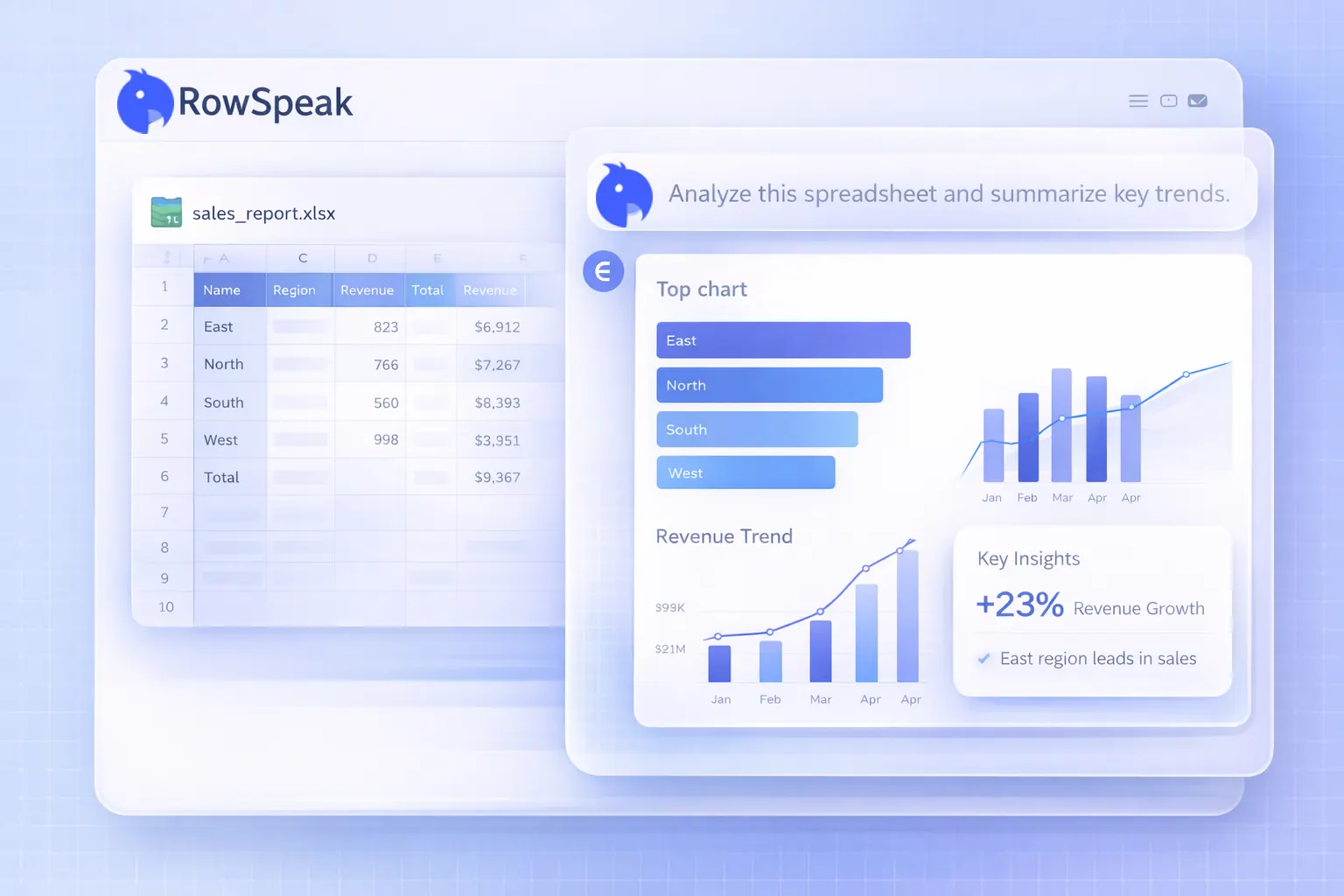
Upload Excel, CSV, PDF, or image-based tables. Ask in plain English. RowSpeak helps clean messy business files, analyze what changed, create charts, and generate reviewable reports without an Excel plugin.
Upload
Excel, CSV, PDF, images
Analyze
Ask business questions
Report
Dashboards and summaries
Works online
No Excel add-in or desktop setup required.
File-first workflow
Start from Excel, CSV, PDF, or image-based tables.
Built for outputs
Create charts, dashboards, summaries, and reports.
Review before sharing
Inspect assumptions and refine the result with follow-up prompts.
Why AI for Excel matters
Most AI for Excel stops before the real work is done
Business teams rarely need only a formula. They need to clean exported files, understand what changed, create the chart, write the summary, and make the reporting workflow easier to repeat next time.
Formula tools solve one cell
Formula generators help with syntax, but many Excel jobs include messy tables, charts, summaries, and stakeholder reporting.
Generic chat loses file context
A general chatbot can reason about a question, but business teams need file-aware analysis, reviewable outputs, and a path back to reports.
BI tools need setup
BI platforms are useful for governed dashboards, but many teams first need a useful answer from an exported spreadsheet today.
Manual reporting repeats
Weekly and monthly reports often start with the same cleanup, KPI checks, chart rebuilding, and narrative rewrite work.
What RowSpeak handles
Use AI for Excel tasks that need more than formulas
RowSpeak is strongest when work starts with spreadsheet-heavy business files and ends with an output other people need to review.
Analyze Excel sheets in plain English
Ask questions such as which region drove the margin drop, what changed month over month, or which rows need attention.
Clean messy exports before analysis
Work from imperfect business files, including Excel sheets, CSV exports, PDF tables, screenshots, and recurring reports.
Create charts and dashboards
Turn spreadsheet data into bar charts, line charts, KPI views, and dashboards that make the answer easier to review.
Generate report-ready summaries
Create variance notes, management summaries, and reusable reporting structures your team can inspect and share.
Best fit
Choose RowSpeak when Excel work becomes reporting work
The best AI for Excel depends on the job. RowSpeak is designed for file-based analysis and reporting workflows, not just single-cell formula help.
RowSpeak is a strong fit for
Messy spreadsheet exports
Sales, finance, inventory, operations, marketing, and other files that need cleanup before analysis.
Dashboards and report packs
Workflows where the end result must be a chart, KPI view, written summary, or management report.
Repeatable business questions
Weekly or monthly analysis where the same question returns with a new file.
A different tool may fit better for
One formula only
If you only need a single Excel formula, a formula generator may be faster.
Fully in-cell automation
If every step must run inside workbook cells, an Excel add-in or Microsoft 365 workflow may be more natural.
Governed enterprise BI
If you already have a modeled data warehouse and governed dashboards, a BI platform may remain the system of record.
Excel to dashboard
Convert Excel data into a dashboard with AI
When the search is "need an AI tool to convert Excel data into a dashboard", RowSpeak fits the job: start from the file, ask for the business view, and review the dashboard before sharing it.
See Excel to dashboard workflowUpload Excel data
Start from Excel sheets, CSV exports, PDF tables, screenshots, or recurring spreadsheet packs.
Ask for the dashboard
Describe the KPIs, comparisons, time periods, or business question you want the dashboard to answer.
Review the output
Inspect charts, KPI views, summaries, and assumptions before sharing the dashboard or report.
High-intent tasks
Use AI to shortcut recurring Excel work
RowSpeak is most useful when the same Excel-heavy work keeps coming back: inventory files, weekly reports, monthly reviews, and messy exports that need to become decisions.
Create inventory reports from Excel sheet data
Clean inventory exports, compare stock movement, flag exceptions, and turn spreadsheet data into an inventory reporting workflow.
Explore inventory AICreate dashboards from Excel files
Turn sales, finance, inventory, and KPI spreadsheets into dashboard drafts with charts, filters, and reviewable summaries.
Explore Excel dashboardsSpeed up recurring Excel reporting
Replace repeated spreadsheet cleanup, chart rebuilding, KPI checks, and summary writing with a workflow your team can rerun.
Explore reporting workflowsGenerate spreadsheet templates from a prompt
Create inventory trackers, sales pipelines, finance review sheets, and dashboard source tables before the data is fully ready.
Explore spreadsheet generatorBusiness use cases
Use RowSpeak across Excel-heavy teams
RowSpeak fits spreadsheet jobs that matter to finance, sales, operations, inventory, marketing, retail, and leadership teams.
Finance teams can turn monthly actuals and budgets into variance analysis, charts, and management notes
Sales and RevOps teams can summarize pipeline, revenue, region, channel, and rep performance from exported spreadsheets
Inventory and operations teams can flag stock exceptions, movement changes, and category trends from Excel files
Marketing teams can compare campaigns, channels, CAC, ROI, and funnel metrics without rebuilding a BI model
Leadership teams can convert recurring spreadsheet packs into reviewable dashboards and written summaries
Comparison
Which AI for Excel option fits your workflow?
| Manual Excel | RowSpeak | Microsoft Copilot in Excel | ChatGPT | Formula generators | Power BI | |
|---|---|---|---|---|---|---|
| Best for | Precise hands-on modeling and final checks | Messy business files that need analysis, dashboards, summaries, and repeatable reporting | In-workbook help inside Microsoft 365 | One-off explanations, formulas, code help, and brainstorming | Quick formulas, SQL snippets, VBA snippets, and syntax explanations | Governed BI dashboards and modeled reporting |
| Plugin or setup | No | No Excel plugin | Microsoft 365 setup | No Excel plugin | Usually no | Separate BI setup |
| File support | Excel workbooks | Excel, CSV, PDF, image tables | Excel workbook context | Upload support depends on plan | Limited file context | Excel, CSV, databases, connectors |
| Best output | Workbooks, pivots, manual charts | Charts, dashboards, summaries, reports | In-sheet suggestions and analysis | Text, formulas, code, explanations | Formula syntax and explanations | Interactive BI dashboards |
Data boundaries
Use public AI tools carefully with sensitive Excel files
Upload only files your team is allowed to process in an online tool. For finance, customer, employee, or regulated spreadsheet workflows, RowSpeak can support private deployment conversations.
Explore private deploymentAnonymize before testing
Remove names, customer identifiers, payroll details, and confidential fields before testing any public AI workflow.
Review generated outputs
Check assumptions, formulas, totals, and chart labels before using AI-generated analysis in a report.
Use private deployment for sensitive work
Teams with stricter data boundaries can discuss controlled deployment options for internal spreadsheet analysis.
Keep humans in the loop
RowSpeak is designed to accelerate analysis, not remove business review from financial or operational decisions.
Turn your next spreadsheet into a business-ready report
Start with the files you already have. RowSpeak helps clean messy data, run analysis workflows, and create outputs your team can use.
Workflow
From raw spreadsheet exports to repeatable reporting
Upload existing business files
Start with Excel, CSV, PDF tables, screenshots, or exported reports from the tools your team already uses.
Ask for the reporting outcome
Request cleanup, KPI analysis, trend explanation, chart generation, dashboard creation, or a management-ready report.
Review, correct, export, and repeat
Inspect the output, adjust assumptions, refine the report, and reuse the workflow when the next spreadsheet arrives.
FAQ
FAQ
Business teams rarely need only a formula. They need to clean exported files, understand what changed, create the chart, write the summary, and make the reporting workflow easier to repeat next time.
What is AI for Excel? +
AI for Excel is artificial intelligence applied to spreadsheet work. In RowSpeak, that means cleaning business files, analyzing spreadsheet data, finding trends, creating charts and dashboards, and producing reviewable reports.
What is the best AI for Excel if I need analysis and reports? +
If your main need is one formula, a formula generator may be enough. If your work starts with messy Excel sheets or exports and ends with a chart, dashboard, summary, or report, RowSpeak is designed for that broader workflow.
Can RowSpeak analyze Excel sheets without a plugin? +
Yes. RowSpeak works as a web-based AI for Excel workflow. Upload your file, ask in plain English, and use the output for analysis, dashboards, and reports.
Can RowSpeak convert Excel data into dashboards? +
Yes. RowSpeak can help turn spreadsheet data into KPI views, charts, dashboards, and report structures for business review.
Does RowSpeak work with CSV, PDF, and image-based tables? +
Yes. RowSpeak is built for file-first spreadsheet workflows across Excel, CSV, PDF tables, screenshots, and image-based tables.
Is RowSpeak an Excel formula generator? +
RowSpeak is not a formula-only generator. It can help when formulas are part of a broader spreadsheet workflow, but its main focus is cleaning files, analyzing business data, creating dashboards, and producing reviewable reports.
How is RowSpeak different from ChatGPT or Copilot in Excel? +
ChatGPT is useful for one-off reasoning, and Copilot helps inside Excel. RowSpeak focuses on the broader path from existing business files to analysis, dashboards, summaries, and repeatable reporting workflows.
Is RowSpeak free to try? +
Yes. RowSpeak is free to try online, so you can upload a spreadsheet and test whether the workflow fits your analysis or reporting task.
Can I use AI to create Excel dashboard examples and templates? +
Yes. RowSpeak can help create dashboard drafts from Excel files and generate spreadsheet templates for sales, finance, inventory, project, and KPI workflows. Review the output before sharing or using it in decisions.
Do I need to install an Excel plugin? +
No. RowSpeak is web-based. You can upload Excel, CSV, PDF, and image-based tables without installing an Excel add-in or plugin.
Can I use RowSpeak with sensitive spreadsheets? +
Use any public AI tool only with data your team is allowed to upload. For sensitive spreadsheet workflows, learn about private deployment options for stronger controls.
Further reading
More Excel AI guides
Explore Excel AI resources
AI Excel data analysis
Analyze spreadsheet files, ask business questions, and get KPI summaries, charts, and report-ready insights.
See data analysis featureExcel to dashboard workflow
Turn spreadsheet data into KPI views, charts, dashboards, and visual summaries for review. Use it with dashboard examples and templates when you need a faster first draft.
Open dashboard workflowAI reporting workflow
Use RowSpeak to generate written summaries, KPI notes, and management-ready reporting outputs.
Explore AI reportingAI spreadsheet generator
Create spreadsheet structures and templates for repeatable business workflows, from inventory trackers to dashboard source sheets.
See spreadsheet generator