Key takeaways:
- An AI Excel sheet generator is useful when you know the workflow but do not want to design the first spreadsheet structure by hand.
- A good generated sheet should include fields, formulas, assumptions, example rows, and review columns.
- RowSpeak can help create spreadsheet drafts that later become dashboards, reports, or recurring analysis workflows.
An AI Excel sheet generator helps when the hard part is not opening Excel. The hard part is deciding what the sheet should contain.
For an inventory tracker, you need SKU fields, reorder rules, aging logic, and supplier notes. For a sales pipeline, you need stages, probabilities, next actions, and weighted pipeline. For a budget table, you need variance formulas and a place for owners to explain material changes.
Instead of starting from a blank grid, you can describe the workflow and ask RowSpeak's AI spreadsheet generator for a first draft. Then you review the structure before using it with real data.
What the generated sheet should include
A useful generated sheet is more than a set of column names.
It should include required fields, calculation columns, example rows, review columns, and assumptions. The assumptions matter because they show where your team still needs to decide the rule.
For example, an inventory sheet can include a reorder flag. But the reorder rule must still be reviewed. Is the reorder point fixed by SKU? Does it change by warehouse? Is seasonal demand included? If the rule is unclear, the spreadsheet should make that visible.
Use a prompt that describes the work
Start with the workflow, audience, source data, formulas, and review checks.
Create an Excel sheet for monthly budget review.
Audience: finance manager and department owners.
Use case: explain budget vs. actual variance before management review.
Include month, department, account, owner, budget, actual, variance amount,
variance %, status, explanation, and action owner.
Add formulas for variance and variance %. Flag variance above 10%.
Include example rows and list assumptions I should verify.
This prompt asks for a sheet and a review process. That is stronger than asking for a generic "budget template."
Example 1: Inventory tracker
Use an AI-generated inventory tracker when your team needs to see stock risk before the next purchase cycle.
Ask for SKU, product, category, location, stock on hand, reorder point, supplier, unit cost, last movement date, aging bucket, reorder flag, inventory value, and notes.
Generate an inventory tracker with SKU, product, category, location,
stock on hand, reorder point, supplier, unit cost, last movement date,
aging bucket, reorder flag, inventory value, and notes.
Add formulas for inventory value and reorder status.
List assumptions for aging buckets and reorder rules.
After the draft is created, check whether SKU values should be unique, whether reorder points are real rules, and whether unit costs are numeric. If the sheet will feed an operations review, you can turn it into an Excel dashboard for stockout risk, overstock, aging, and supplier exceptions.
This video shows an inventory template being generated from a prompt.
Example 2: Sales pipeline tracker
Use a sales pipeline tracker when the team needs a lightweight working sheet, not a full CRM replacement.
The sheet should include company, contact, owner, stage, expected close date, deal amount, probability, weighted pipeline, next step, risk, and notes.
Generate a sales pipeline tracker with company, contact, owner, stage,
expected close date, deal amount, probability, weighted pipeline, next step,
risk, and notes. Add formulas for weighted pipeline and stage totals.
List assumptions for stage probability.
Review the stage list before using the sheet. A pipeline tracker is only useful if the stages match how the sales team actually works.
Example 3: Budget variance table
Use a budget variance table when the team needs to explain changes, not just calculate them.
The sheet should include month, department, account, owner, budget, actual, variance amount, variance percent, status, explanation, and action owner.
Generate a budget vs. actual template with month, department, account,
owner, budget, actual, variance amount, variance %, status, explanation,
and action owner. Add formulas for variance and variance %. Flag variance
above 10% and rows without explanation.
After the draft is created, check the sign convention. Some teams show overspend as positive variance. Others show it as negative. That rule should be clear before the file reaches management.
When the table is ready, RowSpeak can help turn it into an AI reporting workflow with charts and written variance notes.
Example 4: Dashboard source table
Sometimes the best generated sheet is not the final report. It is the clean source table that makes the final dashboard possible.
Ask for period, KPI name, target, actual, variance, owner, status, explanation, and next action. This structure works well for weekly KPI reporting because it keeps the dashboard source consistent.
Generate a dashboard source table for weekly KPI reporting. Include period,
KPI name, target, actual, variance, owner, status, explanation, and next
action. Add formulas for variance and status. Include example rows for
sales, finance, and operations KPIs.
Before using it, check that KPI names are consistent, each KPI has an owner, and status thresholds are written down.
Template download vs. AI-generated sheet
A downloaded template is a good starting point when the workflow is common and stable. A manual Excel build is better when you need precise workbook logic and formatting. An AI-generated sheet is better when you need a first draft for a specific workflow.
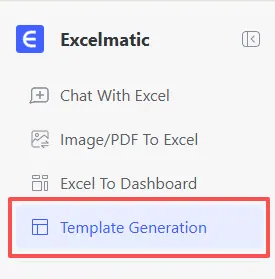
Use the template library when a ready-made structure fits. Use AI when a generic template would need heavy editing anyway.
The same rule applies after the sheet is created. If the workflow becomes recurring and important, save the prompt, review rules, and final structure so the next version starts from a clearer standard.
Review before use
Before you use an AI-generated spreadsheet, review the formula references, date formats, percent formats, status rules, threshold assumptions, and example rows.
Also check whether blank cells are allowed. In business files, a blank owner, blank due date, or blank unit cost is often the real risk.
AI can remove the blank-sheet problem. Your team still owns the business rules.
FAQ
Can AI create an Excel sheet for me?
Yes. RowSpeak can generate a spreadsheet draft from a prompt, including fields, formulas, example rows, and review columns.
What business templates can I generate?
Common examples include inventory trackers, sales pipelines, budget tables, project plans, KPI reports, expense trackers, and dashboard source tables.
Is an AI-generated spreadsheet ready to use immediately?
No. Review formulas, assumptions, formats, thresholds, and sample data before using it for business decisions.
Can I turn the generated sheet into a dashboard?
Yes. Once the table has real data, use RowSpeak's Excel-to-dashboard workflow to create KPI cards, charts, filters, and summaries.
Start with the RowSpeak AI spreadsheet generator when you know the workflow you need but do not want to design the first spreadsheet structure by hand.