Key takeaways:
- Excel dashboard templates work well when your file structure and dashboard question are stable.
- Templates become slow when your export has different columns, KPI rules, or review needs.
- RowSpeak is useful when you already have an Excel or CSV file and need a dashboard draft shaped around that file.
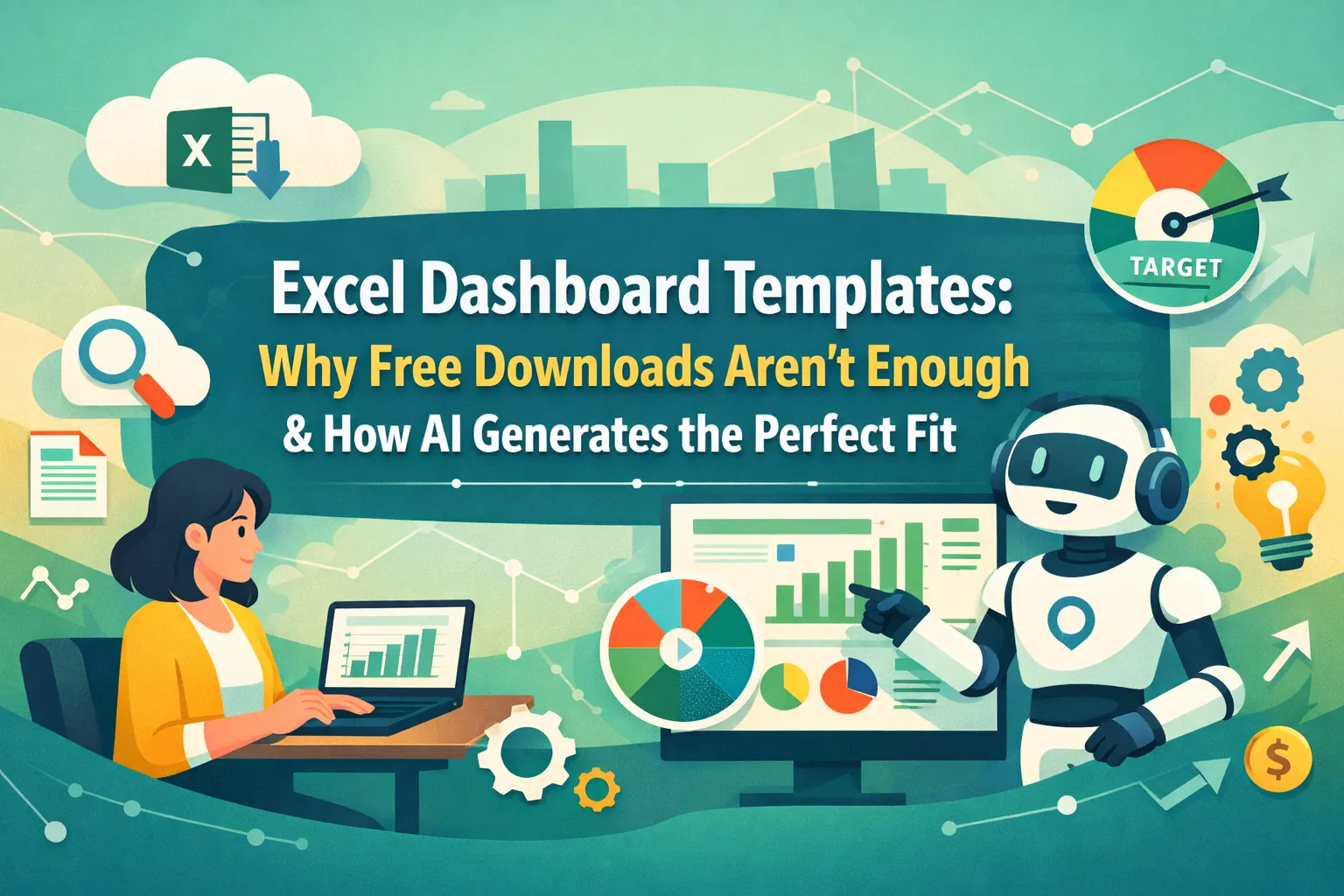
Excel dashboard templates are helpful when the dashboard is predictable.
If you use the same CRM export every week, a sales dashboard template can save time. If your finance team reviews the same budget structure every month, a template can keep the layout consistent.
The problem starts when the real file does not match the template. The customer field has a different name. The sales stages are custom. The finance workbook has department rules the template does not know. You spend more time reshaping the file than reading the dashboard.
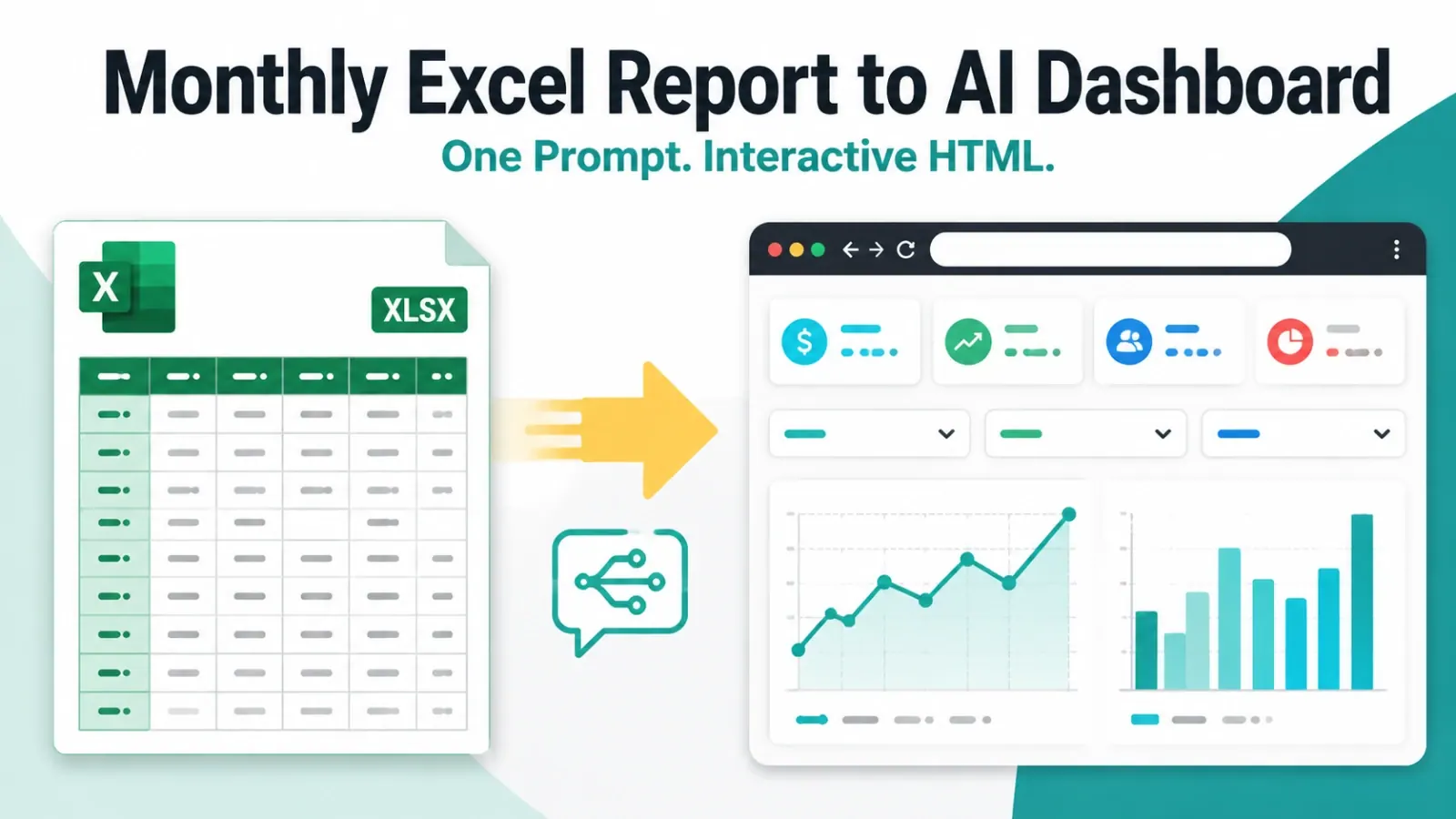
In that case, RowSpeak's Excel-to-dashboard workflow can create a dashboard draft from the file you actually have.
When a dashboard template is enough
Use an Excel dashboard template when the reporting pattern repeats and the source data stays stable.
This works well for a monthly sales dashboard, a budget vs. actual dashboard, an inventory dashboard, a project status dashboard, or a KPI scorecard with fixed targets and owners.
The template gives you a known layout. Your team can review the same sections each period. The value is consistency.
When a template slows you down
A template slows you down when the export changes.
You may need to rename columns before every import. Formula ranges may break when new rows appear. The template may assume KPI definitions your team does not use. The manager may ask for a view that the template was not built to show.
This is common with exports from CRMs, accounting tools, ecommerce platforms, ad platforms, and inventory systems. The file is real business data, but it rarely arrives in a template-ready shape.
When AI is the better starting point
Use AI when the dashboard should adapt to the file.
For a CRM export, you can ask:
Create a dashboard from this CRM export. Show closed revenue, weighted
pipeline, monthly trend, revenue by region, top open deals, and a summary
of risks. Use the stage and probability columns for pipeline calculations.
For an inventory export, you can ask:
Create an inventory dashboard from this spreadsheet. Show low-stock SKUs,
overstock, aging inventory, supplier exceptions, reorder priority, and
inventory value by category. Flag rows with missing reorder point or unit cost.
The benefit is not that AI is prettier than a template. The benefit is that the dashboard can follow the source columns and the review question.
This video shows the difference between using a fixed template and asking AI to create a dashboard from the file.
A simple decision rule
Use a template when the file structure is stable, the dashboard question repeats, and the workbook needs a consistent layout.
Use RowSpeak when the file changes, the dashboard question is specific, or you need a first draft before deciding what should become standard.
Use BI when the dashboard becomes company-wide, needs governed metrics, or must connect to shared systems.
This is not a permanent choice. A team can start with RowSpeak to understand the file, then turn the winning dashboard structure into a template or BI dashboard later.
Common template types
A sales dashboard template works when stages, regions, reps, and revenue fields are stable. It breaks when the CRM export has custom stages or probability rules.
A finance dashboard template works when account and department structures are consistent. It breaks when variance signs, account names, or owner explanations need special rules.
An inventory dashboard template works when SKU, warehouse, supplier, and reorder fields are stable. It breaks when reorder rules differ by category or unit cost is missing.
A KPI dashboard template works when targets, owners, and thresholds are fixed. It breaks when leadership changes the KPI grouping or asks for a written summary.
For more concrete patterns, see these Excel dashboard examples.
Review matters more than the starting point
Whether you use a template or AI, review the dashboard before sharing it.
Check KPI definitions, formula references, date ranges, filters, missing rows, duplicate categories, subtotal rows, chart labels, and written summaries.
The dashboard is not trustworthy because it looks finished. It is trustworthy when the numbers and assumptions have been checked.
FAQ
Are Excel dashboard templates worth using?
Yes, when your data structure and reporting question are stable. They are less useful when every source file has different columns, categories, or KPI rules.
Can AI create an Excel dashboard template?
Yes. RowSpeak can generate a dashboard or dashboard source table from an Excel or CSV file, then you can review and adapt the output.
Should I use a free template or RowSpeak?
Use a free template when you need a standard layout. Use RowSpeak when you already have a spreadsheet export and want a dashboard draft based on that file.
Can I still use templates with RowSpeak?
Yes. A template can give you a reporting pattern, while RowSpeak can help adapt the pattern to the file and review question in front of you.
Start with the RowSpeak Excel-to-dashboard workflow when a fixed template is making you reshape the data more than understand it.