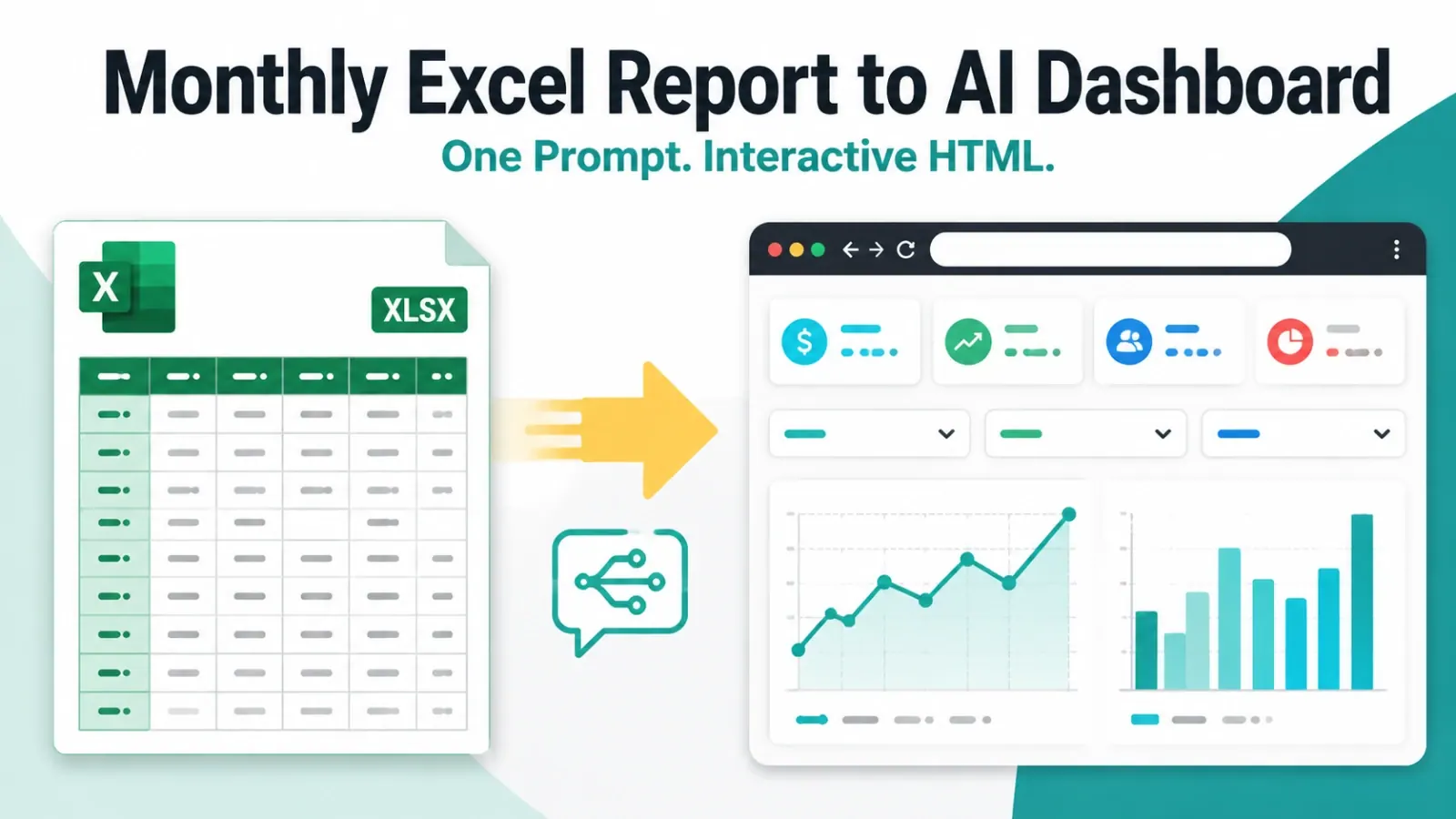
Many dashboard projects do not begin with a clean database. They begin with files.
When the source file is a PDF, RowSpeak's PDF table conversion workflow keeps table extraction, cleanup, and spreadsheet review in one flow.
A finance workbook. A CSV export from a CRM. A PDF report from a vendor. A screenshot of a table from an internal tool. A spreadsheet someone has maintained for three years.
Traditional dashboard advice often assumes the data is already modeled. In real business work, the first job is usually messier: understand the files, check the data, define the metrics, and decide which charts actually answer the business question.
AI can help, but only if the workflow is grounded in reviewable analysis. A dashboard that looks polished but hides unclear logic is not a good dashboard.
Key takeaways:
- File-to-dashboard work should start with data inspection and metric definitions before chart generation.
- Excel, CSV, PDF, and image-based tables often need different cleanup and review steps before they can support a dashboard.
- RowSpeak helps teams turn messy business files into dashboard-ready summaries, charts, and explanations without starting with a full BI build.
The File-to-Dashboard Problem
Dashboards fail when teams jump straight to visuals.
The chart may look good, but the data may have duplicate customers, mismatched dates, hidden filters, inconsistent categories, or missing values. A dashboard built on unclear logic creates more questions than answers.
A stronger workflow starts with:
- What decision should the dashboard support?
- Which files contain the data?
- Which fields define the metrics?
- What data issues could distort the result?
- Which charts answer the decision?
- How can the numbers be reviewed?
This is the workflow RowSpeak supports through Excel-to-dashboard analysis and file-based reporting.
Example: Executive Performance Dashboard
Imagine a COO needs a monthly performance dashboard. The source files are:
sales_export_may.csvinventory_snapshot_may.xlsxreturns_report.pdfsupport_ticket_table.png
The dashboard should answer:
- Is revenue growing profitably?
- Which products or regions need attention?
- Are returns or support issues increasing?
- Is inventory risk affecting sales?
- What should leadership do next?
This is not just a charting task. It is a multi-file analysis task.
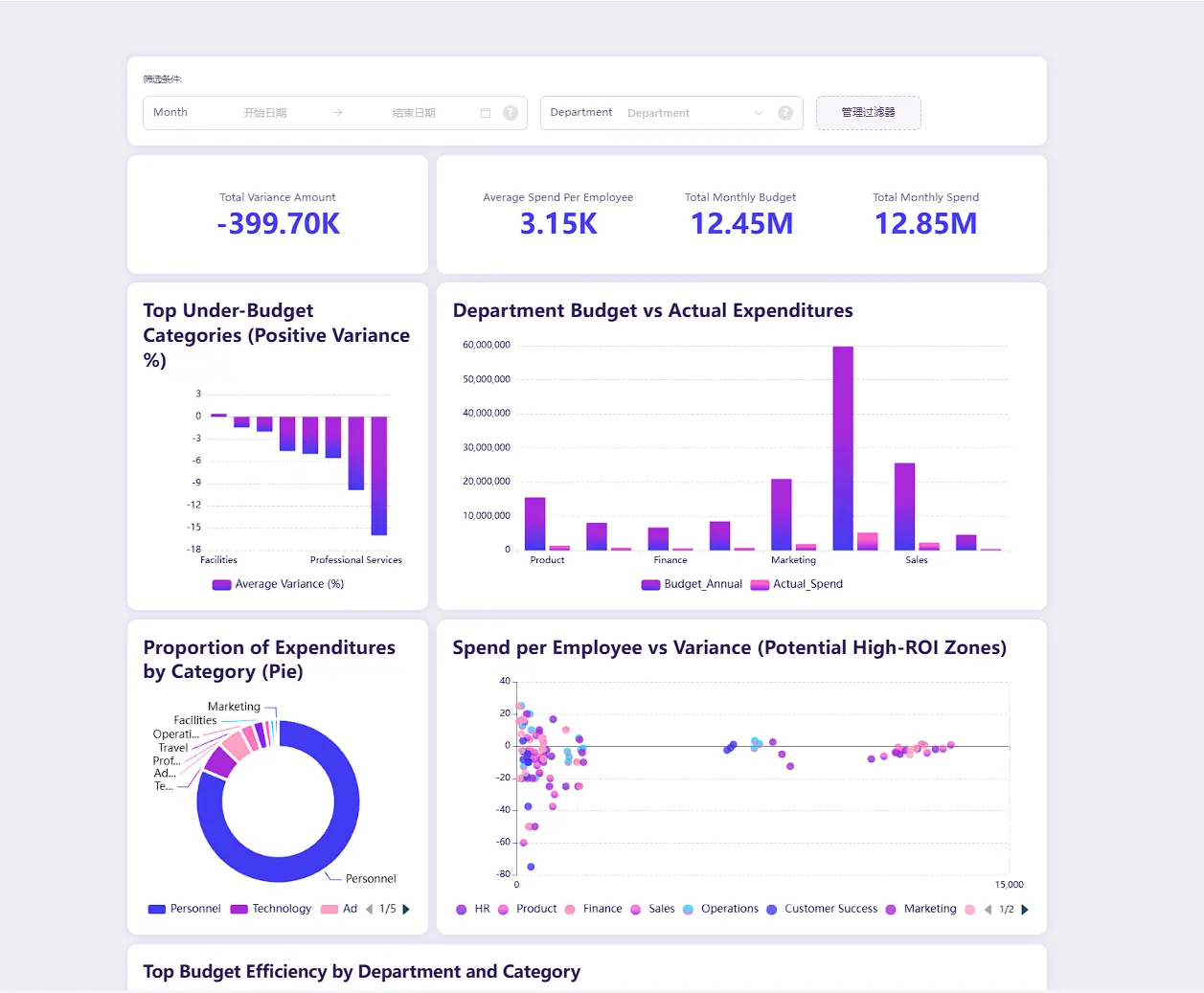
The finished dashboard should combine KPIs, charts, filters, and a readable overview. A dashboard like this is useful only after the source files and metric definitions have been reviewed.
Step 1: Inspect Each File
Start with a data review:
Inspect these files before creating a dashboard. Identify the tables, key fields,
missing values, duplicate records, inconsistent labels, date formats, and fields
that need clarification. Summarize which files can be used for which dashboard
metrics.
This first prompt is intentionally boring. Good dashboards are built on boring checks.
For PDF and image-based tables, ask RowSpeak to identify whether the extracted table needs correction. If column headers, totals, or row labels are unclear, fix those issues before building the dashboard.
Step 2: Define Dashboard Metrics
A dashboard should not be a collage of charts. It should be a set of metrics tied to a decision.
For the COO dashboard, define:
- Revenue
- Gross margin
- Return rate
- Stockout risk
- Late orders
- Support ticket volume
- Top product changes
- Region-level performance
Use a prompt like:
Define the dashboard metrics from these files. For each metric, list the source
file, source columns, calculation logic, required filters, and caveats. Do not
create charts until the metric definitions are clear.
This is how you keep the dashboard reviewable.
Step 3: Ask for the Right Charts
Once the metrics are defined, ask for chart recommendations:
Recommend dashboard charts for this executive performance review. For each chart,
state the business question it answers, the fields required, the best chart type,
and what decision the viewer should be able to make.
A strong dashboard might include:
- KPI tiles for revenue, margin, returns, and late orders
- Trend line for revenue and margin over time
- Bar chart for product-level change
- Heatmap or table for region performance
- Ranked list of inventory risks
- Short narrative summary of top drivers
For chart-heavy reporting, RowSpeak's charts and graphics workflow can support visual output without making users manually configure every chart.
This short demo shows a file-to-dashboard flow where the analysis becomes an advertising performance dashboard with KPI cards, charts, and a written overview.
Step 4: Create the Dashboard Narrative
Dashboards should help people see the story, not just the data.
Ask RowSpeak:
Create a dashboard narrative for leadership. Explain the main performance story,
the top three changes, the biggest risk, and the recommended next actions. Keep
the explanation tied to the metrics and charts.
This is especially useful when the dashboard will be shared with people who will not inspect every row.
Step 5: Review Before Sharing
Before sharing an AI-assisted dashboard, review:
- Do totals reconcile to the source files?
- Are all filters and exclusions stated?
- Are PDF or image table extractions accurate?
- Are date ranges consistent across files?
- Are chart titles tied to business questions?
- Are metric definitions visible somewhere in the report?
- Can important claims be traced back to source rows or files?
This is where RowSpeak's file-based workflow matters. The dashboard is not just generated. It can be questioned and refined.
When RowSpeak Is Enough, and When BI Is Better
RowSpeak is a good fit when:
- The dashboard starts from Excel, CSV, PDF, or screenshot tables.
- The source files change frequently.
- The business question is still evolving.
- The team needs a report and dashboard draft quickly.
- Human review is part of the process.
BI is a better fit when:
- The data model is stable.
- Many people need ongoing dashboard access.
- Governance, refresh, and permissions are central.
- The same dashboard will be maintained for a long time.
The practical path is often staged. Use RowSpeak to understand the files, test the metrics, draft the dashboard, and learn what stakeholders actually need. Move to BI when the model is stable enough to justify the build.
For a broader comparison, see Power BI alternative for spreadsheet reporting and RowSpeak's business intelligence feature page.
A Reusable File-to-Dashboard Prompt
Build a dashboard plan from these Excel, CSV, PDF, and image-based table files.
First inspect data quality and table structure. Then define the metrics, map
each metric to source fields, recommend charts, explain the business question
behind each chart, and draft a dashboard summary. Show caveats and review checks
before the final dashboard plan.
This prompt forces the right sequence: inspect, define, recommend, explain, review.
That is the difference between making charts and building a dashboard. Charts show data. A dashboard helps a team decide what to do next.