
If you've ever felt stuck cleaning messy data, wrestling with complex formulas, or just trying to create a quick chart in Excel, you're not alone. Spreadsheets can be powerful, but they often require manual, repetitive work. This is where Excel AI comes in.
This guide will walk you through what Excel AI is, how it works, and how you can start using it to save time and reduce errors, all in plain language.
Want to see the product workflow instead of another guide? See RowSpeak's Excel AI workflow for messy Excel files, dashboards, and report-ready analysis.

What is Excel AI?
Excel AI refers to tools and features that let you use plain English to perform tasks like cleaning data, building formulas, running analysis, and creating charts. Instead of memorizing VLOOKUP or complex function chains, you can describe the task, such as: “Remove duplicates by ‘Order ID’, standardize ‘Date’ to YYYY-MM-DD, and calculate monthly sales.”
The tool translates your request into the necessary steps or formulas and applies them to your sheet. It complements your existing Excel skills by reducing setup time and handling much of the repetitive work involved in Excel automation. Excel AI doesn’t replace spreadsheet skills; it reduces setup time and repetitive steps so you can focus on decisions.
Why use it?
The main reason is to more efficiently handle common spreadsheet pain points. AI can help when you are:
- Facing messy data: It can help fix inconsistent date formats, fill in missing values, and remove duplicates, which is a core feature of AI data cleaning in Excel.
- Struggling with formulas: Instead of searching for the right syntax, you can describe the calculation you need and let an AI formula generator build it for you.
- Needing a quick visualization: You can ask for a specific chart based on your data without going through the manual chart setup steps.
Using AI reduces the trial-and-error often associated with complex spreadsheet tasks, allowing you to get to an answer faster.
Who is it for, and when to use it?
Excel AI is useful for a wide range of people, including office administrators, marketing teams, students, researchers, and small business owners.
Use AI when a task is repetitive (like cleaning a weekly report) or when you know what you want but aren't sure of the exact Excel steps. For very small, stable tasks where you already know the formula, typing it directly might still be faster. Think of AI as your assistant for the things that usually slow you down.
Where does it run?
Excel AI capabilities are available in a few different places:
- Browser-based platforms: Tools like RowSpeak operate in your browser. You upload a file (
.xlsx,.csv), perform the tasks, and download the cleaned or analyzed result. - Excel built-ins and add-ins: Microsoft’s Copilot in Excel (availability varies by license and region) and other add-ins integrate directly with the desktop or web app.
A Note on Verification and Privacy: Start with a small sample, spot-check 3-5 rows, confirm data types, and—when possible—ask the tool to show the steps or formulas it applied before running on the full sheet. Be mindful of data privacy by checking the tool's policy and avoiding highly sensitive data.
How to get started (A mini-workflow example)
Let's walk through a common scenario using a small sales table.
Sample Data:
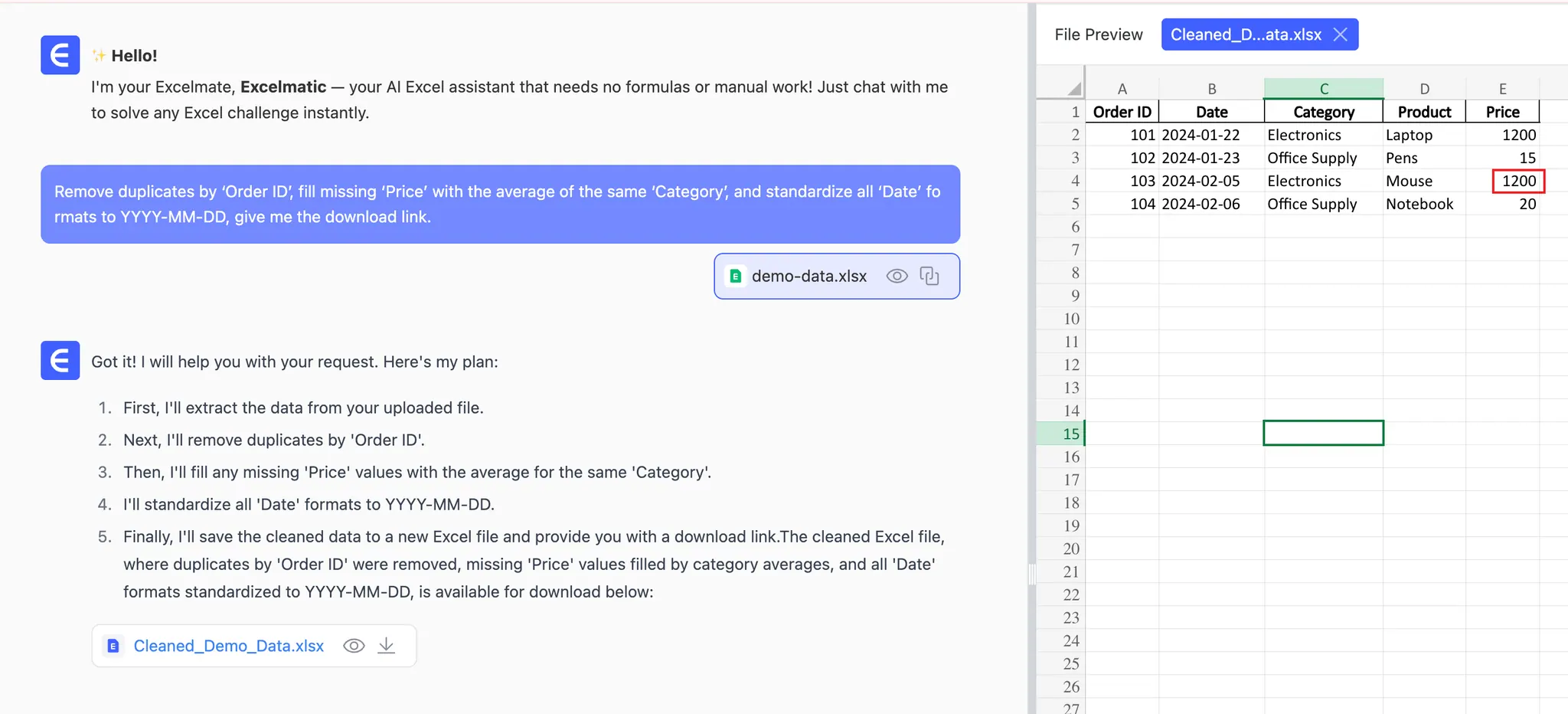
| Order ID | Date | Category | Product | Price |
|---|---|---|---|---|
| 101 | 22-Jan-24 | Electronics | Laptop | 1200 |
| 102 | 23 Jan 2024 | Office Supply | Pens | 15 |
| 103 | 2024/02/05 | Electronics | Mouse | |
| 104 | 06-Feb 24 | Office Supply | Notebook | 20 |
| 102 | 23 Jan 2024 | Office Supply | Pens | 15 |
Step 1: Prepare Your Data Before using an AI tool, ensure your data has clear headers and no merged cells. Starting with a small sample of about 10-20 rows is a great way to test your instructions. Some tools impose row or file-size limits on free tiers—run your sample first to confirm behavior.
Step 2: Give Natural-Language Instructions Upload your sample file to a tool and enter your request. You can chain commands together. For instance:
- For cleaning: “ Remove duplicates by ‘Order ID’, fill missing ‘Price’ with the average of the same ‘Category’, and standardize all ‘Date’ formats to YYYY-MM-DD, give me the download link. ”
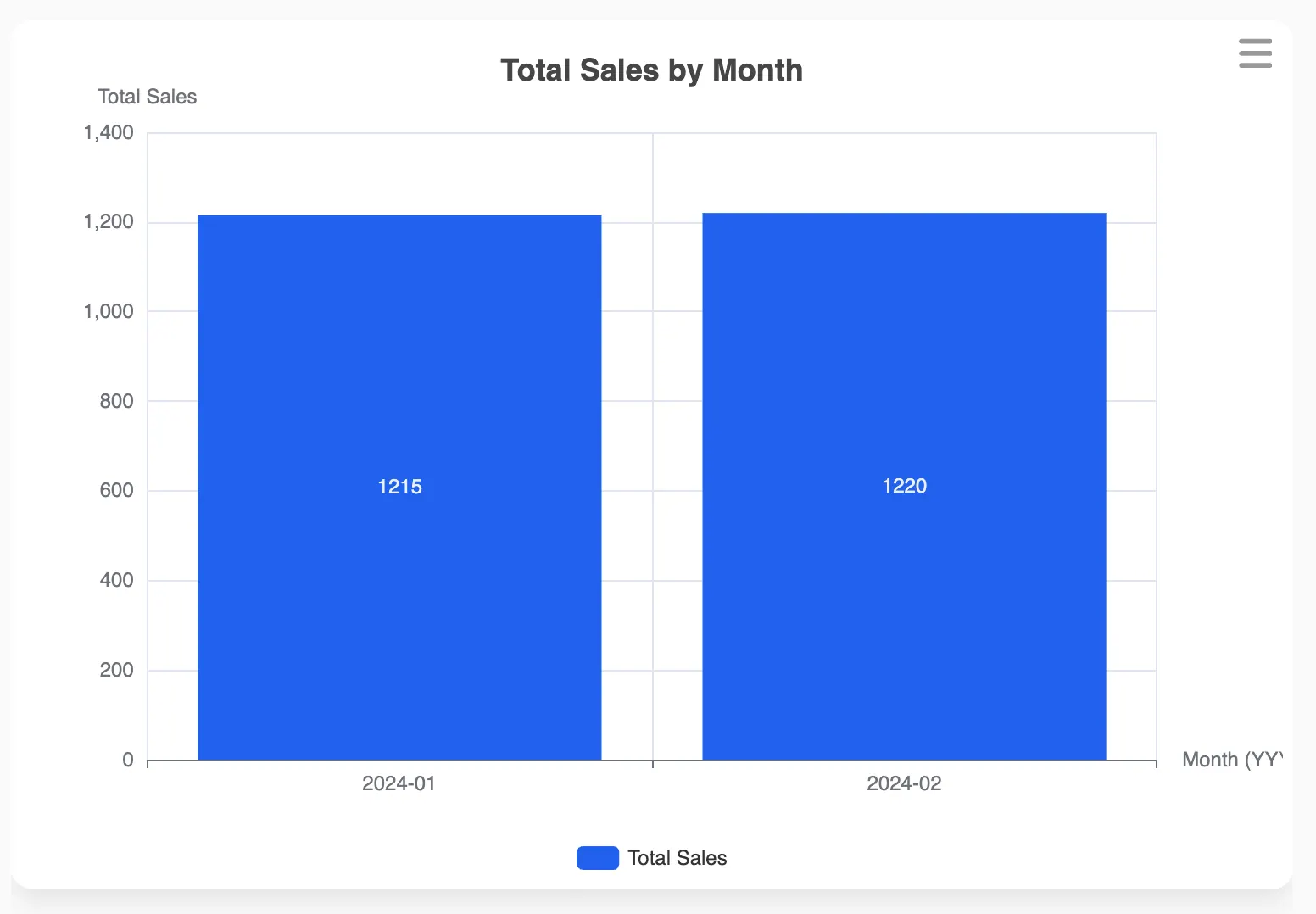
- For analysis: “create a column chart showing total sales by month."
- For verification: After it processes, you can ask a follow-up question: “Explain the rules you used for deduplication and how you calculated the category average for ‘Price’.”
Step 3: Verify and Export Preview the changes, spot-check 3-5 rows, and ask the tool to show the steps or formulas it applied. If the sample looks right, run it on the full dataset and export to a new tab.
How much (Cost and Value)
Most third-party Excel AI tools operate on a subscription model, while some features are included in existing software suites like Microsoft 365. The true value lies in the time saved. You can estimate the return on investment (ROI) with a simple formula:
Weekly ROI = (Hours Saved per Week × Your Hourly Value) − Weekly Tool Cost
For example, if a tool costs $20/month (or $5/week) and saves you 5 hours of manual work, and you value your time at $25/hour, the calculation is: (5 hours × $25/hour) - $5 = $120 in net value gained per week.
Caveat: Always review outputs. AI can sometimes misinterpret column names or infer the wrong data type. A quick review is an essential final step.
Recommended Tools
Choosing the right tool depends on your primary needs.
1. RowSpeak: A good starting point for all-around use. It's a browser-based platform focused on making data work accessible to non-technical users.
- What it does: Data cleaning, formula assistance, data analysis and charting, ability to convert image tables to Excel with RowSpeak, and a "chat with your data" feature.
- Who it's for: Busy professionals and beginners who want to get answers from their data without writing formulas.
- How to start: Follow a simple
upload → instruct → preview → exportworkflow. You can also see a step-by-step RowSpeak cleaning walkthrough.
2. Excel Built-in Tools (Analyze Data / Copilot):
If you are a Microsoft 365 subscriber, these tools are integrated directly into Excel.
- What they do: Offer quick, lightweight data analysis, chart suggestions, and formula help within your worksheet. Their features and availability vary by license and update channel.
- Who they're for: Microsoft 365 users who need quick suggestions or simple analysis without leaving Excel.
Focused AI Formula Generators:
These are specialized tools (often web-based) that do one thing: generate Excel formulas from a text description.
- What they do: Create correct
XLOOKUP,INDEX/MATCH,SUMIFS, and other complex formulas for you to copy and paste. - Who they're for: Users who are comfortable in Excel but just need help generating a specific, complex formula quickly.
Try RowSpeak with a sample file—upload, instruct, preview, export.
Top Excel AI Tools recommandation
 Data Cleaning
Data Cleansing Tools: 12 Best Options for Cleaning Messy Spreadsheets in 2026
The best data cleansing tool depends on the job: cleaning a messy spreadsheet, preparing recurring CSV reports, standardizing customer records, or governing enterprise data quality.
 Excel AI
Best Excel AI Agents for Business Reporting in 2026
The best Excel AI agent depends on the job: workbook-native editing, audit evidence, formula automation, ad hoc analysis, or file-to-report workflows from messy business data.
 Top AI Tools
The 7 Best AI Tools for Combining Spreadsheets Online
Manually merging spreadsheets is a nightmare of errors and wasted hours. This guide reviews 7 powerful AI tools, including free options, that can turn this tedious task into a simple, conversational command. Find the perfect fit for your workflow.
 Top AI Tools
7 Best AI Spreadsheet Tools to Automate Excel & Google Sheets (2025 Review)
Manual formulas are a thing of the past. This in-depth 2025 review covers the 7 best AI tools that do the heavy lifting for you, transforming tedious spreadsheet tasks into simple, conversational queries. See our top picks, including free options.
 Data Visualization
The 6 Best AI Chart Generators: An In-depth Review for 2025
Manual chart creation is a major efficiency bottleneck. AI chart generators offer a powerful solution, creating stunning visualizations from simple text commands. This guide reviews the 6 best tools on the market, including RowSpeak and Copilot, to help you choose the perfect one and transform your workflow.
 AI Tools by Industry
Top AI Tools for Office Work in 2025: From Spreadsheet Chaos to Zen Productivity
Transform your office work in 2025 with AI tools that simplify spreadsheets, writing, meetings, and more.
 AI Tools by Industry
Best AI Tools for Accounting and Expense Management in 2025
Tired of messy spreadsheets, manual audits, and late reports? These 5 AI tools for accounting and expense management will save you time, catch errors, and bring peace to your monthly close.
 Excel Tips
Master Cost Structure Analysis in Excel – No Formulas Needed
Still building pivots and charts to analyze your cost categories? Learn how RowSpeak uses AI to break down cost structures instantly and deliver insights you can act on.
 Excel Tips
Top 10 Excel AI Tools for Finance Teams in 2025
Discover 10 AI-powered tools that help finance teams use Excel smarter. Automate budgets, forecasts, dashboards, and analysis—no more wasting hours on manual work.
 Excel Tips
8 Free AI Tools That Make Excel, Charts, and Reporting Easier
These 8 AI tools are free and practical — from cleaning messy spreadsheets to building beautiful charts and summaries.
 Excel Tips
No Copilot? Try These Free Excel AI Tools Instead
Can’t access Copilot? Try these 4 free Excel AI tools that simplify your data tasks and help you work smarter.
 Excel Tips
The Easiest Way to Make Excel Charts with AI (Free Download Inside)
Say goodbye to complex Excel chart templates. With RowSpeak’s AI, create professional bar, line, and pie charts in seconds using simple prompts—no coding or design experience required.
 Excel Tips
Best Free AI for Excel Tools in 2026: 10 Options for Analysis, Formulas, and Charts
Compare free AI for Excel tools by free tier, supported data formats, formula help, chart generation, and reporting workflows.
 Excel Tips
Top 10 Free AI Tools for Excel to Boost Your Productivity
Discover the top 10 free AI tools for Excel that can boost your productivity and simplify complex tasks.
 Excel Tips
Unleashing the power of AI in Excel: top 10 free and paid Excel AI tools for 2025
Here, we will explore the top 10 Excel AI tools available in 2025, focusing on their features, ideal user base, pros and cons, and pricing.
Frequently Asked Questions (FAQ)
1. Can Excel AI generate formulas for me? Yes. Tools like RowSpeak can generate and apply formulas based on your description, and dedicated AI formula generator websites can provide you with formula syntax to copy and paste into your sheet.
2. How do I use AI to standardize date formats in Excel? You can upload your file to an AI data cleaning tool and give a command like, "Standardize the 'Date' column to the format YYYY-MM-DD." The tool will identify the different formats (e.g., 'Jan 10, 2024', '10/01/2024') and unify them for you.
3. Is my data safe when using an AI tool? Reputable tools use secure connections and have clear privacy policies. However, it's a best practice to review a tool's security measures and avoid uploading data with highly sensitive personal, financial, or proprietary information.
4. When should I prefer a pivot table vs. AI analysis? Use a pivot table when you need structured, repeatable exploration and want to manually drag-and-drop fields to slice data. Use an AI tool when you have an ad-hoc question and want a fast answer, chart, or summary without the manual setup.
Other topics of Excel AI
 Excel AI
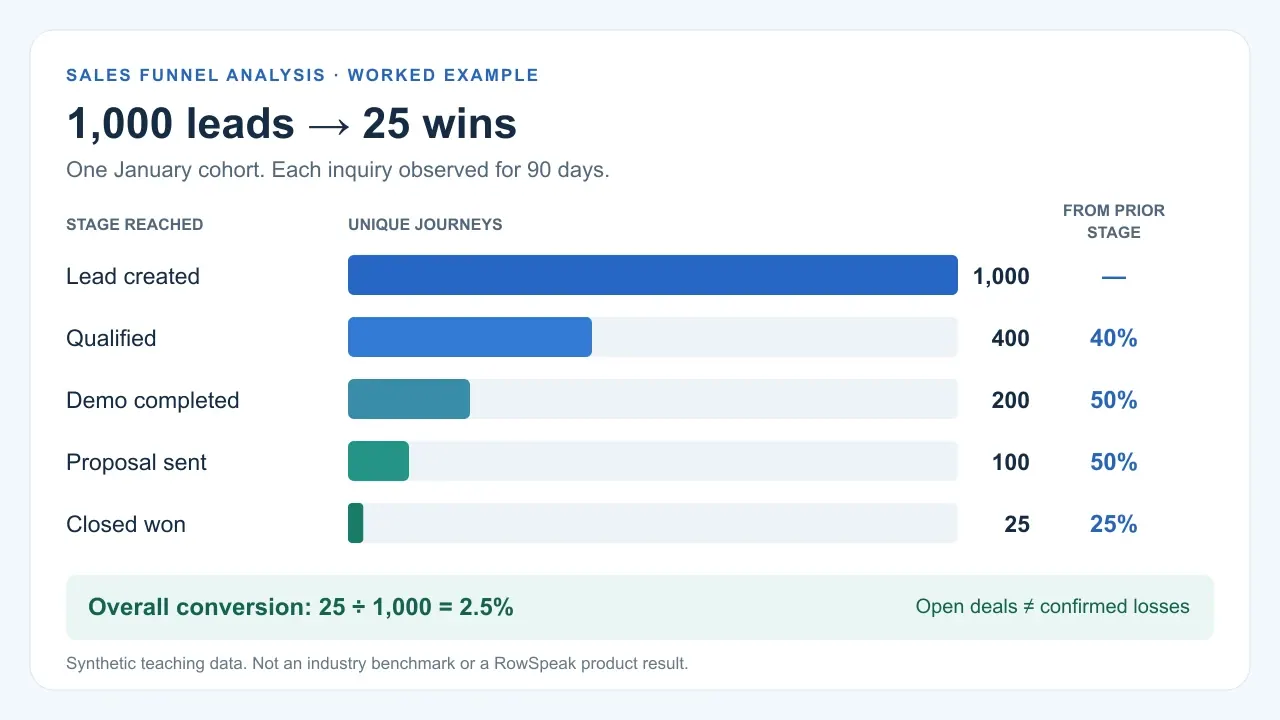
What Is a Sales Funnel Analysis? Metrics, Steps & Example
Watch a real RowSpeak walkthrough turn a 1,000-lead CSV into a funnel report and downloadable workbook. Then learn the manual Excel method and review checks.
 Excel AI
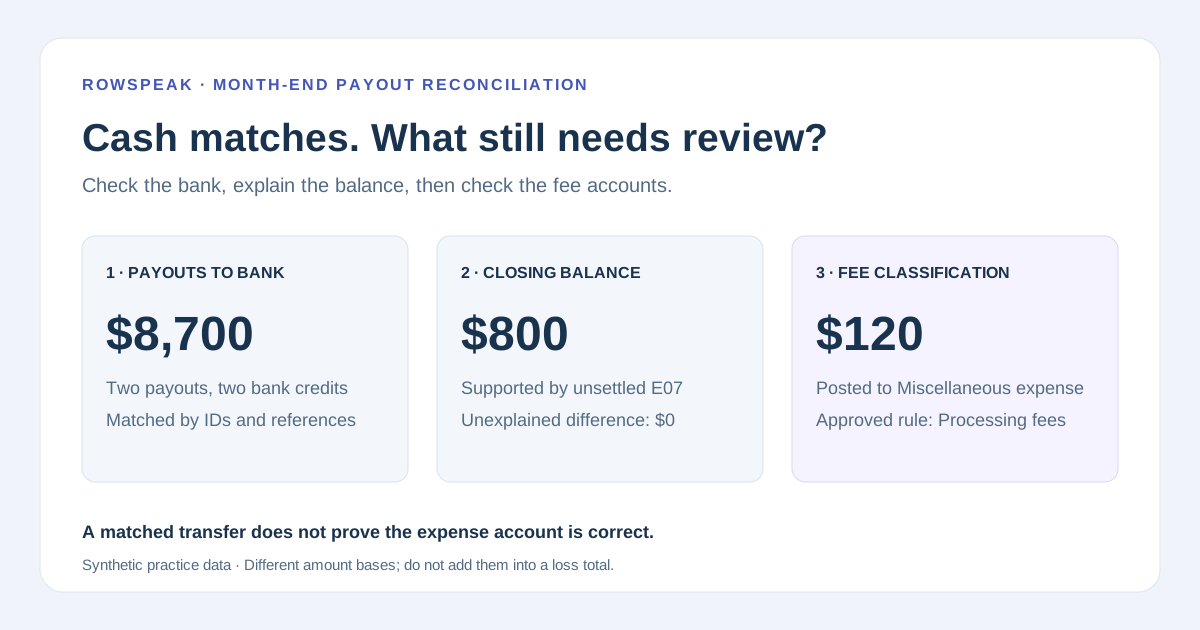
Ecommerce Payout Reconciliation: Build a Month-End Exception Queue
Your payouts can match the bank while fee accounts are wrong. Follow a downloadable month-end example with source IDs, review prompts, and a $30 failure test.
 Excel AI
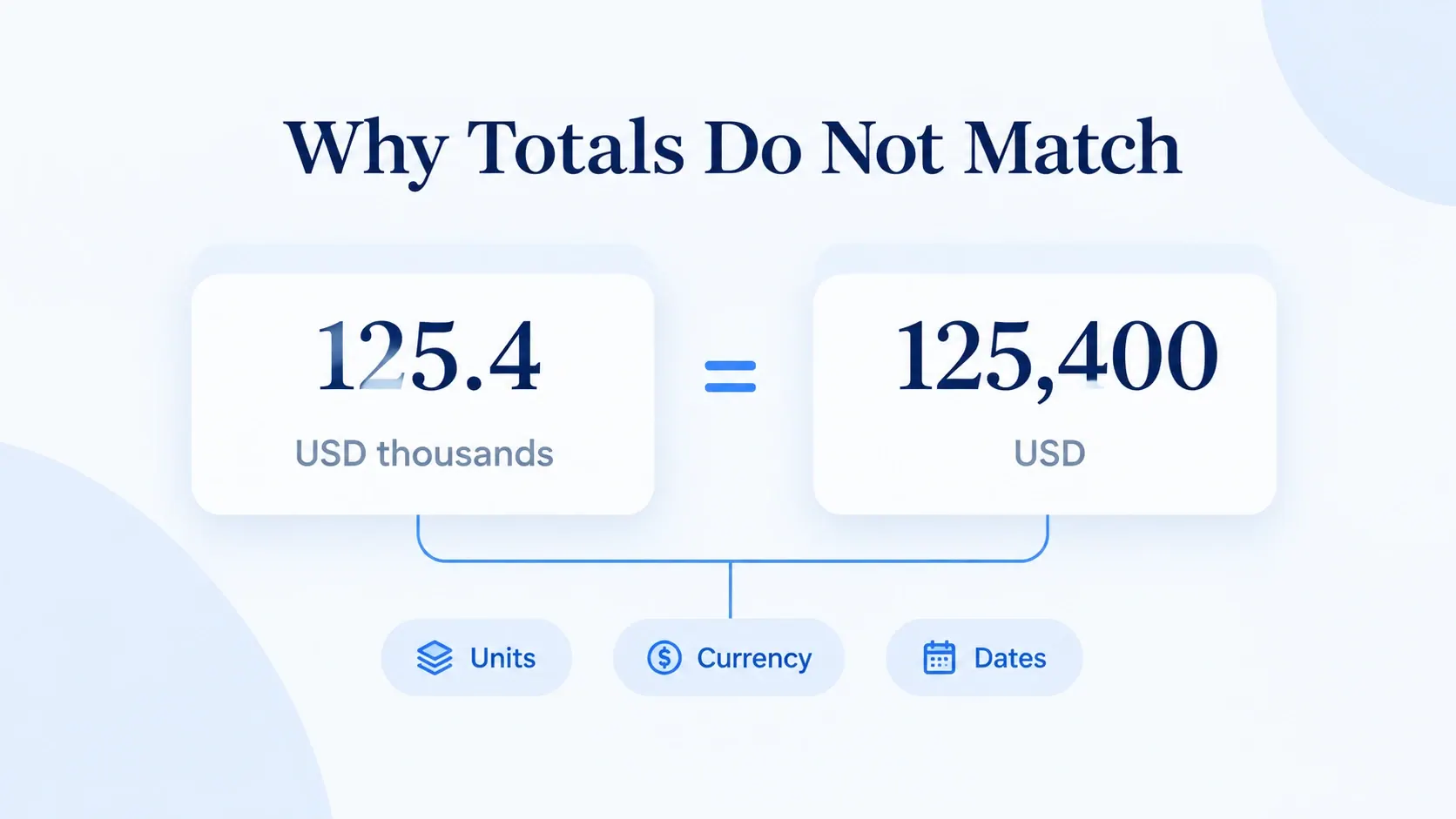
Excel Report Totals Don't Match? Check Units, Currencies, and Dates
125.4 and 125,400 may describe the same revenue. Learn which differences to correct, which to keep separate, and which need confirmation before your next report.
 Excel AI
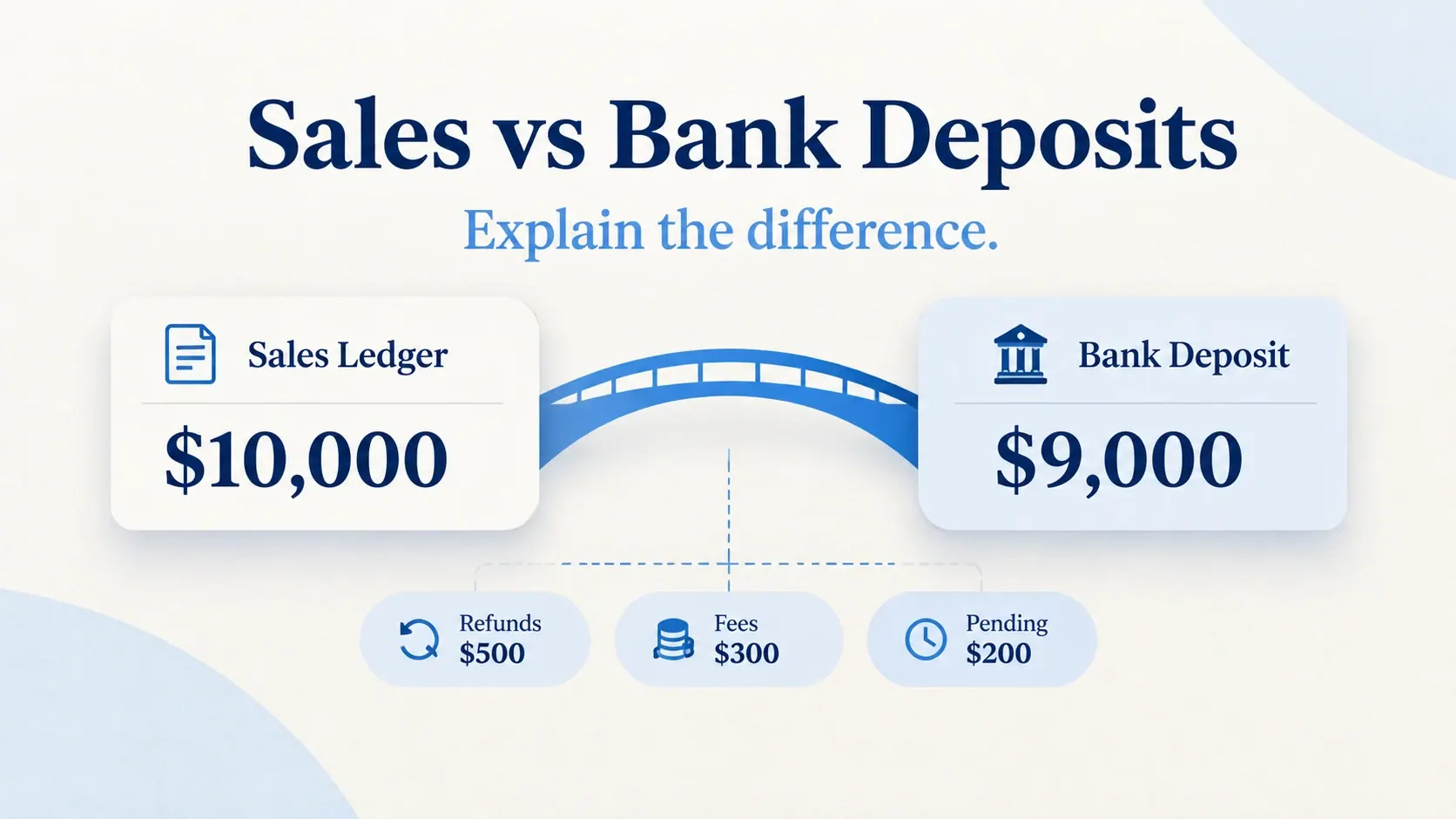
Why Sales Don't Match Bank Deposits: Reconcile Your CSV Exports
Explain the gap between sales and cash without forcing the totals to match. Trace refunds, fees, pending funds, and bank receipts with a four-file practice pack.
 Excel AI
6 Best AI Tools for Excel in 2026: Which One Fits Your Workflow?
A practical guide to six AI tools for Excel: what each is designed to help with, when to use it, and what to check before trusting the result.
 Excel AI
Best AI Tools for Excel Data Analysis in 2026: 12 Compared
A practical comparison of AI tools for Excel data analysis, including workbook assistants, file-to-report tools, formula helpers, and BI platforms.
 Financial Analysis
AI for Financial Analysis: What It Does Well, and How to Check It
You do not need to be a data specialist to use AI for financial analysis. You need to know which tasks it handles, how to check the numbers, and where to stop.
 Excel AI
How to Audit an AI-Generated Excel Report Before You Share It
AI can make an Excel report look finished before the numbers are trustworthy. Use this review workflow to trace inputs, recalculate KPIs, and separate facts from guesses.
 AI Dashboard
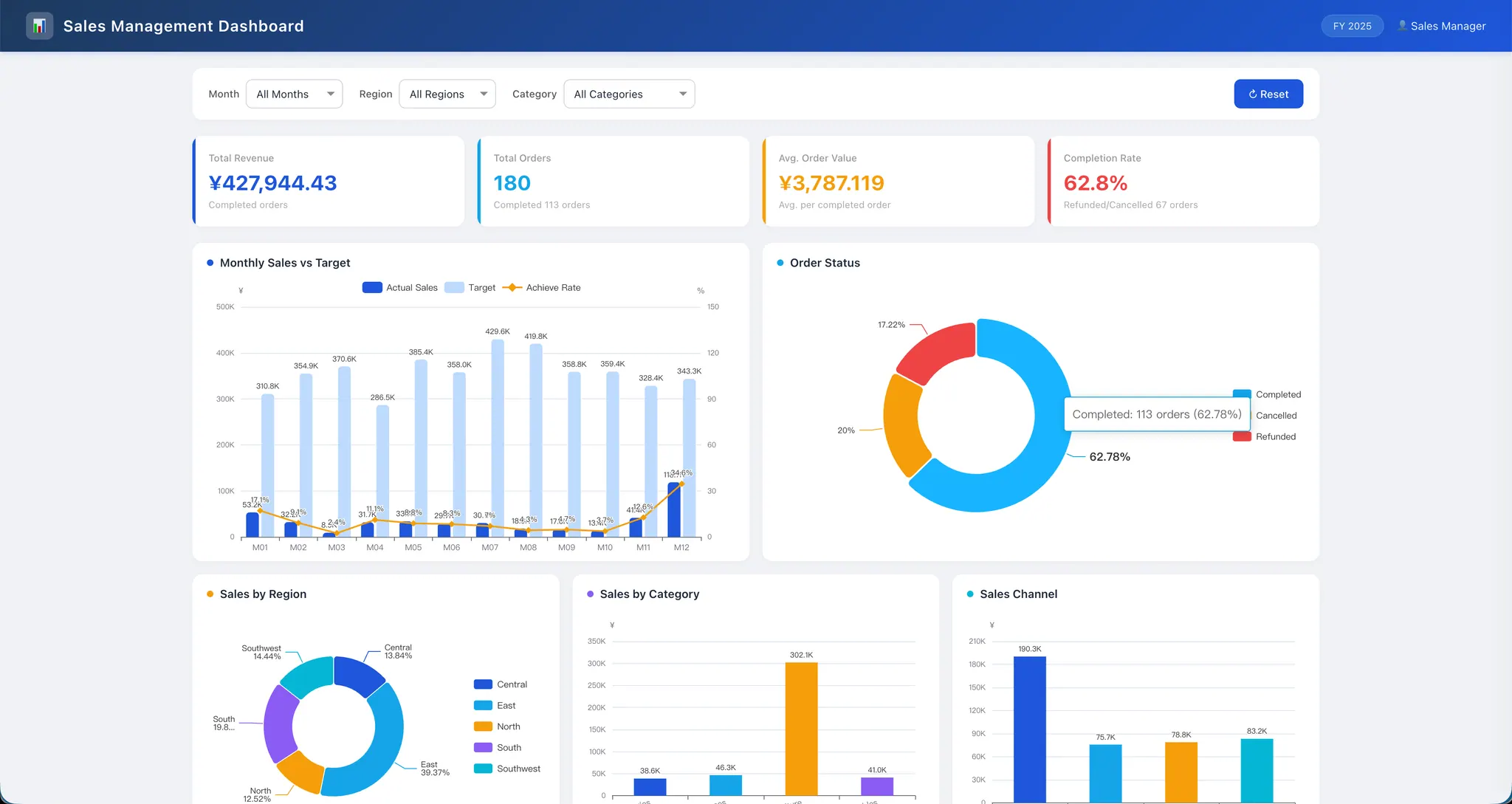
Claude Dashboards vs Excel: Which Workflow Fits Your Team?
Compare connected AI dashboards with Excel and CSV workflows. Use a practical decision guide, review prompt, and checks before sharing a dashboard.
 AI Dashboard
Can You Trust an AI Dashboard from Excel? A Review Checklist
Learn how to review an AI dashboard from Excel: define the KPI, trace it to source rows, test edge cases, and choose between a file workflow and BI.
 AI for Excel
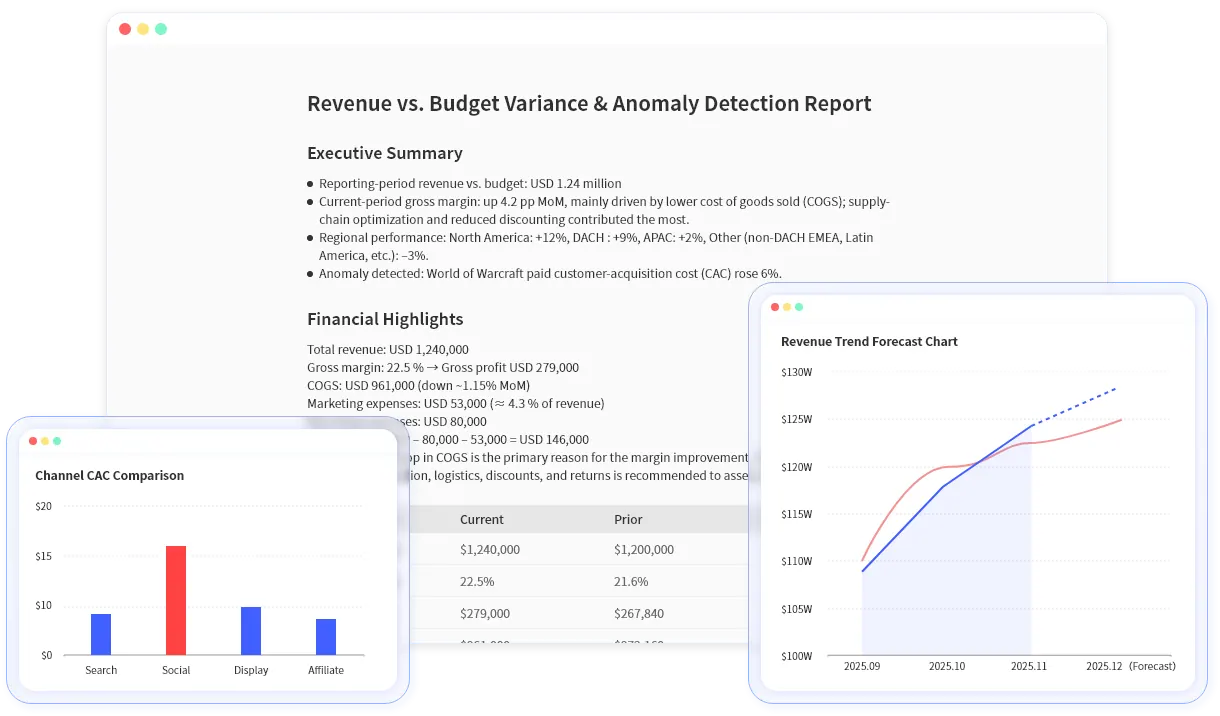
Claude in Google Sheets vs Excel AI: Which Fits Finance Teams in 2026?
Claude in Google Sheets is useful for in-sheet work. This comparison shows when finance teams need Excel AI, a file-based analysis workflow, or a reviewable report instead.
 Data Visualization
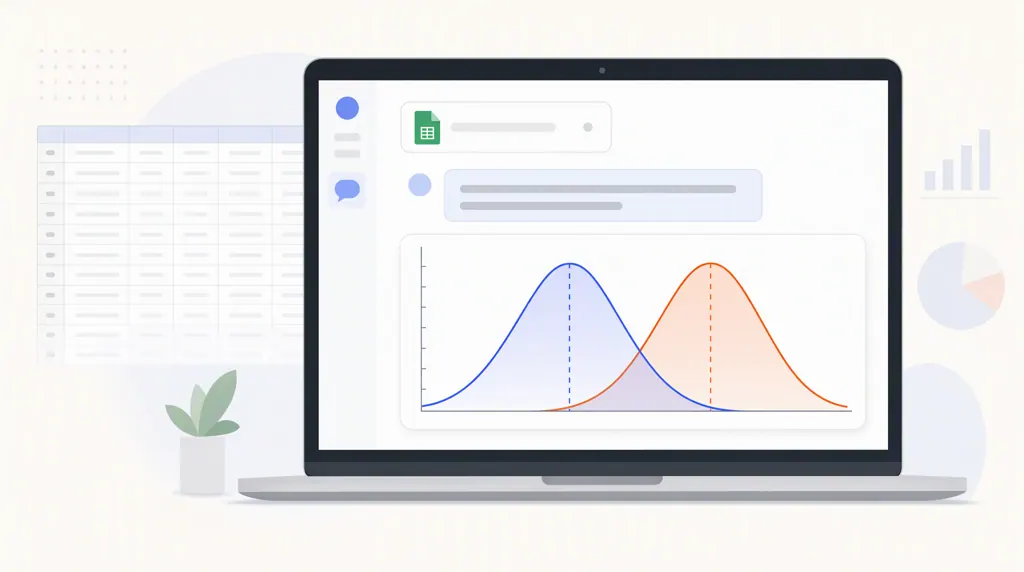
How to Plot a Bell Curve in Excel (and a 30-Second Shortcut)
Plot a bell curve two ways: build it step by step in Excel, or upload your file to RowSpeak and ask for it in one sentence. Includes prompts, review checks, and common mistakes.
 AI Dashboard
How to Create an Interactive Financial Dashboard from Excel: Manual Excel vs. RowSpeak
Build the same financial dashboard three ways: manually in Excel, with RowSpeak as an editable Excel workbook, and as an interactive HTML dashboard.
 AI Dashboard
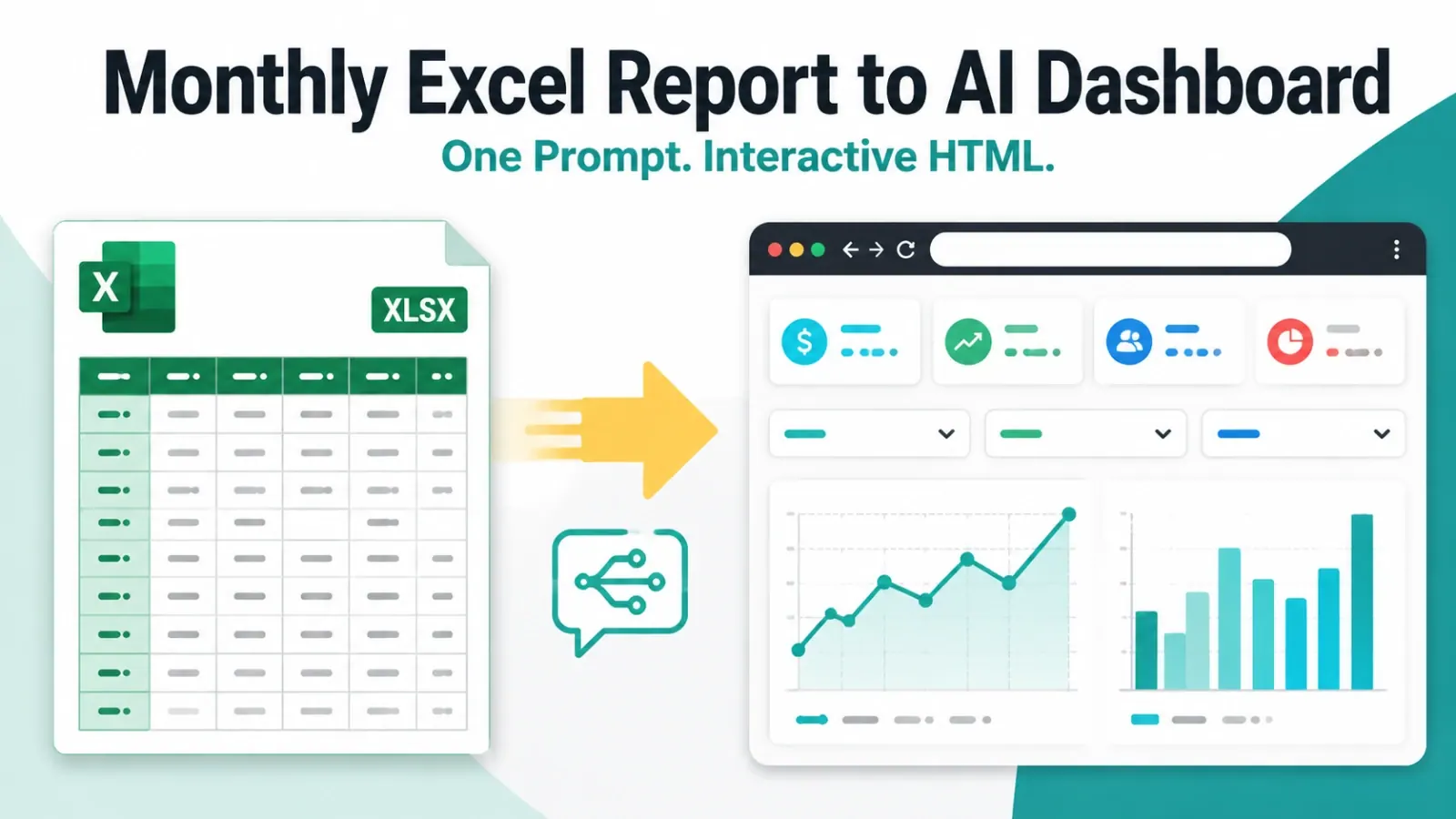
How to Turn a Monthly Excel Report Into an AI Dashboard
Upload a monthly Excel report, describe the decision you need in one sentence, and generate a browser-based dashboard draft you can check, refine, reuse, and share.
- Excel AI
Grok for Excel vs RowSpeak: Which AI Tool Respects Your Data?
Grok-style Excel assistance can help at the cell level. RowSpeak is designed for file-to-report work. The right choice depends on data boundaries, review needs, and the output your team needs.
 Business Intelligence
AI vs Excel vs BI in 2026: Where Each Tool Fits in Business Reporting
An evidence-led AI vs Excel vs BI comparison using recorded RowSpeak outputs, a controlled workbook, governance triggers, and review gates.
 Excel AI
25 AI Spreadsheet Analysis Tasks for Finance and Operations (With Prompts)
Twenty-five testable spreadsheet prompts supported by recorded RowSpeak evidence, seeded edge cases, control totals, and a reusable review log.
 Excel AI
What Is an AI Spreadsheet? From Chat to Reviewable Business Reporting
A practical definition of AI spreadsheets supported by recorded RowSpeak evidence, visible failures, seeded defects, and a reviewable reporting workflow.
 Excel Tips
Excel to Charts With AI in 2026: Tools, Choices, and Review Checks
An evidence-led Excel-to-chart workflow with a real RowSpeak output, a test workbook, known totals, edge cases, and a short recorded demo.
 Excel AI
How to Build Reliable AI-Powered Excel Automation for Recurring Reports
An evidence-led workflow for recurring Excel reports, including recorded RowSpeak outputs, seeded defects, reconciliation checks, and human review gates.
 Excel AI
AI Spreadsheet Tools Compared: 8 Tools for 2026
A research-led guide to 8 spreadsheet-adjacent AI tools that separates publicly documented scope from capabilities that still need an in-product trial.
 Excel AI
5 Best Rows Alternatives in 2026: Compare Features, Fit, and Trade-Offs
The closest Rows replacement depends on the job: an online spreadsheet, AI inside Excel or Sheets, flexible analysis, or a report built from real business files.
 Excel AI
AI Retail Operational Excellence: Turn Retail Spreadsheets Into Weekly Action Plans
A practical workflow for using AI to turn retail spreadsheets into store, inventory, sales, and promotion action plans.
 Excel Automation
How to Generate 100+ Client Excel Reports from One Pivot Table
If your team creates dozens or hundreds of client reports from the same Excel pivot table every month, the problem is not only speed. You need a repeatable workflow that controls filters, formatting, review, and client data boundaries.
 AI Dashboard
Excel Dashboard Templates: When to Use a Template vs AI
A practical guide to Excel dashboard templates, including sales, finance, inventory, marketing, and KPI examples, plus when to use RowSpeak instead of forcing data into a generic template.
 Excel Template
AI Excel Sheet Generator for Inventory, Sales, and Finance Templates
A practical guide to AI-generated Excel sheets for business templates, including prompts, review checks, and where RowSpeak fits when a blank template is not enough.
 AI Dashboard
Excel Dashboard Examples: Sales, Finance, Inventory, and KPI Reports
A practical guide to Excel dashboard examples, what each dashboard should show, which source columns you need, and how to create a reviewable dashboard with RowSpeak.
 AI Dashboard
How to Create a Dashboard in Excel with AI
A practical step-by-step workflow for creating an Excel dashboard with AI, including source data checks, prompt examples, review criteria, and where RowSpeak fits.
 Image To Excel Converter
Convert Image to Excel Table: A Reviewable AI Workflow
A practical guide to converting image tables into editable Excel files, including OCR vs. table extraction, review checks, use cases, and how RowSpeak fits after conversion.
- AI Dashboard
Online Dashboard Builder from Excel File: A Practical AI Workflow
A practical workflow for turning Excel or CSV files into online dashboards with AI, including dashboard examples, prompt patterns, review checks, and where RowSpeak fits between Excel and heavy BI.
 Excel AI
Excel Copilot Tutorial: How to Use It and When to Choose RowSpeak Instead
A practical Copilot in Excel tutorial for business users, with a decision framework for when to use Microsoft 365 Copilot and when to use RowSpeak for file-to-report workflows.
- AI Data Analysis
Best AI Tools for Data Analysis in 2026
The best AI data analysis tool depends on where your data starts and what output your team needs: charts, dashboards, reports, evidence, or governed BI.
- AI Dashboard
Build a Dashboard from Excel, CSV, and PDF Files with AI
Dashboards often start from messy files, not perfect databases. This RowSpeak workflow shows how to turn Excel, CSV, and PDF data into dashboard-ready analysis.
 Business Intelligence
AI Business Intelligence for Teams That Still Live in Excel
Business intelligence often starts in Excel. This guide shows how AI BI can help spreadsheet-heavy teams turn messy files into analysis, reports, and dashboards.
- Data Cleaning
Data Cleansing Tools: 12 Best Options for Cleaning Messy Spreadsheets in 2026
The best data cleansing tool depends on the job: cleaning a messy spreadsheet, preparing recurring CSV reports, standardizing customer records, or governing enterprise data quality.
 Excel AI
AI Pivot Table Alternative for Excel Reporting: When to Switch
Pivot tables are still useful, but they are not the whole reporting workflow. Learn when AI can help you move from summaries to reviewable business reports.