Pivot tables are one of the best tools Excel ever gave business users. They are fast, flexible, and familiar. If all you need is a clean summary of one table, a pivot table may still be the right tool.
For reports that repeat every week or month, RowSpeak's monthly reporting workflow keeps file cleanup, metric checks, and summaries reusable.
The problem is that business reporting rarely stops at the pivot.
You have to clean the source file, decide which metric matters, filter out bad rows, explain the movement, create charts, write commentary, and answer follow-up questions. Next week, the file changes and the loop starts again.
That is where an AI reporting workflow can help. Not because pivot tables are obsolete, but because the reporting job is bigger than a pivot table.
Key takeaways:
- Pivot tables are excellent for summarizing clean, structured tables, but they do not explain business changes or prepare reports by themselves.
- AI becomes useful when the task includes messy data, recurring files, written explanation, anomaly checks, and dashboard-ready output.
- RowSpeak works as an AI layer for spreadsheet reporting: upload the file, ask for a reviewable analysis, correct the logic, and turn the result into a report or dashboard.
Where Pivot Tables Still Win
Keep using pivot tables when the data is already clean and the question is narrow:
- Total revenue by month
- Orders by region
- Expenses by category
- Count of tickets by priority
- Average margin by product line
For these jobs, a pivot table is fast and transparent. You can drag fields, change filters, and see the summary immediately.
The trouble begins when the question becomes more like this:
- Why did margin drop in the West region?
- Which products caused most of the revenue change?
- Which reps have pipeline risk next month?
- Why does the finance summary not match the CRM export?
- Can you turn this into a report for Monday morning?
At that point, the pivot is only one step. The real work is interpretation, cleanup, and communication.
The Reporting Work Pivot Tables Do Not Cover
A recurring report usually includes five jobs:
- Data inspection: Are there missing dates, duplicate IDs, mixed formats, or inconsistent labels?
- Metric definition: What exactly counts as revenue, churn, pipeline, or inventory risk?
- Segmentation: Which regions, channels, products, or customer groups explain the movement?
- Narrative: What changed, why it matters, and what should happen next?
- Review: Can someone check the rows, assumptions, and calculations before sharing?
Pivot tables help with segmentation. They do not handle the full reporting chain.
That is why spreadsheet teams should not frame the question as "pivot tables versus AI." The better question is:
Which parts of this reporting workflow should stay in Excel, and which parts should move into an AI-assisted review and reporting flow?
Example: Weekly Sales Pipeline Reporting
Imagine a sales operations manager has an Excel export with:
- Opportunity ID
- Account name
- Owner
- Stage
- Amount
- Close date
- Created date
- Last activity date
- Region
- Source
The starting point can still be an ordinary spreadsheet or CSV. In RowSpeak, the analyst can describe the pivot-style summary they need and add reporting instructions in the same request.
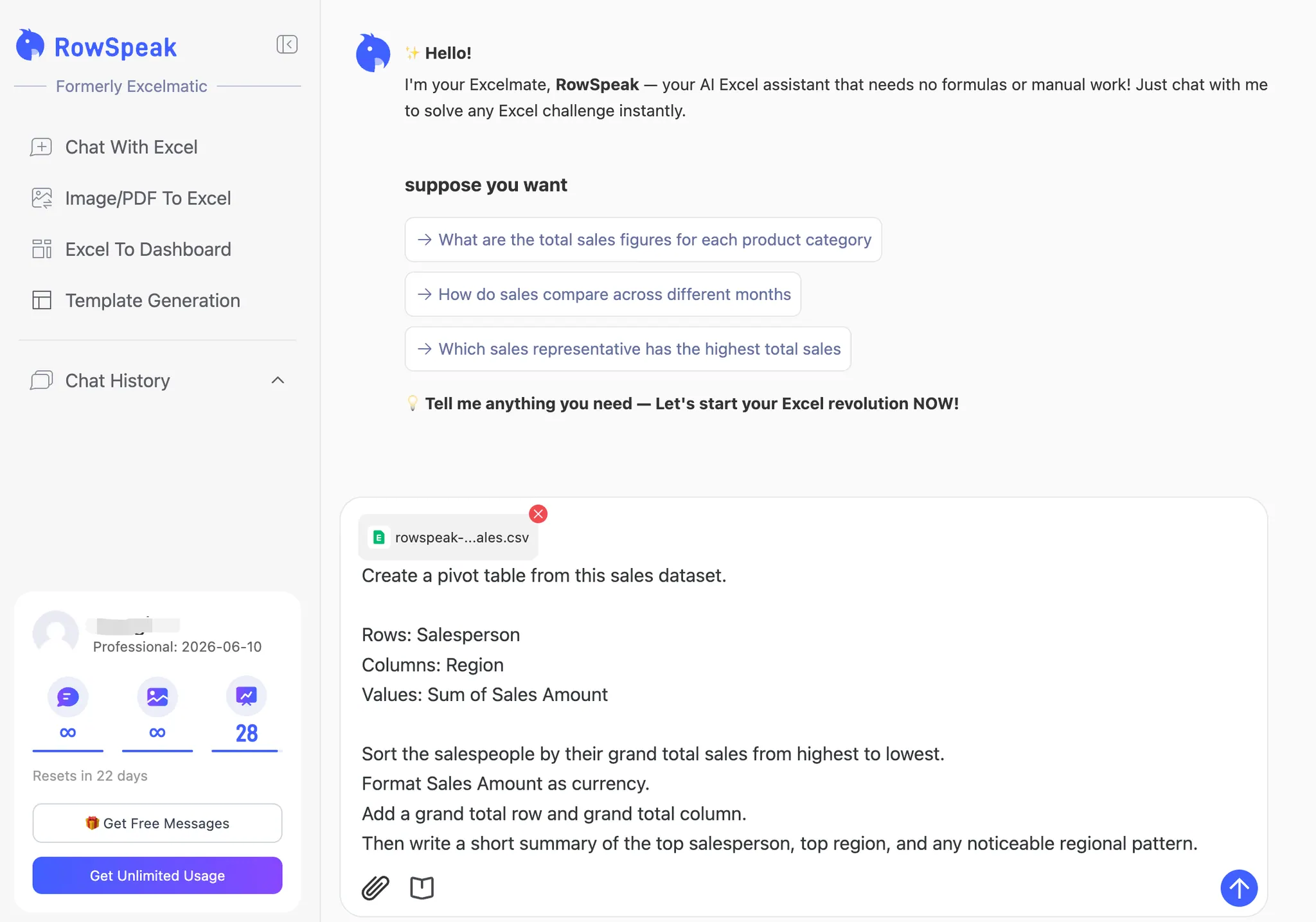
A pivot table can show pipeline amount by stage and owner. Useful, but incomplete.
Leadership also wants to know:
- Which deals are at risk?
- Which regions are short of target?
- What changed since last week?
- Which owners need follow-up?
- What should be shown on the dashboard?
This is a better fit for an AI reporting workflow.
How to Use RowSpeak as the Next Step After Pivots
Upload the sales pipeline workbook to RowSpeak and start with a data review:
Review this sales pipeline workbook before creating a report. Identify duplicate
opportunities, missing close dates, stale activity, inconsistent regions, and any
fields that need clarification.
Then ask for the report logic:
Create a weekly pipeline report. Define total pipeline, weighted pipeline,
at-risk deals, and forecast gap. Show the logic behind each metric before
summarizing results.
Then turn the analysis into a management-ready output:
Prepare a report for the sales leadership meeting with:
1. Executive summary
2. KPI table
3. Pipeline by stage and region
4. At-risk deals
5. Recommended follow-up actions
6. Suggested dashboard charts
The demo below shows this pivot-style workflow moving into a report output, where the summary is paired with an explanation instead of stopping at a table.
This is where RowSpeak becomes more than a pivot table alternative. It helps connect the file, the analysis, and the explanation.
For teams building visual summaries from spreadsheet data, the workflow can also continue into an Excel-to-dashboard workflow.
Decision Guide: Pivot Table, Formula, BI, or RowSpeak?
Use a pivot table when:
- The data is clean.
- The question is simple.
- You need a quick cross-tab summary.
- The output stays inside Excel.
Use formulas when:
- You need exact workbook logic.
- The calculation must remain visible in cells.
- The workbook is maintained by an Excel-heavy team.
Use BI when:
- The source data is stable.
- Multiple teams need governed dashboards.
- The model will be reused for a long time.
- IT or analytics can maintain the semantic layer.
Use RowSpeak when:
- The work starts from Excel, CSV, PDF, or image-based tables.
- The report changes often.
- You need written explanation, not just a summary table.
- You want to review and refine the output in plain language.
- BI would be too heavy for the current reporting need.
This decision frame also pairs well with RowSpeak's broader data analysis workflow, especially when the job includes cleanup, interpretation, and report generation.
What to Ask AI That a Pivot Table Cannot Answer Well
Try questions like:
What changed the most since last month, and which rows explain the change?
Which segment looks healthy in total but weak after adjusting for seasonality or target?
Which records should I inspect before sharing this report with leadership?
Turn this pivot-style summary into a written management update with caveats and next actions.
These questions move beyond simple aggregation. They ask for interpretation, evidence, and communication.
Review Checklist Before You Share the Output
Before sending an AI-assisted report, check:
- Did RowSpeak identify the source fields used for each metric?
- Are totals reconciled against the original file?
- Are filters and exclusions stated clearly?
- Are missing values or duplicates called out?
- Are the recommended charts tied to the decision?
- Can you trace important claims back to rows or segments?
This checklist matters because AI reporting should be reviewable. The goal is not to hide the spreadsheet. The goal is to spend less time wrestling with it and more time checking the business logic.
The Better Mental Model
Pivot tables summarize data. RowSpeak helps explain data.
That difference matters. A pivot can tell you sales dropped in one region. A stronger workflow can help identify which products, accounts, reps, dates, or missing records are behind the movement, then turn that into a report someone can act on.
If you already use pivot tables well, you do not need to abandon them. Use them where they are strong. Use RowSpeak when the job becomes repetitive, messy, explanatory, or report-driven.
That is the practical shift: from "make a pivot" to "produce a reviewable business report."