Key takeaways:
- If you already know the business question, RowSpeak can create a pivot-style summary from a prompt in about 2-3 minutes, including upload, review, and a follow-up request.
- The manual Excel process gives you full control, but it usually takes 8-15 minutes for a beginner because every field, filter, sort, chart, and slicer has to be configured by hand.
- The best workflow is not always "AI instead of Excel." It is often RowSpeak for fast analysis and explanation, then Excel when you need to fine-tune a workbook someone will keep editing manually.
Pivot tables are one of the fastest ways to turn raw spreadsheet rows into a summary. They can show sales by region, customers by city, revenue by month, or any other grouped view that would be painful to build with formulas alone.
The problem is not that pivot tables are weak. The problem is that the manual workflow has a lot of small decisions: clean the source data, choose the range, place the PivotTable, drag fields into the right boxes, change the aggregation, sort the result, add filters, and refresh the table when the source changes.
This tutorial gives you two ways to create the same kind of pivot table:
- Use an AI spreadsheet tool, with RowSpeak as the example.
- Build it manually in Excel, following the workflow demonstrated in Kevin Stratvert's video, Pivot Table Excel | Step-by-Step Tutorial.
Part 1: Create a pivot table with AI using RowSpeak
Use this path when you have a spreadsheet and a clear question, but you do not want to spend time dragging fields around the PivotTable Fields pane.
For this example, imagine a sales or subscriber file with columns like:
CityRegionSales RepOrder DateRevenueQuantityProduct Category
Your goal is to create a pivot table that summarizes performance by category, region, or time period.
Step 1: Upload the spreadsheet
Open RowSpeak and upload your Excel or CSV file. A clean source file is still important. Make sure the first row contains column headers, one row represents one record, and number columns are stored as numbers rather than text.
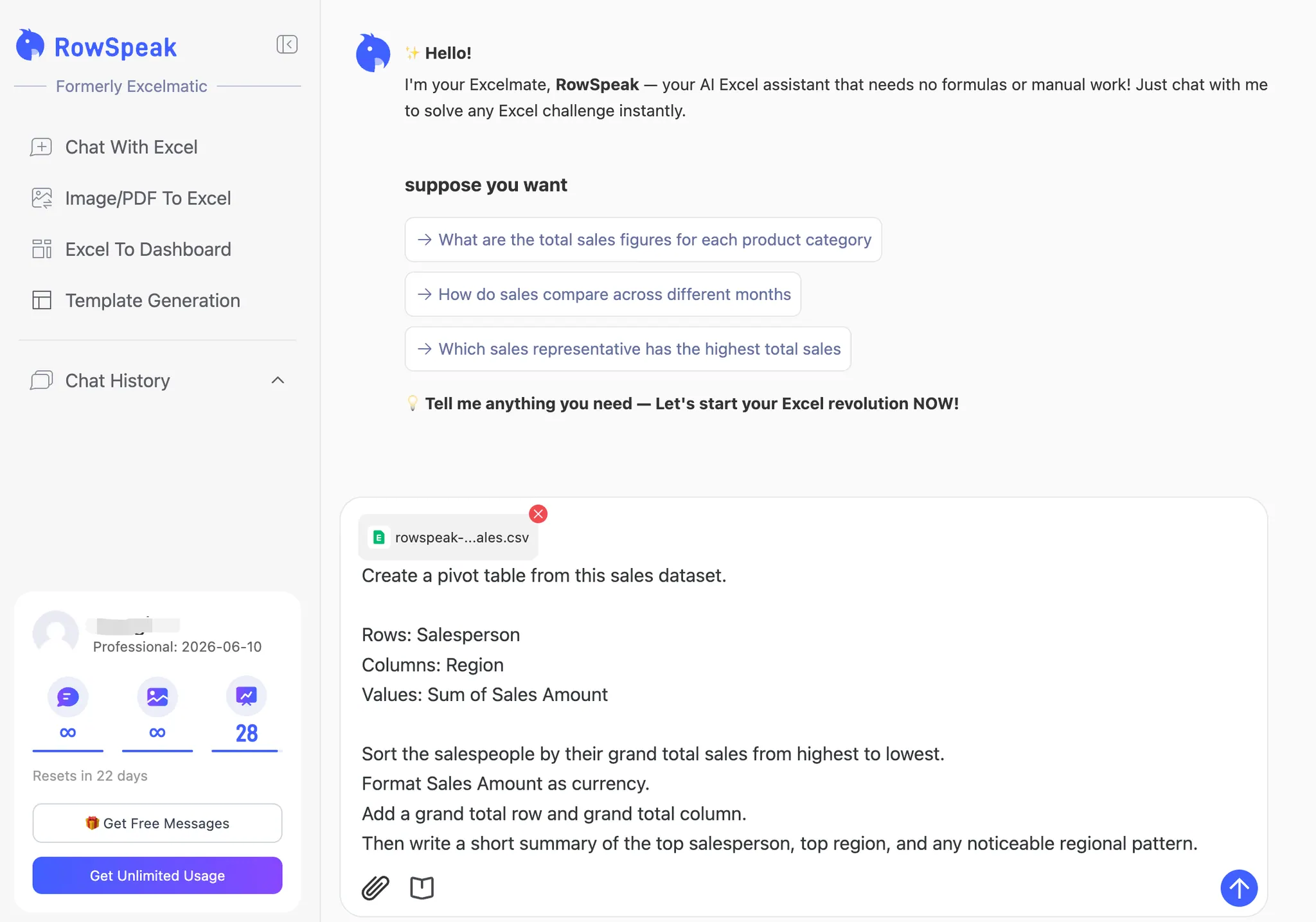
You do not need to pre-build a pivot table before uploading. RowSpeak reads the source data and lets you ask for the summary directly.
Step 2: Use a precise prompt
A good prompt should tell RowSpeak four things:
- the row grouping
- the column grouping, if needed
- the metric to summarize
- the sort, filter, or output format
Start with a direct prompt like this:
Create a pivot table from this sales dataset, and download it to me.
Rows: Salesperson
Columns: Region
Values: Sum of Sales Amount
Sort the salespeople by their grand total sales from highest to lowest.
Format Sales Amount as currency.
Add a grand total row and grand total column.
Then write a short summary of the top salesperson, top region, and any noticeable regional pattern.
If your file is subscriber data instead of sales data, use:
Create a pivot table that counts subscribers by City.
Use City as the row field and count the number of subscribers as the value.
Sort the cities from highest subscriber count to lowest.
Then summarize the main finding in one paragraph.
Step 3: Review the result
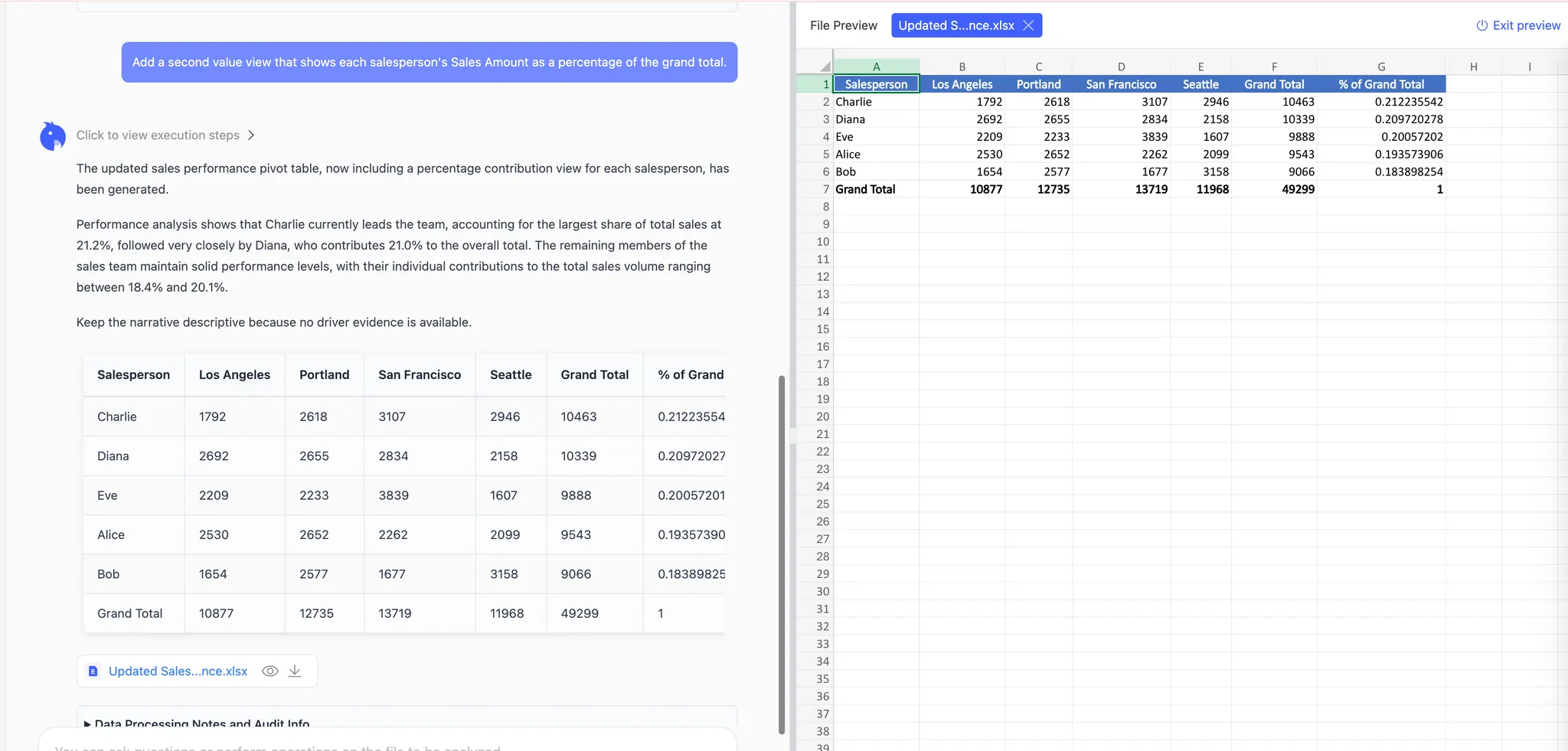
RowSpeak returns a grouped table and a written explanation. In this example, it creates a pivot table with Salesperson in rows, Region in columns, and Sales Amount summarized as the value. The table is sorted by grand total, so the strongest salesperson appears first.
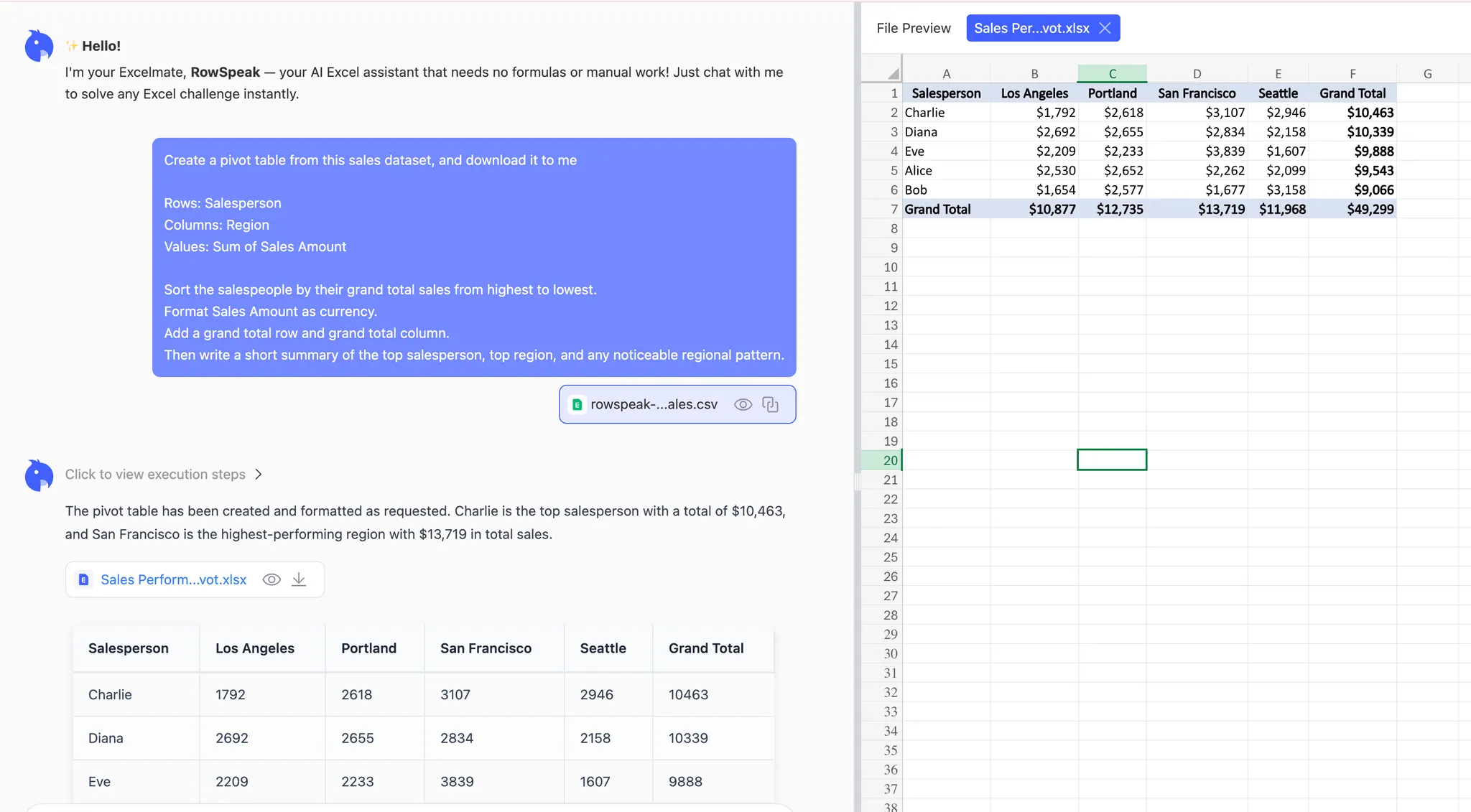
This is the first major difference from manual Excel. You do not only get the table. You also get a short explanation that helps you decide whether the result answers the business question.
Step 4: Ask follow-up prompts instead of rebuilding
After the first pivot table, you can keep refining the analysis:
Add a second value view that shows each salesperson's Sales Amount as a percentage of the grand total.
Create a bar chart from this pivot table and show only the top 5 categories.
Export the result as an Excel file with the source data, pivot table, chart, and written summary on separate sheets.
What result should you expect?
For a normal business spreadsheet, the AI path usually produces:
- a pivot-style summary table
- a short written interpretation
- optional filtering, sorting, and charting
- an exportable Excel file or table
- a workflow you can repeat with the next file
For a straightforward pivot table, budget about 2-3 minutes: one minute to upload and inspect the file, one minute to write the first prompt, and another minute to review or ask a follow-up. More complex files still need review, especially if the headers are unclear or the source data contains duplicates, blank rows, or mixed date formats.
Part 2: Create a pivot table manually in Excel
Kevin Stratvert's video, Pivot Table Excel | Step-by-Step Tutorial, walks through the classic Excel workflow. The video uses a Kevin Cookie Company sales dataset with columns for Date, Salesperson, Region, Product, Sales Amount, and Quantity Sold. The walkthrough shows how to summarize revenue, break it down by region, adjust value settings, create a PivotChart, and add slicers.
If you are new to PivotTables, this manual process is worth understanding. Even if you use RowSpeak most of the time, knowing the manual logic helps you review AI-generated results more confidently.
Step 1: Prepare the source data
Before creating a PivotTable, check the source table:
- every column needs a clear header
- there should be no blank header cells
- each row should be one transaction or record
- dates should be real dates
- revenue, quantity, and other metrics should be numeric
- avoid blank rows inside the data range
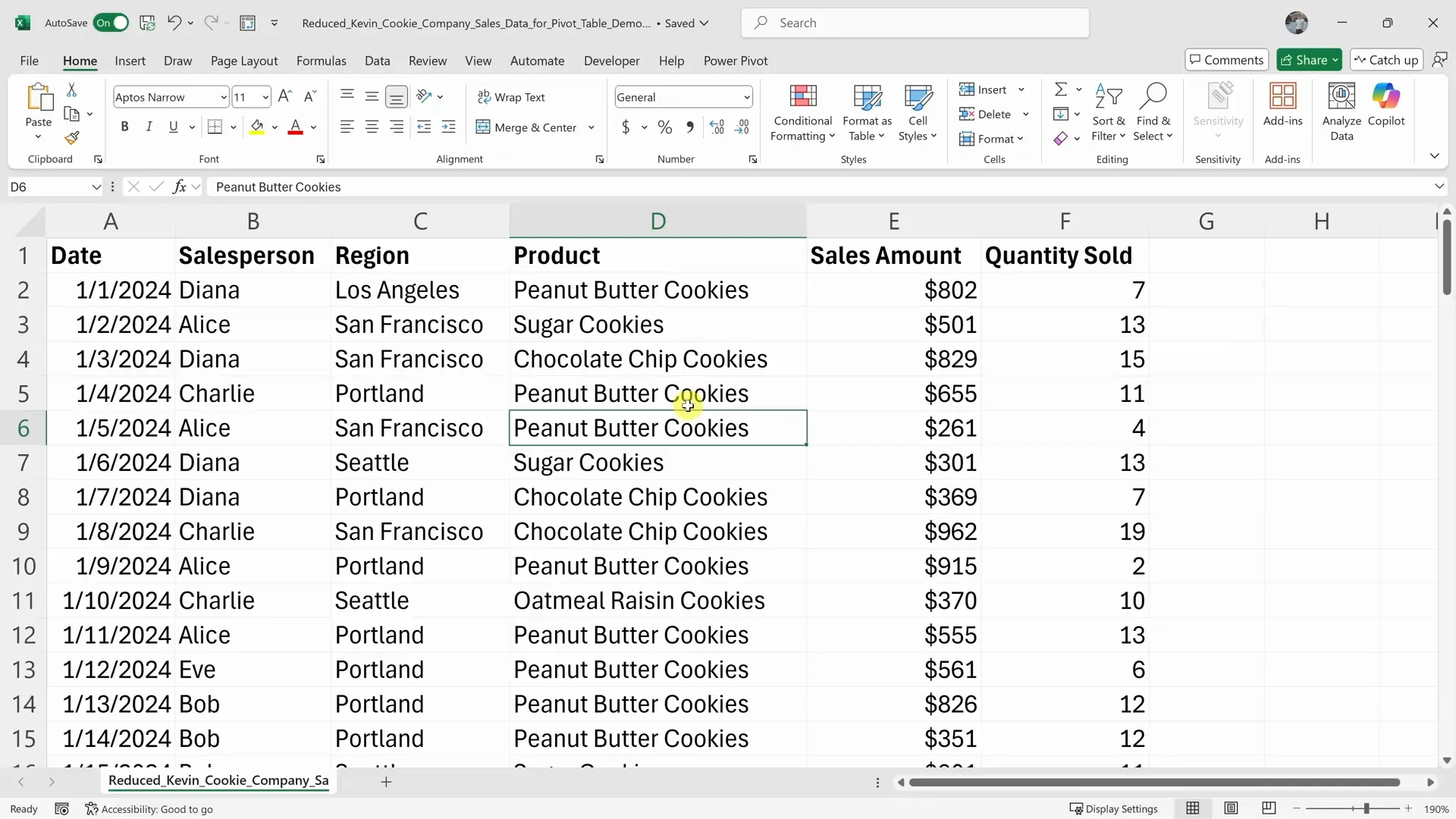
In the video, Kevin emphasizes the same idea: pivot tables work best when the data has headers across the top and associated records underneath. If the structure is messy, clean it before inserting the PivotTable.
Step 2: Insert the PivotTable
Click any cell inside the source data. Then go to:
Insert > PivotTable
Excel opens the Create PivotTable dialog. Confirm that Excel selected the right table or range. For most tutorials and one-off analysis, choose a new worksheet so the pivot table does not crowd the raw data.
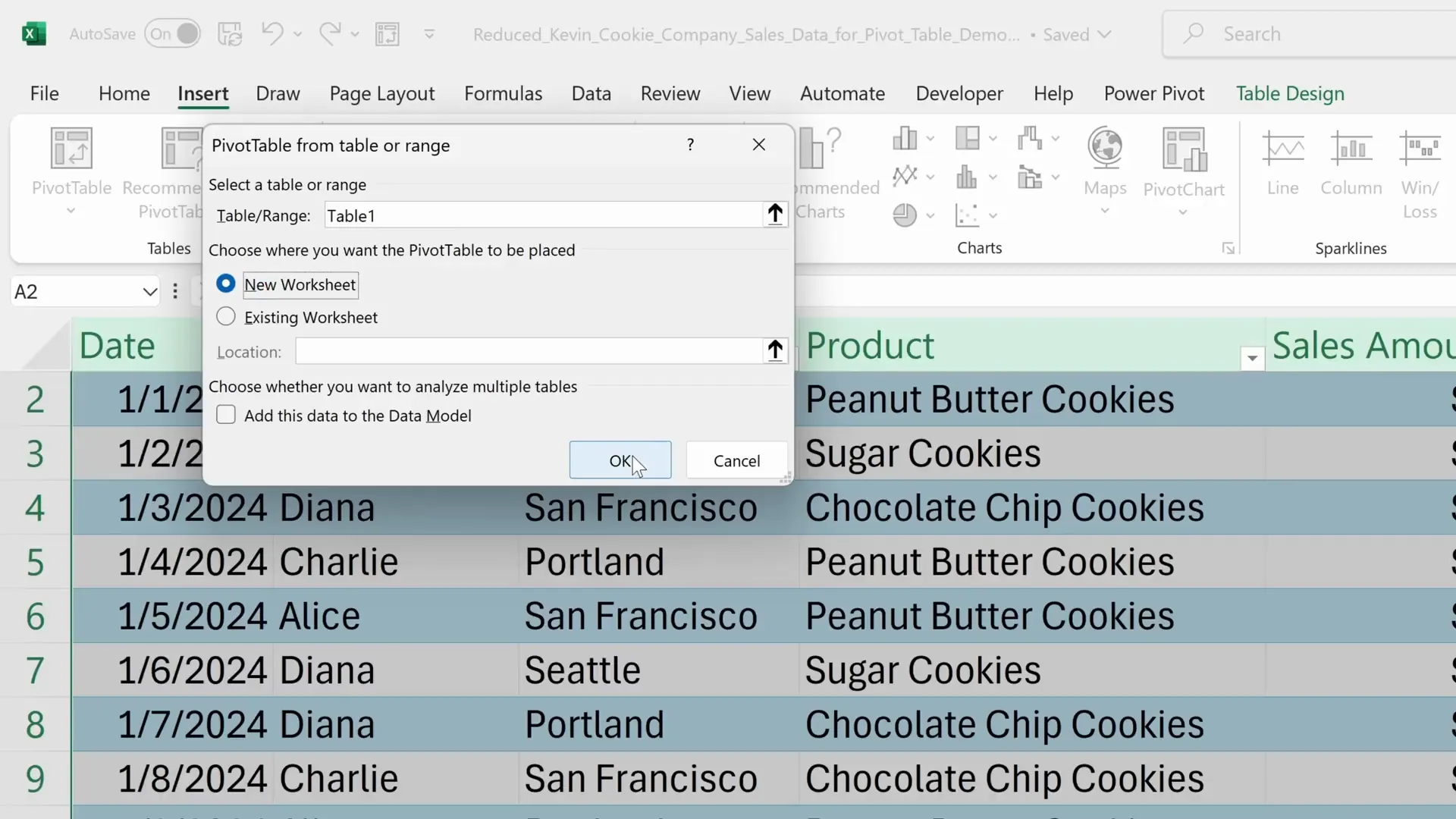
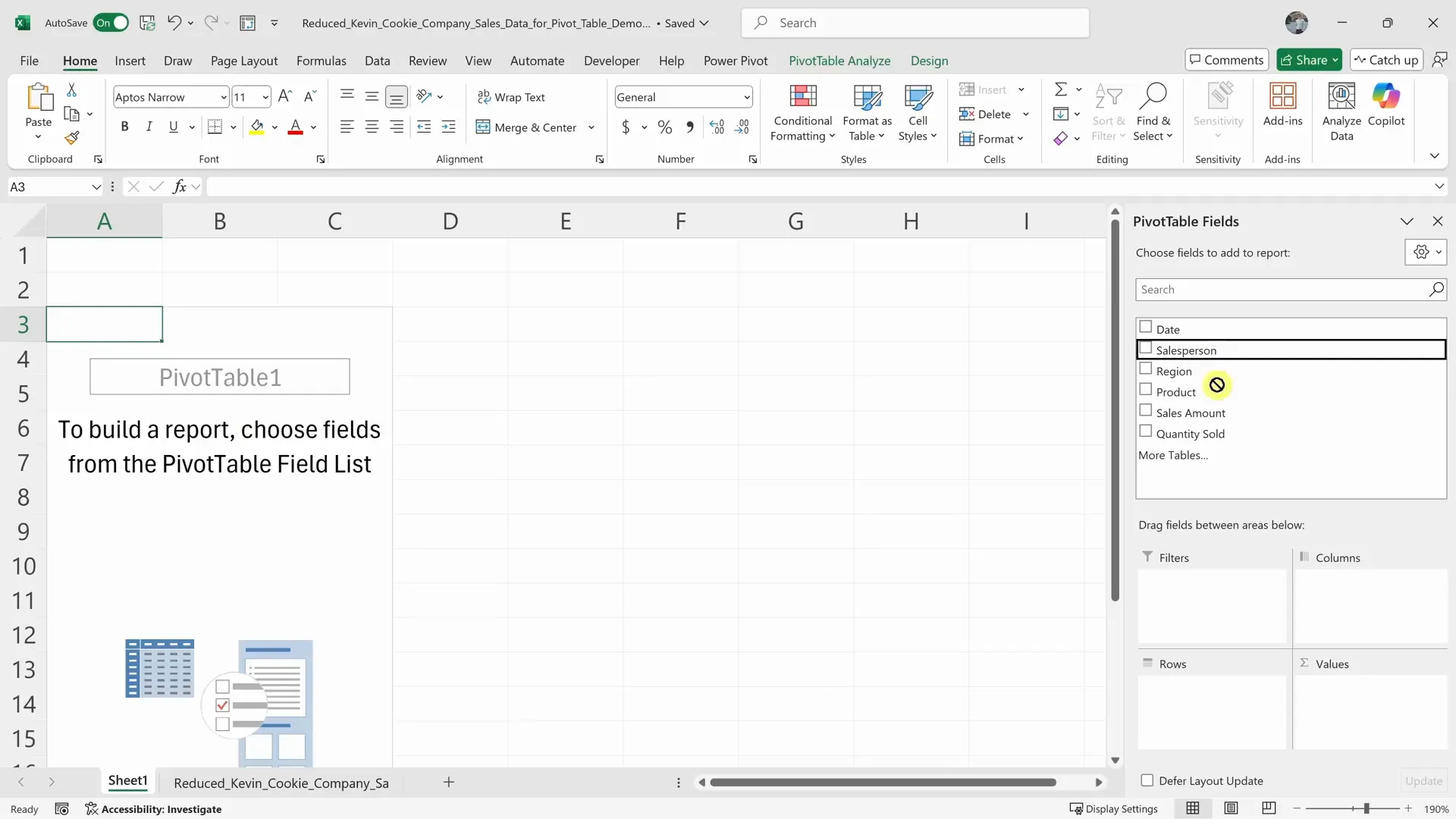
Click OK. Excel creates a blank PivotTable area and opens the field list.
Step 3: Add fields to Rows, Columns, and Values
This is the part beginners usually find confusing. A PivotTable has four main areas:
Rows: the categories listed down the left sideColumns: the categories spread across the topValues: the numbers to summarizeFilters: high-level filters for the whole report
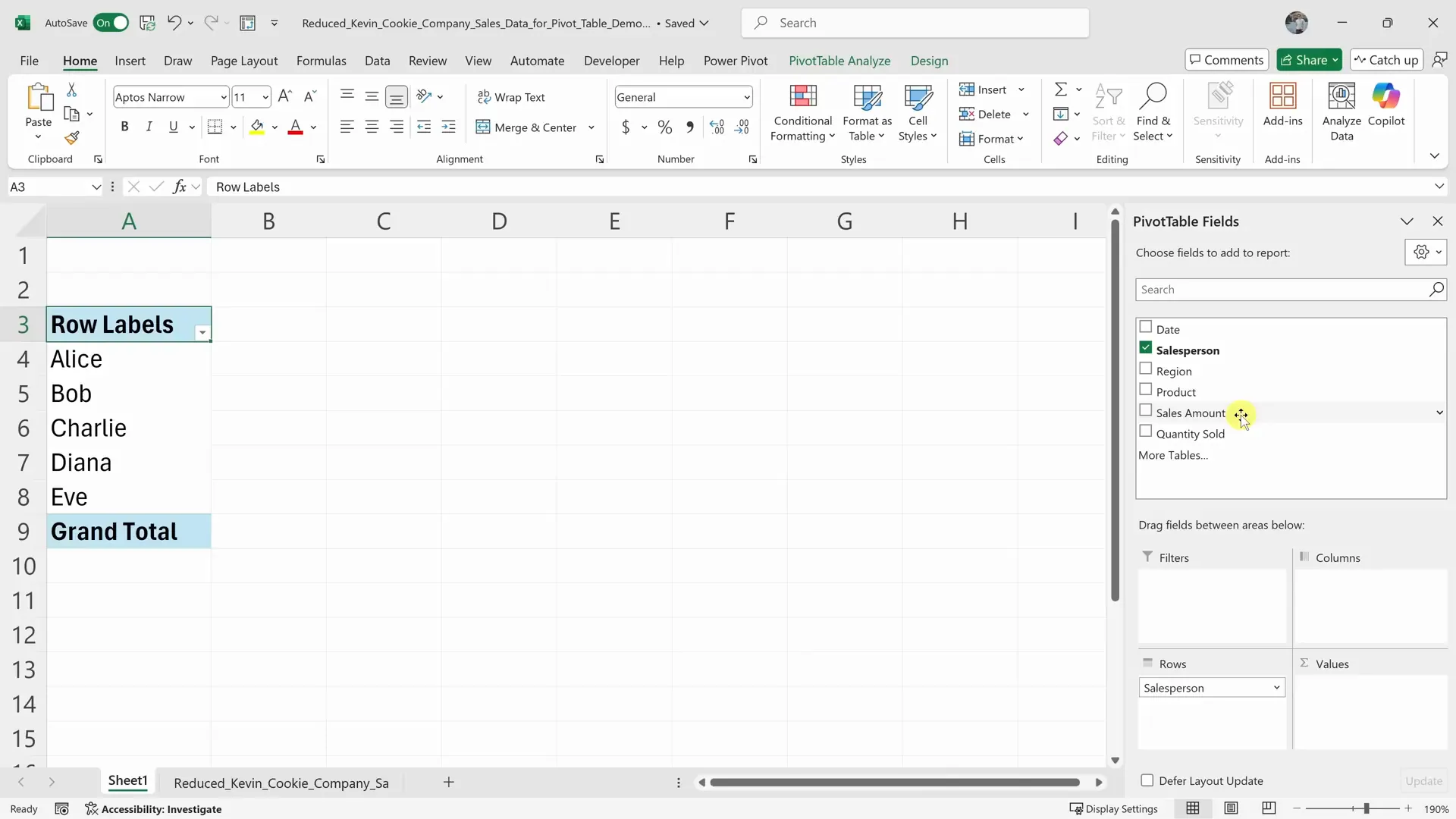
In the video, Kevin starts with a simple revenue summary:
- drag
SalespersontoRows - drag
Sales AmounttoValues - check whether Excel summarizes
Sales AmountasSum, notCount
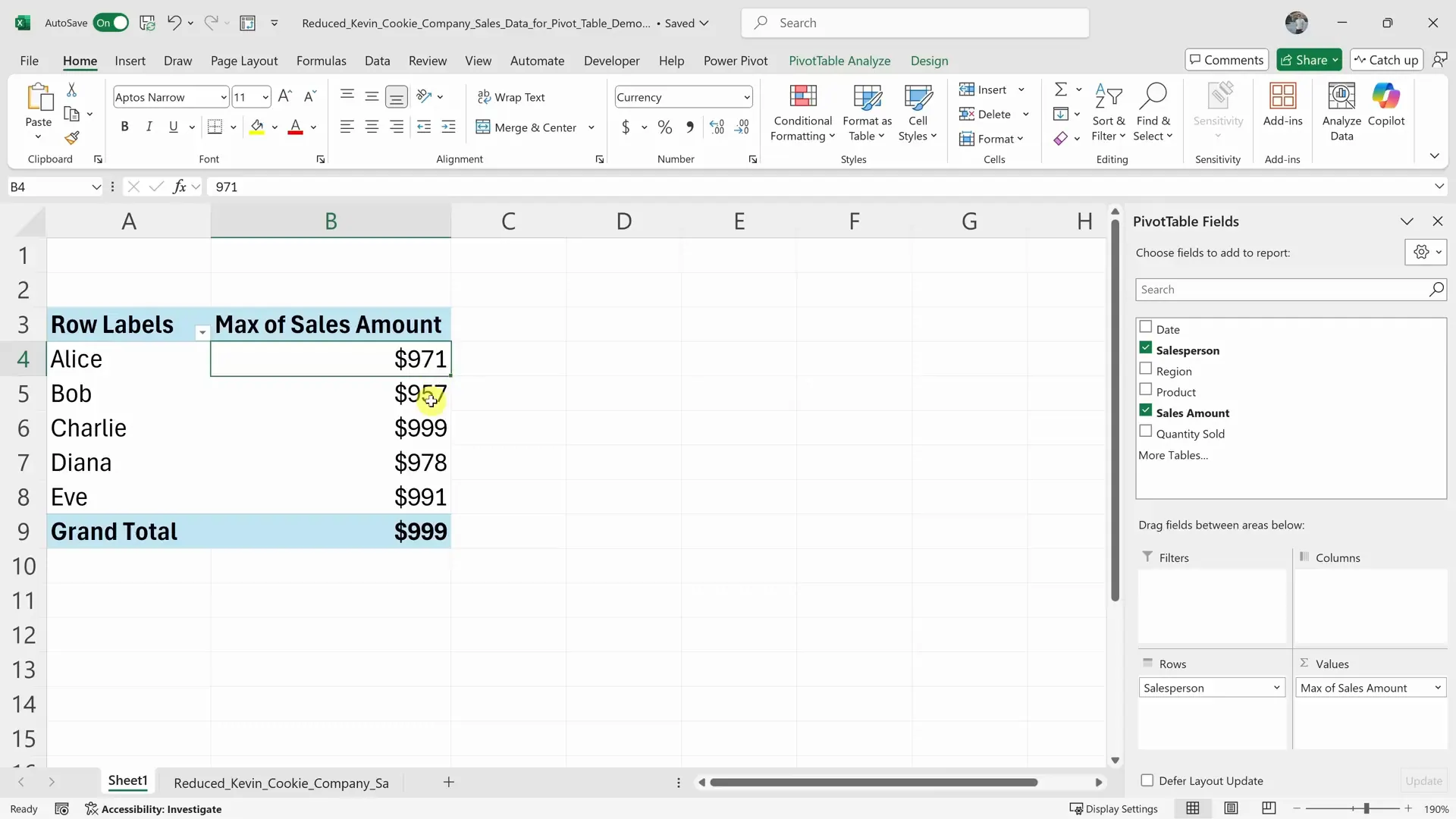
If Excel shows Count of Revenue instead of Sum of Revenue, click the value field, open Value Field Settings, and change the summary calculation to Sum.
Step 4: Format and sort the pivot table
Once the table appears, make it easier to read:
- Format revenue as currency.
- Sort the total revenue column from largest to smallest.
- Rename vague headers like
Sum of RevenuetoRevenue. - Turn grand totals on or off depending on the report.
These are small steps, but they matter. A pivot table that is technically correct can still be hard to read if the number format and sort order are wrong.
Step 5: Filter, group, or change how values are shown
To focus the pivot table, use one of these methods:
- drag a field into the
Filtersarea - use the dropdown beside row or column labels
- right-click a value and use sorting or value filters
- add slicers for interactive filtering
For example, if you only want the Northeast and West regions, use a region filter or slicer. If you only want the top 10 products, sort by revenue and apply a top-value filter.
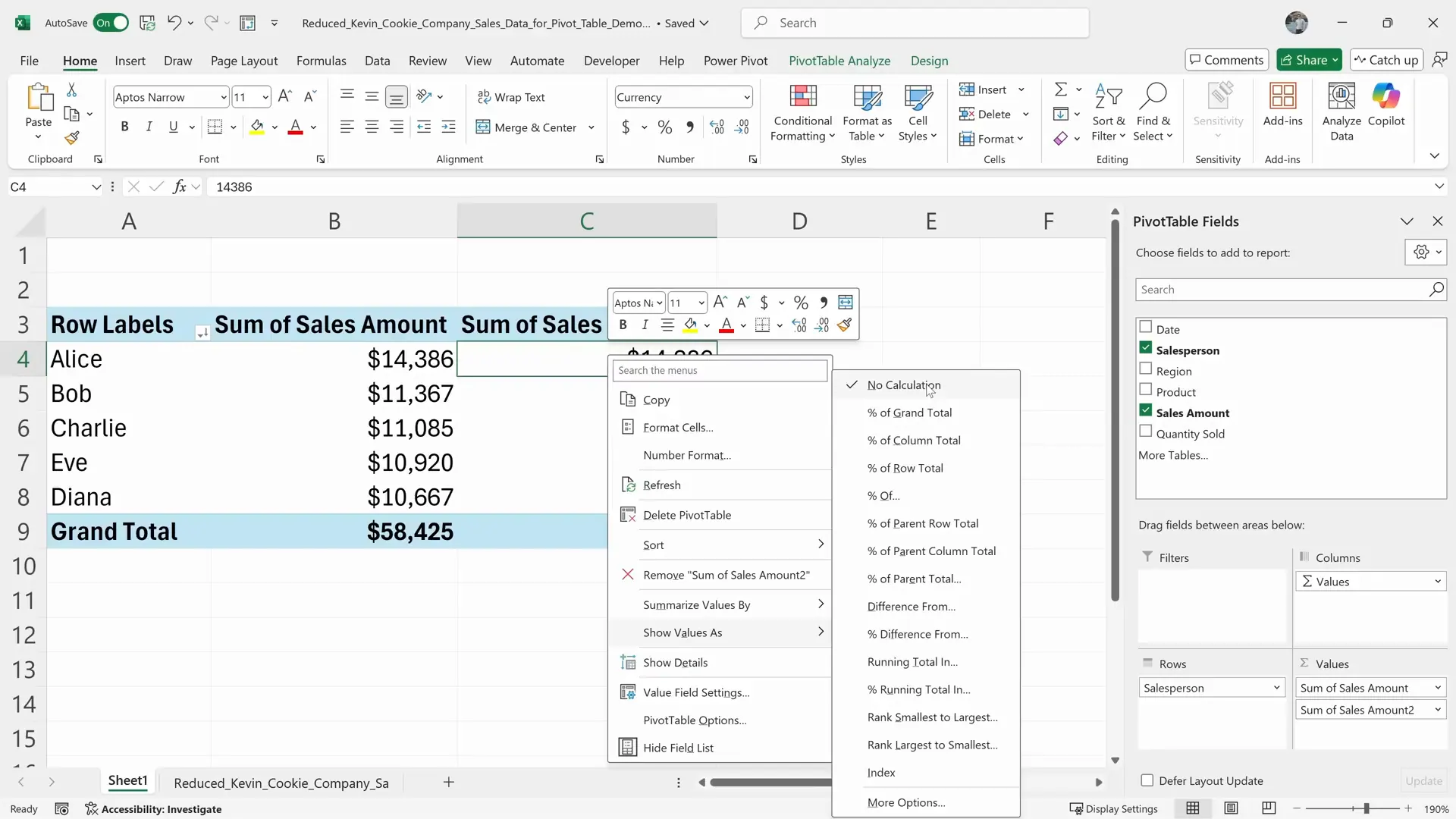
The video also shows a useful PivotTable setting: Show Values As. This lets you add a second value column and convert it into a percentage of the total, a running total, a rank, or another relative view.
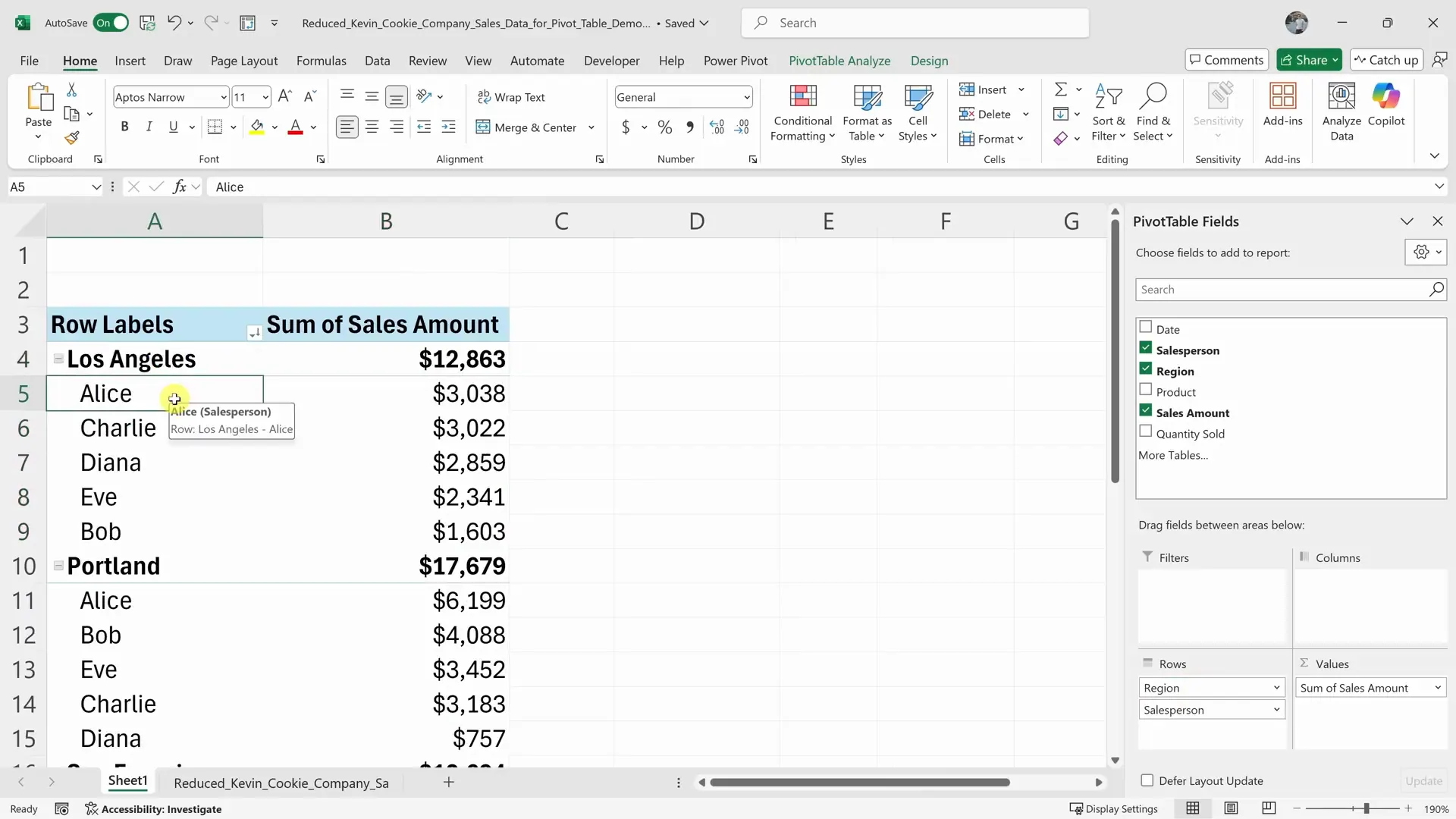
After this step, the PivotTable can show both the raw sales amount and each salesperson's percentage contribution.
Step 6: Group dates if needed
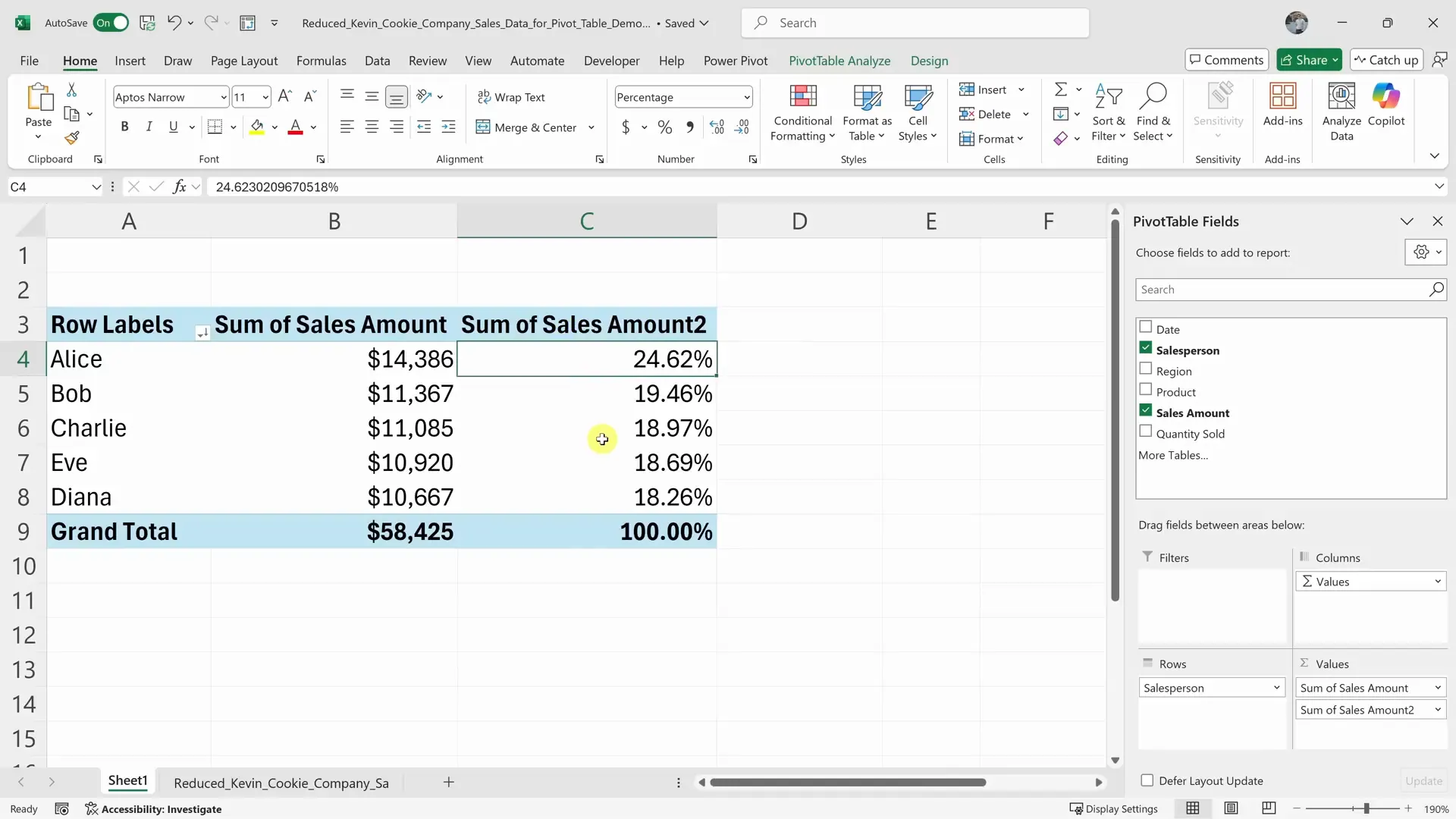
If your data includes an order date, Excel can group dates into months, quarters, or years.
Drag the date field into Rows or Columns, then right-click a date in the pivot table and choose Group. Select Months, Quarters, or Years depending on the report.
This is useful when a raw file has daily transactions but the business question is monthly or quarterly.
Step 7: Create a PivotChart
When the pivot table is selected, go to:
Insert > PivotChart
Choose a chart type that matches the question. A column chart works well for comparing categories. A line chart works better for time trends. A stacked column chart can show regional mix by month or product.
Do not start with the chart. Build the pivot table first, check the numbers, then visualize the summary.
Step 8: Add slicers for interactive filtering
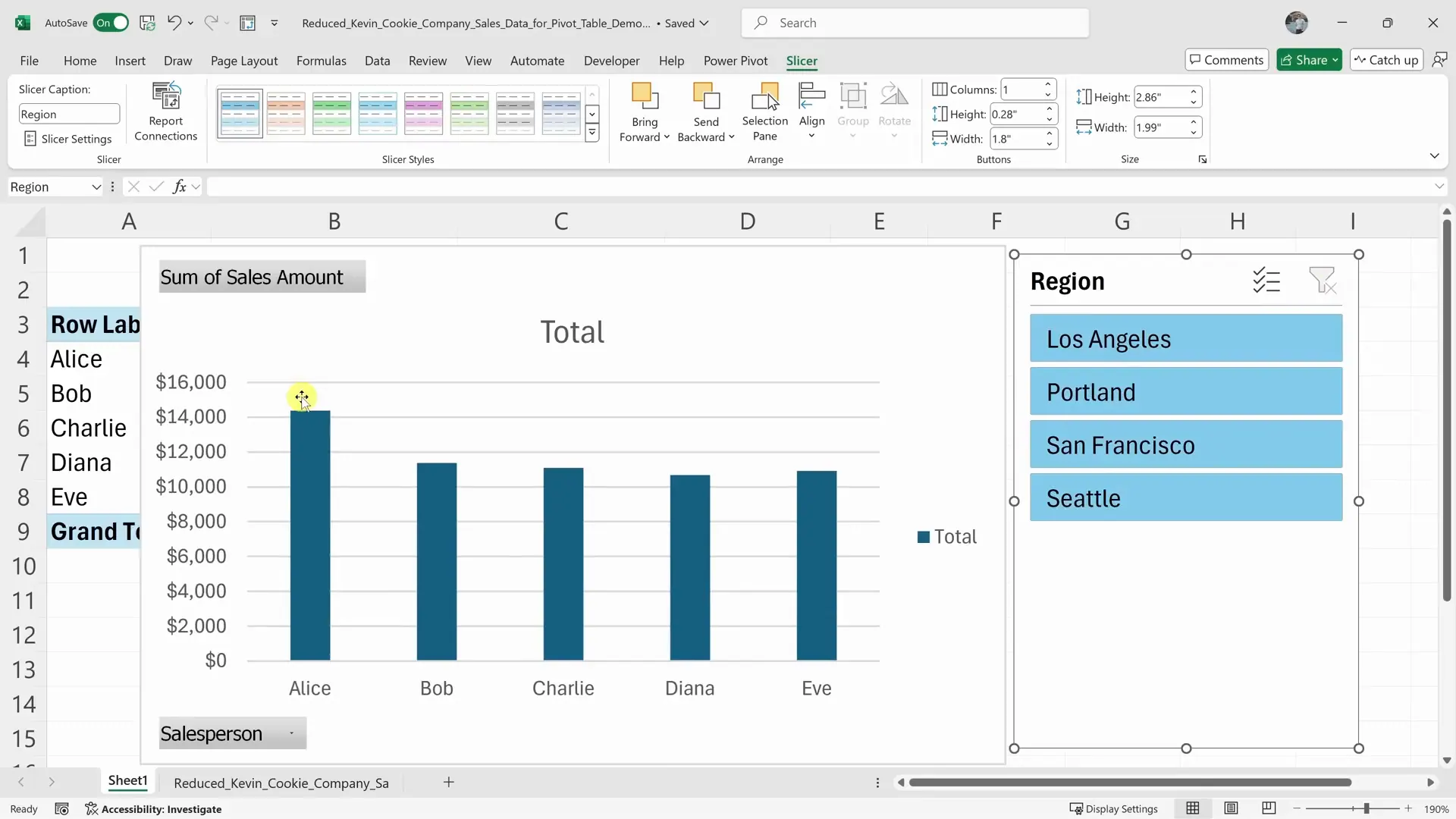
Slicers are clickable filter controls for pivot tables. In the video, Kevin also covers slicers as a way to make the report easier to explore.
With the PivotTable selected, go to:
PivotTable Analyze > Insert Slicer
Choose fields like Region, Product, Sales Rep, or Month. Once inserted, a slicer lets you filter the entire pivot table with buttons instead of dropdown menus.
Step 9: Refresh when the data changes
Pivot tables do not always update automatically. If the source data changes, right-click the PivotTable and choose Refresh, or go to:
PivotTable Analyze > Refresh
If new rows were added outside the original source range, you may also need to change the data source. This is one reason Excel Tables are helpful: a PivotTable based on a proper Excel Table can expand more reliably when new rows are added.
How long does the manual method take?
For someone familiar with PivotTables, the core table may take 3-5 minutes. For a beginner following the video carefully, plan for 8-15 minutes:
- 2-3 minutes to inspect and prepare the source data
- 1-2 minutes to insert the PivotTable
- 3-5 minutes to place fields correctly and fix value settings
- 2-5 minutes to sort, filter, group dates, add a chart, or add slicers
The manual method is not bad. It is just click-heavy. It also becomes slower when the business question changes.
If any step above is still unclear, watch Kevin Stratvert's original walkthrough here: Pivot Table Excel | Step-by-Step Tutorial. The video is 8 minutes and 35 seconds and shows the manual Excel workflow in sequence.
AI vs manual: which workflow should you use?
| Criteria | RowSpeak AI workflow | Manual Excel workflow |
|---|---|---|
| Time for a basic pivot table | About 2-3 minutes including upload and review | About 8-15 minutes for a beginner |
| Best for | Fast summaries, follow-up questions, reports, explanations, repeatable analysis | Learning Excel, workbook control, local editing, advanced manual formatting |
| Skill required | Know the question and describe the desired output | Know PivotTable fields, value settings, filters, sorting, grouping, charts, slicers |
| Iteration | Ask another prompt | Reconfigure fields, filters, sorting, and charts manually |
| Explanation | Can generate a written summary with the table | You write the interpretation yourself |
| Review risk | You must verify the AI understood the columns and aggregation | You must verify every field and setting was configured correctly |
| Export | Download or copy the generated result | Already inside Excel |
Use RowSpeak when the goal is to get from raw data to an answer quickly. Use manual Excel when the goal is to learn PivotTables deeply, maintain a workbook by hand, or fine-tune formatting inside a spreadsheet that others will edit.
For many teams, the practical answer is both: use RowSpeak to create the first analysis, explain the findings, and explore follow-up questions; use Excel for final workbook-specific edits if the report needs them.
Try the faster pivot table workflow
If your next report starts with "can you quickly summarize this spreadsheet," do not start by dragging fields into boxes. Upload the file to RowSpeak and ask for the exact pivot table you need:
Create a pivot table that summarizes total Revenue by Region and Product Category.
Sort by total Revenue from highest to lowest.
Add a short executive summary and suggest one chart that would make this easier to present.
RowSpeak can help turn spreadsheet files into tables, summaries, dashboards, and reports that are easier to review and share. Start with your next Excel or CSV export and compare the workflow against the manual PivotTable process.
Try it here: https://dash.rowspeak.ai