Key takeaways:
- Messy CSV, SAP, and text exports can break reporting before any dashboard or chart is created.
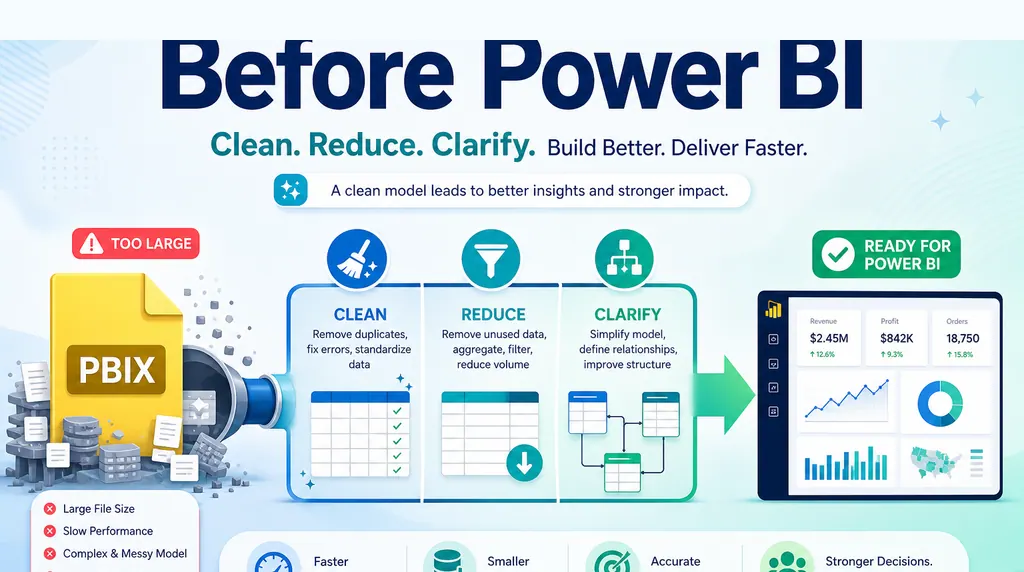
- A safer workflow preserves the raw file, documents cleanup assumptions, validates the clean table, and only then builds the report.
- RowSpeak fits the pre-dashboard step because teams can inspect exported files, ask what is wrong, review assumptions, and turn clean data into a report or dashboard output.
A dashboard usually gets blamed when a report is late, confusing, or wrong.
But the dashboard is often not the real bottleneck. The real bottleneck is the file that arrives before the dashboard exists: a CSV export, an SAP dump, a copied text file, or a workbook that was never designed for analysis.
One Reddit user in r/excel described the problem clearly. They receive SAP dumps, CSVs with random delimiters, and text files where columns shift or headers break. Excel does not always detect the delimiter correctly. Before they can analyze anything, they spend hours making the file usable. They also raised the practical question many teams avoid: if a website can fix the file automatically, are you comfortable uploading client data there?
The example comes from a Reddit discussion about fixing messy SAP dumps, CSV files, and text exports.
That is a better starting point than another article about beautiful dashboards. Most business reporting fails earlier. It fails when the input is not trustworthy.
The hidden work before analysis
A business export can look simple because it opens in Excel.
That does not mean it is ready for analysis.
A CSV may have semicolons in one export and commas in another. A text file may contain a few descriptive rows before the real header. An SAP dump may include merged labels, subtotal rows, blank spacer rows, or footers that look like data. Dates may arrive in mixed formats. Amounts may use different currency or debit-credit conventions. A column can shift because one row contains an unexpected delimiter inside a comment field.
None of this feels strategic. It feels like cleanup.
But cleanup is where the report's truth is decided. If the wrong row becomes the header, every column name after that is suspect. If a footer row remains in the data, a total can be counted twice. If a date column is partly text and partly date values, month-over-month reporting can quietly drop records.
This is why "just build a dashboard" is often the wrong first instruction. A dashboard built on a misread export only makes bad data easier to share.
Keep the raw file untouched
The safest spreadsheet workflow starts with a boring rule: do not edit the raw export directly.
Keep the original file as evidence. Create a clean working layer beside it. Then make the cleanup decisions visible.
For messy CSV and SAP-style exports, the first review should answer simple questions:
- Which row is the real header?
- Which rows should be ignored as title, notes, blanks, subtotals, or footers?
- Which delimiter was detected?
- Which columns changed type?
- Which dates or amounts could not be parsed cleanly?
- Which fields were renamed or merged?
Those questions matter because the report reader will not see the cleanup step. They will see a chart, a summary, or a recommendation. If the cleanup is wrong, the final answer can still look polished.
A concrete messy-export scenario
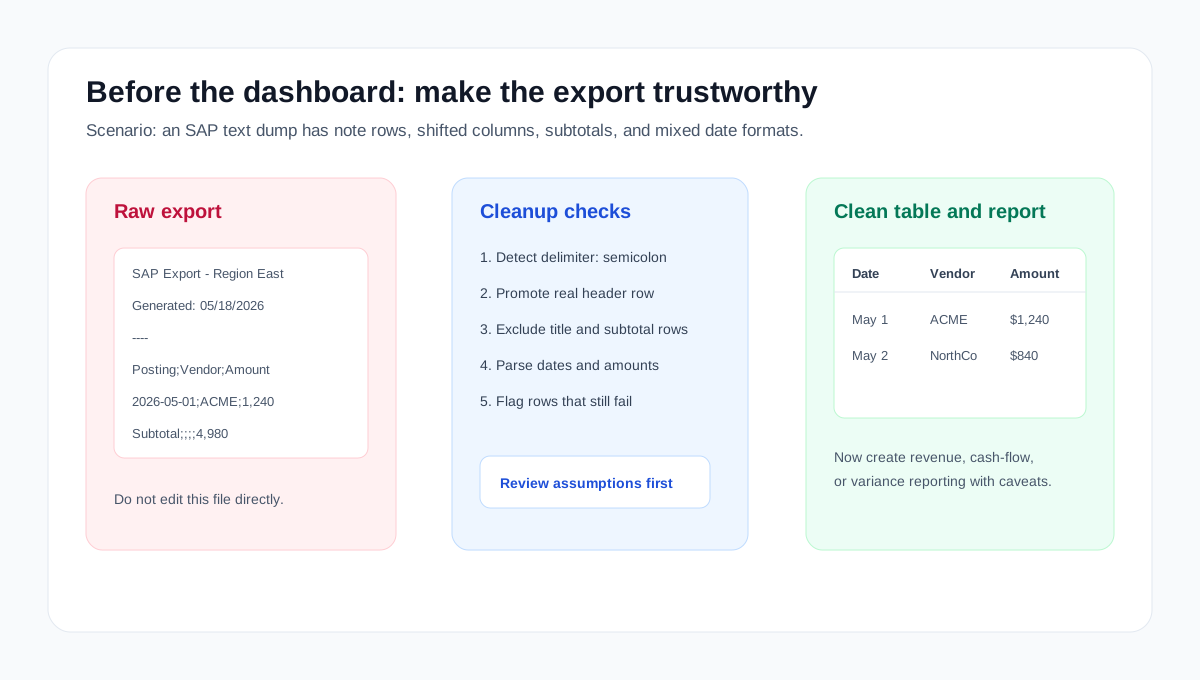
Suppose an operations analyst receives an SAP text export for regional revenue. The file opens in Excel, but the first rows are report title and generation time. The delimiter is a semicolon. One footer row contains a subtotal. Amounts use commas. Dates appear as both 2026-05-01 and 05/01/26.
The safe handling path is:
- Save the raw export unchanged.
- Identify the real header row and delimiter before analyzing anything.
- Remove title, blank, note, subtotal, and footer rows into an "excluded rows" note, not silently.
- Parse dates and amounts into consistent formats.
- Create a clean table with one row per transaction or posting line.
- Run checks for duplicate IDs, date coverage, total reconciliation, and unparsed fields.
- Only then ask for the dashboard, summary, or variance explanation.
That workflow lets the analyst explain how the data was cleaned if someone questions the final number later.
Power Query helps when the pattern is stable
Power Query is often the right tool when the export format is predictable.
If the same system sends the same file layout every week, you can build repeatable import steps. Remove top rows. Promote headers. Change types. Split columns. Filter blanks. Append files. Refresh the query next month.
That works well when the source behaves.
The pain starts when the source only mostly behaves. A client sends a slightly different export. SAP adds a new note row. A bank changes its CSV columns. A vendor uses a different delimiter. Someone pastes the file through email and the encoding changes.
At that point, the problem is not only transformation. It is diagnosis. The user needs to know what changed before trusting the output.
That is where AI-assisted spreadsheet workflows can help, if they show their work.
What a safer AI cleanup workflow should do
A useful AI spreadsheet workflow should not skip straight from raw CSV to confident insight.
It should inspect the file first. It should identify structural problems. It should explain which assumptions it is making. It should ask for review when a decision could affect the result.
A practical workflow looks like this:
- Upload the raw export.
- Ask the system to inspect the structure before analyzing it.
- Review detected headers, ignored rows, field types, and parsing issues.
- Generate a cleaned table.
- Run checks for duplicate rows, missing values, totals, and date coverage.
- Only then create the report, summary, or dashboard.
This order matters. The cleanup layer should be treated like part of the analysis, not an invisible pre-step.

For sensitive client, finance, or operational files, avoid uploading raw personal or confidential data to any public tool unless that is approved by your organization. If the team needs stronger data boundaries, evaluate a controlled deployment path such as private deployment before standardizing the workflow.
From clean table to business report
Once the table is trustworthy, the reporting task becomes much easier.
The user can ask business questions instead of fighting file structure.
For example:
Inspect this SAP export. Identify header rows, subtotal rows, shifted columns,
and fields with mixed types. Create a clean table for analysis, then summarize
revenue by month and flag any rows you excluded.
Or:
Normalize these bank CSV files into one transaction table. Keep the raw files
unchanged. Show the debit-credit assumptions, then create a monthly cash-flow
summary with unusual transactions highlighted.
The output should not only be a chart. It should include the assumptions, checks, and exceptions that make the chart reviewable.
That is also why a spreadsheet-to-report workflow is often more useful than a dashboard-first workflow. The report can explain what changed, what was excluded, what looks uncertain, and what the reader should review next.
For recurring work, this connects naturally to a monthly CSV reporting workflow, an Excel-to-dashboard workflow, or a broader AI reporting process. If the work repeats every month, it can become a recurring spreadsheet reporting workflow instead of a one-off rescue job.
Where RowSpeak fits
RowSpeak is useful in this pre-dashboard moment because the work is interactive.
You can upload a spreadsheet, CSV, PDF, or exported business file, then ask questions in plain English. For a messy export, the first question does not have to be "make me a dashboard." A better first question is "what is wrong with this file?"
From there, RowSpeak can help inspect structure, clean the data into a usable table, generate summaries, create dashboard or report-style outputs, and keep the work tied to a reviewable conversation. The goal is not to hide the cleanup. The goal is to make cleanup fast enough to do, and visible enough to trust.
That distinction matters for finance, operations, and client reporting teams. They do not only need faster charts. They need confidence that the rows underneath the chart were read correctly.
The practical rule
Do not start with the dashboard.
Start with the export.
If the raw file is messy, your first deliverable is not a chart. It is a reviewed clean table with documented assumptions. Once that exists, the dashboard or report has a chance to be trusted.
Try RowSpeak with your next messy spreadsheet export: inspect the file before reporting