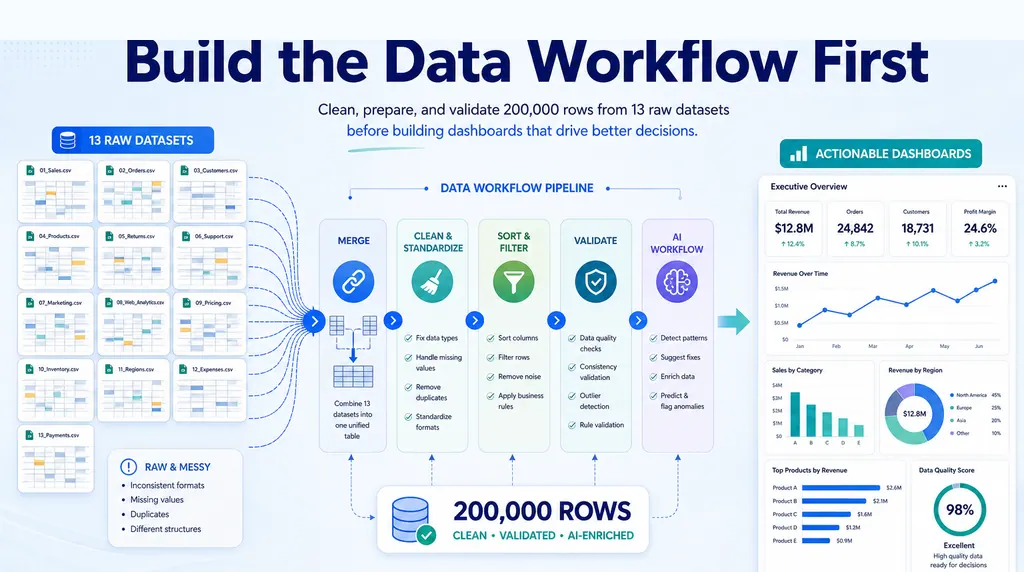
A monthly CSV export is usually where reporting starts. It should not be where reporting ends.
For many consultants, analysts, founders, finance teams, and operations managers, the same scene repeats every month. A source system exports a file. Someone downloads it, opens it in Excel, checks whether the columns look familiar, cleans the obvious mess, builds a few pivots, writes a short note, and sends the spreadsheet to a client or leadership team.
That can work for a while. Then the questions start.
Why did the number move? Which customers drove the change? Did the export include the full month? Were refunds counted? Why does this file not match last month's report? Which version should everyone be looking at?
The CSV may contain the right data, but raw rows do not explain what changed, what matters, what needs action, or which assumptions should be reviewed. That is the gap between a CSV export and a client-ready report. It is also why many teams now compare spreadsheet-first tools with heavier AI-powered dashboard reporting tools before choosing a reporting workflow. If the team only needs a recurring report from exported files, a lightweight AI reporting workflow can be more practical than starting with a full BI implementation.
This guide walks through a practical monthly CSV reporting workflow you can reuse. The goal is not to make a prettier spreadsheet. The goal is to turn exported business data into a grounded analysis report with reviewable assumptions, a dashboard/report view, and a report link your team or client can open without digging through tabs.
A CSV export is not a report
A CSV is a transport format. It moves data from one system to another. That is why almost every business system can export one: CRM, billing, accounting, support, ecommerce, ads, inventory, payroll, forms, internal databases, and BI tools.
But a CSV usually has no narrative.
It does not tell the reader whether revenue grew because volume improved or pricing changed. It does not explain which customer segment dragged down retention. It does not flag that the reporting period accidentally includes three extra days. It does not know which exception is a real business issue and which one is just a formatting problem.
A report has to do more work. It should tell a stakeholder what happened, why it matters, and what deserves attention next. If it cannot do those three things, the spreadsheet is still doing too much of the communication.
What makes a report client-ready
A client-ready report is not necessarily long. Some of the best reports are short. What matters is that the report is clear, traceable, and easy to review.
A good monthly report usually opens with the period being reviewed, the main result, and the most important movement from the previous period. From there, it explains the drivers behind the movement. If revenue went up, the report should show whether the change came from more orders, larger deal sizes, a different product mix, a new channel, or a one-off customer event.
It should also make uncertainty visible. Stakeholders do not only need the final number. They need to know how confident they should be in the number. If the CSV had missing fields, changed column names, duplicate IDs, excluded internal records, or an incomplete date range, the report should say so in plain language.
The important word is reviewable. A client should be able to read the summary, scan the report view, understand the assumptions, and know where to ask follow-up questions. They should not need to reverse-engineer the file before they can trust the conclusion.
Common CSV reporting use cases
CSV reporting shows up anywhere a team receives recurring exports from a business system.
A sales team may export monthly opportunities from a CRM. An ecommerce team may pull Shopify, Amazon, or marketplace order data. A marketing team may combine ad exports from Meta, Google, TikTok, and LinkedIn. A support team may review ticket volume, response time, and backlog by account. A finance team may analyze transactions, refunds, subscriptions, churn, expenses, or GL activity.
The source changes. The reporting pattern is often the same. If the source is ecommerce, the same thinking applies whether you are building a monthly revenue report, a sales AI workflow, or a campaign dashboard from marketplace and ad exports.
You need to validate the file, clean the issues that can change the result, calculate standard KPIs, explain movement versus the previous period, and package the result in a way a decision-maker can understand.
Understand the CSV structure
Before calculating anything, inspect the structure of the file. This sounds obvious, but many reporting mistakes start here.
The first question is what one row represents. A sales export might have one row per order, one row per order line, one row per invoice, or one row per payment event. A support export might have one row per ticket, one row per message, or one row per assignment change. Those differences matter. If you treat order lines as orders, your totals and averages will be wrong before the analysis even starts.
Next, identify the fields that control the report. Find the date column that defines the reporting period. Find the IDs that keep records unique. Separate measures, such as revenue, cost, quantity, hours, tickets, or leads, from dimensions, such as customer, product, region, channel, owner, or category.
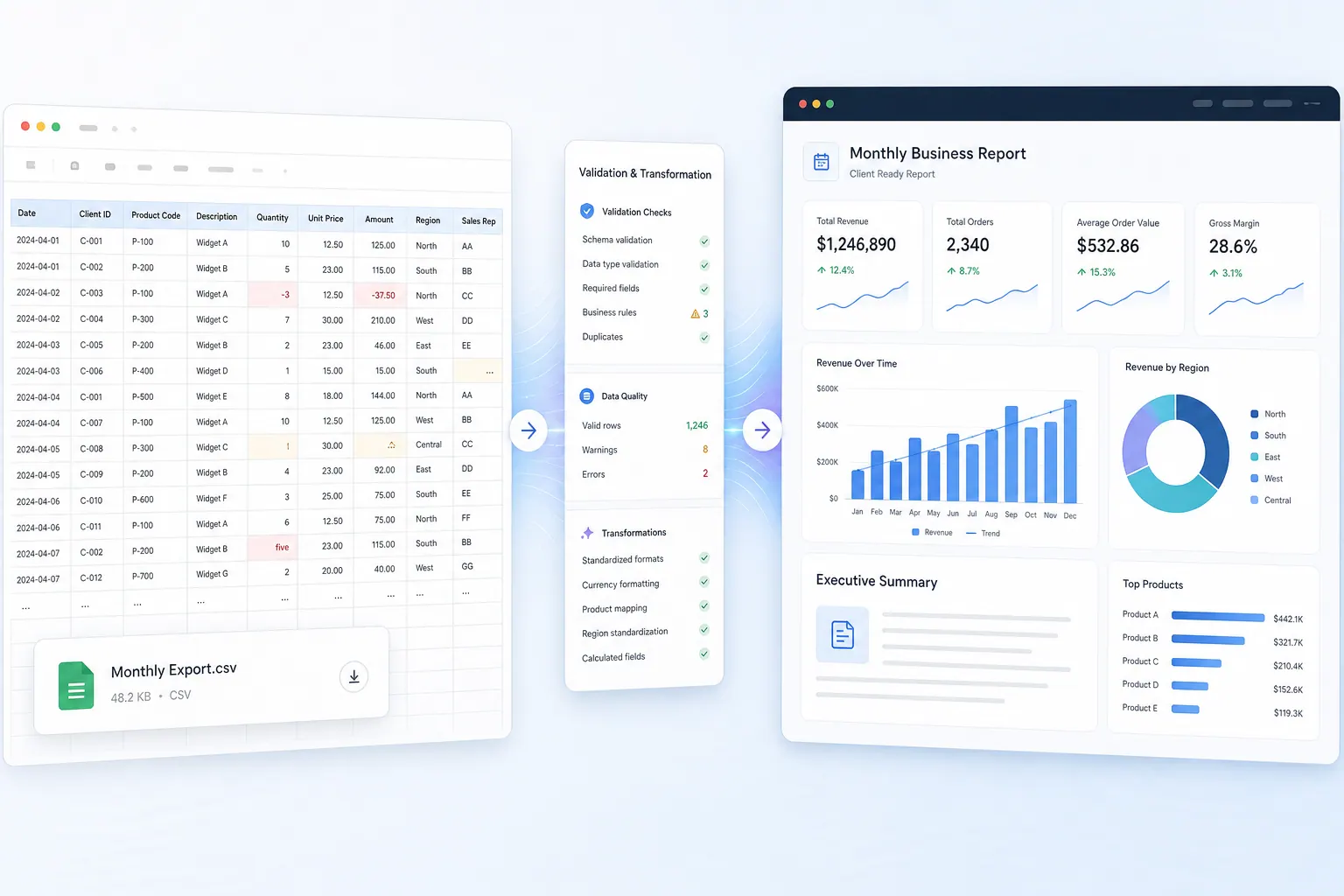
Also check whether the export format is stable. Recurring reports break when a source system renames a column, adds subtotal rows, changes date formatting, or inserts blank lines. A good reporting workflow catches those changes before they leak into the final report.
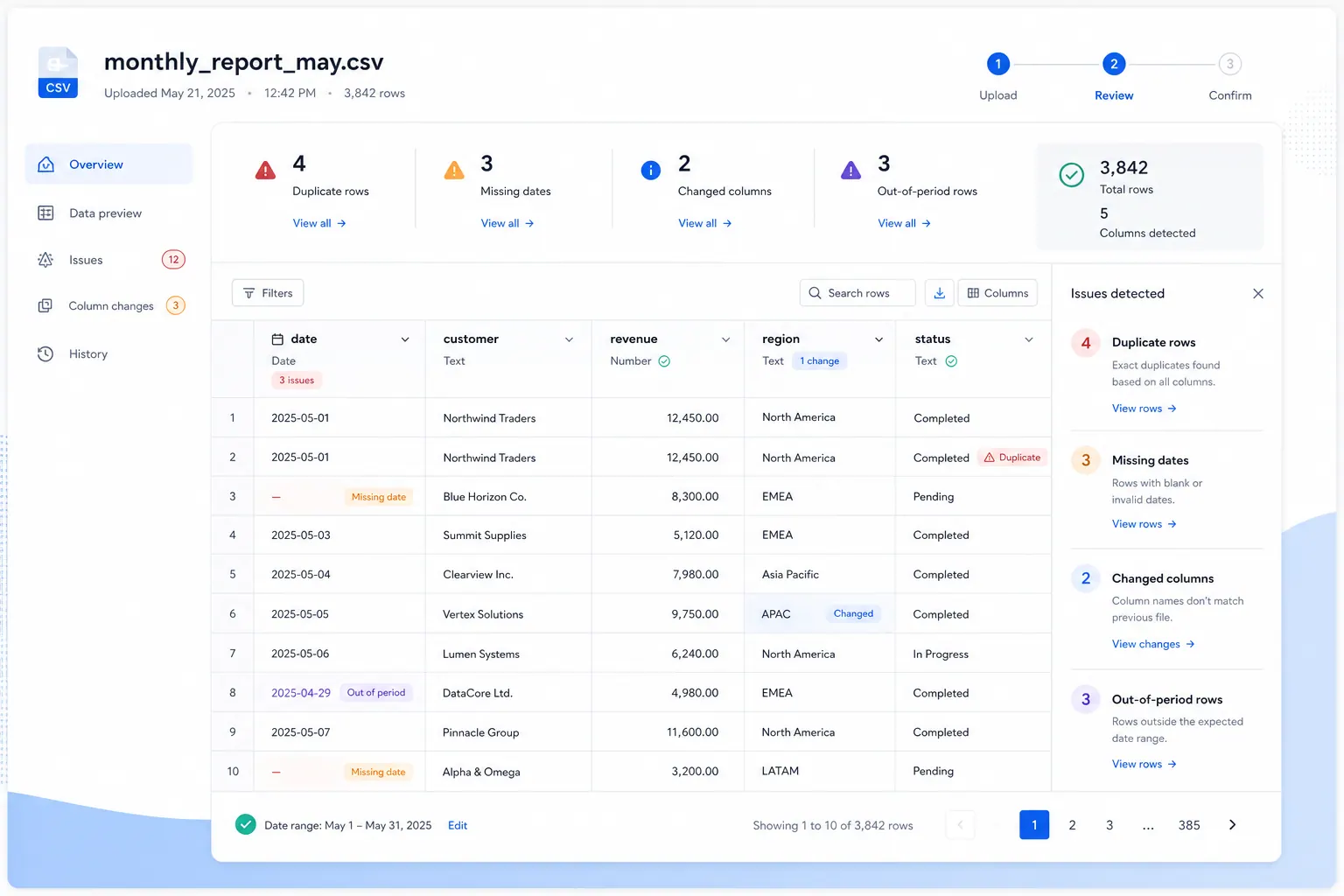
For teams that start from exported files, this is where an Excel-to-dashboard workflow becomes useful. The file still needs structure, but the user should not have to rebuild charts, formulas, and commentary from scratch every month. If the recurring report is part of finance close, board updates, or client account reviews, the same structure also supports management reporting.
Clean the data without hiding the cleanup
Cleaning does not mean spending days perfecting the file. For recurring reporting, the first pass should focus on issues that can change the result.
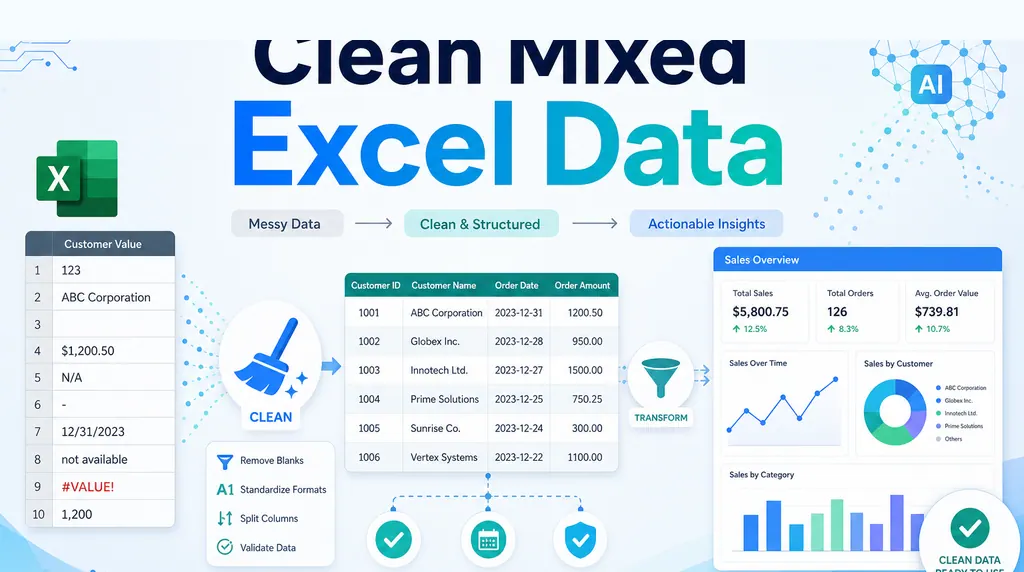
Start with the reporting period. Missing dates, future dates, and records outside the expected range should be reviewed before totals are trusted. Then check for duplicate records, blank required fields, unexpected categories, negative values where they should not exist, numbers stored as text, and internal or test records that should be excluded.
The cleanup should be documented, not hidden. If you remove duplicates, say how many. If you exclude internal records, explain the rule. If you normalize category names, keep the mapping visible. A report becomes more credible when the assumptions are easy to inspect.
This is especially important for client work. A client may not care about every cleaning step, but they will care if a number is challenged later and nobody can explain how the file was prepared.
Build the core analysis around the business question
Once the file is clean enough to trust, build the core analysis. Do not start with every possible chart. Start with the business question.
A founder may need to know why revenue moved. A consultant may need to explain which client segment changed. A finance manager may need to separate timing variance from real business performance. An operations lead may need to know which region, owner, vendor, or product created the exception.
For most monthly CSV reports, the core analysis includes the main metric for the period, the change from the previous period, the largest drivers of that change, and the exceptions that need review. The breakdown depends on the business. Sales reports may focus on channel, segment, and account. Support reports may focus on ticket type, response time, backlog, and priority. Finance reports may focus on category, department, vendor, and variance.
The analysis should feel like an answer, not a data dump. If a chart or table does not help explain the question, leave it out or move it deeper into the report. For finance-heavy reports, this often means combining variance analysis with a management reporting workflow instead of treating the CSV as a standalone file.
Write the executive summary after the analysis
The executive summary is where raw analysis becomes a report.
A useful summary should be specific enough to help someone act and cautious enough to be trusted. It should name the reporting period, describe the main result, explain the biggest drivers, call out major exceptions, and mention any data quality issues that affect confidence.
Avoid vague summaries like “performance changed this month.” That sentence gives the reader no direction. If the report depends on charts, use the summary to explain the chart rather than making the reader infer the point from visuals alone. For the same reason, AI-assisted charts and graphics should support a clear business sentence instead of decorating the report.
A stronger summary sounds more like this: the report covers April transactions, total revenue increased from March, the increase was concentrated in two channels, one region underperformed, and three records need review because their dates fall outside the expected range.
That kind of summary gives stakeholders a path. They know what changed, where to look, and what still needs review.
The prompt does not have to be complicated. A useful request can name the file, the period, the key metrics, the comparison period, the breakdowns, and the exceptions to flag. In RowSpeak, that might look like asking for a monthly report from an ecommerce or CRM export, with KPI cards, a short executive summary, driver analysis, and rows that need review.
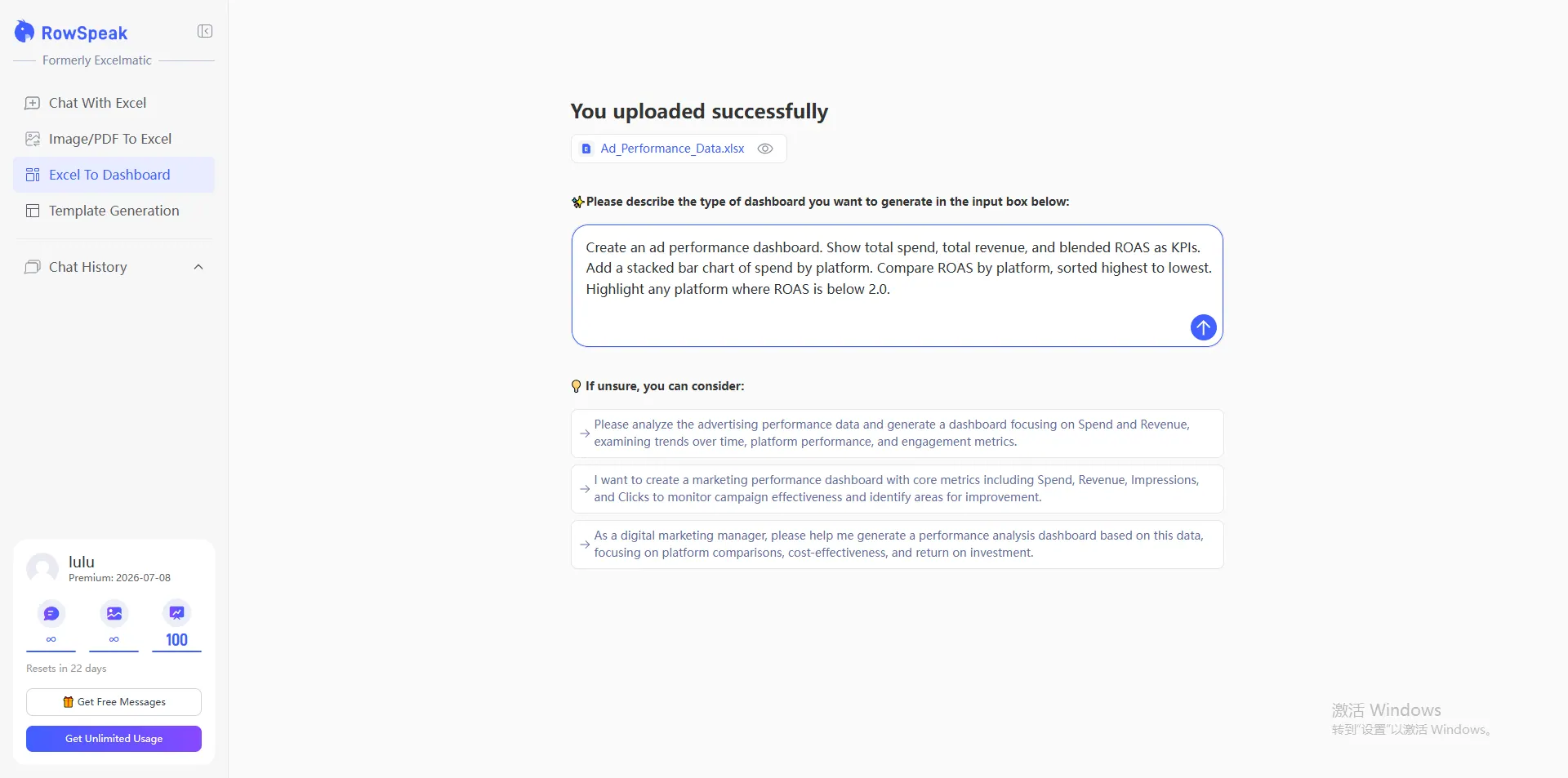
Add a dashboard/report view for scanning
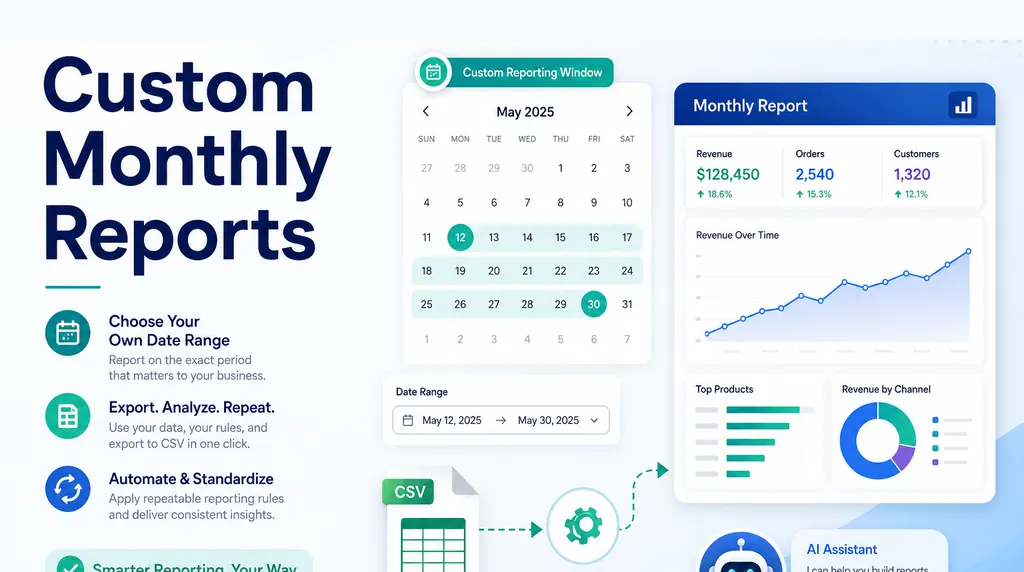
Not every stakeholder wants to read the whole analysis first. A dashboard/report view gives them a fast way to scan the story before going deeper. This is where a report starts to feel different from a spreadsheet attachment: the reader sees the answer, the evidence, and the caveats in one place.
For a monthly CSV report, the view does not need twenty charts. It needs a small set of elements that support the main question. KPI cards can show the current period at a glance. A trend chart can show whether the movement is normal or unusual. A ranked table can show the top contributors. An exception panel can keep data quality issues visible. A short written insight panel can connect the numbers to the conclusion.
The best report views are calm. They do not try to prove that every field in the CSV was used. They help the reader understand the month quickly, then inspect the details if needed. This is the same reason a lightweight recurring spreadsheet reporting workflow often beats a large BI build for monthly client reporting.
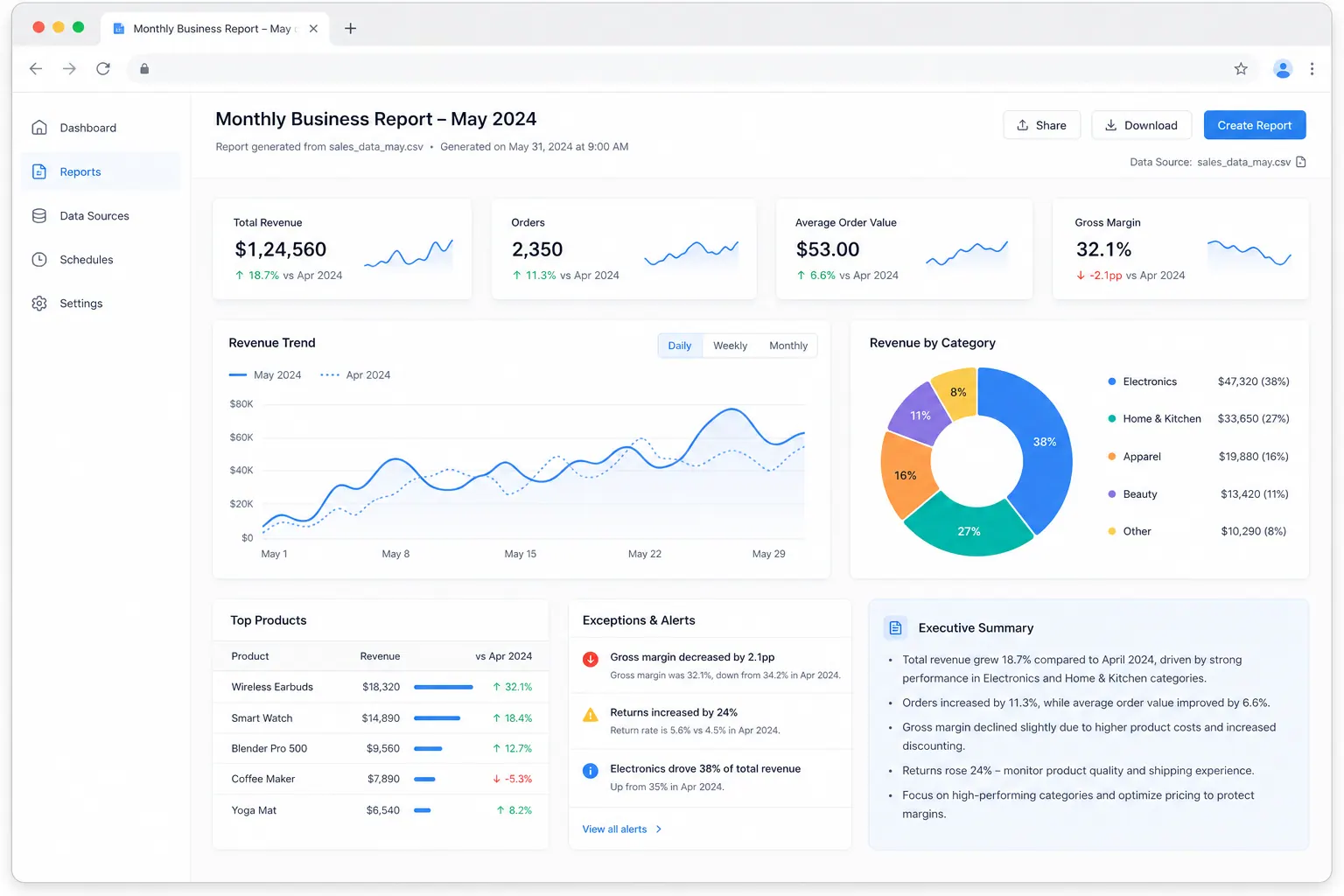
The short demo below shows the same idea from the reference ecommerce dashboard workflow: a plain-English prompt turns an exported file into a structured report view with KPIs, charts, and written insights. For monthly CSV reporting, the useful part is not the ecommerce example itself. It is the repeatable pattern: upload the export, ask the business question, review the assumptions, then share a report view instead of another raw workbook.
Review assumptions before sharing
Before sharing the report, review the assumptions. This is the step many teams skip because the numbers already look finished. It is also where reporting quality improves the most.
Check whether the CSV covers the full period. Confirm that the source system did not change the export format. Review any rows that were removed or excluded. Make sure category mappings are still valid. Look for missing values in key fields. Compare the result with the previous report and ask whether known business events explain unusual movement.
Assumptions should be visible in the report, especially for client work. If a client challenges a number, you want to point to the logic, not rebuild the file from memory.
Share the report link, not another mystery spreadsheet
The final step is sharing the report in a format people can actually review.
Sending another spreadsheet attachment often creates new problems. People download different versions. Comments happen in email threads. Someone changes a filter and sees a different result. The conversation moves away from the analysis and into file management.
A shareable report link is cleaner. It lets stakeholders open the same report, review the summary, scan the dashboard/report view, and discuss one version of the work. For recurring reporting, that shared view also creates a better habit: the file is not the deliverable. The analysis is. If this report feeds a leadership meeting, connect it to a broader monthly management reporting process so the CSV report becomes part of the operating rhythm, not a one-off attachment. If it feeds a sales or ecommerce review, connect the same CSV discipline to a sales AI workflow so exported pipeline, order, or campaign data becomes a decision-ready report.
Example monthly reporting workflow
A practical monthly CSV workflow can stay simple.
Export the source data at the same point in the reporting cycle each month. Upload the file and confirm that the columns, row grain, and date range match expectations. Clean the issues that would change the result. Run the standard KPI analysis and compare it with the prior period. Write the executive summary only after the main drivers and exceptions are clear. Build a focused report view for scanning. Review assumptions, then share the report link.
This workflow is intentionally boring. It also pairs well with AI reporting, because the repeatable parts can be prompted, checked, and reviewed instead of rebuilt manually.
That is a strength. Recurring reporting should not depend on heroic spreadsheet work every month. It should depend on a repeatable process that makes problems visible early.
Make the workflow repeatable
A repeatable CSV reporting workflow needs a small playbook.
The playbook should define where the export comes from, who owns it, what the file should contain, which date column controls the period, how key KPIs are calculated, how categories are mapped, which exclusions are allowed, and how the final report is shared.
It does not need to be heavy. It just needs to remove guesswork.
If the export changes, the workflow should catch it. If a KPI definition changes, the report should make that clear. If a client asks how the number was calculated, the answer should not live only in one analyst’s memory.
How RowSpeak helps turn CSV exports into shareable reports
RowSpeak fits naturally near the end of this workflow, after the business question and reporting process are clear.
You can upload CSV, Excel, PDF, or exported business data, then ask questions in plain English. RowSpeak can help inspect messy data, identify trends and exceptions, generate grounded summaries, create dashboard/report-style outputs, and share reports through links with your team or client. If you want the faster version of this workflow, start with the Excel-to-dashboard feature or try the AI reporting workflow. If your monthly files come from accounting or FP&A systems, the same approach can support automated financial analysis without hiding the assumptions behind the numbers.
The important part is that RowSpeak does not treat the spreadsheet as the final deliverable. It helps move from raw rows to answers, summaries, dashboards, and shareable reports in one place.
Instead of sending stakeholders another file full of rows, you can use RowSpeak to analyze the data, explain what matters, and share a report link your team can review.
Let Rows Speak by treating the spreadsheet as the starting point, not the final deliverable.
Try RowSpeak to turn your next CSV export into a shareable analysis report: https://dash.rowspeak.ai
FAQ
Can I turn a CSV into a business report without building a dashboard manually?
Yes. Start by identifying the key fields, checking data quality, summarizing trends, and writing a structured report around the business question. Tools like RowSpeak can help analyze CSV data and create shareable reports without manually building every pivot table first.
What should a CSV analysis report include?
A useful CSV report should include the reporting period, key metrics, trend analysis, major breakdowns, exceptions, assumptions, and recommended next steps. It should also explain any data quality issues that affect confidence in the result.
How do I summarize a CSV file for a client?
Start with the question the client cares about. Then analyze totals, changes, drivers, and exceptions. The final summary should explain what happened, why it matters, and what needs review or action.
What is the best way to make CSV reporting repeatable?
Use the same export timing, validation checks, cleaning rules, KPI definitions, variance checks, assumption review, and sharing process each month. The workflow should make changes in the data or source format visible before the report is sent.