A lot of reporting teams live in the awkward space between Excel and BI.
The spreadsheet still works. People know where the numbers are. The team can change a view in minutes. But the workbook is getting older, heavier, and harder to trust. At some point someone asks the question that showed up recently in a Power BI community discussion: when do you finally decide this belongs in Power BI, not Excel?
The user described the tension clearly. They manage many sheets that are getting bloated or old. They are comfortable in Excel and like its flexibility, but Power BI feels like overkill sometimes. That is a real business problem, not just a software preference.
The replies were practical. People did not say the trigger was simply row count. They talked about manual data copying, repeated refresh steps, sharing, security roles, dynamic filtering, accountability for numbers, and whether the report had become something many people depend on.
The real question is not Excel versus Power BI
The mistake is treating the decision as a row-count question. Size matters, but it is not the best trigger. A small report can need BI if it is widely shared, permissioned, and refreshed every day. A large export can still be better handled in a spreadsheet workflow if the question is temporary, exploratory, or owned by one team.
A better test is to ask what kind of decision the report supports.

When Excel still makes sense
If the work is ad hoc, spreadsheet-first analysis still makes sense. A manager sends a CSV. Finance needs a variance explanation. Ops wants to know which products changed from last week. The source file may change again next month. In those cases, a full BI model can slow the team down before the question is even stable.
Excel is still the right place when the business question is changing faster than the reporting system. It lets teams inspect the file directly, test an assumption, and change the view without waiting for a dashboard project.
When Power BI is the better move
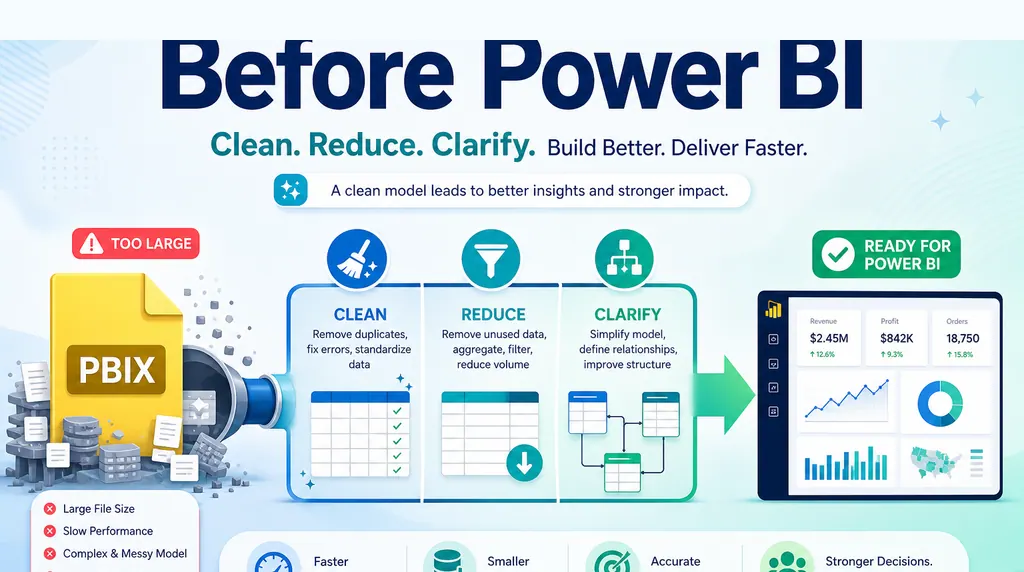
If the work is recurring, shared, permissioned, and operational, Power BI becomes a better fit. Scheduled refresh, row-level security, governed dashboards, and shared definitions are exactly what BI tools are built for. When many people need the same numbers every week, the overhead starts to pay for itself.
That is the point where the report stops being a personal analysis and starts becoming a shared product. The question is no longer only whether the numbers can be calculated. It is whether they can be governed, refreshed, distributed, and trusted by people who were not involved in building the original workbook.
The missing middle layer
The middle layer is where many teams are underserved.
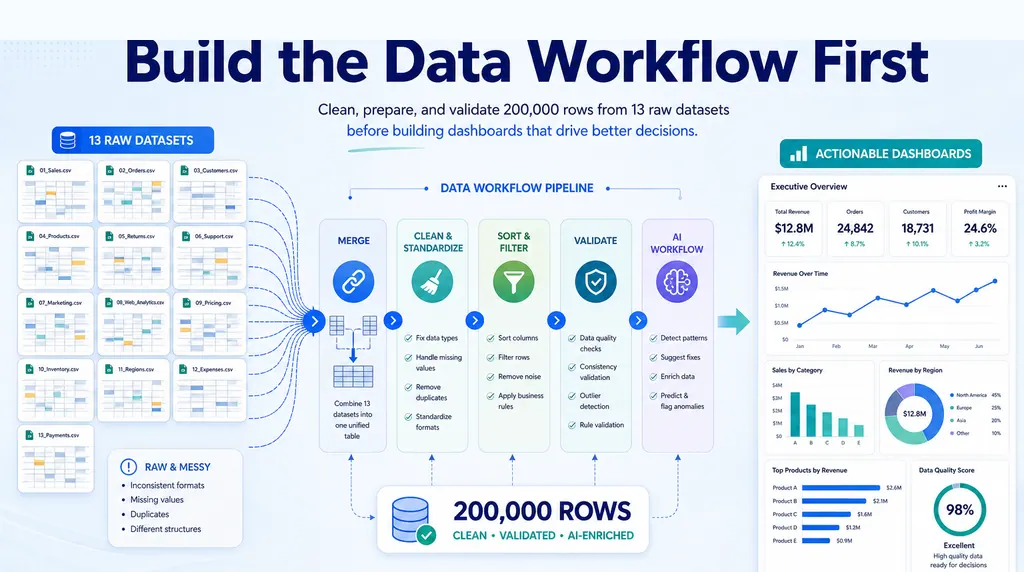
They do not need a permanent dashboard yet. They also do not want to spend another afternoon rebuilding pivots, copying numbers into slides, and explaining variances by hand. They need to upload the spreadsheet, ask the business question, check the evidence, and turn the result into a report.

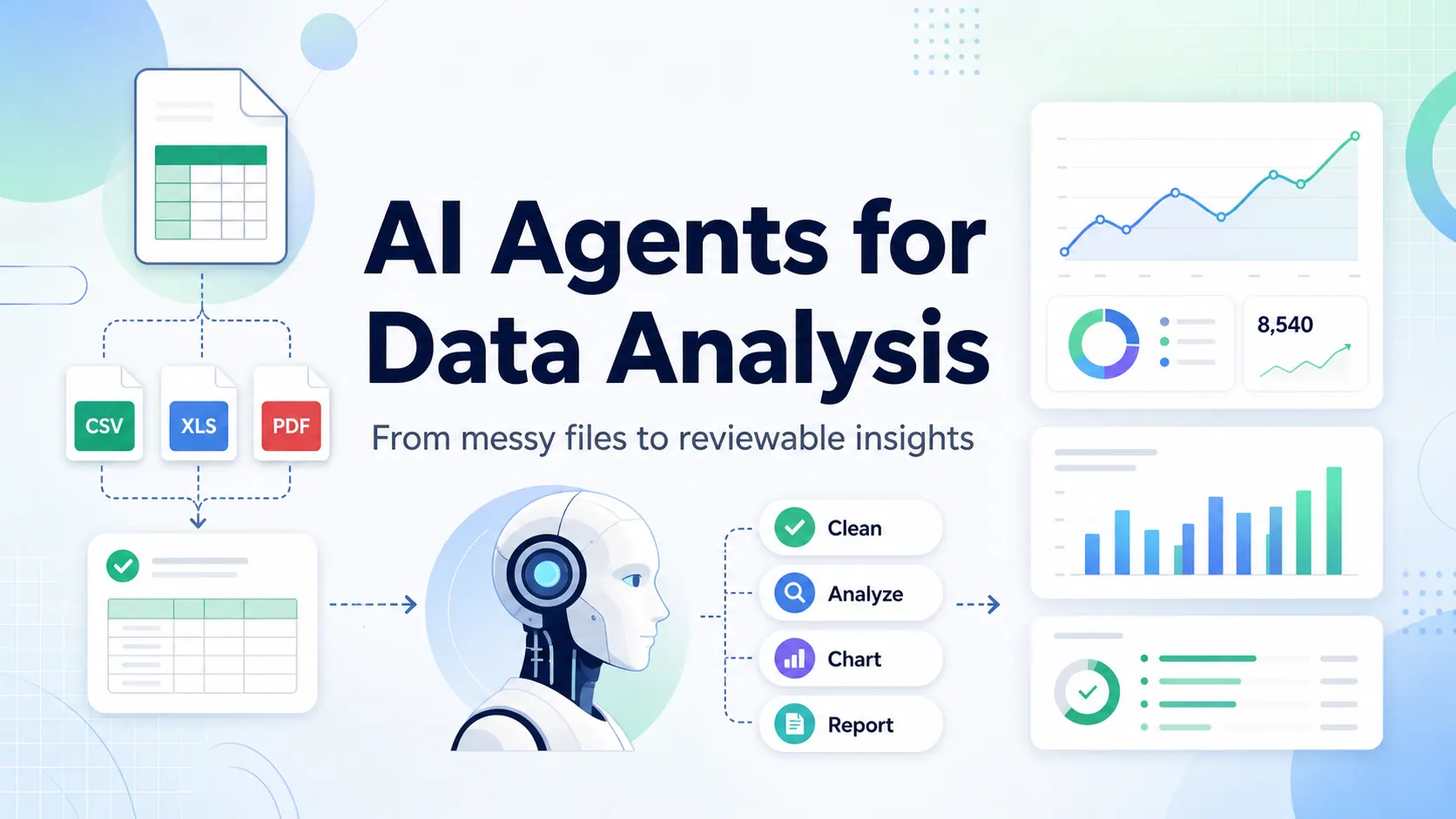
That is where an AI spreadsheet workflow can help. The goal is not to replace Power BI. The goal is to keep fast spreadsheet work from becoming fragile manual work.
A practical decision rule
Stay in Excel when the question is still moving
Stay in Excel when the analysis is personal, exploratory, or still changing. This includes one-off CSV reviews, early-stage finance models, quick customer lists, and spreadsheet exports where the business question matters more than the long-term dashboard.
Use AI spreadsheet analysis when the file is understandable but repetitive
Use AI spreadsheet analysis when the file is understandable but the work is repetitive. This includes weekly sales summaries, variance explanations, messy exports, customer feedback summaries, and spreadsheet-to-report workflows. The AI should help read the file, calculate the answer, explain what changed, and show the evidence.
Move to Power BI when the report has become a shared product
Move to Power BI when the report has become a shared product. If multiple departments depend on it, if access control matters, if refresh must be governed, or if definitions must stay stable across the company, BI is the right direction.
The important point is sequence. Not every spreadsheet pain should become a BI project on day one. Often the better path is to use a lighter analysis layer first. Find the recurring questions. Learn which metrics matter. See which outputs people actually use. Then move the stable parts into BI when the process is mature enough.
Where RowSpeak fits
RowSpeak is built for that spreadsheet-first stage. You can upload a workbook or CSV, ask questions in plain English, generate charts and summaries, and turn the analysis into a report without starting a BI implementation.
For example, instead of building a dashboard just to answer one variance question, a finance analyst can ask:
Compare actuals against plan by business unit.
Show the largest drivers of variance.
Flag any rows that look incomplete or inconsistent.
Write a short management summary with the numbers I should verify.
That kind of workflow keeps the business close to the file. It also keeps the answer reviewable. The user can inspect the source rows, challenge the summary, and decide whether the question is worth turning into a permanent dashboard later.
Power BI is not overkill when the work needs governance. It is overkill when the team only needs to understand a spreadsheet today.
The best reporting stack usually has both. Excel remains the flexible operating layer. BI handles stable shared reporting. RowSpeak helps with the space in between: fast spreadsheet analysis, explainable report generation, and business questions that are still evolving.
Try it with your next spreadsheet export: https://dash.rowspeak.ai