Key takeaways:
- Custom monthly reports fail when the date window is treated as a manual filter instead of a repeatable reporting rule.
- A good workflow assigns every row to a business reporting period, checks cutoff dates, and states the included date range clearly in the report.
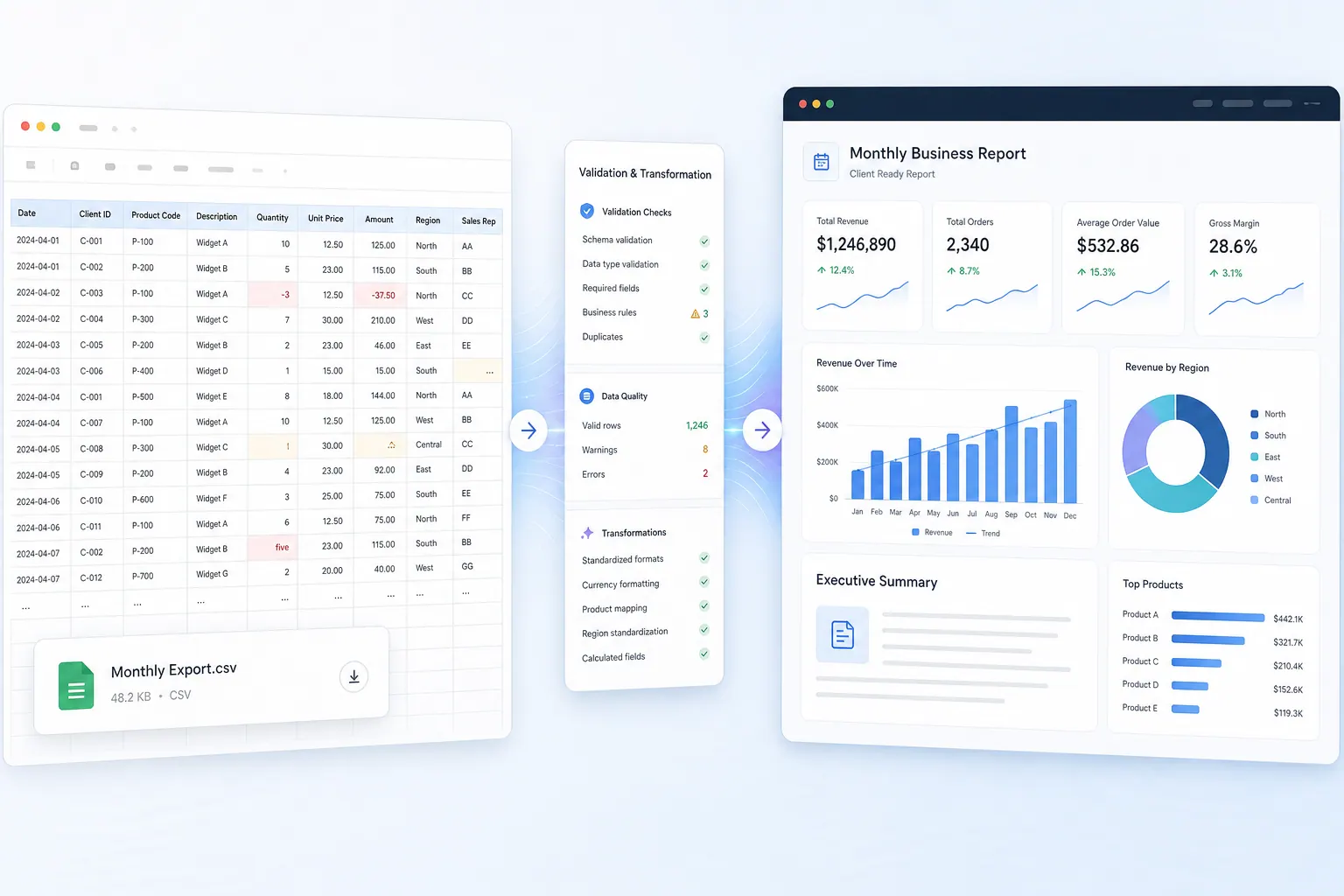
- RowSpeak helps turn exported data into a custom-period report with date checks, prior-period comparison, driver summaries, and a shareable report view.
Not every monthly report uses the first and last day of the month.
Some teams report from the 24th to the 23rd. Others use a 4-4-5 retail calendar. Some report by billing cycle, payroll period, campaign window, subscription renewal period, or operational cutoff.
The problem is that most spreadsheet workflows assume calendar months. That creates manual filters, inconsistent reports, and recurring arguments about which dates were included.
If the custom date range matters to the business, it should be built into the reporting workflow. It should not depend on someone remembering the right filter every month.
Why custom reporting windows create errors
A custom monthly window sounds like a small detail. In practice, it affects every number in the report.
If your reporting period runs from April 24 to May 23, then a normal May filter is wrong. It includes May 24 to May 31 and excludes April 24 to April 30. That can change revenue, tickets, payroll, shipments, orders, refunds, or campaign performance.
The risk grows when multiple people touch the report.
One person may filter by transaction date. Another may filter by invoice date. Someone else may use posted date. A manager may compare the custom period to a calendar-month dashboard and ask why totals do not match.
The fix is not only a better formula. The fix is a repeatable reporting definition.
Define the period in business language
Start by writing the reporting rule in plain English.
For example:
Each monthly report includes records from the 24th of the previous month through the 23rd of the current month, based on transaction date.
That sentence should answer four questions:
- What is the start day?
- What is the end day?
- Which date field controls inclusion?
- Are the boundaries inclusive?
If the report uses time zones, posting delays, or late-arriving data, define those too.
For example, sales orders may use order date, while finance may use invoice date. Support tickets may use created date for volume and closed date for resolution metrics. These choices should be visible in the report notes, not buried in a filter.
Create a reporting-period field
Instead of manually filtering dates every month, create a reporting-period field.
The field should convert each row’s date into the custom month it belongs to. Once that field exists, pivots, summaries, dashboards, and reports can group by reporting period without rebuilding the filter.
For a 24th-to-23rd window, the logic is conceptually simple:
- dates from April 24 to May 23 belong to the May reporting period
- dates from May 24 to June 23 belong to the June reporting period
- dates from June 24 to July 23 belong to the July reporting period
The exact formula depends on your spreadsheet setup, but the principle is the same: assign each row to a business reporting month before summarizing.
For example:
| transaction date | calendar month | reporting period | include in May report? |
|---|---|---|---|
| April 23 | April | April operating period | no |
| April 24 | April | May operating period | yes |
| May 23 | May | May operating period | yes |
| May 24 | May | June operating period | no |
This step also makes the workflow easier to check. You can filter the period field and confirm the first and last included dates.
Add control checks before summarizing
Custom windows need controls because date mistakes are easy to miss.
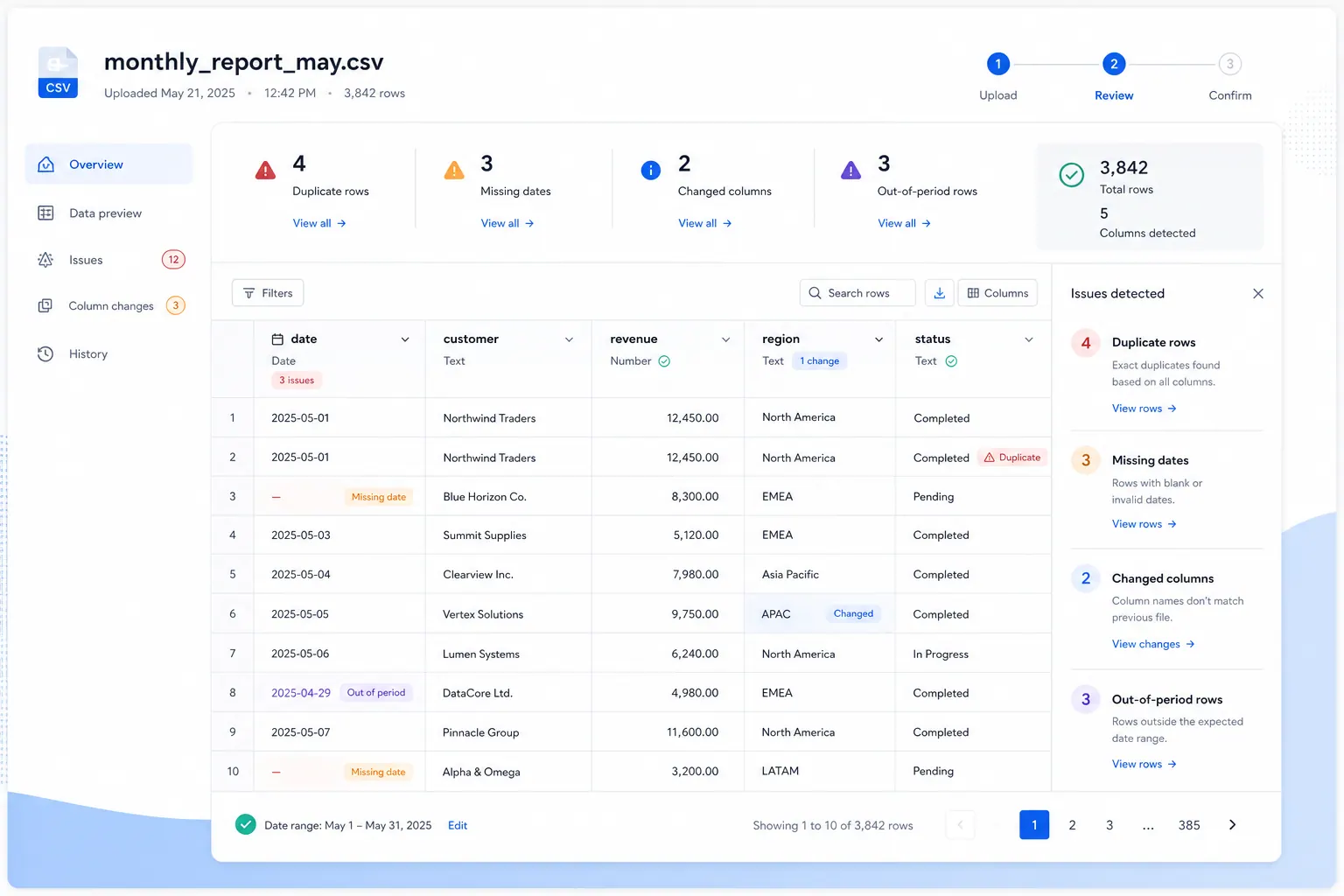
Before writing the report, check:
- earliest included date
- latest included date
- row count for the period
- rows just before the start date
- rows just after the end date
- blank dates
- future dates
- duplicate records
- records with multiple date fields
These checks catch the common problems: accidental calendar-month filters, off-by-one-day logic, missing date values, and late records.
If the report is built from CSV exports, these checks should happen every month. A system export can change format, timezone, or field names without warning.
This is why custom-date reporting often belongs inside a recurring spreadsheet reporting workflow, not a one-off workbook.
Build the report around the custom period
Once the reporting period is assigned, build the report from that field.
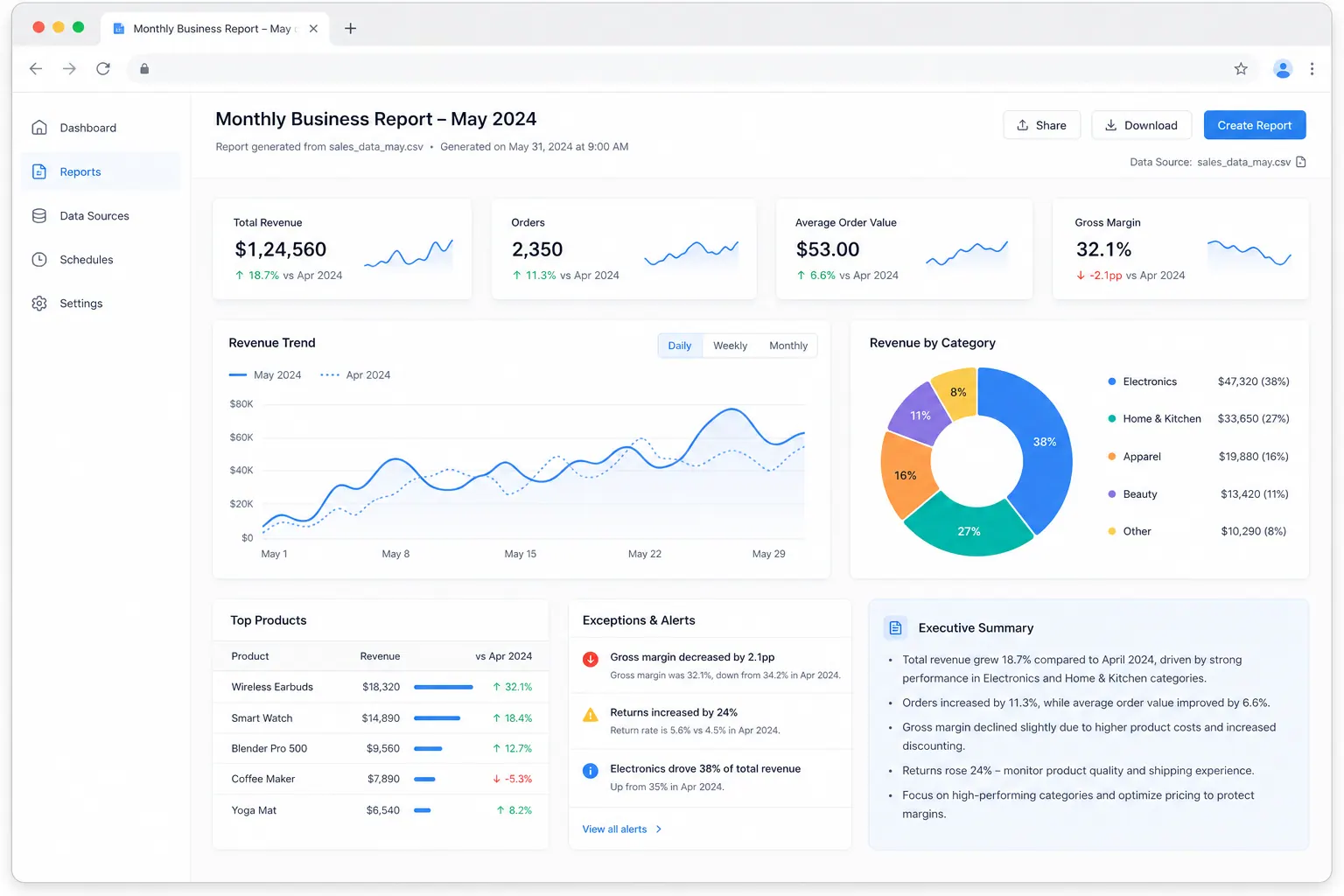
A useful monthly report should show:
- the reporting period label
- the exact included date range
- key metrics for the current period
- comparison to the prior period
- comparison to target or budget if available
- major drivers of change
- exceptions or data quality notes
- a short executive summary
The summary should mention the custom window clearly. For example:
This report covers the May operating period, defined as April 24 through May 23. Total orders increased versus the prior operating period, driven mainly by higher volume in the West region. Three records were excluded because transaction dates were missing.
That tells the reader what period they are looking at and what confidence issues remain.
If the output needs a dashboard view, pair the report with an AI reporting workflow or an Excel-to-dashboard workflow so the custom period logic carries through to the final view.
The final report view should keep the period definition visible near the KPIs, so the reader does not compare a custom operating month to a calendar-month dashboard by mistake.
Where RowSpeak fits
RowSpeak is useful when the custom reporting window keeps creating manual work.
You can upload the monthly export and ask RowSpeak to:
- identify the date fields
- apply the custom reporting window
- flag records outside the expected period
- check blank or suspicious dates
- summarize metrics for the current period
- compare the current period with the previous period
- generate a shareable report view
The key is to be explicit in the prompt.
For example:
Create a May operating report using transaction dates from April 24 through May 23. Compare it with the prior operating period, flag rows with missing dates, and summarize the biggest drivers of change.
That kind of instruction gives RowSpeak the business rule, not just the file. The result is more useful than asking a generic tool to summarize the spreadsheet.
For teams that send these reports to clients or leadership, the broader monthly CSV reporting workflow is a good companion pattern.
A practical workflow for each month
Use this checklist each time the report runs:
Confirm the reporting window
Write the exact start and end dates in the report.Confirm the controlling date field
Use transaction date, invoice date, created date, or another field intentionally.Assign each row to a reporting period
Do not rely on a manual date filter alone.Run date controls
Check boundaries, blanks, future dates, and late records.Summarize current-period metrics
Use the reporting-period field as the grouping field.Compare with the prior custom period
Do not compare a 24th-to-23rd period with a calendar month.Write the summary
Include the date range, main movement, drivers, and data issues.Share one report version
Avoid sending multiple spreadsheet attachments with different filters.
Common mistakes to avoid
Do not use a calendar-month pivot when the business uses a custom month.
Do not hide the date rule in a formula. Put the reporting window in the report summary or notes.
Do not compare unequal windows. A 31-day period and a 28-day period may need normalization.
Do not forget rows near the cutoff. The 23rd and 24th are where most mistakes happen.
Do not mix date fields without naming them. Order date, invoice date, and payment date can answer different business questions.
The takeaway
Creating monthly reports for a custom date range is not hard because the math is complex. It is hard because the rule has to be applied consistently every month.
Excel can handle the period logic. Power Query can automate parts of it. RowSpeak fits when the team wants to turn the export into a reviewable report with date checks, comparisons, summaries, and a shareable output.
The goal is simple: every reader should know exactly which dates were included before they react to the numbers.
Get Started: Build Your Next Custom-Period Report with RowSpeak
If your business reports from the 24th to the 23rd, or uses any non-calendar reporting window, upload the export to RowSpeak and state the exact rule. Ask for period assignment, cutoff checks, prior-period comparison, and a short summary that names the date range.
Try RowSpeak today and create monthly reports that explain the period before people argue about the numbers.