Key takeaways:
- Two Excel tabs with the same records but different sort orders should be generated views, not two editable sources of truth.
- In Excel 365,
SORTBY,FILTER,LET, and structured tables can keep sorted views synchronized from one master table. - RowSpeak can generate a downloadable workbook with the source table, formula-based views, and review checks when you describe the desired sync behavior in the prompt.
Two Excel sheets can show the same information and still become impossible to maintain.
One tab may need records sorted by name. Another may need the same records sorted by status, location, priority, due date, or team. Someone updates one tab but forgets the other. A row gets inserted in the wrong place. A value changes in one view but not the source. After a few weeks, nobody knows which sheet is correct.
The problem is not the sort order. The problem is that two sheets are acting like two sources of truth.
If both tabs must stay synchronized, the safer pattern is usually one source table and multiple formula-based views.
Start with the source-of-truth question
Before writing formulas, decide which sheet owns the data.
Ask:
- Where should new records be entered?
- Which fields are editable?
- Which tabs are only views?
- Who is allowed to update the source?
- What happens when a record is removed?
- How should duplicate records be handled?
If both sheets are editable, synchronization becomes risky. Excel can display the same data in multiple ways, but it is not a database with conflict resolution.
For many operational workflows, the best answer is:
- one master table for data entry
- one or more read-only views for different sorting needs
- a review process for changes
That structure prevents silent divergence.
Use one stable record ID
Different sort orders only work safely when every row has a stable identifier.
Names are often not enough. People can share names. Product names can change. Locations can be renamed. Status labels can be edited.
Use a record ID such as:
- employee ID
- customer ID
- order ID
- ticket ID
- asset ID
- case ID
- generated row ID
The ID lets each view pull the right values even when the sort order changes.
If the workbook does not already have IDs, add them before building views. This step is less exciting than a formula, but it is what keeps the workbook trustworthy.
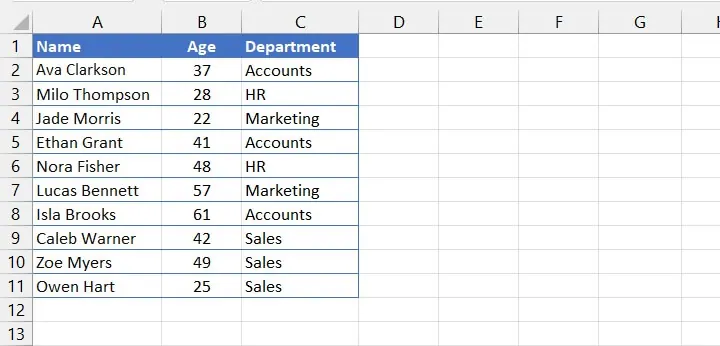
Here is a small employee table example. It can be sorted by name, department, age, or status, but the row identity should come from a stable ID rather than the current row position.
Build views instead of duplicate sheets
Once you have a master table, create views from it.
Depending on your Excel version, that may mean:
- FILTER and SORT formulas
- structured tables
- Power Query output tables
- pivot tables
- protected view tabs
- separate report exports
The principle is the same. The view should read from the source. It should not become a second editable copy.
For example, one view can sort active cases by priority. Another can sort the same cases by location. A manager can use either view without changing the underlying source table.
If your goal is not only synced sheets but a shareable summary, an Excel-to-dashboard workflow may be more useful than adding more tabs.
The point is to make the sorted tab a generated view, not a second place where people edit records. If someone asks for a different order, change the view logic rather than copying the table again.

Formula option for Excel 365
If you use Excel 365 or another Excel version with dynamic arrays, you can build synced views with formulas.
First, convert the master data range into an Excel Table:
- Select the source range.
- Press
Ctrl + T. - Name the table
MasterDatafrom the Table Design tab. - Make sure it has a stable key column such as
RecordID.
Assume MasterData has columns like:
| RecordID | Name | Department | Status | Priority | Due Date | Owner |
|---|---|---|---|---|---|---|
| T-1001 | Site audit | Operations | Active | High | 2026-05-21 | Maya |
| T-1002 | Vendor review | Finance | Active | Medium | 2026-05-28 | Chris |
| T-1003 | Campaign QA | Marketing | Waiting | Low | 2026-06-02 | Lena |
To create a view sorted by name, put this formula in cell A1 of a new sheet:
=SORTBY(MasterData, MasterData[Name], 1)
How to read it:
MasterDatais the whole source table.MasterData[Name]is the column used for sorting.1means ascending order.
To create a view sorted by due date, use:
=SORTBY(MasterData, MasterData[Due Date], 1)
To create a view that only shows active records, sorted by due date:
=SORTBY(
FILTER(MasterData, MasterData[Status]="Active"),
FILTER(MasterData[Due Date], MasterData[Status]="Active"),
1
)
How to read it:
FILTER(MasterData, MasterData[Status]="Active")returns only active rows.- The second
FILTERreturns due dates for those same active rows. SORTBYsorts the filtered rows by those filtered due dates.
For priority sorting, do not rely on alphabetical order because High, Medium, and Low will not sort in business priority order. Add a helper column in MasterData called PriorityRank, then use:
=SORTBY(
FILTER(MasterData, MasterData[Status]="Active"),
FILTER(MasterData[PriorityRank], MasterData[Status]="Active"),
1,
FILTER(MasterData[Due Date], MasterData[Status]="Active"),
1
)
Set PriorityRank as 1 for High, 2 for Medium, and 3 for Low. The view will stay synchronized because it recalculates from the master table.
Formula option for checking existing sheets
If you already have two tabs and need to check whether they still match, use the stable ID as the lookup key.
For example, in Sorted_By_Name, you can compare its status value against the master table:
=XLOOKUP([@RecordID], MasterData[RecordID], MasterData[Status], "Missing in master")=[@Status]
That returns TRUE if the row's status matches the master table and FALSE if the view has drifted.
To pull the latest owner from the master table into a view, use:
=XLOOKUP([@RecordID], MasterData[RecordID], MasterData[Owner], "")
This is useful when an older workbook already has manually copied tabs. You can add comparison columns, find mismatches, then rebuild the tabs as formula-based views.
Add checks for broken synchronization
Even with a clean structure, add basic checks.
Useful checks include:
- count of source records
- count of view records
- duplicate IDs
- missing IDs
- records excluded from a view
- blank required fields
- last updated date
- source-vs-view total checks
These checks help catch formula breaks, filter mistakes, and accidental edits.
If the workbook supports a live operational process, the checks matter as much as the views. A nicely sorted tab is dangerous if it silently drops records.
For Excel formulas, also check for:
#SPILL!errors because something is blocking the dynamic array output range- sort formulas that reference a fixed range instead of the structured table
- priority values sorted alphabetically instead of by business rank
- formulas that omit inactive rows without saying so
- users typing into generated view cells and breaking the formula output
- duplicate
RecordIDvalues that make lookup checks unreliable
Where RowSpeak fits
RowSpeak is useful when the workbook has grown beyond a simple personal sheet and the team needs a clearer workflow.
You can upload the workbook and ask RowSpeak to:
- identify which tabs appear to duplicate the same records
- suggest a source-table and view structure
- flag missing IDs and duplicate records
- summarize differences between sheets
- create a downloadable workbook with formula-based sorted views
- create a review report for mismatched rows
- suggest dashboard views that reduce the need for manual sorting
This helps when the problem is not just “what formula should I use?” but “how should this spreadsheet workflow be structured so people can trust it?”
A practical Excel AI workflow can help explain the workbook’s structure before you rebuild it.
For example, you can ask RowSpeak:
Compare the two sheets and tell me whether they contain the same records. Use Employee ID as the key, flag missing or duplicate IDs, and recommend which tab should become the source table and which should become a sorted view.
That prompt is more useful than asking only for a sorting formula because it checks whether the synchronization problem already exists.
If you want RowSpeak to return a workbook with formulas, say that explicitly:
I uploaded a workbook with two sheets that contain the same records in different sort orders.
Please create a downloadable Excel workbook with:
1. A clean MasterData table using RecordID as the stable key.
2. A view sorted by Name.
3. A view sorted by Status, PriorityRank, and Due Date.
4. A Sync Check sheet that flags missing RecordID values, duplicate IDs, and field mismatches.
Use formulas where appropriate, especially SORTBY, FILTER, LET, and XLOOKUP, so the view sheets update when the master table changes.
Protect or clearly label generated view tabs so users know not to edit them directly.
Without that instruction, RowSpeak may generate a clean static workbook. If you need live formulas inside the workbook, include the formula requirement in the prompt.
When not to sync two sheets
Sometimes the right answer is not synchronization.
If two teams need to edit the same records independently, Excel may not be the right system. You may need a database, CRM, ticketing system, inventory tool, or governed BI layer.
Use Excel views when:
- one team owns the source data
- the views are mostly read-only
- the logic is simple enough to review
- the workbook is still manageable
Move beyond Excel when:
- many users edit at the same time
- changes need approvals
- audit logs are required
- permissions differ by role
- the dataset is too large or sensitive
RowSpeak can help analyze the workbook and produce reports, but it should not be treated as a replacement for an operational system when governance is the real requirement.
A practical workflow
Use this sequence:
Pick the master table
Decide where records are entered and maintained.Add or confirm record IDs
Every row needs a stable identifier.Define the required views
Name who uses each view and why.Build views from the master table
Use formulas such asSORTBYandFILTER, or use Power Query or pivot outputs.Protect view tabs if needed
Prevent accidental edits to derived tables.Add synchronization checks
Compare row counts, IDs, and excluded records.Create a report view if stakeholders need summaries
Use an AI reporting workflow when the output needs narrative and review notes.
Common mistakes to avoid
Do not manually copy rows between tabs.
Do not let both sheets become editable sources.
Do not rely on sort order as identity.
Do not build views without checking missing or duplicate IDs.
Do not add a dashboard before the underlying table is stable.
The takeaway
Syncing two Excel sheets with different sort orders is less about Excel tricks and more about data design.
Use one source table. Give each record a stable ID. Build sorted views from that source. Add checks so missing records do not disappear silently.
Excel can handle this for many small and medium workflows. RowSpeak fits when the workbook needs to be understood, cleaned up, summarized, or turned into a report that the team can review and share.
Get Started: Check Your Workbook Before It Drifts
If your team maintains two tabs with the same records in different orders, upload the workbook to RowSpeak and ask it to compare the tabs by record ID. Have it flag missing rows, duplicate IDs, conflicting values, and recommend which sheet should become the master source.
Try RowSpeak today and turn a fragile two-sheet workflow into a structure your team can trust.