How to Monitor Public Budget Spending in Excel AI Without Complex Formulas

Tracking public budgets isn’t just about recording numbers—it’s about seeing where money goes, how efficiently it’s used, and where problems arise.

But let’s be honest: building budget dashboards in Excel usually means fighting with formulas like SUMIFS, IFERROR, and conditional formatting for hours.

In this post, I’ll show you how to skip all of that using RowSpeak, and monitor your budget performance with three natural language prompts. We'll compare actual vs planned budgets, track spending over quarters, and assess how well departments utilize their allocations.


The Scenario: A Multi-Department Public Budget Sheet

Here’s the kind of data you might manage:
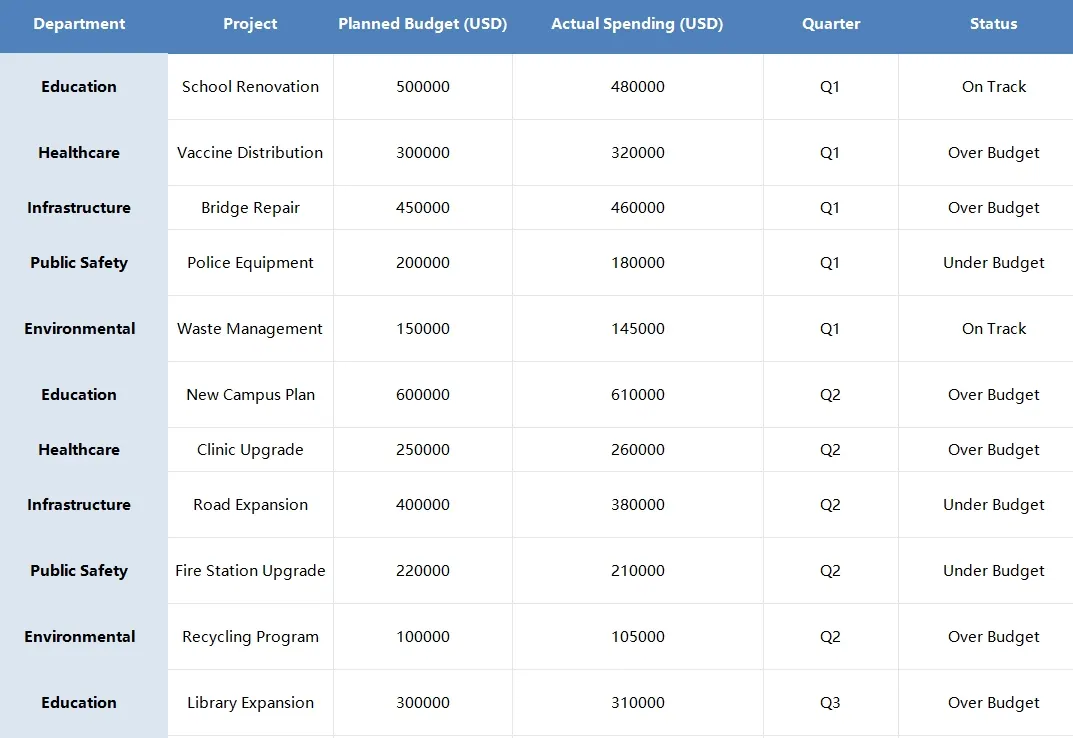
depart


What I Asked RowSpeak (And What I Got)


1️⃣ Compare Planned vs Actual by Project

Prompt: Please generate a Bar Chart comparing planned and actual budget by project.

Result: RowSpeak instantly created a side-by-side Bar Chart for each project. You can visually spot over- or under-spending at a glance:

  • Vaccine Distribution and Bridge Repair overshot the budget.
  • School Renovation came in just under.
  • Great for presentations or quick health-checks.

2️⃣ View Budget Use by Quarter

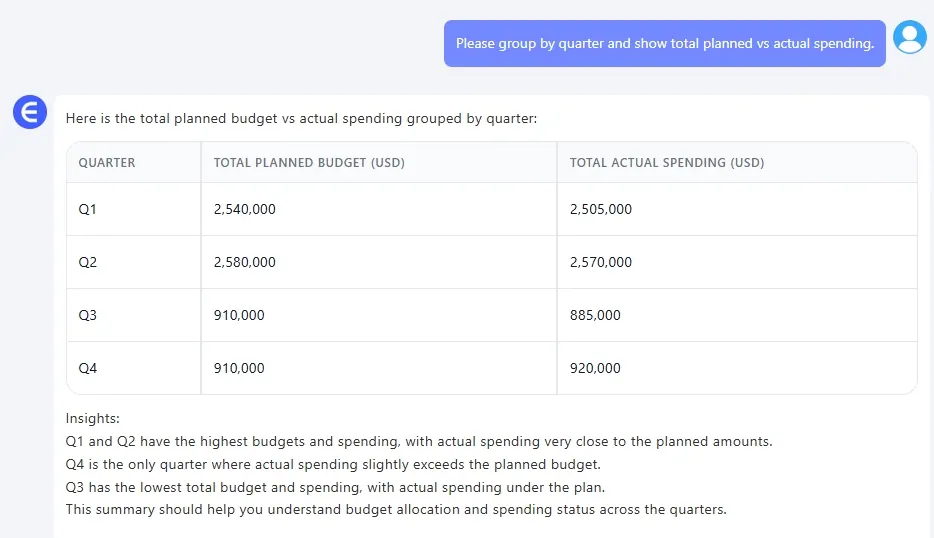
Prompt: Please group by quarter and show total planned vs actual spending.

Result:
depart

A clean, summarized breakdown—perfect for quarterly reporting, variance tracking, and cross-period comparison.


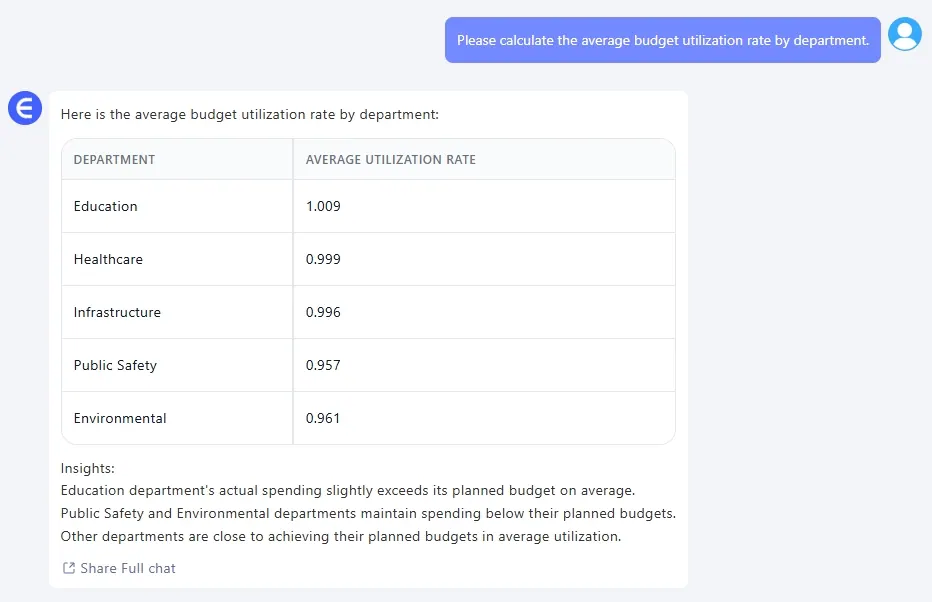
3️⃣ Department-Level Budget Utilization

Prompt (in Chinese): Please calculate the average budget utilization rate by department.

Result:
depart

Now you know who’s overspending—and who might be underutilizing resources.


What You Can Do With These Results

  • Build public spending dashboards without touching formulas
  • Identify departments consistently over/under budget
  • Spot project-level inefficiencies early
  • Impress leadership with automated, visual financial insights

Final Thoughts

You don't need complex Excel formulas to manage complex financial data. With just three prompts, I turned a flat budget sheet into:

  1. A Bar Chart comparing planned vs actual spending
  2. A quarterly spending summary
  3. A department utilization analysis

Fast, visual, and accurate—with zero functions involved.

Click here to see the full prompt flow and try the tool >>

Want to try it on your government, nonprofit, or enterprise budget data?Try RowSpeak now >>
Ditch Complex Formulas – Get Insights Instantly

No VBA or function memorization needed. Tell RowSpeak what you need in plain English, and let AI handle data processing, analysis, and chart creation

Try RowSpeak Free Now

Recommended Posts

How to Sum in Excel: A Full Guide from Formulas to AI
Excel Tips

How to Sum in Excel: A Full Guide from Formulas to AI

Tired of manual formulas? This guide covers everything from the basic SUM function and AutoSum shortcuts to advanced techniques. We also introduce a game-changing AI method that lets you get totals just by asking, making your data analysis faster and smarter.

Ruby
Fix Messy HR Employee Data in Seconds with Excel AI Excel Analysis
Excel Tips

Fix Messy HR Employee Data in Seconds with Excel AI Excel Analysis

Fix messy HR spreadsheets in seconds. Format dates, count employees by department, and prefix employee IDs using RowSpeak’s Excel analysis—no formulas needed.

Sally
Master Data Analysis with RowSpeak: No Formulas, No Coding, Just Actionable Insights
Excel Tips

Master Data Analysis with RowSpeak: No Formulas, No Coding, Just Actionable Insights

Transform your Excel spreadsheets into powerful insights with RowSpeak’s AI. No formulas, no coding—just natural language questions and instant results.

Sally
Forget INDEX MATCH: The Easiest Way to Query Multiple Criteria in Excel
Excel Tips

Forget INDEX MATCH: The Easiest Way to Query Multiple Criteria in Excel

Is nesting INDEX MATCH with multiple criteria giving you a headache? Learn a smarter, faster way to query complex data using plain language and AI automation.

Ruby
Top 8 Excel AI Tools for 2025
Excel Tips

Top 8 Excel AI Tools for 2025

This article shares eight noteworthy Excel AI tools that will make you much more productive.

Sally
Best Excel AI Tools: Smarter Spreadsheets with AI Power
Excel Tips

Best Excel AI Tools: Smarter Spreadsheets with AI Power

RowSpeak eliminates that struggle—just ask a question in natural language, and AI will generate the insights and visual charts you need in seconds.

Sally
Three tips to teach you how to use VLOOKUP efficiently
Excel Tips

Three tips to teach you how to use VLOOKUP efficiently

Today, I will share with you some tips for using VLOOKUP, and introduce a powerful tool -- RowSpeak, to help you use VLOOKUP more efficiently.

Sally
Simplify Data Analysis: Chat Your Excel Problems Away with RowSpeak
Excel Tips

Simplify Data Analysis: Chat Your Excel Problems Away with RowSpeak

Today, let's explore how to use RowSpeak to make Excel analysis more efficient, intelligent, and accessible even for beginners!

Sally