In the daily work of data processing, VLOOKUP function is a very powerful and commonly used tools in Excel, it can help us quickly find and match data in the table. However, sometimes the use of VLOOKUP may also encounter some problems, such as the formula is written wrong, the data range did not choose the right or return results do not meet expectations. Today, I will share with you some tips for using VLOOKUP, and introduce a powerful tool -- RowSpeak, to help you use VLOOKUP more efficiently.
Getting to know VLOOKUP
The full name of VLOOKUP is Vertical Lookup, as the name suggests, it means vertical lookup. Its basic syntax is =VLOOKUP(lookup_value, table_array, col_index_num, [range_lookup]). Where lookup_value is the value to lookup, table_array is the table region containing the data, col_index_num is the column number of the table in which the value is to be returned, and range_lookup is a logical value indicating whether or not to perform an approximate match.
As an example, let's say we have an Employee Information table that contains information such as employee number, name, department, and salary. If we want to find the salary of the employee based on the employee number, we can use the VLOOKUP function. For example, the formula =VLOOKUP (A2, B1: E100, 4, FALSE) means that in the B1 to E100 form area to find the employee number in cell A2, and return the employee's salary information.
Tip 1: Make sure the data range is accurate
The first step in using VLOOKUP is to determine the correct data range. If the data range is wrong, VLOOKUP will not be able to find the matching data correctly. Therefore, before using VLOOKUP, be sure to double-check that the data range contains all the data you need to find.
In addition, the first column in the range must be the column where the key value you are looking for is located. For example, in the above example, if the employee number is in column C instead of column B, then the VLOOKUP result will be wrong. So when using VLOOKUP, make sure that the first column of the data range is the key value column you are looking for.
Tip 2: Pay Attention to Column Numbering
In VLOOKUP function, col_index_num is a very important parameter which determines the position of the returned data. This column number must be the column number relative to the data range, not the entire worksheet. For example, if the data range is from column B to column E, then the first column is column B, the second column is column C, and so on.
VLOOKUP works properly when the value to be returned is on the right side of the data range; however, if the value to be returned is on the left side of the data range, VLOOKUP returns an error. Therefore, when designing a spreadsheet, try to place the key value columns on the left side and the columns that need to be returned on the right side.
Tip 3: Use RowSpeak to improve efficiency
Besides mastering the correct way to use RowSpeak, you can also use some tools to greatly improve the efficiency of VLOOKUP. Today I would like to introduce you a very powerful tool -- RowSpeak.
RowSpeak is an Excel analysis tool that combines AI with data analysis. It helps us quickly get insights from Excel files through natural language conversations without having to master complex Excel functions or data analysis skills.
With RowSpeak, you can easily import Excel files without using VLOOKUP formulas, just by asking simple natural language questions. For example, all you need to say is “I want to find an employee's salary by employee number” and RowSpeak will automatically recognize the salary for the employee number you want to find.
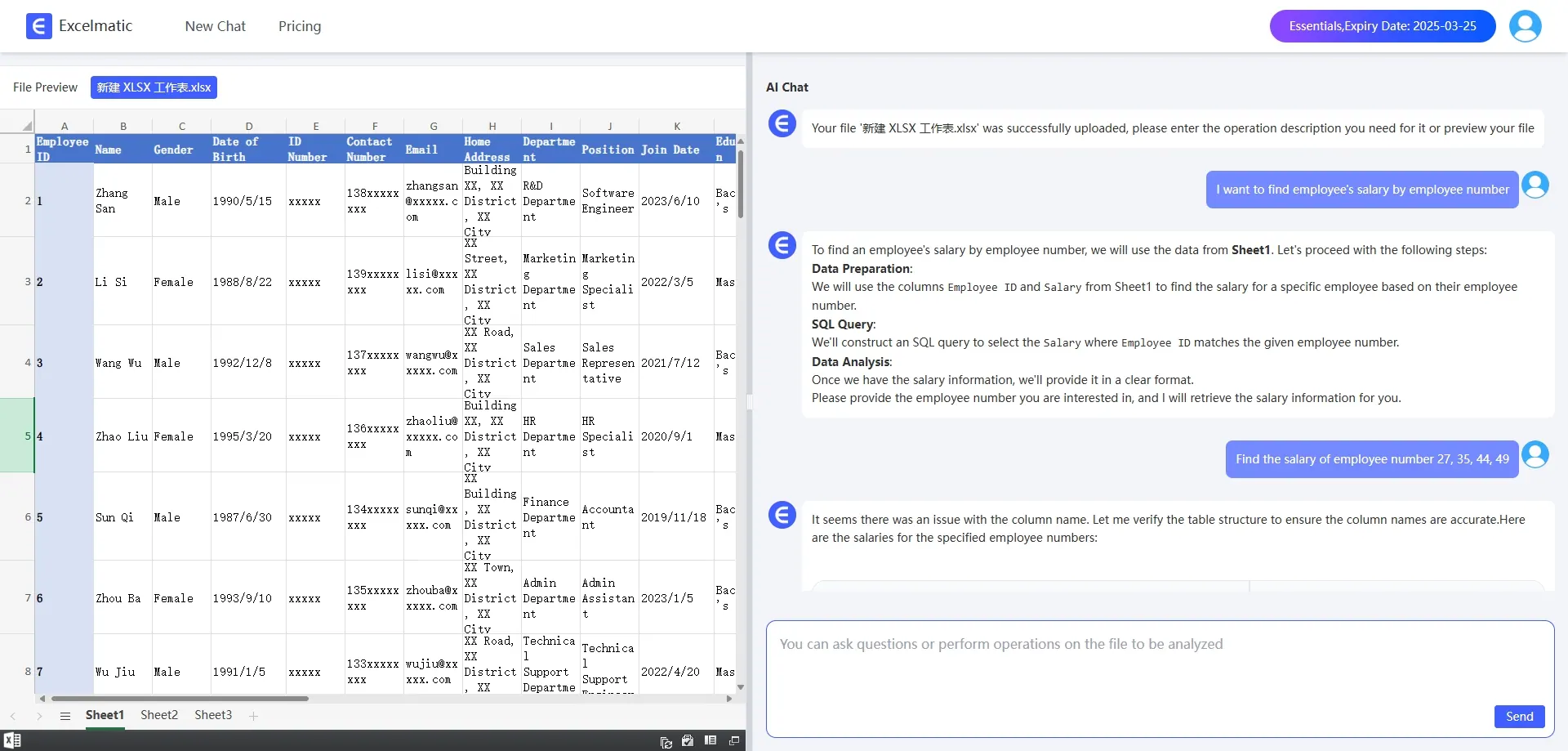
In addition, RowSpeak intelligently handles data ranges and column numbers to ensure formulas are correct and efficient. Even if your table has thousands of rows of data, RowSpeak can complete the find and match task in no time, greatly increasing your productivity.
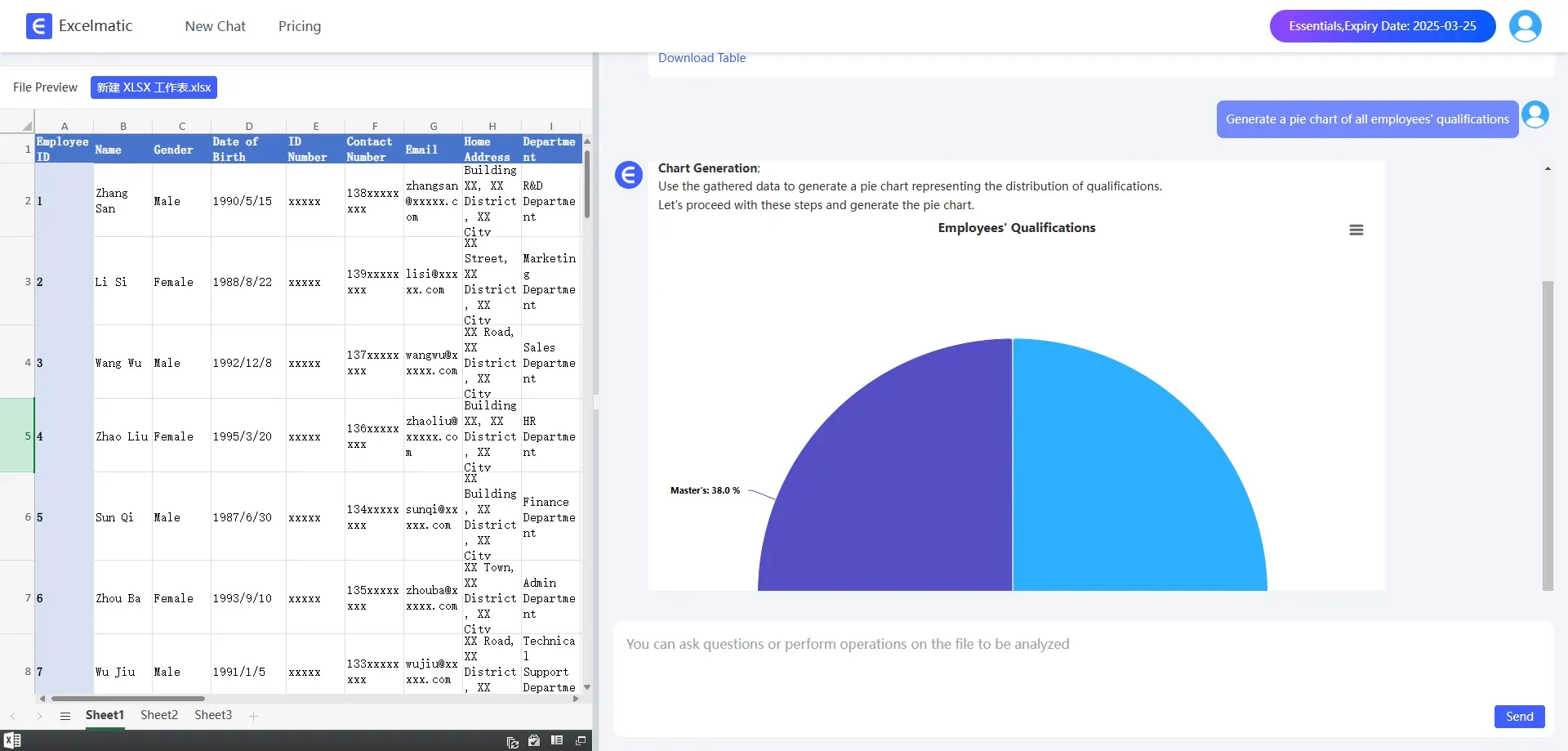
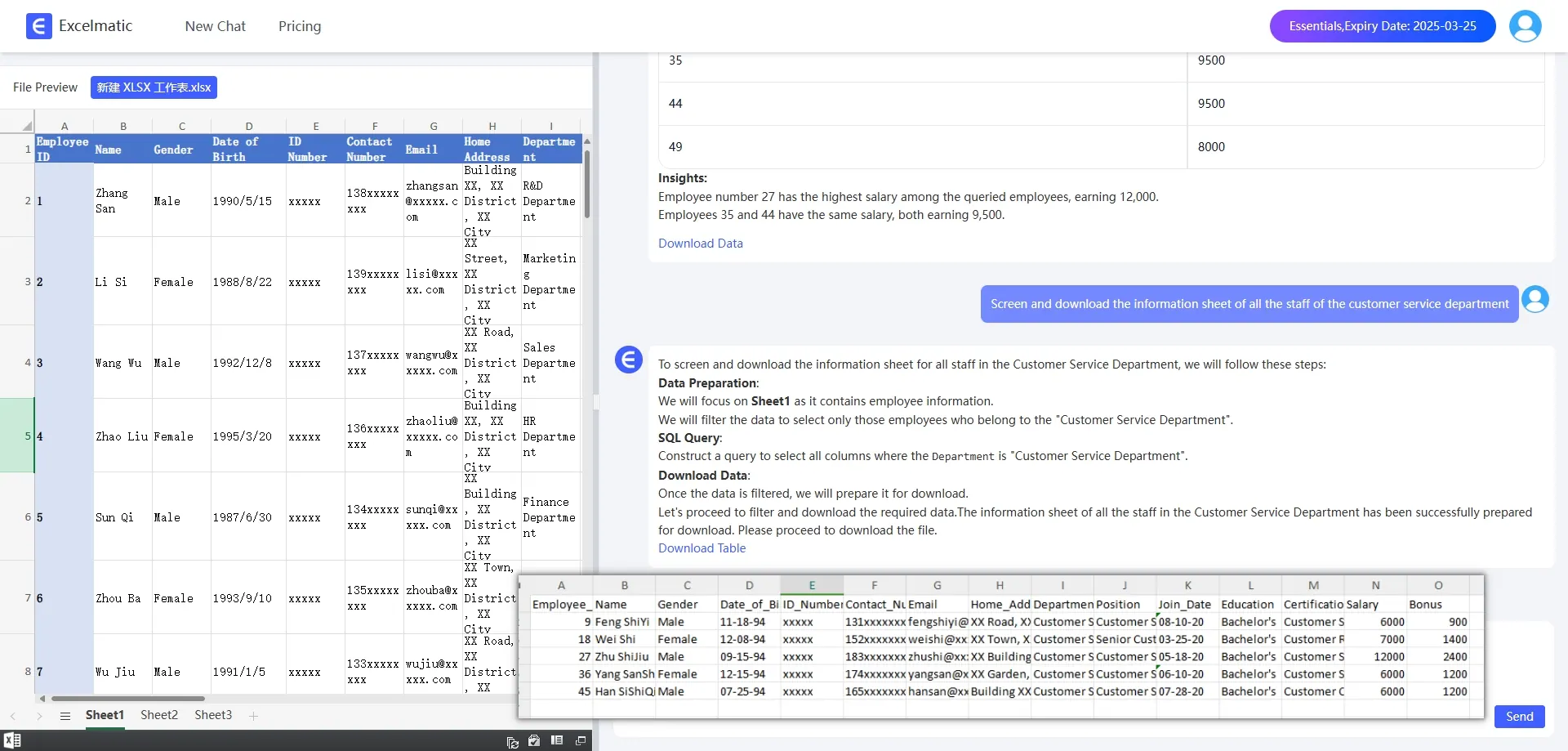
Not only that, RowSpeak also provides a variety of data processing and analysis functions, such as sorting, filtering, finding and replacing, etc., as well as a wealth of charting functions, which can help you more intuitively display and analyze data.
Conclusion
In short, VLOOKUP is a very powerful and useful function that can help us quickly find and match data in Excel. By mastering the correct use of methods and techniques, as well as with the help of such a powerful tool as RowSpeak, we can greatly improve the efficiency of work and reduce the occurrence of errors. Now, let's start the intelligent Excel analysis journey with RowSpeak!