In daily work and life, Excel as a powerful data analysis tool, is widely used in various fields, such as financial management, project progress tracking, market data research. However, many users in the use of Excel formulas for data analysis, often encounter incorrect formulas, can not be used and other issues, which not only affects the efficiency of the work, but also may lead to the accuracy of the data results greatly compromised.
Excel formula strike of common causes
(A) function syntax errors
Excel function has a strict grammatical structure, including the case of the function name, the order and type of parameters. For example, in the use of SUM function for the sum, if the cell region of the parameter is written wrong, such as SUM (A1,B1) (correct should be SUM (A1:B1)), will lead to the formula can not be calculated properly.
(B) cell format mismatch
cell format on the formula has an important impact on the results. For example, when we will contain a text cell set to digital format, and then use the formula for calculation, the formula may not be able to recognize the contents of the cell, resulting in errors. In addition, date format, time format and other special formats of the cell may also lead to formula calculations do not meet expectations.
(C) data source issues
If there are errors, missing or inconsistent data in the Excel table, then even if the formula itself is correct, the results may not be accurate. For example, when analyzing a pivot table, if some key fields in the original data have null or incorrect values, then the results of the pivot table will not truly reflect the actual situation of the data.
(D) version compatibility issues
There may be some functional differences and compatibility issues between different Excel versions. When we create a file in one version of Excel and open it in another version of Excel, the formula may not work properly. For example, some newer functions may not be supported in older versions of Excel.
Limitations of traditional solutions
In the face of these problems, the traditional solution usually requires users to have a certain Excel professional knowledge and experience, by double-checking the formula syntax, adjust the cell format, correct the data source and other ways to solve. However, for many non-professional Excel users, these methods are often more complex and cumbersome, it is difficult to quickly and effectively solve the problem.
RowSpeak Conversational solutions
Now, a new solution -- RowSpeak conversational tools, for the user to provide a more convenient and efficient way to deal with RowSpeak is an artificial intelligence technology based on Excel analysis tools, the user can be with it through a natural language dialog, easily solve the RowSpeak is an AI-based Excel analysis tool that allows users to easily solve Excel formula problems and perform various data analysis tasks by engaging in natural language dialog with it.
Easy Summation
For example, when you need to sum a certain column of data, just tell RowSpeak to sum it for me and specify the corresponding data range, and it will automatically calculate the result for you without requiring you to memorize and input the complicated SUM function formula.
Delete duplicates
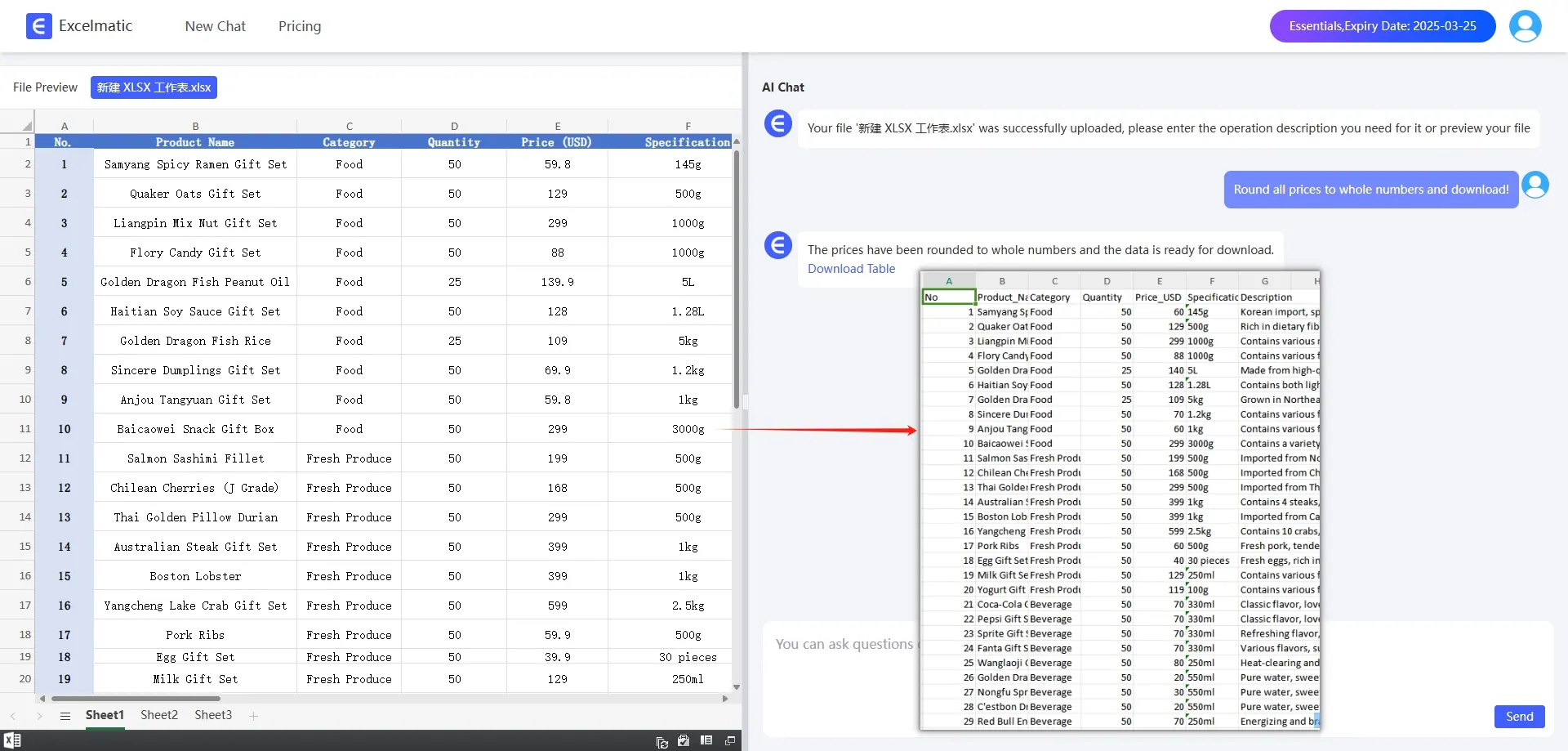
When dealing with data, you will often encounter the situation that there are duplicate contents in the table. Traditional processing methods require users to use complex formulas or manual screening to delete, but through RowSpeak, you just simply say to it, Delete duplicate content in the table, it will be able to quickly and accurately help you to complete the operation, a great saving of time and energy.
Other Functions
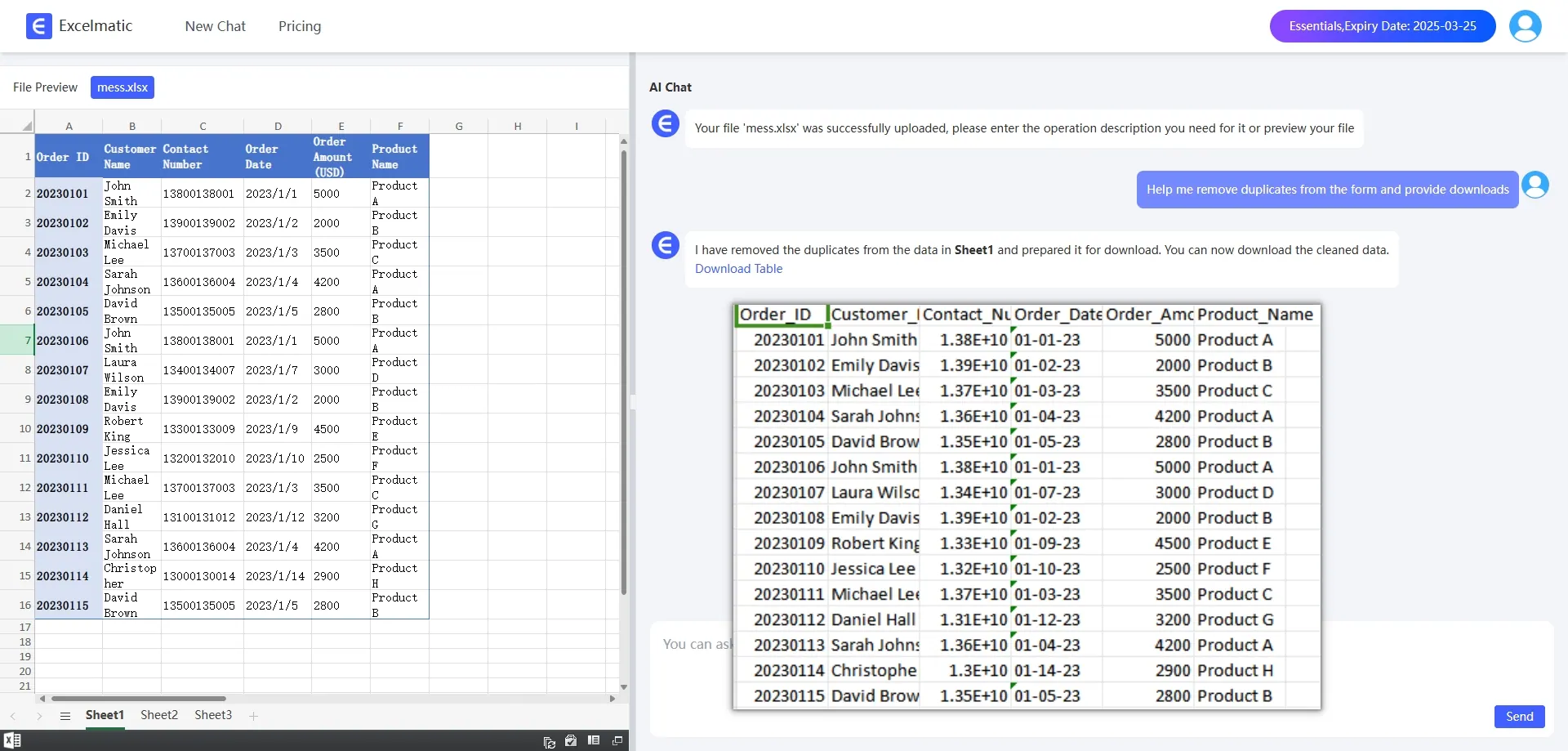
RowSpeak can also perform a variety of data processing and analysis, such as sorting, filtering, find and replace, etc., to help users conduct rapid analysis. It can also generate Bar Charts, pie charts, line graphs, and many other types of charts based on the data, which is easy to visualize the data analysis. In addition, it supports natural interaction in Chinese with an intuitive and conversational interface, which makes it easy to use even for users who don't know English.
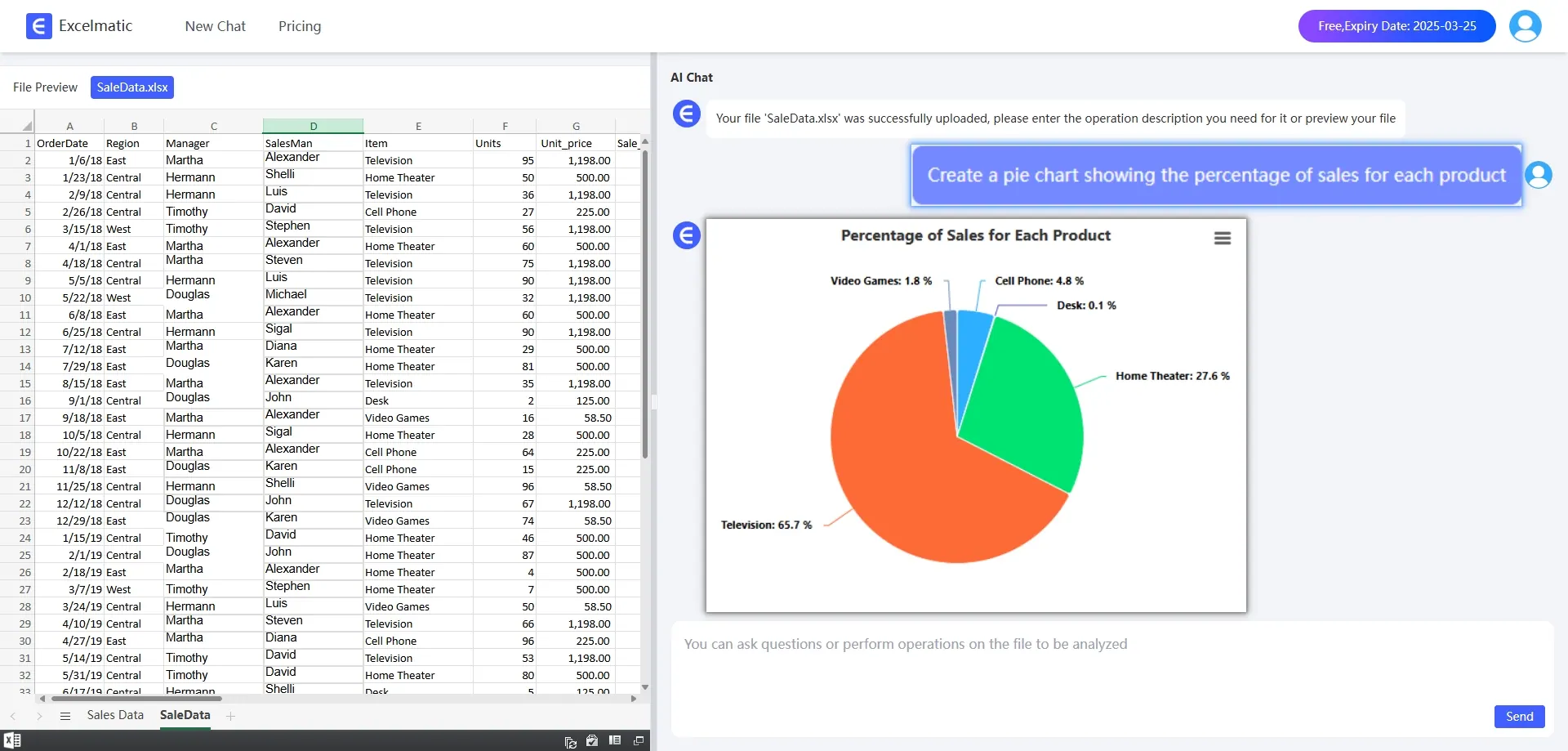
In short, RowSpeak solves many of the problems associated with traditional Excel formulas in a conversational way, making data analysis easier and more efficient. Whether you are new to the field of data analysis or a seasoned professional, you can use RowSpeak to complete your work more quickly and easily, and start an intelligent Excel analysis mode.