Have you ever spent 30 minutes just writing an IF formula?
Or manually copied columns across multiple CSVs to get a clean report?
Or worse—got stuck writing analysis summaries after making “just one chart”?
You're not alone. Excel is powerful, but traditional workflows are painful.
In this article, we’ll share 4 common Excel + ChatGPT tips that save tons of time—and show you how RowSpeak lets you skip all of that by asking just one question.
Tip 1: Build a multi-condition IF formula (e.g. identify bestsellers)
Scenario:
You want to classify a product as a Bestseller if:
- Sales ≥ 100 AND Profit Margin ≥ 30%
Traditional method:
Formula:
=IF(AND(B2>=100,C2>=30%),"Bestseller","Other")
You need to remember how AND() works, how to format %, and debug when something breaks.
ChatGPT version:
Prompt:
Write an Excel formula that marks a product as "Bestseller" if sales are 100 or more AND profit margin is 30% or higher.
ChatGPT replies with the formula + step-by-step breakdown. Useful—but still manual work.
RowSpeak: No formula, just a sentence.
Sample input table:
| Product | Sales | Profit Margin |
|---|---|---|
| A | 150 | 35% |
| B | 80 | 40% |
| C | 120 | 25% |
Prompt to RowSpeak:
Mark each product as "Bestseller" if sales ≥100 and profit margin ≥30%. Add a new column for the result.
RowSpeak output:
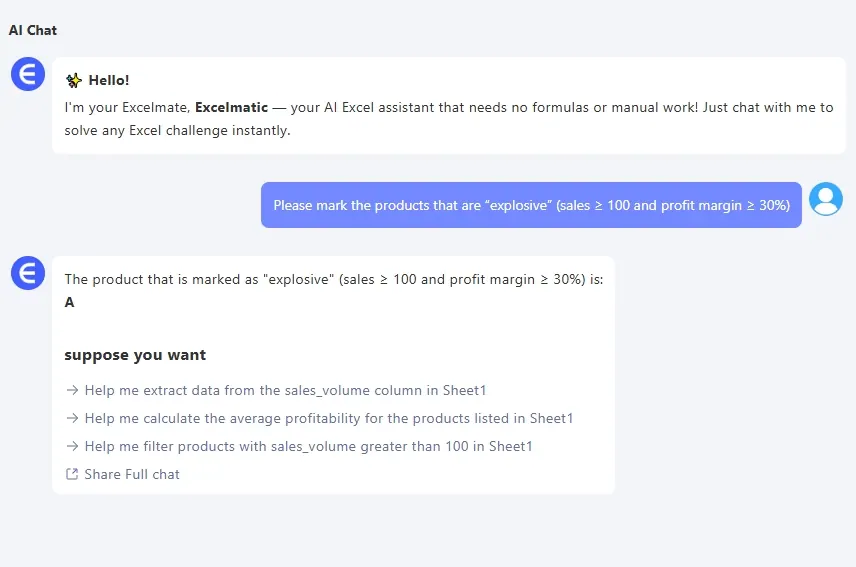
No formula. No mistakes. Instant result.
Tip 2: Extract text from a cell (e.g. pull codes from order numbers)
Scenario:
You want to extract the city code from an order ID like SZ-20230401-00321.
Traditional method:
Use:
=LEFT(A2,FIND("-",A2)-1)
This only works if the format is consistent. It breaks easily with extra characters or inconsistent formatting.
ChatGPT version:
Prompt:
How to extract the city code from the string "SZ-20230401-00321"?
ChatGPT will generate the right formula, and even explain it—but again, still manual work.
RowSpeak:
Input table:
| Order ID |
|---|
| SZ-20230401-00321 |
| BJ-20230402-00011 |
| SH-20230401-00999 |
Prompt:
Extract the city code from each order ID and create a new column called "City".
Output:
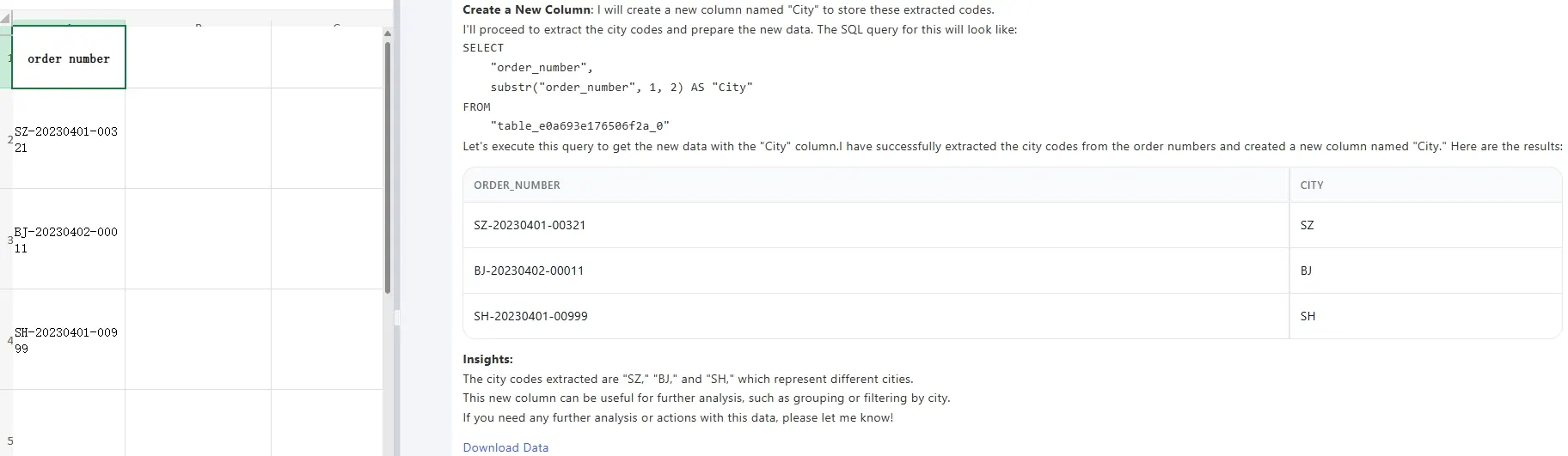
One sentence. Smart extraction. Clean output.
Tip 3: Calculate ROI and identify underperforming ad campaigns
Scenario:
You want to find out which ad campaigns have ROI < 1, and sort them.
Traditional method:
- Add a new ROI column:
=Revenue / Spend - Use filters or
SORT() - Optional: Create a chart
All this requires attention to column references and formatting.
ChatGPT version:
Prompt:
Write an Excel formula to calculate ROI and filter rows where ROI is below 1.
It gives the formula and explains, but you still need to build the workflow.
RowSpeak:
Input table:
| Campaign | Spend | Revenue |
|---|---|---|
| A | 500 | 450 |
| B | 300 | 900 |
| C | 1000 | 800 |
Prompt:
Show campaigns where ROI is less than 1. Sort them by ROI ascending.
Output:
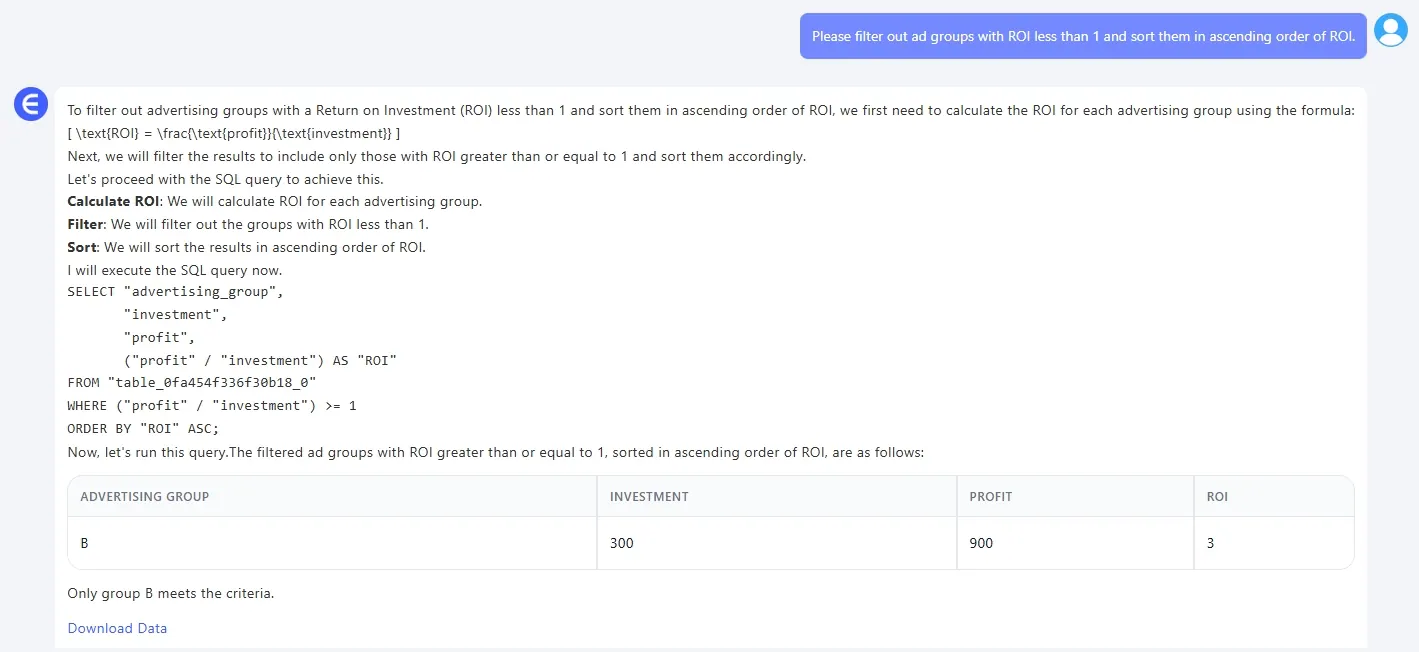
ROI calculated, filtered, sorted—chart-ready in seconds.
Tip 4: Generate a trend chart with a written summary
Scenario:
You’re asked to create a sales trend chart for the week and write an analysis.
Traditional method:
- Build a line chart
- Observe trends
- Write insights manually
- Update it every day
Exhausting when you do this weekly.
ChatGPT version:
Prompt:
Here's sales data from April 1 to April 7. Can you write a summary?
ChatGPT gives a nice paragraph, but you still need to make the chart in Excel.
RowSpeak:
Input table:
| Date | Revenue |
|---|---|
| 2025-04-01 | 8000 |
| 2025-04-02 | 9200 |
| 2025-04-03 | 8700 |
| 2025-04-04 | 9500 |
| 2025-04-05 | 7000 |
| 2025-04-06 | 7200 |
| 2025-04-07 | 9800 |
Prompt:
Create a line chart of daily revenue and write a one-paragraph summary of the weekly trend.
Output:
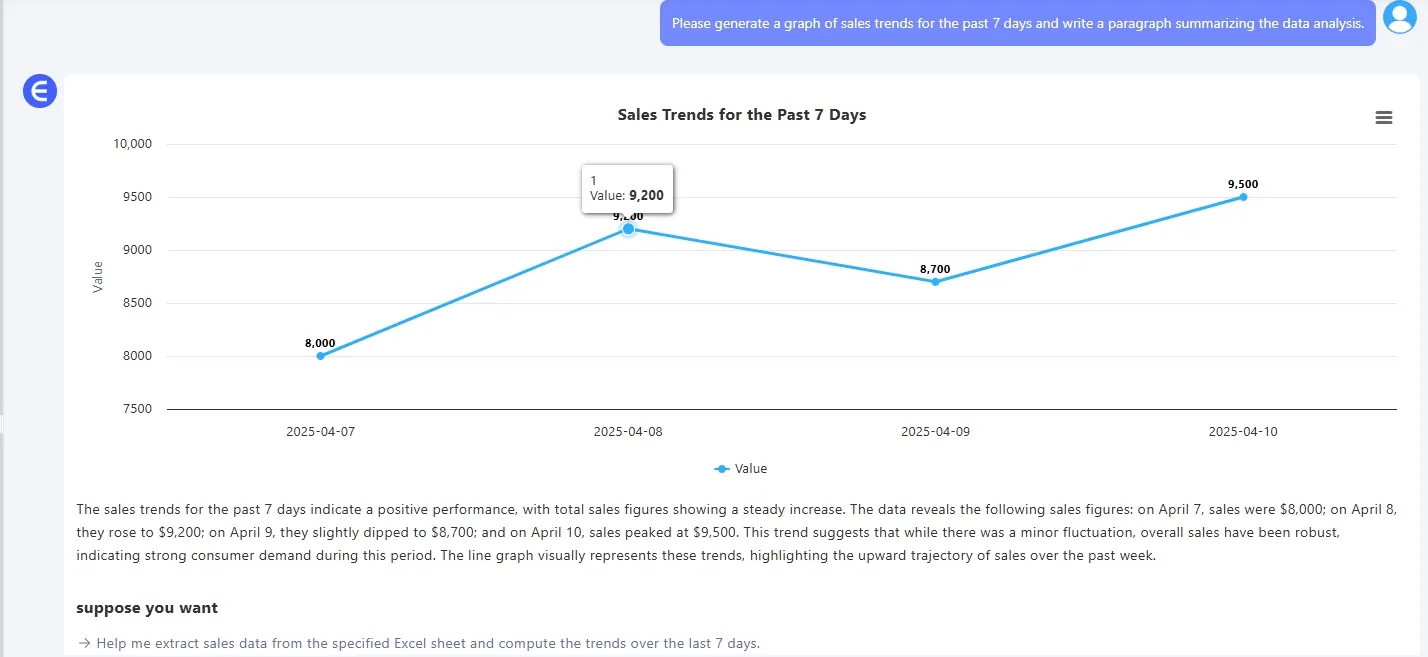
Chart + summary, exportable to reports and decks.
Summary: What takes minutes (or hours) now takes one sentence
| Task | Traditional Workflow | RowSpeak |
|---|---|---|
| IF condition formula | Build + debug | One prompt |
| Text extraction (codes, dates) | Multiple functions | One prompt |
| ROI filtering and ranking | Calculate + sort | One prompt |
| Trend chart with insights | Chart + write summary | One prompt |
Final Thoughts
With ChatGPT, you can reduce time writing formulas.
With RowSpeak, you don’t need to write them at all.
The future of spreadsheet work isn't about mastering formulas—
It’s about learning to ask better questions.
Ask RowSpeak. Let it do the work.