Fix Messy HR Employee Data in Seconds with Excel AI Excel Analysis

Managing employee information is a core task for every HR team—but one that often comes with a sea of inconsistent formats, redundant records, and confusing manual formulas. Whether you're trying to standardize join dates, analyze headcount by department, or prepare IDs for system integration, traditional Excel methods can be time-consuming and error-prone.

In this guide, we show how to clean and analyze an HR employee data table in under 5 minutes using RowSpeak, an AI-powered tool that turns natural-language prompts into smart Excel automation—no formulas or macros needed.


Use Case: A Realistic HR Employee Table

Let’s say you’re working with this typical table:
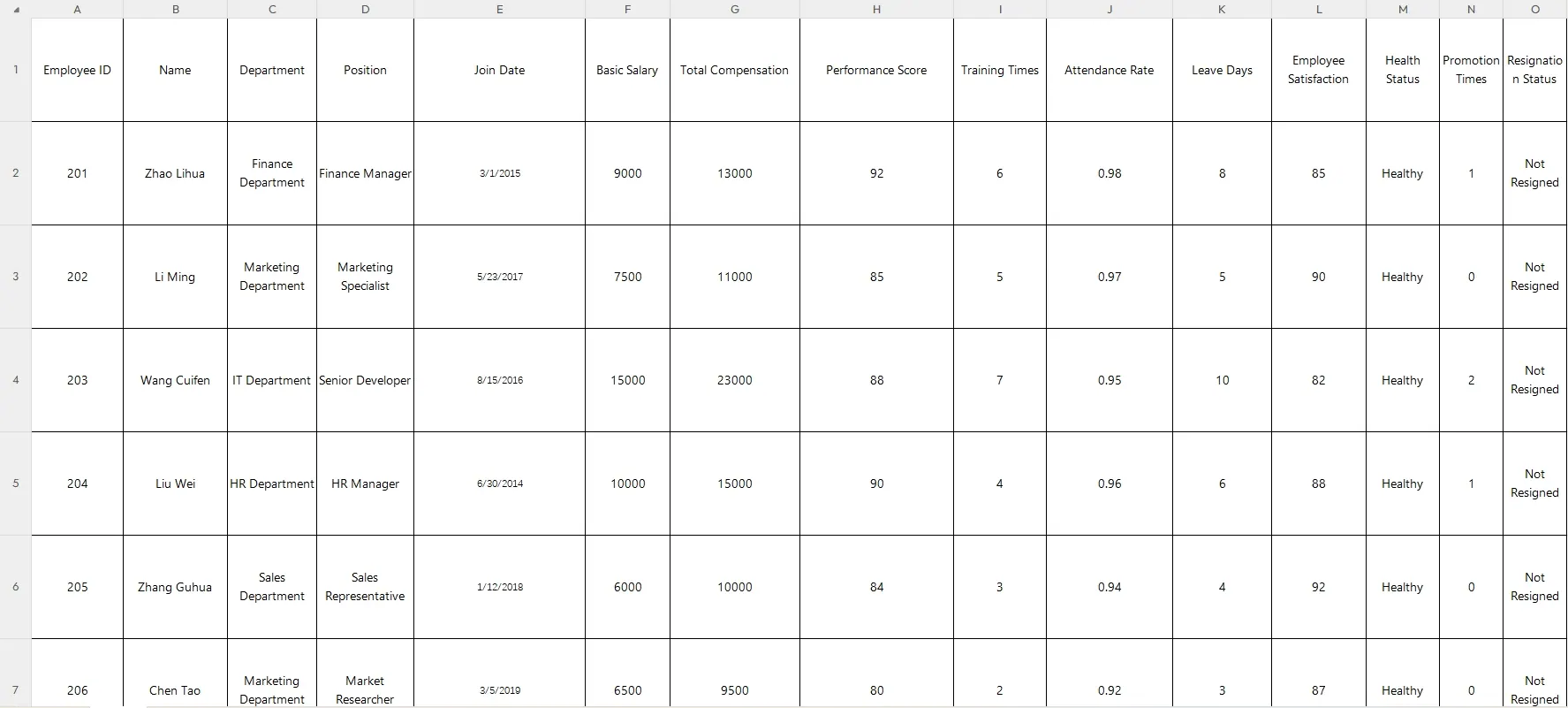
depart

Your objectives:

  • Unify inconsistent Join Date formats
  • Count the number of employees by Department
  • Prefix Employee IDs with a branch code (e.g., GZ001)

Traditional Excel: Too Many Manual Steps

To accomplish this manually, you'd typically need to:

  • Use formulas like TEXT(), DATEVALUE(), or LEFT() to fix dates and IDs
  • Create pivot tables or COUNTIF() statements to count departments
  • Double-check for errors line by line

This takes time and often requires intermediate to advanced Excel skills—not ideal when deadlines are tight.


RowSpeak: Just Ask 3 Smart Questions

With RowSpeak, all you need is your Excel file and a few plain-English prompts.

Here’s what we asked:


1. Format Join Dates Consistently

Prompt: Please convert the 'Join Date' column to a harmonized standard date format (YYYY-MM-DD).

Result:

All dates are now formatted uniformly, regardless of whether they were slashed, dashed, or written in Chinese.


2. Generate a Department Headcount Table

Prompt: Please generate a table showing the number of employees by 'department'.

Result:

RowSpeak returned a summary table instantly:Perfect for team planning or reporting to management.


3. Add Branch Codes to Employee IDs

Prompt: Add the branch code ‘GZ001’ in front of each employee ID.

Result:

Every Employee ID now begins with GZ001, ready for system import or branch-level reporting.


Final Thoughts

HR teams shouldn’t waste hours cleaning data or writing formulas to get basic insights. With RowSpeak, you can process raw employee tables into polished, structured outputs in seconds.

Click here to see the full prompt flow and try the tool >>


Ready to try this yourself?

Upload your own Excel file and ask your first question:Try RowSpeak Now >>

Ditch Complex Formulas – Get Insights Instantly

No VBA or function memorization needed. Tell RowSpeak what you need in plain English, and let AI handle data processing, analysis, and chart creation

Try RowSpeak Free Now

Recommended Posts

Simplify Data Analysis: Chat Your Excel Problems Away with RowSpeak
Excel Tips

Simplify Data Analysis: Chat Your Excel Problems Away with RowSpeak

Today, let's explore how to use RowSpeak to make Excel analysis more efficient, intelligent, and accessible even for beginners!

Sally
Best Excel AI Tools: Smarter Spreadsheets with AI Power
Excel Tips

Best Excel AI Tools: Smarter Spreadsheets with AI Power

RowSpeak eliminates that struggle—just ask a question in natural language, and AI will generate the insights and visual charts you need in seconds.

Sally
Master Data Analysis with RowSpeak: No Formulas, No Coding, Just Actionable Insights
Excel Tips

Master Data Analysis with RowSpeak: No Formulas, No Coding, Just Actionable Insights

Transform your Excel spreadsheets into powerful insights with RowSpeak’s AI. No formulas, no coding—just natural language questions and instant results.

Sally
How to Monitor Public Budget Spending in Excel AI Without Complex Formulas
Excel Tips

How to Monitor Public Budget Spending in Excel AI Without Complex Formulas

Monitor public budget spending using Excel—visualize variance, track utilization, and report by quarter, all without complex formulas or pivot tables.

Sally
How to Sum in Excel: A Full Guide from Formulas to AI
Excel Tips

How to Sum in Excel: A Full Guide from Formulas to AI

Tired of manual formulas? This guide covers everything from the basic SUM function and AutoSum shortcuts to advanced techniques. We also introduce a game-changing AI method that lets you get totals just by asking, making your data analysis faster and smarter.

Ruby
Top 8 Excel AI Tools for 2025
Excel Tips

Top 8 Excel AI Tools for 2025

This article shares eight noteworthy Excel AI tools that will make you much more productive.

Sally
How to Merge Two Columns in Excel: From CONCAT Formulas to AI-Powered Automation
Excel Merging

How to Merge Two Columns in Excel: From CONCAT Formulas to AI-Powered Automation

Learn how to merge two columns in Excel with formulas and Flash Fill, then see how Excel AI cuts the process from minutes to seconds for repeatable tasks.

Tony
Tired of Messy Excel Tables? Unpivot Your Data in Seconds with AI
Excel Tips

Tired of Messy Excel Tables? Unpivot Your Data in Seconds with AI

Struggling with 'wide' Excel tables where months or categories are in columns? This layout makes filtering and analysis a nightmare. Discover how to unpivot your data from a clunky manual process to a simple conversation with Excel AI.

Ruby