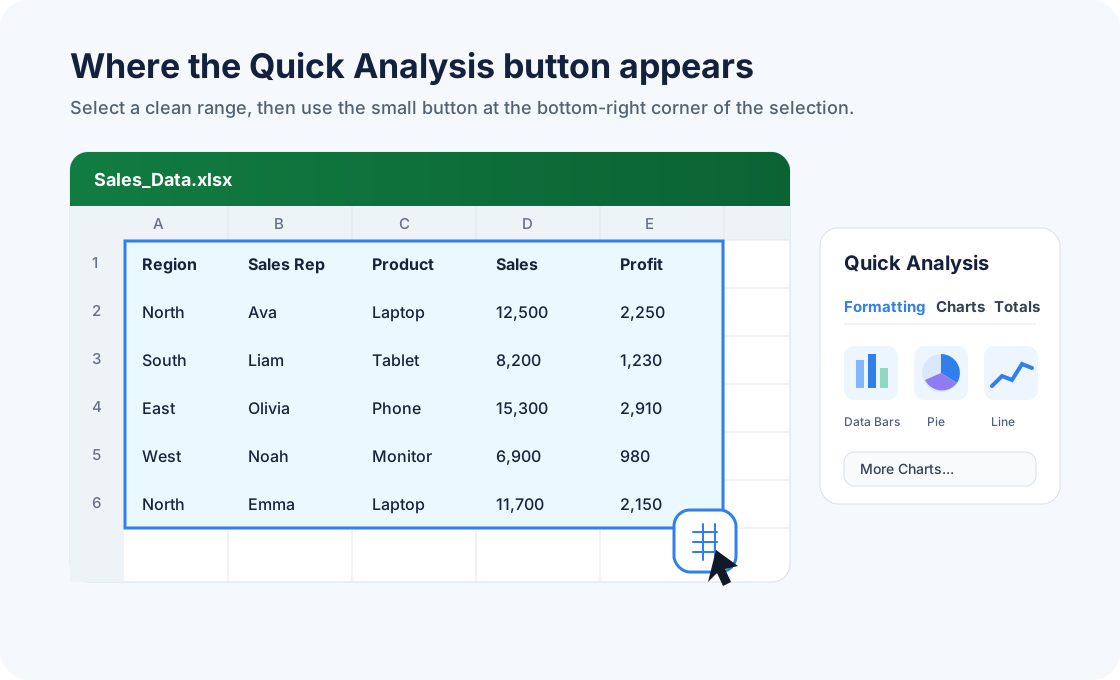
To open the Quick Analysis tool in Excel for Windows, select a range of cells, then click the small button that appears at the bottom-right corner of the selection. You can also press Ctrl+Q on Windows. The menu gives you fast options for Formatting, Charts, Totals, Tables, and Sparklines.
That answer solves the immediate question. It does not solve the whole analysis problem.
Quick Analysis is useful when you have a clean table and need a fast first pass. It can highlight values, add totals, suggest charts, create a table, or add tiny trend lines. But it does not clean messy files, explain why a metric changed, combine multiple exports, review assumptions, or turn a workbook into a shareable business report.
This guide covers both parts: how to use the Quick Analysis tool in Excel, and what to use when the job is bigger than a quick formatting or charting action.
Key takeaways:
- The Quick Analysis tool is mainly a Windows desktop Excel shortcut for quick formatting, charts, totals, tables, and sparklines after you select a data range.
- If the button does not appear, check the selected range, the Excel option that controls Quick Analysis, and whether you are using Mac, web, or another Excel surface that does not show the same button.
- For messy files, repeatable reports, multi-file analysis, written explanations, and dashboards, use an Excel AI workflow like RowSpeak instead of forcing Quick Analysis to do a reporting job.
What is the Quick Analysis tool in Excel?
The Quick Analysis tool is a small menu Excel shows after you select data. Microsoft's Excel for Windows Quick Tips page describes it as a fast way to analyze data with formatting, charts, totals, tables, and sparklines. It is designed for short actions that would otherwise take several ribbon clicks.
For example, you can select a sales table and quickly:
- highlight top values with conditional formatting
- create a recommended chart
- add a sum, average, count, or running total
- turn the range into an Excel table
- add sparklines to show row-level trends
That makes Quick Analysis convenient for a clean, rectangular data range. It is not the same as Excel's Analyze Data feature, the Analysis ToolPak, Power Query, PivotTables, Copilot, or RowSpeak. Those tools solve different problems.
How to use the Quick Analysis tool in Excel
Use this path when you have a simple table and want a fast result.
- Open your worksheet in Excel for Windows.
- Select the cells you want to analyze, including headers if your table has them.
- Look for the small Quick Analysis button at the bottom-right corner of the selected range.
- Click the button, or press
Ctrl+Q. - Choose a tab: Formatting, Charts, Totals, Tables, or Sparklines.
- Hover over an option to preview the result.
- Click the option you want to apply.
If you only need a quick chart, a total row, or a conditional formatting rule, this is often faster than searching the ribbon.
If you prefer to watch the interface flow, this YouTube walkthrough shows the Quick Analysis tool in action:
What each Quick Analysis tab does
| Quick Analysis tab | What it is good for | Typical use |
|---|---|---|
| Formatting | Highlighting patterns inside the selected range | Data bars, color scales, icons, top values, duplicates |
| Charts | Creating a fast visual from a clean range | Column, line, bar, pie, or other recommended charts |
| Totals | Adding simple calculations beside or below the selection | Sum, average, count, percent total, running total |
| Tables | Converting a range into a table or PivotTable | Filterable Excel table, basic PivotTable starting point |
| Sparklines | Adding tiny in-cell charts | Row-level trend lines across monthly or weekly columns |
The best use case is a small or medium-size table where the question is already clear. For example: "Which region has the highest revenue?" or "Can I quickly show the monthly trend?"
Why the Quick Analysis button is not showing
If you searched for "where is the quick analysis tool in Excel," there is a good chance the button did not appear when you expected it to. Work through this checklist.
1. You are not using Excel for Windows desktop
The classic Quick Analysis button is associated with Excel for Windows. Excel for Mac and Excel for the web generally do not show the same bottom-right Quick Analysis button. If you are on Mac or web, use options such as Recommended Charts, Conditional Formatting, PivotTables, or Analyze Data instead.
2. The selected range is not suitable
Quick Analysis works best on a clean rectangular range. Try selecting the actual data cells rather than a whole blank column, non-adjacent ranges, or scattered cells. Include headers if your data has them.
If the table has merged cells, blank blocks, subtotals inside the data, or inconsistent structure, clean the range first.
3. The Quick Analysis option is disabled
In Excel for Windows, check:
File > Options > General > Show Quick Analysis options on selection
If that option is unchecked, the button may not appear when you select data. You can still try Ctrl+Q, but it is better to turn the option back on if you use the feature often.
4. You selected a chart, shape, or object instead of cells
Quick Analysis appears for selected cell ranges, not for every object in a workbook. Click back into the worksheet and select the data range itself.
5. You are expecting the Data Analysis button
Some users search for Quick Analysis when they actually need the Data Analysis button from the Analysis ToolPak. These are different Excel features. Quick Analysis appears near a selected range. Analysis ToolPak appears under the Data tab after the add-in is enabled.
Quick Analysis vs Analyze Data vs Analysis ToolPak
These names sound similar, but they lead to different workflows.
| Feature | Where it lives | Best for | Main limit |
|---|---|---|---|
| Quick Analysis | Bottom-right of selected range, or Ctrl+Q on Windows |
Fast formatting, charts, totals, tables, sparklines | Needs a clean selected range and does not explain results |
| Analyze Data | Excel Home tab in supported Microsoft 365 versions | Suggested insights and natural-language questions inside Excel | Availability depends on Microsoft 365 surface and data shape |
| Analysis ToolPak | Data tab after enabling the add-in | Statistical tools like regression, correlation, ANOVA, histograms | Requires setup and statistical interpretation |
| Copilot in Excel | Microsoft 365 Copilot surfaces | AI help inside Microsoft 365 files | Requires eligible licensing and supported workbook conditions |
| RowSpeak | Browser-based spreadsheet analysis workflow | Messy files, multi-file analysis, reports, dashboards, written summaries | You upload or provide files to RowSpeak instead of staying only inside Excel |
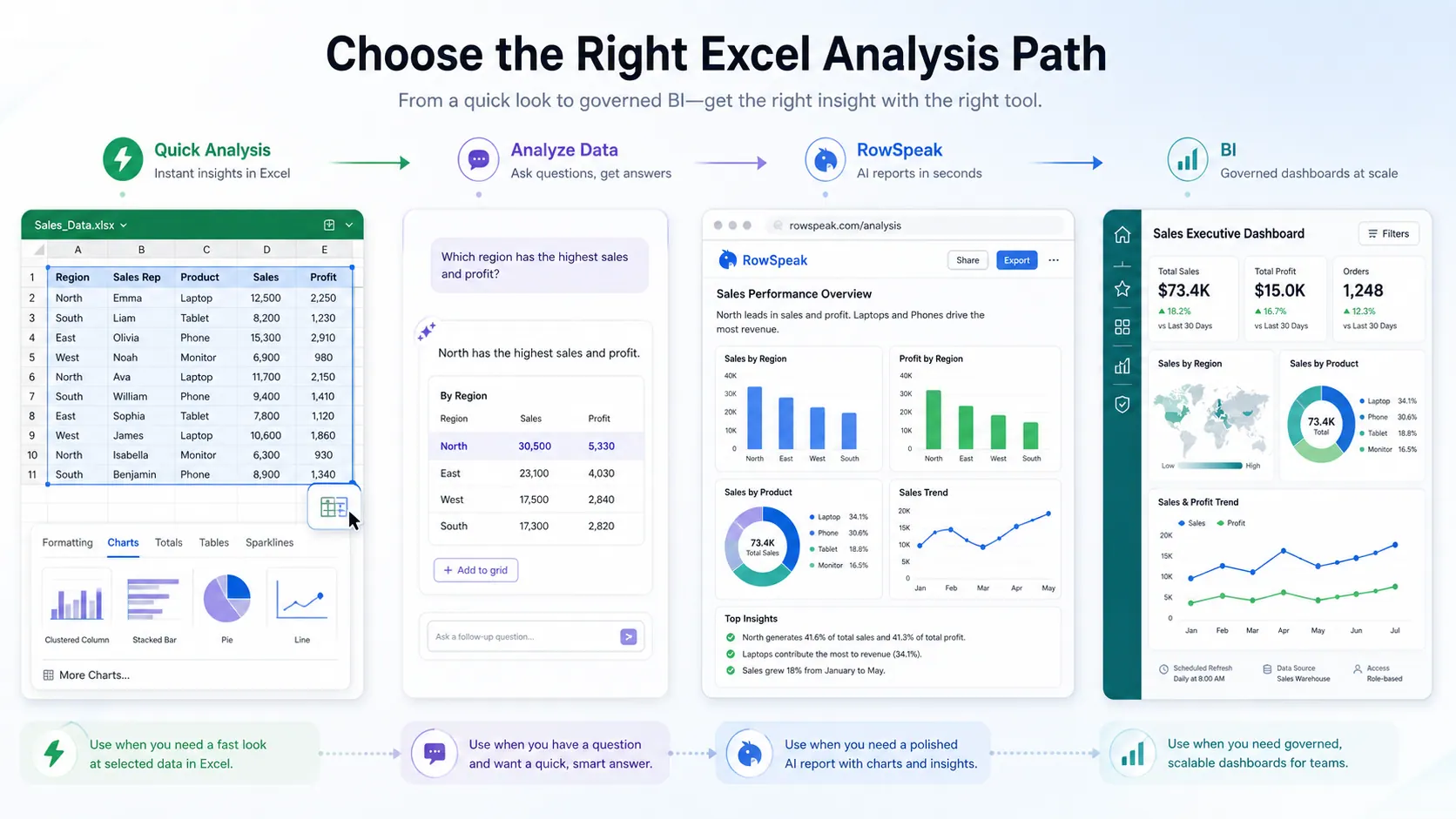
Use Quick Analysis when the job is small. Use Analyze Data when you want Excel to suggest questions or insights. Use Analysis ToolPak when you need formal statistical procedures. Use RowSpeak when the work is closer to business analysis than formatting.
Where Quick Analysis works well
Quick Analysis is useful because it lowers the friction of common Excel actions. It is worth using when:
- your data is already clean
- the table is small enough to inspect visually
- you need a quick total, chart, or highlight
- the output will stay inside the workbook
- the analysis does not need a written explanation
- the result does not need to be repeated every week or month
For example, a sales manager might select a simple table with Region, Month, Revenue, and Orders, then use Quick Analysis to add a chart and a total row. That is a good fit.
The feature becomes less useful when the table is only the starting point.
Where Quick Analysis falls short
Most real spreadsheet work does not begin with a perfect range. It begins with exported files, copied tables, changed headers, inconsistent dates, duplicates, blank rows, and questions from a manager who does not care which Excel feature you used.
Quick Analysis will not reliably handle:
- multiple Excel or CSV files that need to be combined
- PDFs, screenshots, or image-based tables
- recurring weekly or monthly reporting workflows
- data quality checks before analysis
- written executive summaries
- driver analysis that explains why a number changed
- review notes about missing values or questionable rows
- dashboard or report pages that stakeholders can scan
- follow-up questions in plain language
That is why the keyword "quick analysis tool excel" is interesting. Many searchers are not only looking for the button. They are trying to get from spreadsheet data to an answer quickly.
If all you need is a chart, Quick Analysis is fine. If you need a business answer, you need a workflow.
A better workflow when you need actual analysis
Suppose you have a weekly sales export with columns such as Date, Region, Rep, Product, Channel, Revenue, Units, Discount, and Status. You do not just need a colored table. You need to know what changed, what caused it, and what should be shown to the team.
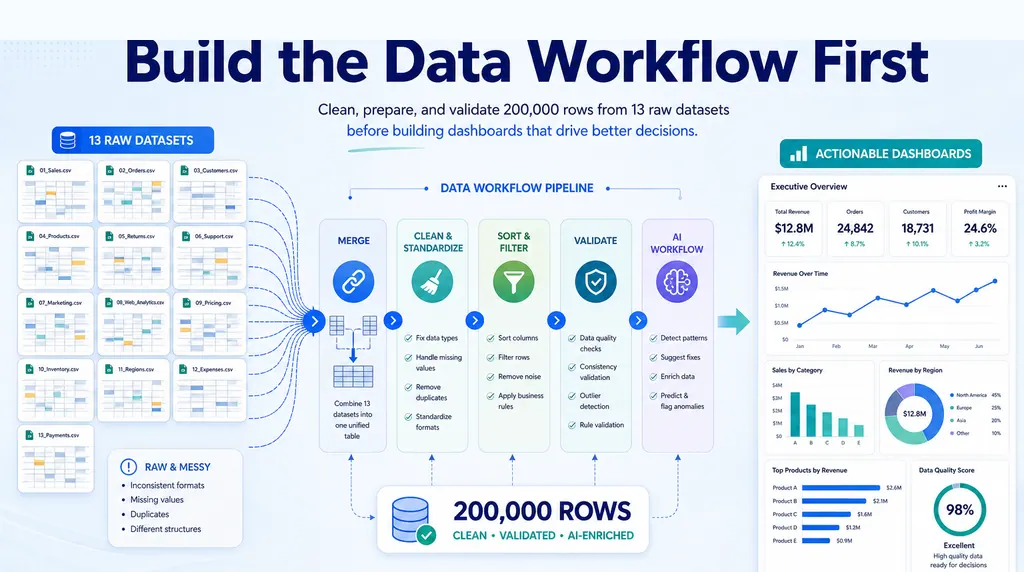
In RowSpeak, a practical spreadsheet analysis workflow can look like this:
- Upload the Excel or CSV file.
- Ask RowSpeak to inspect the structure and flag quality issues.
- Clean the values that would change the result.
- Summarize revenue, orders, margin, or other key metrics.
- Compare the current period with the previous period.
- Identify the biggest drivers by region, product, channel, or owner.
- Generate charts or a dashboard-style view.
- Write a short summary with assumptions and rows to review.

Here is a prompt you can use:
I uploaded a weekly sales export.
Please inspect the file first. Tell me whether the date range, headers, duplicate rows, missing values, and number formats look safe for analysis.
Then create a short sales performance report:
- total revenue, orders, average order value, and margin
- change versus the previous week if prior-week data exists
- top drivers by region, product, and channel
- unusual rows or categories I should review
- 3 charts that explain the story clearly
- a concise management summary I can share with the team
This is the difference between a quick Excel action and an analysis process. The tool should not only create output. It should help you check whether the output is worth trusting.
Quick Analysis vs RowSpeak for business users
| Need | Quick Analysis | RowSpeak |
|---|---|---|
| Add a fast total row | Good fit | Can do it, but may be more than needed |
| Highlight top values | Good fit | Can do it as part of a larger workflow |
| Make a quick chart | Good fit | Better when the chart needs explanation |
| Clean messy exported data | Limited | Stronger fit |
| Analyze multiple files | Not the right tool | Stronger fit |
| Explain why a metric changed | Not the right tool | Stronger fit |
| Create an executive summary | Not the right tool | Stronger fit |
| Turn Excel into a dashboard/report | Limited | Use an Excel-to-dashboard workflow |
| Build a repeatable monthly report | Manual | Use an AI reporting workflow |
Quick Analysis is a convenient Excel feature. RowSpeak is for the moment after convenience stops being enough.
When to choose each path
Use Quick Analysis when you have selected a clean table and need a fast visual or calculation.
Use Excel Analyze Data when you are already in Microsoft 365 and want Excel to suggest insights from a table.
Use Analysis ToolPak when you need a specific statistical procedure and you understand how to review the output.
Use RowSpeak when the spreadsheet is part of a business workflow: messy inputs, recurring reports, multi-step questions, written summaries, dashboard views, or stakeholder-ready outputs.
Use BI tools when the report has become governed, shared, permissioned, and refreshed on a schedule. If you are not sure whether the work belongs in BI yet, read this decision guide on when Power BI is overkill for Excel reports.
Example: From Quick Analysis to a reviewable report
Imagine the first version of your task is simple:
"Show sales by region."
Quick Analysis can help you select the data and create a column chart. That is enough for a fast look.
Then the real questions arrive:
- Did sales increase because order volume improved or because average order value changed?
- Which products drove the movement?
- Are refunds included?
- Did one region have missing data?
- Can this be shared as a short report instead of another spreadsheet attachment?
At that point, the work has moved beyond Quick Analysis. A better RowSpeak prompt would be:
Analyze this sales export by region.
Create a table showing revenue, order count, average order value, and margin by region.
Compare each region with the previous period if the data allows it.
Explain the top 3 drivers of change.
Flag missing or suspicious rows.
Create a chart and a short executive summary for a weekly sales review.
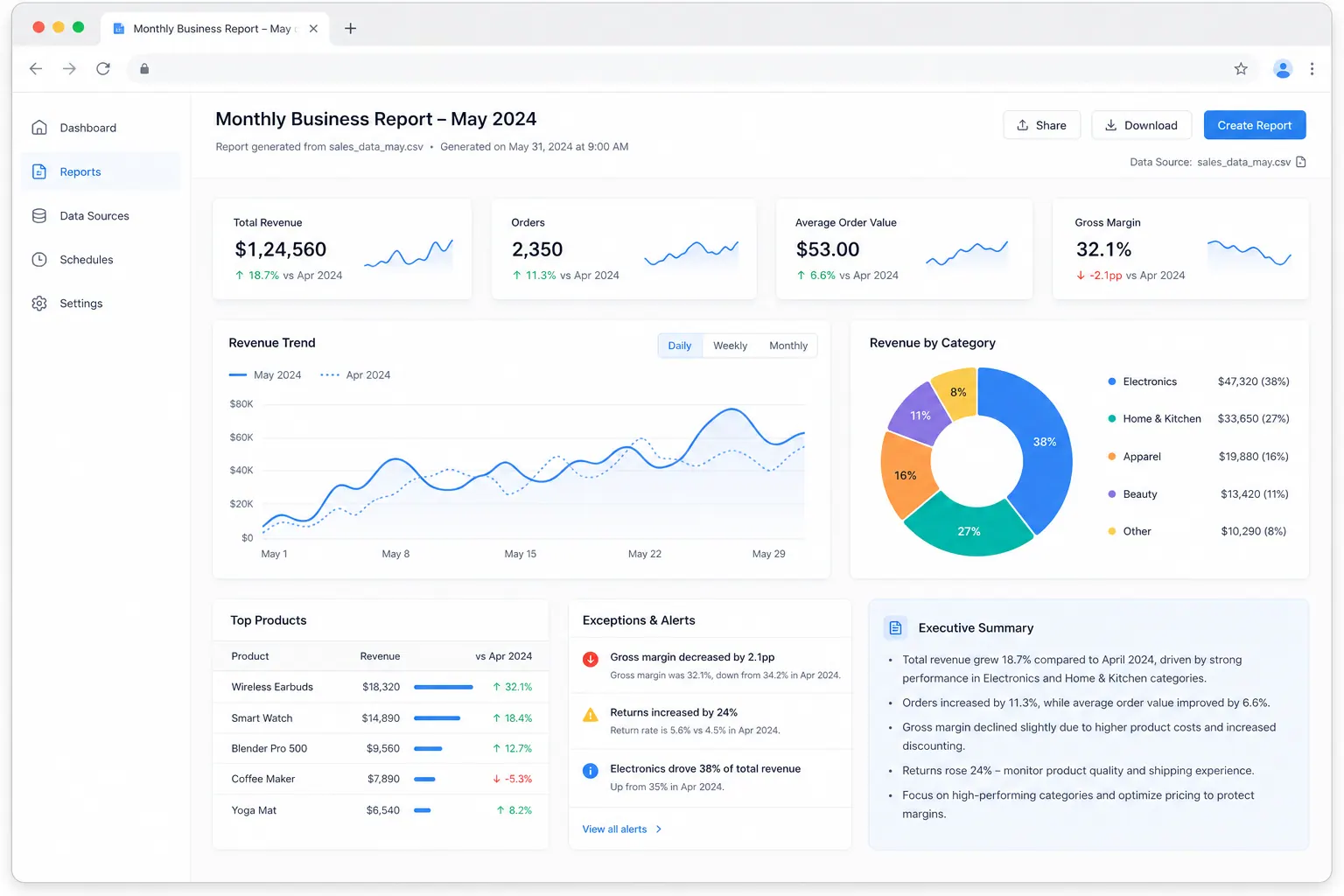
If this happens every month, connect it to a broader monthly CSV reporting workflow so the process is not rebuilt from scratch.
SEO note for teams publishing Excel tutorials
If your team is writing about this topic, avoid treating "Quick Analysis tool Excel" as only a button-location keyword. The search intent is broader:
- where to find the Quick Analysis tool
- why the button is missing
- how to use it for charts and totals
- whether it works on Mac
- how it differs from Analyze Data and Analysis ToolPak
- what to use when Quick Analysis is too limited
A strong page should answer the button question immediately, then help the reader choose the right workflow. That is where RowSpeak can earn the next click without interrupting the tutorial.
If you are comparing Quick Analysis with broader AI analysis tools, read Best AI Tools for Data Analysis in 2026 next. It explains when to use RowSpeak, Copilot, ChatGPT-style tools, BI platforms, and spreadsheet add-ins by workflow.
FAQ
Where is the Quick Analysis tool in Excel?
In Excel for Windows, select a data range and look at the bottom-right corner of the selection. Click the small Quick Analysis button, or press Ctrl+Q.
What is the shortcut for Quick Analysis in Excel?
The Windows shortcut is Ctrl+Q. Select the data range first, then press the shortcut.
Why is Quick Analysis not showing in Excel?
The most common reasons are that you are not using Excel for Windows desktop, the selected range is not suitable, the Quick Analysis option is disabled, or you selected an object instead of cells. In Excel for Windows, check File > Options > General > Show Quick Analysis options on selection.
Is Quick Analysis available in Excel for Mac?
Excel for Mac does not generally show the same bottom-right Quick Analysis button used in Excel for Windows. Use Recommended Charts, Conditional Formatting, PivotTables, Analyze Data where available, or a spreadsheet AI tool such as RowSpeak for larger analysis workflows.
Is Quick Analysis the same as Analyze Data?
No. Quick Analysis is a menu that appears after selecting a range and offers formatting, charts, totals, tables, and sparklines. Analyze Data is a Microsoft 365 feature for suggested insights and natural-language questions inside Excel.
Is Quick Analysis the same as the Analysis ToolPak?
No. Analysis ToolPak is an Excel add-in for statistical analysis tools such as regression, correlation, histograms, and ANOVA. Quick Analysis is for quick worksheet actions on a selected range.
Can Quick Analysis create PivotTables?
Quick Analysis can offer table and PivotTable starting points for suitable ranges. For more complex pivot workflows, row-level checks, multiple files, or written explanations, use a dedicated workflow such as RowSpeak or build the PivotTable manually.
What should I use instead of Quick Analysis for business reports?
Use Quick Analysis for a fast first pass. Use RowSpeak when you need to clean a file, combine data, ask follow-up questions, generate charts, explain drivers, and create a reviewable report or dashboard from Excel, CSV, PDF, screenshots, or image-based tables.
The practical answer
The Quick Analysis tool in Excel is worth knowing. It is fast, convenient, and useful for simple tables.
But do not confuse a shortcut with a full analysis workflow. If the task is to highlight values or add totals, use Quick Analysis. If the task is to understand a messy file, explain movement, prepare a recurring report, or share a decision-ready dashboard, use RowSpeak.
Try it with a real spreadsheet export: https://dash.rowspeak.ai