Microsoft Copilot Agent Mode and RowSpeak solve related problems, but they are not the same workflow.
For reports that repeat every week or month, RowSpeak's recurring spreadsheet reporting workflow keeps file cleanup, metric checks, and summaries reusable.
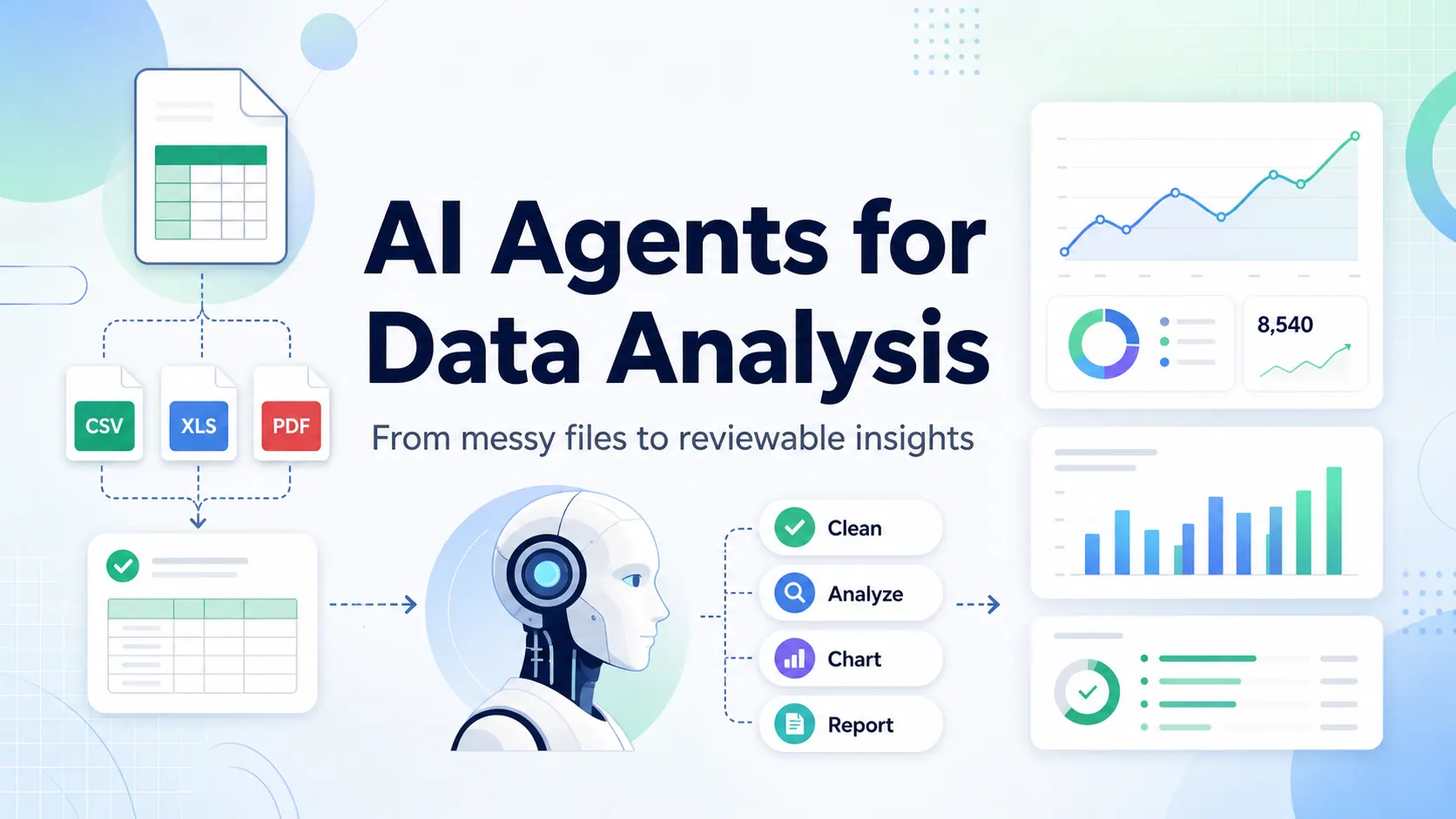
Copilot is strongest when the user is already working inside Excel and Microsoft 365. RowSpeak is strongest when the user starts with business files - Excel, CSV, PDF, screenshots, image-based tables, or exported reports - and needs to create a reviewable chart, dashboard, summary, or report.
That difference matters because business reporting rarely starts from the ideal workbook.
A finance team may have budget data in Excel, actuals in a CSV export, vendor details in a PDF, and commentary in last month's report. A sales team may have a CRM export that needs to become a pipeline dashboard. An ecommerce team may need to compare ad spend, refunds, product margin, and inventory files before the Monday review.
The question is not "Which AI is smarter?"
The practical question is:
Where does the reporting workflow begin, and what output does the team need to trust?
Quick verdict
- Use Copilot in Excel when the work stays inside a supported Microsoft 365 Excel workflow and the user needs workbook-native editing.
- Use RowSpeak when the workflow starts from messy files and should end in charts, dashboards, summaries, or reports that business users can review and refine.
- Use both when Excel remains the working surface, but RowSpeak handles file-to-report analysis before the final workbook or report is shared.

First, what is Copilot Agent Mode in Excel?
Microsoft introduced Agent Mode as part of its broader Microsoft 365 Copilot work. In Excel, the current Microsoft support page describes the feature as Edit with Copilot in Excel and notes that it was previously marketed as Agent Mode.
That naming detail matters for SEO, but it should not distract from the user value.
The promise is simple: Copilot can help users complete spreadsheet editing and analysis tasks inside Excel, using natural language instead of manual formulas, pivots, and formatting steps.
For teams already standardized on Microsoft 365, that is a strong fit.
What is RowSpeak?
RowSpeak is an Excel AI agent for spreadsheet-heavy business workflows.
It is designed around a different starting point:
- upload Excel files
- upload CSV exports
- work with PDF tables
- work with screenshots or image-based tables
- ask business questions in plain English
- create charts, dashboards, summaries, and reports
- refine the output through follow-up prompts
RowSpeak is not only a chat layer next to a workbook. It is built for the messy file-to-answer workflow that many teams use before a report reaches a manager, client, finance review, or operating meeting.
For a category definition, read What Is an Excel AI Agent?.
The core difference: workbook-native vs file-to-report
| Question | Copilot in Excel | RowSpeak |
|---|---|---|
| Where does the work happen? | Inside Excel and Microsoft 365 | In a file-to-analysis workflow around uploaded business data |
| Best starting point | A workbook the user is already editing | Excel, CSV, PDF, screenshots, image tables, and exported files |
| Best output | Workbook edits, formulas, tables, explanations, analysis inside Excel | Charts, dashboard-style views, summaries, reports, and follow-up analysis |
| Strongest user | Microsoft 365 user working in Excel | Business user preparing a report from spreadsheet-heavy files |
| Main risk to manage | Supported workbook context and output review | File interpretation, assumptions, and review before sharing |
| Best when | The workflow stays in Excel | The workflow starts outside a clean workbook or needs a report-ready output |
This is not a philosophical difference. It changes the daily workflow.
Scenario 1: Editing a workbook inside Microsoft 365
Use Copilot in Excel.
Example:
Create a column that calculates gross margin, highlight rows where margin is below 25%, and explain the biggest margin issues in this workbook.
If the file is already in the right Microsoft 365 workflow and the user wants direct help inside Excel, Copilot is the natural first test.
It can reduce friction for:
- formula creation
- workbook editing
- table cleanup
- simple analysis
- explanatory notes inside Excel
- chart or formatting assistance
This is where workbook-native AI has a real advantage. The user does not need to leave Excel.
Scenario 2: Creating a report from multiple messy files
Use RowSpeak.
Example:
Use the budget workbook, the actuals CSV, and the vendor PDF table. Compare actuals against budget by department, flag any category more than 10% over budget, create a chart for the three largest variances, and draft a finance review note with assumptions to verify.
That workflow is not just "edit this workbook."
It requires:
- reading different file types
- aligning fields across files
- checking data quality
- calculating variance
- creating a chart
- writing a report-style explanation
- preserving caveats for review
This is RowSpeak's stronger position. It accepts the messy starting point that business reporting usually has.
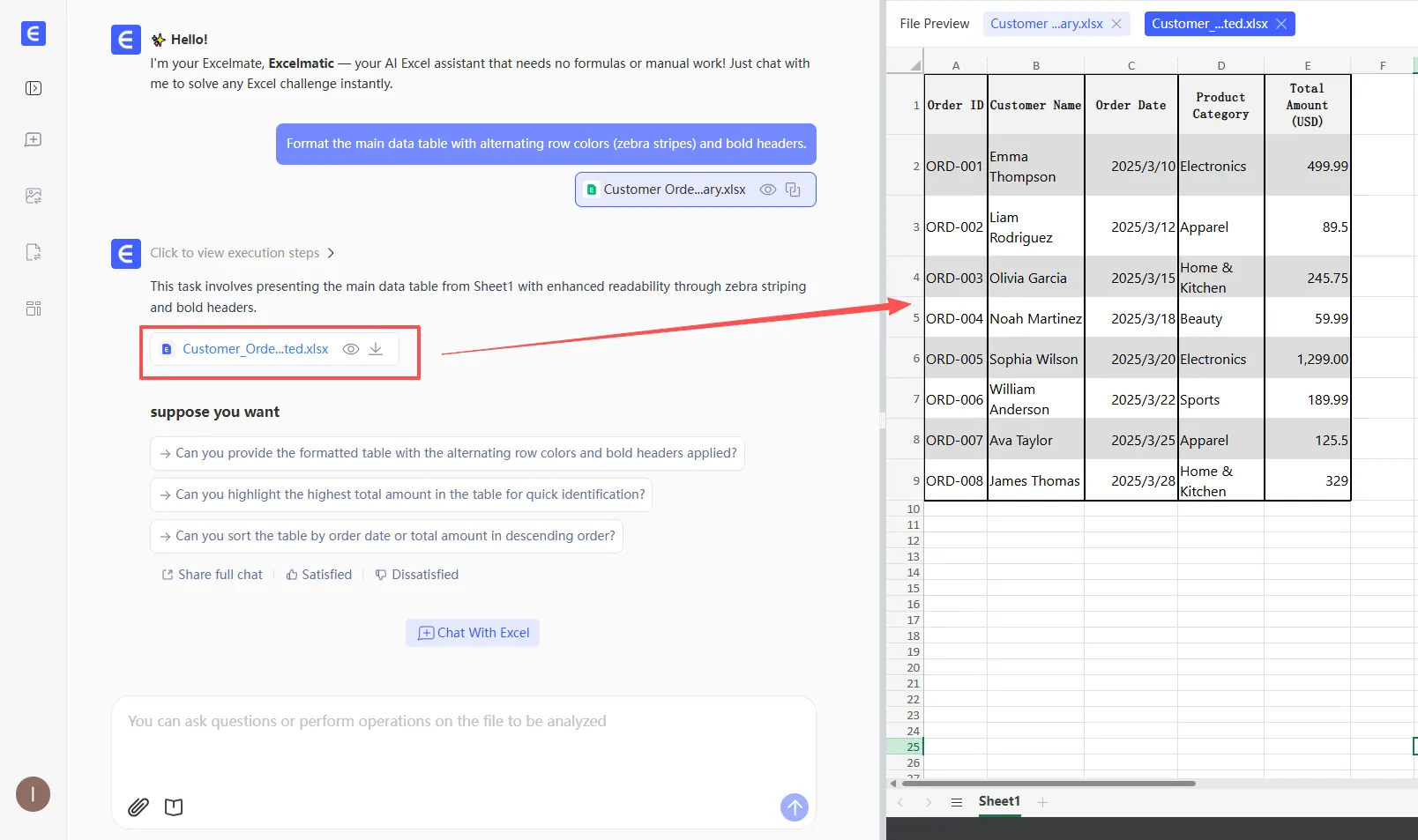
Scenario 3: Building a dashboard from exported data
Use RowSpeak first, then decide whether the dashboard belongs in Excel or BI.
Example:
Turn this weekly sales export into a dashboard-style summary. Include revenue, net revenue, refund rate, and average order value by region. Highlight the biggest week-over-week change and create one chart that explains the driver.
Many dashboard requests start as exported files, not as governed BI models. A team may only need a reviewable weekly view, not a full analytics project.
RowSpeak can help create the first useful version:
- detect the relevant fields
- calculate KPIs
- create charts
- draft explanations
- let the user adjust assumptions
- prepare a dashboard or report-style output
If the same dashboard becomes mission-critical and shared across the company, it may later belong in BI. But for the first version, a lighter spreadsheet AI workflow is often faster.
See Excel to Dashboard for the RowSpeak workflow.
Scenario 4: Drafting a management report
Use RowSpeak when the report needs to combine analysis and narrative.
Example:
Prepare a management report from this monthly export. Summarize the top KPI changes, explain the largest variance, include one chart, and list anything that should be reviewed before the report is sent.
The output is not only a table. It is a business artifact.
A useful report should include:
- the metric changes
- the driver explanation
- a visual that supports the explanation
- caveats and assumptions
- a clear note for the reviewer
That is why RowSpeak often fits reporting work better than a tool that focuses only on editing inside the workbook.
For more on review standards, read A Good Excel AI Agent Should Produce Answers You Can Verify.
Scenario 5: Sensitive spreadsheets and private deployment
The right answer depends on your data boundary.
Microsoft 365 may be the approved environment for many organizations. In those companies, Copilot may be the natural route because the governance model already exists.
Other companies have different constraints:
- finance data cannot leave a private cloud
- customer exports cannot be uploaded to public SaaS tools
- internal policy requires a specific model endpoint
- audit logs and file handling must stay inside a controlled environment
For those teams, evaluate RowSpeak's private deployment path. Confirm architecture, model access, retention, identity, logging, and network boundaries with the product team before making security claims in procurement material.
For a deeper guide, read How to Use an Excel AI Agent Without Exposing Confidential Spreadsheets.
Reporting comparison: Copilot vs RowSpeak
| Reporting need | Better starting point |
|---|---|
| Edit formulas directly inside a workbook | Copilot in Excel |
| Ask questions about a supported workbook | Copilot in Excel |
| Analyze Excel plus CSV plus PDF | RowSpeak |
| Convert exported data into a dashboard-style report | RowSpeak |
| Generate a management summary from spreadsheet data | RowSpeak |
| Work inside Microsoft 365 governance | Copilot in Excel |
| Handle screenshots or image-based tables | RowSpeak |
| Build a full enterprise semantic model | BI tool, not either one alone |
| Create a first-pass report from messy files | RowSpeak |
| Correct and rerun a file-to-report workflow | RowSpeak |
The buyer's real question: what has to be reviewed?
The strongest Excel AI workflow is not the one that produces the prettiest answer. It is the one that makes review easier.
For finance, sales, operations, and executive reporting, users need to check:
- source file used
- rows and columns included
- filters or exclusions
- calculation method
- assumptions
- caveats
- chart range
- report wording
Copilot and RowSpeak can both be useful, but review looks different.
In Copilot, the review often happens inside the workbook. The user checks formulas, tables, and edits in Excel.
In RowSpeak, the review often happens around the file-to-output path: what files were uploaded, what analysis was requested, what visual or report was generated, and what follow-up corrections changed.
Prompt examples
Copilot-style workbook prompt
Add a gross margin column, calculate margin by product, highlight products below 25%, and summarize the biggest issues in this workbook.
RowSpeak-style file-to-report prompt
Analyze the monthly revenue workbook and the refunds CSV. Compare net revenue by region, explain the largest decline, create a chart for the key driver, and draft a management-reporting note with assumptions to verify.
Copilot-style cleanup prompt
Standardize the date column, identify blank customer IDs, and suggest fixes for inconsistent category names.
RowSpeak-style dashboard prompt
Turn this sales export into a dashboard-style summary. Include revenue, refund rate, gross margin, and average order value. Highlight the top three changes and create visuals for the review meeting.
When to use both
Some teams will use both workflows.
A practical sequence:
- Use RowSpeak to analyze messy exported files and create the first report or dashboard view.
- Review the assumptions, chart, and summary.
- Export or recreate the final table in Excel if the team needs it inside a workbook.
- Use Copilot in Excel for workbook-native edits, formulas, and formatting.
That hybrid workflow is often more realistic than forcing one tool to do everything.
Common mistakes when comparing Copilot and RowSpeak
Mistake 1: Treating all Excel AI tools as formula helpers
Formula help is only one slice of the workflow. Business reporting also needs data inspection, calculations, charts, summaries, review, and repeatability.
Mistake 2: Ignoring the file source
If every file lives inside a supported Microsoft 365 workbook, Copilot is a natural fit. If the data comes from Excel, CSV, PDF, screenshots, and exports, the tool needs broader file handling.
Mistake 3: Judging only the first answer
The first output is not the final report. Evaluate how easy it is to correct assumptions, rerun analysis, change charts, and preserve caveats.
Mistake 4: Forgetting the reviewer
A report that cannot be checked is not ready. The best workflow makes the final output easier to review, not just faster to generate.
FAQ
Is Copilot Agent Mode the same as Edit with Copilot in Excel?
Microsoft's current support page describes Edit with Copilot in Excel and notes that the feature was previously marketed as Agent Mode. For current availability and requirements, check Microsoft's support documentation.
Is RowSpeak a replacement for Microsoft Copilot in Excel?
No. RowSpeak and Copilot fit different workflows. Copilot is workbook-native inside Microsoft 365. RowSpeak is a file-to-report workflow for teams that need to analyze Excel, CSV, PDF, screenshots, and exported business data.
Which is better for finance reporting?
If the finance work stays inside a supported Excel workbook, Copilot may be a good fit. If the work combines multiple files and needs a chart, variance summary, management note, or reviewable report, RowSpeak is often a better first test.
Which is better for dashboards?
For workbook-native charts, test Copilot. For dashboard-style outputs from exported files, test RowSpeak and its Excel-to-dashboard workflow.
Which is better for sensitive files?
It depends on your approved data boundary. Microsoft 365 may already be approved in some companies. Other teams may need private deployment, private model endpoints, or internal file handling. Evaluate RowSpeak's private deployment path if that is a requirement.
Can I use RowSpeak with files that are not Excel?
Yes. RowSpeak is designed for Excel, CSV, PDF, screenshots, image-based tables, and exported business data. That is one of the main differences from tools built only around workbook-native Excel editing.
Final recommendation
Use Copilot in Excel when the job is inside Excel.
Use RowSpeak when the job starts with real business files and needs to become a chart, dashboard, summary, or report.
That is the clean decision rule. It respects what Microsoft is good at, and it keeps RowSpeak focused on the workflow where it has the strongest advantage: turning messy spreadsheet-heavy data into reviewable business outputs.
Try RowSpeak with your next spreadsheet
Upload an Excel, CSV, PDF, screenshot, or image-based table. Ask RowSpeak for the chart, dashboard, summary, or report your team needs, then review the output before sharing it.