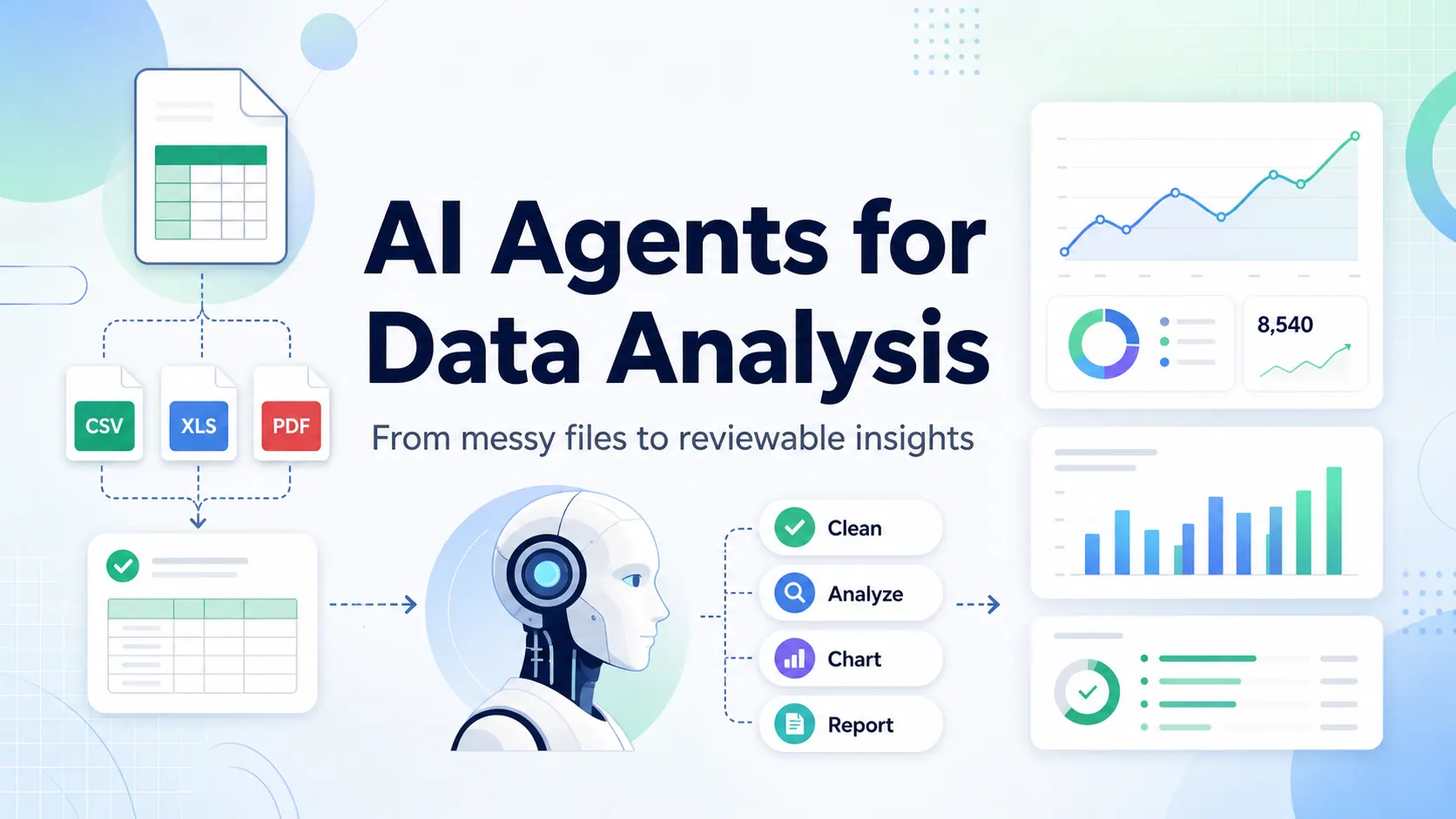
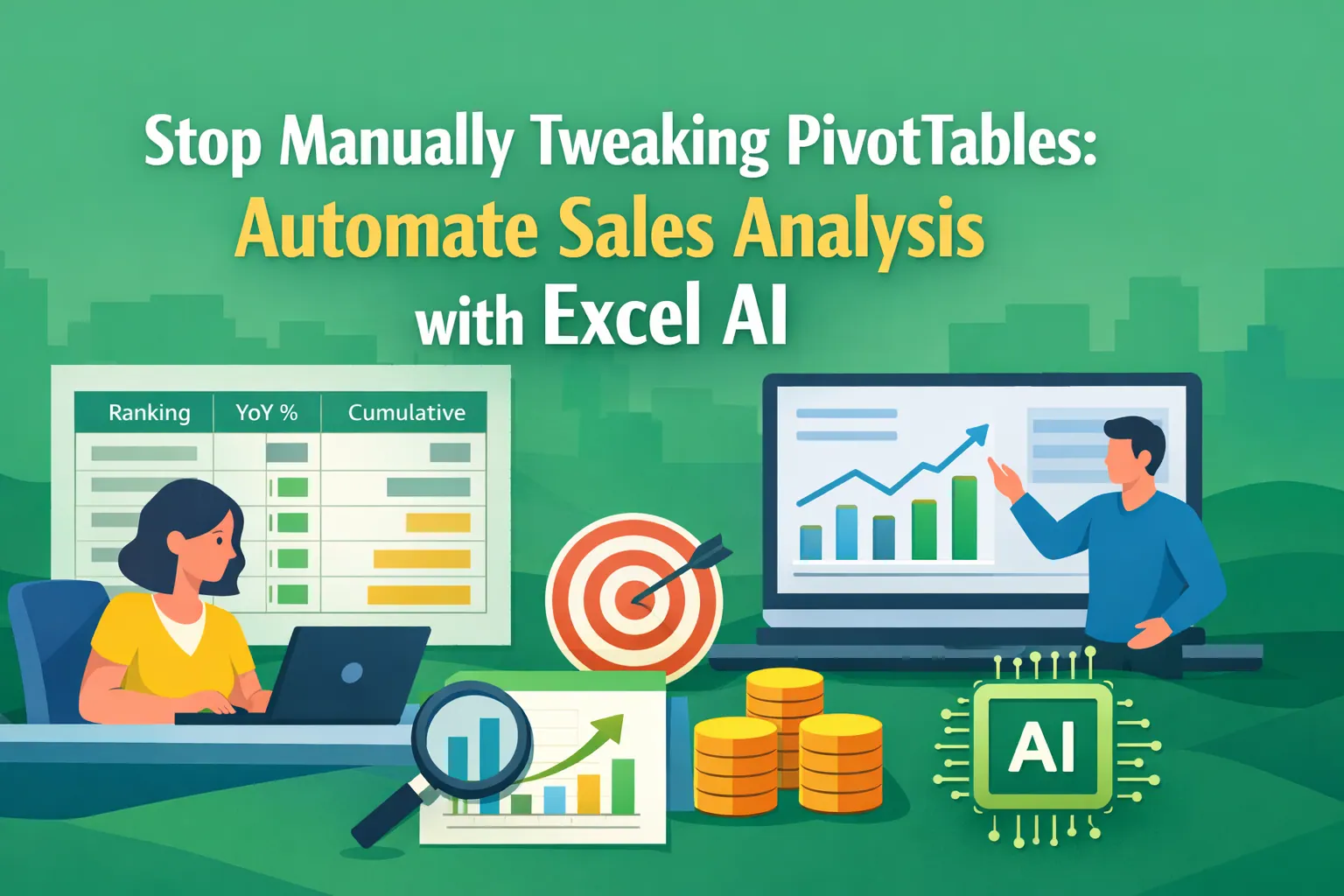
The best Excel AI agent is not the same tool for every team.
For reports that repeat every week or month, RowSpeak's weekly KPI reporting keeps file cleanup, metric checks, and summaries reusable.
A finance team may need evidence, audit trails, and variance explanations. A sales operations team may need fast charts from CRM exports. An ecommerce operator may need a dashboard from ad spend, orders, refunds, and inventory files. A consultant may need a client-ready report from a messy workbook by tomorrow morning.
Those are different jobs. They should not be judged by one generic "AI for Excel" checklist.
This guide compares the main categories of Excel AI agents and spreadsheet AI tools in 2026, with a business reporting lens: can the tool move from real files to reviewable charts, dashboards, summaries, and reports?
Short answer
- Choose RowSpeak when the workflow starts from Excel, CSV, PDF, screenshots, or exported business data and ends in a reviewable chart, dashboard, summary, or report.
- Choose Microsoft Copilot in Excel when your work stays inside Microsoft 365 and you want workbook-native editing.
- Choose DataSnipper when audit evidence and Excel-based audit procedures are the center of the workflow.
- Choose GPT for Work or spreadsheet add-ins when your team needs AI assistance directly inside Google Sheets or Excel cells.
- Choose ChatGPT or Claude for ad hoc analysis, explanation, and prototyping, but review evidence carefully before using outputs in business reporting.
This guide focuses on Excel AI agents and spreadsheet reporting. If you are comparing a broader analytics stack across chat tools, BI platforms, spreadsheet add-ins, and file-to-report workflows, read Best AI Tools for Data Analysis in 2026 as the companion guide.
How we define an Excel AI agent
For this guide, an Excel AI agent is a tool that can help with more than one spreadsheet step.
At minimum, it should support some combination of:
- reading spreadsheet data
- understanding rows, columns, metrics, and dates
- translating business questions into analysis steps
- calculating metrics or transforming data
- creating charts or tables
- drafting summaries or reports
- preserving enough context for review
That definition excludes many narrow tools that only generate a formula from a prompt. Formula helpers can be useful, but they are not full business reporting agents.
If you want the deeper category explanation first, read What Is an Excel AI Agent?
Best Excel AI agents and spreadsheet AI tools in 2026
| Tool | Best for | Reporting strength | Main tradeoff |
|---|---|---|---|
| RowSpeak | File-to-report workflows from messy business data | Charts, dashboards, summaries, reports, follow-up analysis | Not a replacement for every Excel or BI feature |
| Microsoft Copilot in Excel | Microsoft 365 workbook-native editing | Direct help inside Excel | Best when the file and workflow fit Microsoft 365 requirements |
| DataSnipper | Audit and finance evidence workflows | Audit procedures and supporting evidence | More specialized than general business reporting |
| GPT for Work / GPT for Excel | Spreadsheet add-in automation | Cell, formula, and sheet-level AI tasks | May require more setup for report-level workflows |
| ChatGPT / Claude | Ad hoc data explanation and prototyping | Flexible reasoning and code help | Review trail and reusable workflow are weaker |
| Shortcut AI | Finance and spreadsheet-heavy AI workflows | Useful to evaluate for finance users | Verify current feature set, pricing, and file handling |
| Endex AI | Finance-oriented Excel AI workflows | Useful to evaluate for finance and analysis teams | Verify current feature set and workflow fit |
| Rows | AI-assisted spreadsheet app workflows | Spreadsheet app plus AI assistance | Best if the team is willing to work in a separate spreadsheet environment |
| Formula Bot and similar tools | Formula generation and quick Excel help | Fast syntax support | Too narrow for full reporting workflows |
| Power BI / Fabric Copilot | Governed dashboards and analytics | Enterprise reporting layer | Heavier than ad hoc Excel AI workflows |
The order here is not a universal ranking. It is a decision map. The right tool depends on the reporting job, the file types, the review requirements, and the user's existing stack.
If you are already comparing a specific product, use the focused alternative pages for Copilot in Excel, ChatGPT, Power BI, Julius AI, and Rows.
1. RowSpeak: best for file-to-report business workflows

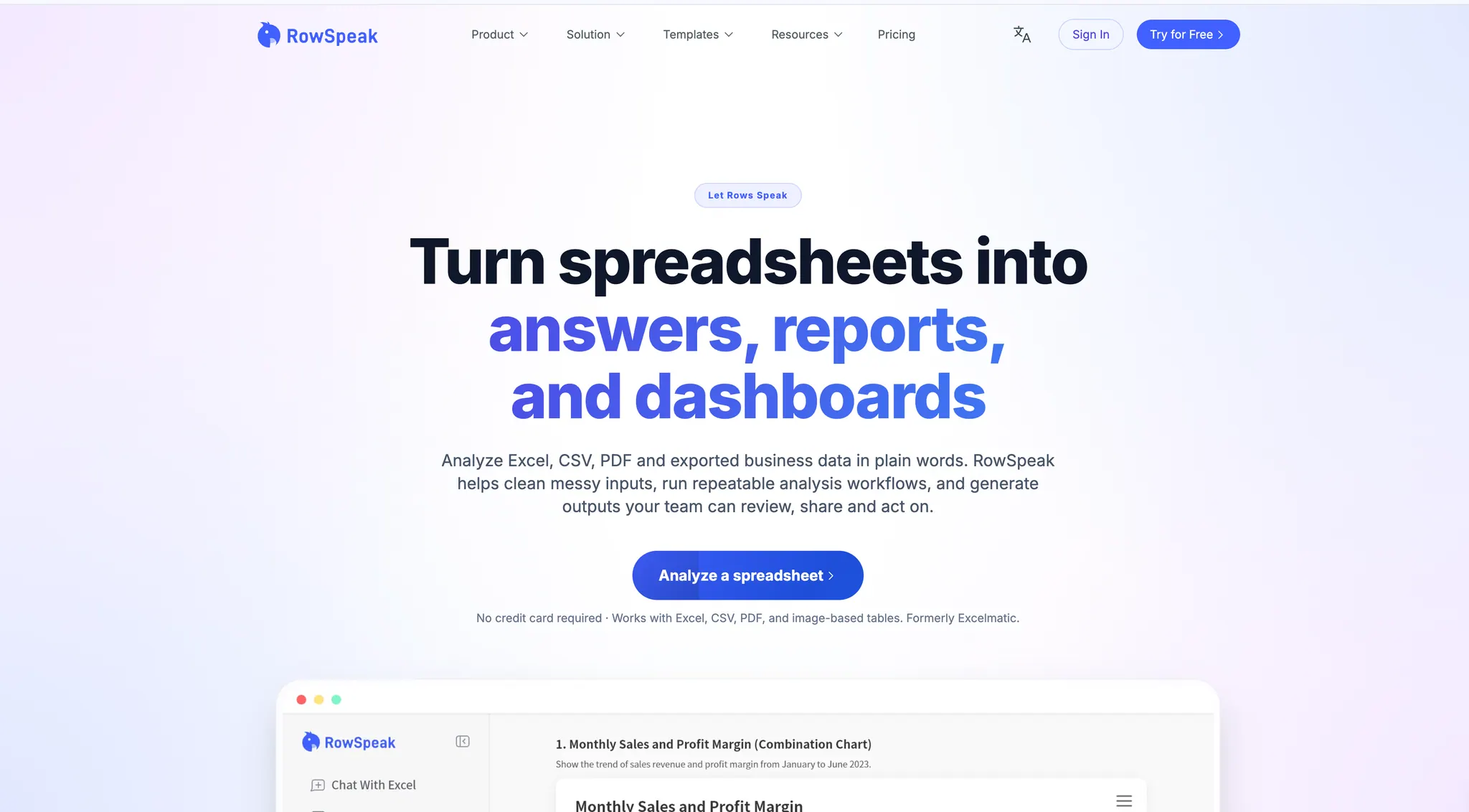
RowSpeak is best for teams that need to turn spreadsheet-heavy business files into answers, charts, dashboards, summaries, and reports.
The key difference is file reality. Business reporting often does not start from one clean Excel table. It starts from:
- Excel workbooks
- CSV exports
- PDF tables
- screenshots
- image-based tables
- CRM, ERP, ad platform, inventory, or accounting exports
RowSpeak is built for that world. Users can upload files, ask questions in plain English, inspect outputs, refine the result, and use the analysis as a reporting workflow rather than a one-off chat.
Where RowSpeak works well
- Monthly finance reporting
- Sales pipeline analysis
- Ecommerce performance reports
- Inventory exception reviews
- Marketing campaign summaries
- Client reporting from exported CSV files
- Dashboard-style KPI views from spreadsheets
Example prompt:
Analyze this monthly sales export. Compare revenue, refund rate, and gross margin by region and channel. Create a chart for the largest change, draft a management-reporting summary, and list any assumptions I should verify.
Why it stands out
RowSpeak is not trying to be only a formula helper. It is the layer between manual Excel and heavy BI for teams that still live in spreadsheets but need better outputs.
For teams with sensitive data, RowSpeak also has a private deployment path that should be evaluated with the product team for architecture, security, model, and data-boundary requirements.
2. Microsoft Copilot in Excel: best for Microsoft 365 workbook-native assistance

Microsoft Copilot in Excel is the natural option for teams already standardized on Microsoft 365.
It is strongest when:
- the user is working directly inside Excel
- the workbook is already in the supported Microsoft workflow
- the goal is to edit, transform, explain, or analyze workbook content
- IT wants the AI layer close to Microsoft 365 governance
Microsoft's 2025 Agent Mode announcement also made the market vocabulary clearer: users increasingly expect AI to plan and complete multi-step Office tasks, not only answer a chat prompt. You can read Microsoft's announcement here: Introducing Agent Mode and Office Agent in Microsoft 365 Copilot.
Main tradeoff
Copilot in Excel is strongest when the work belongs inside Excel and Microsoft 365. If your reporting workflow starts from PDF tables, screenshots, CSV exports, or mixed files outside one workbook, a file-to-report workflow such as RowSpeak may be more practical.
For a focused comparison, read Copilot Agent Mode vs RowSpeak.
3. DataSnipper: best for audit and evidence-heavy finance workflows
DataSnipper's guide to Excel AI agents focuses on audit and finance teams. That makes sense: audit workflows require evidence, traceability, and repeatable procedures.
DataSnipper is worth evaluating when the core job is:
- audit evidence collection
- document matching
- control testing
- audit procedures inside Excel
- finance workflows where supporting evidence is central
Main tradeoff
The audit lens is powerful, but it is not the same as general business reporting. A sales ops team, ecommerce team, or operations manager may need faster file-to-dashboard or file-to-report workflows rather than audit procedure automation.
4. GPT for Work / GPT for Excel: best for spreadsheet add-in workflows

GPT for Work has published an AI agents for Excel benchmark, which is useful because it compares tools on concrete spreadsheet tasks instead of abstract AI claims.
Tools in this category are useful when users want AI close to the sheet:
- formulas
- cell transformations
- repetitive spreadsheet operations
- text generation inside cells
- lightweight analysis tasks
Main tradeoff
Add-ins can be efficient inside the sheet, but business reporting often needs more than cell-level help. If the final output is a dashboard, management note, or recurring report, evaluate whether the tool preserves context across the full workflow.
5. ChatGPT or Claude: best for ad hoc analysis and explanation

General AI assistants can be useful for spreadsheet work.
They can help:
- explain formulas
- suggest analysis approaches
- write Python or SQL
- summarize uploaded data
- draft report language
- prototype charts or dashboards
Main tradeoff
The problem is not intelligence. The problem is workflow control.
When a spreadsheet answer affects a business decision, users need to know:
- which file was used
- which rows and columns were included
- which assumptions were made
- whether the calculation was deterministic
- what should be checked before sharing
General AI tools can still be useful, but they are often better as assistants than as a repeatable reporting system.
For the risk side, see Data Analysis Limitations in ChatGPT.
6. Shortcut AI: best to evaluate for finance-heavy Excel workflows
 Shortcut AI has appeared in search results for Excel AI agent queries and is worth evaluating if your team is finance-heavy and wants AI close to spreadsheet modeling.
When reviewing it, ask:
- Does it work inside Excel or around Excel?
- What file types are supported?
- Can it create report-ready outputs or only spreadsheet edits?
- Does it preserve assumptions and calculation context?
- How does pricing work for a team?
Main tradeoff
Finance-focused AI tools can be strong for model work, but they may not be the best fit for teams whose reporting files come from many sources outside a single workbook.
7. Endex AI: best to evaluate for finance and analysis teams
Endex AI also appears in the Excel AI agent search landscape. It is relevant for teams evaluating finance or analysis workflows where Excel is central.
Use the same reporting checklist:
- Can the tool handle your actual file types?
- Does it create charts, summaries, or reports?
- Does it show enough evidence to trust the output?
- Does it support follow-up correction?
- Does it fit your data-security requirements?
Main tradeoff
As with other finance-oriented tools, the main question is whether the product is built for your reporting workflow, not only for analysis inside a finance workbook.
8. Rows: best for teams open to a spreadsheet app with AI built in
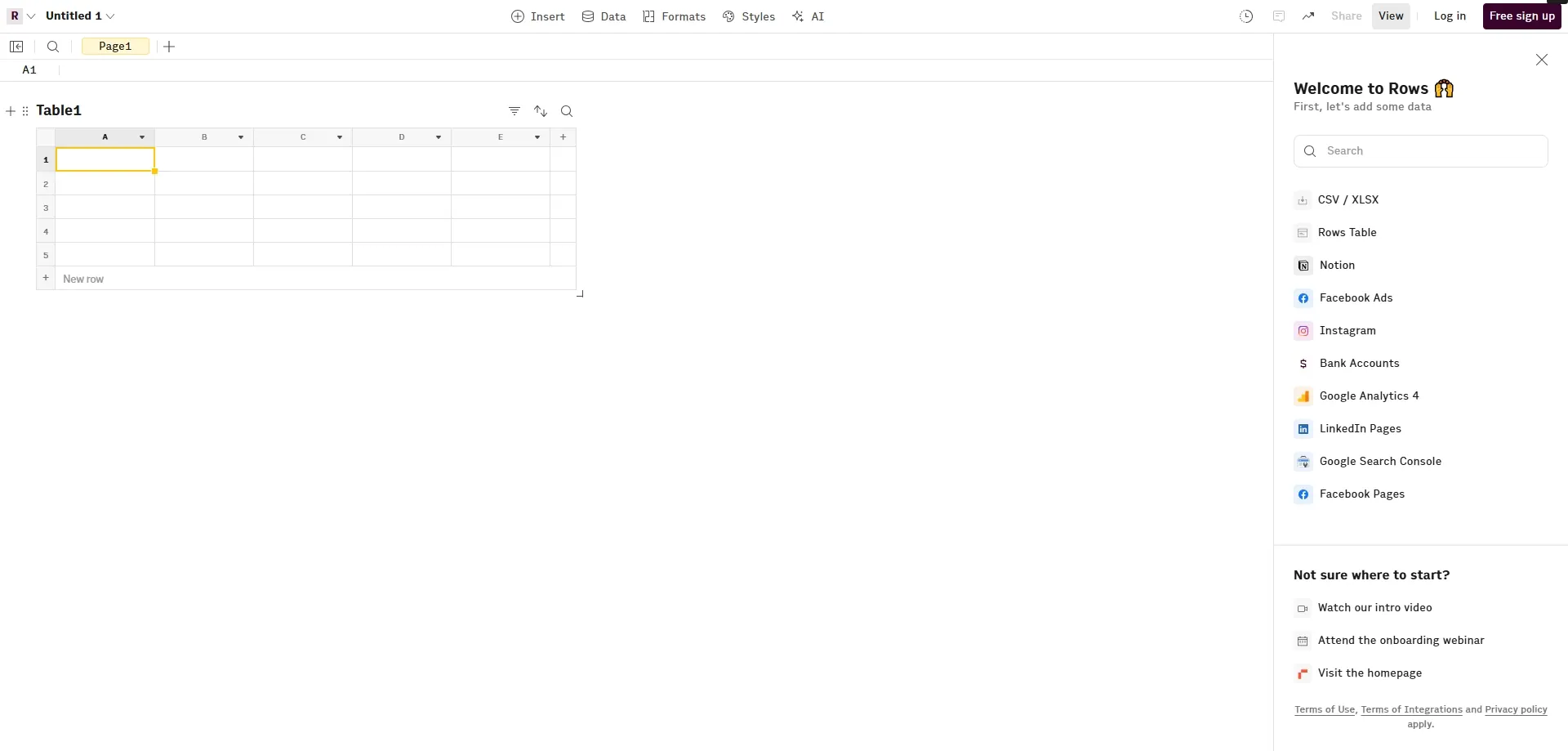
Rows is useful to evaluate if the team is open to working in a spreadsheet app that includes AI-assisted workflows.
This category can be attractive when:
- the team does not need to stay in Excel
- collaboration inside a web-based sheet matters
- AI-assisted formulas or automation are enough
- the workflow is more operational than compliance-heavy
Main tradeoff
If the organization already has a large Excel, Microsoft 365, or internal file workflow, moving work into another spreadsheet environment may add friction.
9. Formula Bot and similar tools: best for quick formula help

Formula-focused AI tools are good for simple tasks:
- write a formula
- explain a formula
- convert plain English to Excel syntax
- help users avoid syntax errors
Main tradeoff
They are not enough for business reporting by themselves. A formula does not inspect the workbook, build the chart, draft the summary, preserve caveats, or support recurring review.
10. Power BI and Fabric Copilot: best for governed dashboards

Power BI and Microsoft Fabric belong in the conversation because many Excel reporting workflows eventually become BI workflows.
They are better when:
- the data model should be governed
- dashboards are recurring and shared broadly
- multiple systems feed a central reporting layer
- IT and analytics teams can support the build
Main tradeoff
For many teams, BI is too heavy for the first version of a monthly report, client update, or spreadsheet export. RowSpeak can fit earlier in the workflow: turn the file into a useful answer, then decide whether the process deserves a BI build.
Decision framework: choose by workflow, not feature list
If you need workbook-native editing
Start with Microsoft Copilot in Excel.
If you need audit evidence
Evaluate DataSnipper and other audit-focused tools.
If you need formula help
Use a formula helper or spreadsheet add-in.
If you need ad hoc reasoning
Use ChatGPT or Claude, but review calculations and evidence carefully.
If you need charts, dashboards, and reports from messy files
Start with RowSpeak.
Reporting checklist for any Excel AI agent
Before choosing a tool, run a small test with a real file.
Use a file that contains at least one realistic mess:
- inconsistent date formats
- blank rows
- duplicate account names
- separate files for actuals and budget
- a PDF table or screenshot
- a subtotal row that should not be counted
- a business definition the AI must ask about
Then ask:
Analyze this file for a management report. Calculate the main KPIs, identify the biggest change, create one chart, draft a short summary, and list anything a human should verify before sharing.
Score the tool on:
| Criterion | Why it matters |
|---|---|
| File support | Business data rarely lives in one clean workbook |
| Data inspection | Wrong ranges create wrong answers |
| Calculation clarity | Users need to review the math |
| Chart quality | Reporting needs visuals that explain the answer |
| Summary quality | The output must be usable in a report |
| Correction flow | The first result is rarely final |
| Privacy controls | Sensitive spreadsheets need a clear data boundary |
| Repeatability | Weekly and monthly workflows should not restart from scratch |
Where RowSpeak fits in the stack
RowSpeak is not trying to replace every tool in this list.
It fits a specific gap:
Manual Excel work is too slow.
Generic chat is too loose.
BI is too heavy for the first version.
The team still needs a chart, dashboard, summary, or report.
That gap is common in finance, sales operations, ecommerce, marketing, inventory, agencies, and management reporting.
For sensitive data, also read How to Use an Excel AI Agent Without Exposing Confidential Spreadsheets.
FAQ
What is the best Excel AI agent in 2026?
There is no single best tool for every team. RowSpeak is strongest for file-to-report workflows. Copilot in Excel is strongest for Microsoft 365 workbook-native work. DataSnipper is strong for audit and finance evidence workflows. GPT for Work and similar add-ins are useful for sheet-level tasks.
Is RowSpeak better than Copilot in Excel?
It depends on the workflow. Copilot is better when the work lives inside Excel and Microsoft 365. RowSpeak is better when the user needs to upload Excel, CSV, PDF, screenshots, or exported business files and turn them into charts, dashboards, summaries, or reports.
Can Excel AI agents replace BI tools?
Not usually. Excel AI agents can reduce manual reporting work and help teams create first-pass dashboards or reports. BI tools are still better for governed, recurring, enterprise-wide reporting.
Can an Excel AI agent handle finance reporting?
Yes, but finance reporting needs stronger review standards. The tool should show calculation paths, assumptions, source data, and caveats. See A Good Excel AI Agent Should Produce Answers You Can Verify.
What should I test before buying an Excel AI agent?
Test the tool with a real file, not a demo dataset. Ask it to calculate metrics, explain changes, create a chart, draft a report summary, and list what should be reviewed. Then check whether the output is fast, accurate enough to review, and easy to correct.
Final recommendation
If the team only needs formulas, use a formula helper.
If the team works entirely inside Microsoft 365, test Copilot in Excel.
If the team needs audit evidence, evaluate audit-focused tools such as DataSnipper.
If the team has messy business files and needs reviewable charts, dashboards, summaries, and reports, RowSpeak is the first tool to test.
Try RowSpeak with your next spreadsheet
Upload an Excel, CSV, PDF, screenshot, or image-based table. Ask RowSpeak for the chart, dashboard, summary, or report your team needs, then review the output before sharing it.