Key takeaways:
- Use Copilot in Excel when the workbook is already inside a supported Microsoft 365 workflow and you want AI help directly in the sheet.
- Use RowSpeak when the work starts from Excel, CSV, PDF, screenshots, or multiple exported business files and needs to become a chart, dashboard, summary, or report.
- Copilot and RowSpeak solve different jobs: Copilot is workbook-native assistance; RowSpeak is a file-to-report workflow for spreadsheet-heavy teams.
- If you are evaluating tools, test both with a real business file and check setup, file support, output quality, and reviewability.
Suppose someone from your team asks you to write a quick Excel formula, explain a sales table, or make a chart from a specific worksheet. You know the business question, but you do not want to spend the next hour building formulas, formatting tables, and checking chart ranges.
It may feel frustrating, especially when you know what to do but not how to do it.
That is where Excel AI assistants come in. This guide walks through Microsoft Copilot in Excel, then compares it with RowSpeak so you can decide which workflow fits your data.
The short version: Copilot is best when the work should stay inside Excel and Microsoft 365. RowSpeak is better when the job starts from real business files and ends in a reviewable answer, chart, dashboard, or report.
What Are Excel AI Assistants?
Excel AI assistants are tools that let you work with data using simple, natural language instead of complex formulas.
 An AI assistant integrated into Excel. Image by Author.
For example, you can say “Show me total sales by region” or “Create a chart for monthly revenue,” and the AI will do it for you.
This doesn’t mean they will replace Excel experts; they make an expert's work more efficient and a novice's work possible. These tools use the same Excel capabilities you already know—formulas, tables, charts—but they build them for you.
Today, we'll look at two leading approaches to AI in Excel:
- Microsoft Excel Copilot: An AI tool built directly into Excel for users in the Microsoft 365 ecosystem. It acts as a conversational partner within your spreadsheet.
- RowSpeak: A dedicated Excel AI workflow for uploaded business files. You bring Excel, CSV, PDF, screenshots, or exported reports, ask in plain language, and use the output as an answer, chart, dashboard, or report.
Getting Started: A Tale of Two Setups
Before you can ask for insights, you need to get your AI tool running. The setup process is a major differentiator between these two solutions.
The Copilot Path: Integrated but Involved
Copilot is powerful, but accessing it involves several prerequisites.
Step 1: Get a Microsoft 365 Subscription Copilot isn’t free. You need a specific Microsoft 365 plan:
- For individuals: Microsoft 365 Personal or Family with the Copilot Pro add-on.
- For businesses: Microsoft 365 Business Basic, Business Standard, or Business Premium.
Step 2: Use the Right App and Storage You must be signed into the latest Excel 365 desktop app or Excel on the web. Crucially, Copilot only works with Excel files saved to OneDrive or SharePoint. If your file is stored locally, the Copilot icon will be greyed out.
Step 3: Format Your Data as a Table Copilot requires your data to be in a formal Excel Table. To do this:
- Select your data range.
- Press
Ctrl + T(orCommand + Ton Mac). - Ensure "My table has headers" is checked.
Only after completing these steps can you click the Copilot icon on the Home ribbon and start working.
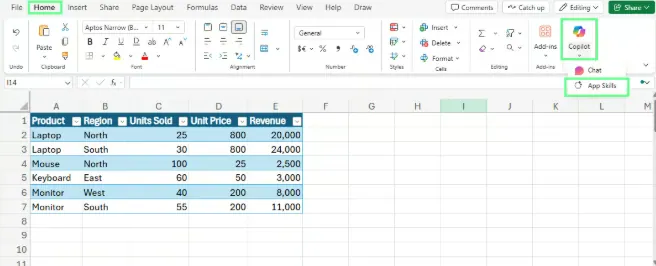 Locate the Copilot icon in Excel. Image by Author.
The RowSpeak Path: Simple and Direct
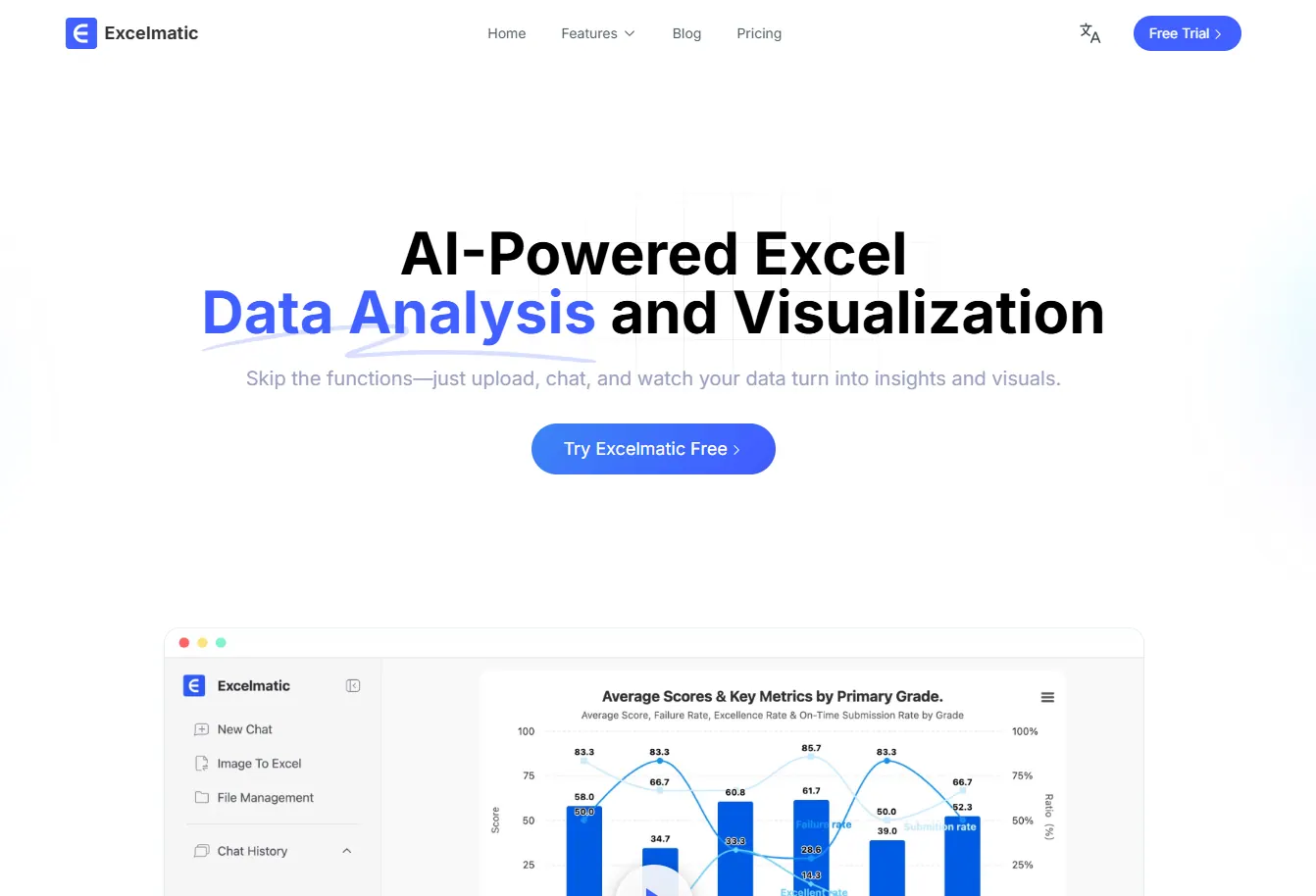
RowSpeak uses a different workflow. Instead of editing a live workbook inside Excel, it helps you analyze the file and move toward an output you can review:
- Go to RowSpeak.
- Upload your file or files. Start from Excel, CSV, PDF, screenshots, or exported business reports.
- Ask for the result. Request an answer, table, chart, dashboard, summary, or report in plain language.
- Review and refine. Ask follow-up questions, check assumptions, and adjust the output before sharing it.
That "bring your own file" model is useful when the spreadsheet is only the starting point. If your actual job is to explain changes, combine exports, build a chart, or write a management summary, RowSpeak is often the cleaner workflow.
Practical Use Cases: AI Assistants in Action
Let’s look at how both tools handle everyday tasks like financial analysis, data cleaning, and creating visuals.
Financial Analysis
Financial analysts look at numbers like revenue, expenses, and profits. Let's say you want to calculate the profit margin percentage but don't know the formula.
With Copilot
After setting up your file and table, you open the Copilot pane and type your prompt:
Add another column that shows profit margin as a percentage.
Copilot analyzes your table, suggests the correct formula, and shows a preview. You can then click "Insert column" to add it directly to your worksheet.
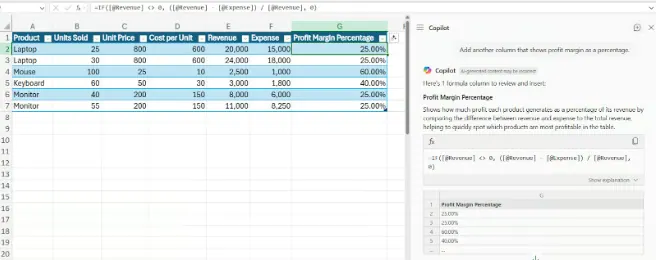 Calculate the profit margin using the Copilot prompt. Image by Author.
With RowSpeak
With RowSpeak, you'd simply upload your spreadsheet and ask the same question:
Add another column that shows profit margin as a percentage.
RowSpeak processes the file and returns the result in the context of the analysis: a direct answer, a summary, or an output you can review and use in a report. The key advantage is not that it edits inside Excel; it is that the workflow can start from the file you already have.
Data Cleaning and Organization
Before you can analyze data, it often needs cleaning. A common task is splitting a "Full Name" column into "First Name" and "Last Name."
With Copilot
In your cloud-saved, table-formatted file, you would prompt Copilot:
Split the Full Name column into two new columns: First Name and Last Name
Copilot previews the new columns, and you can insert them into your table with a click.
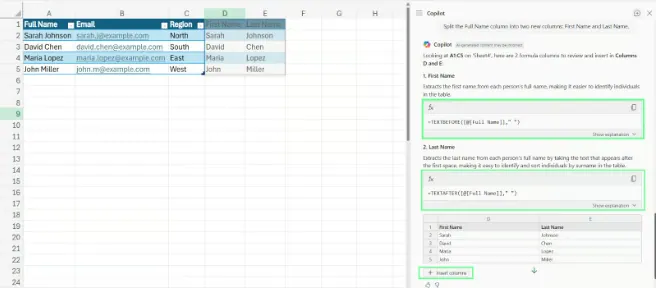 Split the names into separate columns using Copilot. Image by Author.
With RowSpeak
The process is even more straightforward. Upload your messy file and ask:
Split the Full Name column into First Name and Last Name.
RowSpeak handles the task and provides a cleaned file for you to download. This is incredibly efficient for one-off cleaning tasks on files you receive from colleagues, without needing to re-save them to the cloud.
Data Visualization
Charts help you spot trends faster than rows of numbers. Let's say you want a bar chart showing each employee’s sales performance.
With Copilot
You can ask Copilot:
Create a bar chart showing each employee’s sales performance for their respective month.
Copilot will analyze the data, potentially creating a PivotTable in the background, and insert a chart directly into your worksheet.
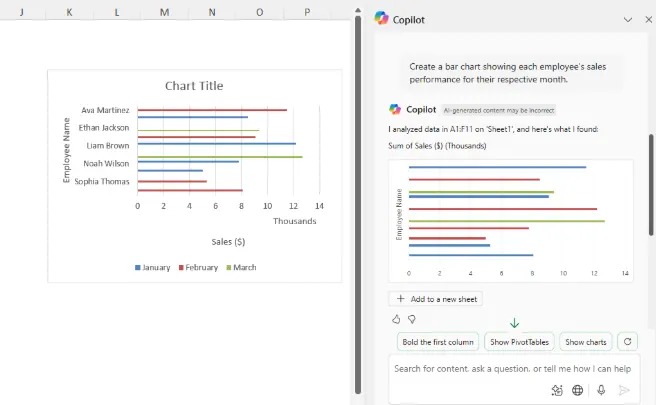 Visualize the data with a Copilot prompt. Image by Author.
With RowSpeak
With RowSpeak, you upload your data and make the same request. It generates a clean, presentation-ready chart that you can download as an image or part of a full report. A key benefit here is RowSpeak's ability to combine data from multiple files into a single chart or analysis, a task that is significantly more complex in Excel.
Automation and VBA
Sometimes you need to automate a repetitive task. Traditionally, this required writing VBA (Visual Basic for Applications) macros.
With Copilot
Copilot can write VBA code for you. For example, you could ask:
Write a VBA macro that highlights any row where the Sales amount is greater than the Target amount in light green.
Copilot generates the code, which you then have to manually copy into the VBA editor (Alt + F11), paste into a new module, and run.
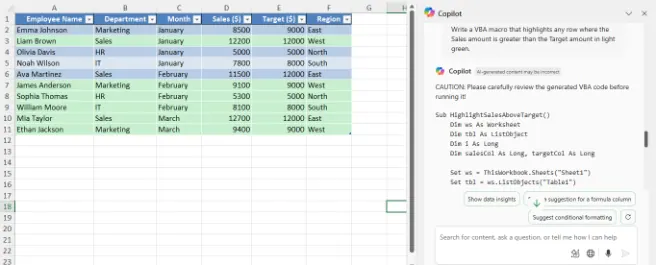 Create a VBA macro with Copilot. Image by Author.
With RowSpeak (The Code-Free Alternative)
RowSpeak approaches this from a different angle. Instead of generating code for you to run, it gets you the final answer directly. You would ask:
Show me all rows where Sales are greater than the Target amount.
RowSpeak provides an instant report with the filtered data. For many users, this insight is the actual goal, and RowSpeak delivers it without the need to understand or execute VBA code. It's focused on the "what" (the answer) rather than the "how" (the script).
Head-to-Head: Copilot vs. RowSpeak
| Feature | Microsoft Excel Copilot | RowSpeak |
|---|---|---|
| Setup | Requires an eligible Microsoft 365/Copilot environment and supported workbook conditions. | Upload a file and work from the analysis result rather than from a live Excel pane. |
| Workflow | Integrated into Excel. Edits, explains, and assists inside the workbook. | File-to-report workflow. Upload files, ask questions, create answers, charts, summaries, dashboards, or reports. |
| Best For | In-place workbook edits, formula help, learning Excel, and Microsoft 365-native work. | Messy business files, multi-file analysis, reporting, chart generation, and reviewable outputs. |
| Multi-File Analysis | Best evaluated inside the current Microsoft 365 workbook workflow. | Designed for workflows that may start from multiple uploaded files and exported reports. |
| Key Advantage | Native Microsoft 365 context and workbook editing. | File-first analysis that can become a report, dashboard, chart, or written summary. |
| Limitations | Best when the file and user environment fit Microsoft 365 requirements. | Not an in-app Excel editor; the workflow is upload, analyze, review, and export or share. |
When to use RowSpeak instead of Copilot in Excel
Use Copilot when the workbook lives inside Microsoft 365 and the task is workbook-native editing: adding a formula column, explaining a table, generating a chart in the sheet, or learning how to structure an Excel task.
Use RowSpeak when the work starts outside that ideal path:
- local Excel files or CSV exports from business systems
- PDF tables, screenshots, or image-based tables
- multiple files that need to be compared or combined
- a request for a chart, dashboard, written summary, or management report
- a workflow where the user needs to review assumptions before sharing the result
For a focused buyer comparison, read the Excel Copilot alternative page.
Best Prompts for Excel AI Tasks
Regardless of which tool you choose, the quality of your prompt determines the quality of the result. Here are some ready-to-use prompts you can adapt.
Formulas
- Add a column that calculates total revenue for Q1 and Q2.
- Show which projects have a higher profit margin than average.
- Calculate the year-to-date sales for each region.
- Add a new column that multiplies Units Sold by Unit Price.
Analysis
- Summarize quarterly sales by region.
- Highlight the top 10% of performers by revenue.
- Find months where revenue dropped compared to the previous month.
- Create a summary of total profit by product category.
Visualization
- Create a bar chart comparing monthly revenue across departments.
- Build a column chart comparing total expenses by region.
- Insert a pie chart of profit share by product.
Final Thoughts
AI is becoming part of spreadsheet work, but the best tool still depends on the job.
The "best" tool ultimately depends on your workflow:
If you are a power user living within the Microsoft 365 ecosystem and need an AI assistant to help you make iterative changes directly within your spreadsheets, Excel Copilot is a powerful, integrated choice.
If you need to turn Excel, CSV, PDF, screenshots, or exported business files into reviewable answers, charts, dashboards, summaries, or reports, RowSpeak is the stronger workflow to test.
Try the comparison with a real file: upload one spreadsheet export to RowSpeak, ask for the same chart or summary you would ask Copilot for, and review which workflow gets you closer to a report you can actually use.
Now that you know the basics, start exploring. Ask different questions, rephrase your prompts, and see how these AI assistants respond. You'll quickly notice that the more specific you are, the better your results get.