Key Takeaways
- Screenshots are useful when a dashboard, SaaS report, or shared screen contains table data you cannot download.
- A good screenshot-to-Excel workflow is not just OCR. It includes cropping, table extraction, row review, number checks, and export validation.
- RowSpeak's image to Excel converter is best for visible tables in PNG, JPG, or JPEG files. If the source is already a PDF, use PDF to Excel instead.
- Always review totals, column headers, dates, and decimal separators before using the converted workbook in a report.
When Screenshot to Excel Is the Right Move
Screenshots are common in business reporting because they travel fast. A sales manager shares a dashboard snapshot in Slack. A vendor sends a cropped screenshot of a portal table. A finance analyst grabs a KPI table from a browser where export permissions are disabled.
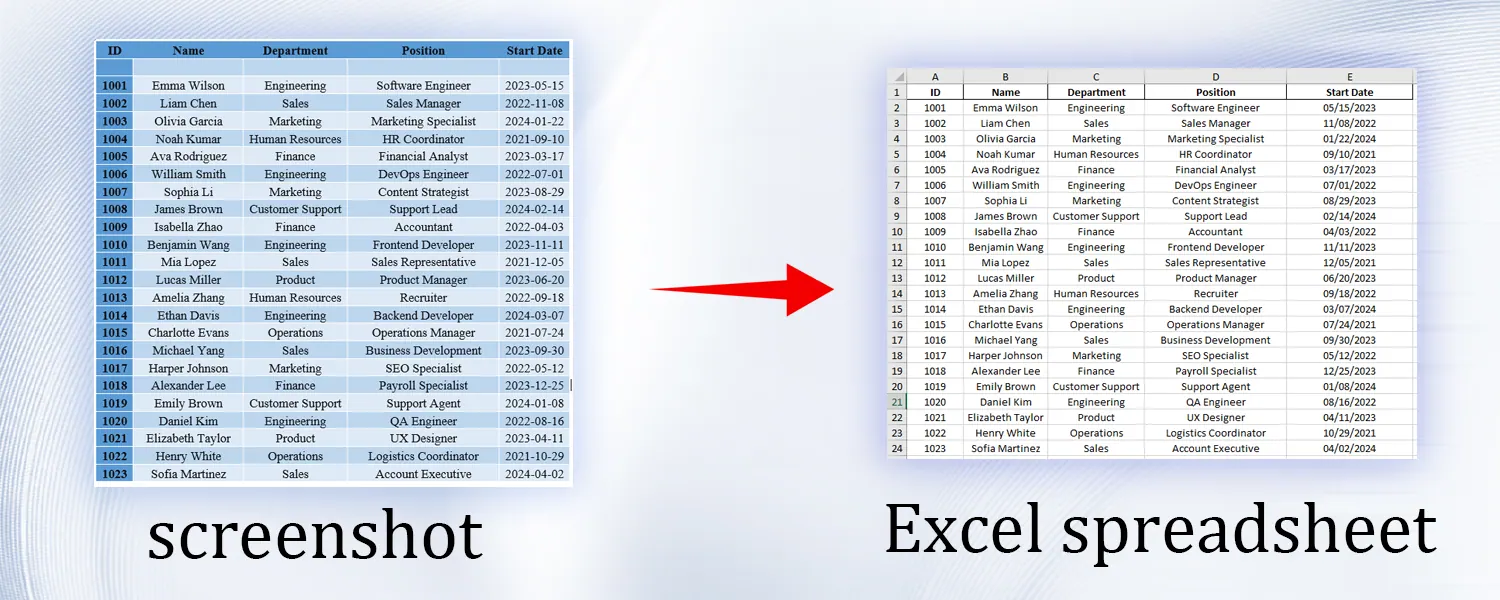
The problem is that screenshots are visually useful but operationally locked. You can read the values, but you cannot sort, filter, calculate, or build a pivot table from them.
For that specific case, the best workflow is:
- Capture only the useful table area.
- Convert the screenshot into rows and columns.
- Review the extracted spreadsheet before export.
- Run sanity checks before using the numbers in decisions.
What Makes Screenshot Tables Hard to Extract
Screenshots look clean to humans, but they often confuse basic OCR tools:
- Thin gridlines can disappear after compression.
- Header rows may use small text or low contrast.
- Currency symbols and commas may be mistaken for characters.
- Dashboard widgets may place totals outside the table.
- Browser zoom, dark mode, or partial cropping can distort alignment.
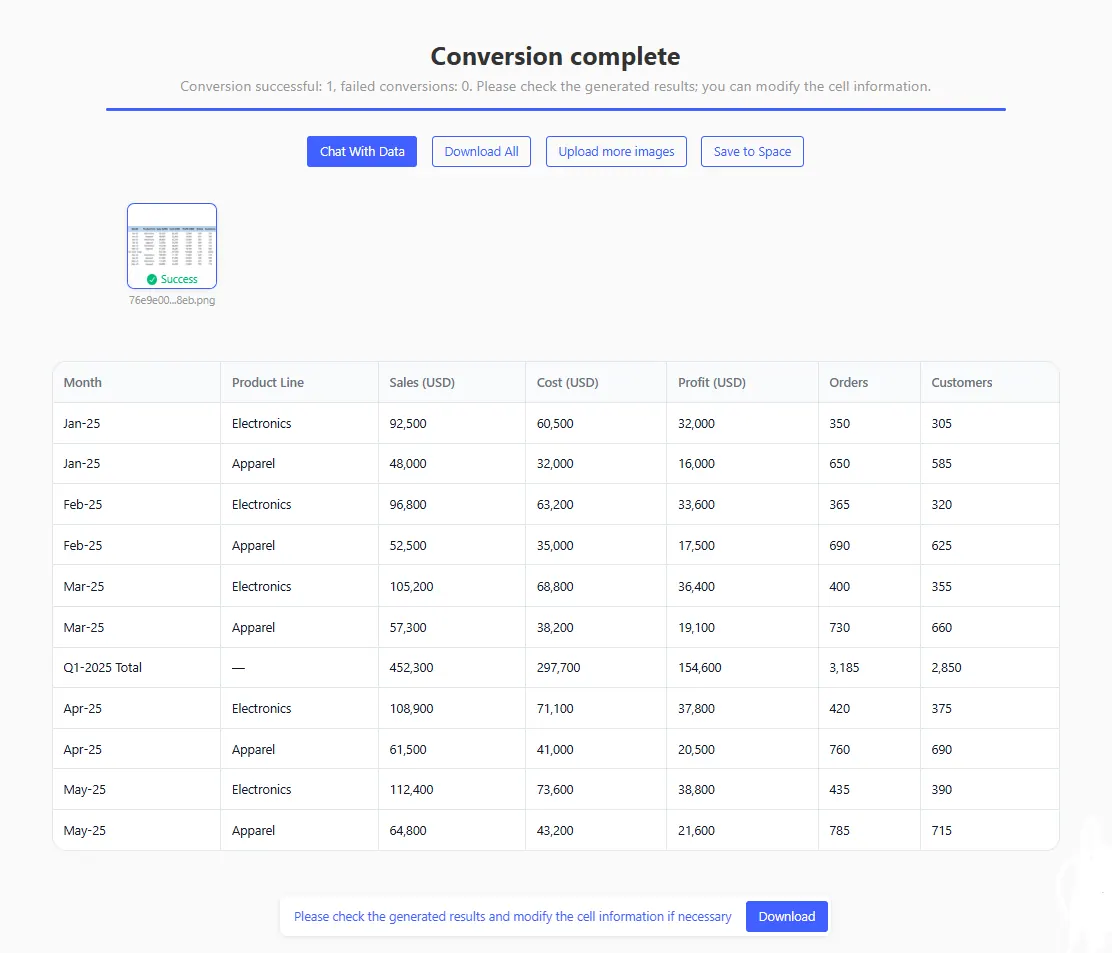
This is why a screenshot-to-Excel workflow needs structure detection, not just text recognition. RowSpeak reads the visible table, reconstructs cells, and lets you inspect the spreadsheet before downloading the XLSX file.
Step-by-Step: Convert a Screenshot to Excel
Step 1: Capture a Clean Screenshot
Before uploading anything, make the source image easier for AI to read.
Use this capture checklist:
| Check | Why it matters |
|---|---|
| Include the full header row | The output needs clear column names. |
| Crop out unrelated dashboard widgets | Extra labels can become accidental columns. |
| Keep browser zoom near 100 percent | Extreme zoom can blur small text. |
| Use light mode when possible | Dark backgrounds can reduce OCR contrast. |
| Avoid covering rows with cursor tooltips | Tooltips can be extracted as table text. |
If the screenshot contains sensitive customer names, account IDs, or payment data, mask what you do not need before upload.
Step 2: Upload the Screenshot to RowSpeak
Open RowSpeak's image-to-table workspace, upload the PNG or JPG, and wait for the preview table.
Step 3: Review the Extracted Table Like an Analyst
Do not download immediately. A fast review catches most real-world issues.
Check these items in order:
- Column headers: Make sure each metric has the right name. "Revenue" and "Refund" should not be merged.
- Row alignment: Pick a few rows and compare values against the screenshot.
- Number formats: Confirm that 1,250 did not become 1250 percent or 1.250.
- Dates: Check whether dates use MM/DD/YYYY, DD/MM/YYYY, or a custom business period.
- Totals: If the screenshot shows a total row, compare it with a quick sum in the converted table.
Step 4: Use Plain English to Clean the Output
After extraction, you can ask RowSpeak to normalize the table before export.
Useful prompts:
Convert the Revenue and Cost columns to currency values and keep two decimals.
Remove the dashboard total row, then add a new calculated margin column.
Standardize the date column as YYYY-MM-DD and sort the table by date ascending.
Step 5: Export and Validate the Workbook
Download the final file as XLSX and open it in Excel or Google Sheets.
Before sharing it, run one final validation pass:
- Apply filters to make sure each column contains the expected type of data.
- Sum key numeric columns and compare against the original screenshot.
- Freeze the header row for readability.
- Add a note in the workbook that the source was a screenshot and the file was reviewed.
Best Use Cases
Screenshot to Excel works especially well for:
- SaaS analytics tables where export is disabled.
- KPI cards that include small supporting tables.
- Shared screen captures from weekly business reviews.
- Competitor pricing tables captured from a webpage.
- Internal dashboard screenshots used for quick reporting.
It is less suitable for tiny, blurred, heavily compressed, or partially hidden tables. If you can download CSV directly from the source system, that is still better than converting a screenshot.
Quality Checklist Before You Trust the Data
Use this practical review rule: if the spreadsheet will affect money, inventory, payroll, or customer communication, verify it.
| Risk area | What to verify |
|---|---|
| Money | Currency symbols, negatives, decimals, totals. |
| Dates | Region format, fiscal periods, month names. |
| IDs | Leading zeros, SKU codes, invoice IDs. |
| Percentages | 0.12 vs 12 percent formatting. |
| Categories | Misspellings that split the same category into multiple names. |
This human review is not a weakness in the AI workflow. It is the control step that makes the output trustworthy.
FAQ
Can I convert a screenshot from a dashboard into Excel?
Yes, if the table is visible and readable. Crop the screenshot to the table area and include the header row.
Will charts convert into source data?
Not reliably. Screenshot-to-Excel works best on visible tables. For a chart, use the original dataset whenever possible.
Can RowSpeak handle screenshots with multiple tables?
It can detect table-like regions, but you will get cleaner output by uploading one cropped table at a time.
Is this safe for confidential reports?
Use only tools that match your data policy. Remove unnecessary personal or financial details before upload, and keep a review record for business-critical data.
Final Recommendation
Treat screenshot-to-Excel as a controlled conversion workflow, not a shortcut. Capture a clean image, convert it with RowSpeak, review the table, and validate the numbers before reporting.
When you follow that process, a static screenshot becomes a usable spreadsheet you can filter, summarize, chart, and share with confidence.
Try RowSpeak's image-to-Excel converter and turn your next report screenshot into an editable workbook.