Key takeaways:
- Image-to-Excel work is useful only when the output preserves rows, columns, headers, and numbers.
- A clear screenshot, scan, invoice image, or receipt photo can become a reviewable spreadsheet table.
- RowSpeak helps after extraction because you can clean, question, summarize, and analyze the table in the same workflow.
To convert an image to an Excel table, you need more than OCR.
OCR can read text from a screenshot or photo. An Excel table needs structure. The header row must stay separate from the data rows. Amounts must land in numeric cells. Product names, dates, quantities, and totals must stay aligned.
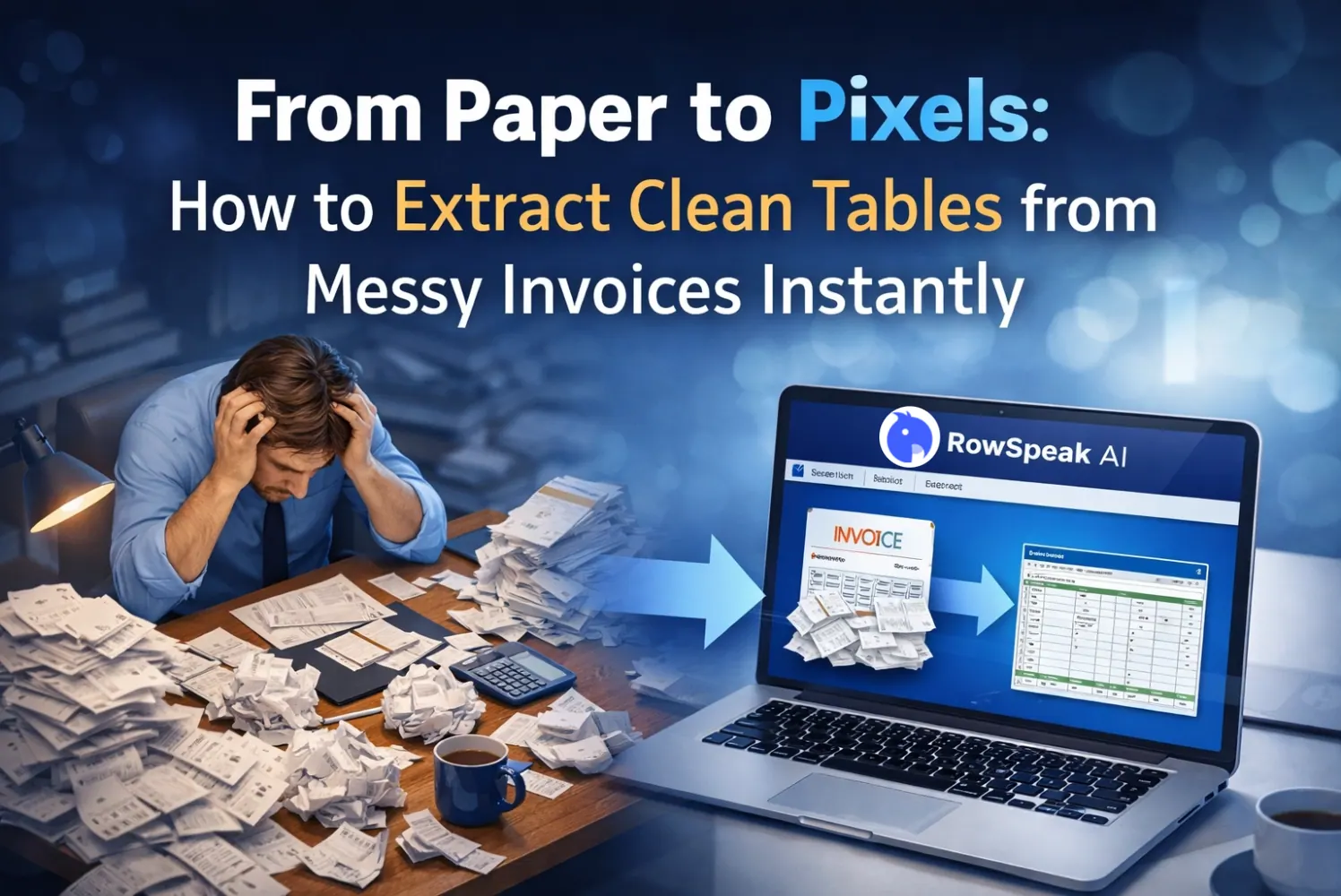
This matters when the image is a vendor price list, an invoice, a receipt, a dashboard screenshot, or a table copied into a slide deck. You can see the data, but Excel cannot use it until the table is rebuilt.
RowSpeak's image to Excel converter handles that workflow: upload the image, review the extracted table, then export or continue with spreadsheet analysis.
Image to text vs. image to table
Image to text gives you characters. Image to table gives you cells.
That difference is small when you only need to read a paragraph. It is large when you need to calculate totals, filter rows, compare files, or prepare a report.
| Output | Plain-language job | Best use |
|---|---|---|
| OCR text | Read words and numbers from the image | Notes, paragraphs, labels |
| Image-to-table extraction | Rebuild rows, columns, headers, and cells | Screenshots, invoices, receipts, price lists |
| Image-to-Excel workflow | Turn the table into a spreadsheet you can review and analyze | Reporting, finance, inventory, operations |
If your next step is Excel work, ask for a table, not a block of text.
This video shows an image-to-Excel extraction workflow.
Step 1: Use the clearest image you have
The source image does not need to be perfect, but the table should be readable.
A good source image has a visible header row, clear row boundaries, and amounts that are not blurred or covered by glare. A screenshot usually works better than a compressed image copied from a chat app. A cropped image usually works better than a full slide or full browser window.
If the table is part of a PDF, use a PDF to Excel workflow instead. PDF files often include multiple pages, repeated headers, footers, and embedded tables that need page-level handling.
Step 2: Ask for a structured table
Avoid a vague prompt:
Convert this image to Excel.
Use a prompt that tells RowSpeak what to preserve:
Extract the table from this image into a spreadsheet. Keep the header row,
preserve item names, quantities, unit prices, line totals, and notes.
Mark any cell that looks uncertain instead of guessing.
The final instruction is important. In a business file, an uncertain cell should stay visible during review.
Step 3: Review the extracted table
Review the cells that can change the answer.
For an invoice, check item names, quantities, unit prices, tax, subtotal, and final total. For inventory, check SKU codes, product names, stock counts, unit cost, and dates. For a dashboard screenshot, check that totals and categories stayed in the right rows.
Also check formatting. A price should be a number. A date should be a date. A long ID should not be rounded or converted into scientific notation.
If the extracted table will be used in finance, inventory, customer reporting, or compliance work, compare the key totals against the original image before you use the spreadsheet.
Step 4: Continue the spreadsheet workflow
After the table is clean, you can use RowSpeak for the next action.
For an invoice table, ask RowSpeak to check whether line-item totals match the subtotal. For a supplier price list, ask it to standardize product names and flag missing unit prices. For a dashboard screenshot, ask it to summarize the top rows and calculate each row's share of total revenue.
That is the difference between a converter and a spreadsheet analysis workflow. Conversion gets the data into cells. Analysis turns those cells into an answer.
Example prompts
For an invoice image:
Check whether the line item totals match the invoice subtotal. Create a clean
table with item, quantity, unit price, line total, tax, and final amount.
Flag any mismatch.
For a supplier price list:
Standardize product names, convert prices to numeric values, and flag rows
where the unit price or SKU is missing.
For a dashboard screenshot:
Summarize the top 5 rows by revenue, calculate each row's share of total
revenue, and flag any row with negative profit or missing cost.
If you want to compare converter options, use the image table converter comparison guide. If your source is a receipt photo, the receipt image to spreadsheet workflow gives a more specific example.
Review before export
Before you export or analyze the table, check that all expected columns are present, numeric values are usable, dates are consistent, totals align with the right rows, and footnotes or captions were not pulled into the data table.
Also check whether any row wrapped into two spreadsheet rows. This is common when an item name is long or the source image has narrow columns.
For sensitive financial, customer, or employee-level data, use anonymized files when possible and keep the review step inside your team's normal data controls.
FAQ
Can I convert an image to an Excel table online?
Yes. With RowSpeak, upload a PNG, JPG, or JPEG image, review the extracted table, and turn it into an editable spreadsheet workflow.
What is the difference between OCR and image-to-table conversion?
OCR extracts text. Image-to-table conversion reconstructs rows, columns, headers, and cell relationships so the result can be used in Excel.
Can I convert a screenshot to Excel?
Yes, if the screenshot contains a visible table. Keep the header row and crop around the table area for better results.
What if my source is a PDF?
Use RowSpeak's PDF to Excel workflow for PDF reports, scanned PDFs, and multi-page documents.
Try RowSpeak's image to Excel converter when your data is stuck in a screenshot, scan, or photo and you need a table you can review and use.