Key Takeaways
- Receipt photos should be converted into a consistent spreadsheet schema before reimbursement, bookkeeping, or analysis.
- The most important review checks are vendor name, transaction date, subtotal, tax, tip, total, and payment method.
- RowSpeak's image to Excel workflow can help extract visible receipt tables and turn them into editable spreadsheet rows.
- For finance workflows, keep a clear audit habit: attach the source receipt, validate totals, and mark uncertain fields for review.
Why Receipt Images Need a Workflow
Receipts are small, inconsistent, and surprisingly expensive to process manually. One store uses a neat item table. Another prints discounts as negative lines. Restaurant receipts may include tip, service charge, tax, and handwritten notes. Thermal paper fades. Photos arrive at odd angles.
If you simply type the totals into a spreadsheet, you lose detail. If you keep only the image, you cannot sort expenses by vendor, category, project, or tax amount.
A useful receipt image-to-spreadsheet workflow should produce rows that finance can review:
| Field | Why it matters |
|---|---|
| Receipt date | Determines reimbursement period and accounting month. |
| Vendor | Supports duplicate checks and spend analysis. |
| Line item | Helps classify meals, travel, supplies, or software. |
| Subtotal, tax, tip, total | Supports reconciliation against card statements. |
| Payment method | Helps match corporate card, cash, and personal reimbursements. |
| Reviewer status | Shows whether the receipt has been checked. |
Step-by-Step: Convert a Receipt Image to Spreadsheet Rows
Step 1: Photograph the Receipt for Extraction
The quality of the photo controls the quality of the output.
Use these practical capture rules:
- Put the receipt on a flat, plain surface.
- Avoid shadows across the total or tax lines.
- Make sure the full receipt is visible, especially the date and total.
- Take one receipt per image when possible.
- If the receipt is very long, capture overlapping sections and label them.
For sensitive expense data, avoid capturing unrelated personal information around the receipt.
Step 2: Upload the Image
Upload the JPG or PNG to RowSpeak's image-to-table converter. If the receipt contains a clear item table, RowSpeak can reconstruct it as spreadsheet rows.
Step 3: Normalize the Spreadsheet Schema
Receipts differ, so the output should be standardized before you export it.
Ask RowSpeak to create columns such as:
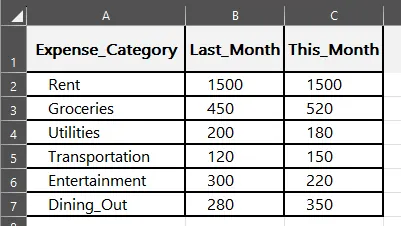
Create a clean expense table with columns for receipt_date, vendor, category, item, quantity, amount, tax, tip, total, and review_status.
If the receipt has only a total and no item table, use a one-row summary:
Use one row for this receipt. Extract vendor, date, subtotal, tax, tip, total, and payment method if visible.
Step 4: Add Expense Categories
Categories make the spreadsheet useful after conversion.
For example:
| Receipt text | Suggested category |
|---|---|
| Hotel, lodging, room | Travel - Lodging |
| Taxi, ride, parking | Travel - Transport |
| Coffee, restaurant, meal | Meals |
| Printer, cable, notebook | Office Supplies |
| SaaS, subscription, license | Software |
You can ask RowSpeak to classify rows, then review the result:
Add an expense category column based on the vendor and item description. Mark uncertain categories as Needs Review.
Step 5: Reconcile the Extracted Total
Before reimbursement or accounting, compare the spreadsheet total with the receipt image.
Use this check:
- Sum all line item amounts.
- Add tax and tip if they are separate.
- Compare the calculated amount with the printed total.
- If the difference is not zero, mark the receipt as "Needs Review."
This step is especially important for restaurants, multi-tax receipts, refunds, and discounts.
Common Receipt Extraction Problems and Fixes
| Problem | What to do |
|---|---|
| Faded thermal receipt | Increase contrast or retake the photo in stronger light. |
| Long receipt split across photos | Add a source_page column and combine after extraction. |
| Tip handwritten after printing | Review manually and record it as a separate field. |
| Discount line recognized as positive | Check negative signs and ask RowSpeak to standardize discounts. |
| Store loyalty text appears as rows | Remove non-transaction rows before export. |
A Practical Review Checklist for Finance Teams
For each receipt, check:
- Vendor and date are present.
- Total amount matches the image.
- Tax is separated if your accounting workflow needs it.
- Currency is correct.
- Duplicate receipts are flagged by vendor, date, and total.
- Any uncertain field is marked "Needs Review" instead of guessed.
This is the trust layer. AI reduces typing, but your review keeps the accounting record defensible.
What to Do After Conversion
Once receipts are structured, you can use the spreadsheet for:
- Monthly reimbursement review.
- Corporate card reconciliation.
- Tax category summaries.
- Project or client cost tracking.
- Vendor spend analysis.
For a broader expense workflow, see RowSpeak's guide to expense tracker templates.
FAQ
Can AI extract every receipt perfectly?
No. Accuracy depends on image quality, receipt layout, text clarity, and whether handwritten fields are involved. Always review totals.
Should I extract line items or just receipt totals?
Use line items when you need tax, category, or project detail. Use receipt-level summaries when you only need reimbursement totals.
Can I process restaurant receipts with tips?
Yes, but check the tip and total manually. Handwritten tips can be harder to read than printed line items.
What if the receipt is not in English?
Clear printed text is easier than handwritten text in any language. Review extracted vendor names and categories carefully.
Final Recommendation
Receipt images should not stay as a pile of photos. Convert them into a consistent spreadsheet, validate the money fields, and keep the original image available for audit.
With RowSpeak, the slow part becomes review instead of typing. That is the right balance for expense work: fast extraction, human confirmation, and clean spreadsheet output.
Try RowSpeak's receipt-to-spreadsheet workflow and prepare your next expense batch for review.