Key Takeaways
- Finance teams should treat PDF extraction as a controlled workflow, not a quick file conversion.
- The output should include source fields, normalized data, control totals, exceptions, and review notes.
- RowSpeak can help convert invoices, bank statements, schedules, and PDF reports into Excel files that are easier to inspect.
- Use PDF extraction when structured source data is unavailable, delayed, or trapped in vendor documents.
Finance teams still receive critical data as PDFs: invoices, bank statements, vendor schedules, remittance advice, tax notices, board report tables, and management report exports. The file is official, but the work happens in Excel.
That creates a familiar problem. Someone has to move numbers from a static PDF into a workbook, then prove the workbook is accurate enough for review.
RowSpeak's PDF to Excel workflow is useful when the finance team needs more than text extraction. It helps turn the PDF into a reviewable spreadsheet that can support month-end work.
Start with the Finance Use Case
The right workbook depends on the finance task.
| Finance task | PDF source | Workbook output |
|---|---|---|
| AP review | Vendor invoice | Header, line items, tax checks, coding notes |
| Cash review | Bank statement | Transactions, categories, balance checks |
| Accruals | Vendor schedules or unpaid invoices | Period, vendor, amount, service dates, review status |
| Variance analysis | PDF management report | Actuals, budget, variance, notes |
| Audit support | Official statement or report | Extracted data plus source references |
Do not start with "convert this PDF." Start with "create the finance workbook this task needs."
A Controlled Workbook Structure
For finance work, use a workbook with these sheets:
| Sheet | Purpose |
|---|---|
| Source_Log | File name, period, owner, extraction date, notes |
| Extracted_Data | Clean table from the PDF |
| Normalized_Data | Standardized dates, signs, categories, and account fields |
| Control_Checks | Totals, counts, and reconciliation checks |
| Exceptions | Missing fields, unclear OCR, mismatches, duplicates |
| Report_View | Pivot-ready or summary-ready output |
This structure keeps the conversion useful even when a reviewer finds a problem. They can see what was extracted, what was changed, and what still needs attention.
Prompt: Convert a Finance PDF into a Reviewable Workbook
Use this prompt as a starting point:
Convert this finance PDF into an Excel workbook for review.
Create:
1. Source_Log with file name, statement or report period, and notes.
2. Extracted_Data with the table exactly as interpreted from the PDF.
3. Normalized_Data with consistent dates, signed amounts, currency, vendor or account fields, and category fields where relevant.
4. Control_Checks with row counts, subtotals, totals, and any balances shown in the PDF.
5. Exceptions with missing fields, OCR uncertainty, duplicate rows, repeated headers, and total mismatches.
Do not invent missing values. Mark uncertain values as Review needed.
Review Checks Finance Teams Should Require
Before using a converted PDF workbook in a close file, require these checks:
- Source file name and period are documented.
- Extracted row count is reasonable for the source.
- Dates are consistent and filterable.
- Debit and credit signs match the document logic.
- Totals tie to the PDF.
- Duplicates are flagged.
- OCR uncertainties are listed.
- Reviewer notes are preserved.
For invoices, use the PDF invoice to Excel workflow. For statements, use the bank statement PDF to spreadsheet workflow. For general QA, use the PDF to Excel accuracy checklist.
Where RowSpeak Fits
Generic chat tools can help explain data, but they often separate the document, the spreadsheet, and the review process. Finance teams need the file workflow to stay visible:
- Upload the PDF.
- Extract the table into Excel.
- Review uncertain cells.
- Add checks and exceptions.
- Summarize or export the workbook.
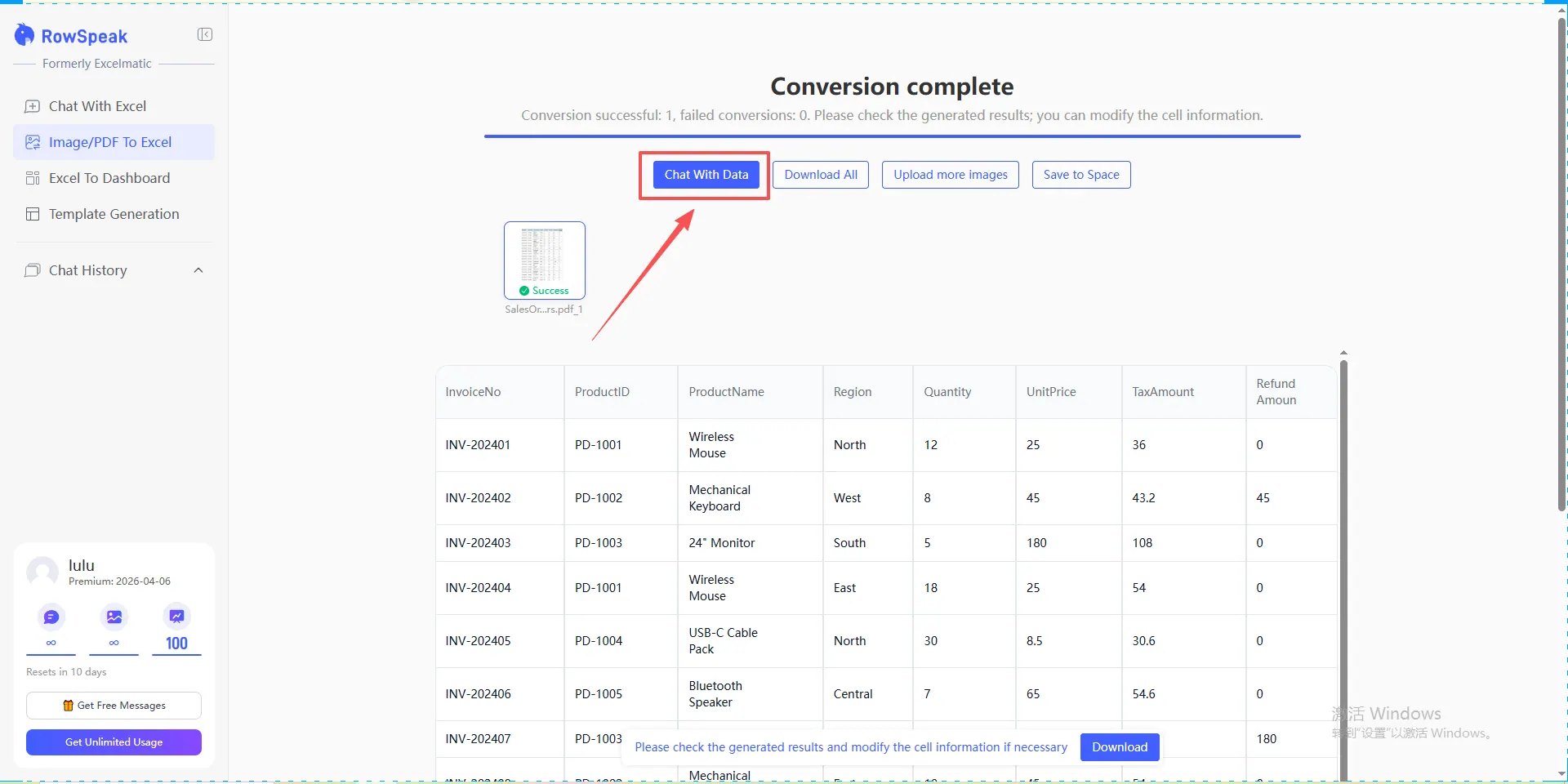
That is the practical value of RowSpeak: the PDF extraction and spreadsheet review are part of the same workflow.
Month-End Example
Imagine the controller receives three PDFs near close:
- A bank statement for the final cash balance.
- A vendor invoice with service dates crossing month-end.
- A PDF report from an operating system that shows expenses by location.
Instead of manually typing each table, the finance team can extract each PDF, keep the review checks with the workbook, and ask:
Create a month-end review summary. Show total expenses by vendor, cash movement by category, items that may need accrual, and any extraction exceptions that must be reviewed before close.
This does not replace judgment. It reduces the typing and gives reviewers a clearer starting point.
When Not to Use PDF Extraction
Use structured source data when it is available. A CSV export, ERP report, database query, or official API feed is usually better than extracting from a PDF.
Use PDF-to-Excel when:
- The PDF is the only source you have.
- The structured export is delayed.
- You need to audit or support a number from an official statement.
- A vendor or bank does not provide spreadsheet files.
- The PDF is needed as evidence but the analysis must happen in Excel.
FAQ
Can finance teams use this for audit files?
Yes, but keep the source file reference, extraction notes, and review checks. Do not present the converted workbook as if it were original source data.
Can RowSpeak prepare charts or summaries after extraction?
Yes. After the PDF becomes a workbook, you can ask RowSpeak to summarize, categorize, chart, or explain the data.
What is the biggest risk?
Using a clean-looking workbook without checking totals. Always reconcile against the PDF before using the data in reporting.
Make PDF Extraction Reviewable
Use RowSpeak PDF to Excel to turn finance PDFs into controlled workbooks with checks, exceptions, and review notes. Finance work needs speed, but it also needs traceability.