Key Takeaways
- You do not need desktop PDF software to turn a PDF table into an editable Excel file.
- The important step is not only extraction. You need review checks for headers, merged cells, page breaks, and numeric formats.
- RowSpeak works well when you can describe the table you want and inspect the result before export.
- For sensitive files, follow your company's policy before uploading documents to any web-based tool.
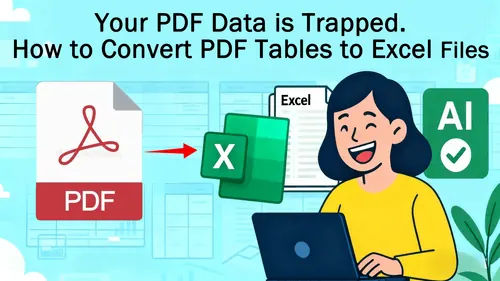
Adobe Acrobat is a familiar option for PDF conversion, but it is not always available. Maybe you are on a locked-down work laptop, helping a client from a browser, or dealing with a one-off PDF that does not justify installing software.
For table extraction, a browser-based workflow can be enough as long as it gives you two things: a structured Excel output and a way to review the result before you use it.
When a No-Adobe Workflow Makes Sense
Use this approach when you need to extract:
- A pricing table from a supplier PDF.
- A research table from a report.
- A product list from a catalog.
- A schedule, rate card, or fee table.
- A scanned page that contains a visible table.
- A small batch of PDFs that must become spreadsheets quickly.
It is less ideal when the PDF is heavily redacted, handwritten, extremely low resolution, or legally restricted from upload.
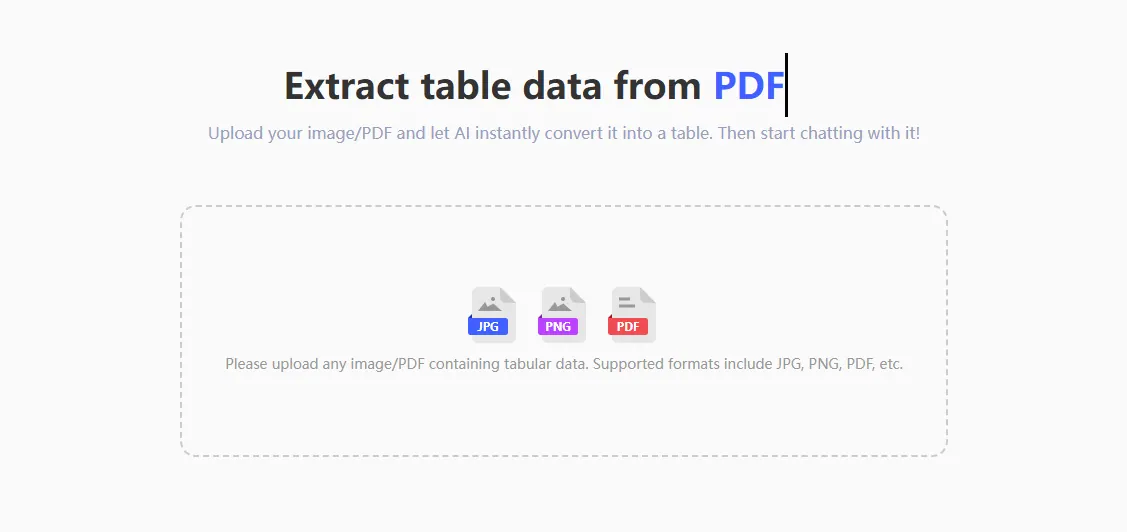
Step 1: Upload the PDF
Open RowSpeak's PDF to Excel converter and upload the PDF. If the document contains many pages, be specific about the table you want:
Extract the table from pages 3 to 5. Create an Excel table with the visible column headers. Ignore page numbers, footers, and repeated report titles.
If the PDF contains several tables, name the target:
Extract only the pricing table. Keep columns for product name, SKU, package size, unit price, discount tier, and effective date.
Step 2: Preserve the Table Structure
The most common issue with PDF table extraction is that the output looks like a spreadsheet but does not behave like one. Merged headers, wrapped text, and split rows can make filters and formulas unreliable.
Ask RowSpeak to normalize the table:
Convert this PDF table into a flat Excel table. Use one header row. Repeat grouped header labels into each related column name. Split wrapped rows only when they represent separate records. Keep notes and footnotes on a separate sheet.
For example, a PDF might show:
| Region | Q1 | Q2 | Q3 | Q4 |
|---|---|---|---|---|
| North | 12,400 | 14,200 | 15,100 | 16,300 |
But the workbook should also support analysis, so you may ask for a normalized version:
| Region | Quarter | Amount |
|---|---|---|
| North | Q1 | 12400 |
| North | Q2 | 14200 |
Step 3: Review Before Export
Use this checklist before downloading:
- Does every row have the same number of columns?
- Did the converter keep numeric values as numbers, not text?
- Are negative numbers preserved?
- Did percentages remain percentages?
- Did page footers or report titles become rows?
- Are table notes separated from the main dataset?
- Are repeated headers removed from the middle of the table?
Step 4: Ask for a Clean Excel Output
Once the extraction looks right, ask for the workbook format you need:
Create a final Excel workbook from this extracted PDF table. Format the data as an Excel table, freeze the header row, apply currency formatting to price fields, convert percentage columns to numeric percentages, and add a Review_Notes sheet listing any uncertain values.
This prompt makes the result easier for the next person to use. It also keeps uncertainty visible instead of hiding it in a polished-looking file.
How This Compares with Manual Copy-Paste
| Workflow | Best for | Main risk |
|---|---|---|
| Copy and paste | A short text list | Columns usually break |
| Spreadsheet import | Simple native PDFs | Scans and complex layouts may fail |
| Desktop PDF software | Frequent PDF editing work | Requires installation and review |
| RowSpeak | Browser-based table extraction and review | Needs clear instructions for unusual layouts |
Related Workflows
- For invoice line items, read PDF invoice to Excel.
- For long tables across pages, read multi-page PDF table to Excel.
- For review controls, use the PDF to Excel accuracy checklist.
FAQ
Can I extract scanned PDF tables without Adobe?
Yes, if the scan is readable. RowSpeak uses OCR during conversion, but low-resolution scans still need human review.
Will the result match the original PDF layout exactly?
The goal should be an analysis-ready table, not a visual copy of the PDF. For spreadsheet work, a clean flat table is usually better than preserving every visual detail.
Can I continue analysis after extraction?
Yes. After conversion, you can ask RowSpeak to summarize, clean, categorize, chart, or export the extracted table.
Browser-Based Extraction That Still Has Controls
Use RowSpeak PDF to Excel when you need to extract a PDF table without installing desktop software. The key is to convert, review, refine, then export.