Key Takeaways
- A good invoice extraction workflow is not just OCR. It should preserve vendor details, invoice dates, line items, taxes, totals, and review notes.
- The safest output is a workbook that separates extracted data from checks, exceptions, and approval-ready summaries.
- RowSpeak can help convert the PDF table, then let you inspect and refine the Excel output before using it in AP review.
- Always reconcile extracted totals against the PDF before posting, accruing, or uploading data to an accounting system.
PDF invoices are designed to be read, not analyzed. That is the problem for accounts payable teams: the invoice arrives as a static file, but the work happens in a spreadsheet, ERP import, accrual schedule, or reconciliation file.
When you use RowSpeak's PDF to Excel converter, the goal should be more specific than "make this editable." For AP work, the goal is to create a workbook that someone can review, correct, approve, and reuse.
What an Invoice Workbook Should Contain
Before you upload anything, define the output you need. For most vendor invoices, the workbook should include these tables:
| Sheet | Purpose | Typical fields |
|---|---|---|
| Invoice header | One row per invoice | Vendor, invoice number, invoice date, due date, currency, subtotal, tax, total |
| Line items | One row per charge | Description, SKU or service code, quantity, unit price, discount, tax, line total |
| Review checks | Exceptions and control totals | Missing fields, duplicate invoice numbers, subtotal variance, tax variance |
| Coding notes | AP or finance mapping | Department, GL account, cost center, project, approver |
This structure matters because a PDF invoice can mix header fields, tables, footnotes, payment instructions, and legal text on the same page. If you only extract "everything that looks like a table," you may get a messy sheet that still needs manual cleanup.
Step 1: Convert the Invoice PDF
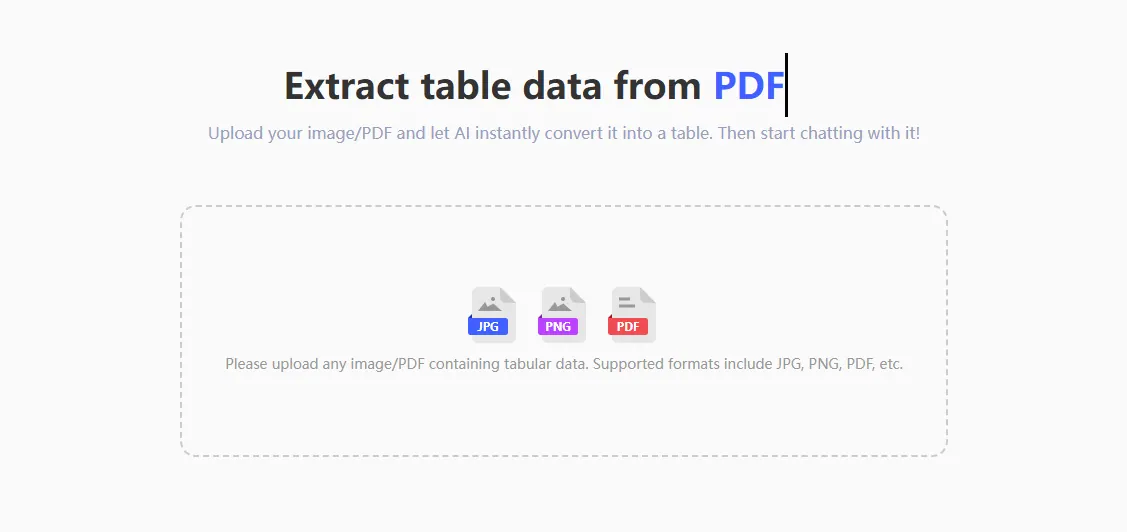
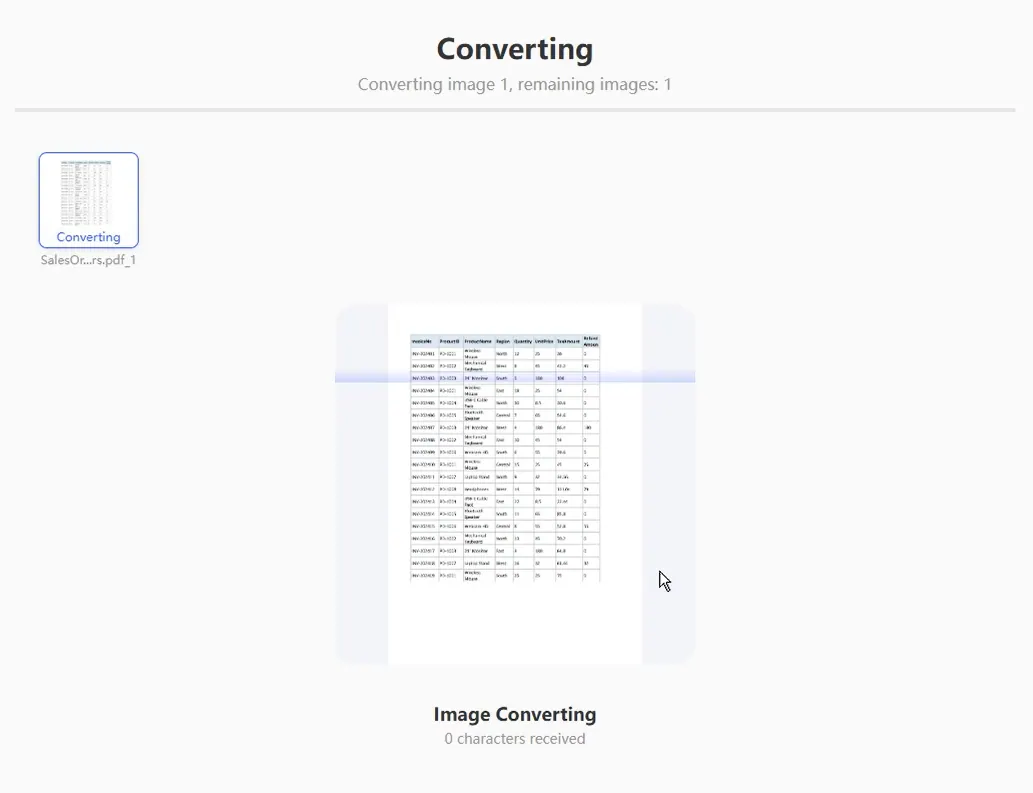
Upload the PDF to RowSpeak and start with a plain-language instruction:
Convert this invoice PDF into an Excel workbook. Create one sheet for invoice header fields and one sheet for line items. Keep the original invoice number, vendor name, invoice date, subtotal, tax, and total. Flag any blank or uncertain fields instead of guessing.
For invoices with multiple pages, add:
If line items continue across pages, combine them into one continuous line-item table. Remove repeated page headers and footers.
Step 2: Review the Fields That Usually Break
Do not approve the workbook just because it looks clean. In invoice PDFs, these fields are the most common sources of errors:
- Invoice number confused with purchase order number.
- Due date extracted as invoice date.
- Negative discount lines treated as positive charges.
- Tax included in line totals and added again in the summary.
- Quantity and unit price swapped.
- Currency symbol dropped from a foreign vendor invoice.
- Page footer totals copied as extra line items.
Use RowSpeak to run an exception check before export:
Check this extracted invoice workbook for possible AP issues. Look for duplicate invoice numbers, missing dates, line totals that do not equal quantity times unit price, subtotal differences, tax differences, and final total differences. Return an exceptions table with severity and suggested fix.
Step 3: Add Control Totals
For AP, the most useful quality check is simple: the extracted workbook should reconcile back to the PDF.
Create a review sheet with these checks:
| Check | Formula idea | Pass condition |
|---|---|---|
| Line subtotal | Sum all line item totals | Equals PDF subtotal |
| Tax total | Sum tax column or tax rows | Equals PDF tax amount |
| Invoice total | Subtotal plus tax minus discount | Equals PDF total |
| Required fields | Count blanks in key columns | Zero blanks or marked exception |
| Duplicate invoice | Count invoice number by vendor | No unexpected duplicates |
If you are using the output for month-end accruals, add another column for "received but not posted" status. That turns a simple conversion into a useful AP working file.
A Practical RowSpeak Prompt for AP Teams
Use this prompt when you need a controlled workbook:
Extract this PDF invoice into an Excel workbook for accounts payable review.
Create:
1. Invoice_Header with vendor, invoice number, PO number, invoice date, due date, currency, subtotal, tax, shipping, discount, and total.
2. Line_Items with description, item code if present, quantity, unit price, tax, and line total.
3. Review_Checks with missing fields, duplicated values, subtotal mismatches, tax mismatches, and unclear OCR values.
Do not invent missing values. Mark uncertain cells as "Review needed."
When This Workflow Fits
This workflow is useful when you receive vendor invoices as PDF attachments and need a spreadsheet for AP review, accruals, cash planning, or coding before entry into another system.
It is less suitable when your accounting system already receives structured e-invoices directly. In that case, use the system data as the source of record and use PDF extraction only for exceptions, one-off vendors, or audit support.
Related PDF-to-Excel Workflows
- For statement reconciliation, use the bank statement PDF to spreadsheet workflow.
- For longer tables with repeated headers, see multi-page PDF table to Excel.
- For quality control, keep the PDF to Excel accuracy checklist open during review.
FAQ
Can RowSpeak extract scanned invoice PDFs?
Yes, RowSpeak is designed to handle image-based PDF input with OCR. The result still needs review, especially when scans are tilted, low contrast, or contain small tax footnotes.
Should I upload sensitive invoices?
Follow your company's data policy. For confidential finance workflows, confirm which files are approved for web-based tools and consider RowSpeak private deployment options when internal policy requires tighter control.
Can I export the result to Excel?
Yes. After review, download the workbook and keep the review sheet with the file. That gives the next reviewer a clearer audit trail than a raw conversion alone.
Start with a Reviewable Output
Use RowSpeak PDF to Excel to turn invoice PDFs into structured workbooks, then review totals, tax, and exceptions before export. That is the difference between quick extraction and finance-ready extraction.