Key Takeaways
- Bank statement extraction should produce transaction rows plus balance checks, not just copied text.
- The most important fields are date, description, debit, credit, amount, balance, reference, and account identifier.
- A good workflow flags balance gaps, duplicate rows, missing dates, and statement totals before the spreadsheet is used for reporting.
- RowSpeak helps convert the statement PDF, then review and categorize transactions in the same file-based workflow.
Bank statements often arrive as PDFs because they are designed as official records. Finance work needs the opposite: sortable transactions, categories, monthly totals, and checks that prove the data did not change during conversion.
If you only copy and paste a statement table, you usually get broken rows, wrapped descriptions, missing negative signs, or a running balance that no longer ties. A better workflow starts with the end result: a spreadsheet that can support cash review, reconciliation, and variance explanations.
The Spreadsheet You Actually Need
For a bank statement PDF, ask for a workbook with these sections:
| Sheet | What it does | Example columns |
|---|---|---|
| Transactions | One row per bank activity | Date, description, debit, credit, amount, balance, reference |
| Statement Summary | Opening and closing control totals | Account, period, opening balance, total deposits, total withdrawals, closing balance |
| Categories | Reviewable business categories | Payroll, rent, tax, vendor payment, customer receipt, transfer |
| Exceptions | Conversion and reconciliation issues | Missing date, balance jump, duplicate row, unclear OCR value |
This structure gives reviewers a way to trust the output. It also helps analysts move directly into cash flow reporting instead of spending the first hour fixing columns.
Step 1: Convert the PDF Statement
Start with a direct prompt:
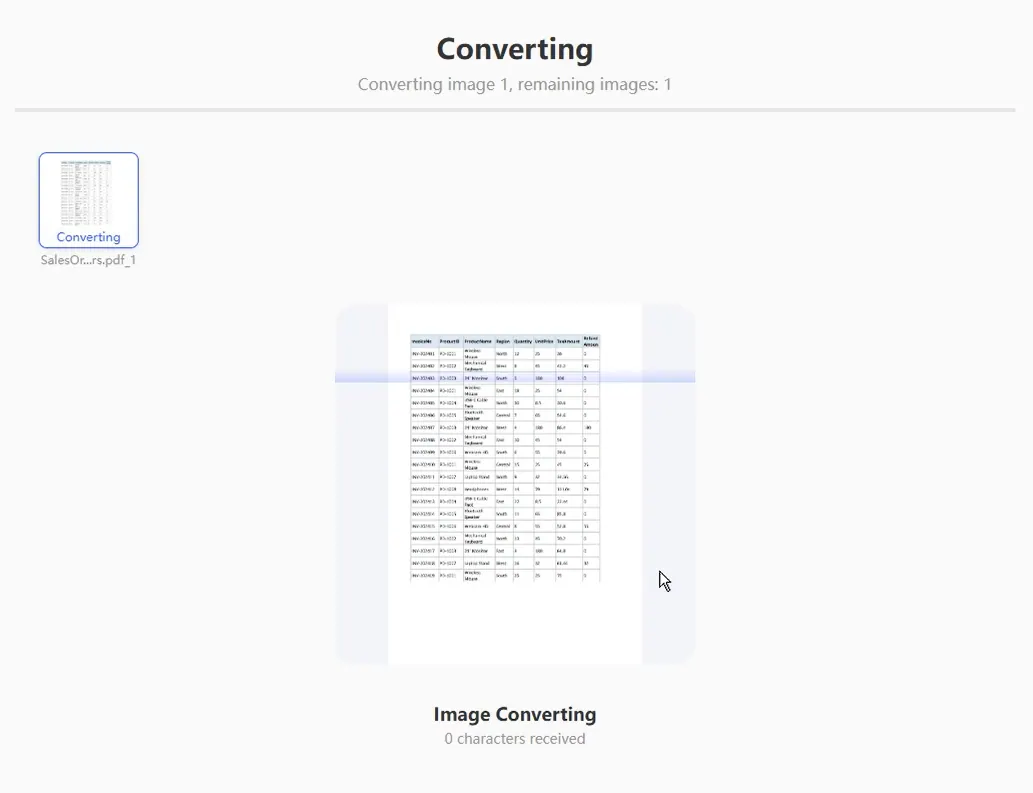
Convert this bank statement PDF into an Excel workbook. Extract every transaction into one row with date, description, reference, debit, credit, amount, and running balance. Preserve negative signs and currency. Create a separate Statement_Summary sheet with opening balance, closing balance, total debits, and total credits.
If the PDF uses separate debit and credit columns, keep them separate. If it uses one signed amount column, ask RowSpeak to preserve the sign and also add a normalized amount column.
Step 2: Run Balance Checks
The running balance is your best audit signal. After extraction, ask:
Check whether each transaction balance ties to the prior balance plus credits minus debits. Return a table of rows where the balance does not tie, including prior balance, debit, credit, extracted balance, expected balance, and difference.
This catches common conversion issues:
- A wrapped transaction description became a new row.
- A debit was extracted as a credit.
- Parentheses were ignored.
- A page subtotal was treated as a real transaction.
- A transaction near a page break was duplicated.
Step 3: Categorize Transactions Carefully
AI categorization is useful, but it should be reviewable. Do not ask for only a final total by category. Ask for a row-level category and confidence flag:
Categorize each transaction into Payroll, Rent, Taxes, Vendor Payment, Customer Receipt, Bank Fee, Transfer, Loan, Interest, or Other. Add a confidence column and a short reason column. Mark unclear rows as Review needed.
For recurring month-end work, add a mapping sheet:
| Rule type | Example |
|---|---|
| Contains text | "ADP" -> Payroll |
| Exact counterparty | "City Utilities" -> Utilities |
| Amount pattern | Monthly fixed rent amount -> Rent |
| Internal transfer | Same company account reference -> Transfer |
That gives the finance team something to inspect and improve month after month.
Step 4: Prepare the Spreadsheet for Cash Review
Once the data ties, create a cash review table:
| Metric | Why it matters |
|---|---|
| Total inflows | Shows cash collected during the period |
| Total outflows | Shows cash spent during the period |
| Net cash movement | Explains movement from opening to closing balance |
| Top payments | Helps identify large or unusual outflows |
| Unusual transactions | Surfaces items that need review before reporting |
You can ask RowSpeak:
Create a cash review summary from this bank statement. Show total inflows, total outflows, net movement, top 10 payments, top 10 receipts, and any unusual transactions compared with the rest of the month.
When to Use This Workflow
Use this workflow when bank data arrives as PDF statements, when you need to support a reconciliation, or when a stakeholder wants a quick cash view before the accounting close is complete.
If you already have a direct bank feed or CSV export, use that structured source first. PDF extraction is most valuable when CSV access is unavailable, delayed, or not approved.
Related Guides
- For vendor bills, see PDF invoice to Excel.
- For finance close controls, see PDF to Excel for finance teams.
- For conversion review, use the PDF to Excel accuracy checklist.
FAQ
Can RowSpeak handle multi-page bank statements?
Yes. Ask it to combine transactions across pages and remove repeated page headers. You should still run balance checks after conversion.
Should debit and credit columns be separate?
Keep the original structure if possible, then add a normalized signed amount column. That makes review easier and analysis cleaner.
What is the first thing to check after conversion?
Check whether opening balance plus total credits minus total debits equals closing balance. If that fails, do not use the file for reporting until exceptions are resolved.
Turn the Statement into a Working File
Use RowSpeak PDF to Excel to convert the statement, then keep the balance checks and exceptions with the workbook. The best spreadsheet is not just editable. It is reviewable.