An Excel AI agent is an AI workflow that can inspect spreadsheet data, plan analysis steps, calculate metrics, create visuals, explain results, and help turn the output into something a team can review and reuse.
For broader spreadsheet automation, RowSpeak's AI for Excel explains how natural-language analysis fits everyday Excel and CSV work.
That definition sounds neat. Real spreadsheet work is not neat.
A finance analyst may have one Excel workbook for actuals, a CSV export for budget, a PDF statement from a vendor, and a screenshot of a table from another system. A sales operations manager may have a CRM export with inconsistent stages, missing close dates, and manually edited account names. An ecommerce operator may have ad spend, orders, refunds, and inventory in separate files.
In those cases, the user is not looking for a formula helper. They are trying to move from messy files to a business answer:
- What changed?
- What caused it?
- What should go into the chart?
- What should go into the report?
- What still needs a human to check?
That is the real job of an Excel AI agent.
Key takeaways
- An Excel AI agent is different from a formula generator because it coordinates a multi-step spreadsheet workflow.
- The best agents do not only answer questions. They help clean, analyze, visualize, explain, and preserve review context.
- Business teams should evaluate Excel AI agents by file support, calculation reliability, chart/report output, correction flow, privacy, and repeatability.
- RowSpeak fits teams that need to turn Excel, CSV, PDF, screenshots, and exported business data into reviewable charts, dashboards, summaries, and reports.
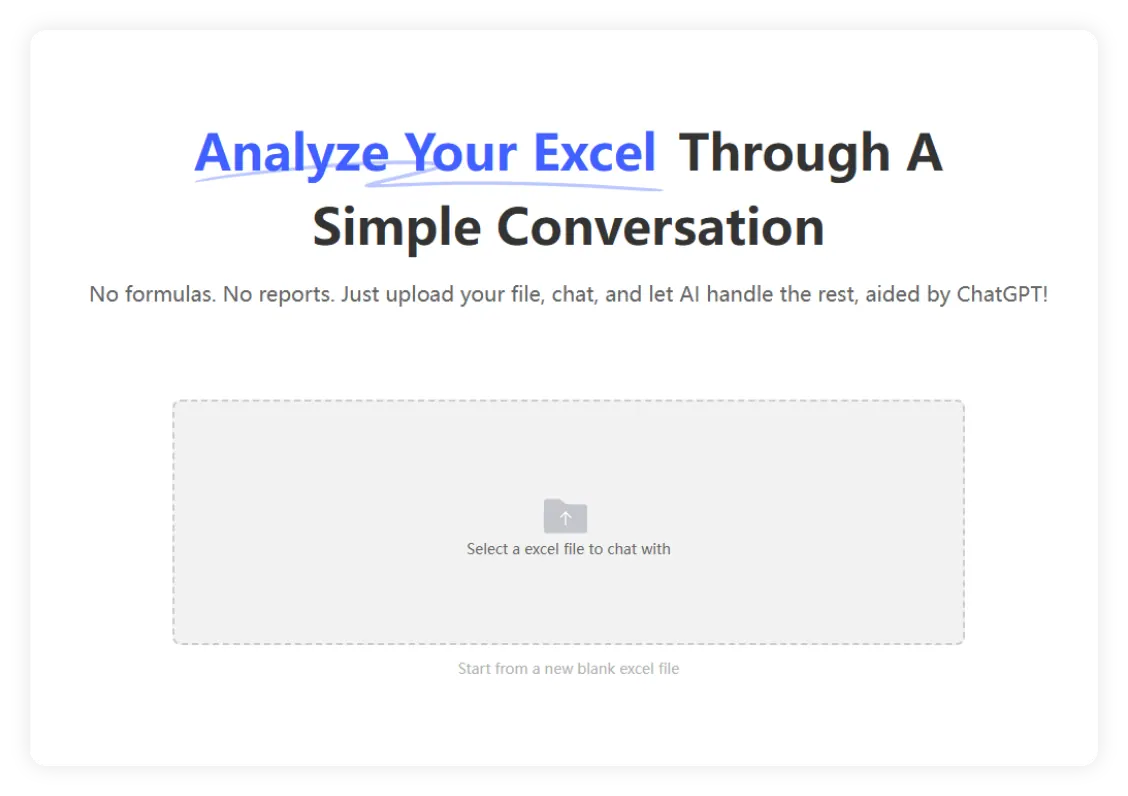
What is an Excel AI agent?
An Excel AI agent is software that uses AI plus workflow tools to help users complete spreadsheet tasks through natural language.
A basic AI assistant might answer:
Write an Excel formula that calculates gross margin.
An Excel AI agent should be able to handle a broader request:
Analyze this monthly sales workbook. Compare revenue, refund rate, and gross margin by region. Create a chart for the biggest change and draft a short management-reporting summary.
That second request requires several steps:
- Read the uploaded file.
- Identify sheets, columns, measures, dates, and segments.
- Check whether the data is clean enough to analyze.
- Choose a calculation path.
- Create a chart or table that supports the conclusion.
- Explain the result in business language.
- Show what the user should verify before sharing the output.
The word "agent" matters because the tool is not only generating text. It is helping coordinate a workflow.
Microsoft has pushed this category into the mainstream with Copilot experiences for Excel. Its current support page describes "Edit with Copilot" in Excel as the feature that was previously marketed as Agent Mode, and Microsoft explains that Copilot can help with multi-step spreadsheet editing tasks inside Excel. You can read the current Microsoft support page here: Edit with Copilot in Excel.
That market shift is useful, but it also creates a decision problem. Not every "Excel AI" tool is built for the same job.
Excel AI assistant vs Excel AI agent
The easiest way to understand the difference is to look at the output.
| Tool type | Typical input | Typical output | Best for | Limitation |
|---|---|---|---|---|
| Formula helper | "Write a SUMIFS formula" | Formula text | Quick Excel syntax help | Does not understand the whole workflow |
| Spreadsheet chatbot | "Summarize this table" | Text answer | Fast Q&A | May lose calculation and evidence context |
| Excel AI agent | "Analyze, chart, and draft a report" | Calculation, chart, summary, review notes | Business reporting workflows | Needs clear review and correction controls |
| BI platform | "Build a governed dashboard" | Modeled dashboard | Enterprise reporting | Often too heavy for ad hoc spreadsheet work |
For business teams, the useful middle ground is often the third row: an agentic spreadsheet workflow that can move faster than manual Excel without forcing every recurring report into a full BI build.
Why the search intent is changing
People searching for "Excel AI agent" are usually not asking one narrow question.
Some want to know whether Microsoft Copilot can do the work. Some want a list of tools. Some want to build their own agent. Some want to know whether AI can safely analyze finance or audit files. Some just want a faster way to create charts and reports from Excel exports.
That is why a useful answer needs to cover more than definitions.
DataSnipper's guide to Excel AI agents focuses on audit and finance workflows, with emphasis on traceability, evidence, and automation inside Excel. GPT for Work has also published an Excel AI agents benchmark that compares tools across common spreadsheet tasks. Both pages show the same pattern: the category is moving from "AI writes formulas" toward "AI helps complete spreadsheet work."
For RowSpeak, the ranking opportunity is slightly different. RowSpeak does not need to pretend every spreadsheet task belongs inside a single workbook. Many business workflows start from exported files: Excel, CSV, PDF tables, screenshots, and copied data. The stronger angle is:
an Excel AI agent should turn real business files into reviewable charts, dashboards, and reports.
What an Excel AI agent should actually do
A serious Excel AI agent should cover five jobs.
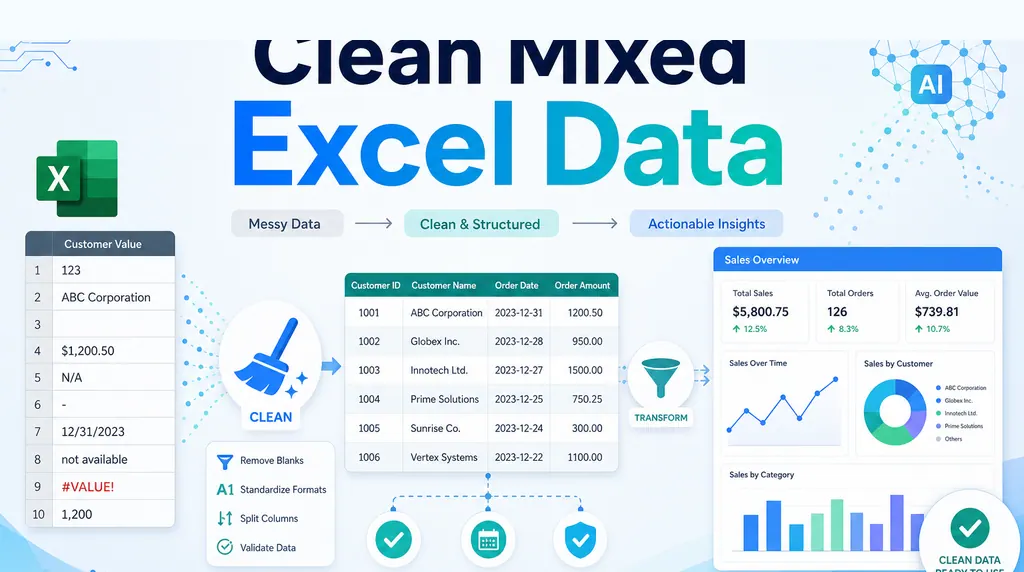
1. Understand messy business files
The agent should inspect the file before answering.
It should identify:
- sheets and tables
- column names and likely metric fields
- dates, categories, IDs, and measures
- blanks, duplicates, subtotal rows, merged headers, and inconsistent formats
- whether the question can be answered from the available data
This matters because many spreadsheet mistakes happen before the calculation. If the agent uses the wrong range, ignores a hidden subtotal, or treats a filtered export as the full dataset, the final chart may look polished while the answer is weak.
2. Convert a vague business question into analysis steps
Business users rarely start with a perfect prompt.
They ask:
Why did revenue drop?
A useful agent should translate that into a plan:
- compare the right periods
- calculate revenue by region, product, channel, or customer
- check refunds, discounts, volume, and missing data
- identify the largest drivers
- create a chart that makes the driver visible
- draft a short explanation that separates facts from assumptions
That translation is where an agent becomes more useful than a raw model.
3. Calculate with a method the user can inspect
For spreadsheet work, the answer should not depend only on fluent prose.
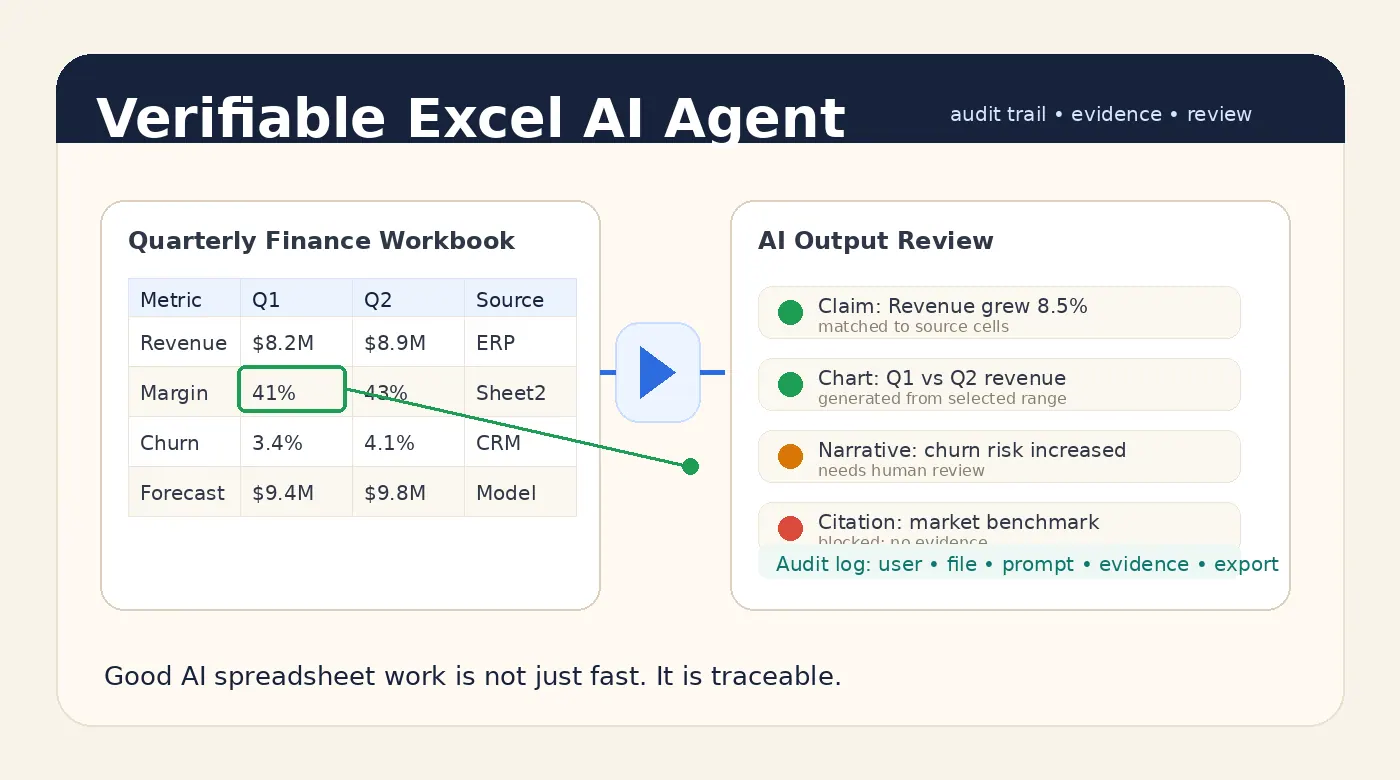
If the agent says margin improved by 6.8%, the user should be able to inspect which columns were used, which rows were included, and which formula or aggregation created the result.
This is why reviewable output matters. For a deeper discussion, see A Good Excel AI Agent Should Produce Answers You Can Verify.
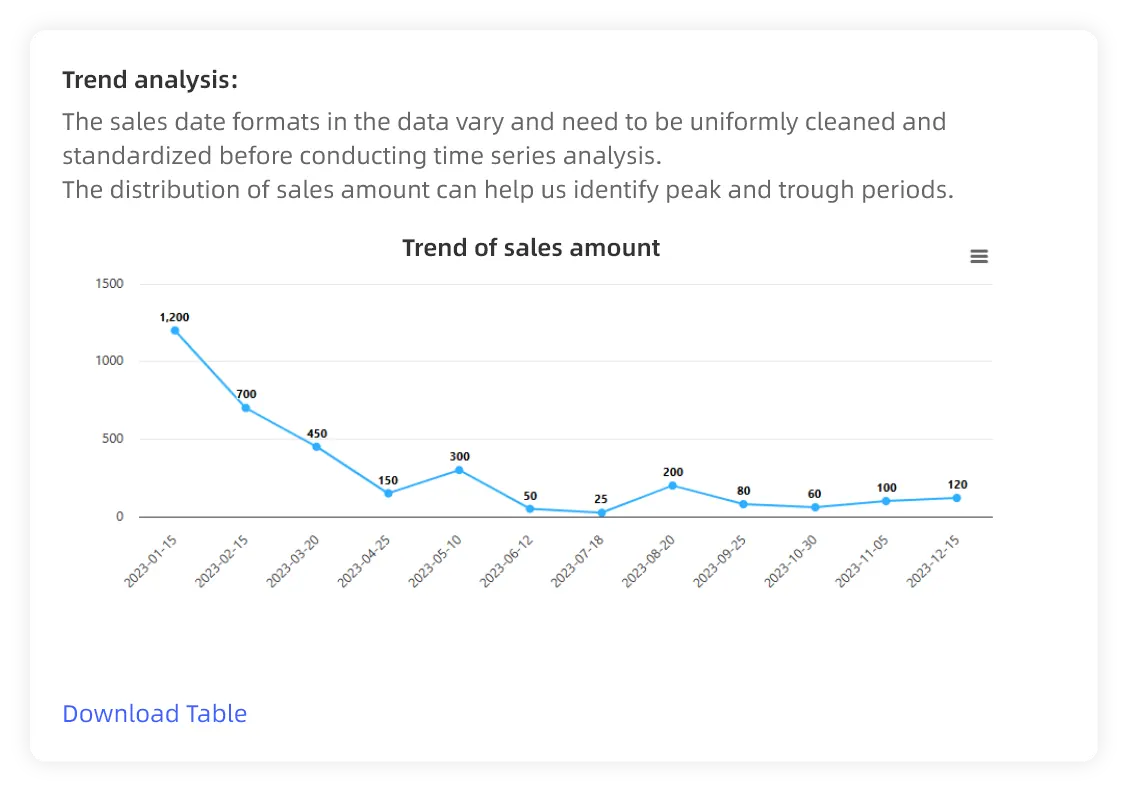
4. Create charts, dashboards, and report-ready summaries
Most business spreadsheet work does not end in a chat answer.
It ends in something someone else will see:
- a revenue chart
- a KPI dashboard
- a budget variance note
- a customer churn summary
- an inventory exception table
- a management report
An Excel AI agent should help produce those outputs without making the user rebuild pivot tables, chart ranges, and commentary from scratch.
5. Support correction and repeatability
The first AI answer is rarely the final business answer.
A manager may say:
Exclude wholesale accounts and rebuild the chart by region.
Or:
Keep the same metrics, but rewrite this as a CFO-ready variance note.
That correction loop is part of the workflow. A good agent should preserve context, make the adjustment, and keep the output reviewable.
A practical workflow: weekly sales reporting
Imagine a sales operations team receives a weekly Excel export with these fields:
| Column | Example |
|---|---|
| Order Date | 2026-05-29 |
| Region | West |
| Channel | Partner |
| Product | Pro Plan |
| Revenue | 18400 |
| Refund Amount | 720 |
| Account Segment | Mid-market |
The user asks:
Analyze weekly sales performance by region and channel. Compare this week with last week, flag any region with revenue down more than 8%, explain the likely drivers from the data, create a chart for the biggest change, and draft a management-reporting summary.
A weak output gives a paragraph.
A better agent workflow produces:
- A data-quality note: missing dates, duplicate rows, unusual refunds, or segments that need confirmation.
- A metric table: revenue, refund rate, net revenue, and week-over-week change.
- A driver analysis: which region, channel, product, or customer group created the movement.
- A chart: the visual that best explains the change.
- A short summary: what should go into the report.
- A review checklist: which assumptions the user should verify.
That is the difference between "chat with a spreadsheet" and a real reporting workflow.
Where RowSpeak fits
RowSpeak is built for spreadsheet-heavy teams that need to turn files into answers, reports, and dashboards.
The practical fit is:
- You have Excel, CSV, PDF, screenshots, image-based tables, or exported business data.
- You need charts, dashboards, summaries, or report-ready explanations.
- You need to ask follow-up questions and refine the output.
- You want something lighter than a BI implementation but more structured than a generic chat upload.
RowSpeak is not the right answer for every Excel task. If you only need a one-line formula, a formula helper is probably faster. If your company has a fully governed semantic model and needs enterprise dashboards across many systems, a BI platform may be the main layer.
RowSpeak is strongest when the work starts with messy business files and ends with a reviewable output.
How RowSpeak compares with common alternatives
| Option | Good fit | Where it can fall short |
|---|---|---|
| Microsoft Copilot in Excel | Users working inside Microsoft 365 who want workbook-native assistance | Best when the data already lives in a supported Excel workflow |
| ChatGPT or Claude | Ad hoc explanation, code help, quick exploration | Review, evidence, output reuse, and file workflow can be harder to manage |
| Formula generators | Fast syntax help | Not built for multi-step analysis or reporting |
| BI tools | Governed dashboards and recurring company-wide reporting | Heavier setup for ad hoc spreadsheet exports |
| RowSpeak | File-to-answer workflows from Excel, CSV, PDF, screenshots, and exports | Not a replacement for every Excel feature or every BI architecture |
For a deeper tool-by-tool breakdown, see Best Excel AI Agents for Business Reporting in 2026. If your main decision is Microsoft Copilot versus RowSpeak, read Copilot Agent Mode vs RowSpeak.
Prompt examples for an Excel AI agent
Use prompts that specify the file, metric, output, and review need.
Finance variance
Compare actuals against budget by department. Flag any category more than 10% over budget, calculate the variance amount and percentage, create a chart for the top three drivers, and draft a short management note with assumptions to verify.
Sales pipeline
Analyze pipeline by region, stage, and account segment. Calculate weighted pipeline, identify the regions most likely to miss target, and create a dashboard-style summary for the weekly sales review.
Ecommerce performance
Compare revenue, refund rate, ad spend, and gross margin by channel. Find the channel with the largest margin decline and create a chart that explains whether the issue came from traffic, refunds, discounts, or product mix.
Inventory review
Find SKUs with high inventory value, low movement, and more than 90 days of stock. Create an exception table and summarize which items should be reviewed first.
Monthly reporting
Turn this monthly export into a report-ready summary. Include KPI changes, notable exceptions, one chart, and a checklist of data-quality issues that should be reviewed before sharing.
Evaluation checklist
Before choosing an Excel AI agent, ask:
- Can it work with the file types your team actually uses?
- Can it inspect workbook structure before answering?
- Can it calculate metrics in a way the user can review?
- Can it create charts, dashboards, or report-ready outputs?
- Can the user correct assumptions and rerun the workflow?
- Does it preserve caveats instead of hiding them in polished prose?
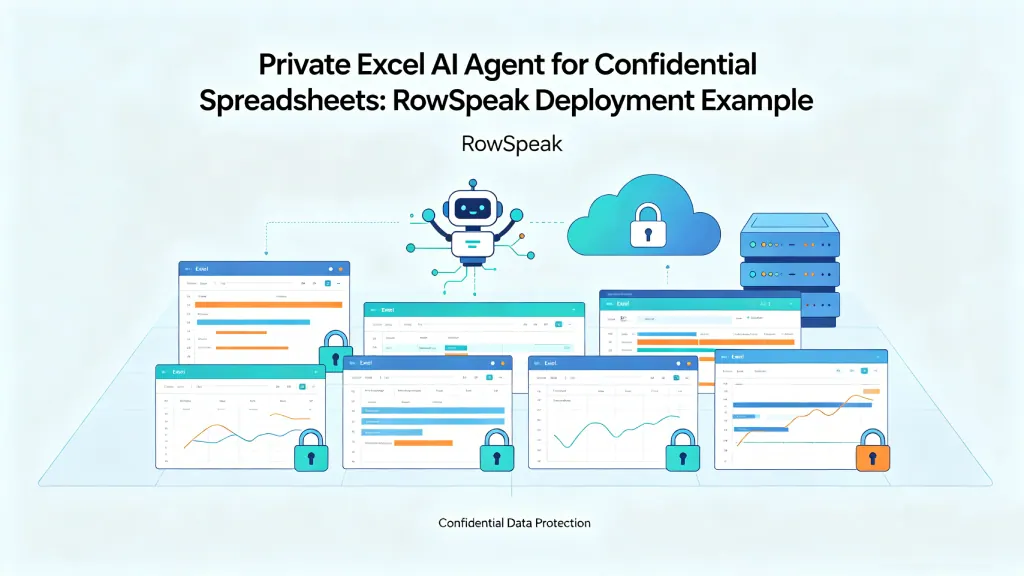
- Does it support sensitive data requirements?
- Does it fit recurring weekly or monthly reporting?
If the answer is mostly "no," the tool may still be useful, but it is probably an assistant rather than a business-ready agent.
FAQ
What is an Excel AI agent?
An Excel AI agent is an AI-powered spreadsheet workflow that can read files, interpret business questions, perform analysis, create charts or reports, and help users review the result.
Is an Excel AI agent the same as Microsoft Copilot in Excel?
No. Copilot in Excel is one important Excel AI workflow inside Microsoft 365. The broader category also includes tools that work outside Excel, accept exported files, or focus on reporting, dashboards, audit, or business analysis.
Can an Excel AI agent create dashboards?
Yes, if the tool supports dashboard or visual output. RowSpeak is designed to help users turn spreadsheet data into charts, dashboard-style KPI views, summaries, and reports. For more, see the Excel-to-dashboard workflow.
Can an Excel AI agent analyze PDF tables or screenshots?
Some tools can only work with Excel workbooks. RowSpeak is designed around broader business files, including Excel, CSV, PDF, screenshots, image-based tables, and exported data.
Is RowSpeak a BI tool?
RowSpeak is not a full replacement for enterprise BI. It fits the layer between manual Excel work and heavier BI: upload business files, ask questions, create visuals, review assumptions, and prepare outputs for reports or dashboards.
What is the best Excel AI agent for business reporting?
The best choice depends on the workflow. Microsoft Copilot may fit users who live inside Microsoft 365. RowSpeak fits teams that need to turn Excel, CSV, PDF, screenshot, or exported business files into reviewable charts, dashboards, summaries, and reports.
The bottom line
An Excel AI agent should not be judged by how confidently it answers a prompt. It should be judged by whether it helps a team move from real files to a result they can trust.
For business teams, that means file support, calculation discipline, reviewable outputs, correction flow, and repeatable reporting.
That is where RowSpeak's position is clear: take the spreadsheets and exported files your team already has, ask for the answer you need, and turn the result into charts, dashboards, and reports that can still be checked before they are shared.
Let Rows Speak.
Try RowSpeak with your next spreadsheet
Upload an Excel, CSV, PDF, screenshot, or image-based table. Ask for the chart, dashboard, summary, or report you need, then review the output before sharing it.