Creating one client report from an Excel pivot table is usually manageable. Creating 100 or more every month is a reporting process problem.
The workflow often starts with one large workbook. Someone filters a pivot table for one client, organizes rows, applies colors and subtotals, copies the result into a new workbook, adds a header and notes, then repeats the same steps for every client. At small scale, this feels like spreadsheet work. At 100 clients, it becomes a report factory.
This guide shows how to think about client Excel report automation as a repeatable workflow, not a one-off macro. The goal is to reduce manual filtering and copy-paste work while making each report easier to review before it reaches a client.
Key takeaways:
- Manual client reporting breaks when the report count reaches dozens or hundreds.
- The biggest risks are wrong filters, broken formatting, inconsistent notes, and sending one client's data to another client.
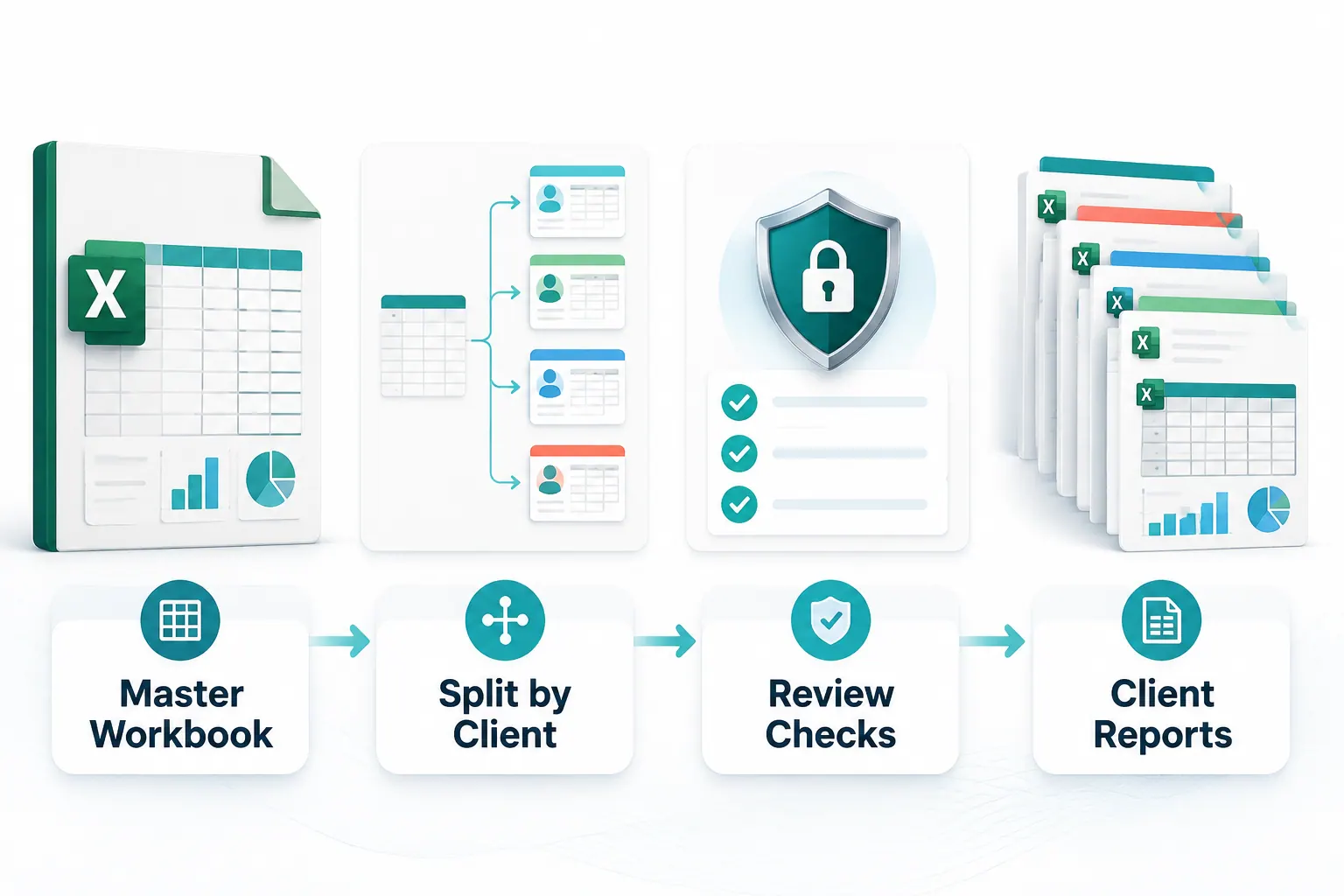
- A better workflow separates the master file, client split field, report template, quality checks, and final output.
- RowSpeak fits when Excel is still the source of truth, but the monthly reporting process needs to become repeatable and reviewable.
A real Excel reporting problem
A public r/excel thread captured the problem clearly. The user had been asked to generate 140 Excel reports for clients every month from a large pivot table. Each report required client-specific filtering, row organization, colors, subtotals, copy-paste into a new workbook, and extra notes before sending.
The same thread also surfaced the harder parts of the job. The pivot contained hundreds of clients, but the user only needed 140. The raw data was maintained by another team. The information was sensitive. The user was worried about one client accidentally receiving another client's data. Security restrictions also made it hard to download code or rely on an unapproved tool.
That is why this problem is larger than "how do I copy a pivot table faster?" It is a workflow design problem.
The person doing the work needs a way to repeat the same report logic every month, keep client boundaries clear, preserve a report structure, and review the output without becoming a VBA developer.
Why manual pivot table reporting breaks down
Manual reporting usually survives longer than it should because the first few reports are easy.
You filter the pivot table. You copy the visible rows. You paste them into a clean workbook. You adjust the formatting. You add the client's name, date range, and notes. You save the file with a familiar naming pattern.
The problem is repetition.
After the tenth report, small mistakes become more likely. After the fiftieth, the process depends on attention more than design. After the hundredth, the team is spending time on report production instead of report review.
The common failure points are predictable:
- Wrong filter: one client, region, or account is selected incorrectly.
- Missing rows: the pivot view hides data that should be included.
- Formatting drift: each workbook starts to look slightly different.
- Outdated notes: headers, date ranges, or commentary carry over from the previous report.
- Sensitive data leakage: a report includes rows, totals, or hidden tabs that belong to another client.
- Version confusion: different people edit different report files after export.
These are not just productivity problems. For agencies, consultants, account teams, finance teams, and white-label reporting teams, they can become trust problems.
What a good client reporting workflow needs
Before choosing VBA, Power Query, an AI tool, or a BI platform, define the workflow you want.
A good client reporting workflow has five parts.
1. One master source
This might be a pivot table workbook, a raw Excel export, a CSV file, or a report downloaded from another system. The important point is that every client report starts from the same controlled source.
2. One split field
The split field tells the workflow how to separate the reports. Common examples include Client Name, Account ID, Customer ID, Region, Partner, or Business Unit.
For client reporting, Account ID is often safer than Client Name because names can change, contain punctuation, or appear in several variations.
3. One report template
The template defines what every client receives. It should include the report period, client name, summary metrics, detailed rows, notes, and any required formatting.
The template should also define what not to include. For example, internal comments, hidden data, other-client rows, and raw source tabs should be excluded unless there is a clear reason to share them.
4. One review checklist
Every generated report should pass a short review before it is shared. The checklist should confirm the client filter, totals, row count, sensitive fields, date range, and file name.
5. One repeatable monthly run
The workflow should not be rebuilt every month. Ideally, the team replaces the source file, confirms the period, runs a small sample, reviews the output, then produces the full report set.
Common ways teams try to automate this in Excel
There is no single right answer for every team. The best method depends on report volume, formatting requirements, security rules, and who has to maintain the process.
| Method | Works well for | Where it breaks |
|---|---|---|
| Manual filtering and copy-paste | A few reports with simple formatting | Slow, inconsistent, and easy to mis-filter |
| Pivot table report filter pages | Quickly splitting a pivot by one field | Can create too many tabs and still needs cleanup |
| Power Query | Repeatable data preparation and cleanup | Less natural for final client-ready formatting and narrative |
| VBA macros | Custom Excel automation with precise steps | Requires code, testing, maintenance, and macro security approval |
| BI tools | Shared dashboards and interactive reporting | Heavy when clients need separate Excel files or report packs |
| RowSpeak | Spreadsheet-first reports, summaries, dashboards, and repeatable analysis workflows | Requires clear source files, prompts, and human review for client delivery |
The point is not that Excel automation is bad. VBA and Power Query can be excellent when the team has the skills and permission to maintain them. The problem is that many reporting teams need repeatability without turning every analyst into a part-time developer.
The short demo below shows the manual reporting problem in miniature. The useful idea is the contrast: if a report starts with repeated copy-paste work, the team should look for a repeatable workflow before the next reporting cycle.
A no-VBA workflow for client Excel report automation
Use this workflow before you try to generate every report at once.
Step 1: Prepare the master workbook
Start with the source file that controls the numbers. If you only have access to a pivot table and not the raw data, document that constraint.
Check the workbook for:
- the reporting period
- the client or account field
- the metric fields used in the report
- hidden rows, hidden columns, and hidden sheets
- filters or slicers already applied
- totals that should match after each client split
If another team owns the source data, keep a note in the workflow. That note matters when a client asks why a number changed or why a row appears in the report.
Step 2: Define the output before automating
Do not start with the automation tool. Start with the client output.
For each client, decide what the final report should contain:
- file format: Excel, PDF, report link, or a combination
- file name pattern, such as
ClientName_Monthly_Report_2026-06 - summary metrics
- detailed rows
- notes or commentary
- visible tabs
- excluded fields
- visual elements, such as charts or dashboard views
This step prevents a common mistake: automating a messy process exactly as it is.
Step 3: Choose the split field
The split field is the rule that separates one client's report from another client's report.
Use a stable field whenever possible. Account ID is usually better than Client Name. If the report must display the client name, use the ID for splitting and the name for presentation.
Before generating any reports, create a list of expected clients. Compare that list with the clients found in the source file. This catches spelling variations, missing clients, duplicate accounts, and clients that should not receive a report this month.
Step 4: Generate two or three sample reports first
Do not begin with all 140 reports.
Choose a small sample:
- one large client with many rows
- one small client with only a few rows
- one edge-case client with unusual formatting, missing values, or a changed account name
Generate these reports first, then inspect them carefully. Check whether the totals match the filtered master workbook. Confirm that the formatting works for both large and small report sizes. Read the notes as if you were the client.
If a small sample fails, a full batch will fail louder.
Step 5: Review each report before sharing
The review step should be explicit. It should not live only in the analyst's memory.
Use this checklist before sending client reports:
- Does the report contain only one client or account?
- Does the client name match the file name and header?
- Do report totals match the master file after filtering?
- Are hidden rows, hidden columns, and hidden sheets excluded?
- Is the reporting period correct?
- Are notes and assumptions updated for the current month?
- Are internal comments or sensitive fields removed?
- Is the report empty because there was no activity, or because the split failed?
For sensitive client data, review the first outputs more slowly than feels necessary. Speed matters, but trust matters more.
Step 6: Save the workflow for next month
The real value comes in the second month.
After the first run, save the workflow notes:
- source file location
- owner of the source data
- required columns
- split field
- expected client list
- report template
- naming convention
- review checklist
- known exceptions
Next month, you should not be asking, "How did we do this last time?" You should be asking, "Did the source file or client list change?"
Where RowSpeak fits
RowSpeak is useful when your team still works from Excel, CSV, PDF, screenshots, or exported business files, but the final output needs to be a report someone can review and share.
Instead of treating the spreadsheet as the final deliverable, RowSpeak helps teams turn files into answers, summaries, dashboards, and report-style outputs. For recurring client reporting, that means you can describe the source file, the split field, the report structure, and the review rules in plain language, then use the same workflow pattern again when the next file arrives.
For a client report workflow, RowSpeak is especially helpful in four places:
- Understanding the source file: inspect fields, identify missing values, and summarize what the file contains.
- Designing the report: turn a messy export or pivot output into a clear summary, detail section, and dashboard/report view.
- Writing reviewable commentary: explain what changed, which rows drove the change, and which assumptions should be checked.
- Making the process repeatable: reuse the same reporting instructions instead of rebuilding pivots, summaries, and notes from scratch.
If your team is comparing this with a heavier BI setup, start with the AI reporting workflow or the Excel AI workflow. If the report contains sensitive client or finance data, also review the private deployment path with your product and security teams before uploading production files.
The demo below shows the difference between a spreadsheet-first reporting workflow and a manual report-building loop. The details of your client report may differ, but the pattern is the same: upload the file, describe the output, review the result, and share a report instead of rebuilding the same workbook every month.
Example prompt for a client report workflow
Use a prompt like this as a starting point. Replace the field names with the names in your workbook.
I have uploaded a monthly Excel workbook used for client reporting.
The split field is Account ID.
The display name field is Client Name.
The reporting period is June 2026.
For each client, create a report structure with:
1. A short summary of total revenue, order count, refund amount, and net revenue.
2. A detail table with only that client's rows.
3. A note explaining the biggest change versus the prior month if prior-month data is available.
4. A review checklist that confirms the report contains only that client's data.
Before finalizing, flag any client with missing Account ID, duplicate names, empty output, or totals that do not match the master file after filtering.
This prompt is not magic. It works because it gives the workflow clear boundaries: source file, split field, report sections, period, and checks.
If your source is a pivot table instead of raw data, say that explicitly:
The source workbook contains a pivot table maintained by another team.
I do not control the raw data.
Help me design a repeatable monthly reporting workflow that uses the available pivot output, documents the data limitations, and reduces the risk of sending one client's data to another client.
Client report QA checklist
Use this checklist as a final gate before delivery.
| Check | Why it matters |
|---|---|
| Client filter | Confirms the report contains only the intended client |
| Row count | Catches empty reports and missing data |
| Total reconciliation | Confirms the report matches the filtered master source |
| Date range | Prevents sending the wrong reporting period |
| Hidden sheets and columns | Reduces accidental data leakage |
| Internal notes | Prevents private context from reaching clients |
| File name and header | Prevents delivery confusion |
| Sample review | Catches edge cases before a full batch run |
This is the part many teams skip because the report looks finished. It is also the part that protects the team when the report count gets high.
FAQ
Can Excel generate one report per client from a pivot table?
Yes, Excel has several ways to split or automate pivot-based reporting, including manual filtering, report filter pages, Power Query, and VBA. The right method depends on how much formatting, commentary, review, and client-specific packaging you need.
Should I use VBA for client report automation?
Use VBA when your team is comfortable maintaining code, testing macros, and working within your company's macro security rules. If the process changes often or the report owner is not technical, a no-code or AI-assisted reporting workflow may be easier to maintain.
Is Power Query enough for monthly client reporting?
Power Query is strong for repeatable data cleanup, reshaping, and combining files. It is less focused on final client-ready presentation, written commentary, and delivery review. Many teams use Power Query for data preparation and another workflow for reporting.
How do I avoid sending one client's data to another client?
Use a stable split field, generate a small sample first, reconcile totals against the filtered master file, remove hidden source tabs, and review every output before sharing. For sensitive client data, consider controlled environments and private deployment options before uploading production files.
Can RowSpeak replace a full BI tool?
Not always. BI tools are better when the organization needs governed dashboards, semantic models, live refresh, and broad self-service analytics. RowSpeak fits when the team starts from business files and needs faster answers, reports, dashboards, and repeatable analysis workflows without building a heavy BI stack first.
Turn the report factory into a workflow
If your team spends days every month creating client Excel reports, do not begin by asking for a bigger macro. Begin by documenting the workflow.
Name the master source. Choose the split field. Define the report template. Write the checks. Generate a small sample. Review the outputs. Then repeat the same process next month.
That is how monthly client reporting moves from manual production to a controlled workflow. RowSpeak can help you turn the spreadsheet into a report your team can review, explain, and share.
Try RowSpeak on your next recurring report workflow: https://dash.rowspeak.ai