If you are looking for a Grok for Excel alternative, do not start with the model name. Start with the spreadsheet workflow and the data boundary.
An analyst working in one controlled workbook may need help writing a formula, cleaning a column, or explaining a calculation. A finance or operations team may need to combine exports, check totals, explain a variance, and send a report to leadership. Both jobs use Excel, but they are not the same AI problem.
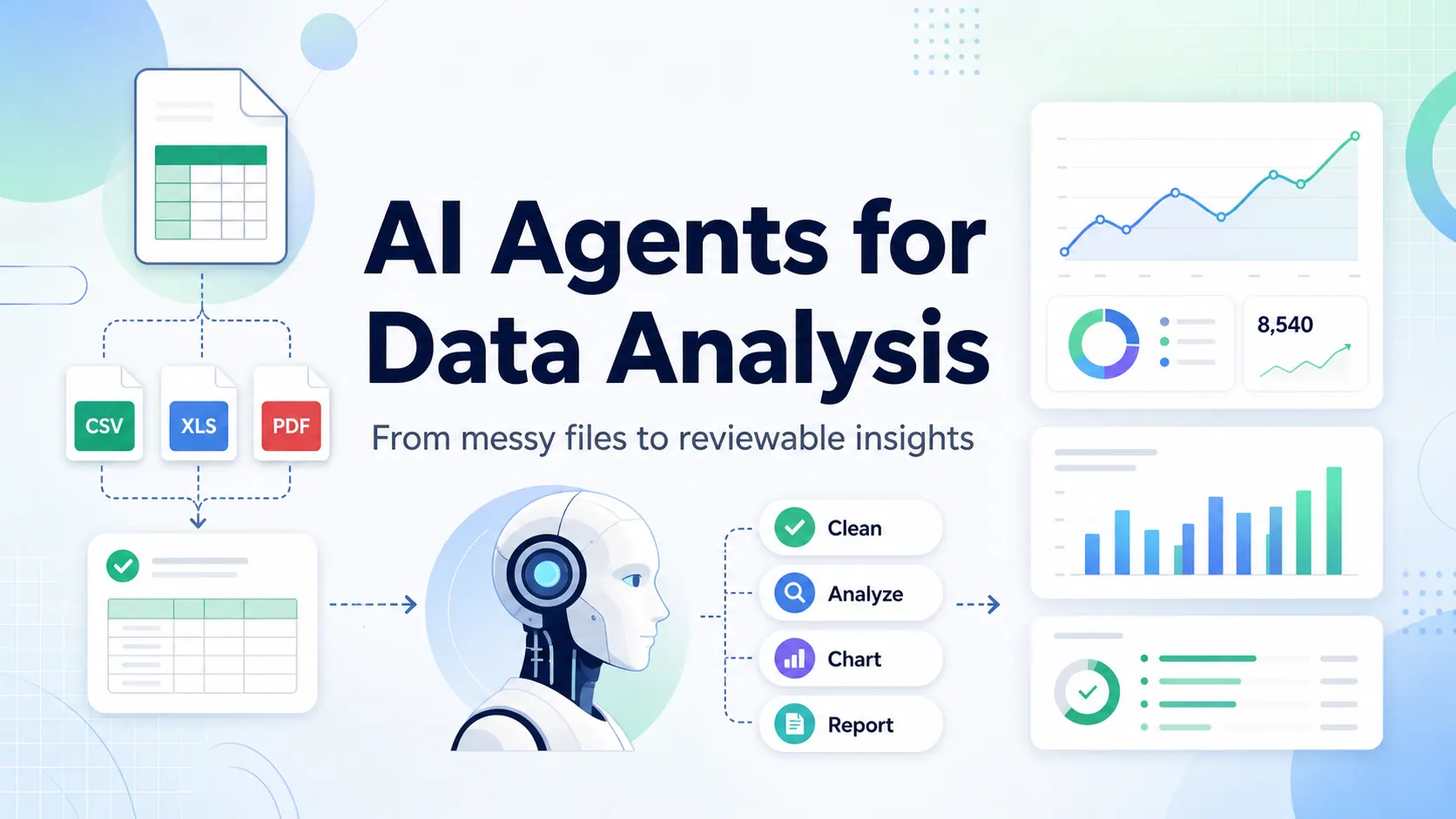
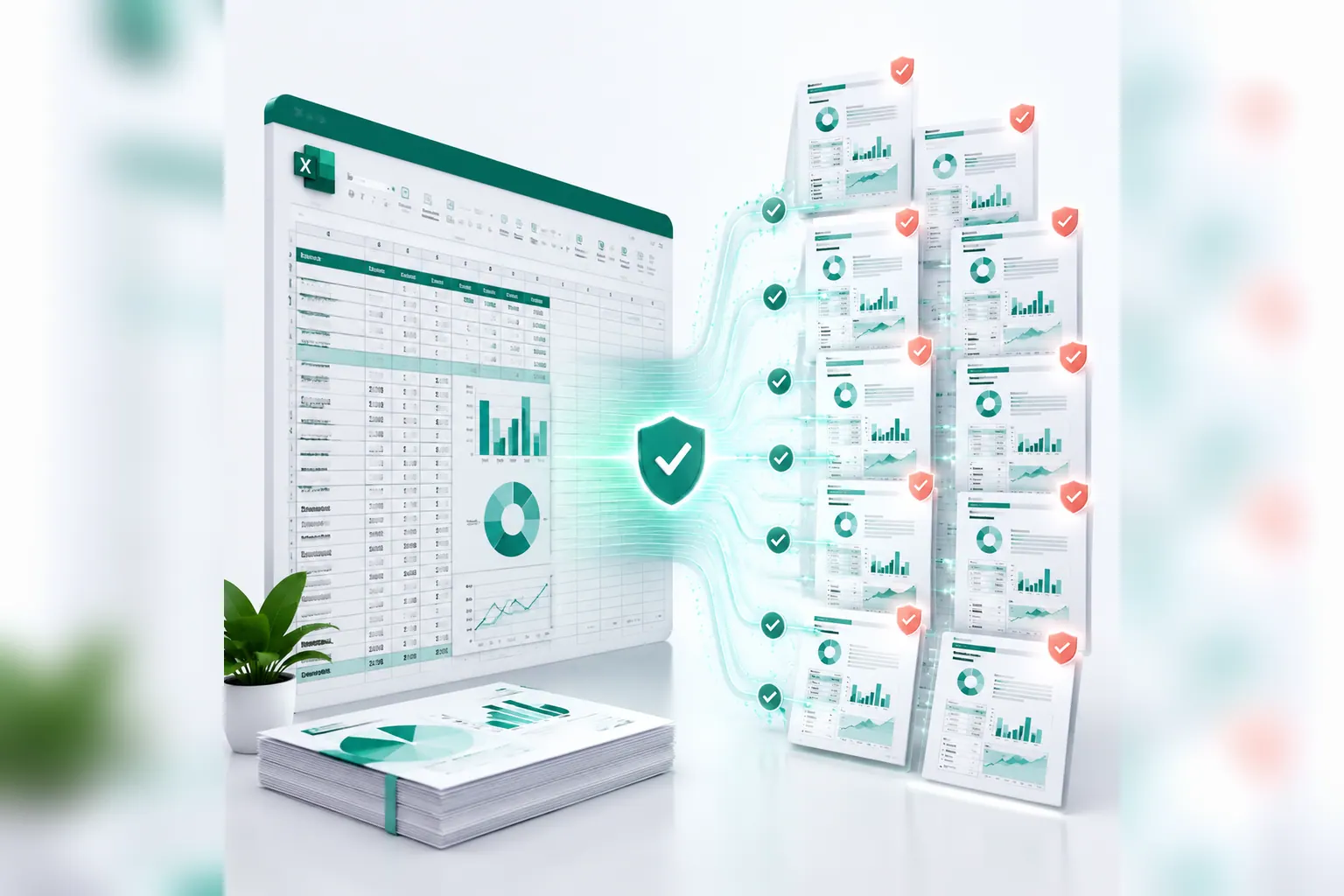
That is the practical difference between a Grok-style, cell-level Excel workflow and RowSpeak. The first is aimed at assistance in or close to individual cells and ranges. RowSpeak is designed for the work that happens after an export: turning business files into reviewable answers, charts, dashboards, and reports.
Privacy is part of that choice, but it is not a badge a vendor can simply claim. You need to know what leaves the workbook, where it goes, who can access it, how long it remains there, and how your team can review the result before sharing it.
A note on terminology: “Grok for Excel” can describe different add-ins or Excel-plus-Grok setups. Exact features, licensing, data handling, and availability can vary by version and account. This article compares the common cell-level AI assistant pattern with RowSpeak's file-to-report workflow; confirm a specific Grok configuration with the provider before approving it for company data.
Key takeaways:
- A cell-level AI workflow is useful when the workbook remains the deliverable and you need help with formulas, transformations, or short explanations in a selected range.
- RowSpeak fits when the work starts with Excel, CSV, PDF, screenshots, or exported data and ends with a reviewable analysis, dashboard, or management report.
- “Private” should mean a documented data path. For sensitive files, check storage, model inference, access, logging, retention, and any external API calls—not only the product name.
- You do not always need to choose one tool. Some teams use Excel-native assistance for workbook work and a separate reporting workflow for the approved export.

The short answer
Use a Grok-style Excel assistant when the task is local to a workbook: generate or explain a formula, classify values in a column, rewrite text, or help a user understand a sheet. The workbook owner should inspect the output in Excel.
Use RowSpeak when the task begins with real business files and ends with a business-facing output. That may mean reconciling several exports, identifying drivers behind a KPI change, creating a chart, drafting an executive summary, or producing a dashboard for review.
If the files include payroll, employee data, customer details, financial close data, or regulated information, the deciding question becomes more specific: can the proposed deployment keep files, processing, outputs, and logs inside the boundary your organization approves? RowSpeak has a private deployment option for teams that need to evaluate that architecture.
Grok for Excel vs RowSpeak: the workflow comparison
| Decision area | Grok-style cell-level Excel workflow | RowSpeak file-to-report workflow |
|---|---|---|
| Starting point | A cell, selected range, formula, or existing workbook | One or more business files: Excel, CSV, PDF, screenshots, or exported tables |
| Typical question | “Write a formula for this column” or “Explain this sheet” | “Why did gross margin fall, and what should the management report say?” |
| Typical output | Formula suggestion, transformed cells, classification, short explanation | Analysis, charts, dashboard-style views, written summary, and report-ready output |
| Best scope | A workbook task the spreadsheet owner can inspect directly | A multi-step reporting task that needs context across files and a shareable result |
| Privacy decision | Verify what selected cells, prompts, formulas, and references are sent to the service | Choose the deployment and model path; for sensitive use cases, evaluate private deployment and the full data flow |
| Review point | Review formulas, values, references, and changed cells before saving | Review file coverage, control totals, KPI definitions, assumptions, charts, and report language before sharing |
For example, an operations analyst with one inventory workbook may ask an Excel assistant to standardize supplier names or write an XLOOKUP. That is a valid cell-level job. A monthly operations report might require the inventory export, purchase-order export, returns CSV, and a PDF supplier report. The team then needs an exception list, a chart, an explanation, and a reviewable report. That is a file-to-report job.
For a wider view of where Excel-native assistance, file-based AI, and BI each fit, see AI vs Excel vs BI in business reporting.
Function comparison: cell help versus report work
A cell-level assistant reduces friction inside Excel: it is useful for text changes, formula drafting, column categorization, and unfamiliar logic. The analyst stays close to the data and can inspect the result in the workbook.
The model becomes less complete when work crosses files and produces something other people must consume. A manager needs the reporting period, approved revenue total, drivers, exceptions, and assumptions—not only a generated formula. RowSpeak helps teams move from files to analysis, charts, summaries, and reports. Keep Excel when cell-level formulas, scenario modeling, and workbook approvals are the deliverable; use a file-to-report workflow when exports, reconciliation, explanation, and recurring reporting dominate.
A concrete example
Imagine a regional sales manager receives four files at month end:
CRM_pipeline_June.xlsxOrders_June.csvRefunds_June.csvAd_spend_June.xlsx
With a cell-level workflow, the manager may improve calculations inside one file. With a file-to-report workflow, the manager can ask for the business outcome:
Analyze these June exports. Reconcile orders and refunds to net revenue.
Compare net revenue, refund rate, and ad spend with May by region and channel.
Create a chart for the largest change, list exceptions that need review,
and draft a five-bullet management summary. State any assumptions clearly.
The result still needs review. The point is that the request names the files, the metrics, the comparison period, the desired output, and the checks. This is the shape of an AI reporting workflow, not a single-cell task.
Controlled evidence: chart, controls, and the reporting surface
To make this example checkable, use the downloadable BusinessMetrics.xlsx fixture. It contains 30 data rows and 12 fields. The chart below is a deterministic aggregation of that source file: Product B contributes $1.72m of the workbook's $3.455m revenue total. It is not a claimed result from Grok or RowSpeak, and it is not a speed or accuracy benchmark.
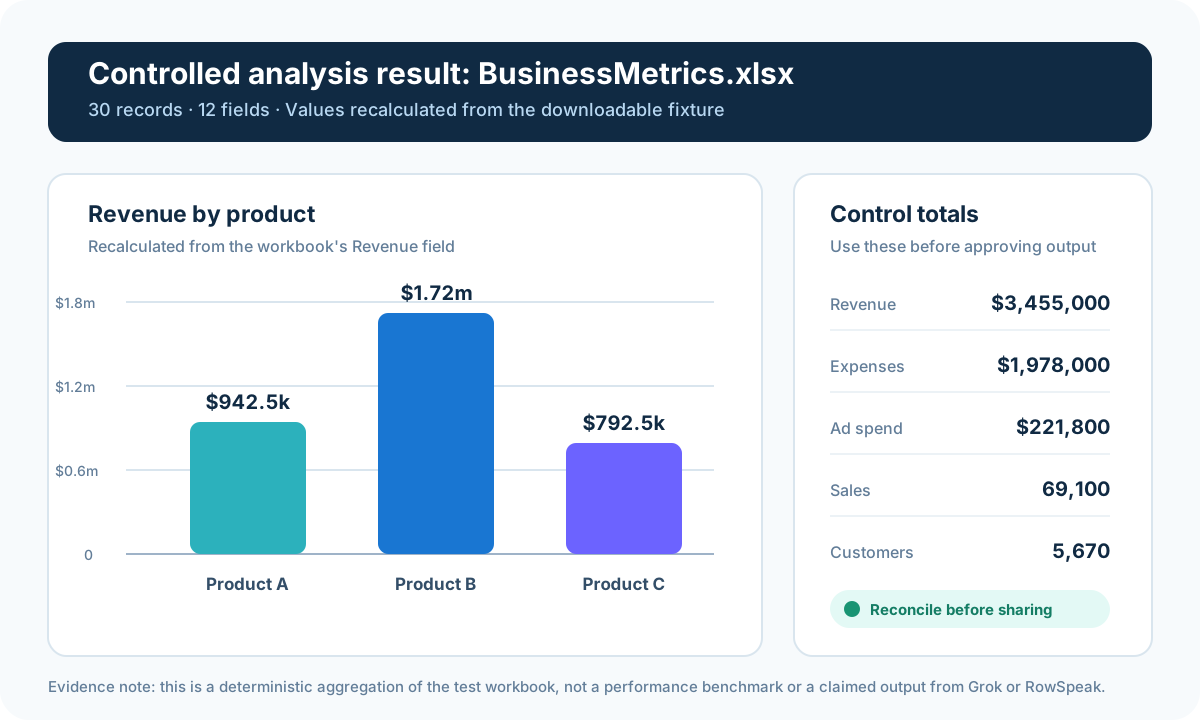
Before approving any AI output from this file, compare the imported result with the controls below. A chart that looks plausible but fails one of these checks should not be shared.
| Control | Fixture baseline | Recalculated result | Review status |
|---|---|---|---|
| Data rows | 30 |
30 |
Match |
| Columns | 12 |
12 |
Match |
| Ad Spend total | 221,800 |
221,800 |
Match |
| Sales total | 69,100 |
69,100 |
Match |
| Revenue total | 3,455,000 |
3,455,000 |
Match |
| Expenses total | 1,978,000 |
1,978,000 |
Match |
| Customers total | 5,670 |
5,670 |
Match |
The next image is a recorded RowSpeak dashboard surface from a separate sales example. It shows the kind of output a file-to-report workflow can create: filters, KPI cards, charts, and written context. It is intentionally labelled as a product-surface example, not proof that the BusinessMetrics figures above were generated by RowSpeak.
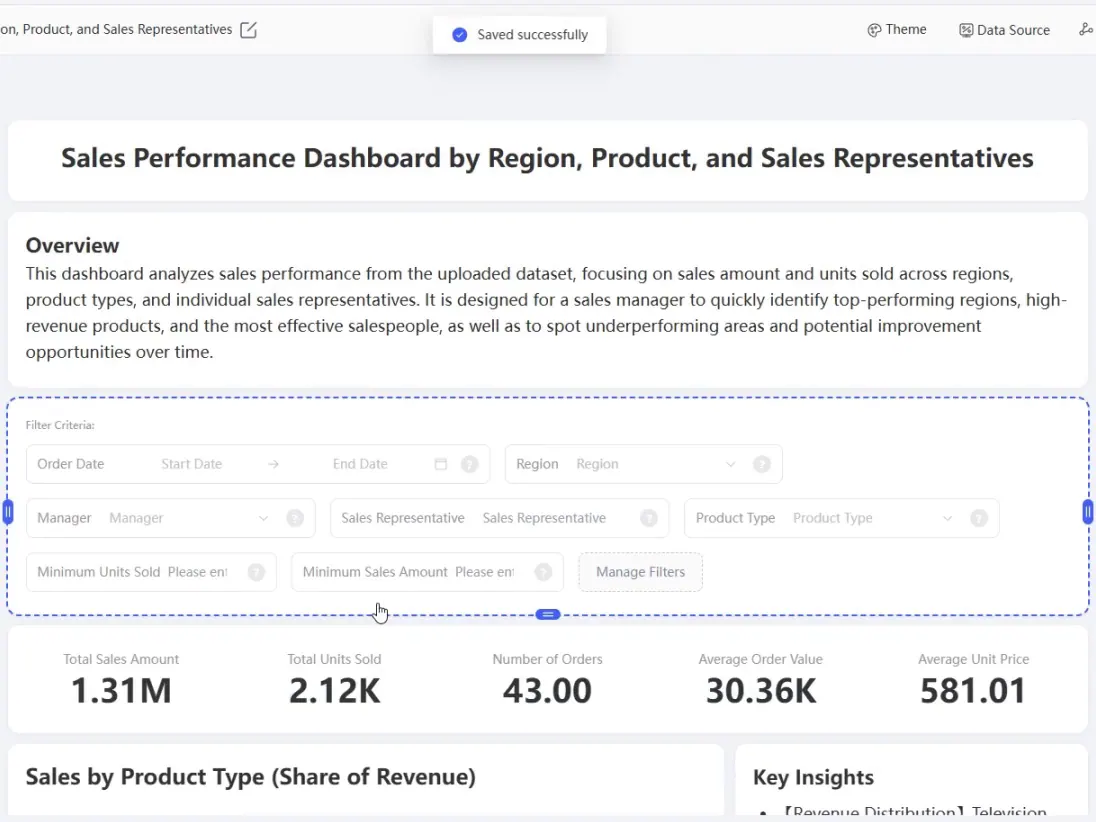
This distinction matters. A visual dashboard demonstrates an output surface; the control totals, source mapping, and assumptions are what make that output reviewable.
Privacy comparison: ask for a data path, not a promise
“Does this AI respect my data?” needs a more detailed answer than yes or no. A selected Excel range may contain account names, prices, employee IDs, customer emails, formulas, or references to hidden sheets. Even a few cells can carry more business context than the user expects.
Compare the data paths before comparing features
The diagram below separates two questions that are often blurred together. A Grok-related Excel integration requires version-specific verification of what crosses the boundary. RowSpeak Private Deployment can keep the application, storage, in-environment model route, outputs, and logs inside an organization boundary; an optional external model route still needs separate approval.
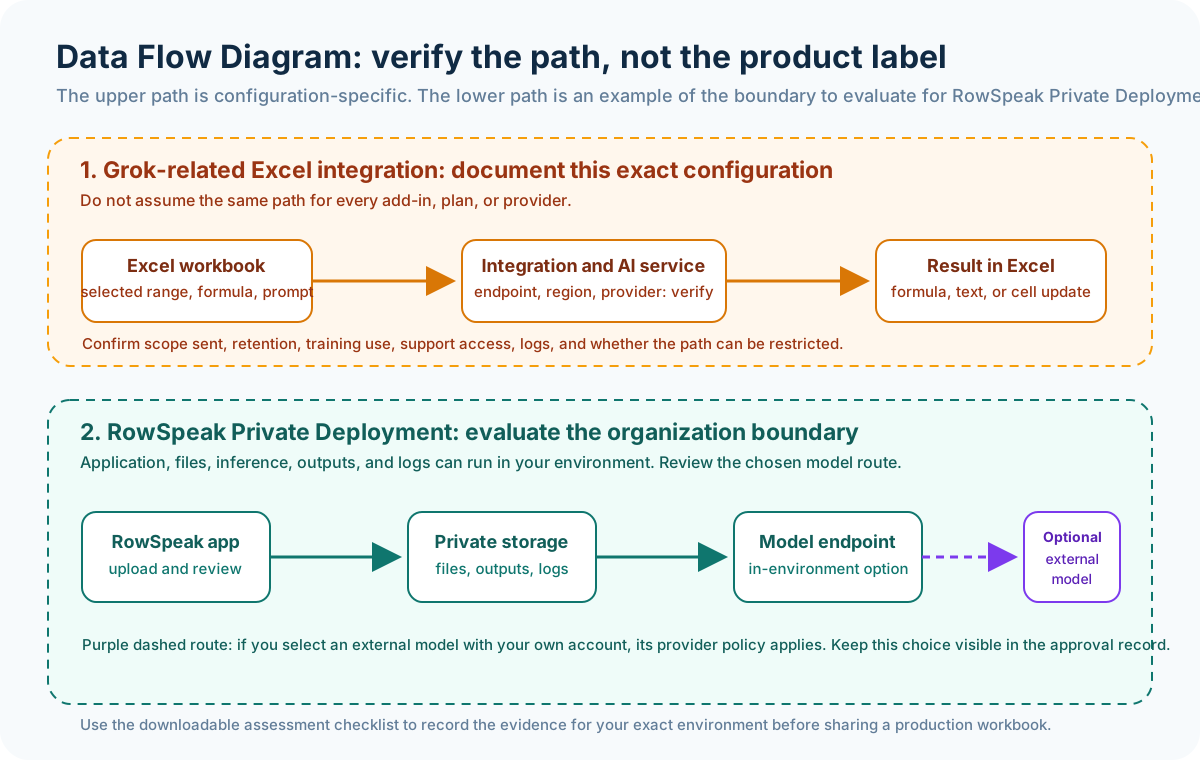
Read the orange lane as a procurement checklist, not a claim about every Grok configuration. Read the purple dashed route as a reminder that a private application deployment does not make an external model call private by default.
Before enabling a Grok-related Excel integration or any spreadsheet add-in, ask the vendor or administrator to document:
- What leaves Excel? Is it only the selected range and prompt, the whole workbook, formula references, workbook metadata, or something else?
- Where does it go? Identify the service endpoint, hosting region, subprocessors, and any separate add-in provider.
- How is it used and retained? Confirm retention, training use, deletion, and support-access terms for the exact account tier.
- Who can access it? Check identity controls, workspace access, admin visibility, audit logs, and sharing settings.
- Can the path be controlled? Ask whether outbound calls can be restricted, whether a private network is supported, and what happens when the model service is unavailable.
Do not let a team answer these questions from a marketing page alone. Put the answers in the procurement record and test them with IT or security.
What changes with RowSpeak private deployment
For organizations that need stronger data boundaries, RowSpeak Private Deployment can run the application, file storage, model inference, generated outputs, and activity logs inside the organization's own environment. The data security overview explains the intended boundary and the technical questions to review.
That does not mean you should skip architecture review. A private deployment can use an in-environment model for maximum data sovereignty, or it can be configured to call an external model with the organization's own API account. Those are materially different data paths. If an external model is used, the relevant model-provider policy still applies.
The useful decision rule is simple: if a file must not leave your approved network, do not rely on an unverified public-AI workflow. Evaluate a private deployment, the model route, storage, access controls, logging, and retention together.
Workflow comparison: where do you put the review gate?
In a cell-level Excel workflow
The review gate is usually the workbook itself:
- Select a small, non-sensitive sample range first.
- Ask for one formula or transformation.
- Check the formula references, output values, blanks, and error cells.
- Compare the result with a manual calculation or known rows.
- Apply the change only after the workbook owner approves it.
This is an efficient process for a controlled worksheet. It is not a reporting process by itself.
In a RowSpeak reporting workflow
The review gate sits between the files and the shared result:
- Record the source files, reporting period, row counts, and key control totals.
- State the metric definitions and exclusions before prompting.
- Ask for analysis, charts, and a report draft from those inputs.
- Reconcile the output to the controls and inspect the driver table, exceptions, and assumptions.
- Edit or approve the report before sending it to leadership, a customer, or another team.
For a recurring process, save the prompt, control totals, cleanup rules, and report structure. The next month's export may change a header, add a category, or contain duplicate rows. A repeatable workflow should surface that change for review instead of silently producing a plausible-looking report. The monthly CSV reporting workflow shows how to make those checks part of the routine.
Who should choose which tool?
Choose a Grok-style cell-level Excel workflow when these are true:
- The work happens in one workbook that remains the system of record.
- The task is formula help, text transformation, data cleanup, or sheet explanation.
- The workbook owner can inspect every proposed change.
- You do not need to merge several exports into a management-ready output.
- Your IT team has approved the integration's exact data path.
Choose RowSpeak when these are true:
- The work starts from exports, messy workbooks, CSVs, PDFs, screenshots, or several related files.
- The useful output is an answer, chart, dashboard, executive summary, or report—not only updated cells.
- Someone needs to review assumptions, control totals, and exceptions before the work is shared.
- The task repeats every week, month, or quarter.
- The team needs a practical layer between manual Excel work and a larger BI project.
Choose RowSpeak Private Deployment for evaluation when the data includes financial close files, payroll, HR records, customer-level data, legal documents, or other information that cannot follow an unapproved external route. Review the deployment architecture with security and IT before uploading a production file.
Some teams will use both approaches. An analyst can keep an approved workbook workflow for cell-level work, then use a controlled RowSpeak deployment to turn the finalized export into a reviewed report. The boundary should follow the data and the deliverable, not a preference for one AI brand.
A 30-minute evaluation you can run safely
Avoid testing a new spreadsheet AI tool with a live payroll or customer workbook. Create a representative, anonymized file and run the same test through every candidate.
Download the Spreadsheet AI Data Security Assessment Checklist (PDF). It combines the five security questions, the 30-minute test, the control-total review, and an approve/hold/reject decision record so IT and the business owner can review the same evidence.
Use this short evaluation:
- Use an anonymized, representative sample with known control totals. The included
BusinessMetrics.xlsxfixture has 30 rows; if you build your own, include 50–100 realistic rows, a few blanks, one duplicate, and a renamed category. - Ask a cell-level tool to write one formula, explain it, and transform one sample column. Inspect references and errors.
- Ask a reporting tool to explain a KPI movement, create one chart, and draft a short summary. Check the result against the controls.
- Change one column name or add a new category. See whether the tool requests clarification, preserves the mapping, or silently changes the meaning.
- Document what data was sent, who could access it, how long it was retained, and whether your admin could audit the test.
The best result is not the most polished sentence or chart. It is the result your team can reconcile, explain, correct, and approve.
The decision: respect is a workflow property
Grok for Excel and RowSpeak address different points in spreadsheet work. The key privacy question is not the model label; it is whether the workflow has a documented data path and enough control for the sensitivity of the file. Keep a human review step, test on anonymized data, and choose a deployment model your organization can approve.
Before a pilot, download the checklist and complete it with the file owner, IT, and security team. If the answers point to a controlled in-environment workflow, request a private deployment architecture review with the completed assessment instead of sending a production workbook into an unverified path.