It is Monday morning. Revenue is down 12%.
The dashboard shows the drop. The KPI card is red. The trend line points in the wrong direction. The meeting starts in 30 minutes, and the first question from leadership is not "what happened?"
They already see what happened.
The real question is:
Why did the number move, which customers caused it, and what should we say about it?
That is where many dashboards stop short. They are useful for visibility, but business teams still need an explanation they can trust, review, and share. This is why teams often leave a dashboard, export the data to Excel, and start rebuilding the story by hand.
AI reporting is not a replacement for every dashboard or BI platform. It is the missing layer after the dashboard: the layer that turns metric movement into a grounded answer.
Key takeaways:
- Dashboards are good at showing what changed, but they often leave the "why" to the analyst.
- Business teams keep asking for Excel exports because they need control, follow-up analysis, and a way to explain the numbers.
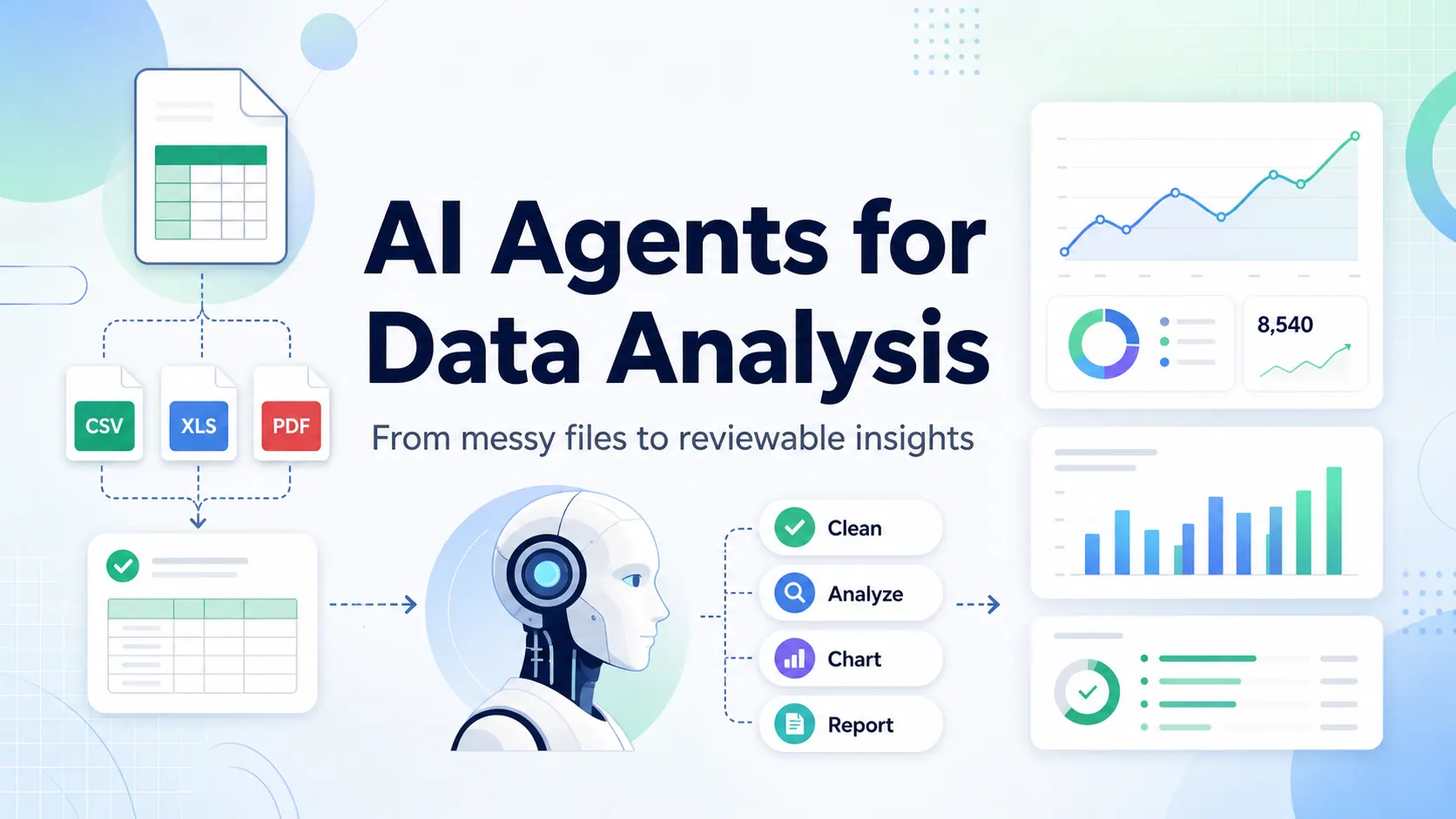
- RowSpeak fits between raw spreadsheet work and heavy BI by turning Excel, CSV, PDF, screenshot, and table exports into answers, reports, and dashboard views.
The Dashboard Is Usually the Start, Not the Answer
A dashboard is a monitoring surface. It helps a team see KPI movement, compare periods, scan trends, and notice exceptions.
That is valuable. A sales dashboard can show that pipeline dropped. A finance dashboard can show that expenses exceeded budget. An ecommerce dashboard can show that refunds increased. An operations dashboard can show that late shipments rose in one region.
But the dashboard usually does not finish the business conversation.
After the metric moves, the next questions are more specific:
- Which customers, products, regions, stores, campaigns, or reps caused the change?
- Was the movement caused by volume, price, mix, refunds, churn, timing, or data quality?
- Is this a one-time event or the start of a trend?
- Which rows should be reviewed before the answer is shared?
- How should this be written in a weekly update, board note, or client report?
The dashboard can point to the problem. The explanation still has to be built.
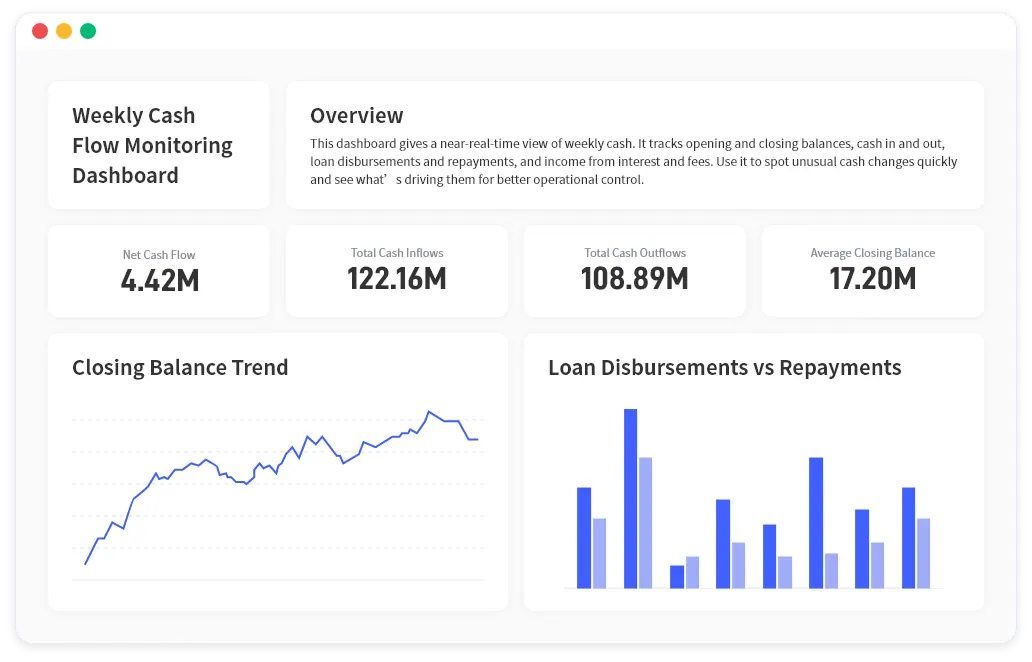
That is the gap RowSpeak is designed to help with. Instead of stopping at a chart, your team can use the source files behind the dashboard to create a reviewable answer.
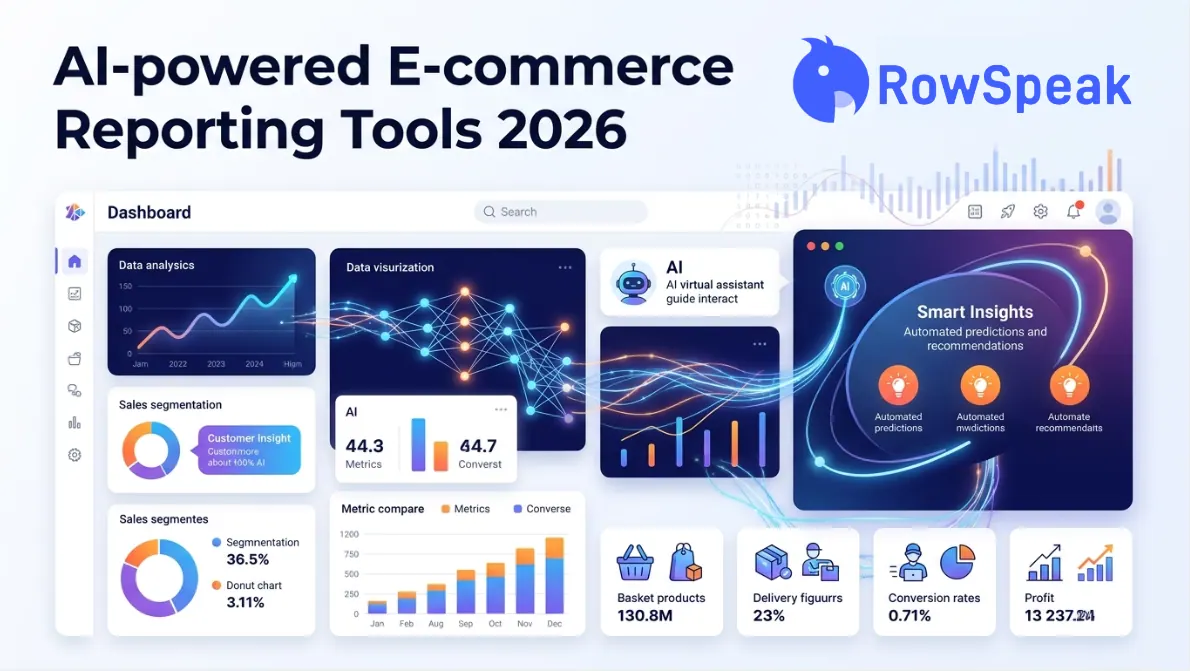
For example, a RowSpeak report view can combine KPI cards, charts, and a plain-language overview in the same output, so the reader sees both the metric movement and the beginning of the explanation.
Why Teams Still Ask for Excel After Seeing a Dashboard
If dashboards already exist, why do business users still ask for the raw export?
Because Excel gives them control.
They want to filter one region, isolate one customer, check whether a category was included, test a different calculation, or prepare a short explanation for a manager. In public BI discussions, this pattern shows up repeatedly: dashboard and report builders create polished views, but business users still ask how to get the data into Excel so they can investigate it themselves. One older Hacker News comment from a Fortune 500 BI developer describes years of report and dashboard work followed by the same user question: how to get it into Excel. A later r/BusinessIntelligence thread shows a similar pattern, with business users preferring Excel because they can wrangle data independently.
That does not mean dashboards failed. It means dashboards solved only one part of the job.
Visibility is not the same as explanation.
Excel is not always better than BI, either. Manual spreadsheet work can create version drift, hidden assumptions, fragile formulas, and copy-pasted summaries that are hard to review. The real need is a workflow that keeps the flexibility of file-based analysis while making the output more structured.
That is where an AI reporting workflow can help.
What an Answer Layer Adds
An answer layer sits after the dashboard and before the meeting, email, or report.
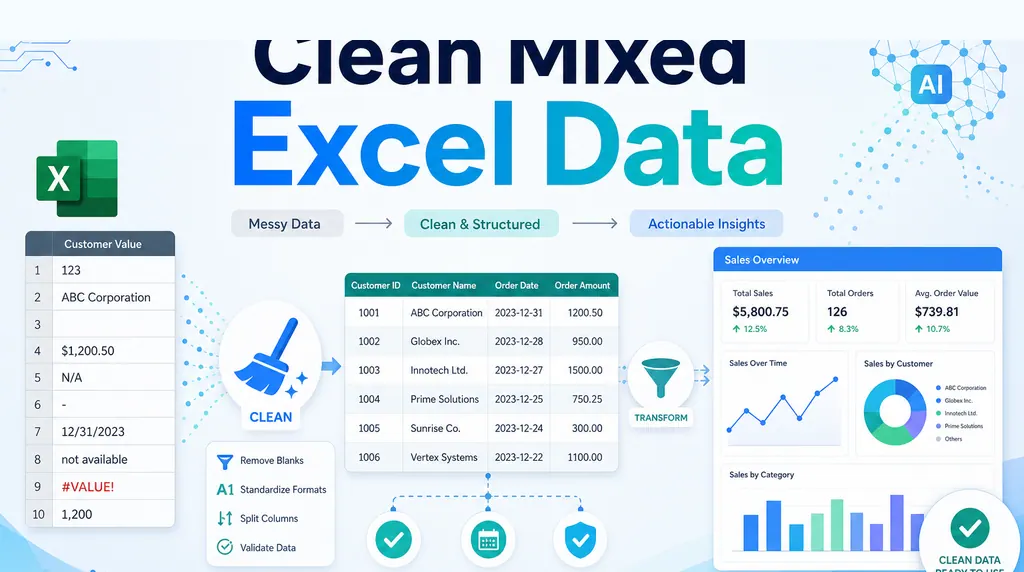
It takes the question that the dashboard raises and turns it into a structured explanation. The input may be an Excel workbook, a CSV export from the BI tool, a PDF report, a screenshot of a table, or a monthly export from a source system.
The output is not only another chart. It should include the drivers, assumptions, checks, and written summary that make the answer usable.
| Question | Dashboard view | Answer layer |
|---|---|---|
| Did the metric move? | Yes | Yes |
| Which segments caused it? | Sometimes | Yes |
| What rows support the conclusion? | Usually manual | Should be visible |
| Can the team ask follow-up questions? | Limited | Yes |
| Can the result become a written report? | Manual | Yes |
| Can assumptions be reviewed? | Depends on setup | Should be explicit |
This is why major BI products are moving in the same direction. Microsoft describes Copilot in Power BI as a way for business users to ask questions, summarize reports, and get answers about data. Tableau Pulse positions itself around personalized insights and guided exploration that help teams understand the "what" and the "why" behind data.
The shift is not that dashboards disappear. The shift is that dashboards need a conversational, explanatory layer around them.
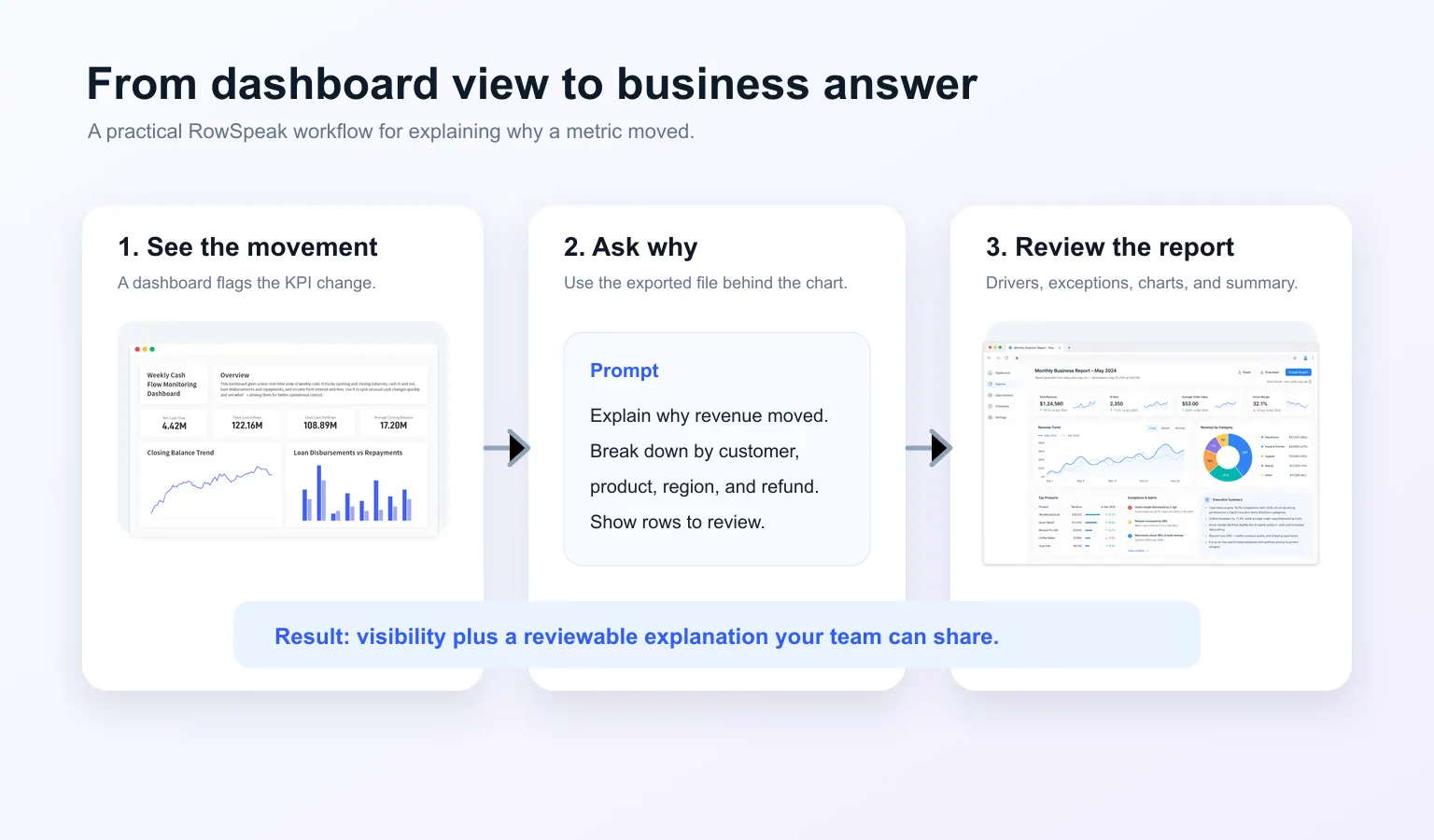
A Practical Example: Revenue Dropped 12%
Imagine a sales operations manager is preparing a weekly revenue update.
The dashboard shows:
- Revenue is down 12% week over week.
- New orders are down 8%.
- Refunds are up 21%.
- The West region looks worse than other regions.
That is enough to notice the issue. It is not enough to explain it.
The manager exports the current week and previous week data from the CRM, ecommerce platform, or BI tool. The files may include order lines, customer records, refund records, region labels, sales rep assignments, and product categories.
In RowSpeak, the first prompt should not be "find insights." A better prompt starts with inspection:
Inspect these sales exports before analysis. Identify the table structure,
date range, key fields, duplicate IDs, missing values, changed labels, and
data quality issues that could affect a week-over-week revenue analysis.
This step matters because a wrong answer often starts with a misunderstood file. If the export includes canceled orders, duplicate rows, missing customer IDs, or a date range that does not match the dashboard, the final explanation may be wrong before the analysis begins.
After the file is inspected, the manager can ask for the actual movement analysis:
Compare this week against last week. Explain why revenue changed. Break the
change down by customer, product, region, sales rep, channel, and refund
activity. Separate recurring trends from one-time events. Show the rows or
segments that support each major conclusion, then write a short summary for
a leadership update.
This prompt works because it asks for drivers, not just totals.
The output should answer questions like:
- Which customers contributed the largest decline?
- Did average order value fall, or did order volume fall?
- Did one region explain most of the drop?
- Did refund activity distort the revenue number?
- Did any product category change enough to matter?
- Are there data issues that should be checked before sharing the conclusion?
Now the dashboard has become a starting point for an explanation.
What the Output Should Look Like
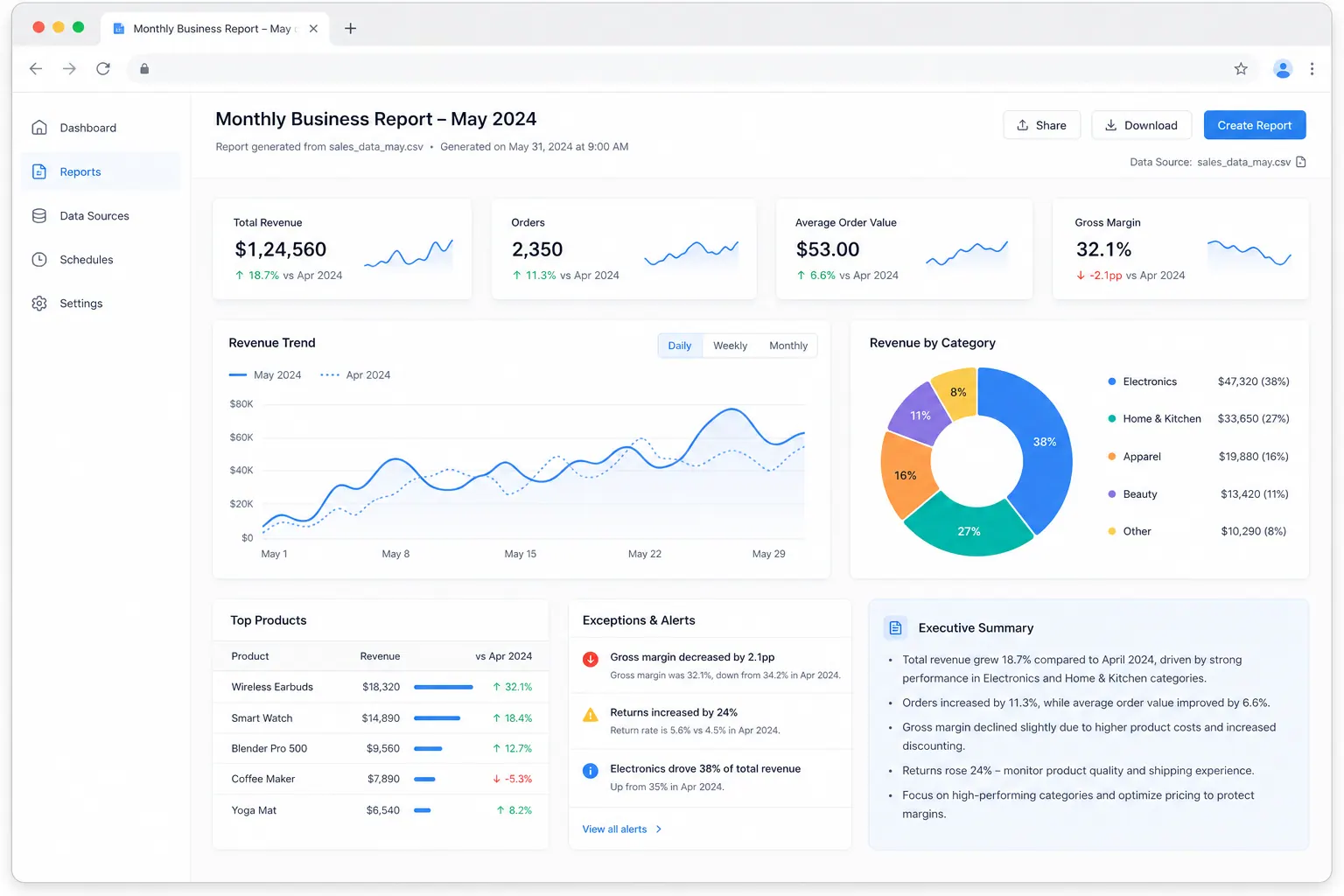
A useful AI reporting output should be easy to review. It should not bury the answer in a long chat response with no structure.
For a revenue movement report, ask RowSpeak for a format like this:
Create a reviewable revenue movement report with:
1. Executive summary
2. KPI comparison table
3. Top positive and negative drivers
4. Customer, product, region, and channel breakdowns
5. Rows or segments that need review
6. Recommended charts for a dashboard view
7. A short paragraph I can paste into a leadership update
The important word is reviewable.
If the answer says revenue dropped because of customer concentration, it should name the customer segment or account group. If it says refunds were the issue, it should show whether refund amount, refund count, or refund rate changed. If it recommends a chart, it should explain the business question the chart answers.
This is where RowSpeak differs from a generic chat prompt. RowSpeak is built around real business files and report outputs, not only conversational advice. It can help turn files into answers, written summaries, and dashboard-style views for teams that need something more durable than a one-off chat response.
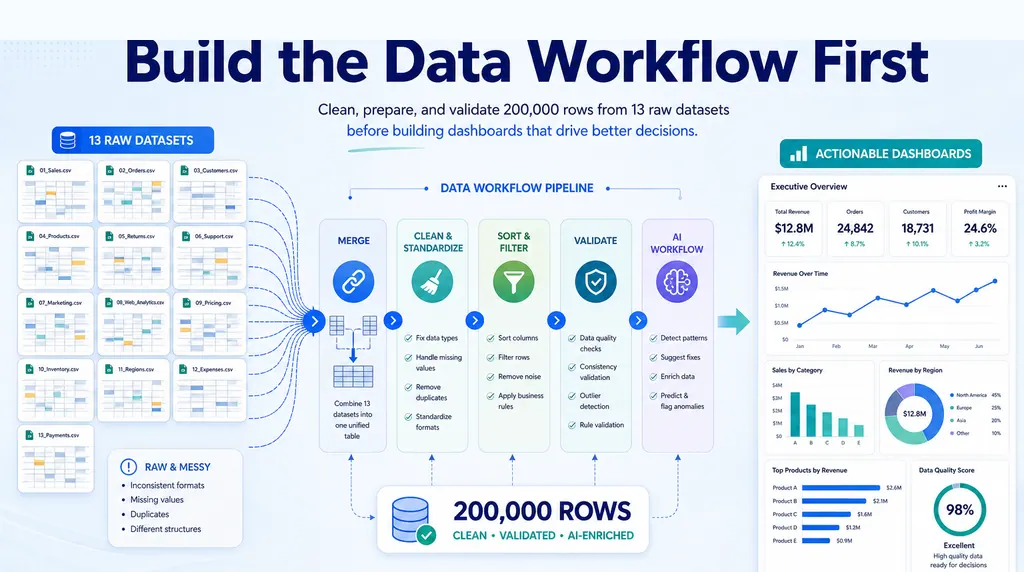
For teams that repeatedly turn exports into reports, the same logic also applies to a monthly CSV reporting workflow or broader CSV analysis with AI.
The example below shows the kind of output a file-based workflow should produce: KPI cards, trend charts, category breakdowns, exceptions, and an executive summary in one reviewable report.
How RowSpeak Fits Beside BI Tools
RowSpeak should not be positioned as "BI is dead."
That claim is too broad, and it is not how most teams work. BI tools are still useful when the data model is stable, permissions matter, dashboards are shared widely, and teams need governed reporting at scale.
RowSpeak fits a different moment:
- The data arrives as Excel, CSV, PDF, screenshot, or exported tables.
- The business question changes from week to week.
- The dashboard raises a question but does not explain it.
- The team needs a written report, not only a chart.
- The analyst needs to inspect assumptions before sharing the answer.
- A full BI project would be too slow for the immediate decision.
Think of RowSpeak as a practical layer between spreadsheet work and heavy BI. Your team can start from the files they already have, ask why a number moved, create a report-ready summary, and decide whether the result should become a recurring dashboard later.
If the output becomes stable, you can move it into a formal Excel-to-dashboard workflow. If the question stays exploratory, RowSpeak can remain the faster analysis and reporting layer.
This product walkthrough shows the same idea in motion: start with a spreadsheet export, ask for a dashboard/report result, and let RowSpeak generate a visual output that is easier for stakeholders to scan.
When a Dashboard Is Still the Right Tool
Dashboards are still the right tool for repeated monitoring.
Use a dashboard when your team needs the same KPIs every day, week, or month. Use BI when the data model is shared across departments, permissions must be controlled, and the logic should be governed centrally.
Use RowSpeak when the dashboard is not enough by itself.
That usually means the team needs to explain a movement, combine files, analyze a one-off question, write a report, or prepare a summary for someone who will not inspect the dashboard directly.
The healthiest workflow often uses both:
- Use the dashboard to notice what changed.
- Use RowSpeak to explain why it changed from the underlying files.
- Use the answer to update the report, meeting note, or next dashboard iteration.
This is how teams move from metric watching to business explanation.
For broader spreadsheet analysis work, the data analysis walkthrough shows how RowSpeak can move from uploaded business data to charts and answers without rebuilding the workflow in a traditional BI project first.
A Reusable Prompt for Dashboard Follow-Up Analysis
Use this prompt the next time a dashboard shows a metric movement and your team needs an answer:
Analyze the exported data behind this dashboard movement. First inspect the
file structure and data quality. Then compare the current period with the
previous period for the main KPI. Break the movement down by customer,
product, region, channel, and any other relevant segment. Identify the top
drivers, one-time events, anomalies, and assumptions that need review. Finish
with a short executive summary and recommended dashboard charts.
You can adjust the segments for your workflow. Finance teams may use department, vendor, account, and budget category. Sales teams may use account, rep, stage, region, and product. Marketing teams may use campaign, channel, audience, creative, and landing page.
The pattern stays the same: inspect, compare, explain, review, and summarize.
From Dashboards to Answers
Dashboard fatigue is not really about dashboards. It is about unanswered questions.
Business teams still need dashboards. They also need the answer after the dashboard: why the number moved, which rows support the explanation, what caveats matter, and how to communicate the result.
That is the practical role for AI reporting.
With RowSpeak, you can upload the Excel, CSV, PDF, screenshot, or exported table behind a metric movement and ask the question your dashboard cannot fully answer yet. Start with one real file and one real question:
Why did this number move?
Then turn the answer into a report your team can review, share, and improve. Let Rows Speak.
Try RowSpeak with your next dashboard export: https://dash.rowspeak.ai
FAQ
Are dashboards becoming obsolete?
No. Dashboards are still useful for monitoring stable KPIs and sharing repeated views. The problem is that dashboards often do not explain the reasons behind a metric movement. AI reporting helps with the follow-up analysis.
What is AI reporting?
AI reporting is a workflow for turning business files into summaries, KPI tables, driver analysis, charts, and written explanations. In RowSpeak, that can start from Excel, CSV, PDF, screenshot, and table-based files.
How is RowSpeak different from a BI dashboard?
A BI dashboard usually works best when the data model and questions are stable. RowSpeak is useful when the question starts from a file, an export, or a changing business problem that needs analysis, explanation, and a reviewable report.
Can RowSpeak create dashboards too?
RowSpeak can help turn spreadsheet data and exports into visual summaries and dashboard-style outputs. For repeated dashboard workflows, see the Excel-to-dashboard workflow.