CSV files are not glamorous, but they run a surprising amount of business reporting.
For reports that repeat every week or month, RowSpeak's recurring spreadsheet reporting workflow keeps file cleanup, metric checks, and summaries reusable.
Sales exports, ad platform downloads, billing data, inventory snapshots, support tickets, survey responses, bank transactions, and product analytics often land in the same place: a folder full of monthly CSVs.
The manual workflow is familiar. Open the export, clean the columns, check whether the numbers match last month, rebuild formulas or pivots, create charts, and write a summary. Then repeat it again next month.
AI can make this workflow much faster, but only if you use it carefully. The goal is not to paste a CSV into a chat window and hope for magic. The goal is to create a repeatable, reviewable reporting process.
Key takeaways:
- CSV analysis with AI should start with file inspection, column mapping, and data quality checks before any insight summary.
- The best monthly reporting workflow defines metrics, reconciles totals, explains changes, and produces report-ready output.
- RowSpeak is useful when CSV exports need to become charts, summaries, and dashboards without turning every report into a BI project.
Why CSV Reporting Gets Messy
CSV files look simple because they are plain tables. The mess comes from how they are produced.
An ecommerce export may rename columns after a platform update. A CRM export may include test accounts. An ad platform file may mix campaign naming conventions. A finance export may use negative numbers for refunds in one month and a separate refund column the next.
Even when the file opens cleanly, the reporting logic may not be clean.
For example, a marketing manager might need a monthly campaign report from three CSVs:
google_ads_may.csvmeta_ads_may.csvshopify_orders_may.csv
The business question is not "summarize these files." The real question is:
Which campaigns drove profitable revenue this month, what changed from last month, and where should we adjust spend?
That requires mapping fields, checking attribution assumptions, calculating metrics, and writing a conclusion.
Step 1: Inspect the CSV Before Analysis
Start by asking RowSpeak to inspect the file structure:
Inspect these CSV exports before analysis. Identify the main tables, column
types, missing values, duplicate IDs, inconsistent labels, date formats, and
fields that need clarification for a monthly performance report.
This prevents a common AI mistake: generating a confident answer from misunderstood columns.
For recurring work, keep a short checklist:
- Does the file contain the expected columns?
- Are date fields in the same format as last month?
- Are currency fields consistent?
- Are IDs unique where they should be?
- Are test records, refunds, cancellations, or internal accounts included?
- Do totals reconcile to the source platform?
This is especially important if the CSV is exported from a tool that changes schema over time.
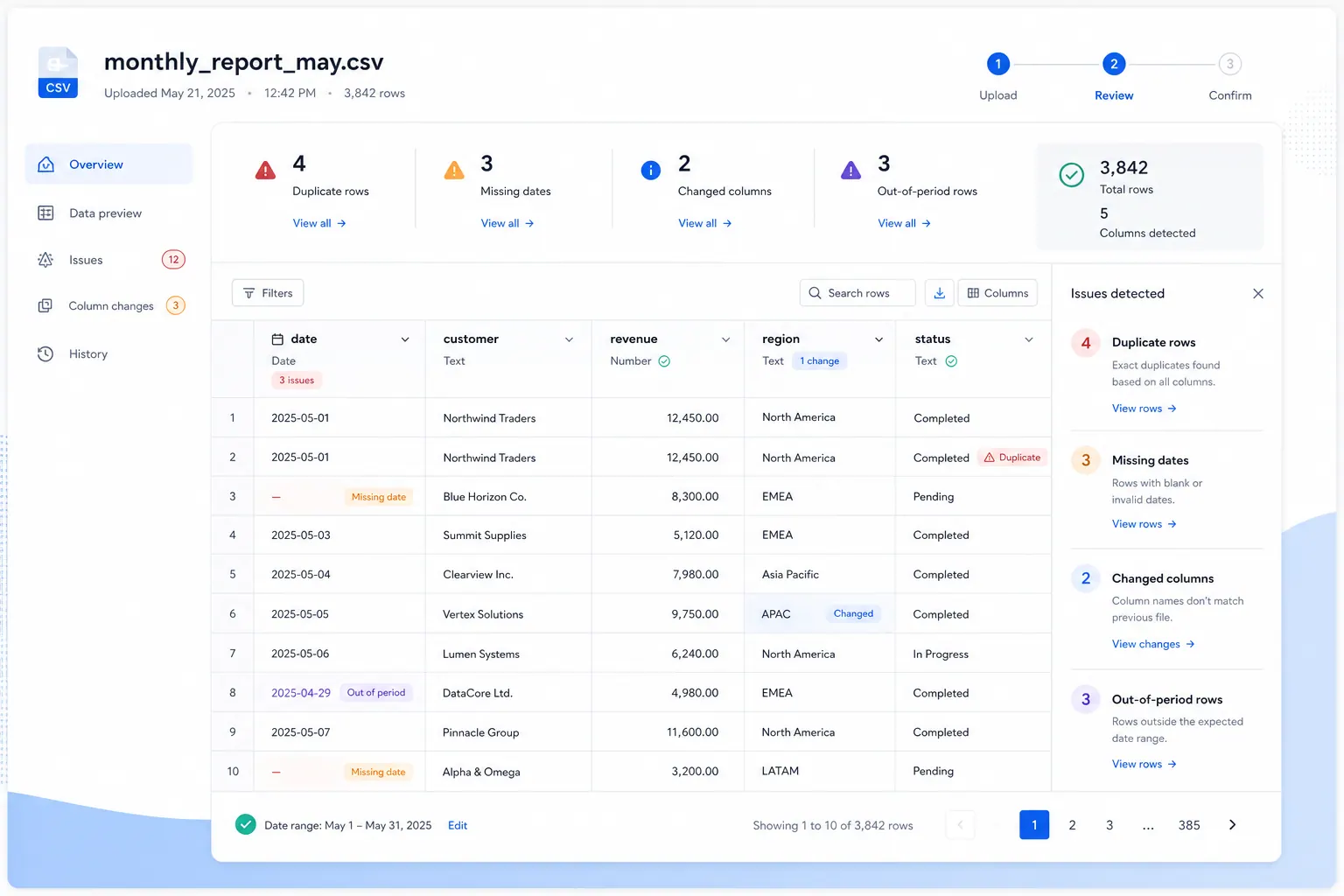
For recurring CSV work, a data quality view is often more useful than a chart in the first few minutes. It tells the analyst whether the file is safe enough to analyze.
Step 2: Define the Metrics in Plain Language
Once the file is inspected, define the reporting metrics:
Create a monthly performance report using these metric definitions:
- Revenue: sum of completed order revenue, excluding canceled orders
- Spend: ad spend by platform and campaign
- ROAS: revenue divided by spend
- CAC: spend divided by first-time customers
- Refund rate: refunded amount divided by gross revenue
Show the logic and source columns used for each metric.
This turns RowSpeak into a reviewable analysis assistant instead of a black-box summarizer.
If you are building recurring reports, save the definitions. The value of AI grows when the workflow becomes repeatable.
Step 3: Ask for Movement, Not Just Totals
Monthly reports need change analysis. Totals are useful, but leadership usually wants to know what moved and why.
Use a prompt like:
Compare this month against last month. Identify the largest positive and
negative changes by campaign, product, region, and channel. For each major
change, show the rows or segments that explain it and note any data quality
issues that could affect the conclusion.
This is stronger than "find insights." It tells RowSpeak to connect changes to evidence.
For a deeper guide to recurring exports, see the monthly CSV reporting workflow.
Step 4: Turn the Analysis Into a Report
A good CSV analysis should become a report your team can use. Ask for a structured output:
Turn the analysis into a monthly business report with:
1. Executive summary
2. KPI table
3. Top drivers of change
4. Risks or anomalies
5. Recommended next actions
6. Charts to include in a dashboard
This gives you a starting point for AI reporting and dashboard creation without manually rebuilding the whole story.
The output should include both numbers and narrative. If the report says revenue increased, it should also say which products, customers, campaigns, or regions caused the movement.
Step 5: Build a Lightweight Dashboard View
CSV reporting often becomes a dashboard request. Before jumping into a full BI tool, decide what kind of dashboard the team actually needs.
For a monthly export-based workflow, a simple dashboard might include:
- Total revenue, spend, and profit
- Month-over-month change
- Campaign performance table
- Top products or regions
- Refunds, cancellations, or other risk signals
- Recommended actions
RowSpeak can help you decide which charts fit the report:
Recommend dashboard charts for this monthly CSV report. For each chart, explain
the business question it answers, the fields required, and any caveats in the
data.
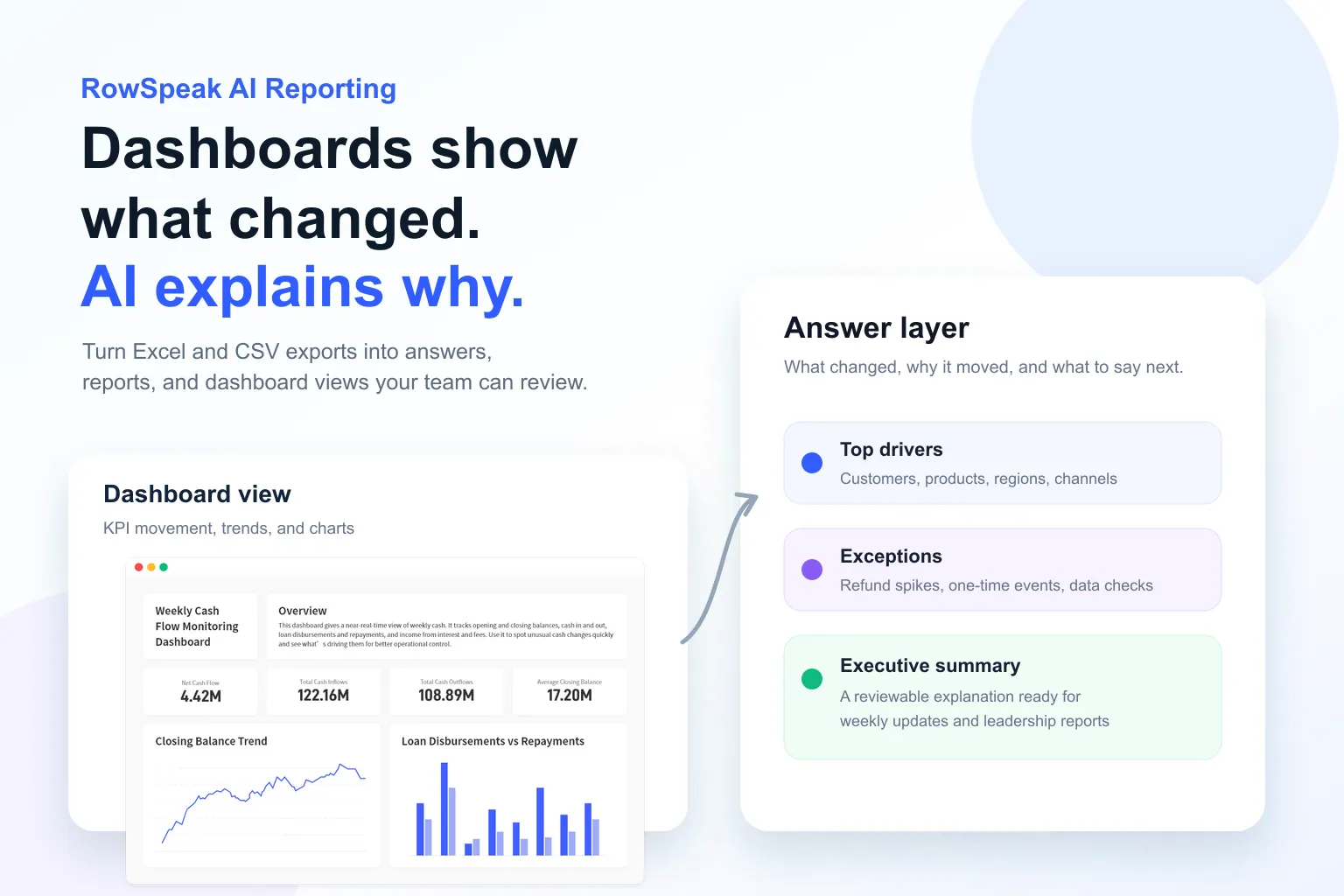
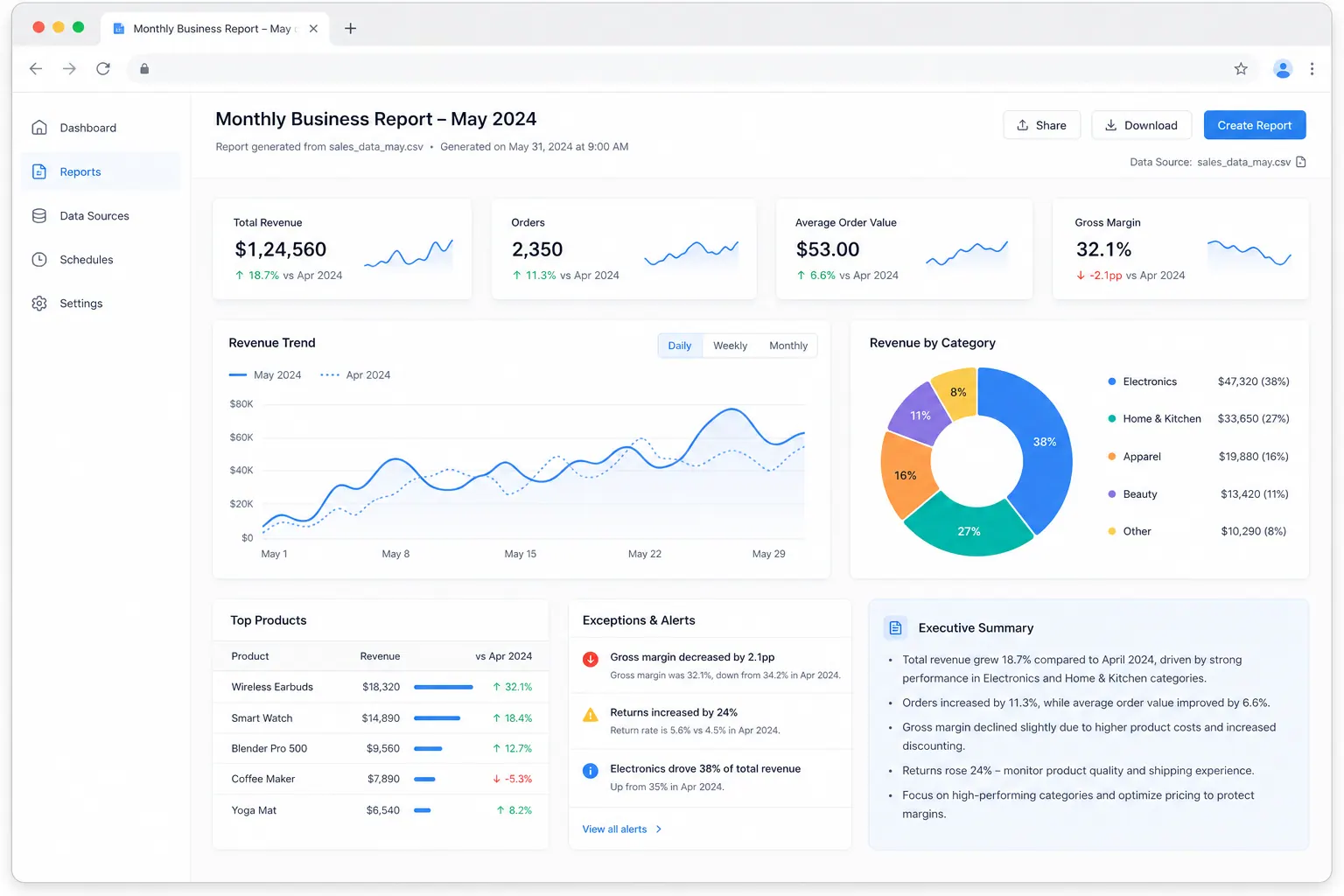
The example below shows the kind of dashboard/report view a CSV-driven performance workflow can produce: KPI cards, charts, exceptions, and an executive summary that explains what the reader should notice.
If the dashboard becomes stable and widely used, you may later move it into a BI platform. If the source files and questions keep changing, an AI-assisted file workflow may stay more practical.
CSV Analysis: Excel, ChatGPT, BI, or RowSpeak?
Excel is still excellent when you need complete workbook control, reusable formulas, and manual inspection.
Generic AI tools can help with code snippets, formulas, and explanations, but they can become awkward when the work depends on real files, multiple exports, and repeated report generation.
BI tools make sense when the data source is stable, the dashboard is shared broadly, and governance matters more than speed.
RowSpeak fits when the data arrives as files, the report needs explanation, and your team wants a faster path from CSV to summary, chart, or dashboard. For teams that regularly turn exports into visual summaries, the Excel-to-dashboard workflow is a natural next step.
Common Mistakes in AI CSV Analysis
Do not skip data cleaning. A CSV that opens correctly can still have duplicate records, mixed formats, or missing values.
Do not rely on one "insight" prompt. Ask for inspection, metrics, movement, explanation, and review.
Do not hide assumptions. If refunds are excluded, if test customers are removed, or if a date field is interpreted as order date instead of paid date, the report should say so.
Do not force every recurring CSV into BI immediately. If the question changes every month, it may be better to stabilize the reporting logic with RowSpeak first.
A Reusable Prompt for Monthly CSV Reports
Analyze these CSV exports for a monthly business report. First inspect file
structure and data quality. Then map the columns to the requested metrics,
calculate the KPIs, compare the result with the previous period, identify the
main drivers of change, and recommend charts for a dashboard. Show calculation
logic and data issues before the final summary.
This prompt works because it mirrors the real reporting workflow. It asks the AI to inspect, calculate, explain, and prepare the output for review.
That is the difference between using AI as a shortcut and using AI as a reporting system. The shortcut gives you a quick answer. The system helps you produce a report you can trust.