Most teams do not struggle because they lack data. They struggle because the data arrives as a workbook, a CSV export, a PDF table, or a screenshot of a table, and someone has to turn it into a report before the next meeting.
For reports that repeat every week or month, RowSpeak's monthly reporting workflow keeps file cleanup, metric checks, and summaries reusable.
That is where AI data analysis becomes useful. Not as a vague promise that "AI finds insights," but as a practical workflow: upload the business file, ask the right question, review the logic, and turn the result into a summary, chart, or dashboard that another person can read.
For spreadsheet-heavy teams, RowSpeak's Excel AI workflow is built around that reality. It helps you move from raw files to answers, reports, and dashboards without treating every reporting task like a new spreadsheet project.
Key takeaways:
- AI data analysis works best when you start from a concrete file, question, and decision, not from a generic request for "insights."
- A good workflow should include data checks, metric definitions, analysis, explanation, and a review step before the report is shared.
- RowSpeak fits teams that need to analyze Excel, CSV, PDF, and image-based table data without building a full BI stack for every recurring report.
The Real Problem Is Usually Reporting, Not Analysis
When people search for AI data analysis, they often imagine the hard part is choosing the right statistical method. In day-to-day business work, the hard part is usually more ordinary:
- The sales export has inconsistent region names.
- The finance workbook has hidden assumptions across several tabs.
- The marketing CSV uses different campaign names from last month.
- The inventory report has blank dates, duplicate SKUs, and columns nobody remembers.
- The final output needs a plain-English explanation, not just a table.
Traditional Excel can handle many of these problems, but it often forces the analyst into a long chain of manual steps: clean the file, build formulas, create pivots, format charts, write commentary, then repeat the process next week.
Generic chat tools can help with formulas or explanations, but they are weaker when the workflow depends on the actual file, multiple sheets, and reviewable business output.
RowSpeak is useful in the middle: lighter than a BI implementation, more file-aware than a generic chat window, and better suited to recurring spreadsheet reporting.
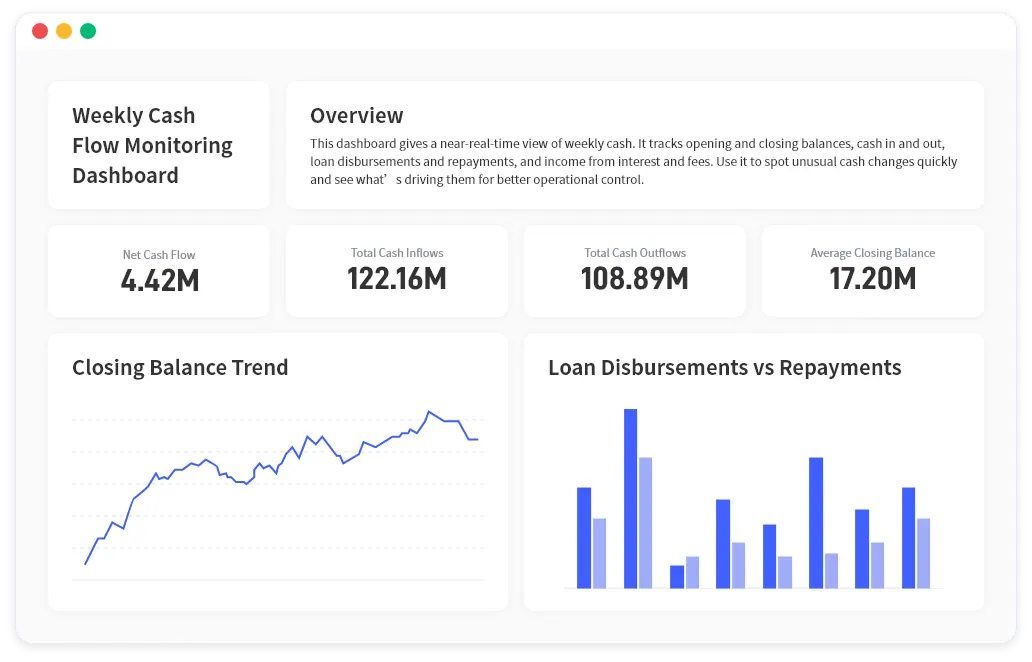
The output should look closer to a reviewed report than a loose answer. A useful AI analysis can combine KPI cards, charts, and a short explanation in one place.
Start With the File and the Business Question
Before using AI, define the reporting job clearly. A useful brief might look like this:
Reader: VP of Sales
Input: CRM export in Excel, with opportunities, owners, stage, amount, close date, source, and region
Problem: Pipeline looks healthy at the top level, but leadership wants to know where the risk is
Output: Summary of pipeline movement, risky segments, top drivers, and a few charts for the weekly review
Decision: Which deals, regions, or reps need attention this week
That brief matters because AI data analysis should not be a scavenger hunt. If you ask "analyze this spreadsheet," the result can be broad and shallow. If you ask for a specific decision-ready report, the output has a job.
A Practical RowSpeak Workflow
Here is a simple workflow for using RowSpeak on business spreadsheet analysis.
1. Upload the source files
Start with the real files your team already uses: Excel workbooks, CSV exports, PDF reports, screenshots, or image-based tables. For a recurring report, keep the source structure as close as possible to the export your team receives each week or month.
If the data comes from multiple files, name each file clearly before uploading. For example:
crm_pipeline_may.xlsxclosed_won_by_region.csvsales_targets_q2.xlsxpipeline_notes.pdf
Clear file names make it easier to ask focused questions later.
2. Ask RowSpeak to inspect the data before analyzing it
Do not jump straight to charts. Ask for a quick data audit first:
Review these files before analysis. Identify the main tables, likely key fields,
missing values, duplicate records, inconsistent labels, and fields that need
clarification before building a sales performance report.
This step keeps the workflow grounded. It also gives you a chance to correct assumptions before the analysis hardens into a report.
3. Define the metrics in business language
Business reporting fails when metric definitions are vague. Use RowSpeak to define them explicitly:
Create a weekly sales report using these definitions:
- Pipeline value: sum of open opportunities by stage
- At-risk deals: opportunities with close date in the next 30 days and no recent activity
- Win rate: closed won divided by closed won plus closed lost
- Forecast gap: target minus expected weighted pipeline
Show the formulas or logic you use for each metric before summarizing the results.
The important instruction is the last one. Ask for the logic, not just the answer.
4. Generate the report in sections
For a management-ready output, ask for structure:
Turn the analysis into a weekly sales report with:
1. Executive summary
2. KPI table
3. Pipeline movement by region
4. At-risk deals and likely reasons
5. Recommended next actions
6. Charts that should be included in a dashboard
This turns AI from a Q&A assistant into a reporting workflow. The output becomes easier to review and reuse.
The short demo below shows the kind of report-style output RowSpeak can generate after analyzing a spreadsheet and explaining the result.
5. Review, correct, and refine
RowSpeak is strongest when you treat AI analysis as a draft that can be checked. Ask follow-up questions:
- Which rows drove the largest change?
- Which metric is most sensitive to missing data?
- What assumptions did you make?
- Which fields should I verify manually?
- Recalculate the summary after excluding test accounts.
This is also where RowSpeak differs from static dashboards. You can correct the analysis, narrow the scope, and ask for a revised explanation without rebuilding everything from scratch.
What Good AI Data Analysis Should Produce
A useful AI analysis should produce more than one interesting sentence. For business reporting, look for four outputs.
A clean summary: What happened, where it happened, and why it matters.
A metric table: KPI values, period-over-period changes, and segments that need attention.
A visual plan: The charts that best communicate the result, not just whatever chart is easy to create.
A review trail: Assumptions, data issues, and calculation logic that a human can inspect.
If the AI gives you only a generic narrative, it is not enough for a report. If it gives you only a table, it is not enough for leadership. The value is in connecting the numbers to the business decision.
For report-style outputs, you can connect this workflow to RowSpeak's AI reporting feature and use the same source files to create summaries, KPI explanations, and shareable reporting language.
Excel, ChatGPT, BI, or RowSpeak?
Use Excel when you need full control over a model, a known formula structure, or a workbook your team already maintains.
Use a generic AI chat tool when you need help writing a formula, explaining a concept, or drafting commentary from data you can safely summarize in the prompt.
Use BI when the data model is stable, shared across teams, governed, and needs ongoing dashboard access for many users.
Use RowSpeak when the work starts with files, the report changes often, the output needs explanation, and building a BI model would be too much for the job.
This is why RowSpeak often fits the space between manual spreadsheet work and heavy BI. A team can still use Excel and BI where they make sense, but move recurring file-based analysis into a faster workflow.
Common Mistakes to Avoid
The first mistake is asking for "insights" without defining the decision. That usually creates a generic report.
The second mistake is skipping the data audit. If the file has duplicate customers, mixed currencies, or inconsistent dates, the analysis may look polished while hiding a bad assumption.
The third mistake is treating AI output as final. For business reporting, the output should be reviewed. Ask for the rows behind a claim, the calculation logic, and the limits of the analysis.
The fourth mistake is forcing every workflow into BI too early. If a report is still changing every month, the lighter workflow may be to analyze the files directly, stabilize the logic, then decide whether a dashboard or BI model is worth building.
A Simple Prompt to Reuse
Use this as a starting point:
Analyze this spreadsheet for a business report. First inspect the data quality
and list issues that may affect the result. Then calculate the key metrics,
explain the main changes, identify anomalies or segments that need attention,
and recommend charts for a dashboard. Show the logic behind each metric so I can
review it before sharing the report.
You can adapt the same structure for finance, sales, inventory, marketing, or operations data.
The Better Goal: Repeatable Reporting
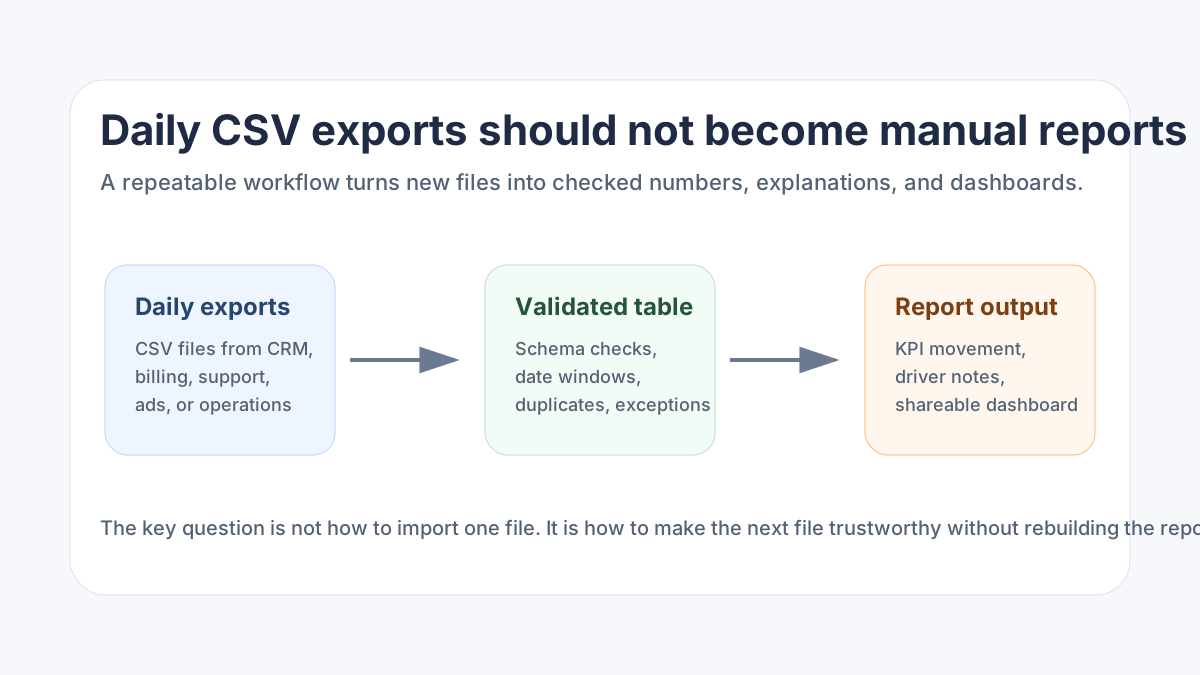
The best use of AI data analysis is not a one-time "wow" answer. It is a repeatable workflow your team can trust:
- Upload the current files.
- Inspect the data.
- Define or reuse the metrics.
- Generate the report.
- Review assumptions and calculations.
- Share the summary or build the dashboard.
That is the point where AI starts saving real reporting time. The spreadsheet remains the source, but the work no longer has to live entirely inside formulas, pivots, and copy-pasted commentary.
If your team is trying to turn messy business files into analysis people can actually use, RowSpeak gives you a practical path from spreadsheet to answer to report.