Cash flow forecasting is not just a math exercise. It is a review process. Finance teams need to understand assumptions, timing, risks, and scenario differences before a forecast becomes useful.
AI can help, especially when the starting point is an Excel workbook or cashflow export. But the workflow needs to be explicit: what period to forecast, which assumptions to use, and what should be reviewed before sharing.
Key takeaways:
- AI cash flow forecasting should start with a structured file and clear assumptions.
- The best output includes base, upside, and downside scenarios plus a written risk summary.
- RowSpeak helps finance teams turn cashflow spreadsheets into forecasts, charts, and review-ready explanations.
What the cashflow file should include
A simple cashflow input might look like this:
| Month | Opening Cash | Cash Inflows | Payroll | Vendor Payments | Other Outflows | Closing Cash |
|---|---|---|---|---|---|---|
| Jan | 520000 | 210000 | 95000 | 74000 | 18000 | 543000 |
| Feb | 543000 | 198000 | 96000 | 88000 | 22000 | 535000 |
Useful fields for better analysis:
- Customer payment timing.
- Large vendor payment schedule.
- Payroll timing.
- Debt or interest payments.
- One-time inflows or outflows.
- Scenario assumptions.
If your file is less structured, start by asking RowSpeak to summarize the fields and identify what it can use for forecasting.
A practical prompt
Upload the workbook to RowSpeak financial forecasting and ask:
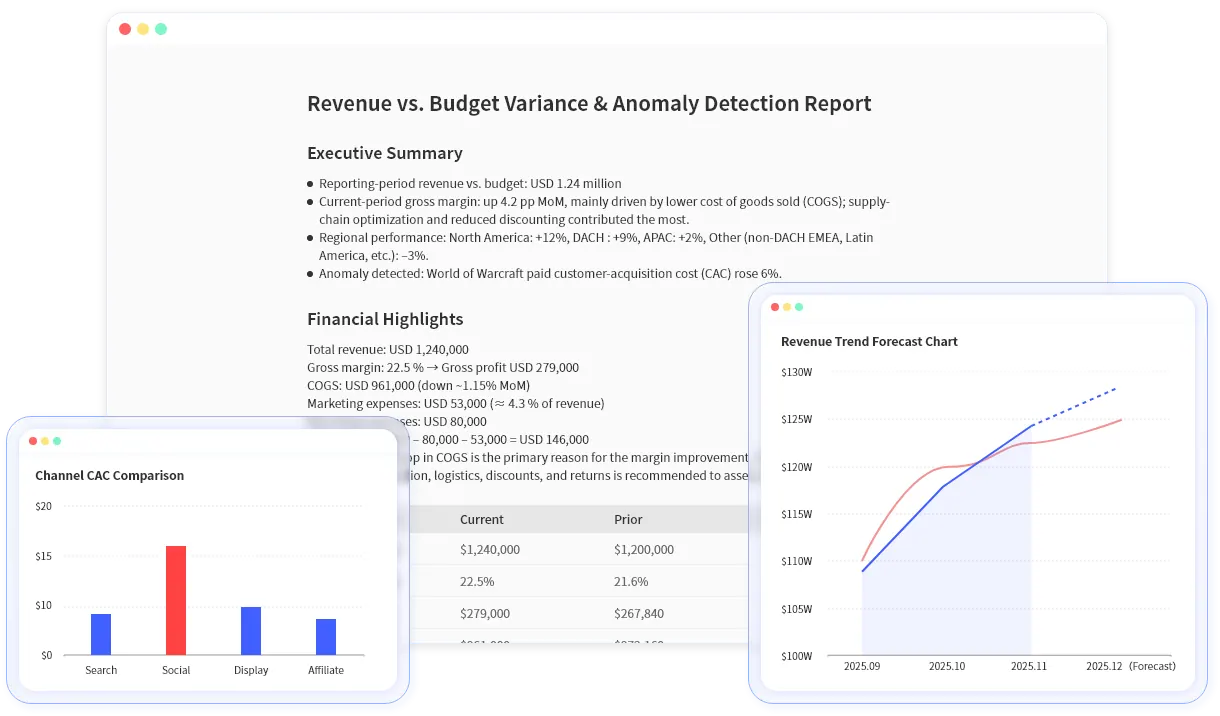
Forecast cash flow for the next 6 months using this file. Create base, upside, and downside scenarios. Explain the assumptions, show a chart, and highlight any month where closing cash looks risky.
Then refine:
Assume customer collections are delayed by 15 days in the downside case and vendor payments increase by 8 percent. Compare the impact on closing cash.
This makes the workflow reviewable. The finance owner can see which assumptions changed and how the cash forecast moved.
What good AI output should include
For cashflow forecasting, a useful AI output includes:
- Forecast table by month.
- Base, upside, and downside scenarios.
- Chart of projected closing cash.
- Explanation of key assumptions.
- Risk months and likely drivers.
- Items that need manual review.
The output can then feed management reporting or a broader Excel-to-dashboard workflow.
Common mistakes
Do not let the AI choose silent assumptions. Be explicit about:
- Forecast horizon.
- Growth or decline rates.
- Payment delays.
- One-time expenses.
- Minimum cash threshold.
- Whether the model should use historical averages or provided assumptions.
Also remember that forecasting is not certainty. A polished chart does not remove scenario risk. It only makes the assumptions easier to discuss.
Review checklist
Before sharing an AI-generated cashflow forecast:
- Confirm opening cash ties to the source file.
- Check whether outflows and inflows are categorized correctly.
- Review one-time items separately.
- Confirm that scenario assumptions are visible.
- Compare the forecast with known commitments.
- Ask whether the chart could mislead a non-finance reader.
Cash flow forecasting with AI is useful when it speeds up the scenario conversation. Start with a real cashflow workbook in RowSpeak and use it to create a forecast table, risk summary, and chart your team can review before the next planning meeting.