The best data analysis tool is not always the most advanced one. It is the tool that fits the file you have, the question you need to answer, the skill level of the team, and the output someone expects to review.
That is why "data analysis tools" is a broad search. Some people need a spreadsheet for quick calculations. Some need SQL for governed company data. Some need Python or R for statistical work. Some need a BI platform for dashboards. Others have an Excel or CSV export on their desktop and want an AI tool that can explain the file, find trends, create charts, and help turn the result into a report.
If the real question is not "which tool has the most features?" but "how do I turn this export into a decision this week?", use this guide as a decision path: when a spreadsheet is enough, when BI or code is worth the setup, and when a file-first AI workflow can get you to a reviewable answer faster.
Key takeaways:
- Use Excel or Google Sheets when the work is small, familiar, and formula-friendly.
- Use SQL, Python, or R when the analysis needs repeatable logic, large data, statistical modeling, or code review.
- Use Power BI, Tableau, or Looker Studio when the team needs governed dashboards from stable data sources.
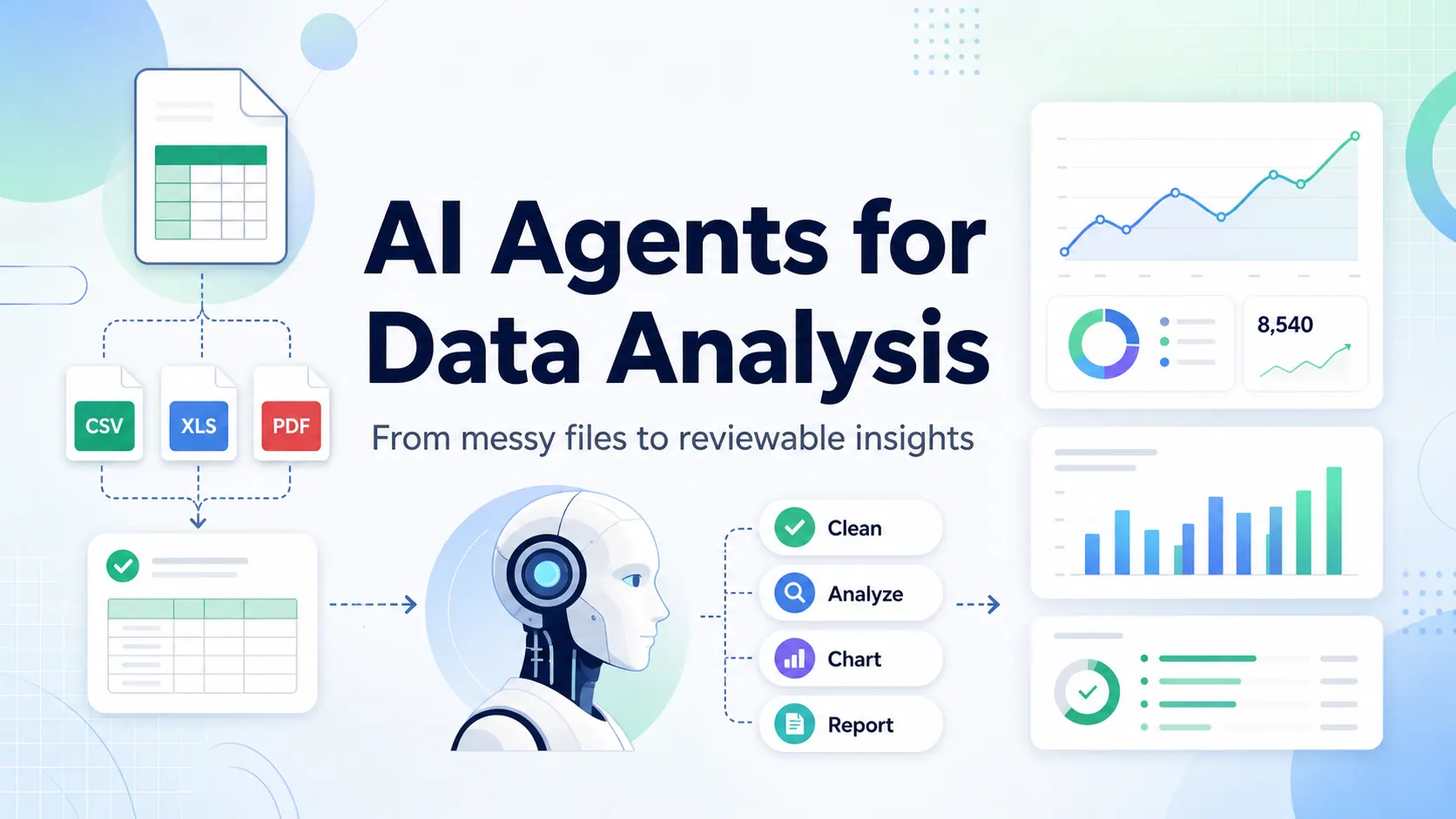
- Use AI data analysis tools when the work starts with messy files and the user needs fast exploration, summaries, charts, or report-ready explanations.
- Use RowSpeak when your workflow starts with Excel, CSV, PDF, screenshots, or business exports and needs reviewable analysis, dashboards, or reports.
Data analysis tools compared
If you are choosing a tool, start with the workflow, not the vendor name.
| Tool type | Best fit | Strength | Limitation |
|---|---|---|---|
| Excel or Google Sheets | Small datasets, formulas, pivots, ad hoc analysis | Familiar, flexible, easy to share | Manual work grows quickly as files get messy |
| SQL | Databases, governed metrics, repeatable queries | Accurate, scalable, auditable | Requires schema knowledge and query skill |
| Python and pandas | Custom analysis, automation, modeling, data science | Highly flexible and reproducible | Requires coding and environment setup |
| R and RStudio / Posit | Statistical analysis, research, reproducible reporting | Strong statistics and reporting ecosystem | Less approachable for non-technical business users |
| Power BI | Microsoft-centered BI and dashboards | Strong reporting, modeling, and organizational sharing | Setup can be heavier than one-off file analysis |
| Tableau | Visual analytics and dashboard exploration | Strong visualization and exploratory BI | Can be more than a team needs for simple exported files |
| Looker Studio | Lightweight online dashboards and marketing reports | Easy web reporting and sharing | Less suited to deep spreadsheet cleanup |
| ChatGPT data analysis | Exploratory analysis from uploaded files | Flexible questions, tables, charts, and code-backed analysis | Needs careful review and clear data structure |
| RowSpeak | Excel, CSV, PDF, screenshots, and business exports | File-first AI analysis, dashboards, reports, and reviewable outputs | Not a replacement for a governed enterprise BI warehouse |
This comparison is intentionally practical. A finance manager trying to explain a budget variance should not have to choose the same tool as a data scientist training a model. An agency preparing a monthly CSV report does not need the same stack as a company building a long-term BI semantic layer.
The main categories of data analysis tools
Most tools fit into one of five categories.
Spreadsheet tools
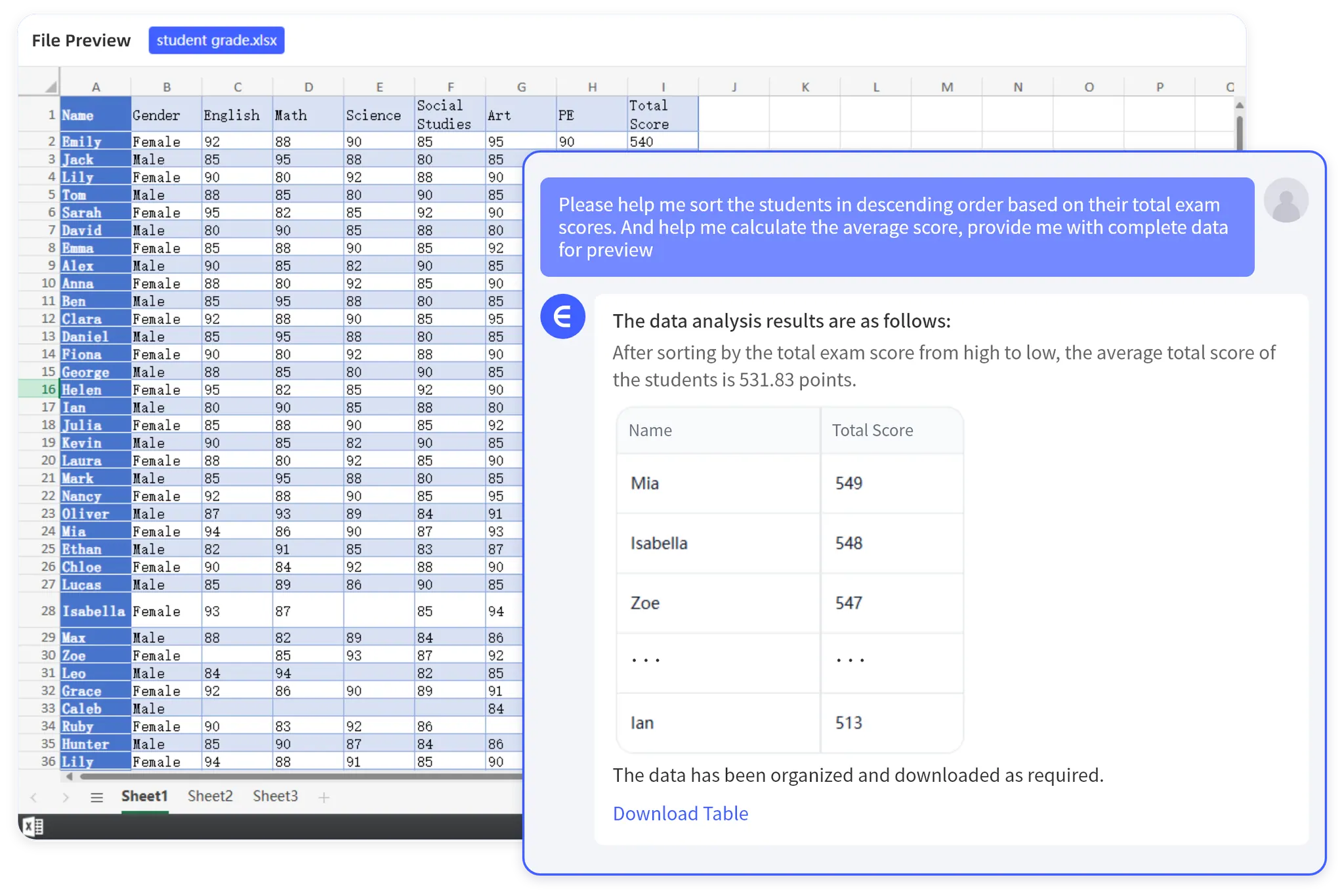
Spreadsheets are still the default data analysis environment for many teams. Excel and Google Sheets are good when the dataset is manageable, the analysis is local, and the team already understands the workbook.
Excel is especially useful for formulas, pivot tables, quick summaries, and one-off analysis. Microsoft also provides Analyze Data in Excel for supported Microsoft 365 users, which can suggest insights from structured tables. That makes Excel a reasonable starting point when the data is already clean and the question is narrow.
The problem is that spreadsheet work gets fragile when files become inconsistent. Exported reports often have merged headers, missing columns, manual notes, subtotals, date issues, and copied tables from other systems. At that point, the issue is not whether Excel can technically do the analysis. The issue is how much manual work it takes to clean, check, explain, and repeat it.
Database and SQL tools
SQL is still one of the most important data analysis tools for teams with structured databases. It is strong when the data lives in a warehouse, the definitions are stable, and the analysis needs to be repeated.
SQL is also easier to audit than manual spreadsheet work. You can review the query, version the logic, and make sure everyone is using the same metric definition. That matters for revenue reporting, operational dashboards, customer segmentation, and product analytics.
The tradeoff is accessibility. A business user with an exported CSV may not know the database schema, write joins, or understand why a query returns different results than a spreadsheet. SQL is powerful, but it assumes the data is already in the right system and that someone knows how to query it.
Coding tools: Python, pandas, R, and notebooks
Python with pandas is one of the most flexible ways to analyze data. The official pandas project describes it as an open source data analysis and manipulation tool built on Python. It is useful for cleaning, joining, reshaping, modeling, and automating analysis workflows.
R and RStudio, now part of the Posit ecosystem, are also strong for statistics, reproducible reporting, and research-heavy workflows. For teams that need regression, statistical testing, publication-quality analysis, or repeatable scripts, code-based tools are often the right choice.
The tradeoff is that code asks for a different operating model. You need someone who can write, review, and maintain the analysis. That is worth it for complex work. It is usually overkill for a sales ops manager who just needs to understand why a weekly export changed.
BI and dashboard tools
Power BI, Tableau, and Looker Studio are built for dashboards, recurring reporting, and shared visibility. Power BI is especially strong for Microsoft-centered teams and is part of Microsoft's broader analytics ecosystem. Tableau is strong for visual analytics and dashboard exploration.
BI tools are the right choice when the organization needs stable dashboards from trusted data sources. They are not just chart builders. They help teams model data, define metrics, publish dashboards, and give stakeholders a shared view.
The limitation is setup cost. If the work starts with a one-off Excel file, a PDF table, or a messy CSV export, a full BI workflow may be slower than the problem deserves. This is why many teams use BI for governed metrics and a lighter file-first workflow for monthly exports, ad hoc analysis, and early exploration.
AI data analysis tools
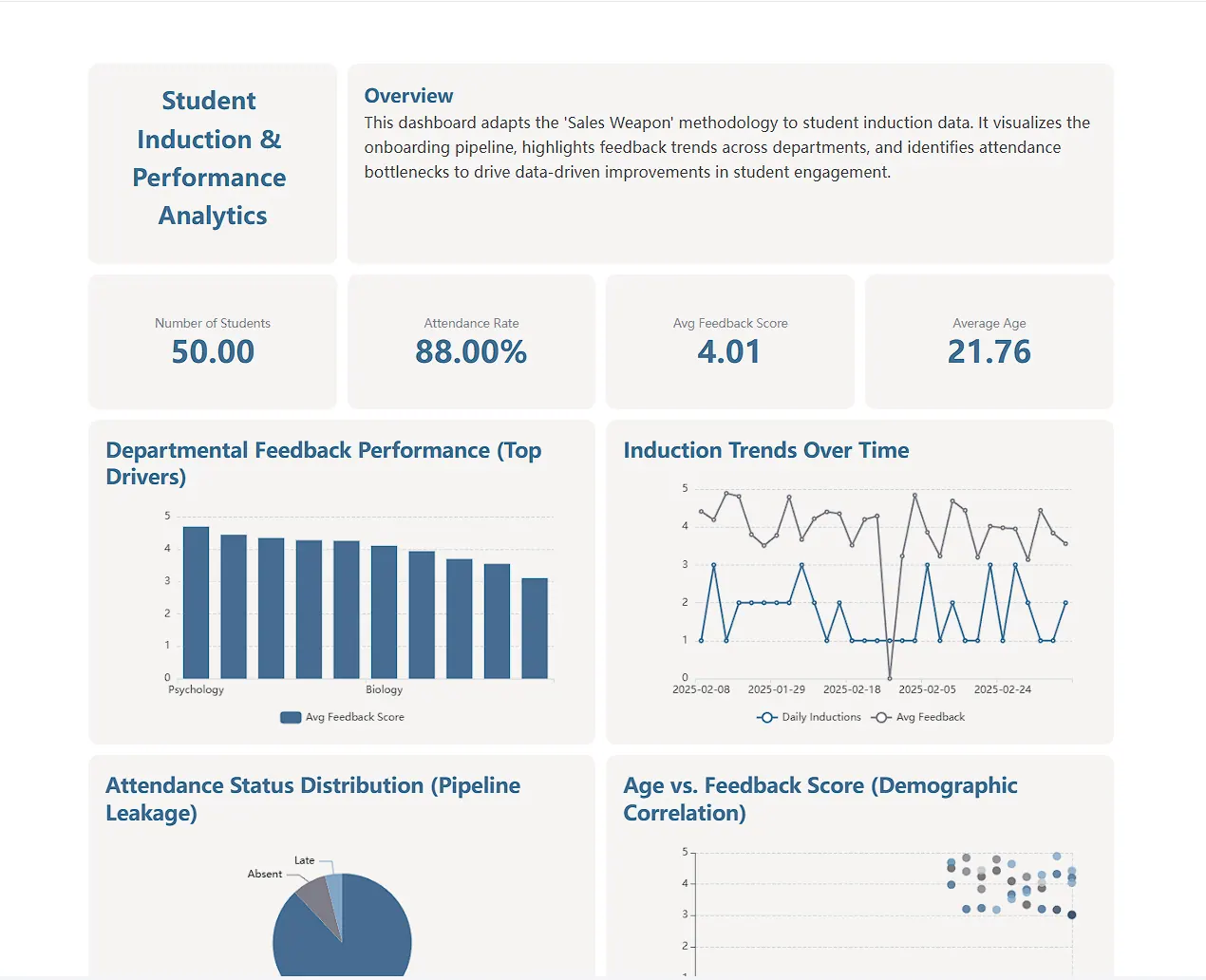
AI data analysis tools sit between spreadsheets, coding, and BI. They are useful when the user wants to ask a question in plain English, upload a file, and get a useful first pass without building formulas, SQL queries, or dashboards manually.
For this guide, the AI comparison is intentionally focused on two tools: ChatGPT and RowSpeak. ChatGPT can analyze uploaded data, create tables and charts, and support code-backed analysis when the data is structured clearly. RowSpeak focuses on turning real business files into answers, reports, and dashboards.
The important point is that AI does not remove the need for review. A good AI workflow should make the assumptions visible, keep outputs easy to inspect, and let the user ask follow-up questions. For business teams, the value is not "AI did the analysis." The value is that the team can move from a messy file to a reviewable output faster.
Best data analysis tools by use case
Best for quick spreadsheet analysis: Excel
Excel is still the default choice for quick data analysis. If your data is already in a clean table and you need filters, formulas, pivot tables, or a small chart, Excel is often enough.
Use Excel when:
- The dataset is small or medium-sized.
- The team already works in spreadsheets.
- The question can be answered with formulas, pivots, filters, or simple charts.
- You do not need a recurring dashboard or a complex data model.
Move beyond Excel when the same manual cleanup repeats every week, when formulas become hard to audit, or when the output needs to become a report for other people.
Best for governed business dashboards: Power BI
Power BI is a strong choice when the organization already uses Microsoft tools and needs recurring dashboards. It works well when data sources are stable and the team wants shared reporting, access control, and model-driven metrics.
Use Power BI when:
- The company needs recurring dashboards.
- Metrics need shared definitions.
- Data comes from databases, cloud systems, or Microsoft Fabric.
- Stakeholders need a controlled reporting environment.
Power BI may be more work than necessary when the main input is a standalone spreadsheet export and the main output is a short analysis or management report.
Best for visual analytics: Tableau
Tableau is a strong tool for visual exploration, interactive dashboards, and analytics storytelling. It is especially useful for teams that need flexible visual analysis across multiple datasets.
Use Tableau when:
- Visual exploration is central to the work.
- Analysts need to build interactive dashboards.
- The organization can invest in BI design and governance.
- Stakeholders need to explore data from different angles.
For simple spreadsheet-first workflows, Tableau can be heavier than necessary. It is better as a BI platform than as a quick fix for messy exported files.
Best for custom analysis and automation: Python with pandas
Python is the right choice when analysis needs to be repeatable, automated, or customized beyond what a spreadsheet or dashboard tool can handle.
Use Python when:
- You need to clean and transform data programmatically.
- You want repeatable scripts and version control.
- The analysis involves modeling, forecasting, or custom logic.
- Technical users will maintain the workflow.
For business users who do not code, Python is usually a backend solution rather than a daily working surface.
Best for statistical analysis: R and RStudio / Posit
R remains strong for statistics, research, reproducible reporting, and data science workflows. RStudio gives analysts an IDE built around this kind of work.
Use R when:
- The work is statistical, research-driven, or model-heavy.
- You need reproducible reports.
- The team is comfortable with R packages and scripts.
- Methods matter as much as the final chart.
For teams that simply need to analyze Excel exports, R may be too technical unless an analyst owns the workflow.
Best for flexible AI exploration: ChatGPT
ChatGPT is useful when you want to explore a file, ask follow-up questions, create tables, or generate charts from uploaded data. It works best when the file is structured clearly and the user can describe the analysis needed.
Use ChatGPT when:
- You want flexible exploration across files and questions.
- You are comfortable reviewing AI-generated logic.
- You need a fast first pass, not a governed reporting system.
- The data is not too sensitive for the environment you are using.
For recurring business reporting, you still need a process for file structure, assumptions, review, and output sharing.
Best for Excel, CSV, and business file analysis: RowSpeak
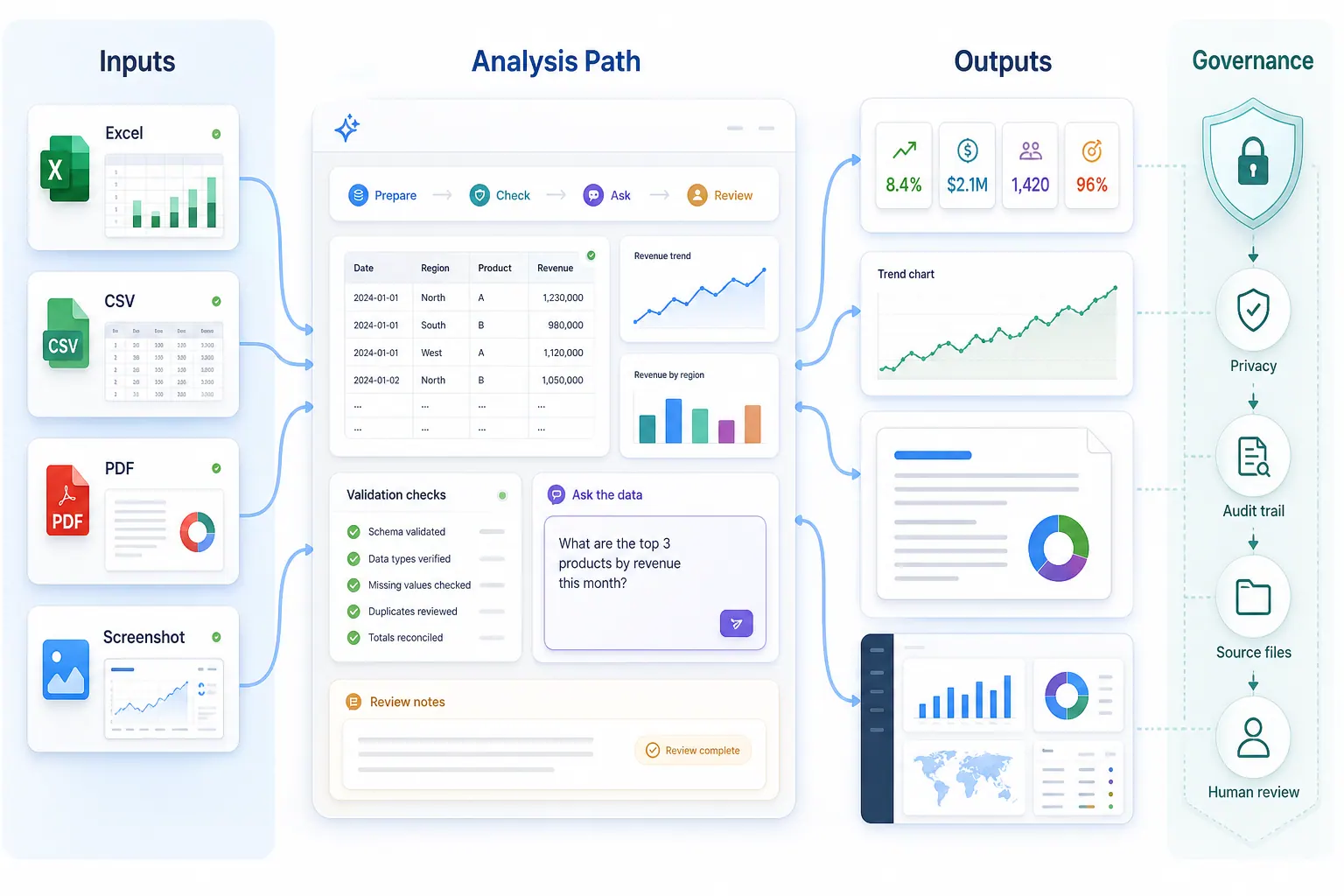
RowSpeak is built for teams that already live in spreadsheets but need a faster path from files to answers. It works well when analysis starts with exported files: Excel workbooks, CSVs, PDFs, screenshots, image-based tables, and recurring business reports.
Use RowSpeak when:
- You have Excel or CSV exports and need answers quickly.
- You want to ask questions in plain English.
- You need KPI summaries, trend explanations, outlier checks, charts, dashboards, or reports.
- You want outputs that a manager, client, or teammate can review.
- BI feels too heavy, but a generic chatbot feels too loose.
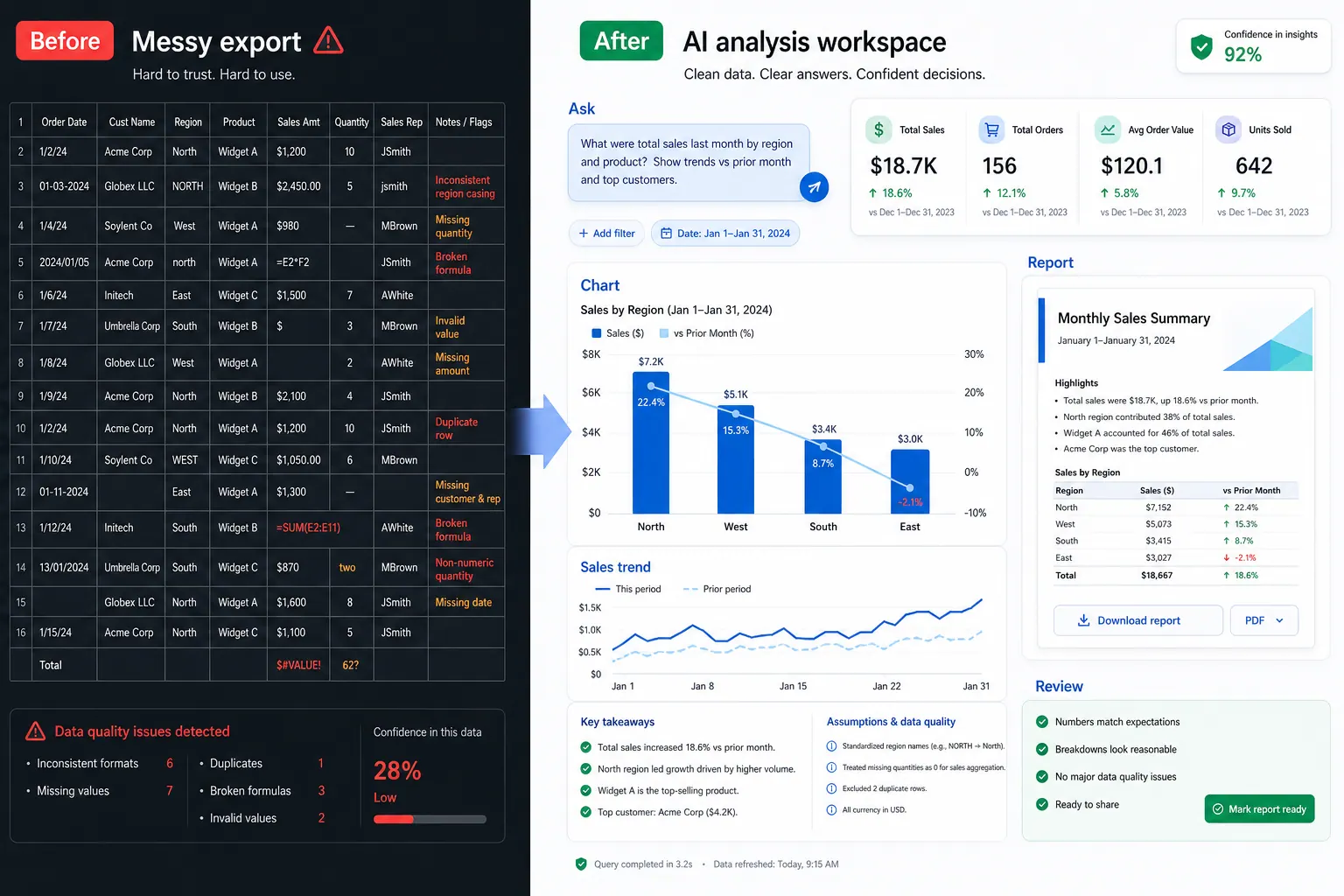
This is the practical gap RowSpeak fills. It is not trying to replace every Excel workflow or every BI platform. It is the layer between raw spreadsheet work and heavy BI: upload the file, ask the business question, review the answer, and turn the output into a report or dashboard when needed.
How to choose the right data analysis tool
Use these questions before choosing:
What file or source are you starting from?
If the data already lives in a governed database, SQL or BI may be the right starting point. If the data is an exported Excel or CSV file, start with a spreadsheet or file-first AI tool. If the data is a PDF table, screenshot, or mixed-format business file, use a tool that can handle more than standard spreadsheets.
RowSpeak is strongest when the data starts as a business file, not as a fully modeled warehouse table.
Who will do the analysis?
If the user is a data analyst or data scientist, Python, R, SQL, Power BI, or Tableau may be appropriate. If the user is a finance manager, sales ops lead, founder, consultant, or operations manager, the tool should work in plain English and produce outputs that are easy to review.
The more non-technical the user, the more important the review layer becomes. The tool should explain what it did, not just return a chart.
What output do you need?
Different tools produce different outputs.
If you need a reusable query, use SQL. If you need a model, use Python or R. If you need a governed dashboard, use BI. If you need a quick spreadsheet answer, use Excel. If you need a business-ready summary, chart, report, or dashboard from a file, use a file-first AI analysis tool like RowSpeak.
Is this one-time or recurring?
One-time analysis can be lightweight. Recurring analysis needs process.
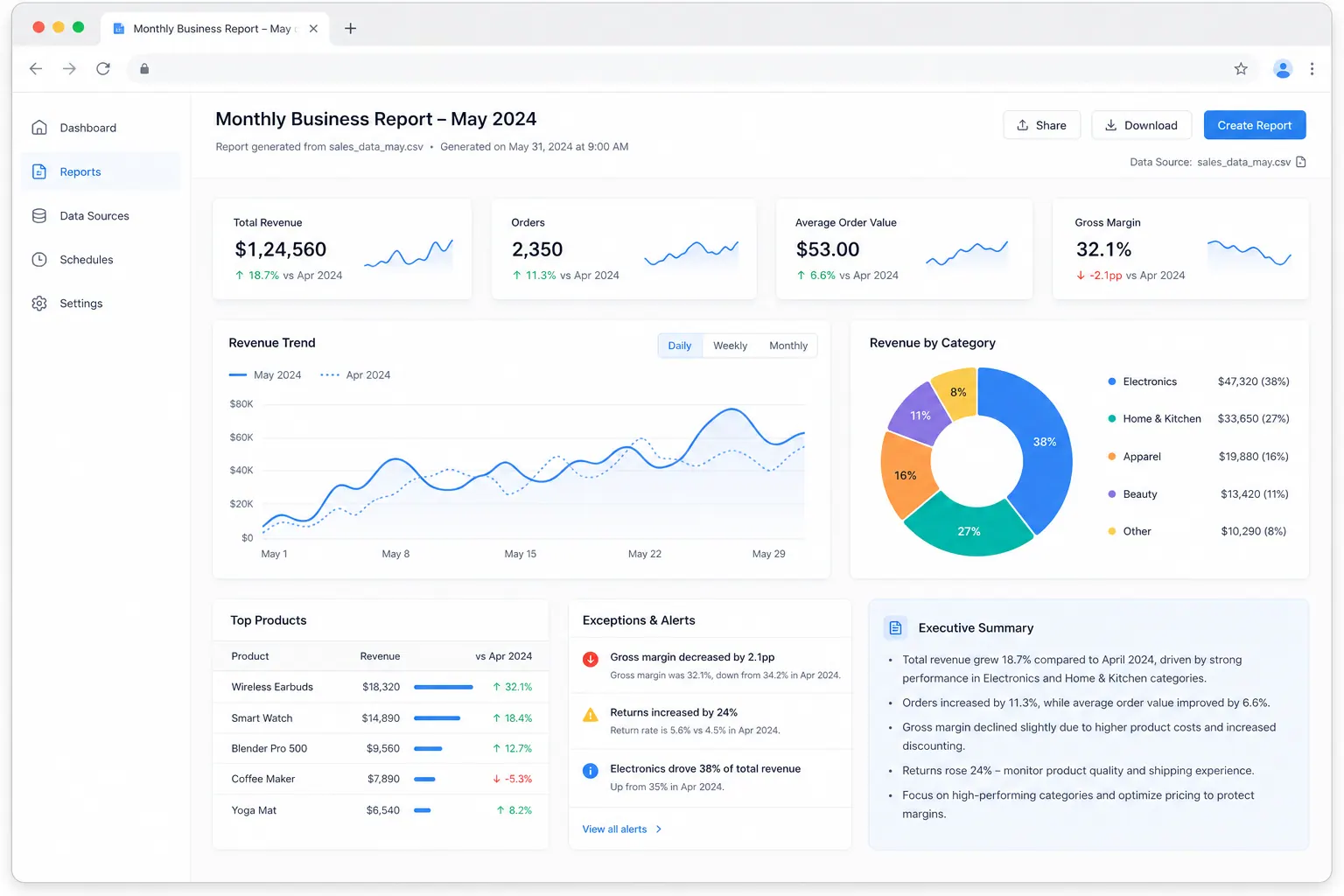
For a recurring weekly sales export or monthly finance report, the tool should support the same steps every time: file review, cleanup, KPI summary, variance analysis, exceptions, charting, report writing, and stakeholder review. This is where an AI reporting workflow or Excel-to-dashboard workflow can save more time than a one-off formula.
A practical Excel and CSV data analysis workflow
Here is a simple workflow for spreadsheet-heavy business teams.
Start by uploading the file and identifying the row grain. Does one row represent an order, order line, invoice, customer, ticket, product, or transaction? Then check the fields that control the analysis: dates, IDs, categories, amounts, regions, owners, channels, and product names.
Next, clean only what affects the result. Look for duplicate records, missing dates, numbers stored as text, inconsistent categories, blank IDs, unexpected negative values, and rows outside the reporting period.
Then ask the business question. Do not start with "analyze this file." Ask something specific:
- Which region drove the revenue change this month?
- What are the top products by margin?
- Which customers had the largest drop in order volume?
- Find expense outliers by department.
- Summarize this CSV into a management report.
- Create charts for the main trends and exceptions.
After the first answer, review the assumptions. Check whether the tool used the right date column, whether totals match the expected range, and whether the explanation is supported by the rows. Then turn the result into an output: a table, chart, dashboard, or narrative report.
This is where RowSpeak fits naturally. A team can start with AI Excel data analysis, move into Excel AI workflows, then create a dashboard or report if the output needs to be shared.
Recommended tool stack for business teams
Most teams do not need one tool. They need a small stack.
For spreadsheet-heavy teams, a practical stack looks like this:
- Excel or Google Sheets for small edits and familiar workbook work.
- RowSpeak for file-based analysis, KPI summaries, charts, reports, and dashboard workflows.
- Power BI or Tableau for governed dashboards that need stable data sources and broad stakeholder access.
- SQL, Python, or R for technical analysis owned by analysts or data teams.
This stack keeps each tool in the right role. Spreadsheet work remains flexible. AI speeds up file-based analysis and reporting. BI handles recurring organizational dashboards. Code handles deeper analysis and automation.
When RowSpeak is the right choice
RowSpeak is a strong fit when the bottleneck is not data science. The bottleneck is spreadsheet work that has become too slow to repeat manually.
Choose RowSpeak when your team regularly handles:
- Sales exports that need KPI summaries and driver analysis.
- Finance workbooks that need variance explanations.
- Marketing CSVs that need campaign performance reports.
- Inventory files that need stock risk and movement analysis.
- PDFs or image-based tables that need to become structured data.
- Monthly files that need charts, dashboards, or written reports.
For sensitive finance, HR, payroll, legal, or customer-level data, teams should also think about data boundaries, permissions, and review steps. If public SaaS upload is not appropriate, review the private deployment option before using real files.
FAQ
What are data analysis tools?
Data analysis tools help users clean, transform, summarize, visualize, model, or explain data. Examples include spreadsheets, SQL databases, Python and R libraries, BI platforms, dashboard tools, and AI data analysis tools.
What is the best data analysis tool for Excel files?
If the Excel file is clean and the question is simple, Excel itself may be enough. If the file is messy, recurring, or needs explanations, charts, dashboards, or reports, RowSpeak is a better fit for spreadsheet-heavy business analysis.
What are the best AI data analysis tools?
For this spreadsheet-heavy business workflow, the two AI data analysis tools to compare are ChatGPT and RowSpeak. ChatGPT is useful for flexible file exploration. RowSpeak is better when Excel, CSV, PDF, and business-file analysis needs reviewable outputs, dashboards, or reports.
Should I use Power BI or RowSpeak?
Use Power BI when you need governed dashboards from stable data sources. Use RowSpeak when you need fast analysis from Excel, CSV, PDF, screenshots, or exported business files and want to turn the result into a report or dashboard without a full BI setup.
Can ChatGPT analyze Excel and CSV files?
Yes. OpenAI's data analysis documentation says ChatGPT can analyze uploaded files, answer questions about data, and create tables or charts when useful. Review the output carefully, especially for business-critical work.
Are AI data analysis tools accurate?
They can be useful, but they still need review. The user should check the data structure, calculations, assumptions, exclusions, and final explanation. A good AI analysis workflow makes those assumptions visible instead of hiding them.
What is the best free data analysis tool?
For many users, the best free starting point is the tool they already have: Excel, Google Sheets, SQL, Python, or R. If the workflow needs AI, compare free trials or free tiers based on file support, output quality, privacy requirements, and reviewability.
Try RowSpeak on your next spreadsheet export: https://dash.rowspeak.ai