The best AI for Excel is not always the tool with the longest feature list. It depends on the work you are trying to finish.
If you are comparing free tools, templates, or team limits, you can paid plan options before deciding how far to take the workflow.
If you only need a formula, a formula assistant may be enough. If your company already works inside Microsoft 365, Copilot may be the first tool to test. If your real problem is a messy Excel export that has to become a dashboard, written summary, or weekly report, you need a workflow that can read the file, analyze the data, and return output your team can review.
This guide compares seven AI for Excel tools through that practical lens.
Key takeaways:
- RowSpeak is the strongest fit when the job starts with real business files and ends with analysis, dashboards, or reports.
- Microsoft Copilot in Excel is useful for teams already working in Microsoft 365, especially when data is formatted for Copilot.
- Claude for Excel and Claude file creation are strong for workbook explanation, model editing, and broader file work, but results still need spreadsheet review.
- Formula Bot and GPTExcel are best for formula writing, formula explanation, and quick spreadsheet fixes.
- Ajelix and Julius AI are better for broader data analysis workflows than single-cell Excel tasks.
How to Compare AI for Excel Tools
Before choosing a tool, decide what kind of Excel work you actually need to finish:
- Formula help: writing, explaining, and debugging formulas.
- File support: Excel, CSV, PDF, screenshots, and image-based tables.
- Data cleaning: duplicates, inconsistent formats, blank cells, merged headers, and messy exports.
- Analysis depth: summaries, trends, variance checks, outliers, segmentation, and questions over the data.
- Charts and dashboards: chart generation, dashboard views, and visual explanations.
- Report output: written summaries that can move into a deck, email, or management report.
- Repeatability: whether you can reuse the workflow for weekly or monthly files.
- Data boundaries: whether confidential spreadsheets need private deployment or stricter controls.
For RowSpeak, the core workflow is file-based: upload Excel, CSV, PDF, or image-based tables, ask questions in plain English, and turn the results into reviewable answers, charts, dashboards, and reports. You can explore that broader Excel AI workflow before comparing individual tools.
Best AI for Excel Tools Compared
| Tool | Best for | Strongest Excel use case | Watch out for |
|---|---|---|---|
| RowSpeak | Business file analysis and reporting | Turn Excel, CSV, PDF, and image-based tables into dashboards, summaries, and reports | Not meant to replace every native Excel editing workflow |
| Microsoft Copilot in Excel | Microsoft 365 users | Formulas, insights, formatting, filters, charts, and PivotTables inside Excel | Works best when files meet Copilot's formatting and subscription requirements |
| Claude for Excel / Claude file creation | Workbook explanation and model work | Explain formulas, adjust assumptions, create/edit Excel files, and analyze CSV or spreadsheet data | Needs careful review before business decisions |
| Formula Bot | Formula help plus lightweight analysis | Generate formulas, explain formulas, upload sheets, and create simple charts | Less suited to full recurring reporting workflows |
| GPTExcel | Quick formula, SQL, script, and VBA help | Generate and explain formulas or scripts from plain language | Best as a helper, not an end-to-end analyst |
| Ajelix | Broader work assets from data | Formulas, dashboards, presentations, app-like outputs, and repeated assets | Can be more platform-like than users need for simple Excel fixes |
| Julius AI | General data analysis chat | Analyze spreadsheets, create visuals, and ask data questions | Less Excel-native than tools built around spreadsheet workflows |
1. RowSpeak
Best for: teams that need to turn spreadsheets into answers, dashboards, and reports.
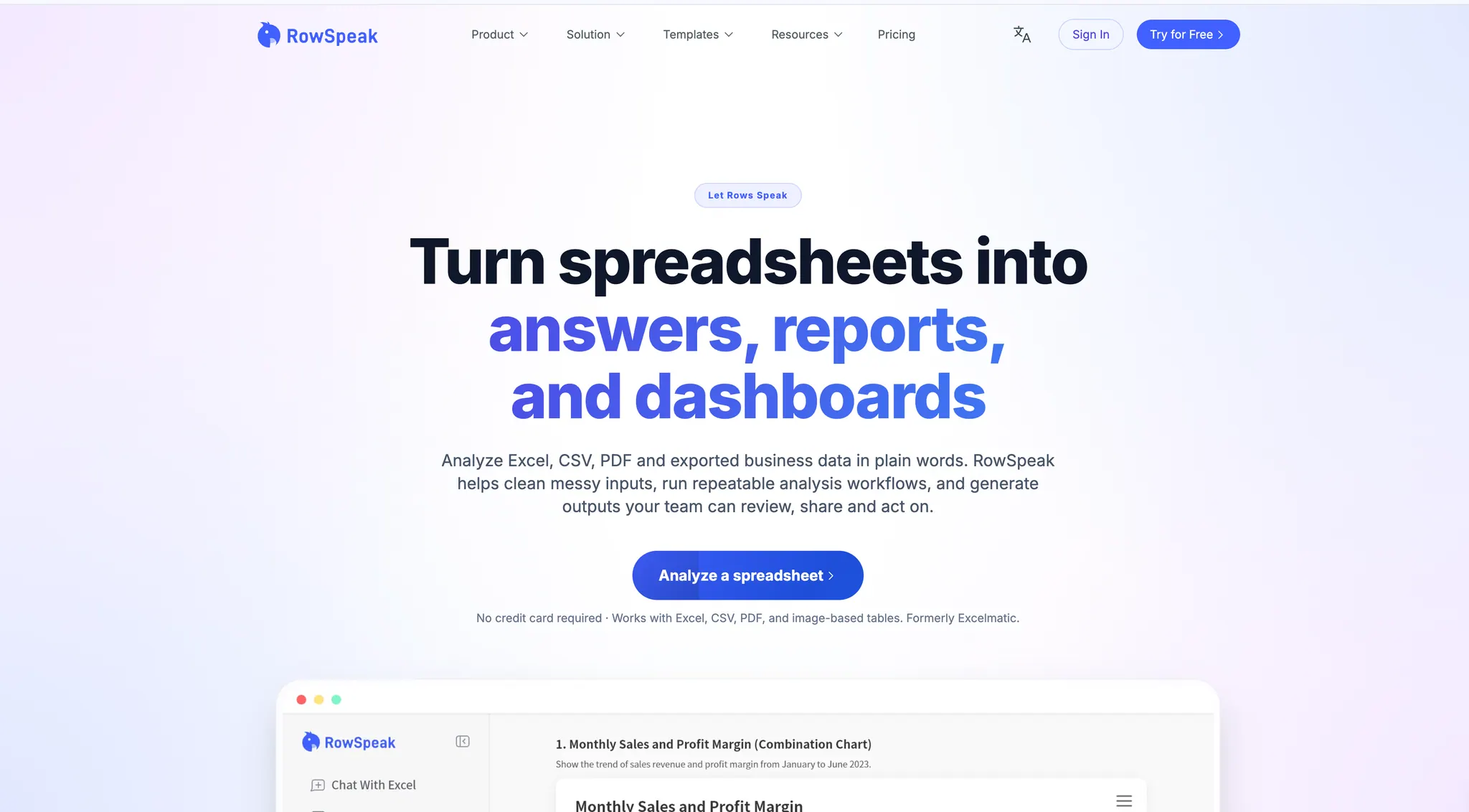
RowSpeak is built for the point where ordinary Excel work becomes reporting work. A finance, operations, sales, or marketing team often starts with a spreadsheet export, not a clean model. The file may include messy headers, missing values, inconsistent categories, or extra tabs. The goal is not only to write a formula. The goal is to understand what changed, explain why, and produce something a manager can review.
That is where RowSpeak fits. It supports Excel, CSV, PDF, and image-based tables, so it works well when data arrives from exports, reports, screenshots, or shared files. You can ask for a variance analysis, customer segment breakdown, sales trend, anomaly check, or dashboard-style summary without rebuilding the spreadsheet by hand.
Use RowSpeak when you want:
- File-based spreadsheet analysis instead of only formula generation.
- Charts, visual summaries, and Excel-to-dashboard workflows.
- Written explanations for AI reporting workflows.
- A repeatable way to process weekly or monthly business files.
- A private-deployment conversation for sensitive spreadsheets.
Where it is not the best fit: if you only need to edit a single cell, build a formula inside your workbook, or use a native Microsoft 365 workflow, another tool may be enough.
2. Microsoft Copilot in Excel
Best for: teams already working inside Microsoft 365.

Microsoft Copilot in Excel can help create and understand formulas, analyze data, generate insights, highlight, sort, filter, create charts, and create PivotTables. It is the natural first option for teams that already live in Excel and have the right Microsoft 365 access.
Its biggest advantage is proximity. You do not have to leave Excel for many common tasks. If your file is already clean, formatted as a table or supported range, and stored in the right Microsoft environment, Copilot can reduce the time spent on common analysis and formatting tasks.
The limitation is that Copilot is strongest when the workbook is already prepared for it. Microsoft's own guidance says Copilot works with Excel tables or supported ranges, and some workflows require AutoSave and supported file conditions. That matters if your actual work starts with messy CSV exports, PDFs, screenshots, or files from outside the Microsoft 365 flow.
Choose Copilot if your team already has Microsoft 365 Copilot and wants help inside Excel. Choose RowSpeak if the bigger job is turning messy files into reviewable dashboards and reports.
3. Claude for Excel and Claude File Creation
Best for: explaining workbooks, adjusting models, and creating or editing Excel files through chat.
Claude now has two relevant paths for Excel users. Claude for Excel is an Excel add-in for supported plans, designed to work inside spreadsheet workflows. Anthropic's documentation describes use cases such as asking questions about workbooks, getting cell-level citations, adjusting assumptions while preserving formula relationships, debugging errors, and building models or templates.
Separately, Claude's file creation and editing can create Excel spreadsheets, analyze CSV and TSV files, generate visualizations, and handle data-analysis work through its computing environment.
This makes Claude attractive for analysts who want a general AI assistant that can reason through a workbook. It is especially useful for model explanation and scenario work.
The tradeoff is review. When an AI edits formulas, assumptions, or workbook structure, you still need to verify outputs, references, and business logic. Claude can be powerful, but it is not a substitute for spreadsheet governance.
4. Formula Bot
Best for: formulas, formula explanation, and fast spreadsheet help.

Formula Bot focuses on the part of Excel work that frustrates many users first: formulas. Its Excel AI page positions the product around formula generation, spreadsheet analysis, and charts from a chat interface. It can be useful when you need to turn plain-English logic into a formula, explain a formula, check a broken formula, or upload a sheet for a simple question.
This is a good fit for students, analysts, operators, and managers who often get blocked by syntax. It can save time when the task is specific: write a SUMIFS, explain an INDEX/MATCH, check a date formula, or build a quick chart.
The limitation is depth. Formula-first tools are helpful, but many business workflows do not stop at a formula. If the real deliverable is a management report, dashboard, or recurring analysis pack, you need to think beyond single-task assistance.
5. GPTExcel
Best for: quick Excel, Sheets, SQL, script, and VBA generation.
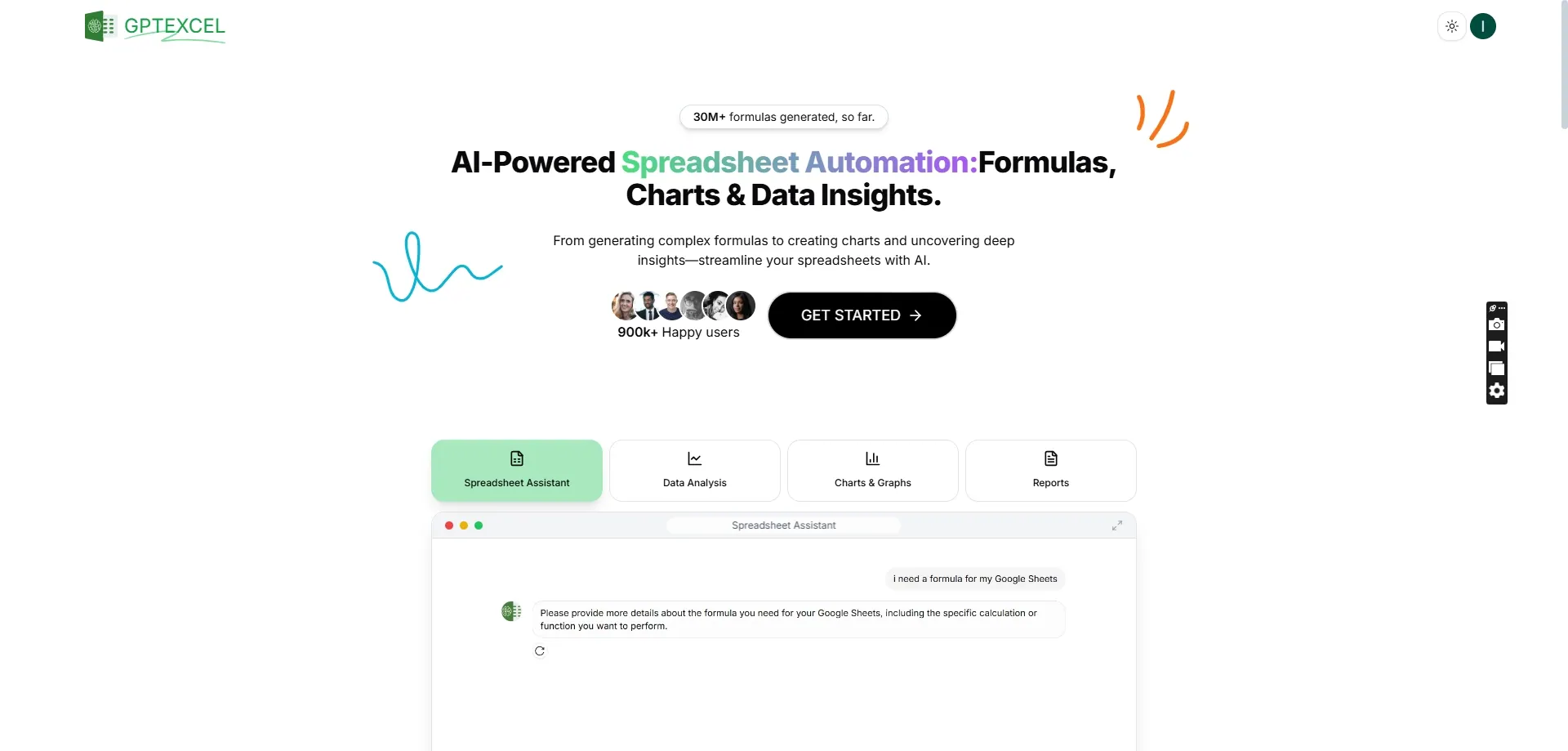
GPTExcel is useful when the task is narrow and technical: generate a formula, explain a formula, create a script, draft SQL, or produce VBA from plain English. It is more like a productivity helper than a full analysis workspace.
Use it when you know what operation you need but do not want to write the syntax yourself. For example, you might ask it to create a formula for conditional lookup, build a VBA macro for formatting, or explain a nested formula before editing it.
The gap is context. If your work depends on understanding a messy business file, finding trends, creating charts, and writing a report, a formula helper will likely become only one step in the process.
6. Ajelix
Best for: teams that want AI-generated assets from business data.
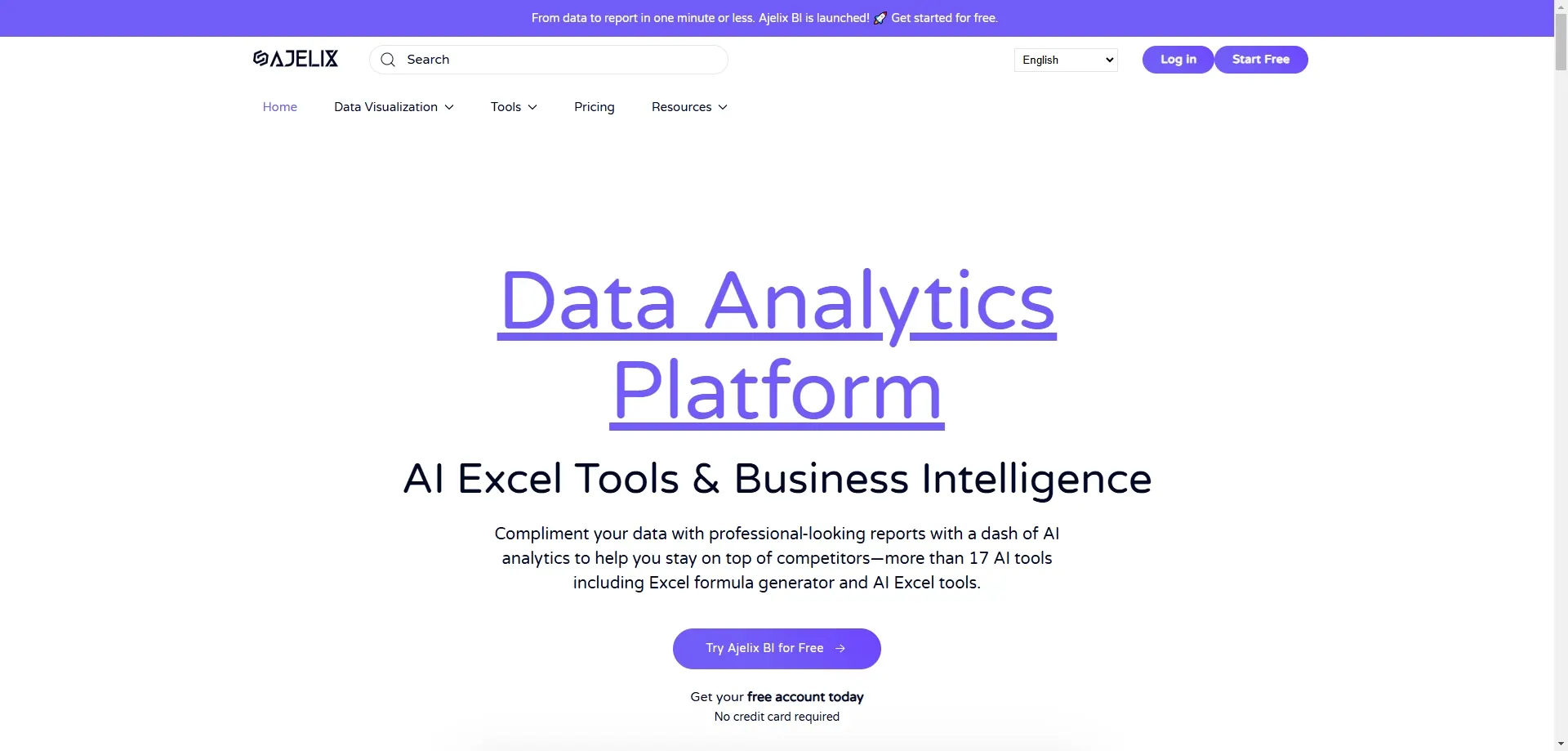
Ajelix has expanded from formula and Excel utilities into a broader AI workspace. Its site highlights AI Excel, dashboards, presentations, formulas, scripts, data cleansing, and reusable assets. That makes it relevant for users who want more than a formula generator but may not need a full BI platform.
Ajelix can be useful when the deliverable is an asset: a dashboard, presentation, app-like output, or reusable workflow. It is especially interesting for teams that want to save prompts and repeat analysis.
The tradeoff is focus. If your main need is Excel analysis and reporting from messy files, compare the actual workflow carefully. A broad platform may offer more than you need, while a focused Excel AI workflow may be easier to adopt.
7. Julius AI
Best for: conversational data analysis across spreadsheets and datasets.

Julius AI is positioned as an AI data analyst. It is useful for people who want to upload data, ask questions, create visuals, and explore a dataset through conversation. For users who think less in Excel formulas and more in analysis questions, this can be a comfortable way to work.
Julius is a good option for exploratory analysis, chart creation, and quick data questions. It can be especially useful when the spreadsheet is a dataset rather than a workbook that needs to stay inside Excel.
The limitation is Excel specificity. If your team cares about workbook structure, repeatable spreadsheet reporting, private deployment, or report-ready outputs from messy business files, compare it directly with tools built around those workflows.
Which AI for Excel Should You Choose?
Use this simple decision rule:
- Choose RowSpeak if you need to analyze uploaded files, create dashboards, and write reports from Excel, CSV, PDF, or image-based tables.
- Choose Microsoft Copilot in Excel if your files are already clean, formatted, and inside Microsoft 365.
- Choose Claude for Excel if you need help understanding or adjusting complex workbooks and models.
- Choose Formula Bot or GPTExcel if your main blocker is formula syntax, formula explanation, scripts, or VBA.
- Choose Ajelix if you want broader work assets from spreadsheet data.
- Choose Julius AI if you want general conversational data analysis.
- Choose Power BI instead of an Excel AI tool if you need governed enterprise BI, semantic models, and long-term dashboard infrastructure.
A Practical Example: Monthly Sales Reporting
Imagine you receive a monthly sales export with columns for date, region, sales rep, product, pipeline stage, revenue, discount, and margin.
The manual Excel route might involve cleaning region names, creating pivot tables, calculating margin variance, building charts, and writing a summary for leadership. That is several separate tasks.
With different AI for Excel tools:
- A formula tool can help write the margin or variance formulas.
- Copilot can help if the workbook is already formatted and stored in Microsoft 365.
- Claude can explain assumptions or help reshape a model.
- Julius can answer exploratory data questions.
- RowSpeak can take the file, identify trends, create visual summaries, and turn the result into a report-style explanation your team can review.
That is why the "best" tool depends on the output. If the output is one formula, choose a formula assistant. If the output is a report, choose a reporting workflow.
FAQs
What is the best AI for Excel?
The best AI for Excel depends on the job. RowSpeak is a strong fit for file-based analysis, dashboards, and reports. Copilot is a strong fit for Microsoft 365 users. Formula Bot and GPTExcel are strong for formulas.
Is Copilot the best AI for Excel?
Copilot is often the best first test for teams already using Microsoft 365. It is less ideal when the workflow starts with messy exports, PDFs, screenshots, or files that are not already prepared for Copilot.
Can ChatGPT or Claude analyze Excel files?
Yes, general AI tools can analyze spreadsheet files in many workflows. The important question is whether the output is reviewable, repeatable, and suitable for your data boundaries.
Which AI for Excel creates dashboards and reports?
RowSpeak is designed for spreadsheet-to-dashboard and spreadsheet-to-report workflows. Ajelix and Julius can also create data assets or visuals, depending on the use case.
What is the best free AI for Excel?
Free tiers and limits change often. If you only need formulas, start with a formula assistant. If you need to test a real business file, try a workflow that supports file upload, analysis, charts, and written output.
Is RowSpeak an Excel add-in?
RowSpeak is a web-based Excel AI workflow, not just an Excel add-in. That makes it useful when your files come from many places: Excel exports, CSVs, PDFs, screenshots, or image-based tables.
What should teams do with confidential spreadsheets?
Do not upload sensitive spreadsheets to tools that do not match your data policy. For finance, HR, customer, payroll, or internal operating data, review private deployment options and define approval steps before using AI on real files.
Bottom Line
If you only need a formula, choose a formula assistant. If you work entirely inside Microsoft 365, test Copilot. If you need a general AI assistant for workbook reasoning, evaluate Claude.
But if your real workflow is "I have a messy spreadsheet and need a dashboard, analysis, and report," RowSpeak is the tool to test first. Start with a real export, not a demo table, and compare the output against your current Excel-to-report process.
Try the RowSpeak AI for Excel workflow with your next spreadsheet.