Merging two Excel spreadsheets sounds like a small task until you open the files.
One spreadsheet may have the same columns in a different order. Another may use Customer ID while the second uses Account Number. One file may be a clean monthly export, while the other is a messy workbook with extra header rows, blank lines, hidden columns, and formulas that should not be copied.
That is why "how to merge two Excel spreadsheets" has more than one answer. The right method depends on what you mean by merge.
Key takeaways:
- If the two spreadsheets have the same columns, you usually want to append rows into one master list.
- If the spreadsheets share an ID, such as customer ID, SKU, order ID, or email, you usually want to join data from one sheet into the other.
- If you need totals by region, month, product, or department, you probably need consolidation or a PivotTable, not a raw row merge.
- If you need to merge more than two spreadsheets, use Power Query for highly standardized files and RowSpeak when the files need column matching, source tracking, checks, or follow-up reporting.
- RowSpeak is useful when the task includes messy files, mismatched column names, source tracking, review checks, and a report or dashboard after the merge.
First, decide what "merge" means
Before choosing a tool, define the result you need.
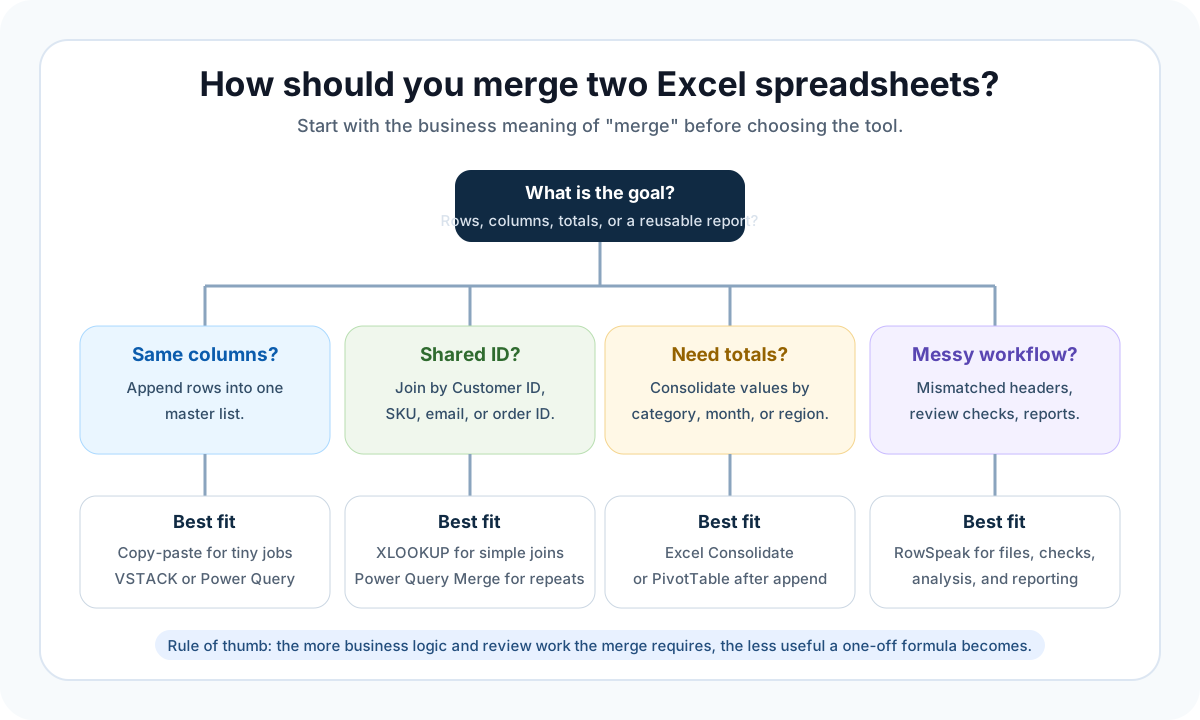
There are four common merge patterns:
| What you need | Plain English meaning | Common Excel method | When RowSpeak helps |
|---|---|---|---|
| Append rows | Put Sheet B under Sheet A | Copy-paste, VSTACK, Power Query Append |
When columns are not perfectly aligned or you need a source file column |
| Join by ID | Add columns from one spreadsheet to matching rows in another | XLOOKUP, VLOOKUP, Power Query Merge |
When keys are messy, names differ, or unmatched rows need review |
| Consolidate totals | Add or summarize numbers from multiple sheets | Excel Consolidate, PivotTable, Power Query | When the result needs explanation, exceptions, or a report |
| Build a repeatable workflow | Merge, clean, check, analyze, and share | Power Query, macros, BI tools | When the workflow changes often or users do not want to maintain queries |
This distinction matters because the wrong merge method can silently corrupt your dataset. Copy-paste is fine for two tiny, identical lists. It is risky when the rows need to match by ID.
Method 1: Copy-paste or VSTACK when the columns match
Use this method when both spreadsheets are the same type of list.
Example:
January Orders.xlsxhasOrder ID,Date,Customer,SKU, andAmountFebruary Orders.xlsxhas the same columns- You want one long order table
For a one-time merge, manual copy-paste can work:
- Open both spreadsheets.
- Create a new workbook or master sheet.
- Copy the header row from the first spreadsheet.
- Copy rows from the first spreadsheet under the header.
- Copy rows from the second spreadsheet under the first set of rows.
- Check row counts and remove repeated header rows.
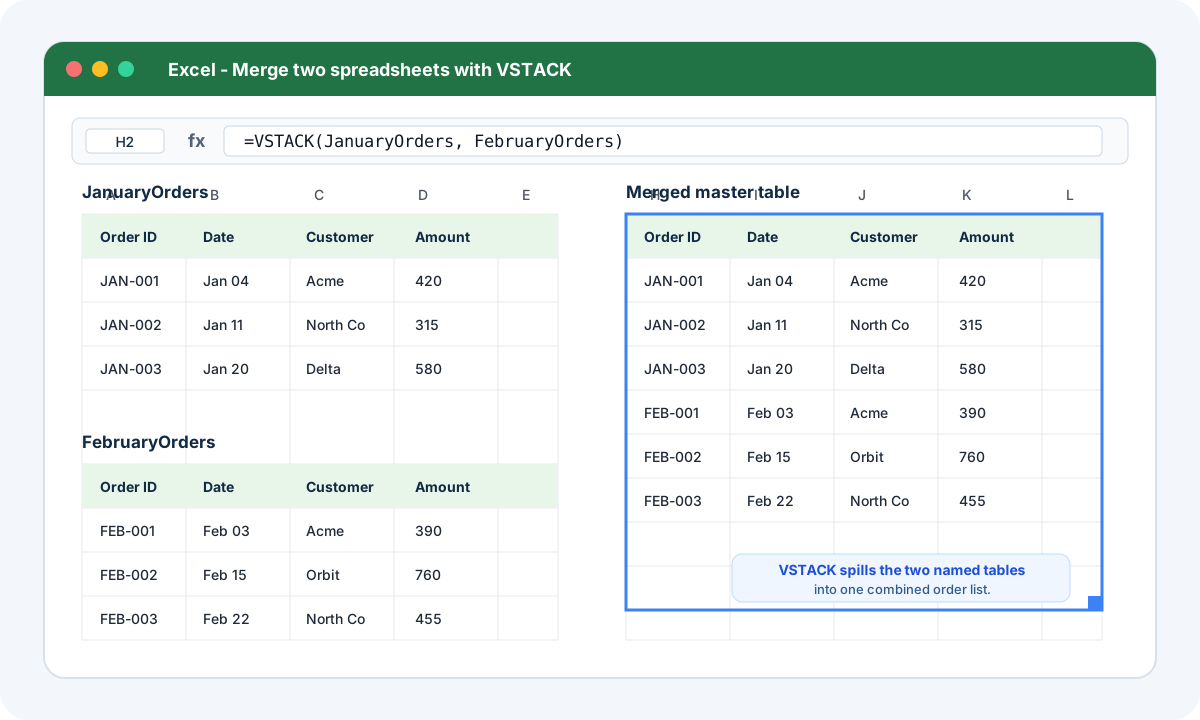
If you use Microsoft 365 and both tables are in the same workbook, VSTACK can be cleaner:
=VSTACK(JanuaryOrders, FebruaryOrders)
The problem is that real business exports are rarely perfect. One month may contain a new column. Another may rename Amount to Net Sales. A pasted file may include a totals row at the bottom.
Use this method only when the structure is stable and the merge is easy to check.
Method 2: XLOOKUP when the spreadsheets share an ID
Sometimes "merge" does not mean stacking rows. It means enriching one table with columns from another table.
Example:
- Spreadsheet 1: order data with
Order ID,Customer ID,Date, andRevenue - Spreadsheet 2: customer data with
Customer ID,Customer Name,Segment, andRegion - Goal: add
Customer Name,Segment, andRegionto the order table
In Excel, this is a lookup problem. A simple XLOOKUP might look like this:
=XLOOKUP([@[Customer ID]], Customers[Customer ID], Customers[Region], "Not found")
This works when:
- the key column is clean
- each key appears once in the lookup table
- the return column is clearly defined
- the dataset is small enough to troubleshoot manually
It breaks down when there are duplicate IDs, inconsistent key formats, hidden spaces, missing matches, or several fields to bring across. If the spreadsheet is part of a recurring workflow, you may also need a repeatable way to flag unmatched rows instead of hiding them behind Not found.
For deeper lookup scenarios, see our guide to merging Excel tables without VLOOKUP or XLOOKUP.
Method 3: Power Query when the merge repeats
Power Query is the strongest native Excel option for repeatable merges. It can append tables, merge queries by a key, remove columns, change data types, and load the result into a clean table.
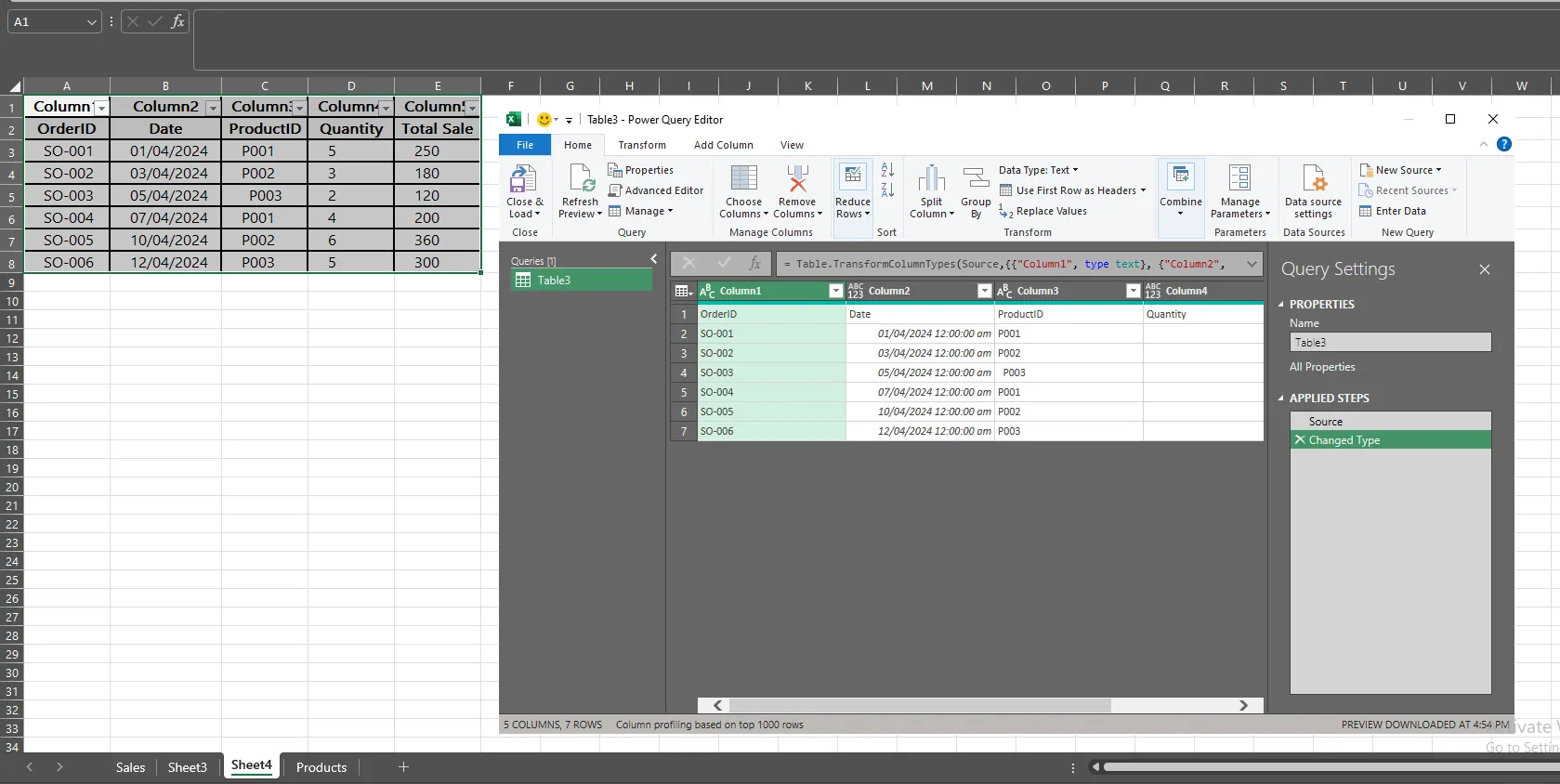
Use Power Query when:
- the source files arrive in the same format every week or month
- the workbook owner is comfortable maintaining queries
- the merge logic is stable
- the process needs to be rerun
For example, a finance analyst might use Power Query to pull monthly CSV files from a folder, append them into one table, remove blank rows, standardize dates, and load the result into a PivotTable.
The tradeoff is maintenance. Power Query is powerful, but it expects a structured workflow. If the source headers change, a new file includes an extra metadata row, or a teammate wants a slightly different output, someone has to understand the query steps.
That is often the point where teams start looking for a lighter Excel AI workflow or a more formal BI pipeline.
Method 4: Use Excel AI Agent like RowSpeak when the files are messy or the output matters
RowSpeak fits the cases where merging is not the whole job.
Most business users are not trying to create a perfect technical data pipeline. They are trying to get from messy spreadsheet files to a usable answer, report, or dashboard. The merge is just the first step.
With RowSpeak, you can upload Excel or CSV files, describe the result in plain English, review the output, and continue refining the analysis. The value is not only that the files can be combined. The value is that the merge can include business logic, checks, and follow-up reporting.

Example prompt for appending two spreadsheets:
Merge these two spreadsheets into one master order table. Stack the rows vertically, align columns with the same meaning, remove repeated header rows, and add a Source File column.
Example prompt for joining by a shared ID:
Join the orders spreadsheet with the customer spreadsheet using Customer ID. Add Customer Name, Segment, and Region to the orders table. Show me any orders where the Customer ID does not match a customer record.
Example prompt for a reviewable output:
After merging the spreadsheets, check the row count from each source, list duplicate Order IDs, compare total revenue before and after the merge, and create a short summary of any issues.

Once the merged table is ready, you can continue the workflow:
Create a summary by month and region, highlight the top 10 customers by revenue, and draft a management summary explaining the biggest changes.
That is where RowSpeak differs from a formula-only answer. A formula can return a value. A reviewable workflow can show what changed, what failed to match, and what the team should look at next.
If the next step is a recurring report, connect the merged file to an AI reporting workflow. If the next step is a visual summary for leadership, use an Excel-to-dashboard workflow.
What if you need to merge more than two spreadsheets?
The same decision rules apply when you have three, ten, or fifty spreadsheets, but the risk goes up quickly.
For clean files with the same layout, Power Query is often the best native Excel option. You can put all the files in one folder, use Data > Get Data > From Folder, combine the files, and refresh the query when new exports arrive. This works well for standardized monthly reports, branch reports, or system exports where every file has the same columns and worksheet names.
But multi-file merges often become messy in real business workflows:
- one file has
Revenue, another hasSales Amount, and another hasNet Sales - some workbooks contain the target data on
Sheet1, while others useMonthly Sales - repeated header rows appear in the middle of the merged file
- a totals row from each source file gets copied into the master table
- the final table needs a
Source File,Source Sheet,Month, orRegioncolumn - the team needs a list of unmatched IDs, duplicate rows, or suspicious totals
That is where an AI workflow like RowSpeak is a better fit than a one-off formula. Instead of manually configuring every source and column mapping, you can upload the files and describe the consolidation rule.
Example prompt for many similar files:
Merge all uploaded Excel files into one master sales table. Use the sales worksheet from each file, align columns with the same meaning, remove repeated header and total rows, and add Source File and Source Sheet columns.
Example prompt for many files with inconsistent columns:
Combine these monthly spreadsheets into one clean table. Treat Revenue, Sales Amount, and Net Sales as the same field. Standardize the date column, keep a source column for each row, and show a separate issue list for missing fields or unmatched IDs.
Example prompt for a reporting-ready output:
After merging the files, check row counts by source file, compare total revenue before and after the merge, flag duplicate Order IDs, and create a summary by month and region.
For a user searching "how to merge two Excel spreadsheets," this multi-file scenario is often the next problem. Once two files become twenty, the job is no longer just combining spreadsheets. It becomes a repeatable file-to-report workflow. RowSpeak is useful because the same conversation can handle the merge, the review checks, and the next analysis step without forcing the user to maintain a fragile workbook.
Practical scenarios and the best merge approach
Monthly sales reports from two regions
If both regions use the same template, append the rows and add a Region or Source File column. VSTACK or Power Query can work well.
Use RowSpeak if the templates are similar but not identical:
Combine the East and West sales reports into one table. Treat Sales Amount, Revenue, and Net Sales as the same field. Add a Region column based on the file name.
Orders plus customer details
This is a join, not an append. Use XLOOKUP or Power Query Merge if the key is clean.
Use RowSpeak if you also need exception handling:
Merge orders with the customer master file using Customer ID. Add customer segment and account owner. Create a separate list of unmatched IDs and duplicate customer IDs.
Inventory list plus price sheet
This is usually a SKU-based join. The danger is unmatched or inconsistent SKUs. If a product appears in inventory but not in pricing, the final report should show that problem clearly.
A good output is not only the merged file. It is the merged file plus an exceptions tab.
Marketing exports from two platforms
This is rarely a perfect merge. One platform may call the spend field Cost; another may call it Amount Spent. Date formats and campaign names may differ.
In that case, ask for normalization before analysis:
Merge these two ad platform exports. Standardize the date, campaign, impressions, clicks, spend, and conversions columns. Then calculate CTR, CPC, and conversion rate.
For more examples of turning exported files into repeatable analysis, see the data analysis workflow.
Finance or HR files
Finance, payroll, compensation, and HR files need extra care. Before uploading sensitive data to any tool, remove unnecessary personal fields, use anonymized samples where possible, and confirm your organization's data handling rules.
For teams that need controlled data boundaries, review the RowSpeak private deployment option before building a recurring workflow around sensitive spreadsheets.
A merge checklist before you trust the result
Whatever method you use, do not trust the merged spreadsheet until it passes basic checks.
| Check | What to verify | Why it matters |
|---|---|---|
| Row counts | Rows from Sheet A + rows from Sheet B match the final table | Prevents missing or duplicated records |
| Header handling | Header rows appear once | Avoids polluted analysis |
| Key uniqueness | Lookup keys are unique where they should be | Prevents accidental many-to-many joins |
| Unmatched rows | Missing IDs are visible in a separate list | Keeps errors from disappearing |
| Total checks | Revenue, quantity, or balances match before and after | Catches shifted columns and bad filters |
| Data types | Dates, numbers, currency, and percentages are consistent | Prevents broken charts and calculations |
| Source tracking | Every row can be traced back to a file, sheet, or period | Makes review and audit easier |
This checklist is where many generic tutorials stop short. The merge is not complete when the table looks full. It is complete when the result is explainable.
Which method should you use?
Use copy-paste when the job is tiny, one-time, and easy to inspect manually.
Use VSTACK when both spreadsheets have matching columns and you want a simple formula-based append.
Use XLOOKUP when one spreadsheet needs columns from another spreadsheet and the shared key is clean.
Use Power Query when the merge is repeatable, structured, and maintained by someone comfortable with query steps.
Use RowSpeak when the spreadsheets are messy, the merge rules need plain-English explanation, or the final output needs review notes, analysis, reporting, or a dashboard.
If you only need to combine clean tables, Excel is enough. If you need to turn messy business files into a decision-ready output, RowSpeak is often the more practical layer between raw spreadsheets and heavy BI.
FAQ
How do I merge two Excel spreadsheets into one?
If both spreadsheets have the same columns, append the rows into one master table. You can do this with copy-paste, VSTACK, Power Query Append, or RowSpeak. If the columns do not match exactly, review the mapping before trusting the result.
How do I merge two Excel spreadsheets based on one column?
Use a shared key such as Customer ID, SKU, Order ID, or email. In Excel, use XLOOKUP or Power Query Merge. In RowSpeak, describe the key and ask the AI to return unmatched rows and duplicate keys for review.
What is the difference between merge, combine, append, and consolidate?
Append means stacking rows. Join or merge by ID means adding columns from one table to matching rows in another. Consolidate usually means summarizing numbers, such as combining monthly totals by department or region.
Can I merge Excel files if the column names are different?
Yes, but do it carefully. If Revenue, Sales Amount, and Net Sales mean the same thing, the final table should standardize them into one field. This can be done manually, in Power Query, or with a RowSpeak prompt that explicitly defines the mapping.
Can I merge more than two Excel spreadsheets?
Yes. If every file uses the same template, Power Query can combine files from a folder. If the files have inconsistent columns, multiple sheet names, repeated headers, source tracking needs, or follow-up analysis requirements, RowSpeak is the better AI workflow. For a dedicated walkthrough, see how to merge multiple Excel sheets.
What should I do after merging the spreadsheets?
Run review checks first. Then decide whether the merged data should become a PivotTable, chart, written report, or dashboard. If the purpose is reporting, use an AI reporting workflow so the final output includes both numbers and explanation.
Turn the merge into a workflow, not another manual task
The best merge method is the one that matches the business problem.
For a tiny, clean task, Excel formulas are enough. For a recurring technical process, Power Query may be the right answer. But if your spreadsheet merge includes messy files, inconsistent headers, review checks, and a report that someone else needs to understand, treat it as a workflow.
Upload the files to RowSpeak, describe the merge you need, ask for checks, and then turn the result into the analysis, report, or dashboard your team actually needs.
Try RowSpeak on your next spreadsheet merge and see how much of the work belongs in the reviewable workflow, not in manual copy-paste.