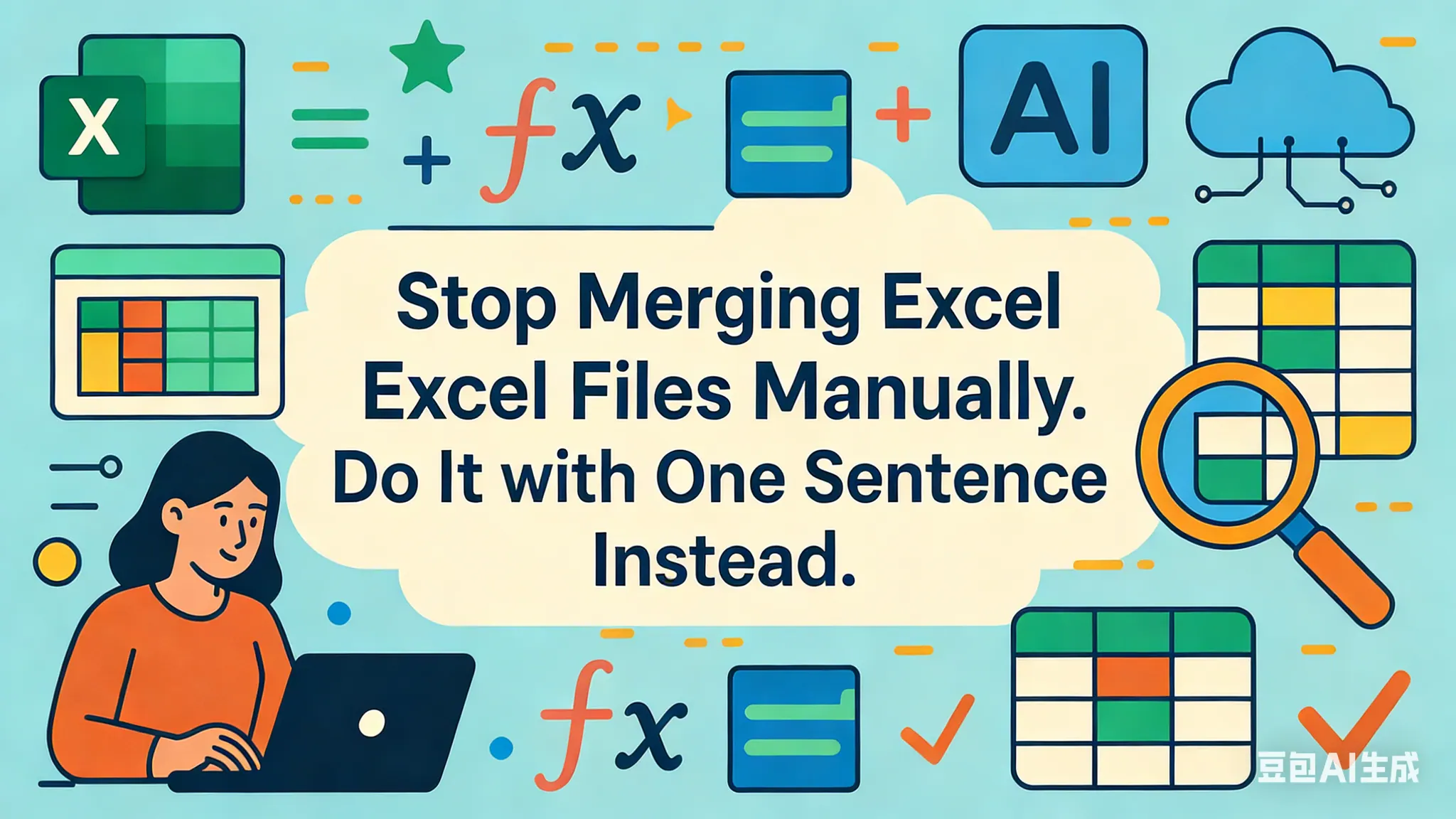
It's the end of the month. Your folder is overflowing with 20 different Excel reports from various branches and departments. Your mission: combine them all into one master file. And so begins the long, tedious marathon of copy and paste. Open File A, copy, paste to the master sheet; open File B, copy, paste...
All the while, you're constantly worrying about mismatched column orders, repeated headers, or accidentally overwriting data.
With RowSpeak, you will:
- Compress hours of mechanical copy-pasting into less than three minutes.
- Completely eliminate human error, ensuring a 100% accurate and complete data merge.
- Achieve complex merge tasks in the most intuitive way, no Power Query or VBA required.
As part of the RowSpeak team, we've seen too many brilliant analysts waste their valuable time on this kind of mechanical, mind-numbing, and highly error-prone work. We believe merging data should be the start of your analysis, not an exhausting hurdle that drains your energy.
What Exactly is "AI File Merging"?
Imagine you no longer need to open files one by one. AI file merging means you can "dump" all the Excel or CSV files you need to merge onto the AI at once, give it a single command in plain English, and it will intelligently stitch all the data together into one clean, complete master sheet.
With RowSpeak, the AI merge feature can effortlessly:
- Match Columns Intelligently: Even if column names in different files vary slightly (e.g., "Sales Amount" vs. "Total Revenue") or their order is different, the AI can recognize they represent the same data and align them correctly.
- Process in Bulk: Whether you have 10, 50, or 100 similarly structured files, you can upload them all at once, and the AI will automatically loop through and process them for you.
- Add a Source Identifier Automatically: After merging, the AI can automatically add a new column, such as "Source File," letting you know exactly which original spreadsheet each row of data came from for easy tracking.

Real-World Scenarios
Let's see how our users are solving the most common data consolidation headaches.
1. Consolidating Monthly Sales Data from All National Stores
- Where it helps: A retail operations director needs to aggregate monthly sales reports from 50 stores across the country.
- User Testimonial: "This used to be the most painful two days of my month. 50 Excel files, all with minor variations. I had to open, copy, paste, and repeat. Now, I drag all 50 files into RowSpeak and say, 'Merge all these files and add a 'Store Name' column based on the file name.' By the time I finish my coffee, the consolidated report is done. It's magic." - Jessica, a Retail Operations Director
Why it works: The AI transforms a linear, 50-step repetitive process into a parallel, one-step automated workflow. The efficiency gain is exponential.
2. Aggregating Marketing Data from Different Ad Platforms
- Where it helps: A marketing analyst needs to combine weekly reports from Google Ads, Facebook Ads, and LinkedIn Ads.
- User Testimonial: "Data exports from different platforms always have different column names and orders, like 'Spend' vs. 'Cost'. I used to have to manually standardize the headers first. Now I tell RowSpeak: 'Merge these three files, and align the 'Cost' and 'Spend' columns into a single 'Ad Spend' column.' It understands! This saves me a huge amount of preprocessing time." - Mark, a Marketing Analyst
Why it works: The AI's "intelligent column matching" solves the core problem of heterogeneous data in merges, a capability far beyond simple copy-pasting.
3. Compiling Annual Employee Performance Reviews
- Where it helps: An HR department needs to merge individual employee performance review forms (one file per employee) into a single master file.
- User Testimonial: "Every performance season, I had to deal with hundreds of individual review files. With RowSpeak, I just upload the entire folder and say, 'Merge all Excel files in this folder.' It not only merged them instantly but also automatically added the filename (which was the employee ID) to each row, making it easy to link back to employee info. That feature is a lifesaver." - Emily, an HR Specialist
Why it works: Automatically adding a source identifier solves the "data provenance" problem after merging, making the consolidated data not just whole, but also clearly traceable.
Why Choose Conversational AI Over Manual Merging
- Intelligent Alignment: Automatically handles inconsistent column orders and minor name variations.
- Bulk Processing Power: Handles a massive number of files at once, ending repetitive labor.
- Error Elimination: Prevents common copy-paste errors like misaligned rows, missed data, or overwritten cells.
- Data Traceability: Automatically adds a source column so you know where every piece of data came from.
- Ultimate Simplicity: A drag-and-drop and a single sentence replace complex Power Query steps or VBA scripting.
Merge Your First Batch of Files with RowSpeak
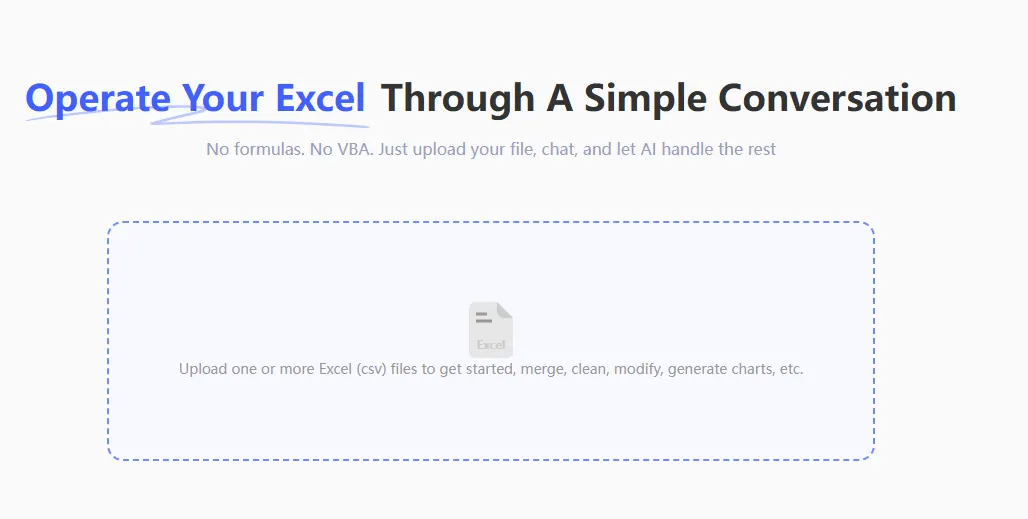
- Upload All Your Files: Drag and drop all your Excel or CSV files into the upload area at once.
- Give Your Merge Command: In the chat box, type your merge request, like "Merge all the uploaded files."

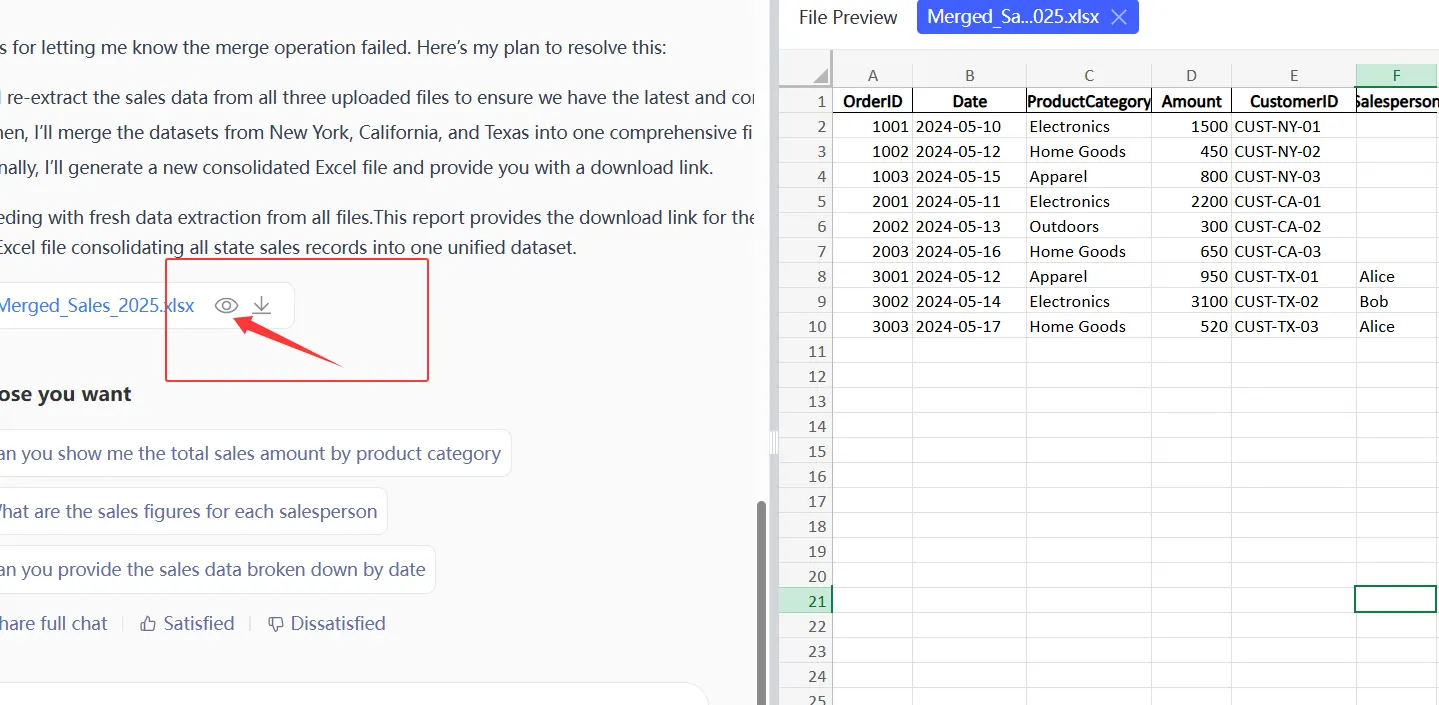
- Preview the Result: The AI will show you a preview of the merged table for a quick check.
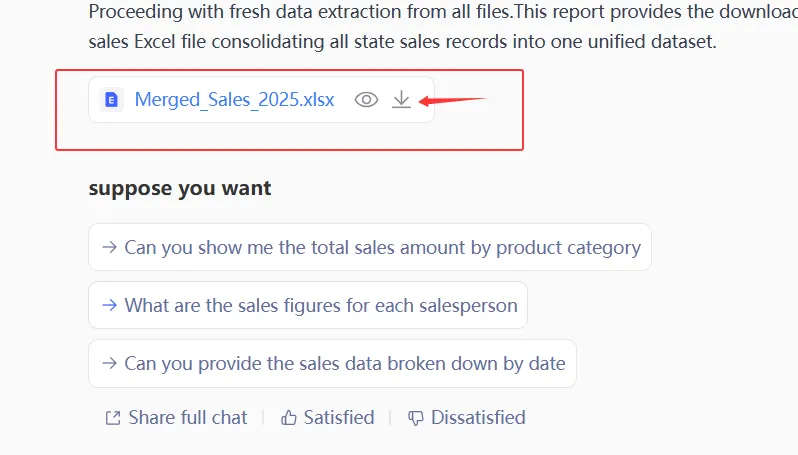
- Download the Master File: Once you're satisfied, download the newly created, perfectly merged Excel file with one click.
Frequently Asked Questions (F.A.Q.)
Q: What if some files have extra columns that others don't? A: No problem. The AI will create a "master header" containing all unique columns from all files. For files missing a particular column, the data in that column will simply be blank, ensuring no data is lost or misaligned.
Q: How fast is it? How long does it take to merge dozens of files? A: It's incredibly fast. Compared to a manual process that could take hours, the AI typically merges dozens of files in just a minute or two, depending on their size and complexity.
Q: Can it handle data from different sheets within the same workbook? A: Yes. You can even specify a particular sheet to merge from each file, for example: "Merge 'Sheet1' from all of these files."
It’s time to stop the endless copy-paste game.
Give your time back to insight, not data transportation. We're excited to see the value you'll create once you're freed from the drudgery of merging files.
Start a free trial of RowSpeak today and experience a new level of data consolidation efficiency.