Your branch reports contain the same kind of sales records, but the headers start on different rows and the columns have different names. You need one table without losing records or changing the totals. Below, a recorded RowSpeak workflow combines three mismatched Excel files into 445 checked sales records. You can copy the prompt, watch the merge, and download the result to inspect it yourself.
Watch the recorded merge and review the files.
Key takeaways:
- Combine sales records from files with different header positions and column names into one table.
- Use the copyable prompt to set date rules, preserve missing values, and request source details for checking.
- See the recorded three-file result: 445 records, 2,944 units, and 10,989,500 in revenue, in the original currency.
- Check record counts and totals by source before using the merged file in a report.
The real problem is not merging
Technically, merging is the easy part. Excel, scripts, and free tools have been able to stack rows from many files for years. What makes your weekly job slow is what happens before the merge: the files do not match.
One file from this week has headers on row 1. Another has headers on row 4, because someone pasted a title and a date above the table. A third spells the same column "Rev" while the others say "Revenue". If you have searched for help on this, you have probably seen posts like these from people doing the same job:
- One operations worker described needing to merge 100+ Excel files every week, worried about losing formatting or data along the way (r/excel).
- Another combined 50+ files daily through copy-paste, because the headers did not start at the top and there was random information above and below the data (r/excel).
- A non-programmer tried to merge inconsistent batches of workbooks in Python and got stuck in the documentation (r/learnpython).
- Someone wrote a macro to pull specific cells from many files, but it recorded cell-by-cell and ran too slowly (r/excel).
These are what real business files look like when they come from different people, systems, or months. The merge is simple. The disagreement is the job.
Choosing a way to combine your files
Excel tools and scripts can combine files. The useful question is how much setup your particular differences require, and how you will check the result.
Option 1: Buy a merger tool
Dedicated merging tools are fast when your files share a layout. They typically stack rows from many workbooks in one click, and for clean, identical exports that is exactly what you want.
Check whether your chosen tool can detect headers below the first row, map different names to the same column, and report skipped rows. A tool that only stacks matching layouts will need preparation before it can combine these exports correctly.
Option 2: Power Query
Power Query is a useful option when your files are consistent. If every weekly export comes from the same system with the same columns, building a query once and refreshing it is a good workflow, and it costs nothing beyond the Excel you already own.
When layouts vary, your query needs rules for those differences:
- A header that sits on row 2 or row 5 in some files. The query was pointed at row 1, so those columns shift or vanish.
- A renamed column. "Region" becomes "Area" in one month's export, and the query treats it as a new, unrelated field.
- A total row in the middle of the data. It flows into the merged table as if it were a normal row, and your sums quietly go wrong.
Power Query can handle these differences with suitable transformation and column-mapping rules. Those rules need maintenance when the exports change, so consider who will own that setup.
Option 3: Write VBA or Python
Macros and scripts can handle almost anything, including messy files. The cost is different: you now own code. The cell-by-cell macro from the quotes above is a good example. It worked, technically. It was also too slow to be useful, and every structural surprise in the next batch of files meant another editing session. The non-programmer who got stuck in Python documentation hit the other side of the same trade: the approach works, but only for people who can maintain it.
If you enjoy scripting, this is a legitimate path. If your actual job is operations or finance and the scripting was a means to an end, you are maintaining software on top of doing your real work.
What "messy" actually means, concretely
"Messy files" is not a vague complaint. It is a specific list, and you will probably recognize most of it:
- Headers not on row 1: a title, a date, or a blank band sits above the real table.
- Notes above and below the data: "Prepared by", "Confidential", or last-minute comments inside the sheet.
- The same column named differently in each file: "Revenue", "Rev", "Sales Amount".
- Merged cells: a region label stretched across three rows, so only the first row carries the value.
- Numbers and dates stored as text: "1,250" as text, "2026/10/01" as a string, and totals that silently skip both.
- Blank rows splitting the table into pieces.
- A totals row that must not be counted as data, sometimes at the bottom, sometimes in the middle.
If three or more of these describe your weekly files, the "merge files" framing has been hiding the real task. The real task is: turn mismatched files into one table where every row means the same thing. That is a different job, and it needs a different approach. A separate data-cleaning workflow can help when the files are already in one workbook but the values still need normalizing.
The plain-language route
With RowSpeak's Excel AI workflow, upload your workbooks and describe which records belong in the combined table, which columns mean the same thing, and what should happen to missing values. Then review the generated table and its checks.
For a sales merge, ask for one row per original sales record. Keep source references, request totals by file, and tell the tool to leave uncertain values blank. That makes it easier to catch an incorrect mapping before it reaches your report.
A recorded example: three mismatched sales workbooks
This demonstration uses three publicly shared synthetic practice workbooks from a GitHub sales consolidation project. They represent the same kind of sales detail from Lahore, Karachi, and Islamabad. This is a product demonstration using practice data, rather than a customer case study.
The recording below shows the original file previews, the merge request, RowSpeak's summary, and the combined workbook preview. It runs for about 2 minutes 37 seconds.
Step 1: Check what differs in the source files
All three files contain sales records, but a simple copy-and-paste would require several fixes:
| Source workbook | What differs | Sales records |
|---|---|---|
branch_lahore.xlsx |
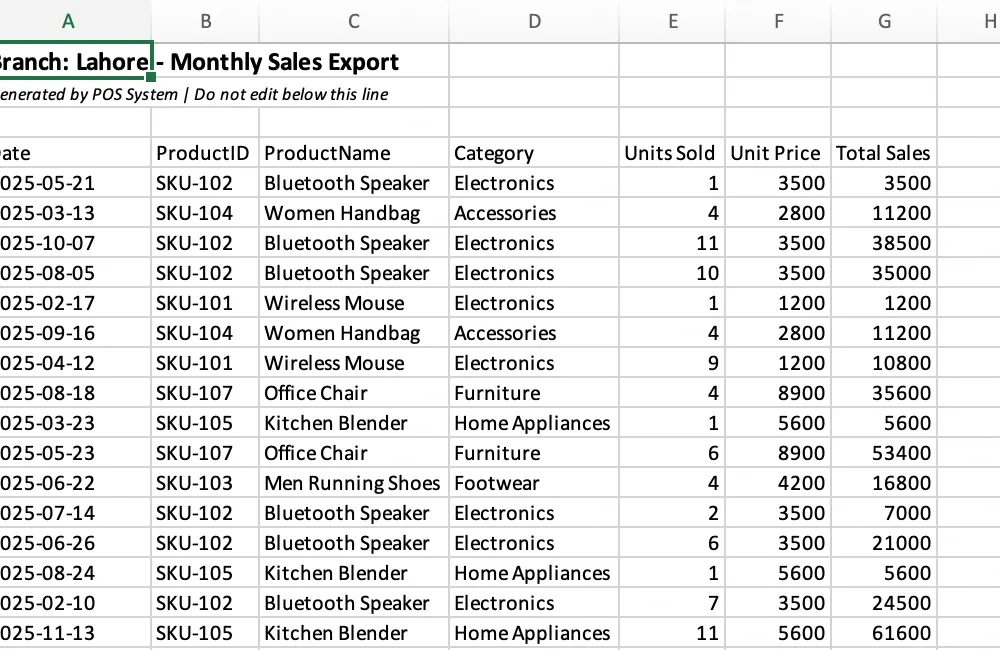
Headers on row 4, below a title, a note, and a blank row | 140 |
branch_karachi.xlsx |
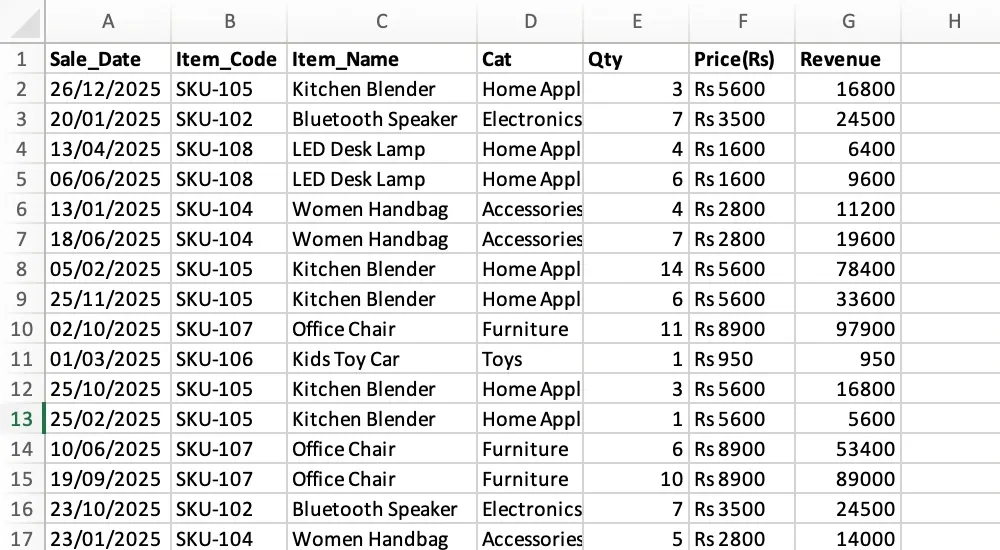
Different column names, day/month/year dates, and prices such as Rs 5600 stored as text |
160 |
branch_islamabad.xlsx |
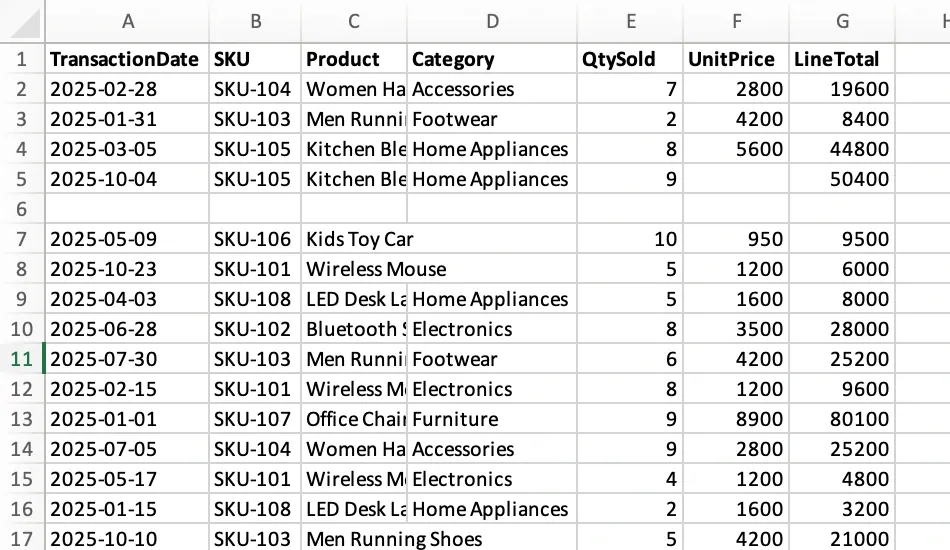
Different column names, five blank spacer rows, and missing categories and unit prices | 145 |
Lahore: find the header below the notes. The sales columns include ProductID, Units Sold, and Total Sales. The text above them is not a sales record.
Karachi: match names and read the date correctly. Here, Item_Code means the same thing as Lahore's ProductID. Qty corresponds to Units Sold, and Revenue corresponds to Total Sales. A date such as 26/12/2025 must be read as day/month/year.
Islamabad: keep incomplete sales records. Row 6 is blank, but row 5 contains a valid sale with a missing unit price. Those need different treatment: skip the empty row and retain the sale for review.
Step 2: Upload the three files and describe the merge
Select all three .xlsx files in RowSpeak. The prompt used for this workflow states the column matches, date format, missing-value rules, and expected review summary:
Combine these three branch sales workbooks into one clean table, with one row per original sales record.

Find the real headers in each file and skip titles, notes and completely blank rows. Match columns by meaning: Date / Sale_Date / TransactionDate; ProductID / Item_Code / SKU; ProductName / Item_Name / Product; Category / Cat; Units Sold / Qty / QtySold; Unit Price / Price(Rs) / UnitPrice; Total Sales / Revenue / LineTotal.

Use these output columns: Date, Branch, SKU, Product, Category, Quantity, Unit Price, Revenue, Source File, Source Sheet, Source Row. Get Branch from the filename. Keep SKU as text. Parse Karachi dates as DD/MM/YYYY, display all dates as YYYY-MM-DD, and convert Rs-prefixed prices to numbers without changing currency.

Keep all sales records, including records with missing fields. Leave missing Category and Unit Price blank and report them for review. Do not guess, fill, deduplicate, or recalculate the original Revenue.

Create a summary by source file showing record count, total Quantity, total Revenue, and missing-field counts. Report excluded non-data rows separately. Export the combined table and review summary to combined_branch_sales.xlsx.
The important instruction is to keep all sales records. A missing category should not make a real sale disappear. Asking the tool to preserve the existing revenue also avoids changing totals while it standardizes the columns.
Step 3: Compare the result with the originals
RowSpeak returned 445 sales records and a summary by source. The screenshot below comes from the recording, and the figures were independently checked against the three source workbooks and the downloaded result.
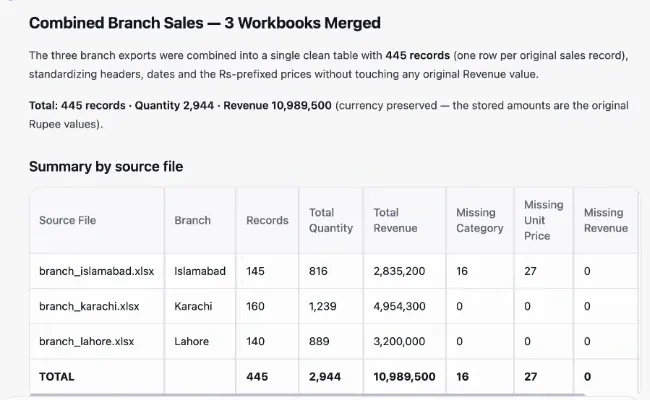
| Branch | Records | Total quantity | Revenue, original Rs amounts |
|---|---|---|---|
| Lahore | 140 | 889 | 3,200,000 |
| Karachi | 160 | 1,239 | 4,954,300 |
| Islamabad | 145 | 816 | 2,835,200 |
| Combined | 445 | 2,944 | 10,989,500 |
The row-level comparison confirmed that every source sales record appears once and that its date, branch, SKU, product, category, quantity, unit price, and revenue match the source after the requested date and price conversions. Revenue was preserved, with no currency conversion.
The output also retained 16 missing categories and 27 missing unit prices. These affect 39 sales records, because some records are missing both fields. The Review - Missing Fields sheet identifies them. The Excluded Rows sheet lists eight non-data rows: Lahore's two introductory rows and one blank row, plus Islamabad's five blank rows.
Step 4: Open the exported workbook before reporting
The combined table uses consistent columns and includes source sheet and source row references. The recording shows it in RowSpeak's workbook preview:
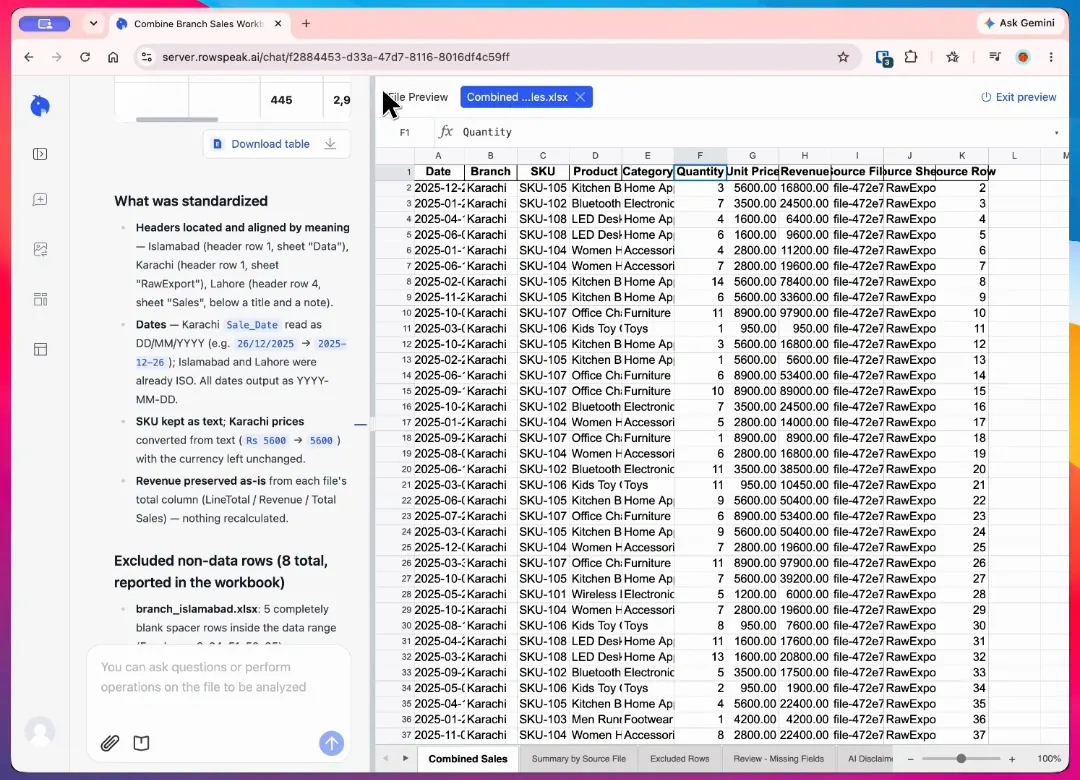
Download the recorded Combined Branch Sales workbook (.xlsx) to inspect the same result. Start with Summary by Source File, then open Combined Sales and check a few rows against the originals. Use Review - Missing Fields before treating the table as complete.
One detail to check in this export: the on-screen summary displays the original filenames, while the workbook's Source File column contains system filenames such as file-472e77ca-5ff0-4e.xlsx. Use Branch, Source Sheet, and Source Row to trace records in this example. If your handover requires the original filenames, request that mapping explicitly and verify it in the export.
This recording verifies this three-file merge. It does not establish a 100-file limit or test every Excel layout, and these source files contain no subtotal rows to test subtotal removal.
Once your combined table passes review, use it in a monthly CSV reporting workflow or turn it into a dashboard for colleagues who need the branch totals.
When you should just use Power Query
Choose the method that fits both the files and the person who will maintain the process.
Use Power Query when your files come from the same system, with the same layout, every time. A monthly export that always has the same columns, headers on row 1, and no manual edits is exactly what Power Query handles well. Build the query once, refresh it monthly, and you are done. It is available in supported Excel editions and can be refreshed when new files arrive.
A plain-language workflow is worth trying when exports vary and you prefer to describe the rules in words. Power Query is worth setting up when you want to maintain explicit transformations inside Excel. Either way, compare counts, totals, and exceptions before using the result.
FAQ
How many files can it handle?
The demonstration here uses three workbooks. For a larger batch, check the current upload limits in your account and try a representative sample first. This recording does not verify a 100-file batch.
Does it change my original files?
No. Your originals stay untouched. The output is a new combined dataset or report that you can review, export, and share.
What about CSV and PDF files?
RowSpeak supports Excel, CSV, and PDF inputs. This recording covers Excel only. For a PDF table, first check the extracted columns and rows before combining it with workbook data.
Does it run every month?
You can reuse the prompt when next month's files arrive. Upload the new batch, check any changed headers or formats, and review the new totals. The workflow shown here is run by the user; it does not demonstrate scheduled processing.
How can I try it?
Check the current plans and available usage. Start with a small batch and compare the result with your manual check before expanding the workflow.
Your next file batch, ready for review
Turn mismatched files into one table.
Before your next branch report is due, upload three representative files. Reuse the prompt above and compare record counts and revenue totals before you share the result.
Keep your originals unchanged and review the output before using it in a report.