Key Takeaways
- Receipt OCR is useful only when the extracted fields can be checked, categorized, and reused in a report.
- You can upload multiple receipt photos, including receipts without a clean table, and extract vendor, date, tax, tip, total, and payment method fields.
- Prompt-assisted classification lets you define categories that fit your business instead of accepting a generic chart of accounts.
- An expense workflow should flag duplicates, missing values, amount mismatches, and unusual spending before the numbers reach a report.
- RowSpeak can turn the reviewed data into an interactive HTML dashboard, an Excel (XLSX) workbook, CSV data, or a PDF report.
Taking a photo of a receipt solves one problem: you no longer need to keep the paper in your wallet. It does not solve the reporting problem.
The useful questions come later. How much did you spend on travel this month? Which vendor increased its charges? Are any receipts duplicated? Did the receipt total match the extracted line items? Which expenses need review before reimbursement or bookkeeping?
Those questions require structured data, consistent categories, and a way to explain the result. A text-only OCR tool can recognize words, but it usually leaves you with another manual step. You still need to clean the fields, classify the spend, check the numbers, and build the report.
This guide shows a practical workflow for moving from multiple receipt photos to a reviewable expense table, an interactive dashboard, and a monthly report with RowSpeak. It is designed for small businesses, freelancers, agencies, and operations teams that do not want to rebuild the same expense workbook every month.
If you only need to turn receipt images into spreadsheet rows, start with the more focused receipt image to spreadsheet guide. This article continues from extraction into classification, anomaly review, dashboards, and reporting.
Why receipt OCR alone is not enough
Receipts are not standardized spreadsheets. One receipt may have a clear item list. Another may show only a total, tax, and payment method. A restaurant receipt may include a handwritten tip. A taxi receipt may have no line-item table at all.
The input can still be useful, but the output needs a consistent structure. A receipt-level expense table might include:
| Field | Purpose |
|---|---|
receipt_id |
Keeps each photo connected to one expense record. |
receipt_date |
Supports monthly reporting and period checks. |
vendor |
Enables vendor totals and duplicate checks. |
category |
Groups spending for the dashboard. |
project or client |
Connects expenses to the work they support. |
subtotal, tax, tip, total |
Makes amount reconciliation possible. |
currency |
Prevents mixed-currency totals from being combined silently. |
payment_method |
Helps match cash, card, and reimbursement claims. |
source_file |
Preserves a path back to the original image. |
review_status |
Separates checked rows from items that need attention. |
This structure is more useful than a block of recognized text because it can support filtering, grouping, trend analysis, and an audit-friendly review step.
Step 1: Upload a batch of receipt photos
Start with the files you already have. RowSpeak can process multiple receipt photos in one workflow, including single receipts that do not contain a clean table.
For better extraction, try to:
- Photograph the full receipt, including the date and total.
- Avoid shadows over the tax, tip, or payment sections.
- Keep the camera parallel to the receipt when possible.
- If a long receipt needs overlapping images, identify them as parts of the same receipt so they are not counted twice.
- Include the original image name so each extracted row can be reviewed later.
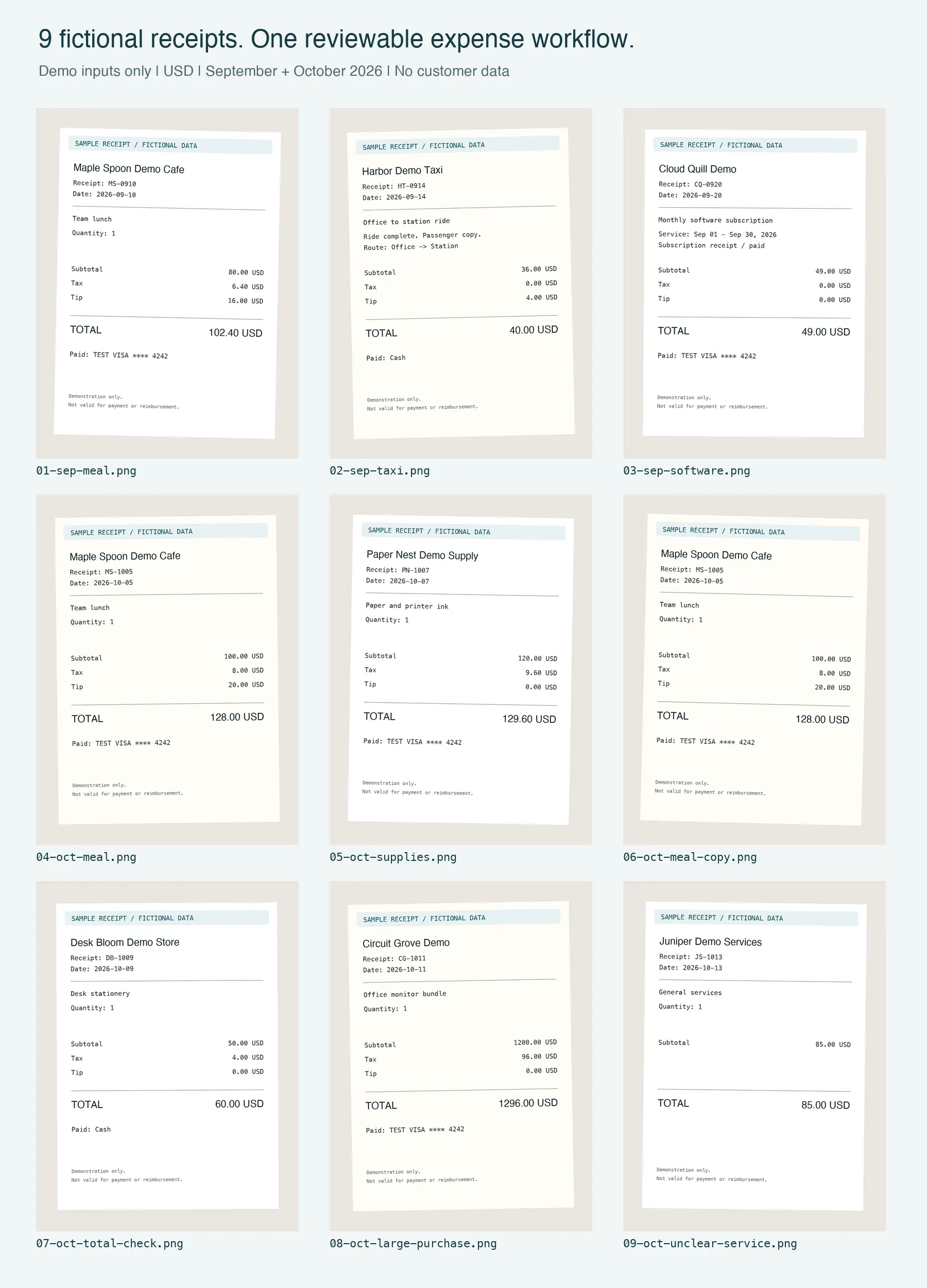
These are rendered, fictional test receipts, not customer documents or RowSpeak output. The batch includes a duplicate, an inconsistent total, a large purchase, and missing fields so you can check the review workflow.
To follow along, download the nine sample receipt images, unzip them, and upload the PNG files together. The samples use USD and dates in September and October 2026. They are a partial demonstration dataset, not complete monthly accounts or a test of difficult handwriting.
You do not need to convert every receipt into a spreadsheet before starting the analysis. Upload the images, then describe the output you want.
For a table-heavy image or scanned invoice, RowSpeak's image to Excel workflow can also create an editable workbook. For PDF invoices and statements, use the PDF to Excel workflow.
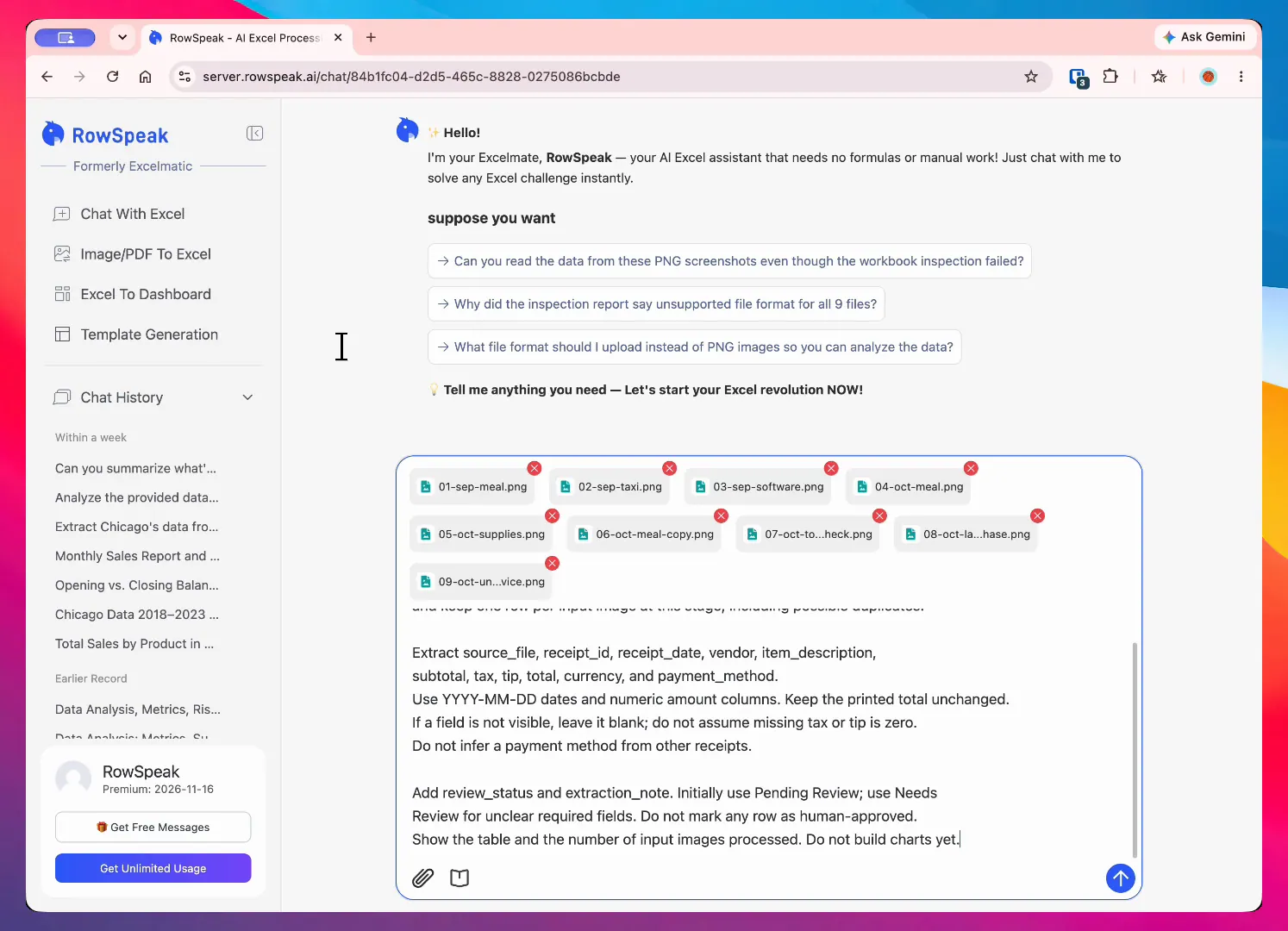
Recorded RowSpeak session using the fictional demo batch: nine receipt images are attached in one request, including the duplicate and review cases.
Step 2: Extract receipt-level fields
Ask for one row per receipt when you need a reimbursement or monthly expense summary:
Create one row per input image first. Extract receipt_id, receipt_date, vendor, subtotal, tax, tip, total,
currency, payment_method, and source_file. If a field is not visible, leave it blank.
Retain duplicate images as separate source rows until the duplicate check.
Use Pending Review initially. Flag unclear dates, vendors, or totals as Needs Review.
Do not invent values or mark any row as human-approved.
If you need item-level detail for tax, client billing, or project analysis, ask for a second table:
Create an expense line-item table from these receipt photos.
Use receipt_id, receipt_date, vendor, item, quantity, unit_price, line_amount,
tax, tip, total, currency, and source_file. Keep receipt-level totals separate
from line items, and mark unreadable fields as Needs Review.
This distinction matters. Receipt-level rows are easier to summarize. Line-item rows are better when you need to understand what was purchased.
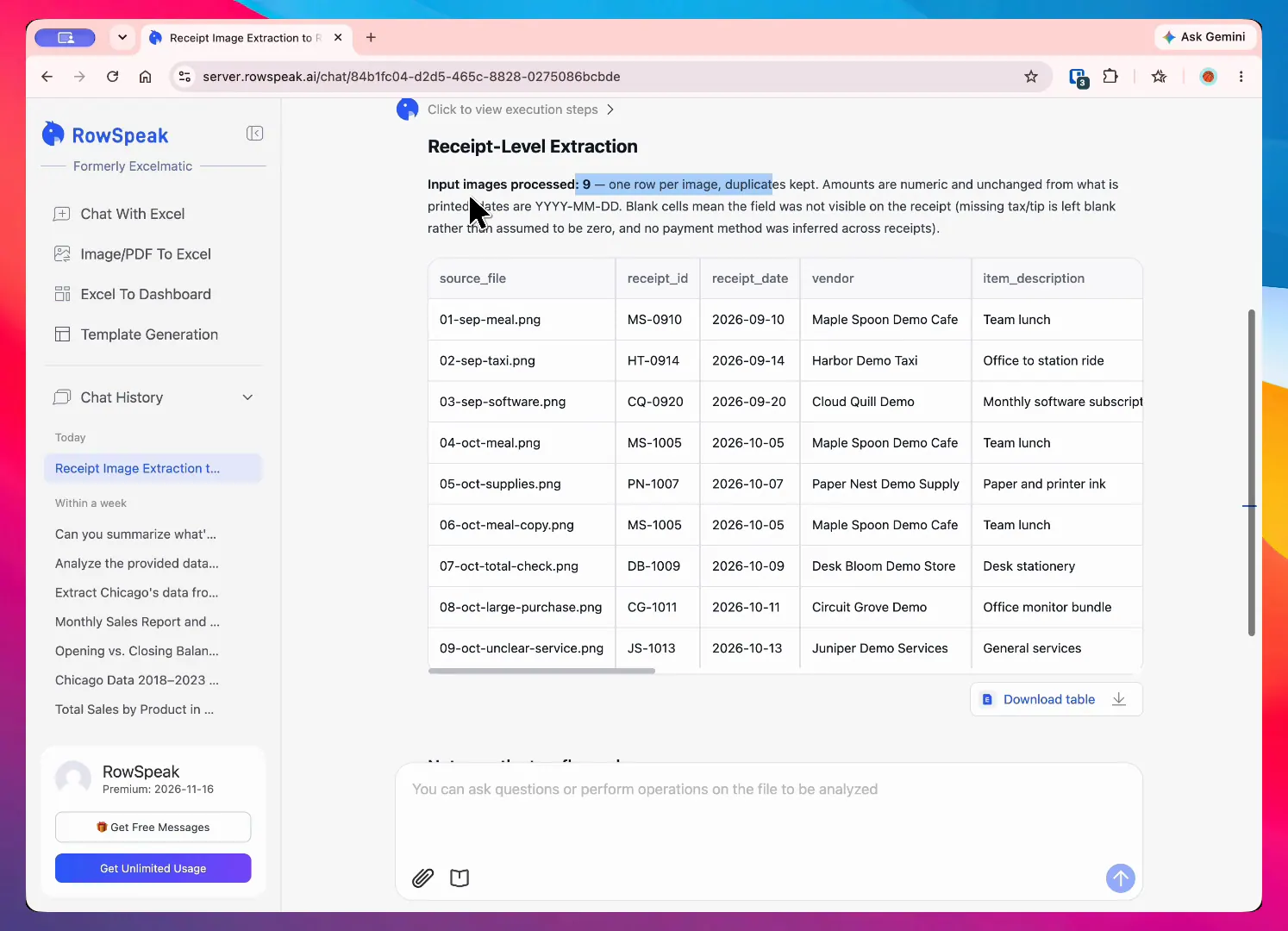
Recorded result: RowSpeak reports nine input images and keeps one row per image before the duplicate review. The source table can then be checked against the original files.
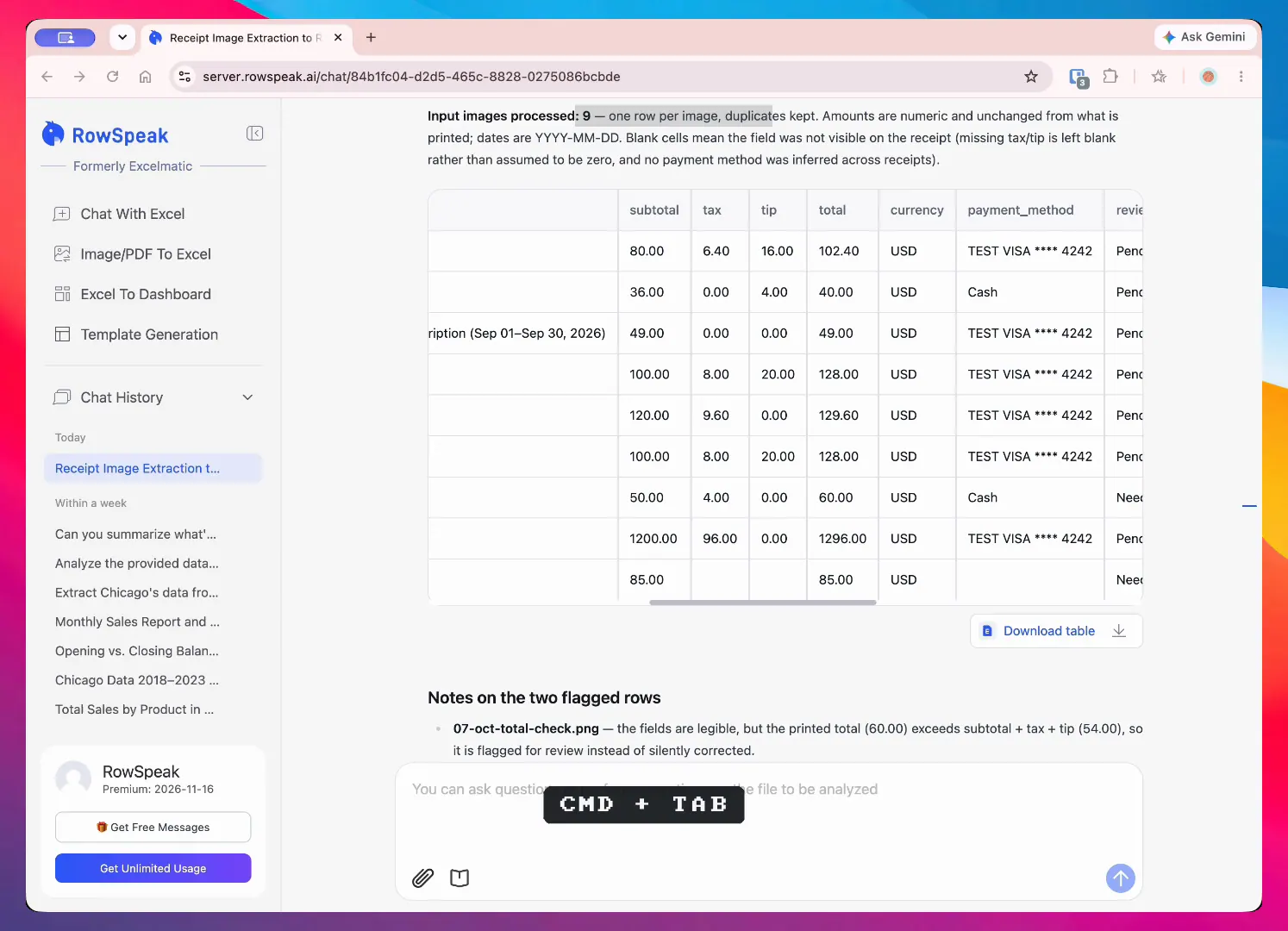
The same recorded extraction result exposes the amount columns and leaves fields blank when the source receipt does not show them.
Step 3: Classify spending with a prompt
There is no universal expense category list. A freelancer may need Client Travel and Software. A small retailer may need Inventory, Shipping, and Store Supplies.
Define the allowed categories in the prompt and tell RowSpeak what to do when the evidence is weak:
Add an expense_category column. Use only these categories:
Meals, Travel, Lodging, Transportation, Office Supplies, Software,
Advertising, Inventory, Client Expense, and Other.

Classify each row using the vendor and visible item description.
If the category is uncertain, leave expense_category blank, set review_status
to Needs Review, and explain why in category_note. Do not create new categories.
Prompt-assisted classification gives you control over the business rule. It also makes uncertainty visible instead of hiding it behind a confident-looking label.
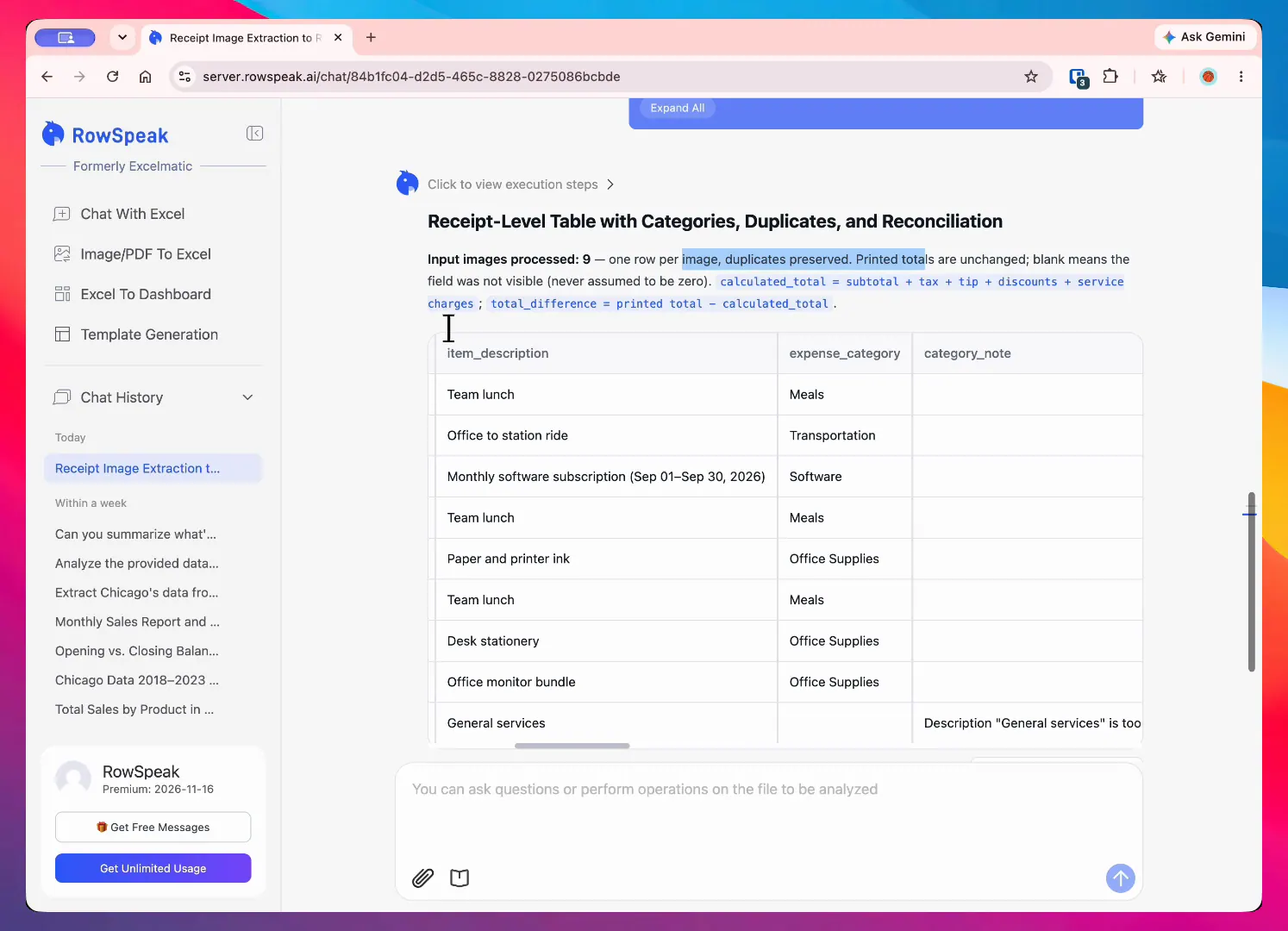
Recorded result: the category prompt is reflected in the output, while the vague General services description remains reviewable instead of being forced into a confident category.
In the sample batch, a team lunch supports Meals, and an explicit software subscription supports Software. The receipt that only says “General services” needs a category check; the vendor name alone does not tell you what was purchased.
Step 4: Reconcile totals and flag anomalies
Before building a dashboard, check the money fields. The most useful checks are simple and specific:
- Compare the visible subtotal, tax, tip, discounts, and service charges with the printed total. Reconcile only when the necessary components are present.
- Flag receipts with a missing date, vendor, currency, or total.
- Look for duplicate vendor, date, and amount combinations.
- Compare each expense against a threshold or the normal range for its category.
- Keep unclear or mismatched rows in
Needs Reviewrather than forcing approval.
You can ask RowSpeak to perform those checks in one pass:
Review the expense table for:
- possible duplicates based on receipt ID, vendor, date, and total;
- total mismatches, accounting for visible discounts and service charges;
- missing vendor, date, currency, or total;
- expenses above 1,000 USD;
- missing payment details and uncertain categories.

Add an anomaly_type, anomaly_reason, and review_status column.
Keep printed values unchanged; leave absent tax or tip blank rather than assuming zero.
Keep one original transaction when excluding a confirmed duplicate.
Show original values beside calculated checks. Do not infer business-wide trends
from an incomplete sample or treat a threshold flag as proof of an error.
The result is not a substitute for accounting approval. It is a shorter review queue. Instead of typing every receipt, the reviewer can focus on the rows where the source image and extracted data do not agree.
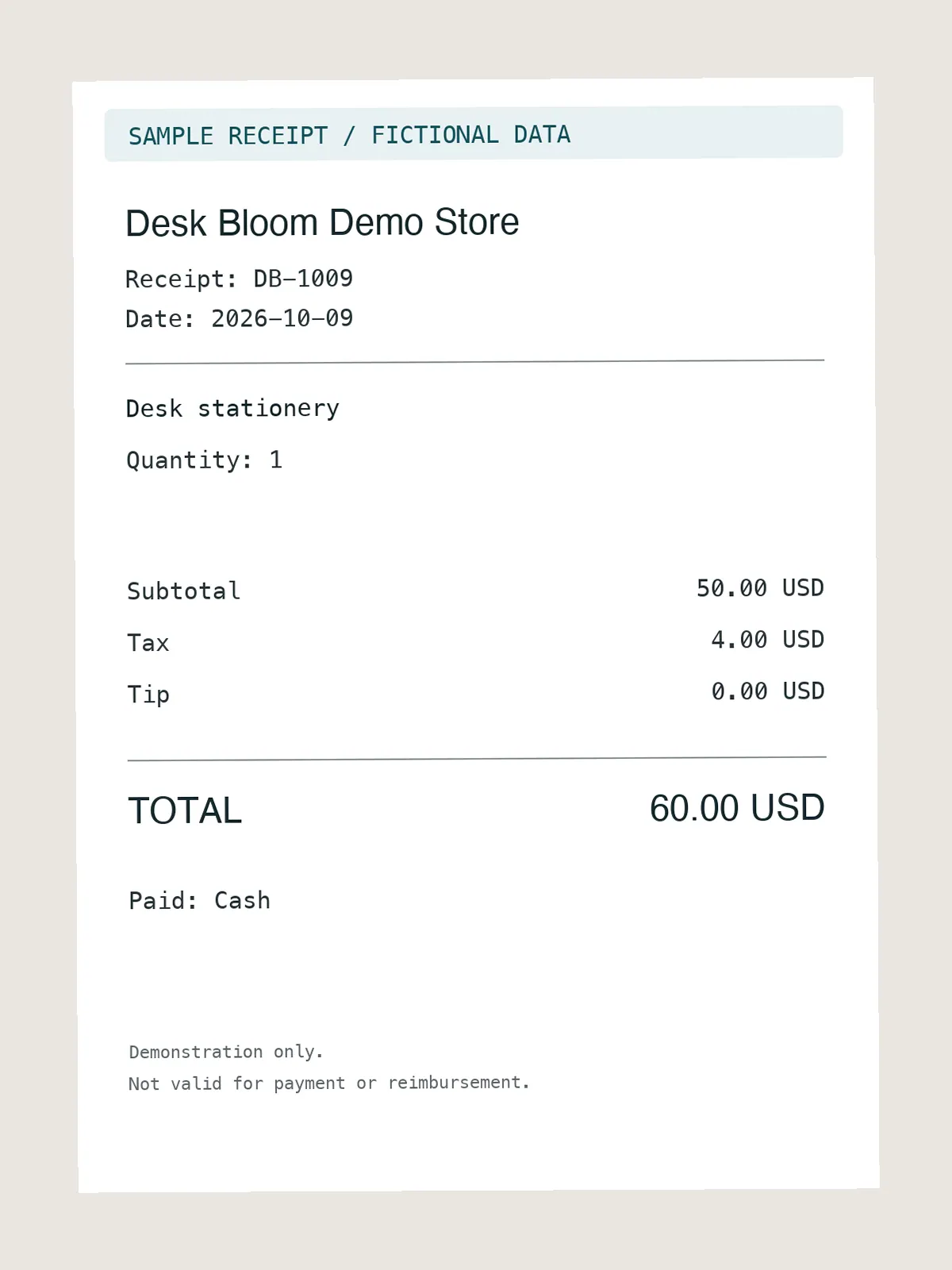
Input example for a reconciliation check: the visible components add to $54, while the receipt prints $60. Preserve the printed $60 and flag the $6 difference for review.
For this demo, the author-calculated reference checks are:
| Source | What to review |
|---|---|
04-oct-meal and 06-oct-meal-copy |
Same receipt ID and $128 total. Count the transaction once after review. |
07-oct-total-check |
Printed total $60; visible components $54; difference $6. |
08-oct-large-purchase |
$1,296 exceeds the example $1,000 threshold. It may still be a valid purchase. |
09-oct-unclear-service |
Category and payment method need review; tax and tip are not shown. |
If a human reviewer includes only files 01–05, the demo reporting total is $449 across five receipts, with $24 tax and $40 tip. These reference calculations match the included total shown in the recorded dashboard. Keep the duplicate and unresolved records visible outside that total.
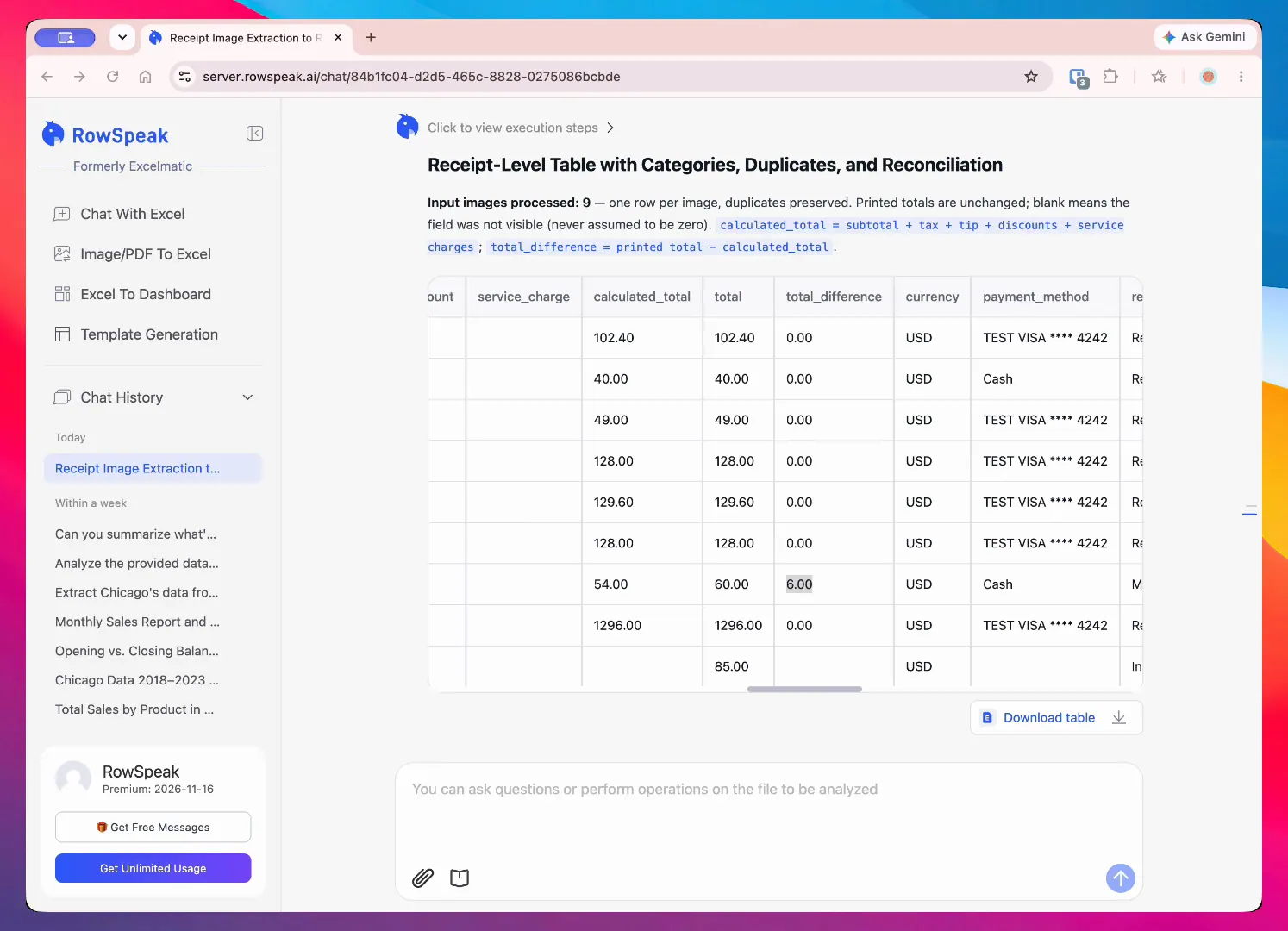
Recorded result: the table preserves the printed $60 total, calculates $54 from the visible components, and exposes the $6 difference for review.
Step 5: Build an interactive expense dashboard
Once the rows have been checked, ask for a dashboard that answers the questions your business actually has. A useful monthly expense dashboard can include:
- Total spend and receipt count
- Average expense per receipt
- Spend by category
- Monthly or weekly spending trend
- Top vendors by amount
- Tax and tip totals
- Project or client expense breakdown
- Open anomalies and items marked
Needs Review
Use a prompt that defines both the visual output and the explanation:
Build an interactive monthly expense dashboard using only rows explicitly
approved by a human reviewer for the main spending metrics.
Include KPI cards for total spend, receipt count, average receipt amount,
tax total, and open review items.

Add a category bar chart, a monthly trend line, a top-vendor table,
and an anomaly table. Add filters for month, category, vendor,
payment_method, and review_status.

For every major change, write a short explanation that cites the values
used in the calculation. Show unresolved records and excluded duplicates separately.
Use project or client filters only if those fields were supplied.
If months are incomplete, label comparisons as sample-only rather than business trends.
The dashboard should separate approved spending from unresolved records. Otherwise, a visually polished chart can make incomplete data look final.

Recorded result from the demo batch: the HTML dashboard shows live month, category, and vendor filters, five included receipts, $449 reporting spend, tax, tip, and category charts.
RowSpeak can generate an interactive HTML dashboard for sharing and exploration. You can also continue working with the data in Excel or download CSV, XLSX, and PDF versions for accounting, reimbursement, or management reporting.
Step 6: Turn the dashboard into a monthly report
A dashboard helps people explore the numbers. A monthly report helps them decide what to do next.
Ask for a report with a fixed structure so the workflow is repeatable:
Write a monthly expense report using only approved rows.
Include:
1. an executive summary;
2. total spend and month-over-month change;
3. the three largest categories and vendors;
4. anomalies and unresolved review items;
5. notable tax, tip, project, or client patterns;
6. three actions for next month.

For every claim, include the amount and comparison period. If a requested
comparison or project field is unavailable, say so rather than inventing it.
Label incomplete months as sample-only. Separate observations from recommendations.
Export the final result as HTML when people need an interactive view, an Excel (XLSX) workbook when finance needs to continue editing, CSV when another system needs the rows, and PDF when the report needs a fixed version for sharing.
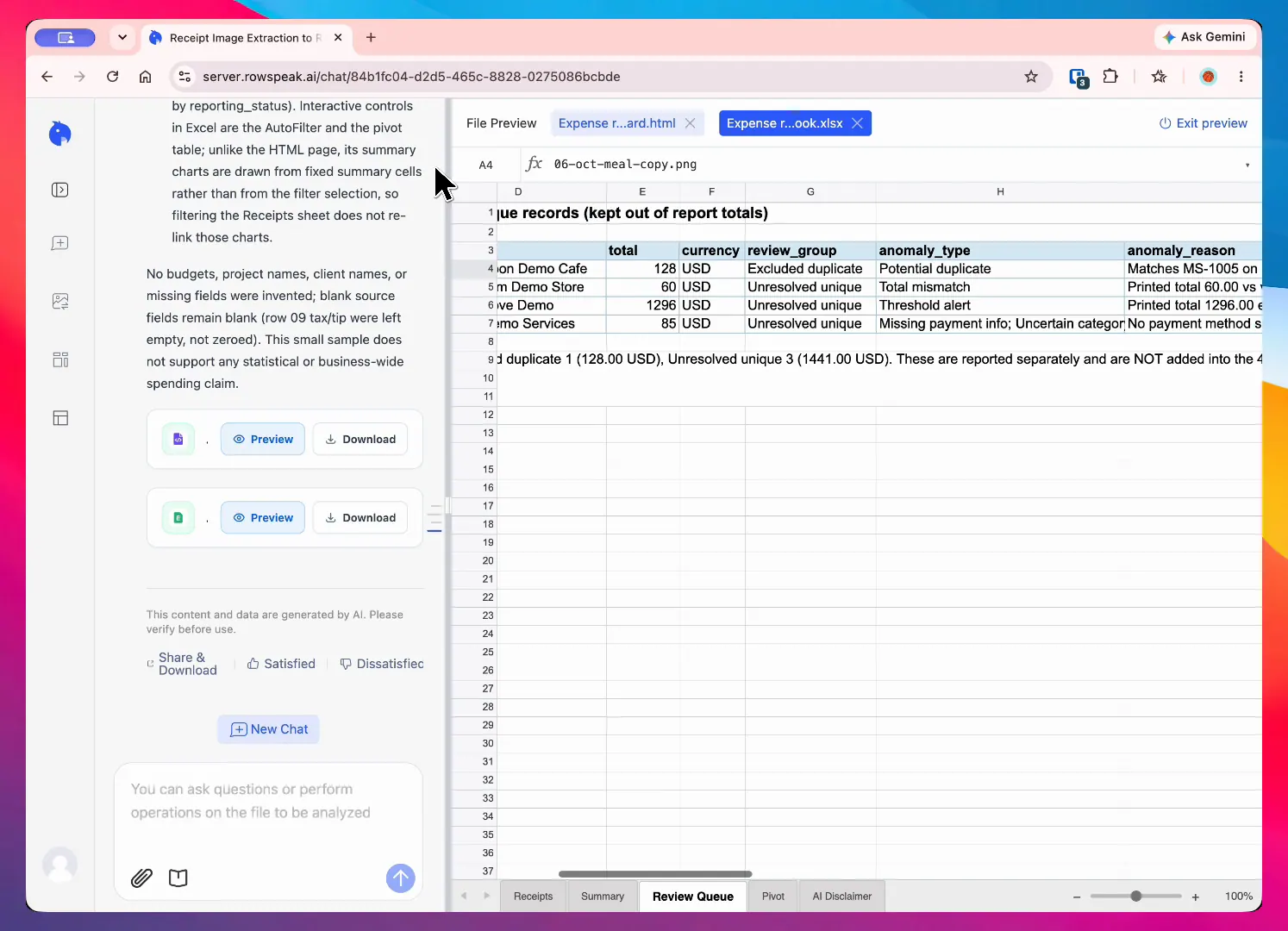
Recorded export result: the Excel workbook keeps the receipt rows, review status, reporting status, month, and review queue available for continued checking.
What to review before sharing the result
Use this checklist before a reimbursement batch, client invoice, or management report leaves your team:
- Does every receipt have a source image and a receipt ID?
- Do the visible total and extracted total match?
- Are tax and tip separated where the business needs them?
- Are currencies consistent or clearly separated?
- Are duplicate receipts and unusually large amounts flagged?
- Are uncertain categories marked
Needs Review? - Do the dashboard totals match the approved table?
- Does the PDF or Excel export contain the same totals as the HTML dashboard?
The export check is easy to skip. It is also where a formatting or filtering mistake can create a different total from the one reviewed in the dashboard.
Common mistakes in receipt-to-report workflows
Treating OCR output as approved accounting data
Extraction creates a starting table. It does not remove the need to compare important values with the source image.
Allowing the model to invent missing fields
Tell the workflow to leave fields blank and mark them for review. A missing tip is safer than an invented tip.
Using too many categories
Start with categories that support a business decision. A long list makes classification less consistent and the dashboard harder to read.
Mixing approved and unresolved rows
Keep Needs Review visible as a separate status. If it is included in the headline total, label it clearly.
Building charts before defining the question
The dashboard should help answer questions such as “Where did spending increase?” or “Which expenses need approval?” A chart gallery without a decision context is harder to use.
Where RowSpeak fits
A basic OCR converter can help you recognize text. A spreadsheet can help you calculate totals after someone has entered and cleaned the data. A BI platform can provide governed dashboards once the underlying model is ready.
RowSpeak fits the file-first workflow in between: upload the receipt photos, PDFs, or existing exports; extract and organize the fields; ask for classifications and checks; review the results; then create a dashboard or report from the approved data.
That workflow is useful when the business has real files today but does not want to build a data pipeline before answering a monthly finance question. For broader spreadsheet analysis, see AI data analysis. For recurring finance reporting, see AI financial analysis.
Receipt and invoice files are stored in protected OSS storage, and users can delete them themselves. For sensitive finance workflows, make deletion and review part of the operating process rather than treating them as an afterthought.
Final recommendation
Receipt photos should become a reviewable record, not another folder of images. The practical workflow is:
- Upload the batch.
- Extract receipt-level or line-item fields.
- Classify using a business-defined prompt.
- Reconcile totals and flag anomalies.
- Build an interactive dashboard from approved rows.
- Export the result as HTML, Excel (XLSX), CSV, or PDF.
The point of AI is not to remove every human check. It is to move the human effort from repetitive typing to the few values and exceptions that deserve attention.
Try RowSpeak with your receipt photos and turn the next expense batch into data you can review, explain, and report.