One financial workbook. Three dashboard results.
- 50 minutes to build the dashboard manually in Excel.
- 5 minutes to generate an editable Excel dashboard with RowSpeak.
- 3 minutes to generate an interactive HTML dashboard with RowSpeak.
The output is not a minor formatting difference. It is the same financial data turned into a reviewable dashboard while the reporting deadline stays the same.
In this guide, we use the same Client Financial Data.xlsx workbook to build the same dashboard three ways:
- Manually in Excel with helper calculations, PivotTables, charts, slicers, and formatting.
- With RowSpeak's Excel-to-dashboard workflow as an editable Excel dashboard.
- With RowSpeak as a browser-ready interactive HTML dashboard.
Each method uses the same source file and the same dashboard requirements. We also use one common follow-up change to show what happens when the dashboard needs to be revised. The difference is how much time you spend assembling the output before you can review the numbers.
The result at a glance
| Workflow | Time to a usable dashboard | Output |
|---|---|---|
| Manual Excel | 50 minutes | Editable workbook built through formulas, PivotTables, charts, and slicers |
| RowSpeak Excel | 5 minutes | Editable Excel dashboard generated from the workbook |
| RowSpeak HTML | 3 minutes | Browser-ready interactive dashboard |
The RowSpeak outputs still need a quick review. The difference is that you can review the numbers and refine the view while the manual workflow is still assembling its first set of calculations.

Key takeaways:
- The workbook already contains the ingredients for a useful financial dashboard: 295 transactions, monthly dates, categories, and a 2021 budget table.
- A manual Excel dashboard works, but it requires multiple calculation areas, PivotTables, charts, slicers, and repeated formatting.
- RowSpeak can turn the same workbook into an editable Excel dashboard or an interactive HTML dashboard from a plain-English request.
- You should review income and expense classification, month matching, budget variance, and filters before sharing any generated dashboard.
- In this test, the first usable dashboard took 50 minutes manually, 5 minutes with RowSpeak Excel, and 3 minutes with RowSpeak HTML.
The Financial Workbook Used in This Test
The example file is a small but realistic personal or client finance workbook with two sheets. You can download or inspect the source workbook in the Client Financial Analysis GitHub repository.
Transactions
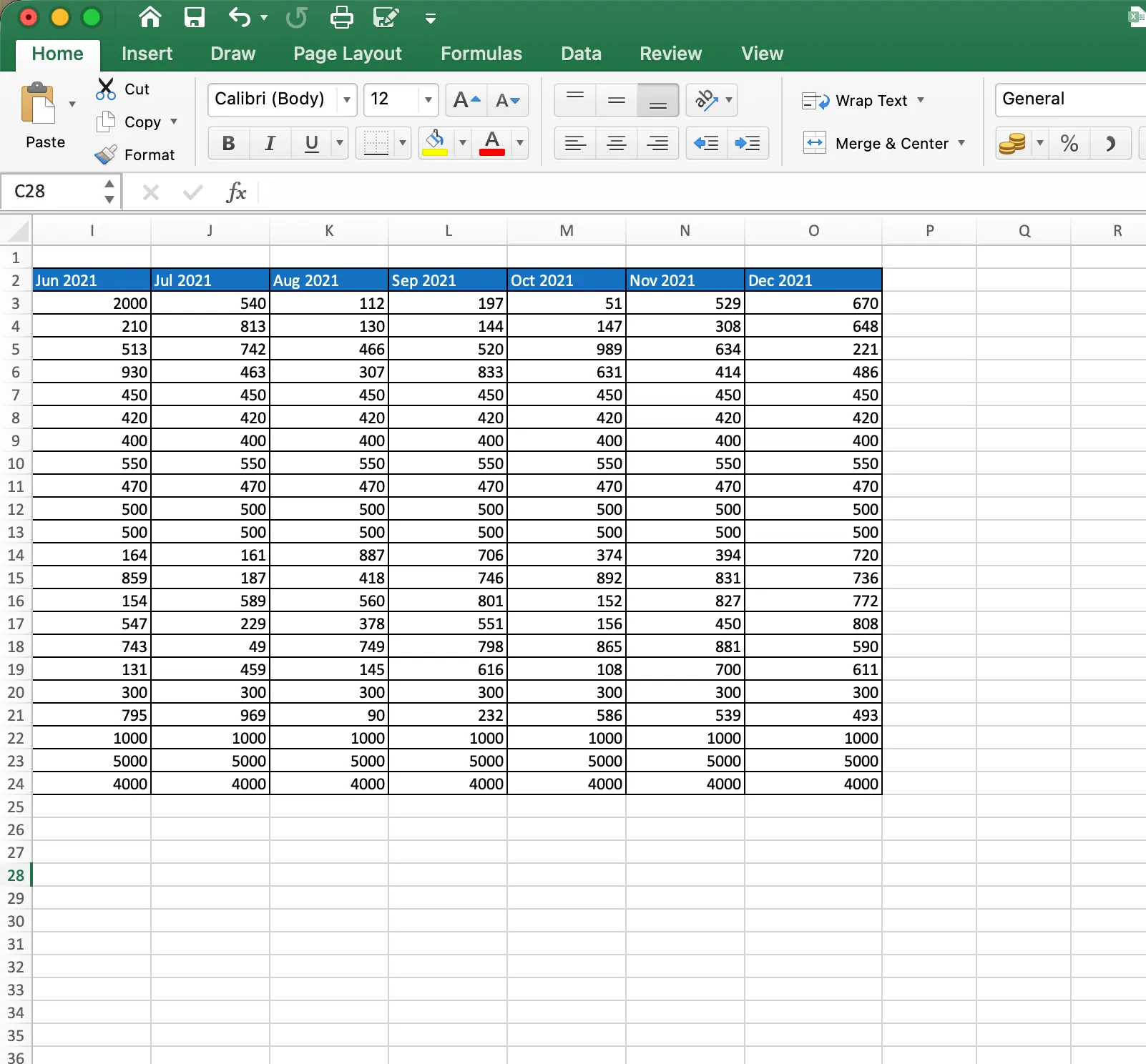
The Transactions sheet contains 295 records from January through December 2021 with these columns:
DateDescriptionCategoryAmount
The Amount values are positive transaction amounts. That means the total of the column is not a net cash flow. Income and expenses need to be classified before they can be compared.

Budget
The Budget sheet contains 22 categories, a Class, a Type, and monthly budget columns from Jan 2021 through Dec 2021.
The useful relationship is Transactions.Category to Budget.Category. The Budget.Type field provides the Income or Expense classification for the matching category. The dashboard can then compare actual transactions with monthly budget values.
This relationship is worth checking before you create any chart. A polished visual cannot fix a category that was classified incorrectly.
What the Interactive Dashboard Should Answer
For this file, the dashboard should support a monthly financial review. It should answer:
- How much income came in?
- How much was spent?
- What was the net cash flow?
- What percentage of income was saved?
- Which categories went over budget?
- How did income and expenses change month by month?
- Which expense categories account for most of the spending?
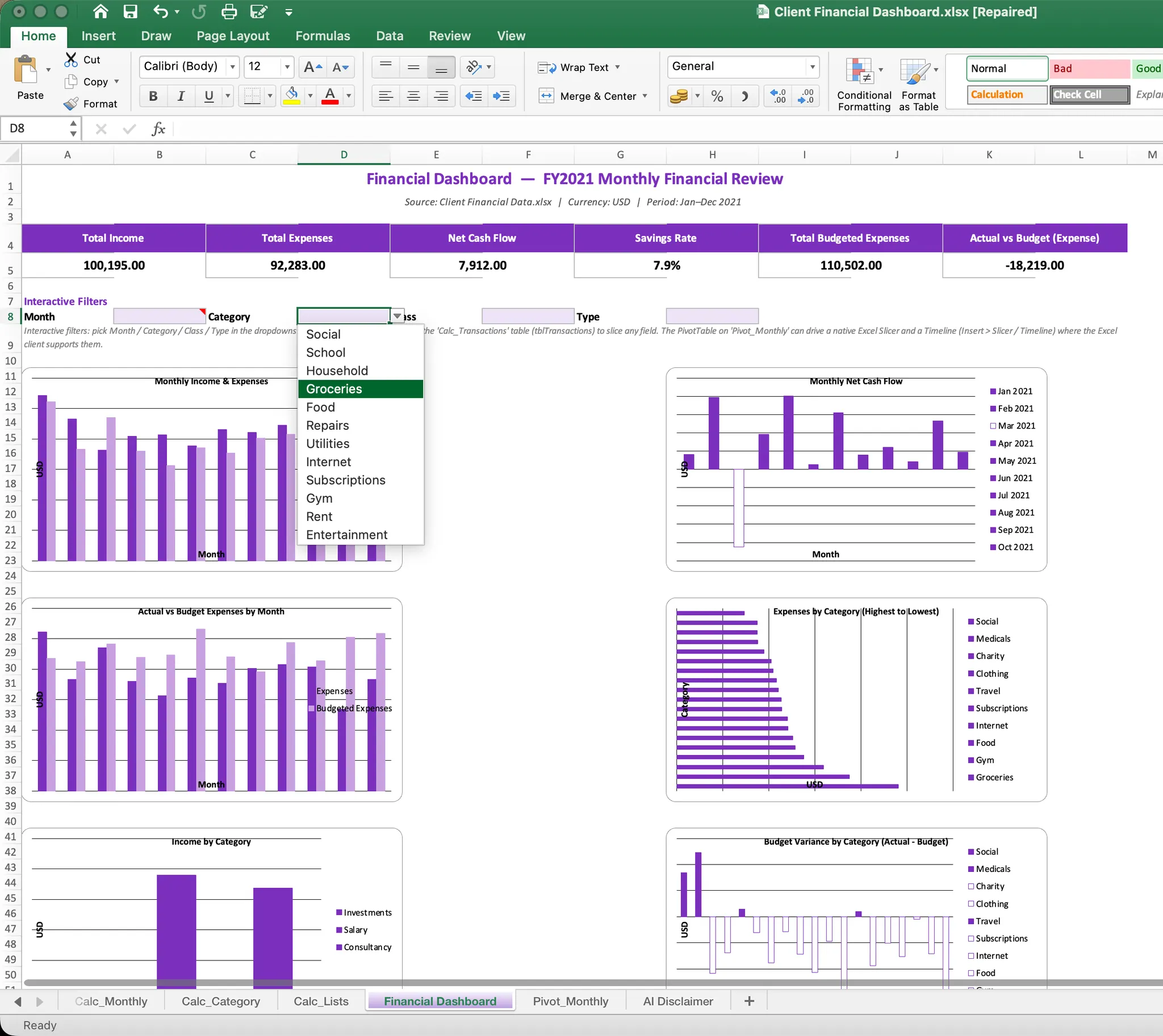
The target dashboard includes these KPI cards:
- Total income
- Total expenses
- Net cash flow
- Savings rate
- Total budgeted expenses
- Actual expenses versus budget
It also includes a monthly income and expense trend, actual-versus-budget comparison, expense ranking, income by source, and budget variance by category. Month, category, class, and type should be available as filters.
If the dashboard is part of a recurring close or variance review, RowSpeak's automated financial analysis workflow can extend the same file-based process from visual summaries to explanations and follow-up analysis.
Method 1: Generate an Interactive HTML Dashboard with RowSpeak
The video shows the three-minute path from the workbook to a browser-ready dashboard. The HTML route is useful when the finished result needs to be viewed in a browser, demonstrated in a meeting, or shared without asking everyone to open the workbook. You can also open the generated dashboard and try the filters directly in your browser: view the live interactive financial dashboard.
Step 1: Use the same data and definitions
Upload the same workbook and keep the same classification rules. The dashboard should normalize the wide monthly budget table into a month-based structure, then compare it with the transaction data.
Step 2: Request a browser-ready dashboard
Use the uploaded Client Financial Data.xlsx workbook to create a self-contained
interactive HTML financial dashboard.

Read both sheets. Match Transactions.Category to Budget.Category and use
Budget.Type to classify transactions as Income or Expense. Treat Amount as a
positive transaction amount. Calculate Net Cash Flow as Income minus Expenses,
Savings Rate as Net Cash Flow divided by Income, and Expense Variance as Actual
Expenses minus Budgeted Expenses. Positive expense variance means over budget.

Create KPI cards for Total Income, Total Expenses, Net Cash Flow, Savings Rate,
Total Budgeted Expenses, and Actual Expenses versus Budget.

Add interactive charts for monthly income and expenses, monthly net cash flow,
actual expenses versus budget by month, expenses by category, income by category,
and budget variance by category.

Add working filters for Month, Category, Class, and Type, plus a Reset Filters
button. All KPI cards, charts, and the transaction table must update when a
filter changes. Include hover tooltips, a sortable filtered transaction table,
and a collapsible data-check section.

Make the output responsive, browser-ready, and self-contained with the data
embedded in the HTML.
Step 3: Test the interactions
Use the dashboard as a reader would:
- Filter to one month.
- Select one expense category.
- Switch between Income and Expense.
- Check the budget variance chart.
- Reset the filters.
- Confirm that the KPI cards, charts, and table update together.
Method 2: Generate an Editable Excel Dashboard with RowSpeak
The video shows the five-minute path to an editable Excel dashboard. RowSpeak starts from the workbook you already have. You describe the business view, then review and refine the generated file. This is the Excel-to-dashboard workflow in practice.
Step 1: Upload the same workbook
Upload Client Financial Data.xlsx without creating a separate helper workbook first. Ask RowSpeak to preserve the Transactions and Budget sheets and add a dashboard plus any clearly named calculation sheets it needs.
Step 2: Describe the dashboard goal
Use a request that defines the data relationship, KPI logic, visual sections, and review checks:
Use the uploaded Client Financial Data.xlsx workbook as the source.

Create an editable Excel financial dashboard while preserving the original
Transactions and Budget sheets unchanged.

Match Transactions.Category to Budget.Category and use Budget.Type to classify
transactions as Income or Expense. Treat Amount as a positive transaction
amount. Calculate Net Cash Flow as Income minus Expenses, Savings Rate as Net
Cash Flow divided by Income, and Expense Variance as Actual Expenses minus
Budgeted Expenses. A positive variance means over budget.

Create KPI cards for Total Income, Total Expenses, Net Cash Flow, Savings Rate,
Total Budgeted Expenses, and Actual Expenses versus Budget.

Add charts for monthly income and expenses, monthly net cash flow, actual versus
budget by month, expenses by category, income by category, and budget variance
by category. Add filters for Month, Category, Class, and Type.

Keep the workbook editable. Add a short data-check note for unmatched
categories, invalid dates, blank amounts, or duplicate transactions.
Step 3: Review the generated workbook
Check the KPI definitions first. Then check that the budget months align with the transaction months and that the filters change the relevant charts together.
The first version is a dashboard draft. Review it before using it in a financial decision, just as you would review a manually built workbook. RowSpeak's data analysis workflow is useful when the source file needs checking before the final report.
Step 4: Refine with the same request
Send the follow-up request:
Replace the net cash flow card with Savings Rate, sort expense categories from
highest to lowest, and highlight categories where actual expenses exceeded the
monthly budget. Keep the source sheets unchanged and update the charts and
filters consistently.
The generated workbook keeps the Excel format available for continued editing and review:
Method 3: Build the Dashboard Manually in Excel
Excel gives you control over every cell, formula, and chart. The cost is the number of connected pieces you must create and maintain. In our timed run, this path took 50 minutes before the dashboard was ready for the same review and revision.
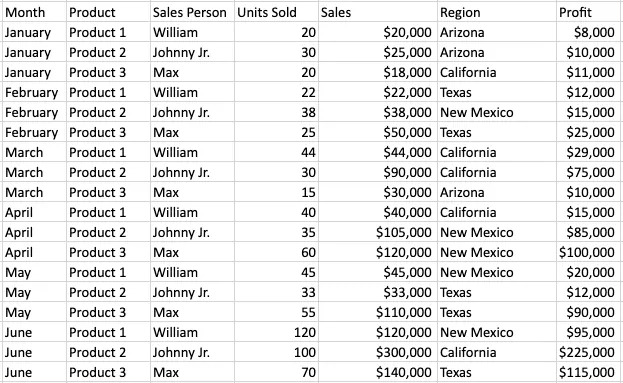
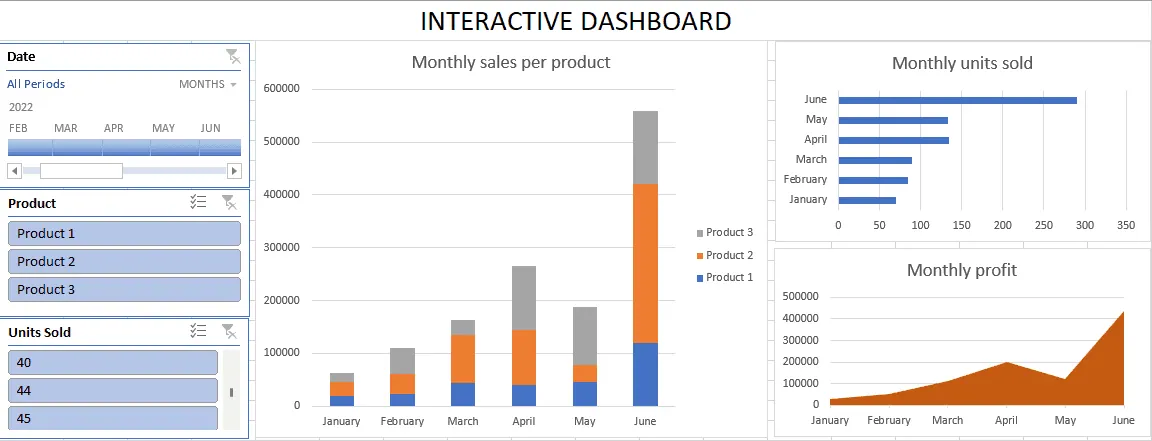
The reference screenshots below show the Excel mechanics used in a standard interactive dashboard tutorial. They use a sales example, so the field names in the screenshots are different from the financial fields in Client Financial Data.xlsx. The operations are the same: make the range a table, summarize it with PivotTables, turn summaries into charts, and connect slicers and a timeline.
Step 1: Define the dashboard purpose
Before opening the Insert menu, decide who will use the page and what decision it should support. For this workbook, the audience is a person reviewing monthly income, expenses, and budget pressure. That gives you a clear list of outputs: income, expenses, savings rate, cash flow, budget variance, and category rankings.
This step prevents the common mistake of adding every available chart. Each chart should answer one financial question.
Step 2: Inspect the source and convert it into a Table
Start by checking the header rows, date values, amount formats, blank rows, and category names. Convert the transaction range into an Excel Table so new rows can be included more reliably.
The budget sheet is wider than the transaction sheet because each month is a separate column. To compare actual and budget values by month, you usually need to reshape those columns into a month-based calculation table.
If a category is misspelled or missing from the budget table, the comparison can silently exclude it. Record those issues before building the charts.
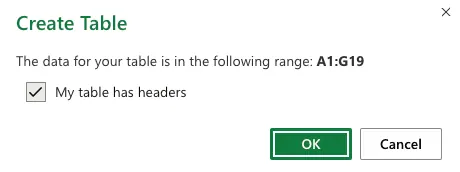
In Excel, select the source range, choose Insert > Table, confirm My table has headers, and select OK. The reference workflow looks like this:
Step 3: Create the PivotTables
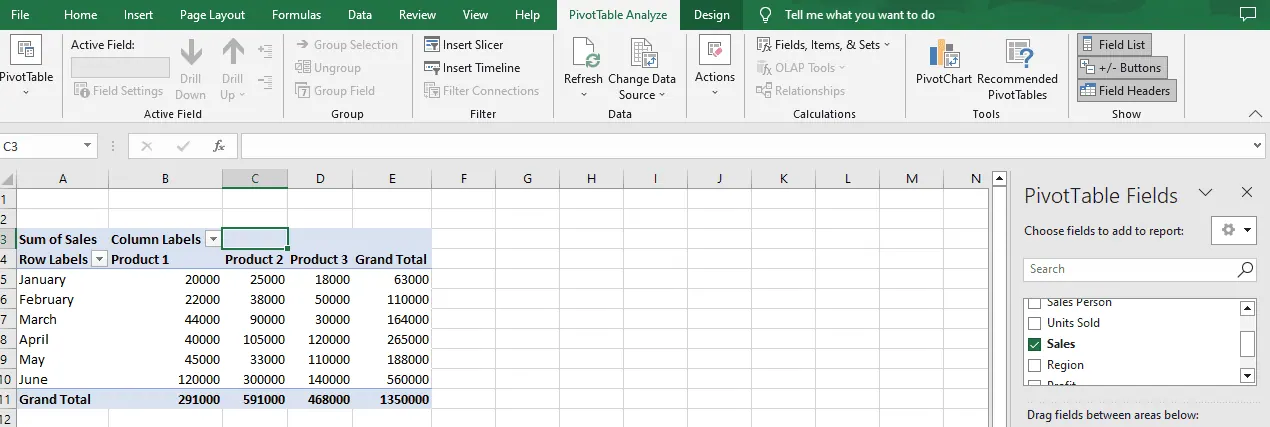
Select the Table and choose Insert > PivotTable. Place the first PivotTable on a new worksheet. Repeat the process, or duplicate the calculation sheet, for the separate dashboard views you need.
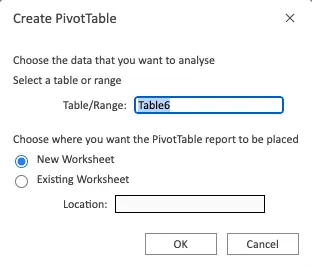
For this financial workbook, create summaries for:
- Monthly income and expenses
- Monthly net cash flow
- Expenses by category
- Income by category
- Actual expenses versus budget
- Budget variance by category
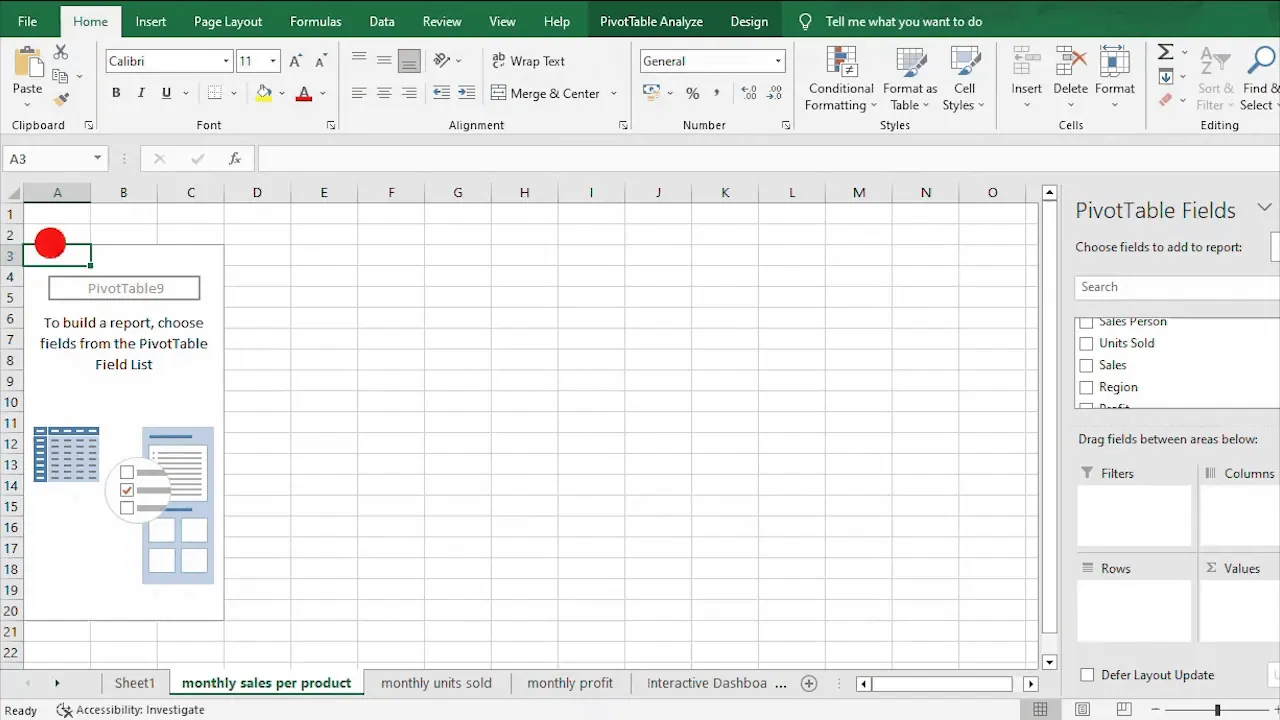
The reference workflow uses the same drag-and-drop pattern: place a dimension such as month or category in Rows, place a grouping field such as product or type in Columns, and place the numeric measure in Values.
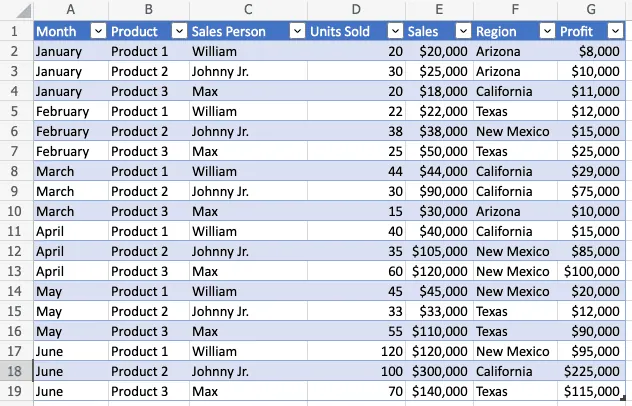
For the financial example, use Date grouped by month for the trend view, Category for expense rankings, and the normalized budget month for actual-versus-budget comparisons.
Typical helper calculations include:
- Transaction month
- Income or Expense type
- Monthly income
- Monthly expenses
- Net cash flow
- Savings rate
- Actual expenses by category
- Budgeted expenses by category
- Expense variance
For this example, define expense variance as:
Actual expenses - Budgeted expenses
A positive result means the category is over budget. That definition should appear in the dashboard notes so nobody has to guess what the colors mean.
Step 4: Create PivotCharts and format the visuals
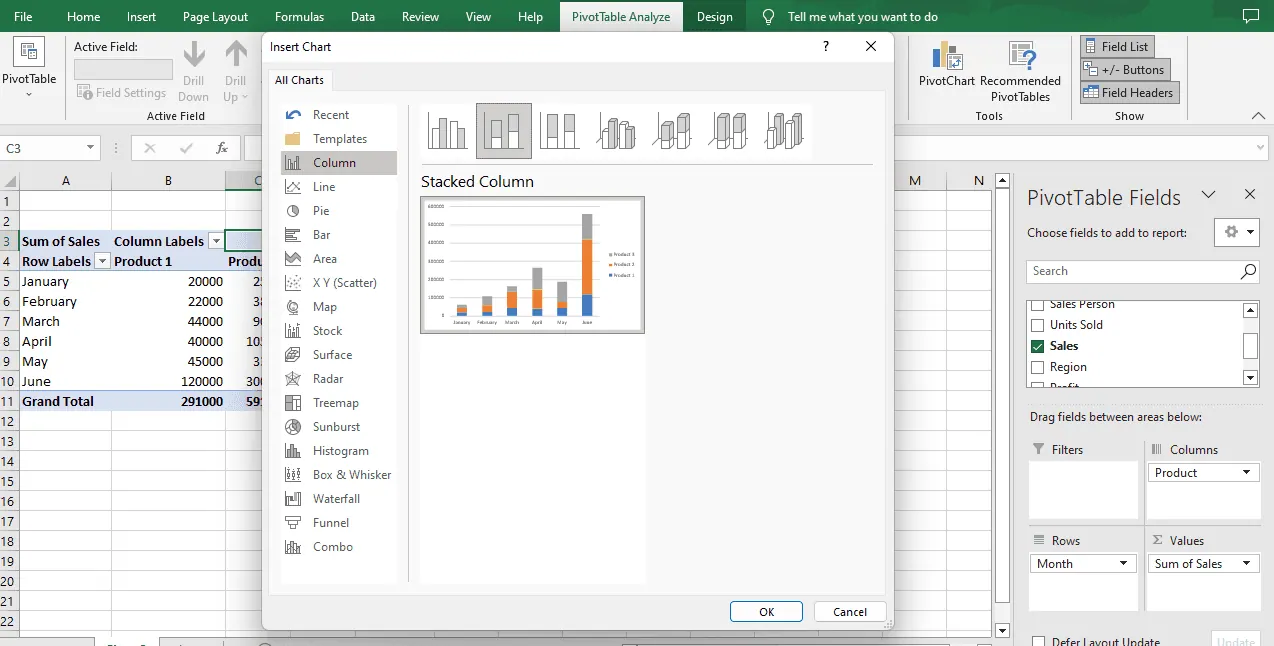
Click inside a PivotTable, open PivotTable Analyze, choose PivotChart, and select the chart type that matches the question. Use line charts for monthly movement, bar or column charts for category comparisons, and a comparison chart for actual versus budget.
The reference tutorial shows the PivotChart selection process:
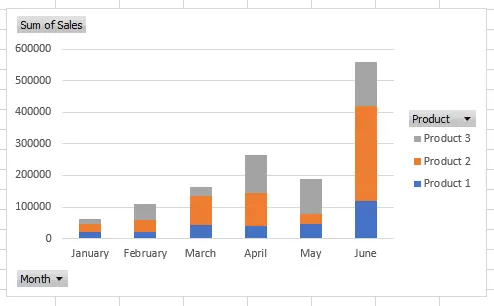
The chart work is repetitive:
- Select a PivotTable.
- Insert a PivotChart.
- Choose a line, column, or bar chart.
- Add a title and labels.
- Sort the categories.
- Format colors and number units.
- Move and resize the chart on the Dashboard sheet.
Repeat that process for every visual. A small change to the calculation often means returning to the PivotTable and then checking the chart again.
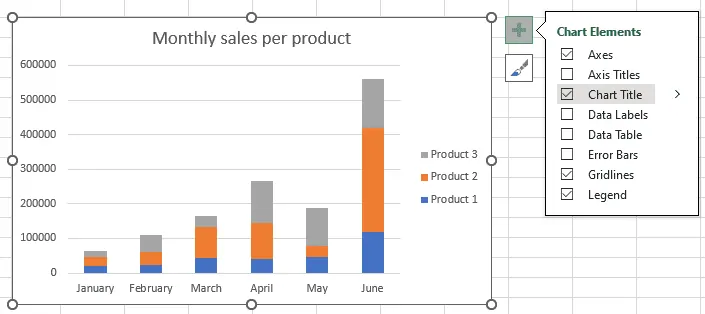
Excel also requires separate formatting passes for titles, legends, axes, data labels, colors, and number formats:
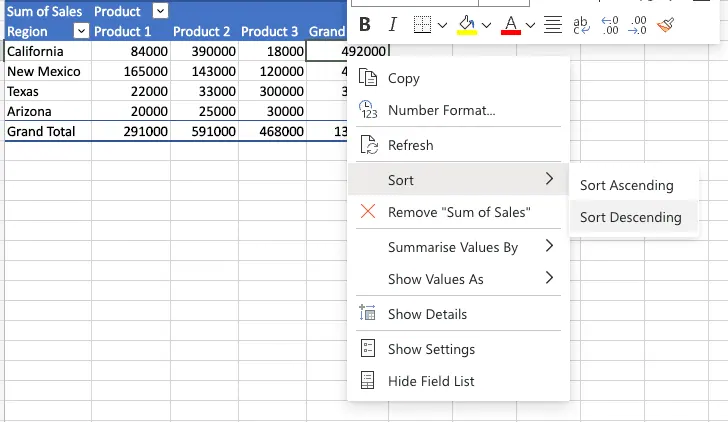
Move the finished charts to a dedicated Dashboard sheet and align them into a one-page review layout. In a larger dashboard, every additional chart adds another object to position and maintain.
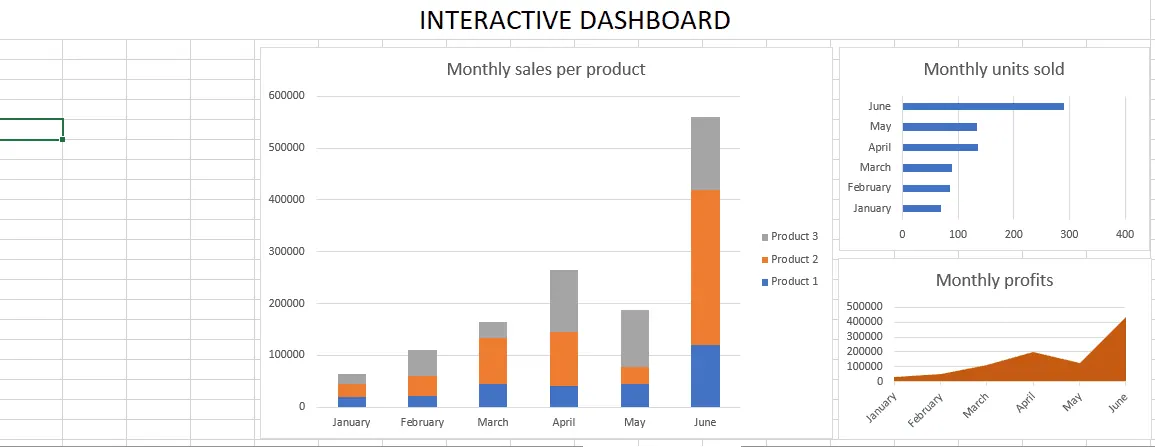
Step 5: Add slicers and a timeline
To make the page interactive, add slicers for category, class, and type, plus a timeline for date. Then open the report connection settings and connect each control to every relevant PivotTable.
This is where a dashboard can look finished while still being wrong. If one chart is not connected to a slicer, the page can show different filters in different sections.
For a date control, click a PivotChart or PivotTable and choose PivotTable Analyze > Insert Timeline. Select the Date field and confirm. A timeline only works when Excel recognizes the source dates correctly.
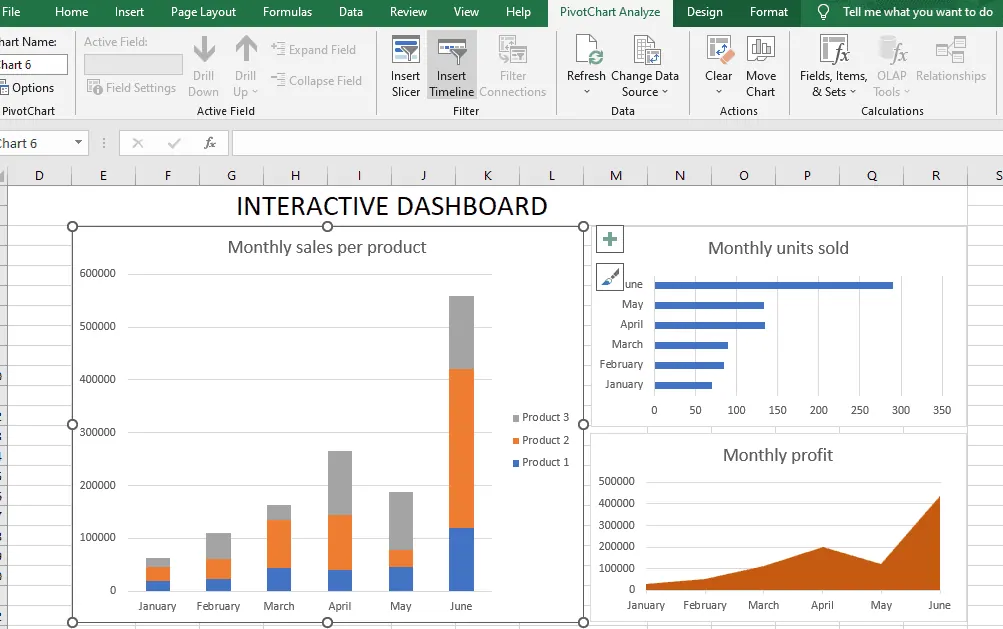
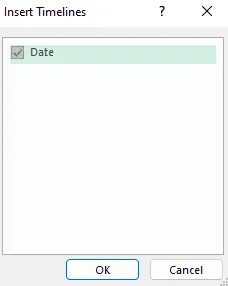
For category, class, and type, choose Insert Slicer, select the fields, and then use Report Connections to connect the slicers to every relevant PivotTable.
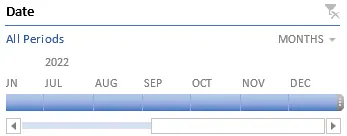
The finished manual page may look polished, but it is the result of many separate setup and connection steps:
Step 6: Apply a revision request
Now make the same change we used in the RowSpeak tests:
Replace the net cash flow card with savings rate, sort expense categories from highest to lowest, and highlight categories where actual expenses exceeded the monthly budget.
In a manual workbook, this can involve changing formulas, updating a PivotTable, reformatting a chart, reconnecting filters, and checking the final totals again. That is the part that made this version take 50 minutes.
Manual Excel vs. RowSpeak Excel vs. RowSpeak HTML
The recordings use the same workbook and the same dashboard requirements. The measured time to the first usable dashboard was 50 minutes manually, 5 minutes with RowSpeak Excel, and 3 minutes with RowSpeak HTML. The common follow-up request shows how much work remains after that first result.
| Task | Manual Excel | RowSpeak Excel | RowSpeak HTML |
|---|---|---|---|
| Prepare the source | Manual cleanup and helper fields | Upload the workbook | Upload the workbook |
| Build the calculations | Formulas and PivotTables | Generated structure to review | Generated structure to review |
| Create charts | Insert and format each chart | Generated in the workbook | Generated in the browser |
| Add interactivity | Slicers, timeline, and connections | Requested in plain English | Dropdown filters and controls |
| Apply a revision | Update several connected elements | Follow-up request | Follow-up request |
| Time to first usable result | 50 minutes | 5 minutes | 3 minutes |
The comparison should not hide the review step. A fast dashboard is useful only when the KPI logic, category mapping, dates, and filters are correct.
Which Dashboard Workflow Fits Your Work?
Choose manual Excel when
- The dashboard must live inside an existing financial model.
- Your team needs cell-level control over formulas and layout.
- You already maintain a stable PivotTable and slicer template.
- The workbook includes complex formulas, VBA, or controlled spreadsheet processes.
Choose RowSpeak Excel when
- You need an editable Excel output from an existing workbook.
- Your team wants to keep working in Excel after the first dashboard draft.
- You want to reduce the setup work for KPI cards, charts, and filters.
- The dashboard needs to be reviewed and adjusted before it becomes a recurring report.
Choose RowSpeak HTML when
- You need a browser-ready interactive view.
- The dashboard is primarily for review, presentation, or sharing.
- The audience should explore filters without editing the source workbook.
- You want to move from a spreadsheet export to a visual result before investing in a full BI rollout.
RowSpeak fits between manual spreadsheet work and a heavier BI implementation. It does not remove the need for review; it shortens the distance between the file and the first useful dashboard.
Financial Dashboard Review Checklist
Before sharing either output, check:
- Every transaction category matches the budget category list.
- Income and Expense classification is correct.
- Transaction months align with the budget month columns.
- Savings rate uses income as its denominator.
- Actual expense and budget values use the same categories.
- Positive variance is clearly labeled as over budget.
- Filters update every relevant chart and KPI.
- Blank amounts, invalid dates, duplicates, and unusual values are reviewed.
- The final dashboard explains its assumptions.
Turn Your Next Workbook into a Dashboard
The useful part of this comparison is visible in the recordings: 50 minutes of manual assembly versus 5 minutes for an editable Excel dashboard and 3 minutes for an interactive HTML dashboard.
With manual Excel, each new KPI or filter can require another round of formulas, PivotTables, chart settings, and connection checks. With RowSpeak, you start with the file, describe the business view, review the draft, and ask for the next change in plain English.
That means you can start preparing the next monthly review when the question appears, rather than waiting for a long dashboard-building session to finish. The sooner the first reviewable version exists, the sooner you can catch a wrong category, an unexpected variance, or a number that needs explanation. Your next reporting deadline is already on the calendar; the useful question is whether the dashboard will be ready before it arrives.
Ready to test the same workflow with your own Excel or CSV file? Create your first RowSpeak dashboard and compare the result with the manual process your team uses today.
Build the dashboard before the next review
Upload an Excel or CSV file, describe the view you need, and review an editable Excel or interactive HTML dashboard in the same workflow.
Create Your Dashboard