You have orders in Shopify and payments in Stripe. Both platforms show useful numbers, but when you need to answer “How did the business actually perform this month?”, you end up downloading CSVs, switching tabs, and wondering which total to trust.
You do not need to learn formulas or map every column before you can ask that question. This guide shows what an ecommerce analytics dashboard should tell a founder, how to create one from exported files, and which numbers to check before using it to make a decision.
Key takeaways:
- Start with a decision, not a spreadsheet project. Ask for a view of sales, orders, payments, and changes over time; check that each metric has a clear definition.
- Upload the exports and describe the dashboard you want. In RowSpeak, you do not need to identify columns or join the files by hand before making the request.
- Treat the first dashboard as a reviewable answer, not a financial statement. Sales, payment value, payouts, and profit are different numbers; confirm what your files can support.
What should ecommerce analytics tell a founder?
Ecommerce analytics is the practice of turning order, product, and payment records into answers you can act on. A useful founder dashboard should help you see:
- How sales are changing: Are orders and sales up or down versus the previous week or month?
- What is driving the change: Which products or categories contributed most?
- What customers paid: How does payment value compare with the sales figure in the order system?
- What needs attention: Are cancellations, refunds, or other exceptions increasing if the necessary data is present?
This is different from placing every available metric on a screen. A dashboard earns its place when it helps you decide what to investigate, restock, or discuss with your team. If you need a broader introduction to dashboard design, see our guide to building a financial dashboard with AI.
Why do Shopify and Stripe totals differ?
An order export and a payment export describe related events, but they do not necessarily describe the same total. The order may be placed on one day and paid on another. An order can include shipping, discounts, or tax, while a payment or payout report may use a different amount or accounting period. Failed payments, partial payments, refunds, and multiple currencies can also change the comparison.
So an ecommerce dashboard should label each number by its source and definition rather than add every amount together. In particular:
| Number | What to ask before using it |
|---|---|
| Order or product sales | Does this include shipping, tax, discounts, and canceled orders? |
| Payment value | Is this the amount charged, an amount after refunds, or something else? |
| Payouts | Have fees, adjustments, and payout timing changed the figure? |
| Profit | Do you actually have product costs, shipping costs, ad spend, and other expenses? |
An apparent mismatch is often a definition or timing issue, not evidence that one platform is wrong. Do not call the gap “profit,” “fees,” or “missing revenue” until you can trace it to the source records. If you need to investigate the underlying rows, RowSpeak's data analysis workflow lets you ask questions of the uploaded exports before choosing a number to report.
Watch the dashboard being built from ecommerce exports
The video below shows a real RowSpeak workflow: upload four related CSV files, describe the founder dashboard in plain English, wait for RowSpeak to analyze the files, and inspect the resulting interactive dashboard. It then shows a follow-up question about what changed over time. The recording uses the public Olist ecommerce dataset, not actual Stripe or Shopify exports. It demonstrates the multi-file workflow; the available metrics in your own exports will differ.
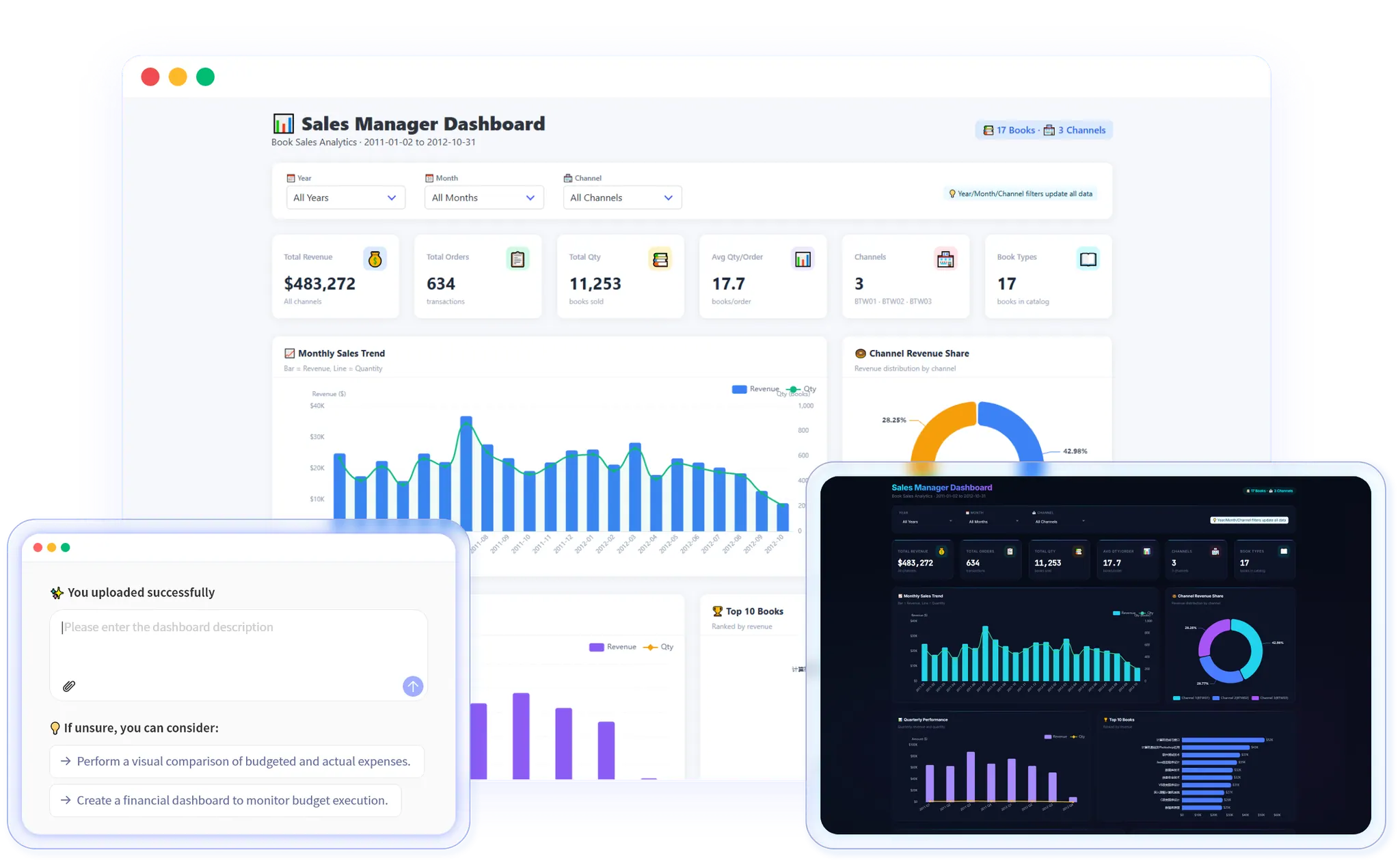
In the recorded dashboard, product sales and payment value appear as separate cards rather than being treated as the same measure. The dashboard also shows orders, items sold, average order value, a sales-versus-payment trend, payment methods, and filters for date, order status, payment method, and product category. It keeps the currency in Brazilian reais because that is how the sample data is recorded.
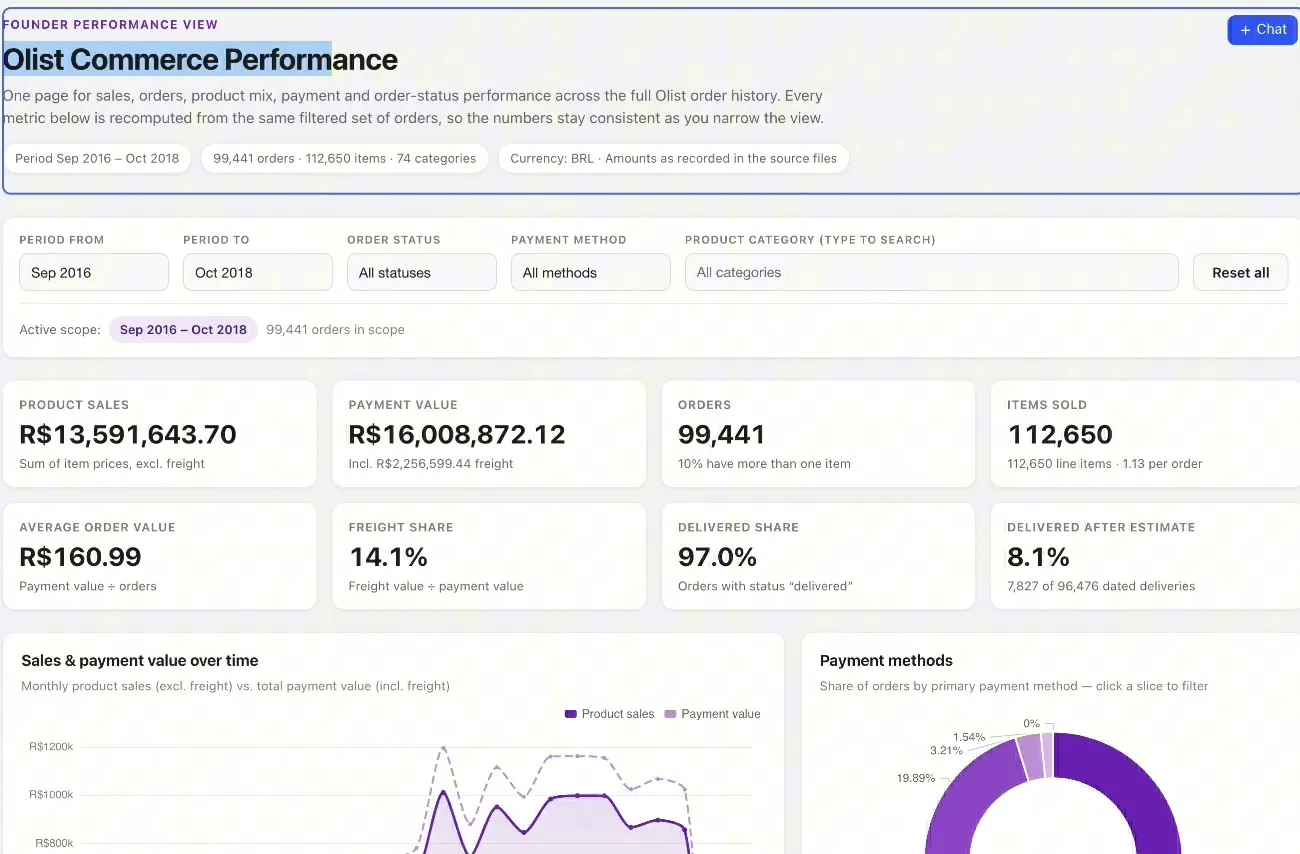
The dashboard itself explains an important limitation: these files do not contain everything needed to calculate profit, advertising return, or customer acquisition cost. It uses product-category sales rather than pretending that product names or SKUs are available. That distinction matters much more than squeezing another chart onto the page.
How to make your own Stripe and Shopify dashboard
1. Export the files you already use
Start with a Shopify order export and a Stripe payment or transaction export for the same period. If you need a specific question answered, include the relevant additional export: for example, item-level product detail for a product breakdown or refund records for a refund analysis. File names and available columns vary by the report you choose.
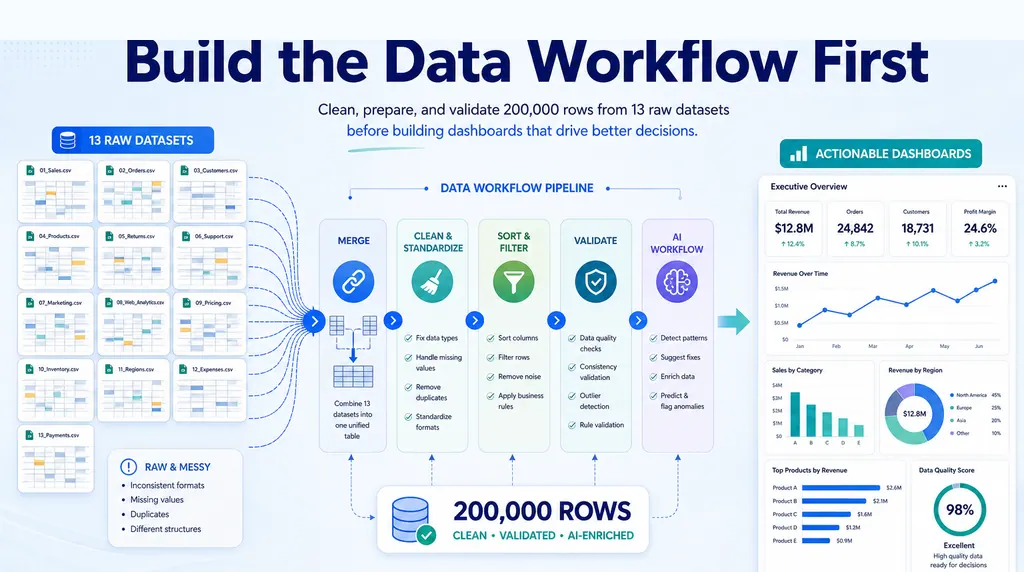
Do not spend the morning renaming headers or building a lookup table first. Keep the original files so you can compare the dashboard with the source later. For repeatable reporting, use the same date window and report type each time.
2. Upload both files and ask for the outcome
Open RowSpeak's Excel to Dashboard feature, upload the files, and describe the output you need. You do not need to tell RowSpeak which column is the date, which field is the order ID, or how to join the files. Ask in business terms and let it work from the files. The screenshot below shows the sample Olist files uploaded beside a plain-English dashboard request; your own files would be Shopify and Stripe exports instead.
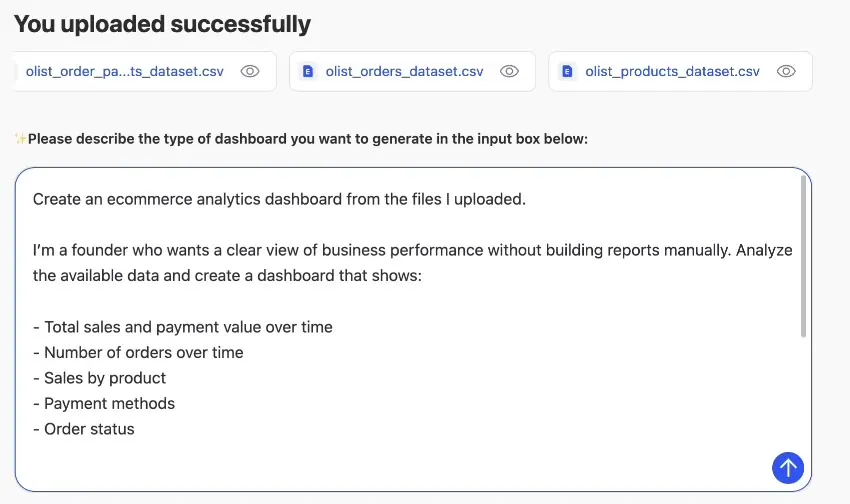
Copy and adapt this prompt:
Create a founder-friendly ecommerce analytics dashboard from the Shopify and Stripe exports I uploaded. Show sales and payment value over time, order volume, average order value, and the biggest changes from the previous comparable period. Include product or category performance if the files support it. Keep order sales, payment value, refunds, fees, and payouts separate rather than treating them as interchangeable. Label the source and definition of each key number, flag mismatches worth checking, and tell me which requested metrics cannot be calculated from these files. Add a short plain-English summary of what needs my attention.
That is the entire setup request. You describe the result; RowSpeak interprets the uploaded files and builds the dashboard. You can then ask a follow-up if you want a different comparison or chart. For an example of turning dashboard results into a written update, see the AI reporting workflow.
3. Review the dashboard before sharing it
You do not have to prepare fields for RowSpeak, but you should review the output before acting on it. Check these points in a minute or two:
- Period: Do both exports cover the same dates and time zone?
- Units: Is each chart using the right currency? Are order counts separate from line-item counts?
- Definitions: Does “sales” include shipping or tax? Is “average order value” based on sales or payments?
- Exceptions: Are canceled orders, refunds, test transactions, and duplicate records handled as you expect?
- Coverage: Does the product breakdown actually have order-level item data? Are fees or costs present before a net or profit figure is shown?
The example dashboard changes its cards and charts when the Order status filter is set to Processing. That makes it easier to inspect a smaller group of orders, but the filtered totals are not the totals for the whole business.
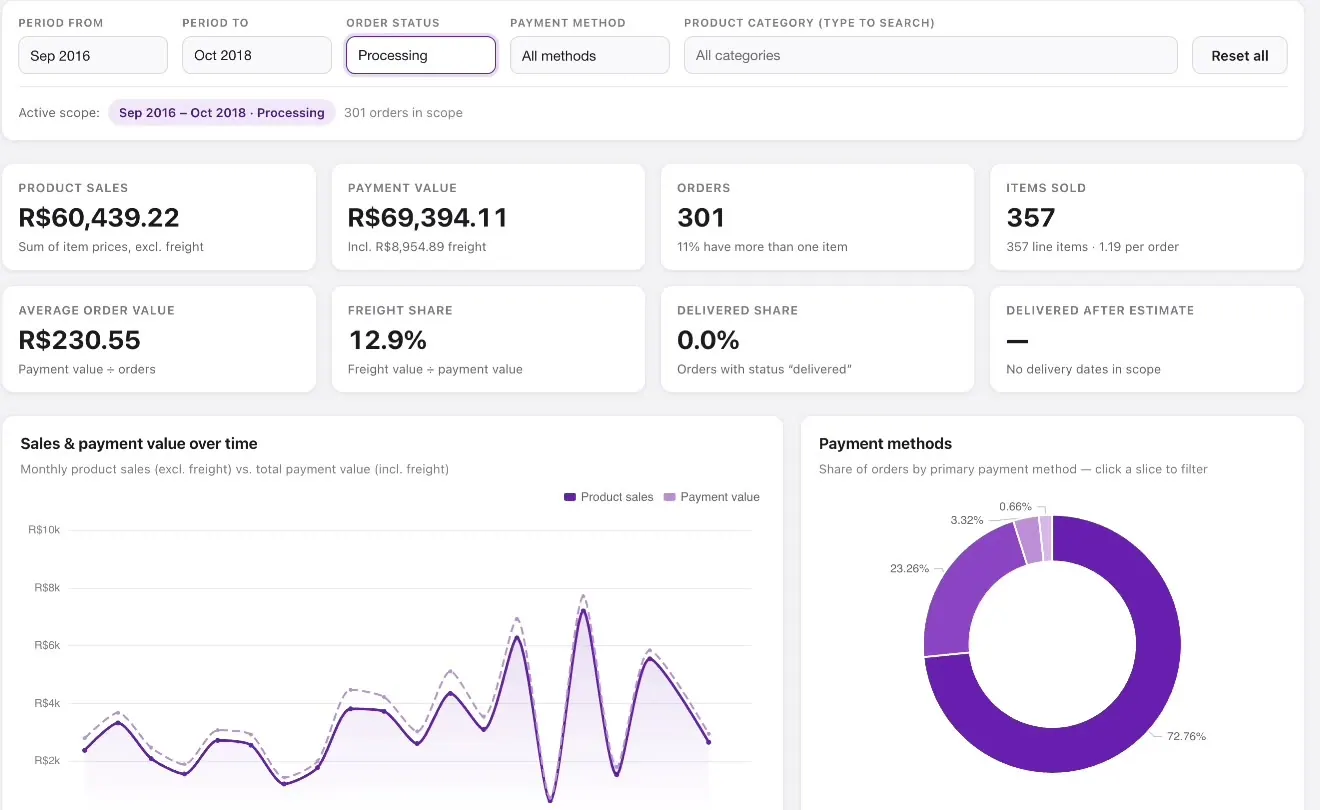
If something is unclear, ask directly: “Explain why this sales total and payment total differ. Show the date ranges and calculation behind each one.” A useful dashboard is one you can question and correct, not merely one you can view.
Which metrics belong on the first dashboard?
For a small team, start with a narrow view. These are good candidates when the relevant data exists:
| Dashboard block | Question it answers | Important boundary |
|---|---|---|
| Sales and order trend | Did performance improve over time? | Show the date range and distinguish order date from payment date. |
| Orders and average order value | Is growth coming from more orders or larger orders? | State which amount is used in the average. |
| Product or category performance | What contributed to the change? | Needs item-to-order detail, not just a product catalog. |
| Payments and payment methods | How did customers pay? | Do not silently equate payment value with product sales. |
| Refunds or cancellations | Is there a growing quality or service issue? | Show only when the exports include reliable status or refund data. |
| Founder summary | What should I investigate next? | Tie every conclusion back to a visible metric. |
The recorded Olist example also includes delivery status and freight share because those fields are available in its source files. Your Shopify and Stripe exports may support different blocks. The right dashboard follows the data you have, not a fixed template that invents missing metrics.
Turn the dashboard into a weekly founder report
The chart is the starting point. To make it useful in a meeting, ask for a short update with four parts:
Using this dashboard, write a weekly founder update in plain English. Give me: (1) what changed in sales, orders, and payments; (2) the biggest product or category contributors if the data supports them; (3) any mismatch or exception that needs verification; and (4) one specific question to investigate next week. Do not infer profit or customer acquisition cost without expense data.
For example, the update might identify an unusually strong sales month, point to the categories behind it, and note that payment value includes amounts not counted in product sales. It should not announce that the difference is profit. The exact conclusion depends on the files and date window you uploaded.
For a recurring process, save your source exports, note the period used, and repeat the same request next week. Your job is to review the changing story, not rebuild the charts from scratch. If your team also needs the underlying sales-reporting workflow, this sales report guide goes deeper on recurring output.
When is this better than Excel or a BI project?
Excel remains useful when you need a one-off calculation or want to inspect individual rows. A full business intelligence setup makes sense when you have stable, connected systems, a dedicated owner, and reports used across many teams. A generic chat answer can help you brainstorm questions, but a founder usually needs to see the numbers, revisit the filters, and question the result.
RowSpeak fits the space between those options: you already have the exported files and want a reviewable dashboard without first building a reporting pipeline. It works from the files you upload; this is not a claim of a live Stripe or Shopify integration. If the file cannot support a requested metric, the honest next step is to supply the missing data or change the question, not to accept a confident-looking estimate.
Create your own ecommerce dashboard
Ready to see what your own numbers say? Export Shopify orders and Stripe transactions for the same period, upload both files to RowSpeak, and use the founder-dashboard prompt above. RowSpeak will work from the files to create a dashboard; you can then check the sales and payment definitions and ask what changed.