It is the third working day of the month. You have a Budget vs Actual export from the accounting system where someone renamed half the departments, a PDF of last month's supplier invoices, and a message from your manager that says, in full: "What changed?"
You do not need a new platform to answer that. You need to know which parts of the job AI can take off your hands, and how to be sure the numbers it gives back are right.
Key takeaways:
- After reading this you will be able to sort your own finance tasks into "safe to hand to AI", "hand over but check closely", and "do not delegate".
- You will have a copyable prompt that turns a Budget vs Actual file into a ranked variance table and a short management summary.
- You will have a five-point review checklist that catches the most common ways an AI answer looks right and is wrong.
- You will know which tool category fits your situation, including when a free, no-install option is enough and when it is not.
Can AI actually do financial analysis?
Yes for a specific and useful slice of it, and no for the part that carries your name.
AI is genuinely good at the work that is repetitive, rule-based, and document-heavy: pulling numbers out of a PDF, reconciling two lists, ranking variances, spotting the three line items that moved, and drafting the paragraph that explains them. That is a large share of the hours in a normal close.
AI is not the right owner of judgment calls: whether a variance is material, what a reasonable valuation is, which accounting treatment applies, how to define a metric, or anything you would sign. It will produce a confident answer to all of those questions, which is exactly why they need a person.
The practical framing is not "can AI do financial analysis" but "which parts of my analysis still need me". Usually it is the first five minutes (deciding what question matters) and the last ten (checking and taking responsibility for the answer). The middle hour is the part worth automating.
Match the task, not the vendor
Most tool comparisons line up products and let you guess. It is faster to start from the task in front of you.
| Your task | What AI handles well | What you still do |
|---|---|---|
| Cleaning a messy export | Splitting mixed columns, fixing date formats, flagging duplicates, un-merging headers | Confirm no rows were dropped |
| Pulling numbers out of PDFs or photos | Extracting tables into a usable sheet | Spot-check totals against the source document |
| Budget vs Actual and month-over-month | Ranking variances, grouping by department, drafting the explanation | Decide what is material and why it moved |
| Forecasting | Projecting a trend, running a few scenarios | Set the assumptions and sanity-check the shape |
| Finding anomalies | Surfacing outliers across thousands of rows | Judge whether each one is an error, a risk, or normal |
| Recurring monthly reports | Repeating the same analysis on next month's file | Review once per cycle, not line by line |
| Audit evidence and disclosure checks | Matching documents to schedules with traceable links | This needs purpose-built audit software, not a general tool |
That last row matters. If your work is external audit, internal audit, or SOX evidence, you need a platform built for evidence linking and audit trails, such as DataSnipper. A general analysis tool will not give you the traceability your file reviewer expects. The rest of this guide is about the other rows: FP&A, management reporting, and business analysis.
Which AI should you use?
Four categories, and the honest tradeoffs.
General AI chat (ChatGPT, Claude, Gemini). Flexible and cheap, good for explaining a concept or drafting a formula. Weaker when the file is large or messy, and hard to repeat reliably next month. Check your company policy before uploading financial data.
AI inside Excel (Copilot). No new tool to learn and it sits where your model already lives. Needs the right Microsoft 365 licence, works best on clean tabular ranges, and tends to struggle with the kind of export that has three header rows and merged cells.
Excel add-ins (DataSnipper, Datarails). Powerful and genuinely Excel-native. The catch that vendor comparison tables rarely mention: an add-in needs IT approval, a desktop Excel install, and often a Windows machine. If your laptop is locked down or your team is on Mac or Excel for web, "Excel-native: Yes" is a blocker rather than a feature.
File-based AI workspaces (RowSpeak). You upload the file as it came to you and ask the question in plain English. Nothing to install, so nothing to get approved. The tradeoff is that it works on files you upload rather than connecting directly to your systems.
Full BI (Power BI, Tableau). The right home for a dashboard that many people read every week, once your data is clean and in a warehouse. Heavy setup if what you actually have is a monthly export. If you are weighing this against a lighter path, compare it with a business intelligence workflow or an Excel-to-dashboard process.
Most small and mid-size finance teams are in the fourth or fifth category and get sold the third. If you receive files rather than query a warehouse, start with something that reads files.
A worked example: variance analysis in one pass
Here is the whole workflow on a file that looks like a real one.
Your input:
| Month | Department | Account | Budget | Actual | Owner |
|---|---|---|---|---|---|
| Jan | Sales | Travel | 18000 | 24,750 | RevOps |
| Jan | Support | Software | 12000 | 9800 | Support Ops |
| Jan | Marketing | Paid Media | 60000 | n/a | Growth |
| Feb | Marketing | Paid Media | 60000 | 72800 | Growth |
| Feb | sales | Travel | 18000 | 21,100 | RevOps |
Note what is wrong with it, because your real file has the same problems: Actual mixes numbers with text and commas, one value is missing, and "Sales" and "sales" will be counted as two departments.
The prompt:
This is a Budget vs Actual file. Before analysing:
1. Clean the Actual column into numbers and tell me which rows you changed.
2. Treat department names as case-insensitive and tell me which ones you merged.
3. List any rows with missing values and exclude them from totals, do not guess.

Then:
4. Rank the largest unfavourable variances by department and account, in both currency and percentage.
5. For each of the top three, state what the file does and does not tell me about the cause.
6. Write a five-sentence summary I can send to a budget owner.
7. End with the row count before and after cleaning, and the Budget and Actual totals.
Steps 1 to 3 and step 7 are the difference between a prompt that looks impressive and one you can trust. You are asking the tool to show its work before it shows its conclusion.
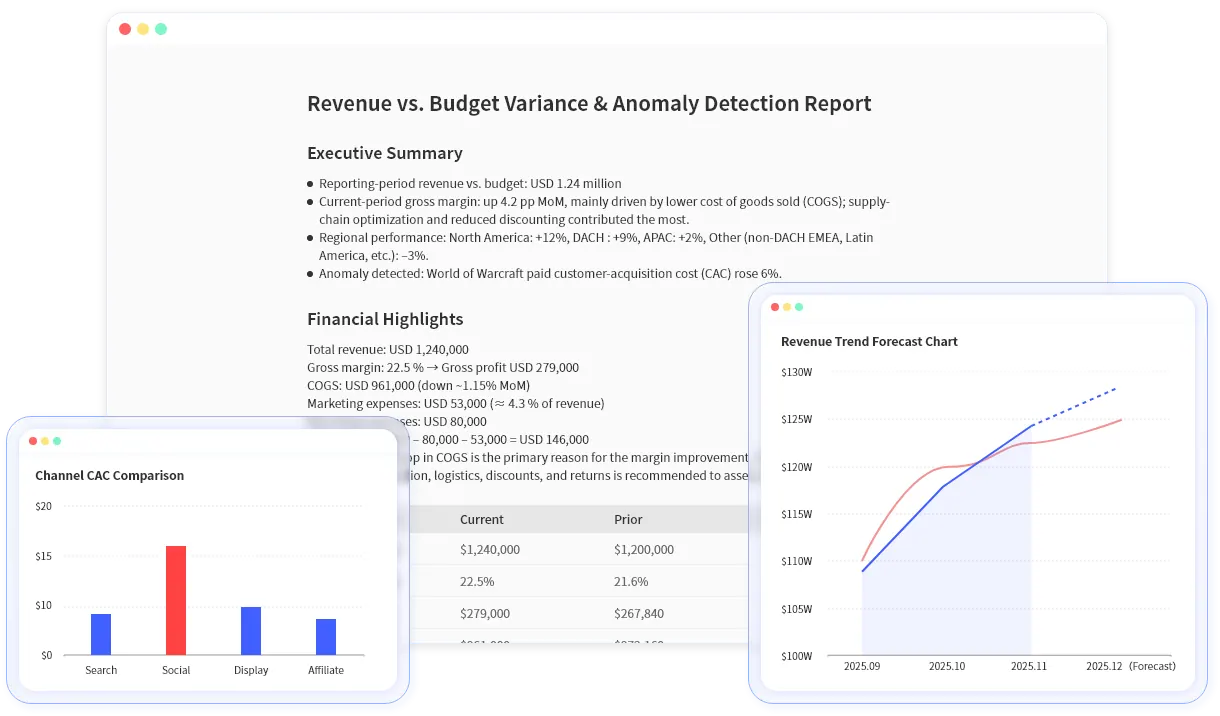
Here is what that looks like in practice. The file goes in, and the first thing back is a report of what was changed, not a conclusion:
That demo uses a general registry file rather than a Budget vs Actual export, but the sequence is the one that matters: upload, a stated list of what was standardised and which cells were filled, then a downloadable .xlsx. Your variance analysis should start the same way.
What a good answer gives you:
- A ranked variance table, with Marketing Paid Media at +12,800 (21% over) as the largest.
- A note that the Jan Paid Media row was excluded as missing, so January is not comparable.
- A note that two
Actualvalues were parsed from text, and that two department spellings were merged. - A short summary in plain language, with no invented causes.
- Row counts and totals you can tie back to the source file.
If the answer skips the caveats and goes straight to a tidy chart, that is a signal to distrust it, not to be impressed by it.
The review checklist
This is the part most AI finance articles leave out, and it is the part that protects you. Five checks, two minutes:
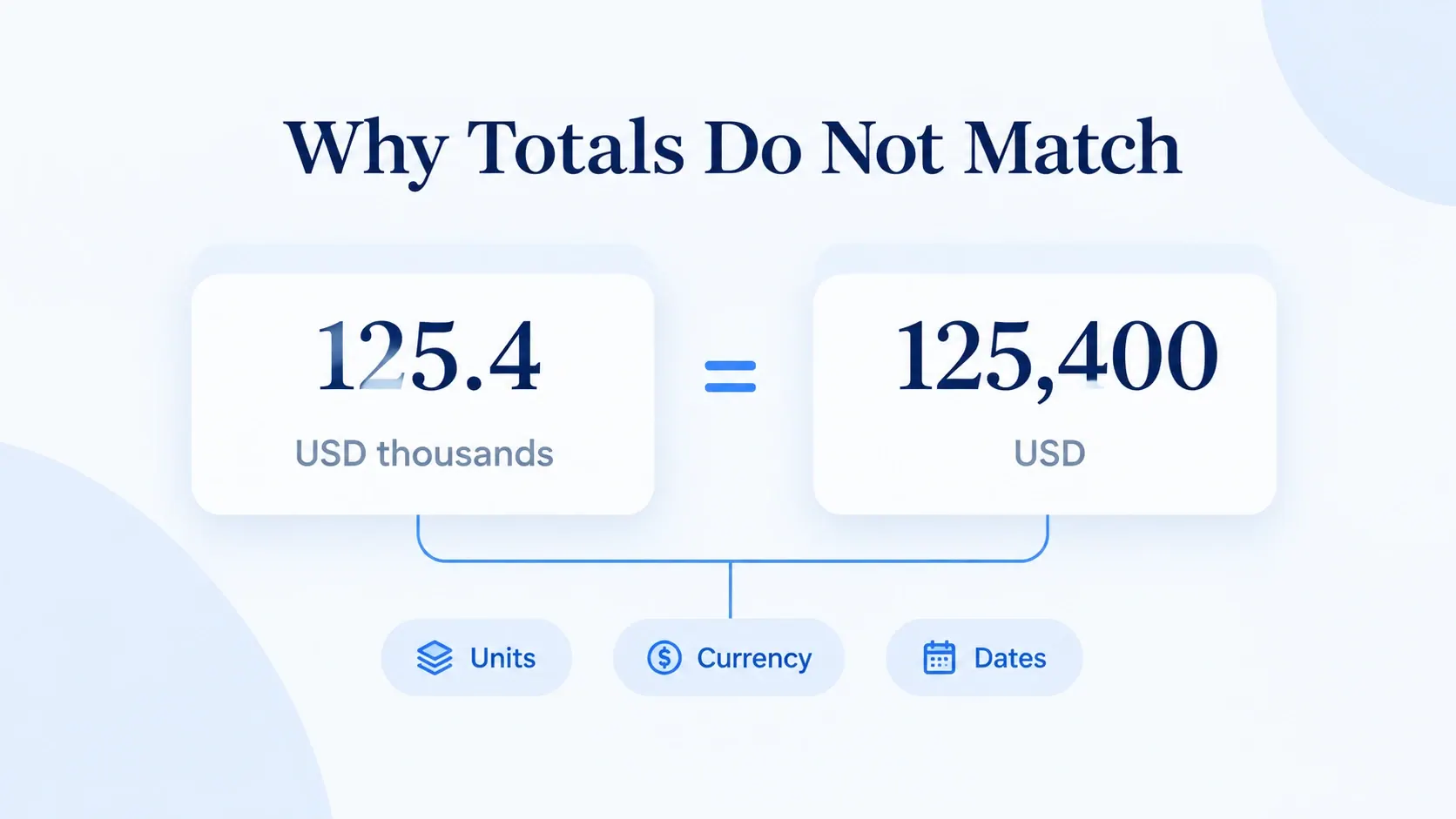
- Tie the totals back. Sum Budget and Actual in the original file and compare with the AI's totals. If they differ and nothing was deliberately excluded, stop.
- Count the rows. Rows before cleaning, rows after. Anything silently dropped is a problem, especially if a filter removed a whole department.
- Check the denominator. "Marketing is 21% over" against what, the monthly budget or the annual? Percentage errors come from a quietly changed base more often than from bad arithmetic.
- Spot-check two numbers by hand. Pick the largest variance and one random row. Recalculate them yourself. Two matches is strong evidence the whole table is right.
- Confirm the comparison basis. Month-over-month, quarter-over-quarter, year-over-year, and versus-budget tell four different stories. Make sure the one in the summary is the one you asked for.
Check 3 is the one that catches people, because nothing on screen looks broken. Both of these sentences are arithmetically correct, cite the same variance, and only one of them answers the question you asked:
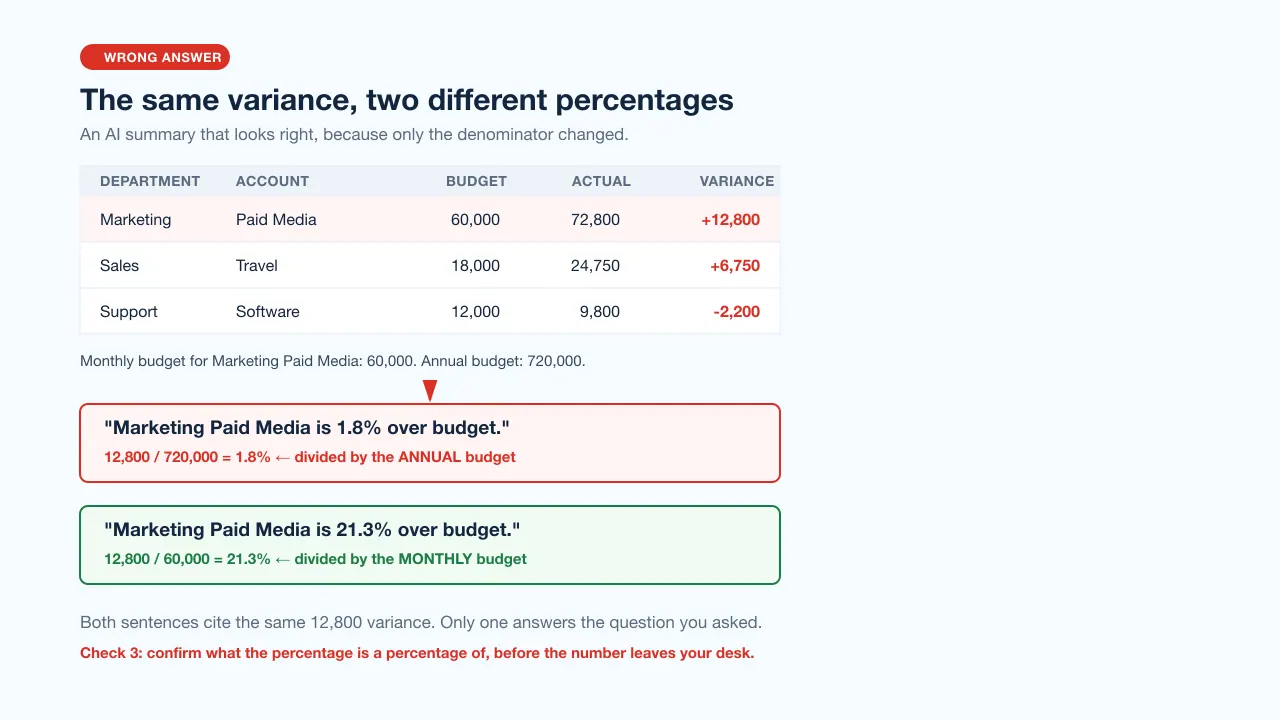
A variance of 1.8% gets filed. A variance of 21.3% gets a meeting. If you skip check 3, the version that reaches your manager is whichever one the tool happened to pick.
Write down anything that was excluded or merged and put it in the note you send out. A variance summary with "January Paid Media excluded, no actual recorded" at the bottom survives questions. One without it does not.
Common mistakes
- Asking for the conclusion before the cleaning. "Explain the variances" on a dirty file produces confident nonsense. Clean first, in the same prompt.
- Accepting the first answer when the file was ambiguous. If the tool had to guess which column was the actual, it may have guessed wrong. Ask it what it assumed.
- Letting a definition drift between months. If last month's report grouped travel under Sales and this month's splits it out, the trend is an artefact. Keep the prompt and reuse it.
- Uploading data you should not. Customer names, employee salaries, and unreleased results deserve a check against your own policy first. Remove identifying columns when the analysis does not need them.
- Treating a draft narrative as a finished one. AI writes the paragraph. You own what it says.
Data safety, in practical terms
Certifications are worth checking, but they are not the whole question. Before you upload a real finance file, get answers to four things:
- Where is the file stored, and is it encrypted?
- Is your data used to train the vendor's models?
- How long is it retained, and can you delete it?
- Who inside your organisation can see what you uploaded?
For RowSpeak specifically: uploaded files are stored in encrypted object storage and are not used for model training. That answers two of the four. The other two are worth asking of any vendor you are considering, including the ones in this guide.
Where RowSpeak fits
RowSpeak is a file-based workspace for exactly the situation in the opening paragraph: the file is messy, it arrived as an export or a PDF, and you need a reviewable answer rather than a new system.
It fits when:
- Your monthly inputs are Excel, CSV, PDF, or screenshots rather than a clean BI model.
- You cannot install an Excel add-in, or do not want to wait for IT approval.
- You need the analysis, a chart, and a paragraph you can send, from one pass over the file.
- You want to re-run the same recurring report next month without rebuilding it.
- You need a management report that a leadership team will actually read.
Three things worth knowing before you try it. Existing formulas in your uploaded workbook are not deleted, and exported .xlsx files keep their formulas, so your model survives the round trip. There is no direct Google Sheets connection, so Sheets users export to xlsx or csv, upload, then re-import the result. And it is not audit software: if you need evidence linking at the document level, use a purpose-built audit platform.
The free tier is 10 conversations a month with no credit card, which is enough to run this variance workflow on a real file and judge it on your own data rather than a demo.
Your next step
Pick one report you already produce every month. Run the prompt above on last month's file, then run the five review checks against the original. You will learn more in fifteen minutes about whether AI helps your particular workflow than from any comparison table, including this one.
Try it on your own variance file
Upload last month's Budget vs Actual export, paste the prompt from this article, and run the five checks against the source. Ten conversations a month are free and no credit card is needed, so you can judge it on your real data rather than a demo.
Related reading: AI finance tools for Excel for a tool-by-tool comparison, the free AI forecasting tutorial to project the next 12 months, and how to audit AI-generated Excel reports for a deeper review process.
Frequently asked questions
Which AI is best for financial analysis? There is no single best one, because the tools solve different parts of the job. For audit evidence, use purpose-built audit software. For a dashboard many people read, use BI. For messy monthly files that need to become a reviewable answer, use a file-based workspace such as RowSpeak. For explaining a concept or drafting a formula, a general AI chat is fine.
How do I use AI for financial analysis? Upload the file, ask the tool to clean and report what it changed before analysing, then ask your actual question. Finish by checking totals, row counts, the percentage denominator, two hand-recalculated numbers, and the comparison basis. The checklist above covers all five.
Which AI model is best for financial analysis? Model choice matters less than file handling. A strong model that cannot read your three-header-row export will lose to a weaker one wrapped in a workflow that cleans the file first. Judge the tool on what it does with your real file, not on which model is inside.
Can AI replace a financial analyst? No. It removes the middle hour of the work, which is the cleaning, the ranking, and the first draft. Deciding what question to ask and taking responsibility for the answer is still the job.
Is it safe to upload financial data to an AI tool? It depends on the vendor and on your own policy. Ask where the data is stored, whether it trains models, how long it is kept, and who can see it. Remove columns the analysis does not need, especially personal data.