Most forecasting tutorials start by asking you to build a model. This one starts with the file you already have: a sheet of monthly revenue or spend, probably exported from your accounting system, probably a bit messy.
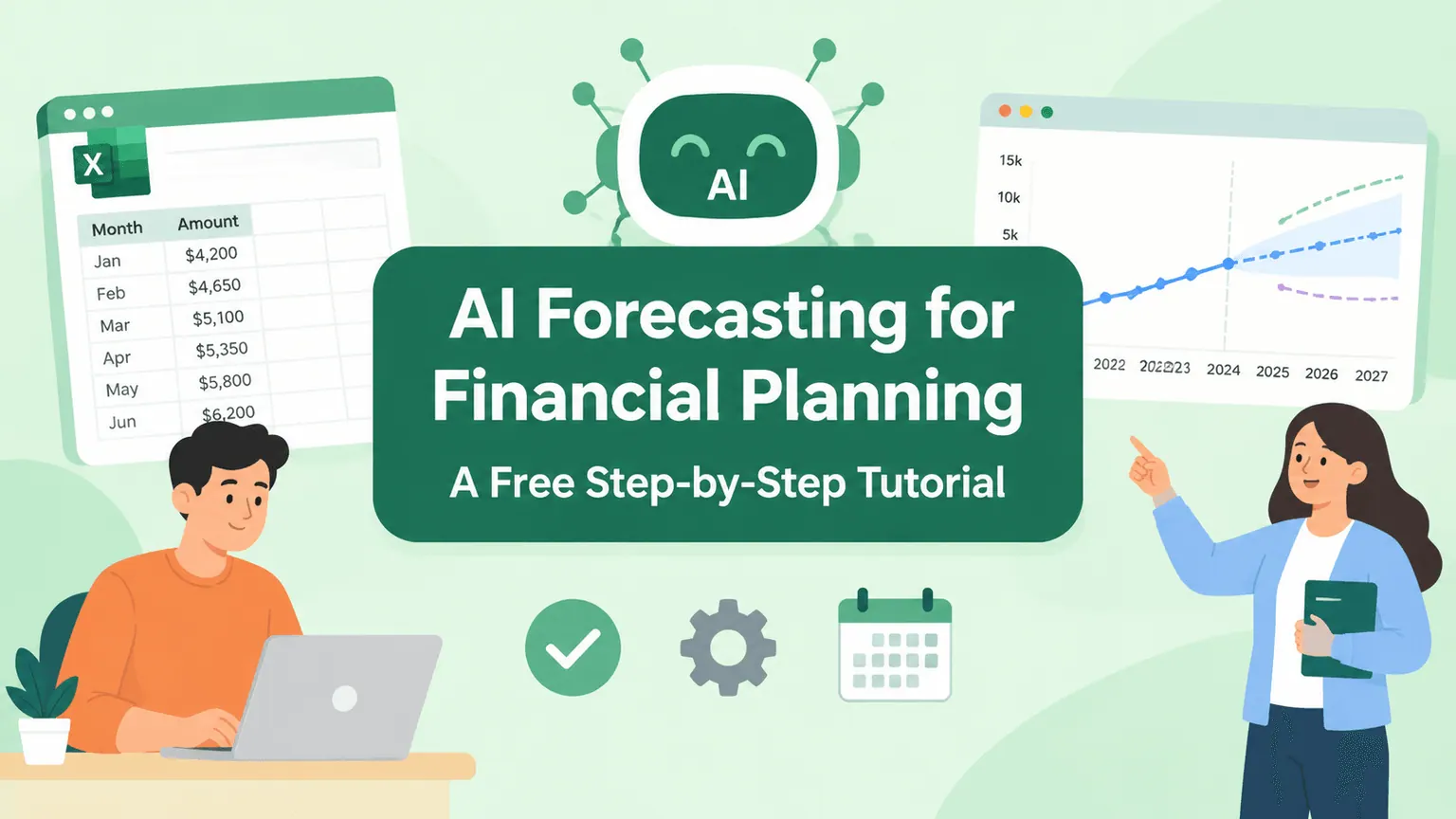
By the end you will have a 12-month forecast, two scenarios around it, and a way to tell whether the numbers are believable. It costs nothing to follow along.
Key takeaways:
- You will produce a 12-month forecast from historical monthly data, with no formulas written by hand.
- You will add a best case and a worst case, and understand what actually changed between them.
- You will be able to answer the question every forecast gets asked: "why this number?"
- You will know the four situations where a forecast like this should not be trusted.
What you need before you start
Three things, and the first one is the only one that matters:
- Monthly history, one row per period. Twelve months minimum, twenty-four is much better. Two columns is enough: the month, and the number you want to forecast. If your history only exists as a PDF report, convert it to a sheet first.
- A tool that reads files. This tutorial uses RowSpeak financial forecasting because the free tier covers the whole exercise, but the prompts work in any AI tool that can read a spreadsheet. If you are deciding between tools, our guide to AI for financial analysis compares the categories.
- Fifteen minutes.
You do not need to know what a time series is, and you do not need to pick a forecasting method. That is the part the tool handles.
Your file should look roughly like this:
| Month | Revenue |
|---|---|
| 2024-01 | 182,400 |
| 2024-02 | 176,900 |
| 2024-03 | 205,300 |
| ... | ... |
| 2025-12 | 268,100 |
If your months are spread across columns instead of rows, or you have a separate sheet per quarter, do not reshape it by hand. Step 1 handles that, and a data cleaning pass is part of the workflow rather than a prerequisite.
Step 1: Get the file into shape, and find out what is wrong with it
Paste this first. Resist the urge to skip to the forecast.
This file contains monthly financial history. Before any forecasting:
1. Identify the date column and the value column, and tell me which you chose.
2. Reshape the data into one row per month if it is not already.
3. List every month that is missing, zero, or blank.
4. Tell me the first month, the last month, and the total number of complete months.
5. Flag any value more than 50% above or below the surrounding months.
Do not forecast yet. Just report what you found.
What you should get back: a clean monthly series, a count of complete periods, and a list of gaps and spikes.
Why this step exists: a forecast built on 19 usable months out of 24, with one duplicated December, will look perfectly smooth and be wrong. You cannot see that in a chart. You can see it in this list.
This is the shape of a good step 1 response: the tool states each field it standardised and which cells it filled, then hands back a file:
Decide before moving on. For each gap and spike the tool found, pick one:
- A spike that was real (a big one-off deal, a refund, a seasonal peak) stays in, but note it.
- A spike that was an error gets corrected or excluded.
- A missing month is either filled from another source or excluded, never guessed.
Tell the tool your decision explicitly. "Exclude 2024-07, the system migration made it unreliable" is a better forecast input than silence.
Step 2: Build the base forecast
Using the cleaned monthly series, produce a 12-month forecast.
- Show the forecast as a table with month and forecast value.
- State which method you used and why it suits this data.
- Tell me whether the history shows a trend, seasonality, or neither, with the evidence.
- Give a range around each forecast month, not just a single number.
- List the assumptions your forecast depends on.
Then plot history and forecast on one chart, with the forecast visually distinct.
What you should get back: twelve forecast months, a stated method, a trend and seasonality read, a range, and a short list of assumptions.
The two parts to actually read are the method and the assumptions. "Linear trend with monthly seasonality from 24 months of history" is a useful thing to know. If the tool cannot tell you what it did, you cannot defend the number.
The range matters more than the point estimate. A forecast of 290,000 with a range of 240,000 to 340,000 is an honest answer to a hard question. A single confident number is not.
For the chart itself, history as a solid line and the forecast as a dashed line with a shaded band is the convention worth following. More on getting that right in charts and graphics.
A finished step 2 looks roughly like this, with the method named in the title and the outliers and month-over-month movement called out alongside the chart:
Note the title says which method was used. That is the detail to look for in your own output.
Step 3: Add scenarios
A plan needs more than one line. This is where forecasting turns into financial planning.
Using the base forecast, build two more scenarios:
- A downside where growth slows to half the historical rate from month 4 onward.
- An upside where the strongest recent trend continues unchanged.
For each scenario show the 12-month total and the final month value.
Then give me one table comparing all three scenarios side by side, and tell me in plain language what has to be true in the real world for each one to happen.
What you should get back: three columns you can put in front of a decision maker, and for each, the condition it depends on.
That last instruction is the one that makes scenarios useful. "Upside requires the Q4 enterprise pipeline to close at the current rate" is something your team can agree or disagree with. "Upside: 3.4M" is not.
Step 4: Pressure-test it
Four checks before this leaves your desk.
Does it beat the obvious answer? Ask: What would the forecast be if I simply assumed next year matches last year plus the average growth rate? How does your forecast differ, and why? If the sophisticated answer is nearly identical to the naive one, use the naive one. It is easier to explain.
Does it hold up on data it has not seen? Ask: Rebuild the forecast using only the data up to 12 months before the end of my history, then compare your prediction with what actually happened. This is the single most informative test you can run. If the method missed the last twelve months badly, it will probably miss the next twelve too.
Is the shape plausible? Look at the chart, not the table. Does it keep the seasonal pattern your business actually has? Does December spike if December always spikes? A forecast that flattens into a straight line has usually lost the seasonality.
Is the total sane? Compare the 12-month forecast total with the last 12 months of actuals. If it implies 60% growth, something upstream is wrong, or you have a genuinely remarkable year ahead and should be able to say why.
When not to trust this forecast
Four situations where the method in this tutorial does not apply, and a statistical forecast will mislead you:
- Fewer than 12 months of history. There is nothing for the tool to learn a pattern from. Use a driver-based estimate instead: units times price, headcount times cost.
- A structural change. A new pricing model, an acquisition, a market you just entered, or a product you just discontinued. History is no longer describing the same business.
- The number depends on a few known events. If next quarter's revenue is three enterprise deals that either close or do not, a trend line is the wrong instrument. Forecast the deals.
- Someone will be held to it. A board commitment or a covenant calculation needs a model with explicit drivers that a human owns, not a projection. Use this forecast to challenge that model, not to replace it.
Common mistakes
- Forecasting before cleaning. Step 1 exists for a reason. Gaps and duplicates hide perfectly inside a smooth chart.
- Dropping a one-off without saying so. Excluding a huge one-time deal is often correct. Doing it silently means next quarter nobody remembers why the baseline moved.
- Mixing up the comparison. A forecast against last year, against budget, and against the previous forecast are three different conversations. Label which one you are showing.
- Changing the prompt every month. If you re-run this in January with different wording, you will not know whether the change in the forecast is real or is you. Save the prompt and reuse it.
- Presenting the point estimate alone. You asked for a range in step 2. Show it.
Doing this every month
The value of the workflow is in repetition, not in the first run. Keep the step 1 to step 3 prompts in a document. Each month, add the new actual, re-run the same prompts, and ask one more:
Compare my previous forecast for this month with the actual result. State the gap in currency and percentage, and tell me which of my stated assumptions turned out to be wrong.
Running that for six months teaches you more about your business than any single forecast does. It is also the one question that makes a forecast process credible to the people reading it.
RowSpeak keeps formulas in exported .xlsx files, so the forecast you download stays a working spreadsheet rather than a flat set of values. The free tier is 10 conversations a month with no credit card, which covers this tutorial end to end, and PDF and image inputs are supported if your history arrives as a report rather than a sheet. Note there is no direct Google Sheets connection: export to xlsx or csv, upload, then re-import the result.
Once the forecast is stable, the natural next step is turning it into something recurring: an automated reporting workflow for the monthly version, or an Excel-to-dashboard view if several people need to watch it.
Next steps
Run steps 1 and 2 on your own file right now, before adding scenarios. Most people find something in step 1 they did not know was in their data, and that is already worth the fifteen minutes.
Build your first forecast free
Upload 12 to 24 months of history, paste the step 1 prompt, and work through to scenarios. Ten conversations a month are free with no credit card, and the exported .xlsx keeps its formulas so you can keep working in Excel afterwards.
Related reading: cash flow forecasting in Excel with AI applies the same method to cash rather than revenue, AI for financial analysis covers variance analysis and reporting, and management reporting turns the output into something leadership reads.
Frequently asked questions
Is there a genuinely free way to do AI financial forecasting? Yes for a workflow this size. RowSpeak's free tier is 10 conversations a month with no credit card, which covers this tutorial. General AI chat tools also have free tiers, though they handle messy spreadsheet files less reliably.
How much history do I need? Twelve months is the minimum for any seasonal pattern to be visible, and twenty-four is where it becomes reasonably reliable. Below twelve, use a driver-based estimate rather than a trend forecast.
How accurate will it be? That depends on your business, not on the tool, and the honest way to find out is the backtest in step 4. Rebuild the forecast on data up to a year ago and compare it with what actually happened. That gives you a real error rate for your own numbers.
Can AI replace FP&A? No. It produces the projection and the first draft of the commentary. Choosing the assumptions, challenging them, and owning the plan is the FP&A job, and it is the part that matters in the meeting.
What is the difference between forecasting and planning? A forecast is your best estimate of what will happen. A plan is what you have decided to do about it, with targets and owners attached. Step 3 is the bridge: scenarios turn one estimate into a set of choices.